What's New in Microsoft 365 Copilot: September 2026
← what changed this month, in plain English
On this page
Three things reversed course, which is unusual. Domain exclusion for web grounding came back after being pulled in August. Two roadmap items were cancelled outright in late August — including one I covered in the August issue as shipping. Each entry below keeps the date Microsoft gave it, and where Microsoft changed its own story, I have said so.
What “94” means here. Every item gets its own numbered section — that is the house rule for this series, and it means the count is not 94 shipped features. It is 55 generally available or rolling out, 10 in preview or the Frontier Program, 11 still marked In development on the roadmap, 2 cancellations, and the rest guidance documents, white papers and planning changes such as the Release Planner retirement, which Microsoft announced once and which has four separate consequences. Most are August items I am catching up on, because Microsoft’s August roundup landed after my August issue went out; a number are September releases and plans; and a few — such as the new connectors in section 18 — carry no Microsoft date at all, which I say where it happens. Every section carries its status on the line under the heading. If you only want what you can use today, that line is the filter.
2026 monthly recaps: January · February · March · April · May · June · July · August · September (you are here)
Screenshot note: images below come from my demo tenant, official Microsoft product imagery, or diagrams I drew myself — each of mine is labelled illustrative, not a screenshot. Your tenant may look different because features roll out at different times and the interface changes often.
Disclaimer: I work at Microsoft, and everything here is my own reading rather than Microsoft’s official position. This is a summary of public announcements and documentation — not official guidance, and not legal advice. Availability and terms change, so check Microsoft Learn for the current word, and talk to your own legal and compliance people before acting on anything in here.
If you only have 2 minutes
Six things explain most of this month:
- Agents on Copilot Studio’s new GitHub Copilot harness use usage-based billing regardless of Microsoft 365 Copilot licensing. The harness went generally available, and agents running on it use usage-based billing for all work, regardless of Microsoft 365 Copilot licensing. Credits are consumed while makers build, preview and evaluate — not only when an agent runs in production. This is the change most likely to surprise someone this quarter.
- Domain exclusion came back. Microsoft announced it on 28 July, rolled it back a week later on 4 August, and turned it on again on 9 September. It is now documented on Microsoft Learn with limits that were not in the original announcement: it understands only two levels of subdomains, and it filters web page results only — news and other verticals can still be cited. If you shelved this in August, you can pick it up again.
- Two more frontier models arrived, in two places. GPT-6 Astra (4 September) and Claude Fable 5.1 (1 September) joined the frontier models in Copilot Cowork and Copilot Studio — Microsoft scopes both announcements to those two surfaces, not to Copilot across the board. Fable 5.1 replaces Fable 5, which the August issue covered as an off-by-default preview.
- Cowork learned to build apps, and to estimate what they are worth. An App skill turns a description into a small interactive app with no code. Separately, the Consumption Dashboard now reports Cowork assisted hours and value across eight task types, with the methodology published.
- Grok joined the model list, switched off. Microsoft added Grok from SpaceXAI as a model choice, added SpaceXAI to its Online Services Subprocessor List, and made the admin setting disabled by default. It is a Frontier Program preview in Word, Excel and PowerPoint, and it is not available in the EU, EFTA or the UK, on government clouds, or on sovereign clouds.
- Microsoft cancelled two things it had promised. Proactive push notifications in the Copilot mobile app — which I covered in August — and Interactive Agents for Teams Meetings and Calls. Both are now marked cancelled on the roadmap.
Also worth knowing: the twice-yearly Power Platform release wave is gone — there is no September 2026 release wave 2, and Release Planner retires by 15 November. And Microsoft quietly renamed this series: its roundup is now What’s New in Microsoft Copilot, not Microsoft 365 Copilot, published on a renamed blog. There is more on that in how this issue was put together.
Admin Checklist - September 2026
Start with these five. They are the items where doing nothing has a cost:
- Check who can spend Copilot Credits in Copilot Studio. Agents on the new GitHub Copilot harness are billed for all work regardless of Microsoft 365 Copilot licensing, and credits are consumed while makers build and test, not just when agents run. Sections 64 to 69 cover the controls. If makers in your tenant are already experimenting, this is today’s job, not this quarter’s.
- Confirm your network allows
*.cloud.microsoft— this one has an October date. The Copilot web app is being redirected fromm365.cloud.microsofttocopilot.cloud.microsoft. Organisations that had the new host blocked get redirected in early October 2026, and if a proxy, firewall or Conditional Access policy still blocks it then, Microsoft says users “may be unable to use the Copilot web app.” Microsoft asks for the whole domain rather than the single host, because it does not support partial allow-listing. Same section covers the Windows Recall filter that does not survive the app rename — see section 11. - Decide about Grok before your users ask. The setting is off by default, so nothing happens until an admin turns it on. Check first whether it can reach you at all: this is a Microsoft Frontier Program rollout in Word, Excel and PowerPoint, and it is not available in the EU, EFTA or the UK, on government clouds, or on sovereign clouds. If it can reach you, SpaceXAI is now on Microsoft’s subprocessor list, and the detail that matters is which route you mean. In Word, Excel and PowerPoint, Microsoft’s Product Terms, DPA and Customer Copyright Commitment apply. The separate Copilot Studio route runs under the xAI Enterprise Terms of Service and Data Processing Addendum instead. Three exclusions apply on the subprocessor route: SpaceXAI keeps its own certifications, the models are not FedRAMP High authorized, and they are excluded from in-country processing commitments. That is a legal review, not a feature toggle. See section 91.
- Re-plan domain exclusion. If you removed it from a rollout plan in August, it is back. Read the limits in section 90 first — the subdomain depth, the web-pages-only scope and the fact that updating replaces rather than merges all change how you would use it.
- Look at the Cowork value reporting. The Consumption Dashboard now puts hours and value against Cowork usage. It is a deliberately conservative proxy, not a finance number, and knowing that before someone puts it in a slide is worth five minutes.
Then, when you have time:
- Check the data exports in the Copilot and Agent 365 dashboards. Two different exports, and Microsoft’s preview labels are not the same: the whole Copilot export is marked public preview, while on the Agent 365 page it is identifiable export specifically that carries the preview notice. The Copilot one gives one row per person per period; the Agent 365 one adds a row per agent per period. Neither is raw prompt-level telemetry. Identifiers are removed by default but an administrator can switch identifiable export on — something to settle before anyone writes “anonymous” into an assessment. See section 93.
- Review the new Copilot connectors. Several are industry-specific, and each one is a new path into your tenant’s grounding data.
- Diary the Release Planner retirement. It retires by 15 November 2026 and saved views do not carry over — sections 86 and 87.
- Note what was cancelled. If proactive mobile notifications or Teams interactive agents were in a plan, take them out.
More admin-facing changes are grouped together from section 90 onwards, and the Copilot Studio governance items run from section 64.
Copilot Chat, Notebooks, Search and agents
1. GPT-6 Astra arrived in Cowork and Copilot Studio
For: Copilot Cowork + Copilot Studio · Rolling out from 4 September 2026
OpenAI’s GPT-6 Astra joined the frontier models available in Copilot Cowork and Copilot Studio. Microsoft’s framing is about delegation: rather than breaking work into small pieces and guiding each step, you hand over a larger task and spend your time reviewing the result.
Microsoft is explicit that the model is only half of it. Work IQ grounds Astra in your files, meetings, chats and business data within existing permissions, which is what separates this from using the same model outside your tenant.
Availability varies by region and organisation, and admins manage access in the Microsoft 365 admin center.
Why this matters: Notice where it landed. Not Chat — Cowork and Copilot Studio, the two places where work is delegated rather than conversed with. That is a fair signal of where Microsoft thinks frontier models earn their cost.
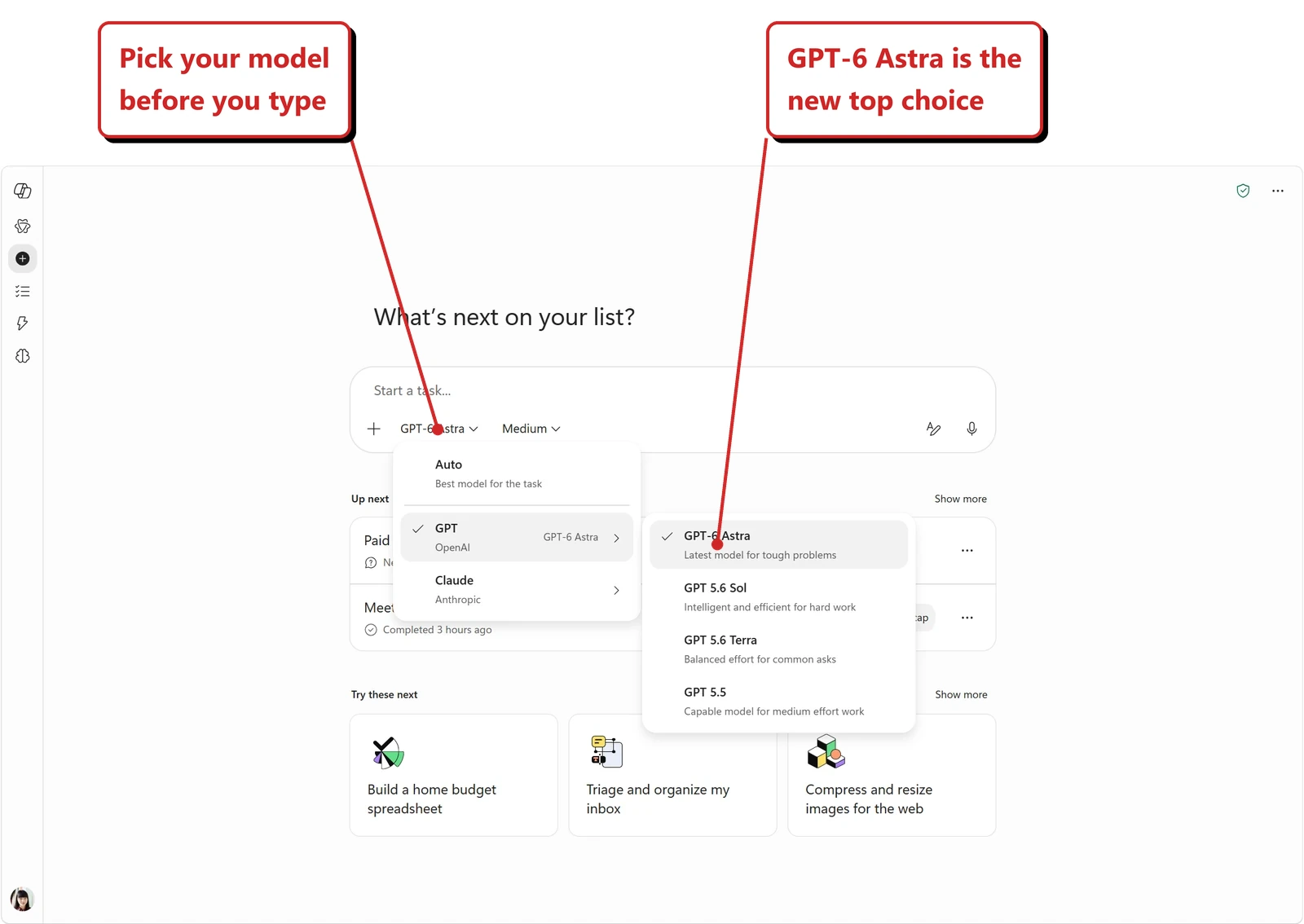
Official Microsoft image from Microsoft’s GPT-6 Astra announcement.
📖 Available today: OpenAI GPT-6 Astra in Microsoft Copilot
2. Claude Fable 5.1 replaced Fable 5
For: Copilot Cowork + Copilot Studio · Rolling out from 1 September 2026
Claude Fable 5.1 joined the same two surfaces. Microsoft describes it as built for long-running work, financial analysis and front-end visual coding, with tighter plans at the start and more concise summaries at the end.
The detail that matters for anyone who read the August issue: Microsoft Learn states Fable 5.1 is “the most advanced model for ambitious work, replacing Fable 5”. August covered Fable 5 as a preview that was off by default and required data retention. If you enabled it then, the model behind that switch has now changed.
Why this matters: A model being replaced rather than added is a different kind of event. Anything you tested, documented or wrote a policy about for Fable 5 is now describing a model that is not there any more — worth a re-test rather than an assumption.
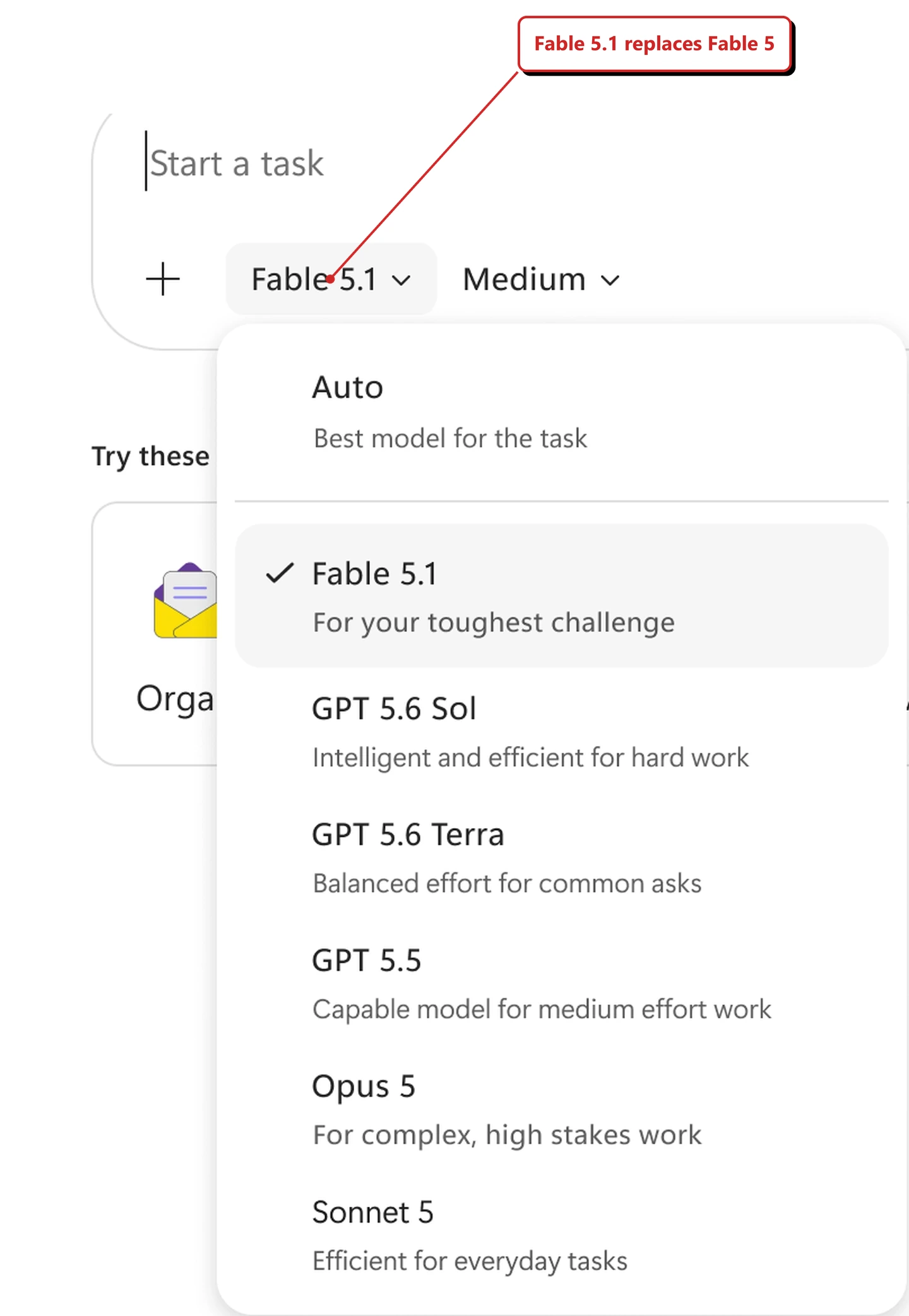
Official Microsoft image from Microsoft’s Claude Fable 5.1 announcement.
📖 Available today: Anthropic Claude Fable 5.1 in Microsoft Copilot · What’s new in Copilot Cowork
3. Web and work chat merged, with a Work IQ button
For: Microsoft 365 Copilot Chat · Generally available 25 August 2026 · Tested in my tenant 14 September 2026
Copilot Chat brought web and work into one chat experience, with a dedicated Work IQ button to bring your organisation’s content into the answer rather than switching to a separate mode.
What I found on 14 September 2026. The toggle is gone.
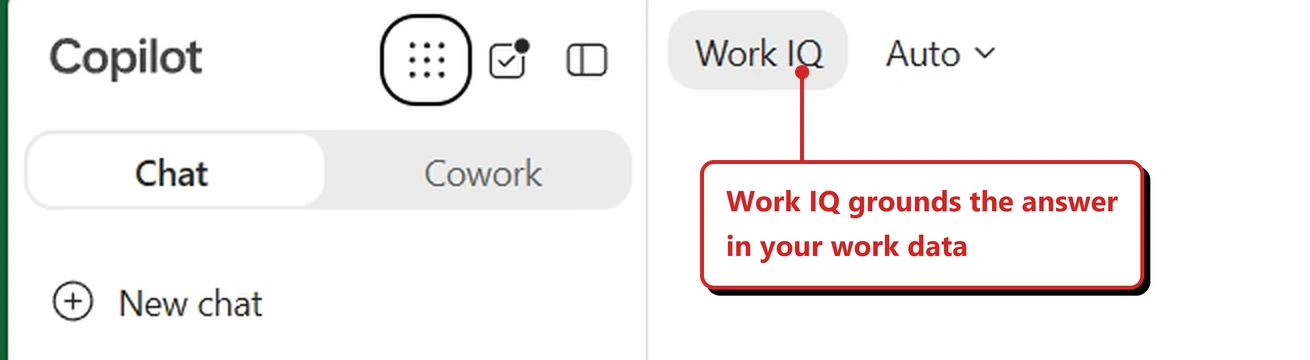
My own tenant, 14 September 2026. One chat, a Work IQ button, and a model picker set to Auto.
There is no web or work switch left in the interface. In its place, at the top of the chat pane, there is a single button marked Work IQ with the model picker sitting next to it on Auto. The left rail has changed shape too: Chat and Cowork are now two tabs of one thing rather than two separate places to go.
I cannot tell from a still image whether that button was on or off at the moment I took it, and that is worth saying rather than guessing. Microsoft does answer it in the release notes, though: work data is on by default. So the starting position is that your organisation’s content is already in scope, and the button is there to take it out of scope rather than to opt in — which is the opposite of how the old work toggle felt. What I can say is that the thing people got wrong for two years, which was not knowing which mode they were typing into, is no longer something you can get wrong by accident. There is one box, and one clearly named control that decides whether your own organisation’s content is in scope.
Why this matters: The web/work toggle was the single most confusing thing about Copilot Chat for new users. People did not know which mode they were in, so they did not know why the answer was wrong. One box with an explicit control is a much easier thing to teach.
📖 Microsoft 365 Copilot release notes
4. You can select part of a Copilot answer
For: Microsoft 365 Copilot Chat · Rolled out August 2026
Text selection lets you select a sentence, paragraph or table inside a Copilot response and preview the selection before acting on it.
Why this matters: Most answers are partly useful. Being able to take the good paragraph without the surrounding padding is the difference between copying a response and using one.
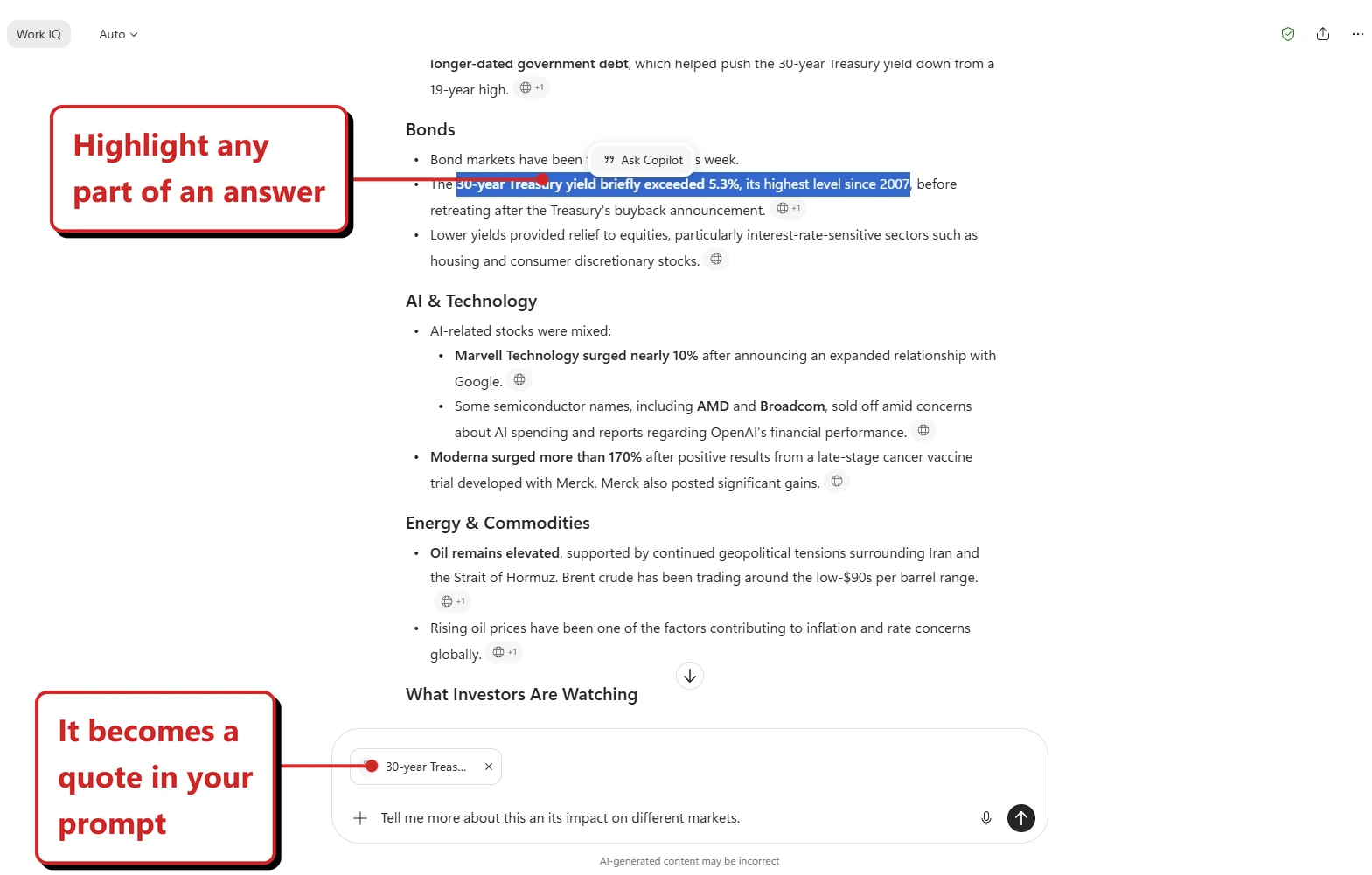
Official Microsoft image from Microsoft’s August 2026 Copilot roundup.
📖 Microsoft’s August 2026 Copilot roundup
5. You can share a whole chat, and the other person can continue it
For: Microsoft 365 Copilot Chat · Rolled out August 2026
You can share a full chat session via a link, and the recipient opens their own copy that they can carry on from where you left it. The shared copy is a snapshot: Microsoft’s share dialog warns that anyone in your company with the link can open a copy, and that it will not update as your original conversation continues.
Why this matters: Until now, sharing Copilot work meant pasting the output and losing the reasoning. Passing the whole session across means the next person can see how the answer was reached and push it further, rather than starting again.
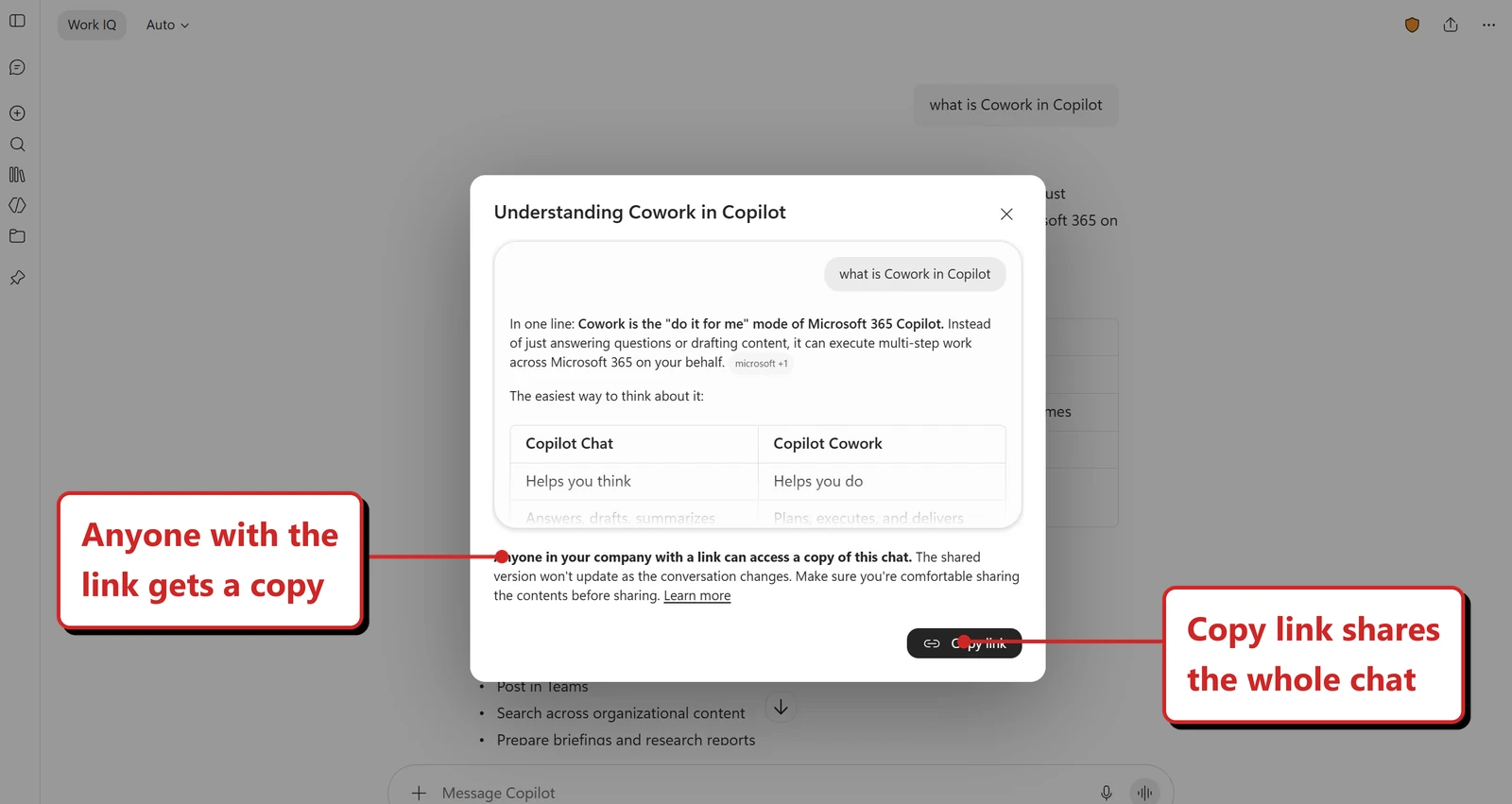
Official Microsoft image from Microsoft’s August 2026 Copilot roundup.
📖 Microsoft’s August 2026 Copilot roundup
6. Individual responses can be shared on their own
For: Microsoft 365 Copilot Chat · Rolled out August 2026 · Tested in my tenant 14 September 2026
Microsoft’s description is that a single response can be shared by link from the More options menu, without sending the whole conversation.
What I found on 14 September 2026. It is there, and it carries a label worth noticing.
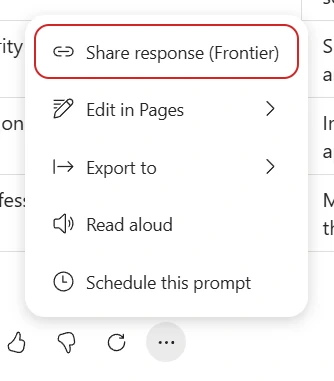
My own tenant, 14 September 2026. The per-response menu, with the share item circled.
Hover a single answer, open the three dots beneath it, and the first item reads Share response (Frontier). That bracket matters. Frontier is the early access programme tenants opt into, so this arrives there first rather than everywhere at once. If you cannot see it, that is the likeliest reason. The rest of the menu is worth a look on its own: edit in Pages, export, read aloud, and schedule this prompt.
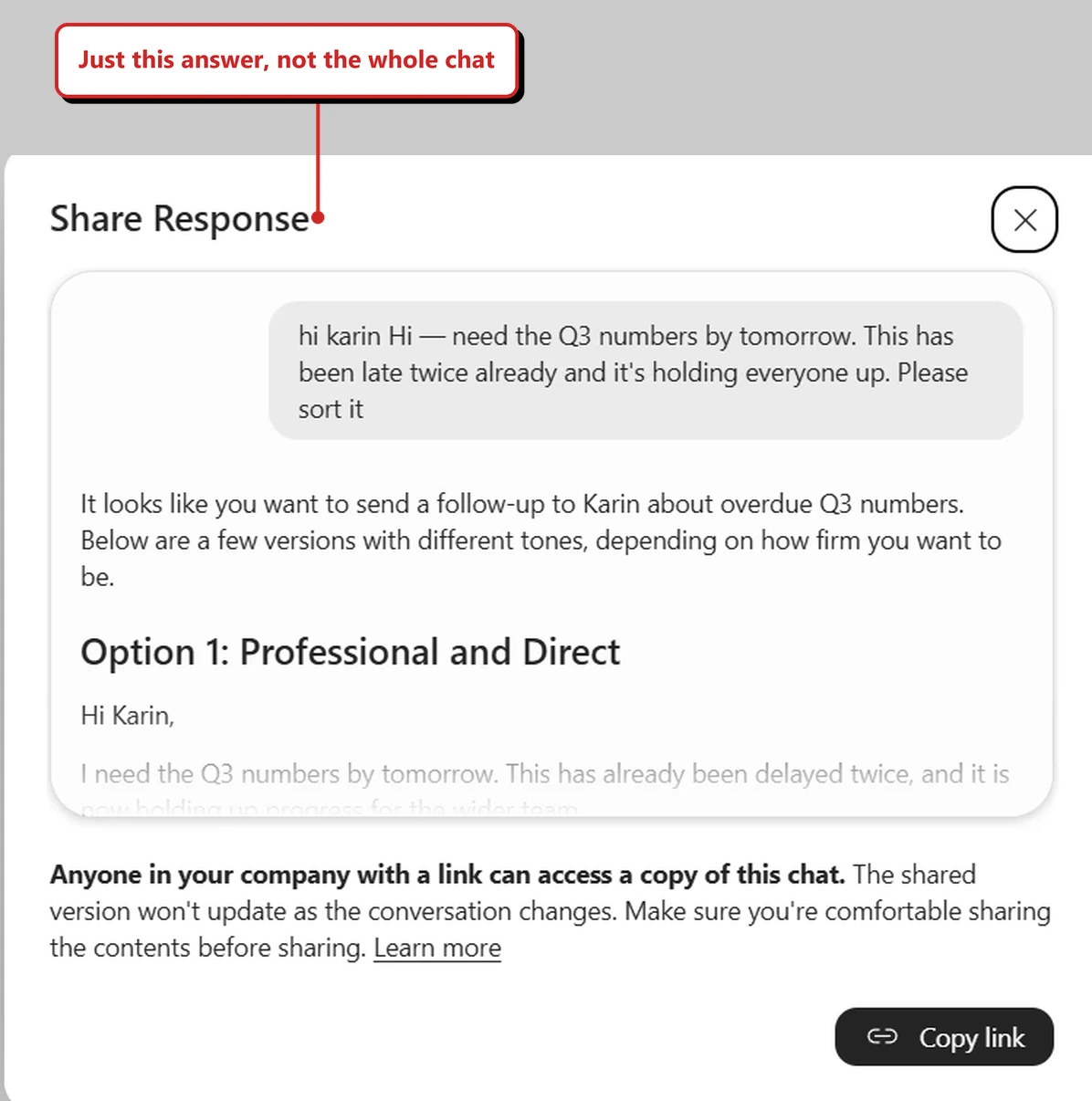
My own tenant, 14 September 2026. The share dialog. My red callout is my reading of the preview; Microsoft’s own line underneath it says “a copy of this chat”.
The dialog previews what you are about to hand over, which I liked. In my case it showed the prompt and the one answer it produced, and nothing else from the thread.
Then the line underneath, which is worth reading twice:
Anyone in your company with a link can access a copy of this chat. The shared version won’t update as the conversation changes.
Three things follow from that. The link is company wide, so this is not a share with one named person and there is no expiry offered. What the other side gets is a copy frozen at the moment you shared it, so if you keep talking to Copilot afterwards they will not see it. And the wording says chat even though the menu said response and the preview showed a single exchange. I could not settle which of the two is the accurate description without opening a shared link and reading it as the recipient, so I am reporting both rather than picking one. My red callout above picked the narrower reading, and I should not have. Until I have opened one of these links as the recipient, treat the scope as an open question.
Why this matters: Conversations wander. Usually it is one answer in a long thread that is worth sending to someone, and sharing the whole lot makes them read everything else first. That is the promise being made here; whether the link really carries just the one answer is the bit I still have to confirm.
📖 Microsoft’s August 2026 Copilot roundup
7. Copilot answers common questions with cards
For: Microsoft 365 Copilot Chat · Rolled out August 2026
Copilot gained model-driven answer cards for weather, sports, finance, images, video, places and news, so those questions return a formatted card rather than a paragraph.
Why this matters: This is Copilot Chat becoming more like a place you would actually start your day. Small, but it is the kind of thing that decides whether people open Copilot first or their browser first.
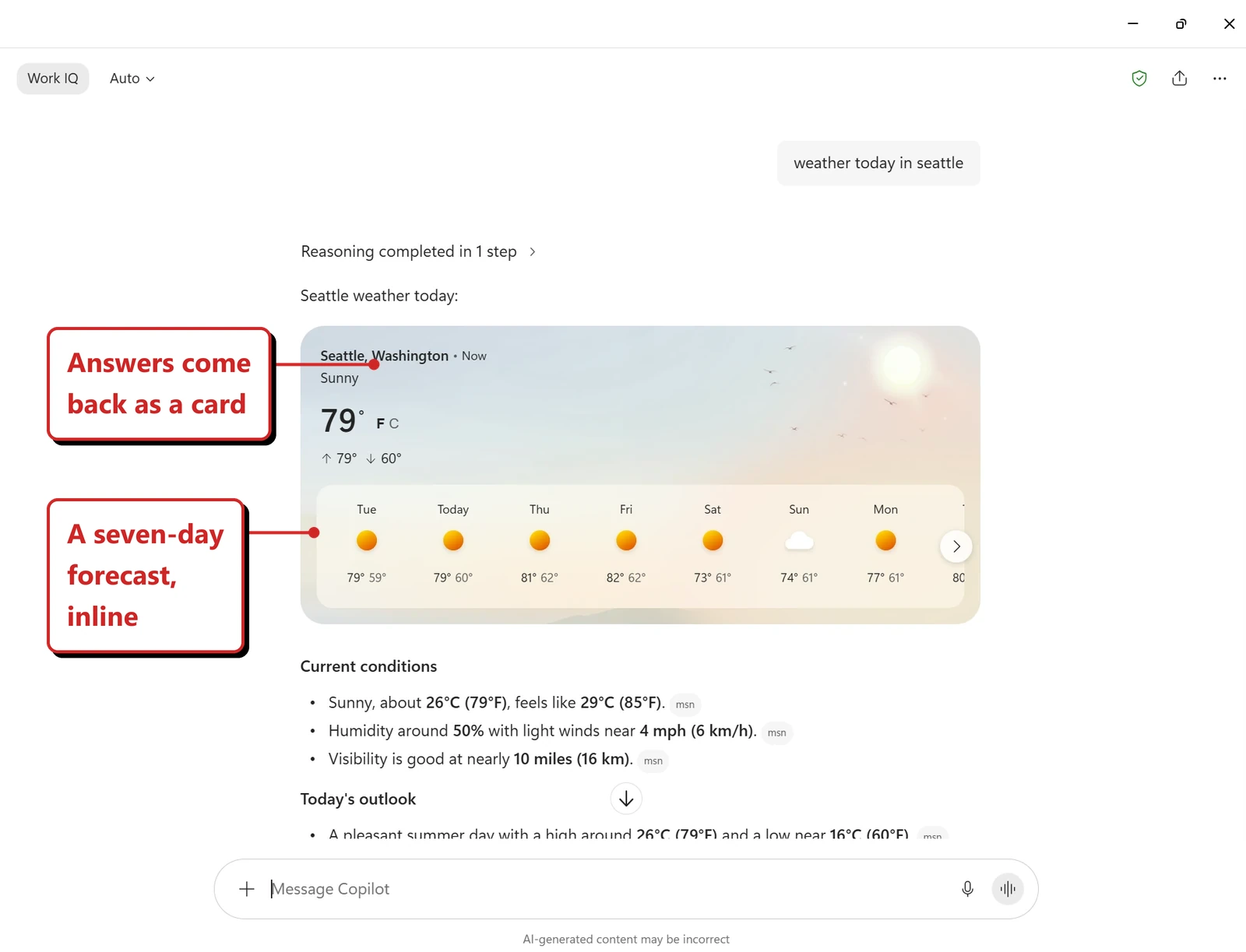
Official Microsoft image from Microsoft’s August 2026 Copilot roundup.
📖 Microsoft’s August 2026 Copilot roundup
8. Copilot mobile can draft an email inside the chat
For: Microsoft 365 Copilot Chat (mobile) · Rolled out August 2026 · Tested on my phone 14 September 2026
On mobile you can describe a message and Copilot creates an embedded Outlook draft inside the chat. Microsoft says you can then open it in Outlook.
What I found on 14 September 2026. The draft does arrive as a distinct object in the thread rather than as a wall of text inside the reply, which is the genuinely useful half of this. The handoff to Outlook is the half I could not reproduce.
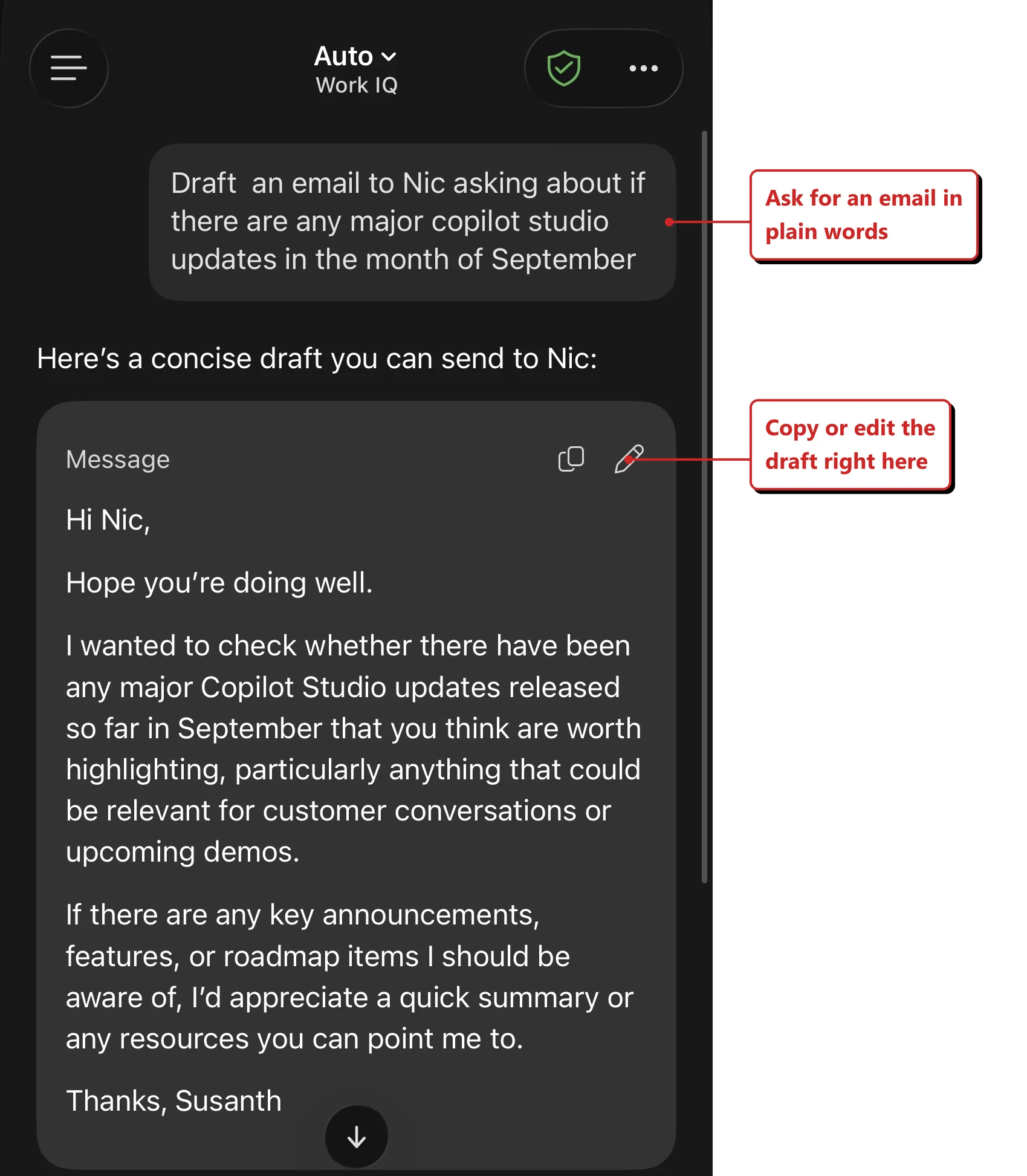
My own phone, 14 September 2026. The draft arrives as a card of its own, labelled Message, with copy and edit controls attached to it.
I asked for a short email to a colleague about Copilot Studio updates. Copilot wrote a one line preamble, then put the message into its own card, labelled “Message”, with a copy icon and a pencil icon in the corner. The body was a complete four paragraph email, and it signed off in my name without being asked to. Below the card the reply carried on in ordinary prose.
On the handoff to Outlook. The card offered copy and edit, and nothing else. There was no open in Outlook control on it, not in the part shown above and not in the rest of the screenshot below it. That could mean it sits behind the pencil, or that it is still rolling out, or that the handoff lives in Copilot inside Outlook mobile rather than in the Copilot app. One test on one phone cannot tell me which, so I am recording what I saw rather than guessing, and I will retest for October.
Two smaller things from the same screenshot. The model picker reads Auto, with Work IQ underneath it, which is the same pairing the desktop app now shows, so that change is not a desktop only one. And below the crop, the bottom bar carries Cowork as a full tab alongside Chat, Search and More.
Why this matters: On a phone, switching apps is the whole cost. Drafting in place and handing the finished thing to Outlook is one of those flows that only makes sense on mobile, which is a good sign somebody designed it for mobile rather than shrinking the desktop version. That is the flow Microsoft describes, mind — the handoff is the half I could not get to work.
📖 Microsoft’s August 2026 Copilot roundup
9. Outlook emails open inside Copilot Chat
For: Microsoft 365 Copilot Chat · Generally available 25 August 2026 · Tested in my tenant 14 September 2026
You can open an Outlook email within Copilot Chat, rather than following a link out to Outlook and losing the thread of the conversation.
What I found on 14 September 2026. This works, and it does slightly more than the description suggests.
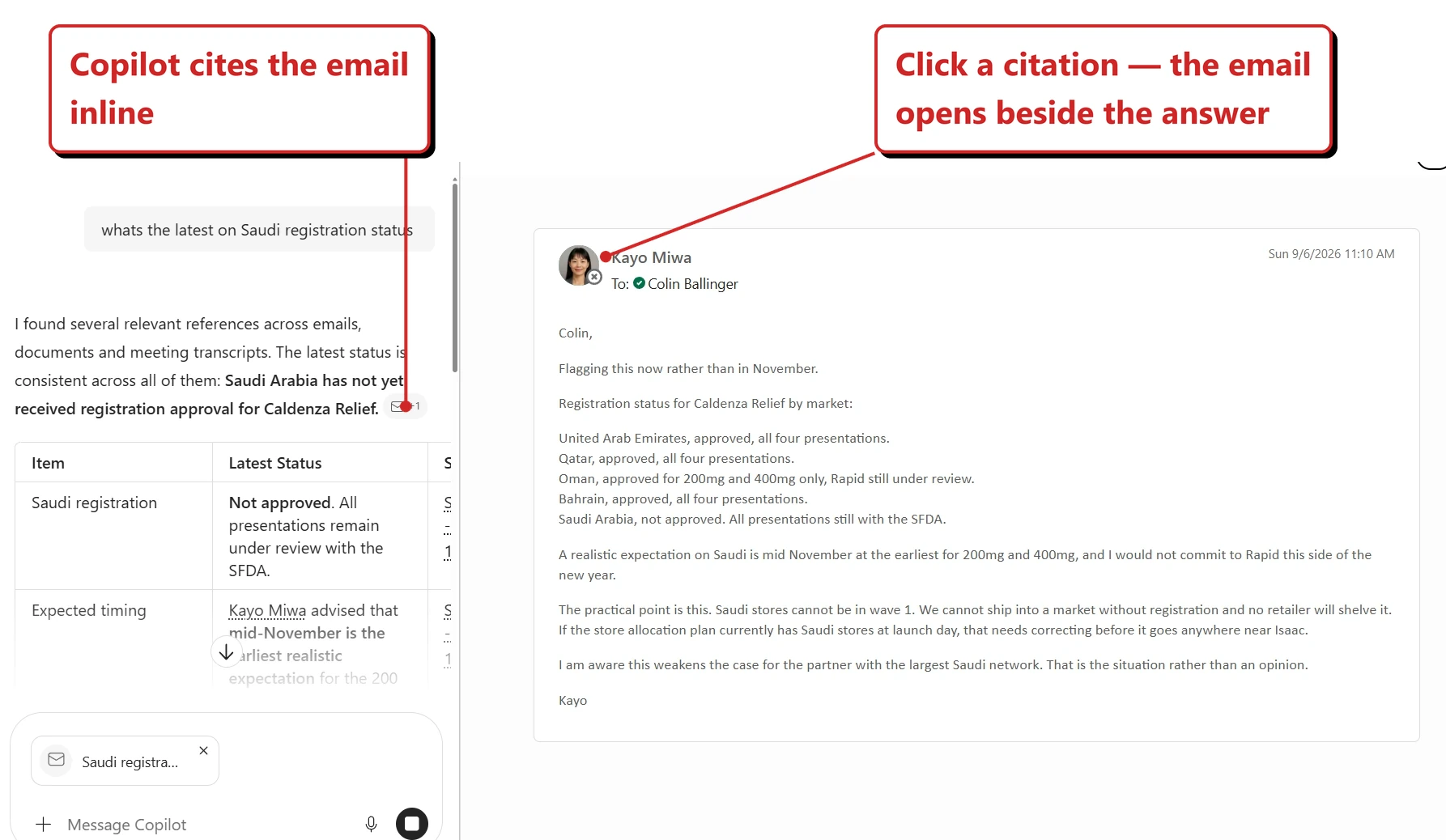
My own tenant, 14 September 2026. The cited email, opened beside the answer rather than in Outlook.
I asked a question, Copilot answered from a mix of emails, documents and meeting transcripts, and cited an email. Clicking that citation opened the message in a pane on the right, inside Copilot, with the sender, recipient, timestamp and full body all present. Outlook never opened.
The part I did not expect is at the bottom of the left pane. The email stayed pinned into the composer as a reference chip, with a small cross to take it back out. So opening a citation does not just show you the source, it adds it to the conversation, and your next question is grounded in it whether you meant that or not. That is useful most of the time and worth knowing about the rest of the time.
One honest caveat on this image: it is a wide split-screen, so the fine text sits small on the page. The things worth reading are quoted above.
Why this matters: Copilot cites emails constantly. Every citation used to be a trapdoor out of the conversation, and people did not come back.
📖 Microsoft 365 Copilot release notes
10. On mobile, Copilot can reshape a Page or create one for you
For: Microsoft 365 Copilot app · Android and iOS · Generally available 25 August 2026
The Copilot app on mobile gained page steering and auto-triggering of pages. That phrase covers two separate things, and they are worth pulling apart.
The first is editing by instruction. Microsoft’s example is telling Copilot “Shorten this page” and having it rework the page, rather than you doing that by hand on a phone screen. The second is creation from chat: ask for something like “Create a new page for XYZ” in an ordinary conversation and a Page gets made, without you going to Pages first.
That second half is the one the name obscures. Auto-triggering here means Copilot can create a Page off the back of a prompt. It does not mean an existing Page will surface itself at a convenient moment, which is what the phrase sounds like it might mean.
I was not able to reproduce this one in time for this issue, so everything above is Microsoft’s account of it rather than mine. I will pick it up next month.
Why this matters: Editing anything structured on a phone is awkward, so handing the fiddly part to an instruction is a sensible trade. The creation half is the more interesting one, because it lets a Page start life as a sentence in a chat rather than as a decision to go and make a Page.
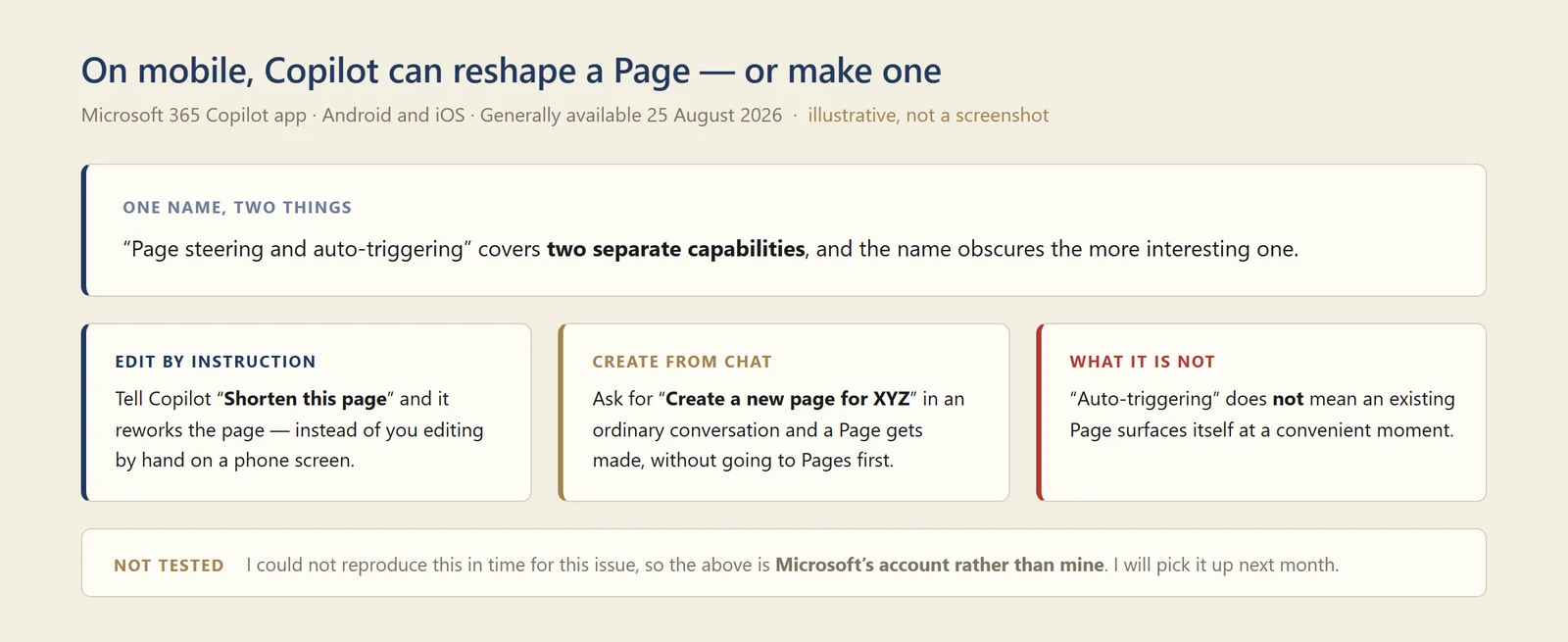
My own diagram of the two capabilities hiding behind one name — not a screenshot. I could not reproduce either in time, so this lays out Microsoft’s account rather than mine.
📖 Microsoft 365 Copilot release notes
11. The Copilot app is being renamed, and its web address is changing
For: Microsoft 365 Copilot app · Admin action required · Rolling out August–October 2026
Microsoft is moving Copilot to a single app experience across personal and work accounts, and three separate things follow from that. One housekeeping note first: the roadmap item usually cited next to this, 561488, is actually a different piece of work — a simplified chat home screen, response layout and navigation pane, which shipped in June. The rename and the address change are documented separately, on Microsoft Learn.
The app is renamed. Microsoft Learn now states it flatly: “The Microsoft 365 Copilot app is now called Microsoft Copilot.” The app “will adopt a simpler name and icon.” Users also get clearer visual cues for which account they are in — a different background colour per account type, and a Work label under the profile in the navigation pane.
The web address changes. “If using the web app, the browser URL will transition from m365.cloud.microsoft to copilot.cloud.microsoft, and users will be automatically redirected.” The redirect began in early September for organisations that can already reach the new domain.
And this is the bit with a deadline. A follow-up notice, MC1462915, is specifically about organisations that have blocked copilot.cloud.microsoft. Microsoft says: “In early October, 2026 Microsoft will redirect the remaining users who had not been redirected in early September.” If your network, proxy, firewall, secure web gateway or Conditional Access policy blocks that host when the redirect reaches you, “affected users may be unable to use the Copilot web app.”
Microsoft’s guidance is to allow the whole domain, not just the one host: “Microsoft does not support allowing partial or only selected Microsoft 365 application URLs within the *.cloud.microsoft domain. Allow the entire *.cloud.microsoft domain.” You can check your position with the Microsoft 365 Connectivity Test tool. If the reason you blocked it was to stop personal-account sign-ins, Microsoft points at tenant restrictions as the targeted control instead.
One more easily-missed item. If you filter Copilot out of Windows Recall snapshots, that policy does not follow the rename: “If you applied a group policy that filters the former Microsoft Copilot app from being saved in snapshots for Recall, this policy will not automatically carry over to the new Microsoft Copilot app.” Microsoft links its Recall app and website filtering instructions for re-creating it.
A note on where the last two details come from. The October date and the Recall policy point both come from Message Center posts, which Microsoft publishes to tenant administrators. Both are mirrored publicly by the open-source merill/mc archive — MC1454108 and MC1462915 — so you can read them in full without signing in. Microsoft’s public deployment guidance confirms the broad rollout began in September and asks you to make sure copilot.cloud.microsoft is not blocked, but it does not name an October cut-off. Treat the date as directional and check your own Message Center rather than taking mine.
Microsoft states that “Security, compliance, and governance controls remain unchanged”, and that the new URL stays inside *.cloud.microsoft and keeps its existing allow-listing properties.
Three things to check before October. Confirm the
*.cloud.microsoftdomain is reachable from your managed devices,copilot.cloud.microsoftincluded — Microsoft asks for the whole domain rather than the single host. Re-create any Windows Recall filter against the renamed app. Then update the internal training, help pages and bookmarks that still say Microsoft 365 Copilot or point atm365.cloud.microsoft— that last one is not urgent, but it is the one that quietly generates helpdesk tickets.
Why this matters: The app has absorbed Chat, Pages, Notebooks, Search, agents and Cowork in about a year, so simplification is not cosmetic at that point. But a rename plus a URL migration plus a policy that silently stops applying is three admin actions wearing one release note — and the Recall one is the kind of thing that only surfaces in a privacy review months later.
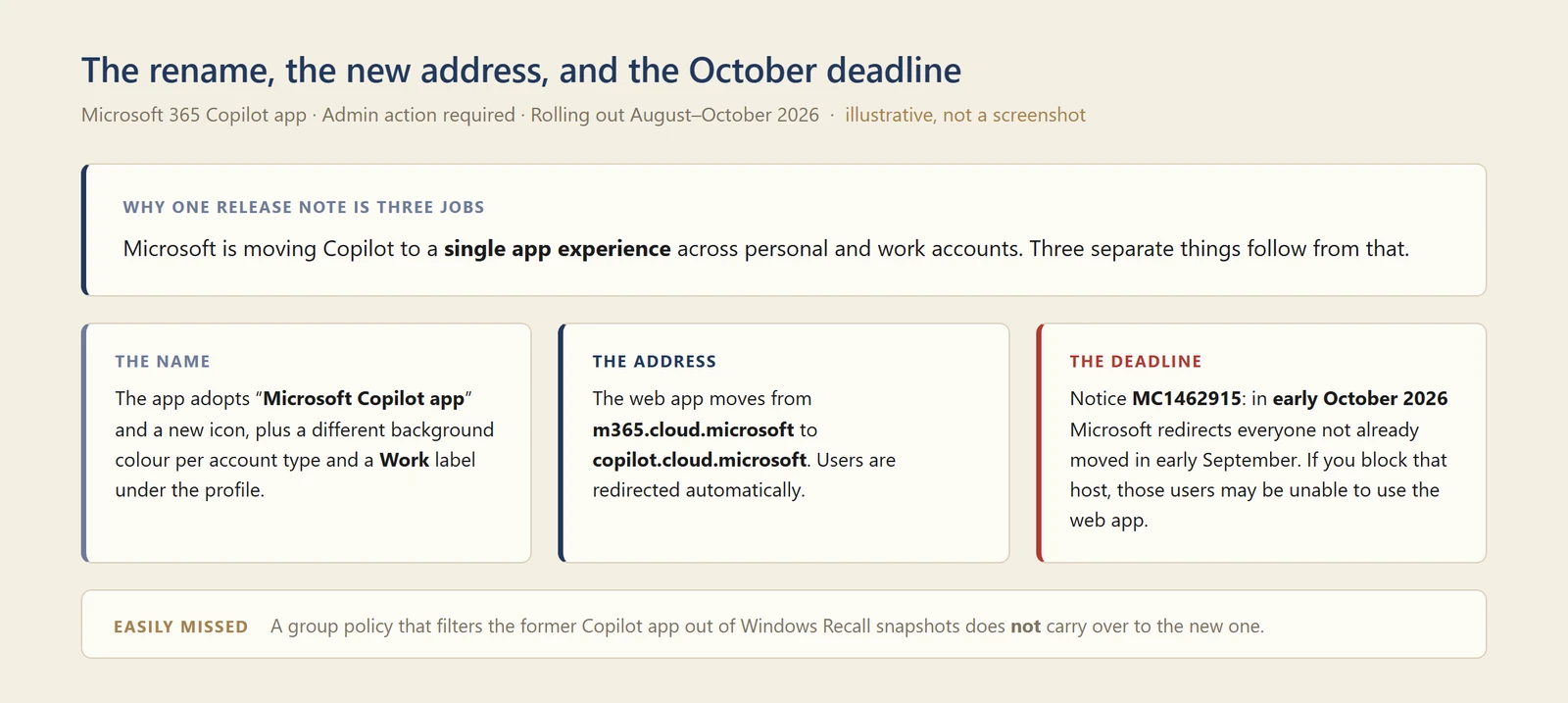
My own diagram of the three changes bundled into one release note — not a screenshot. The rename, the address move and the October deadline never appear together on a single screen.
📖 Deploy the unified Copilot app · Partner Center announcements, August 2026 · Microsoft 365 Copilot release notes · Message Center MC1454108 and MC1462915 (mirrored publicly via merill/mc; your own Message Center is the authoritative copy for your tenant)
12. Copilot Chat sits beside Copilot Search
For: Microsoft 365 Copilot Search · Generally available 25 August 2026 · Tested in my tenant 14 September 2026
Copilot Chat is available in the side pane while you use Copilot Search, so you can ask a follow-up without abandoning the search results.
What I found on 14 September 2026. Search has a permanent home in the left rail, one click from the chat you are already in.
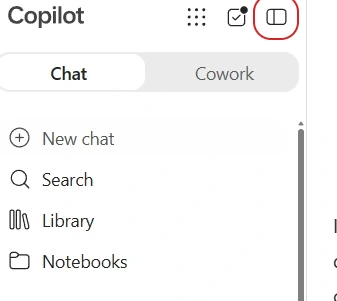
My own tenant, 14 September 2026. Search sitting in the rail beside Library and Notebooks. The circled icon expands the rail so the labels appear.
The rail lists New chat, Search, Library and Notebooks, with Chat and Cowork as two tabs above them. If you cannot see those words, press the circled icon at the top right of the rail, which expands it from icons to labels. That caught me out.
Then I ran a search, and the results page turned out to carry rather more than results.
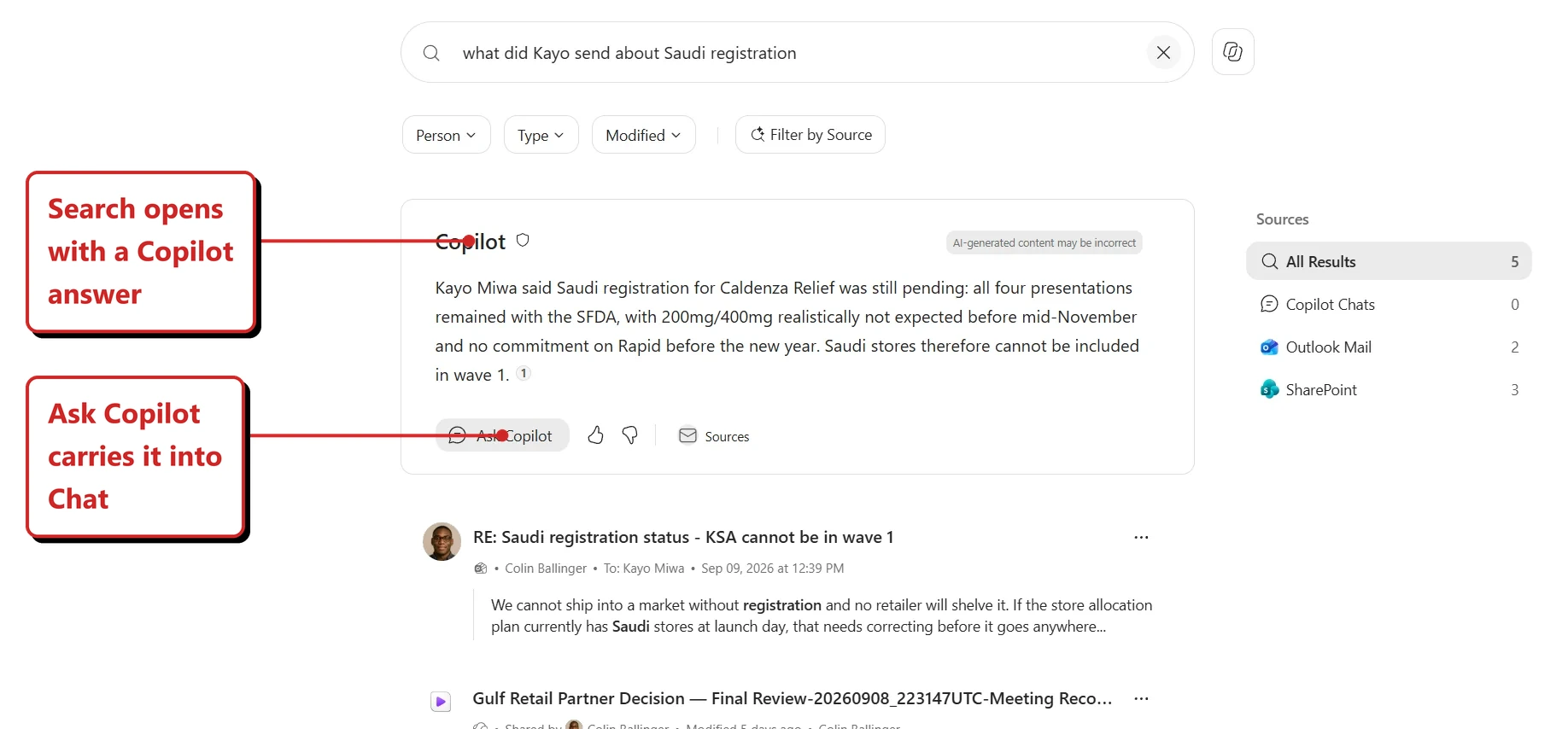
My own tenant, 14 September 2026. Copilot Search answers the question above the results, and shows where the answer came from.
I asked “what did Kayo send about Saudi registration”. Above the results, Copilot had already written an answer with a citation attached, and a Sources panel on the right broke down where it had looked: five results in all, three from SharePoint, two from Outlook mail, none from chat. Underneath the answer sat an Ask Copilot button, which turned out to be the door.
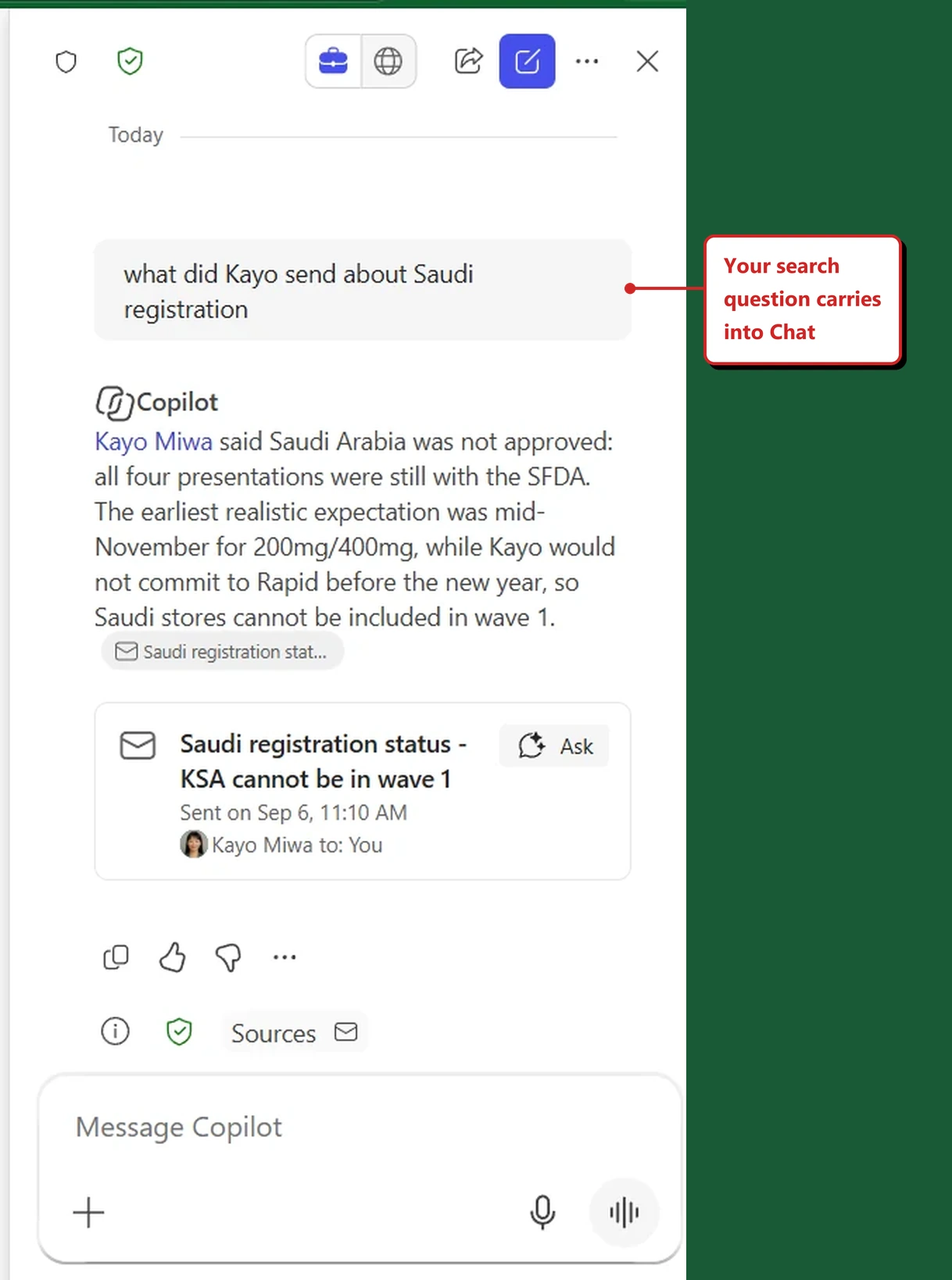
My own tenant, 14 September 2026. The pane that opens beside the results, with my search already asked for me.
Pressing it opened the pane on the right, and the results stayed exactly where they were on the left. Two details I had not expected. My search was already sitting in the pane as the first message, so the conversation starts from the question I typed into the search box rather than from an empty chat. And the source under the answer is a card rather than a footnote — it named the email, who sent it, that it was sent to me, and when, with its own Ask button for questioning that one message.
One thing to know before anyone goes looking. Microsoft’s release note says this is for users with the AI SKU, so it is not something every licensed user will find.
Why this matters: Search finds the document; chat explains it. Splitting those across two screens meant doing one and forgetting the other.
📖 AI at Work Roadmap 537281 · Microsoft 365 Copilot release notes
13. Notebooks split into two connected experiences
For: Copilot Notebooks + OneNote · Rolled out August 2026 · Tested in my tenant 14 September 2026
Copilot Notebooks became two connected experiences: a lightweight one inside the Copilot app, and a full workspace in OneNote, kept in sync.
What I found on 14 September 2026. The notebook in my tenant does not look much like the one in Microsoft’s screenshot above, which is worth showing rather than glossing over.
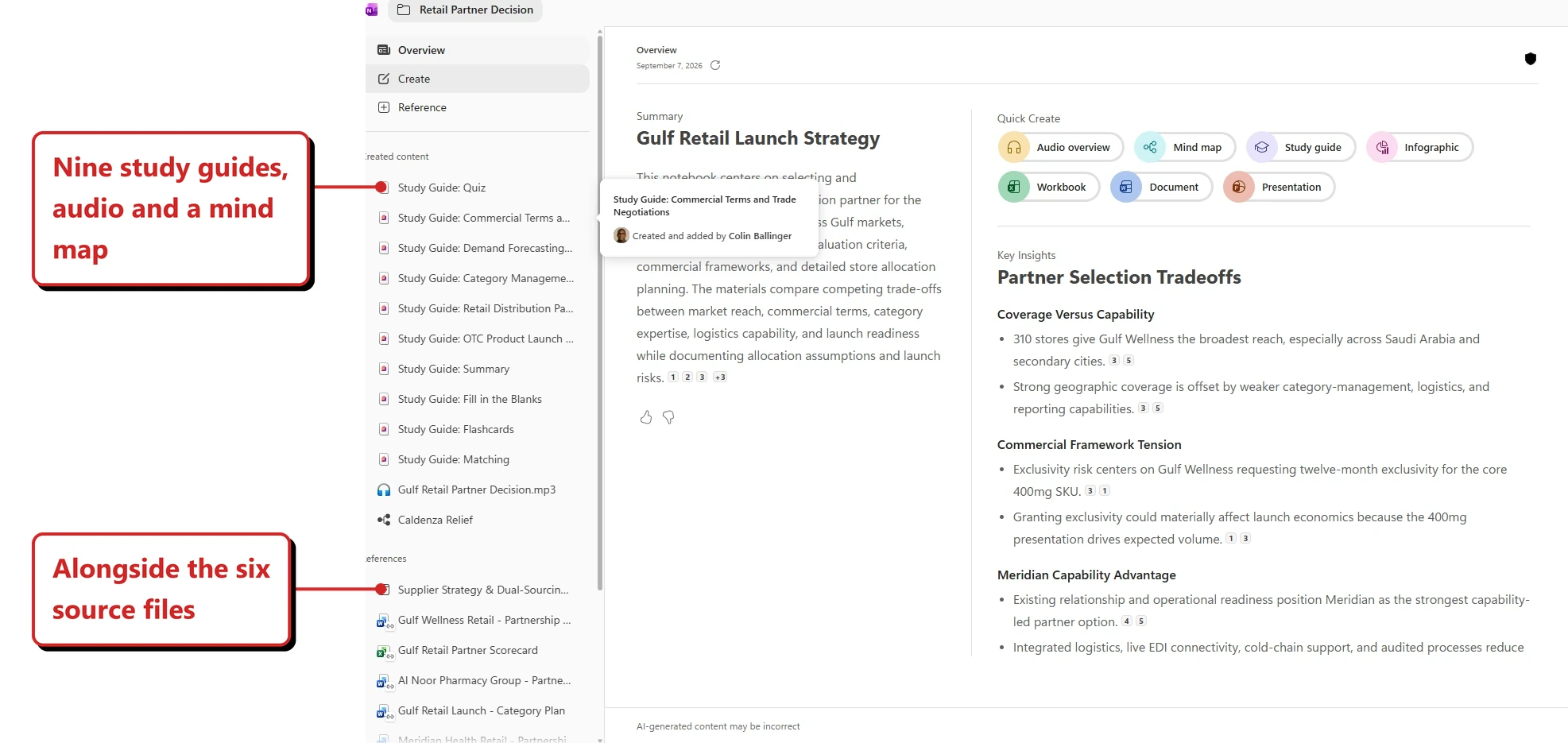
My own tenant, 14 September 2026. A notebook with nine generated study guides, an audio overview and a mind map sitting alongside six source files.
Mine has a three-part rail down the left, Overview, Create and Reference, with everything the notebook has produced listed separately from everything it was fed. Microsoft’s image shows a different arrangement, with reference tiles on the right. Both are current, which tells you this is still moving.
The thing that struck me is the ratio. Six source files went in. Nine study guides, an audio overview and a mind map came out, each one attributed to the person who made it. A notebook stops being a folder at that point and starts being somewhere work accumulates.
What I cannot show you is the half this section is actually about. The claim is that there are now two connected experiences kept in sync, the light one in Copilot and the full one in OneNote. I only captured the Copilot side, so the sync is not something I have watched work.
Why this matters: Notebooks were caught between being a quick scratchpad and a real workspace, and did neither well. Splitting the job while keeping one set of content is the sensible resolution — as long as the sync holds.
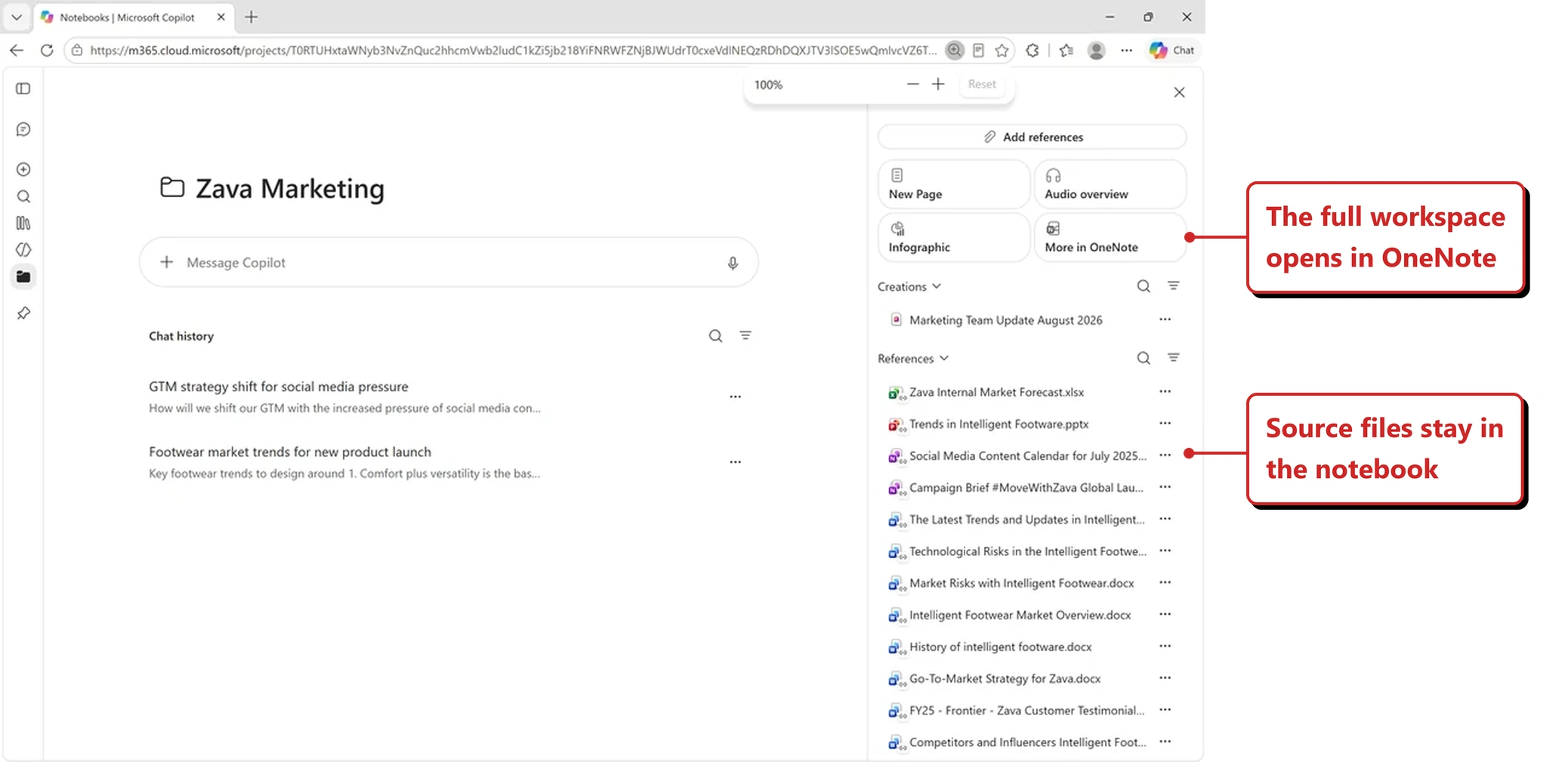
Official Microsoft image from Microsoft’s August 2026 Copilot roundup.
📖 Microsoft’s August 2026 Copilot roundup
14. Notebooks suggest what to make next
For: Copilot Notebooks · Rolled out August 2026 · Tested in my tenant 14 September 2026
Notebooks gained proactive artifact recommendations. Drawing on Work IQ and what is already in the notebook, Copilot suggests generating a Word document, an Excel workbook or a PowerPoint deck from the material you have collected.
What I found on 14 September 2026. The palette in my tenant has seven options, and so does Microsoft’s own screenshot — but they are not labelled the same way.
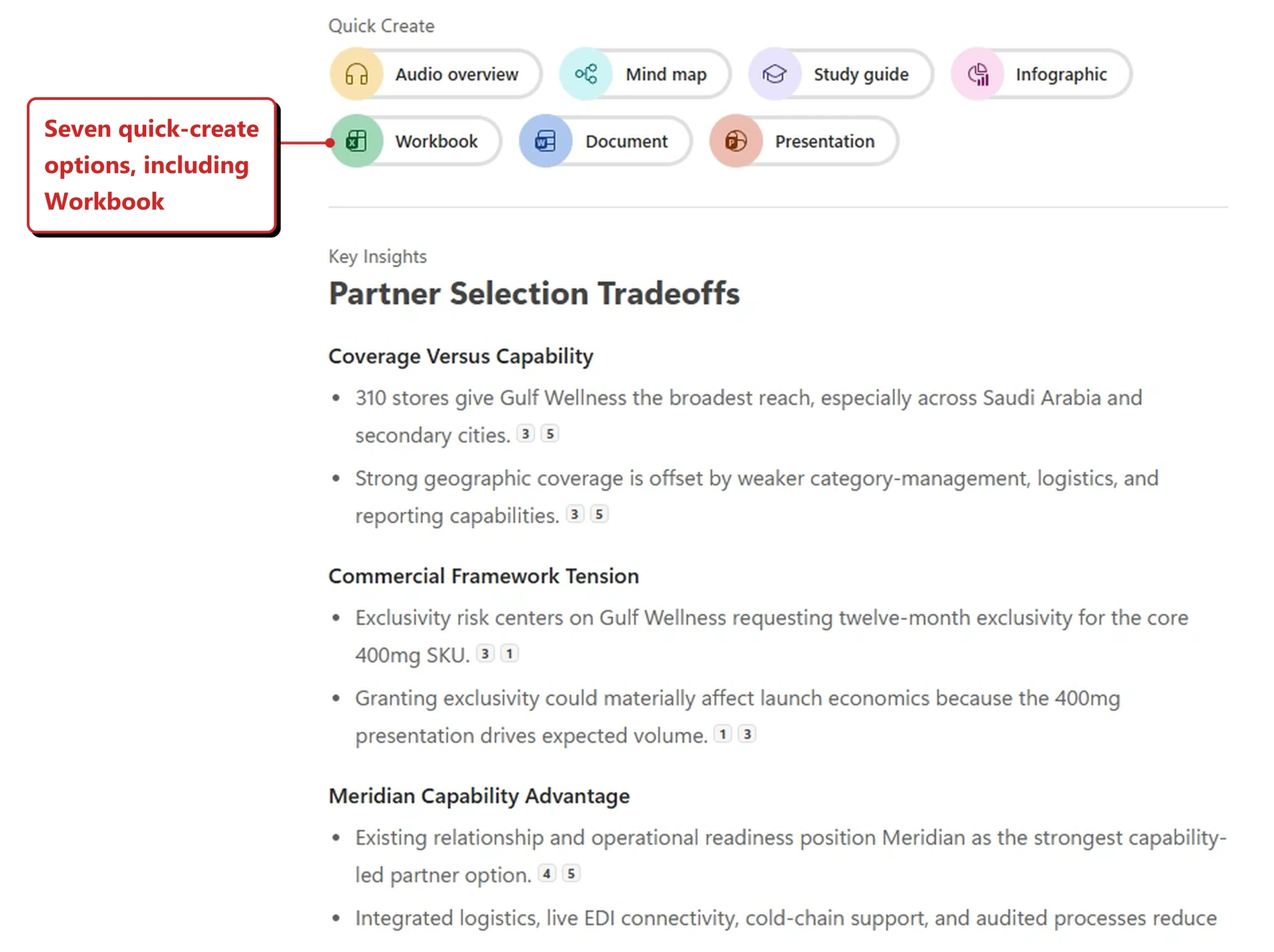
My own tenant, 14 September 2026. Quick Create — the green Excel button is named Workbook here.
Microsoft’s image has the same seven buttons, but two of them both read Document — the first with a green Excel icon, the second with a blue Word icon. Mine names the green one Workbook, which is what it actually makes. So the Excel option was never missing; it was sitting there wearing the wrong name. A tiny thing, and easy to miss, but it is the difference between a menu you can read and one you have to guess at. I cannot tell whether Microsoft’s screenshot predates the fix or whether the label varies by tenant.
Now the honest half. The headline here is proactive recommendations, and Microsoft’s image shows that properly: a Suggested content card putting forward a specific artifact, named and reasoned, with citations. There was no card like that in my notebook when I looked. What I had was the fixed palette above, which is a menu rather than a suggestion.
I cannot tell from one notebook on one day whether the suggestions had not arrived in my tenant, or whether this particular notebook did not warrant one. Either is plausible. It is worth flagging because a permanent row of seven buttons and a system that tells you this specific thing is worth making next are different products, and only the second one solves the problem the section describes.
Worth noticing regardless: every bullet in Key Insights carries a numbered citation back to a source file.
Why this matters: Research collapses at the point where notes have to become a deliverable. A prompt at that exact moment — here is what this could become — is well placed, though it will live or die on whether the suggestions are any good.
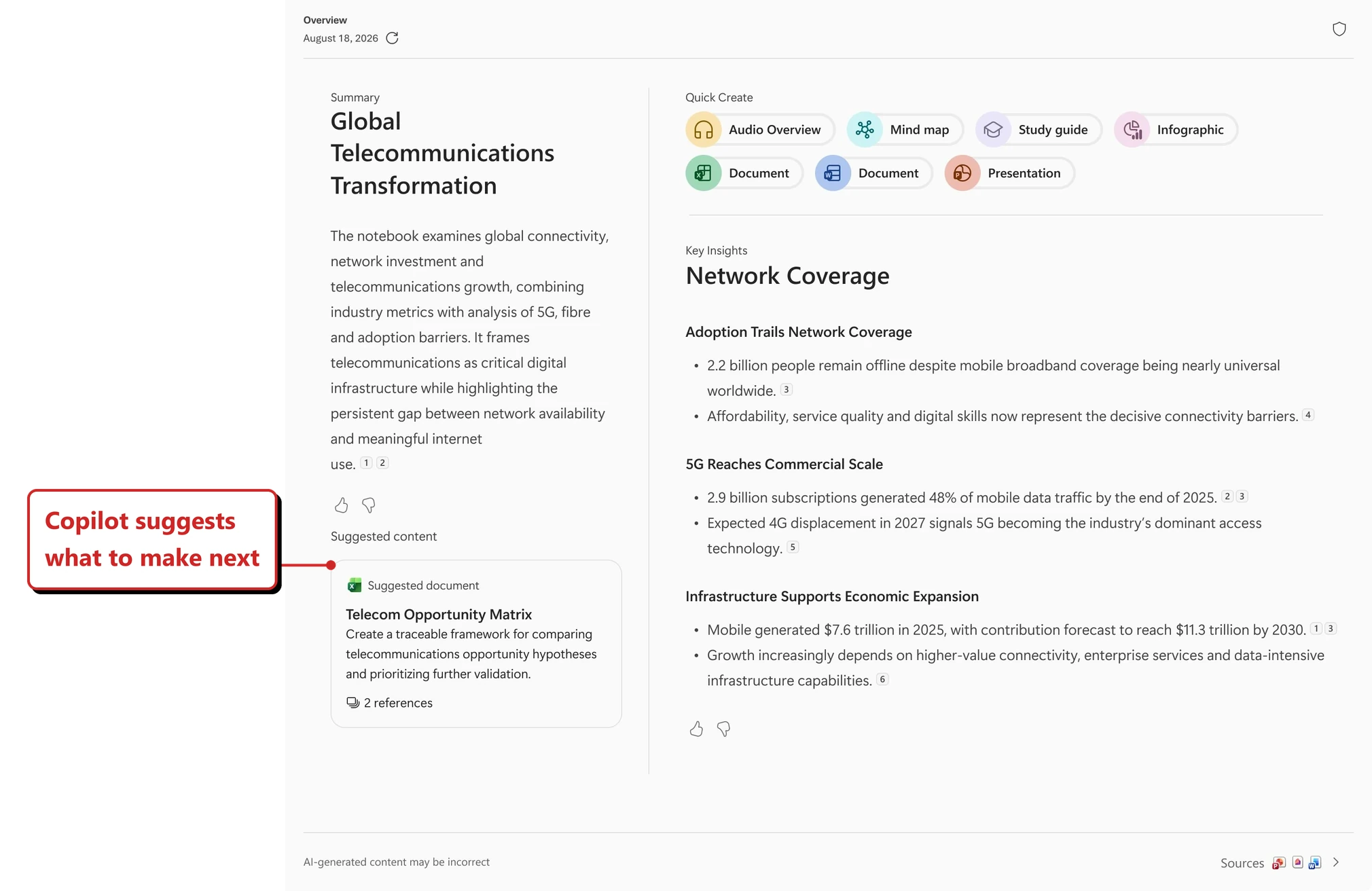
Official Microsoft image from Microsoft’s August 2026 Copilot roundup.
📖 Microsoft’s August 2026 Copilot roundup
15. Notebooks take audio, images and notes together — on Android
For: Copilot Notebooks on Android · Rolling out September 2026 · Already available on iOS and iPad via OneNote
Multimodal capture brings audio, images and notes into one experience, automatically structured into notes and summaries.
One detail decides whether this is new for you at all: Microsoft scopes this month’s rollout to Android, and notes that multimodal capture is already available in the OneNote app on iOS and iPad. So this is a phone feature, and on iOS it is not new.
What I found on 14 September 2026. Not yet in my tenant, and the gap is a specific one. Adding a meeting as a source worked. Adding an .mp3 or a .jpg did not — the picker would not take them. That may well be the wrong place to have looked, though. There is a separate Windows entry on the roadmap — 566322 — but on 14 September it still read In development against a September general availability month, so a desktop notebook was not yet in scope for what I was testing. I will retest for October.
One thing worth pulling apart, because the words are so nearly the same. A notebook can already produce audio — that is the audio overview in section 14, and it works. Taking audio in as a source is the new half, and that is the half I could not reproduce.
Why this matters: This is the closest Microsoft has come to the way people actually capture things — a photo of a whiteboard, a voice memo walking to the car, three lines typed in a meeting. Making that one input rather than three is the useful part.
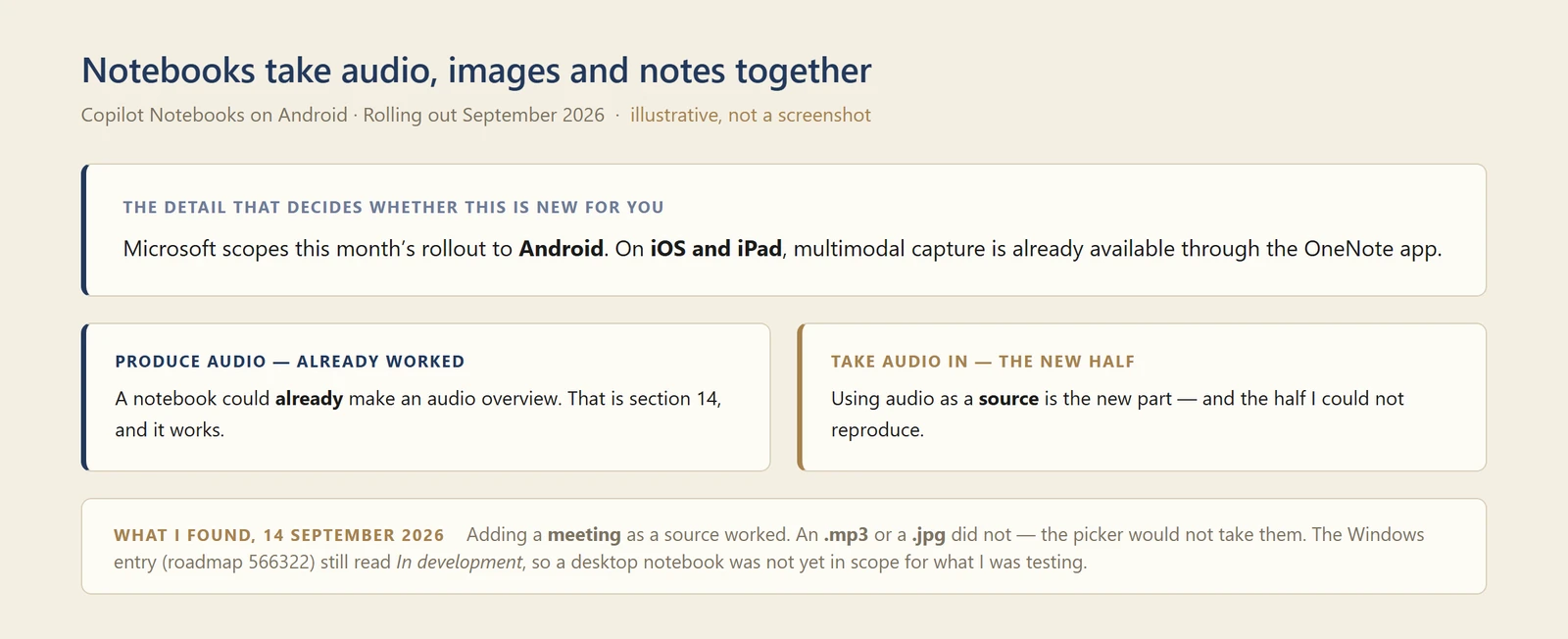
My own diagram of the produce-audio versus take-audio-in split — not a screenshot. The two are easy to confuse because the words are so nearly the same.
📖 Microsoft’s August 2026 Copilot roundup · AI at Work Roadmap 567895 — the Android entry that matches this month’s rollout (Rolling out, preview August 2026, general availability September 2026) · Roadmap 566322 — the Windows entry, still In development on 14 September · Roadmap 559095 — the iPhone entry, which shipped back in May 2026
16. Power BI grounding went worldwide
For: Microsoft 365 Copilot Chat + Copilot Cowork · Public Preview June 2026 · Rolled out worldwide August 2026
Reasoning over Power BI reports and semantic models in natural language rolled out worldwide in August. The August issue covered this as a Frontier capability from June; it is now broadly available.
Why this matters: Of all the grounding sources Copilot has picked up, this is the one with the clearest business case. The semantic model already holds the agreed definitions of revenue, churn and margin — so the answer inherits governance instead of inventing its own maths.
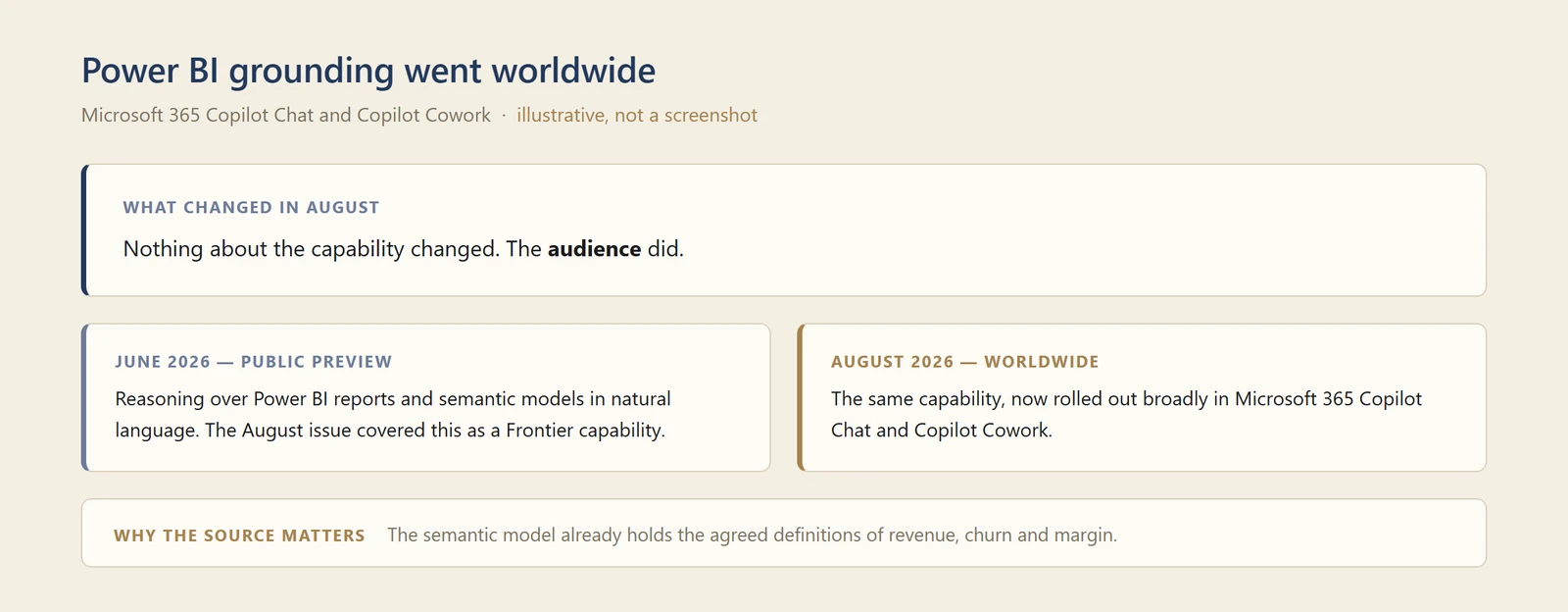
My own diagram of the rollout — not a screenshot. A change in who can reach a capability has no new screen to photograph.
📖 Microsoft’s August 2026 Copilot roundup
17. Viva Engage private communities can ground Copilot
For: Microsoft 365 Copilot + Viva Engage · Web · Generally available 25 August 2026
Copilot can use private community and event content in Viva Engage as grounding material. Microsoft’s wording here is careful, and worth quoting rather than paraphrasing: private Engage content “will be used as grounding source for Microsoft 365 Copilot”, and “when a user queries in Microsoft 365 Copilot, they will only be able to see content they are privileged to access.”
So the permission model is not being relaxed. What changes is the size of the pool Copilot is allowed to draw from for each person, bounded by what that person could already have opened by hand.
Two details that are easy to miss. The release notes list this as web only for now, so it is not yet a uniform change across every Copilot surface. And roadmap entry 515144 still shows a general availability month of May 2026, while the release notes list the feature in the 25 August batch. Where those two disagree I go with the release notes, but it is a useful reminder that a roadmap date is a plan rather than a record.
I do not have Viva Engage set up in my demo tenant, so this is Microsoft’s account of it rather than a tested one.
Why this matters: Worth an admin conversation rather than a cheer. Private communities are private for a reason, and people post in them with an expectation about who is reading. Permissions are respected, but the set of places an answer can come from just got wider.
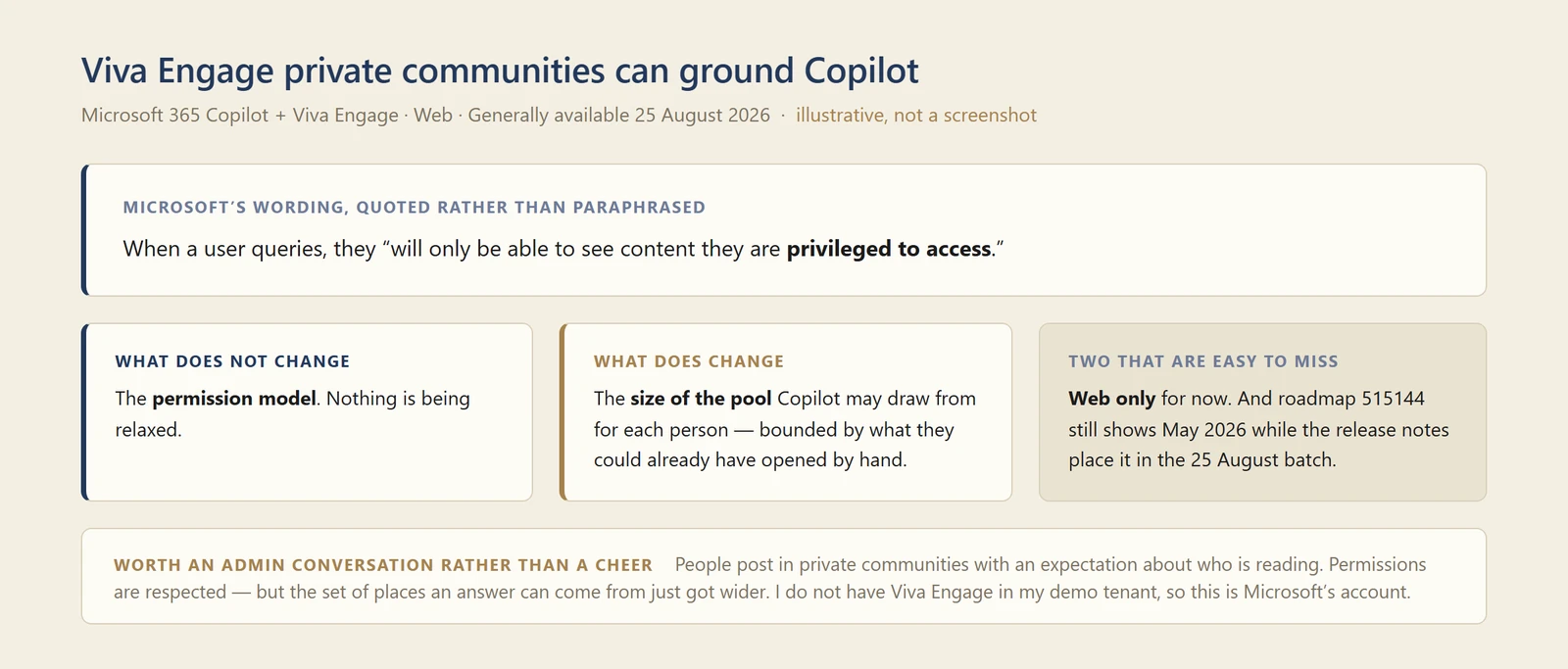
My own diagram of what does and does not change here — not a screenshot. The permission model is untouched; the size of the pool is the part that moved.
📖 AI at Work Roadmap 515144 · Microsoft 365 Copilot release notes
18. More Copilot connectors, several industry-specific
For: Copilot connectors · Admin · No date stated by Microsoft
New connectors and plugins appeared, including Mercury, Xero, iManage Work, Boardwise, Harvey and Descrybe Legal Engine. Several are aimed at specific professions rather than general business software.
Microsoft did not attach a rollout date to this list, so treat availability as something to check in your own tenant.
Why this matters: The pattern is more interesting than any single connector. Accounting, legal and board software are the systems where the answer people actually need lives — and where, until now, Copilot had nothing to say.
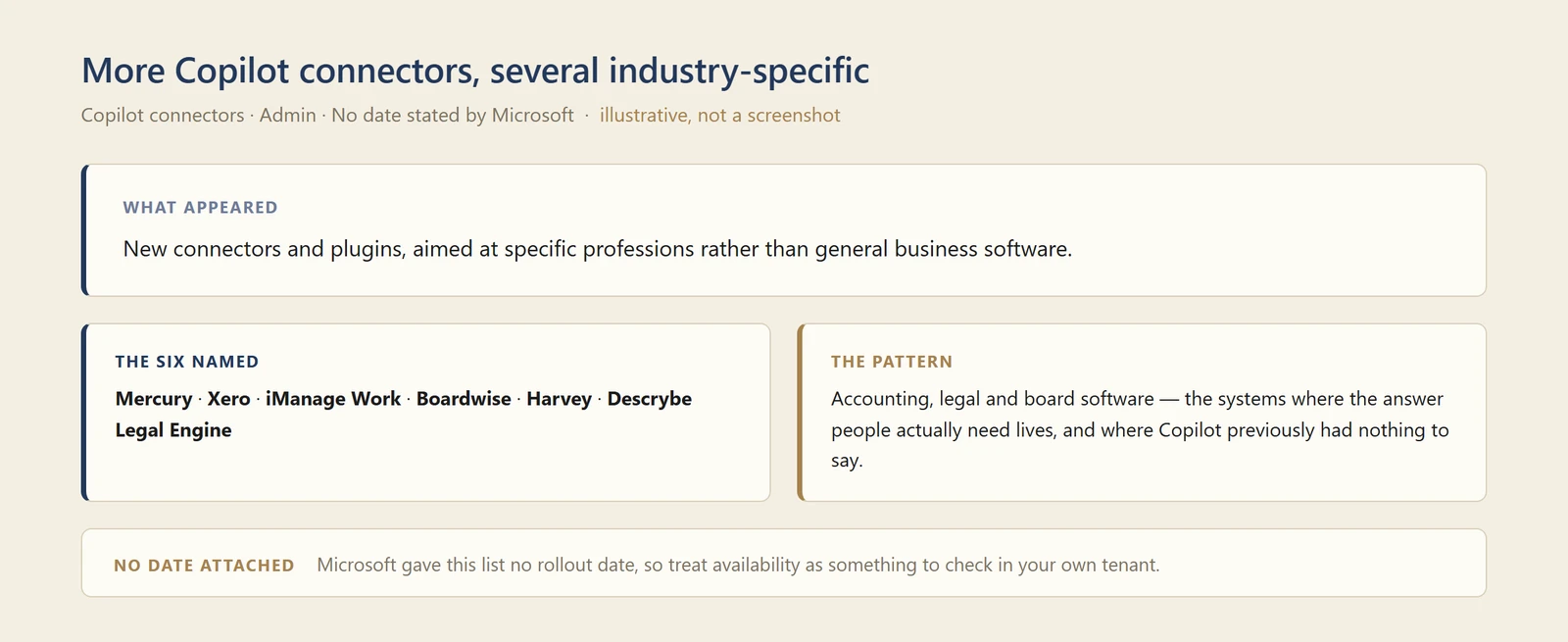
My own diagram of the six named connectors — not a screenshot. Microsoft published this as a list, with no date and no image.
📖 Microsoft’s August 2026 Copilot roundup
19. The Work IQ APIs reached general availability
For: Copilot extensibility · Developer · Generally available 25 August 2026
The Work IQ APIs — a unified REST endpoint for agents and workflows to reach work context — became generally available. The dates disagree on this one: Microsoft’s release notes give 25 August 2026, while roadmap 559021 reads Launched with a June 2026 general-availability month. I am following the release notes, as everywhere else in this issue.
Why this matters: Work IQ is the grounding layer Microsoft keeps naming alongside the features in this issue — it is what Microsoft credits for grounding GPT-6 Astra in section 1. Making it a documented, generally available API means the same grounding Microsoft uses is available to anything your organisation builds, which is a bigger deal than any single feature above it.
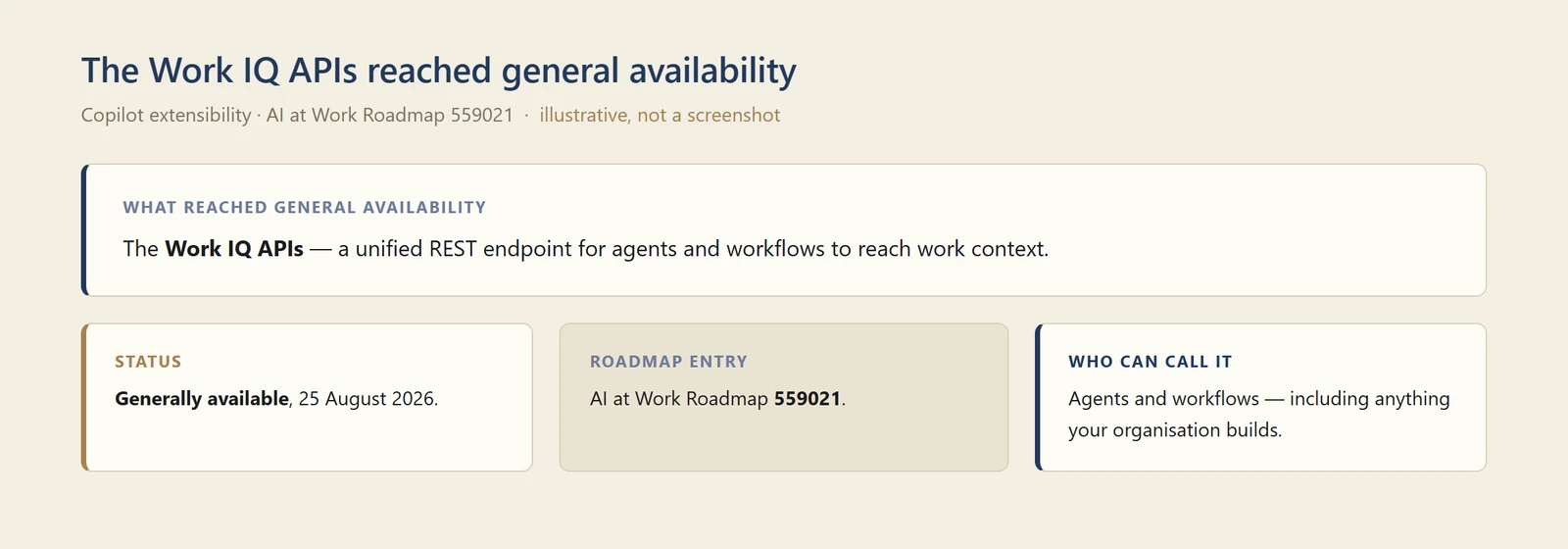
My own diagram of the release — not a screenshot. An API has no interface to photograph.
📖 AI at Work Roadmap 559021 · Microsoft 365 Copilot release notes
20. Connector crawling got faster
For: Copilot connectors · Admin · Generally available 11 August 2026
Content and identity crawling now run in parallel, improving how quickly connector content becomes current.
Why this matters: Stale connector content is one of the quietest ways Copilot loses trust — the answer is not wrong, it is just from last week. Freshness is a feature, even when nobody puts it on a slide.
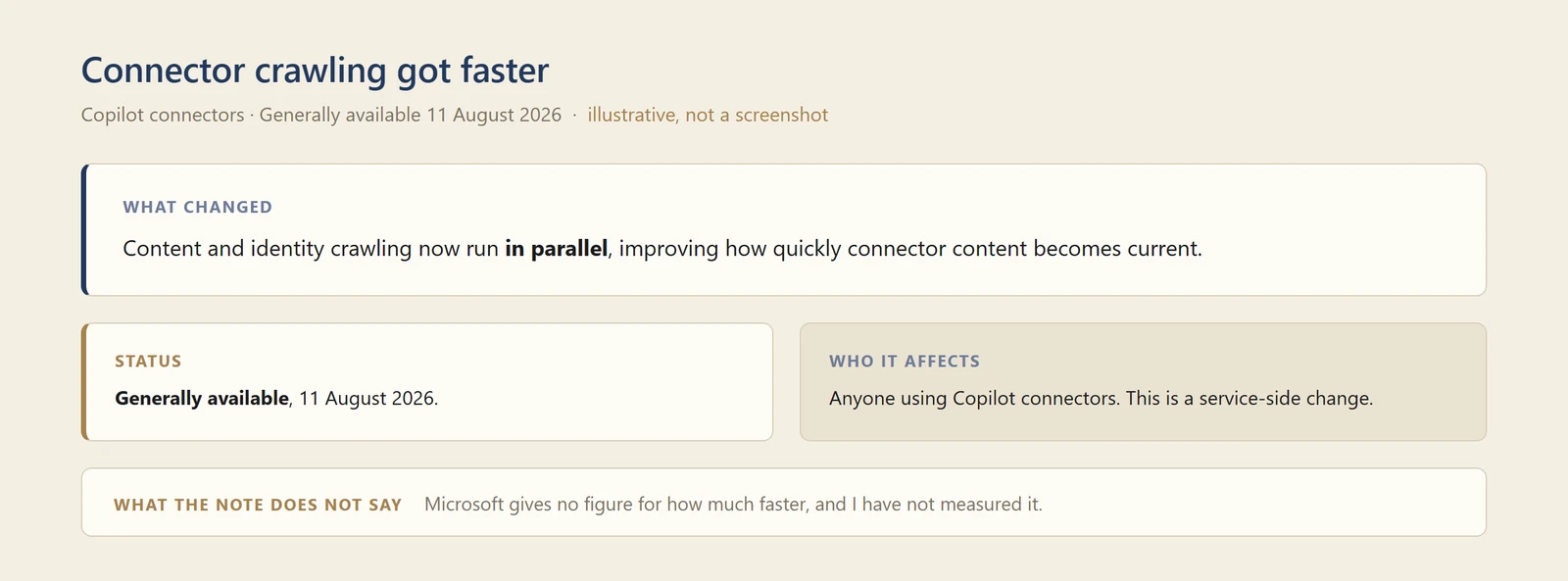
My own diagram of the change — not a screenshot. A service-side speed improvement has no screen and no visible setting to photograph, and Microsoft publishes no number I could quote.
📖 Microsoft 365 Copilot release notes
21. ServiceNow connectors respect role-based permissions
For: Copilot connectors · Admin · Generally available 11 August 2026
The ServiceNow connectors support role-based permissions, so what Copilot returns reflects the user’s role in ServiceNow.
Why this matters: ServiceNow holds incidents, approvals and HR cases — exactly the content where "who can see this" is the whole question. Honouring the source system's roles is what makes a connector deployable rather than a risk.
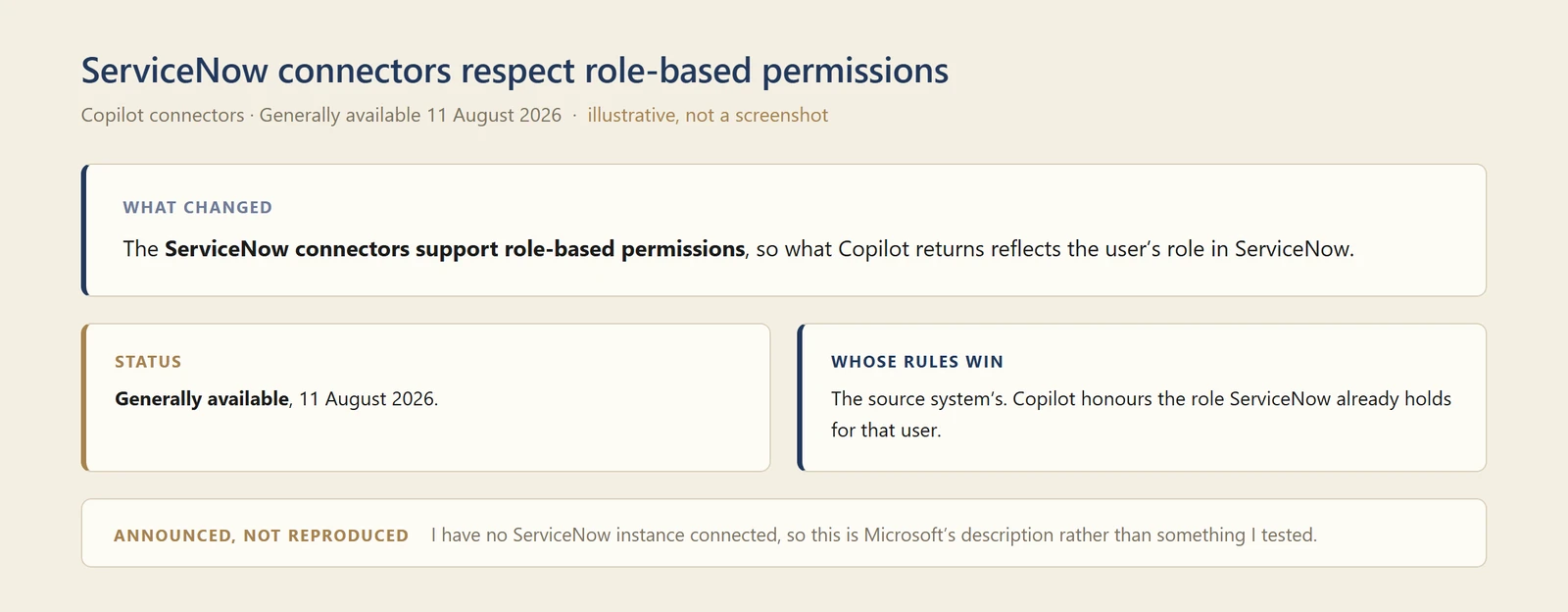
My own diagram of the change — not a screenshot. I have no ServiceNow instance connected, so there is nothing in my tenant to photograph.
📖 Microsoft 365 Copilot release notes
22. Proactive push notifications were cancelled
For: Microsoft 365 Copilot mobile app · Cancelled 26 August 2026
In the August issue I covered proactive push notifications in the Copilot mobile app — Your Day at a Glance — as something Microsoft said had shipped, while noting the roadmap still said September. Microsoft has now marked that roadmap item cancelled. The entry carries the note “Updated August 26, 2026: We have decided not to move forward with this change at this time.” That is after the August issue went out, which is why it appears here.
So the honest position is: I reported it as announced, with a caveat about the date, and the feature is not coming in that form. If it made it into a communications plan or an adoption deck, take it out — though read the next paragraph first, because the scope is narrower than I originally reported.
One detail I missed in August, and should not have. The roadmap entry is tagged for GCC, GCC High and DoD — and for nothing else. There is no worldwide multi-tenant tag on it. On the roadmap’s own record, then, this was a US government cloud item for Android and iOS, which changes who the cancellation actually affects: if you are a commercial tenant, this entry was never describing your tenant to begin with. I am adding that here rather than quietly fixing it, because the August issue did not make the distinction either, and the correction is more useful to you than the original item was.
Why this matters: This is the first time in this series that something I covered has been cancelled outright. It is a useful reminder that a roadmap entry is a statement of intent, not a commitment — and that the gap between "announced" and "available" sometimes closes in the wrong direction.
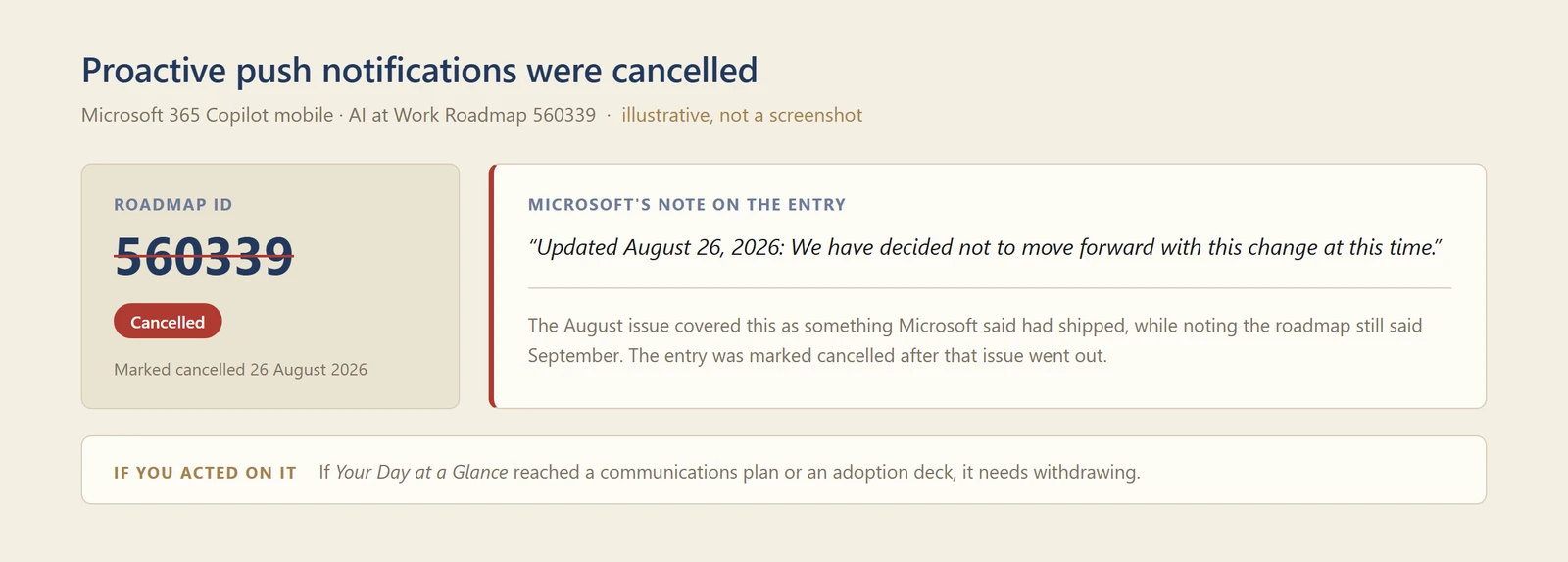
My own diagram of the cancelled entry — not a screenshot. A cancelled roadmap item has no product screen to photograph; the note on the entry is the whole story.
23. Interactive Agents for Teams Meetings and Calls was cancelled
For: Microsoft Teams · Cancelled 17 August 2026
The roadmap entry for Interactive Agents for Teams Meetings and Calls is also marked cancelled, with the note “Updated August 17, 2026: We have decided not to move forward with this change at this time.”
This one never reached an issue of this series, so there is nothing to withdraw — but if you were waiting for agents that participate in a meeting as it happens, that specific item is gone.
Why this matters: Two cancellations inside ten days is unusual enough to notice. Both were agent features, and both were about Copilot acting without being asked. Microsoft gives no reason for either, so I am not going to invent one — but if either was on your roadmap, they went together.
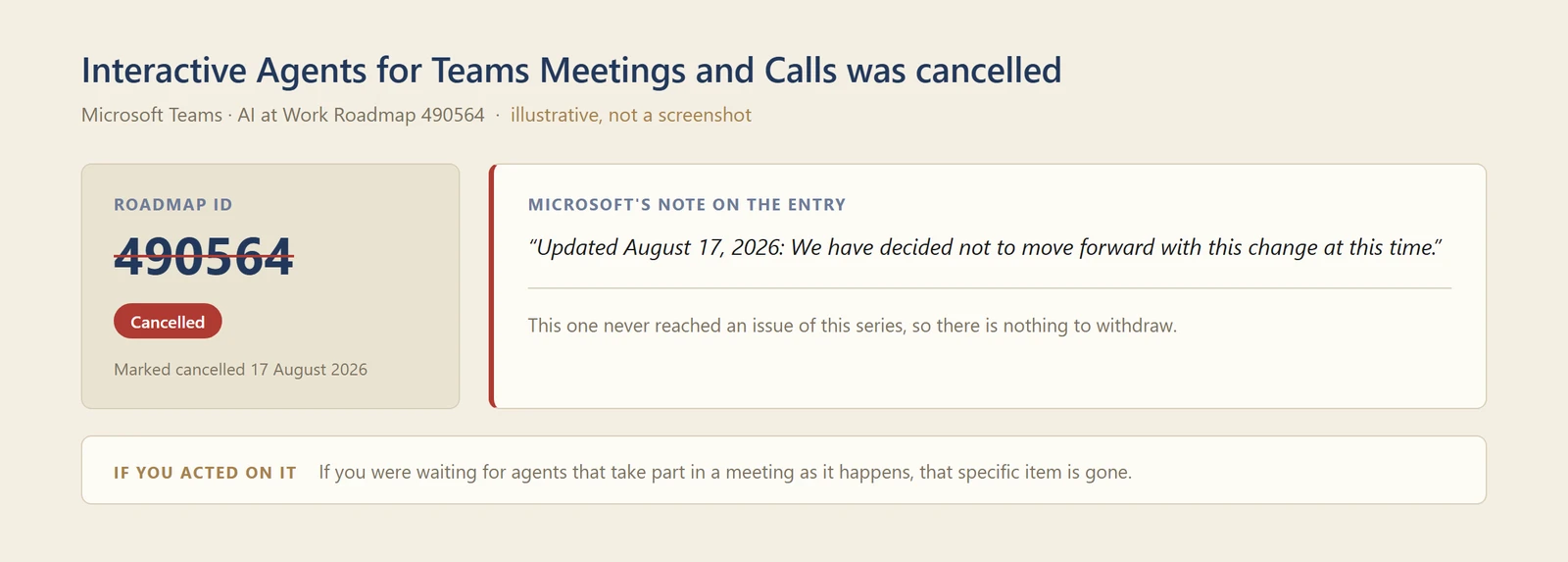
My own diagram of the cancelled entry — not a screenshot. Nothing shipped, so there is nothing to photograph.
Copilot Cowork
Four more cancellations landed after this issue’s research cut-off. The two sections above are the cancellations I found on 14 September. Between 15 and 18 September Microsoft cancelled four more Copilot roadmap items: the Copilot browser extension for Chrome (530577, 15 September), Purview Data Lifecycle Management insights on Copilot interactions (561209, 15 September), Content Sources in Copilot Chat (496596, 18 September) and Copilot Chat session persistence (500638, 18 September). Each carries the same wording — “We are cancelling this Roadmap item at this time.” — and Microsoft gives no reason for any of them. They are listed here rather than numbered, because they fall outside the window this issue covers.
One of them reaches back into our August issue. Roadmap 496596 is the entry August’s section 33 cited for managing your own sources and pointing a prompt at one, reported there as rolled out in July. A cancelled roadmap record is not the same thing as a withdrawn feature — entries are sometimes closed for bookkeeping — so treat this as a record to watch rather than a confirmed removal, and check your own tenant before planning around it. I will follow it up next month.
24. Cowork can build interactive apps from a description
For: Copilot Cowork · Frontier Program · September 2026
The App skill creates lightweight, interactive apps from a description, without writing code. Microsoft’s own wording is worth quoting: you “refine your app in chat, open it, publish it, and share it with people in your organization.”
So on Microsoft’s description it is not a mockup — they say the result can be opened, refined, published and shared with other people. Whether what it produces is good enough to hand over is the question I would want to answer in your own tenant before promising anything.
This is a Frontier Program capability, which means it reaches Frontier tenants first.
What I found on 14 September 2026. The skill is there, and it describes itself in rather bigger terms than the release note does.
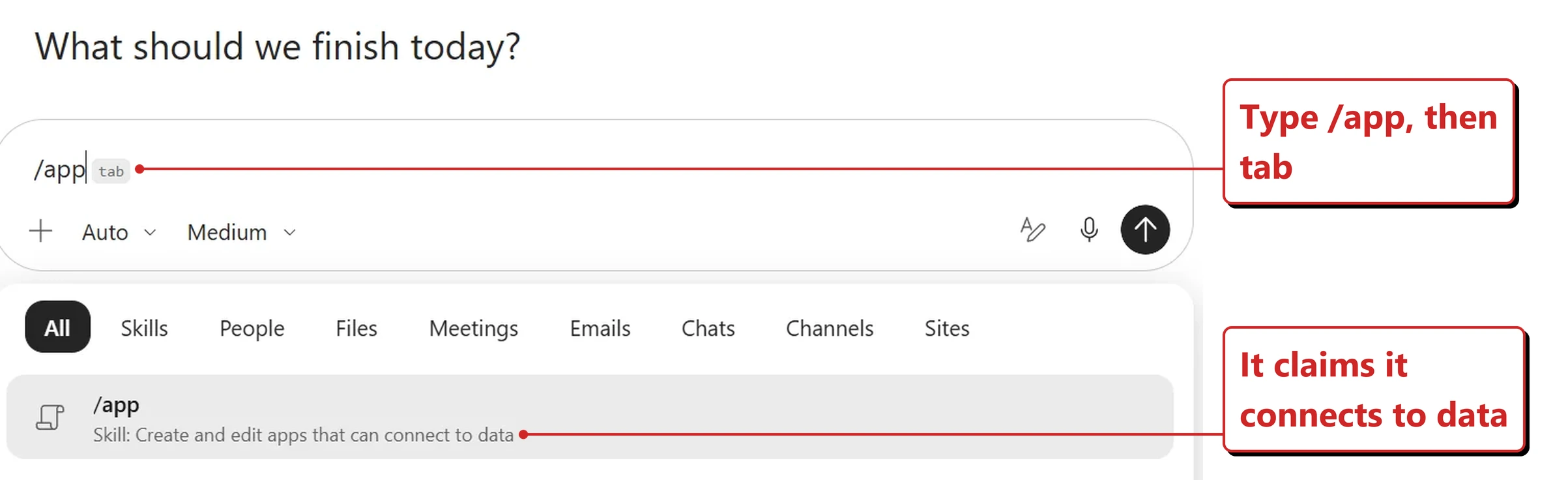
My own tenant, 14 September 2026. Typing a slash in Cowork brings up the picker, with the App skill describing itself.
You call it by typing /app in the Cowork box, and the picker that appears describes it as “Create and
edit apps that can connect to data”. That last phrase is doing a lot of work, and it is not in the sentence
Microsoft used above. The same picker carries tabs for Skills, People, Files, Meetings, Emails, Chats,
Channels and Sites, so the slash is the general way of pointing Cowork at something rather than a special
case for apps.
What I have confirmed is that the skill exists and how you reach it. I have not built an app with it, so the part I flagged above — refine, open, publish, share — is still the part worth testing before you promise anybody anything.
Why this matters: The step that usually kills a small internal tool is not building it — it is publishing and sharing it. All four steps in one chat is the claim that would make this different from the many things that have generated code and left you holding it, and it is the claim I would test first.
📖 What’s new in Copilot Cowork
25. You can choose how hard Cowork thinks
For: Copilot Cowork · Rolled out August 2026
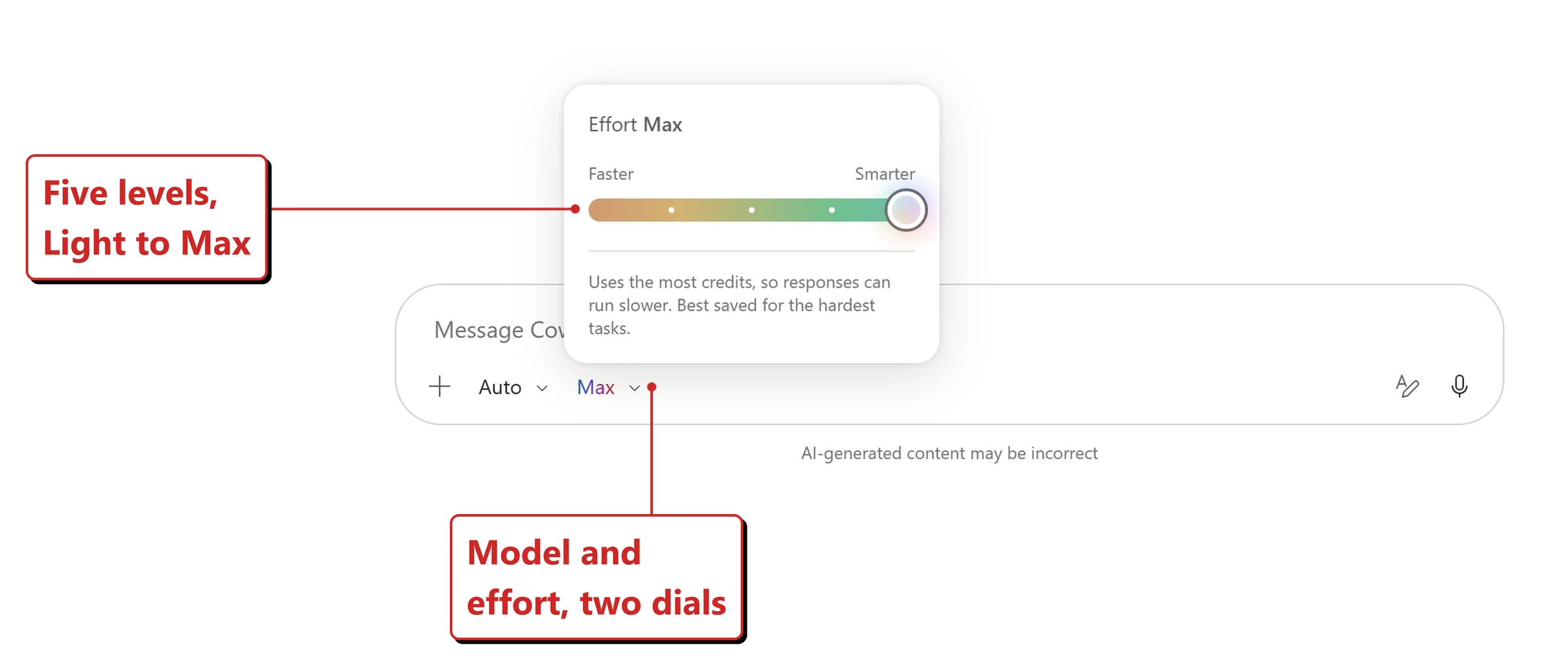
Cowork gained an effort level — Light, Medium, High, Extra High and Max — that trades quality against speed and credit usage. Medium is the default, and the control sits next to the model picker.
Why this matters: Model choice was only half the dial. Plenty of tasks need a good model thinking briefly, and plenty need a cheap one thinking hard. Exposing effort separately from model is the first time the cost and the quality levers have been honestly separated.
Official Microsoft image from Microsoft’s August 2026 Copilot roundup.
📖 Microsoft’s August 2026 Copilot roundup
26. The cost skill shows where you are for the month
For: Copilot Cowork · Rolled out August 2026
The /cost skill now reports the percentage of your monthly credit limit remaining, credits used month to date and the reset date, on top of the estimate for the task in front of you.
Why this matters: A per-task estimate tells you what one thing costs. It does not tell you whether you can afford it. Showing the month-to-date position and the reset date turns a number into a decision, and it does it in front of the user rather than in an admin report they never see.

Official Microsoft image from Microsoft’s August 2026 Copilot roundup.
📖 Microsoft’s August 2026 Copilot roundup
27. The Scheduled tab became Automations
For: Copilot Cowork · Rolled out August 2026
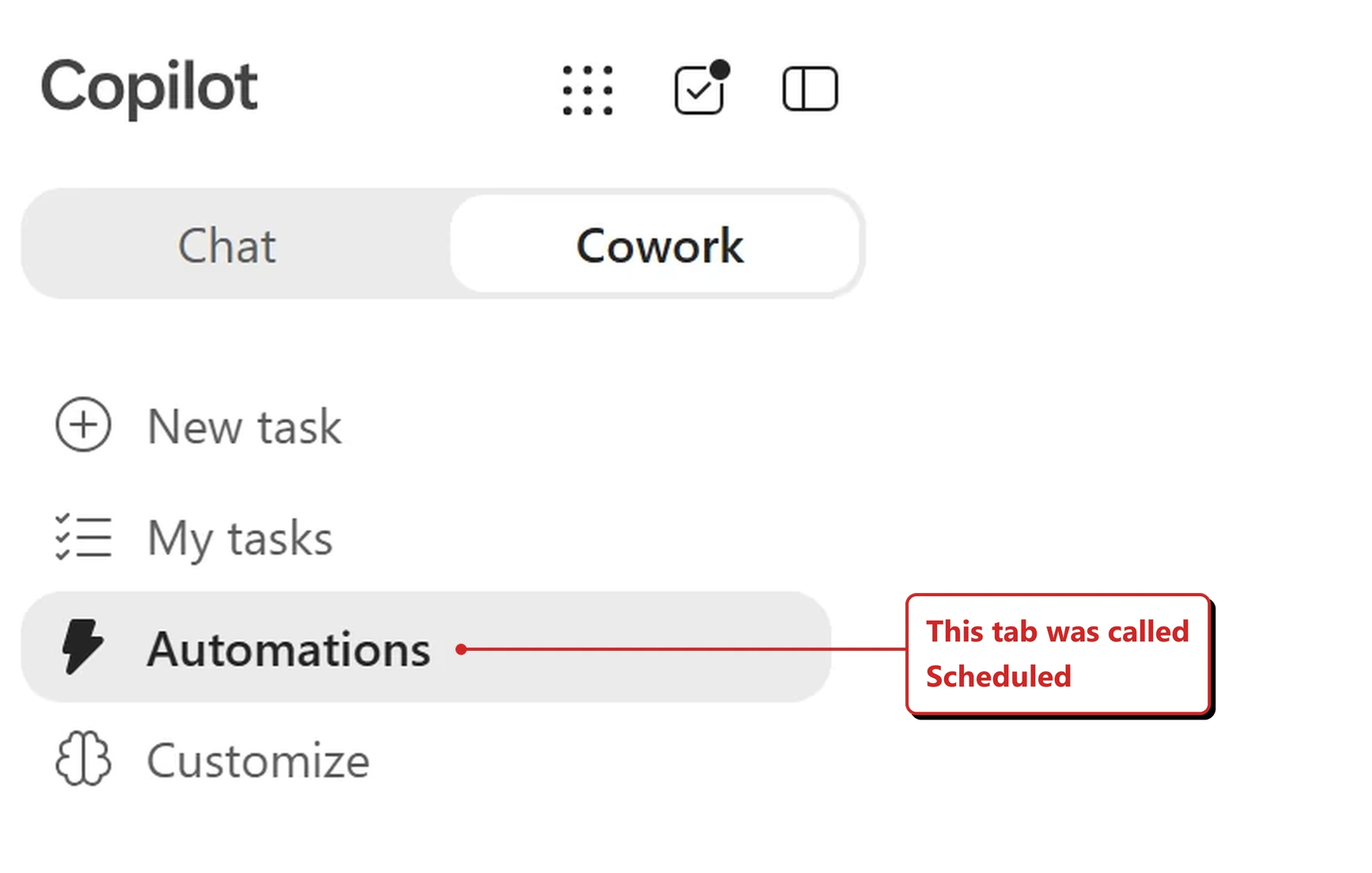
The Scheduled tab was renamed Automations, and now holds both scheduled prompts and event-triggered tasks in one place.
Why this matters: A rename is usually cosmetic. This one is not — once tasks can fire on an event as well as a clock, "Scheduled" was describing half the contents. It is also the page to check first if you ever wonder what Cowork is doing when you are not watching.
Official Microsoft image from Microsoft’s August 2026 Copilot roundup.
📖 Microsoft’s August 2026 Copilot roundup
28. Local browser use reached every Copilot tenant
For: Copilot Cowork · Generally available August 2026
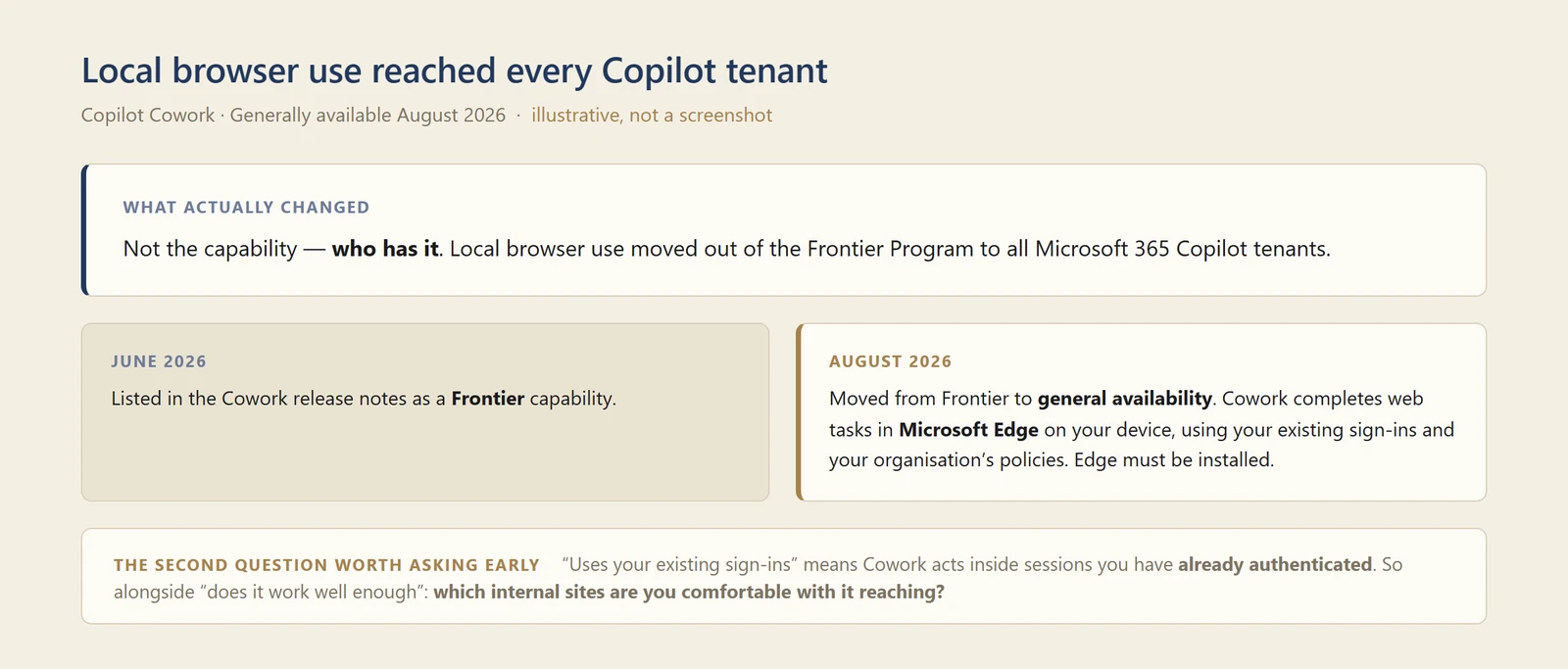
Cowork’s local browser use moved from the Frontier Program to general availability for all Microsoft 365 Copilot tenants. Cowork can complete web tasks in Microsoft Edge on your device, using your existing sign-ins and your organisation’s policies. Edge must be installed.
The August issue covered this as a Frontier capability. The change is who has it, which is now everyone.
For the record on dates, because this one has a history: the Cowork release notes list local browser use as a Frontier capability under June 2026, and the move from Frontier to general availability under August 2026. So the capability itself is not new this month — what changed in August is that it stopped being limited to Frontier tenants.
Why this matters: This is the most consequential availability change in the issue. "Uses your existing sign-ins" means Cowork acts inside sessions you have already authenticated — so alongside "does it work well enough", there is a second question worth asking early: which internal sites are you comfortable with it reaching.
My own diagram of the Frontier-to-general-availability move — not a screenshot. The capability is not new; the audience is.
📖 What’s new in Copilot Cowork
29. Cowork plugins can take files from your session
For: Copilot Cowork · Developer · Generally available August 2026
Plugin connector tools can accept files from your Cowork session as input. A plugin author declares a tool parameter with contentEncoding: base64, and Cowork resolves the workspace file into content before calling the tool — so a plugin can convert a document, analyse an image or push a file into another system.
Where this lives, on 14 September 2026. The file handover itself happens inside a tool call and has no screen of its own, so I cannot show you that. What I can show is the surface it plugs into, which turned out to be more interesting than I expected.
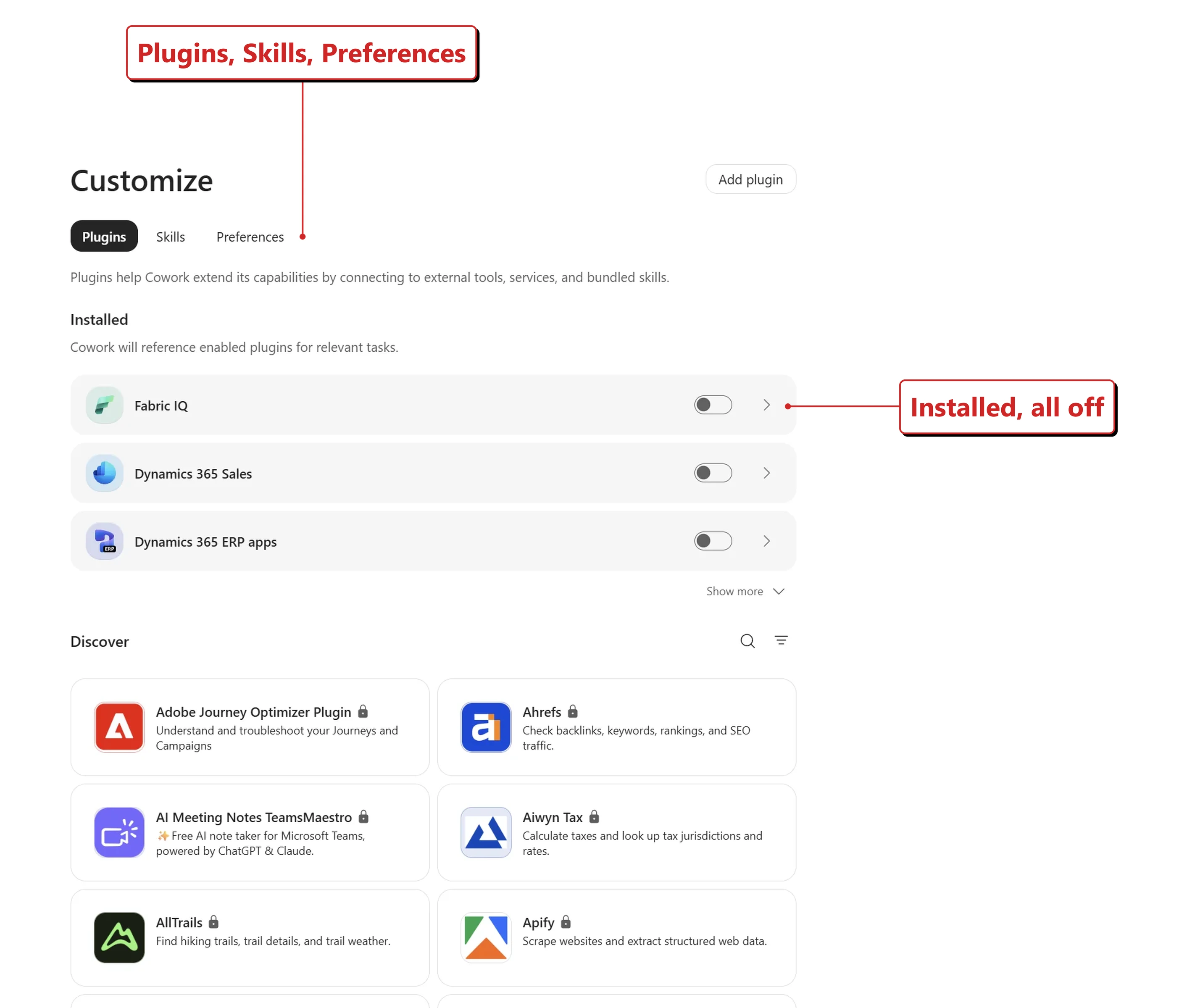
My own tenant, 14 September 2026. Cowork's plugin page: what is installed above, a catalogue below.
Customize → Plugins lists what is installed with a toggle each — Fabric IQ, Dynamics 365 Sales and the Dynamics 365 ERP apps, all switched off in my tenant — above a Discover catalogue that is mostly other people’s software. Adobe Journey Optimizer, Ahrefs, Aiwyn Tax, AllTrails and Apify were on the first screen alone.
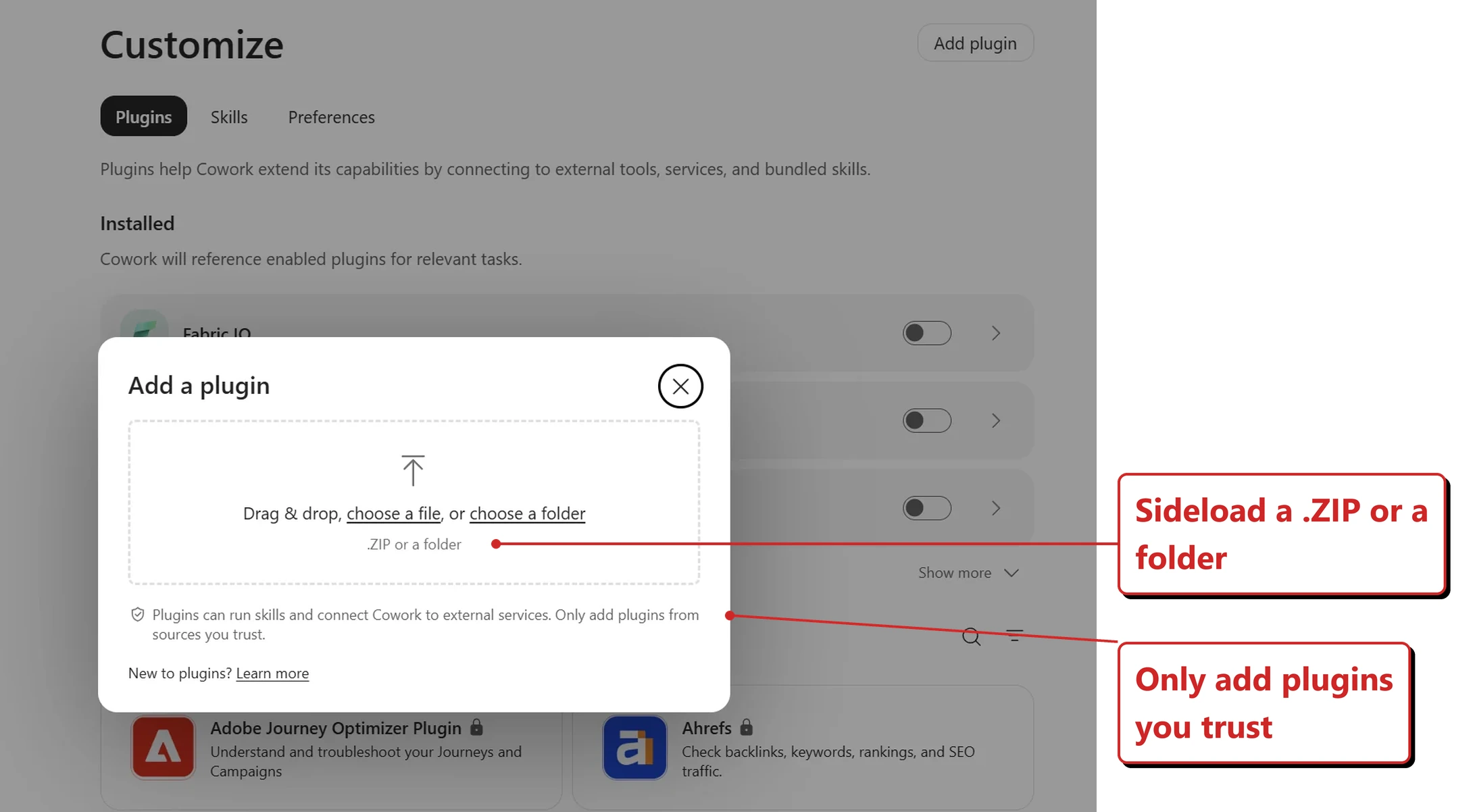
My own tenant, 14 September 2026. Adding a plugin of your own, and the warning that comes with it.
The Add plugin button is the part that matters for this section. It takes a .ZIP or a folder, dragged in or chosen — which is to say you can side-load a plugin you have written yourself, and that is exactly who the base64 file parameter above is for. Microsoft puts a warning beside it, and it is a fair one: “Plugins can run skills and connect Cowork to external services. Only add plugins from sources you trust.”
To be plain about the evidence: these two images show where plugins are managed and how one gets added. They do not show a file being handed to one.
Why this matters: Plugins that could only exchange text were limited to fetching and returning facts. Handing a real file across is what lets an integration do the actual job — sign it, convert it, file it — instead of describing it.
📖 What’s new in Copilot Cowork
30. Cowork plugins can be set up on the phone
For: Copilot Cowork (mobile) · September 2026
Plugins are discoverable and configurable on the mobile app. You find them through the attach menu (+) then Skills.
What I found on 14 September 2026. It is a genuine peer of the desktop page rather than a read-only view of it.
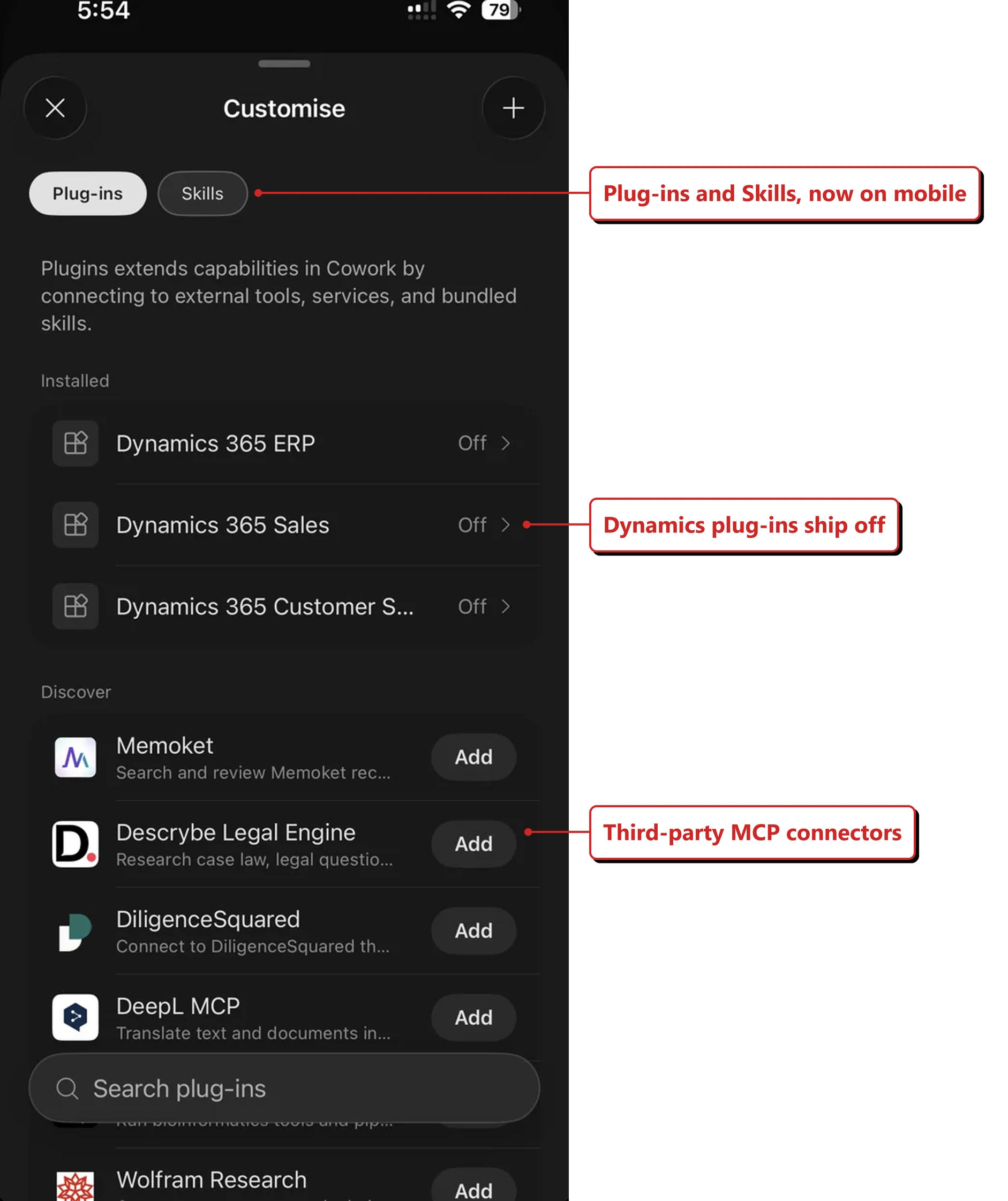
My own phone, 14 September 2026. The Customise sheet, with Plug-ins and Skills sitting side by side.
The sheet has the same two halves as the desktop page. Installed carries a toggle each, and Discover gives every plugin its own Add button with a search box above it. So this is configuration, not a catalogue you can only look at. Skills sit on the tab beside it, which helps if you go hunting for plugins and land on skills first.
Two small inconsistencies, noted mainly because they are the sort of thing that tells you two teams built two screens. The desktop page calls them Plugins; the phone calls them Plug-ins. And the Discover list is not in the same order on the two — desktop opened alphabetically at Adobe and Ahrefs, while the phone opened on Memoket, Descrybe Legal Engine, DiligenceSquared, DeepL and Wolfram Research.
Why this matters: Cowork is built around handing work over and coming back later, which is exactly the shape of work people check on their phone. Plugins being desktop-only quietly meant the useful version of Cowork was desktop-only too.
📖 What’s new in Copilot Cowork
Microsoft 365 apps and everyday work
PowerPoint
31. PowerPoint can be locked to your approved template
For: Copilot in PowerPoint · Rolled out August 2026
Copilot in PowerPoint gained strict brand adherence. Microsoft’s wording is that it “restricts Copilot to your approved template and slide master layouts”, and that when it is on “Copilot won’t add or remove placeholders or invent new layouts”. The switch itself reads “Use only approved template layouts, Copilot will not create new layouts.”
That is a constraint on what Copilot can produce, rather than a warning shown to you afterwards. Most brand controls are a suggestion a rushed person can ignore. This one narrows what Copilot is able to generate in the first place. Microsoft does not describe it as refusing a request, and I have not been able to test what happens if you ask for something the template cannot express — so I would not promise anyone a polite “no”.
Where this lives catches people out, because it is not in PowerPoint. The setting sits in the Copilot app, under Create → More… → Brand kits.
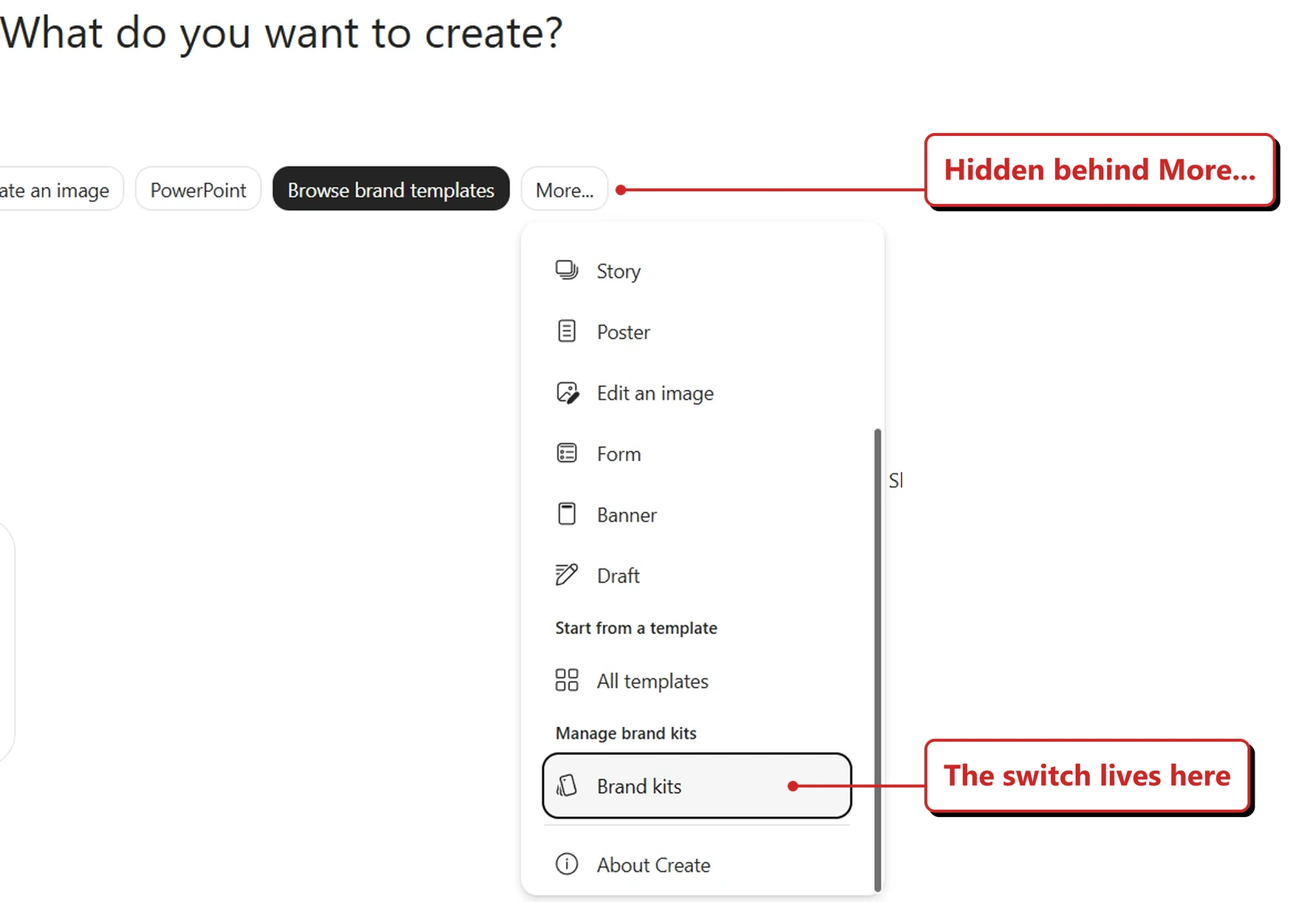
My own tenant, 14 September 2026 — the setting is not in PowerPoint. It lives in the Copilot app under Create → More… → Brand kits.
Why this matters: Every organisation has a deck template, and every organisation has decks that ignore it. If Copilot is the thing building the slides, the template stops being a guideline and starts being a boundary.
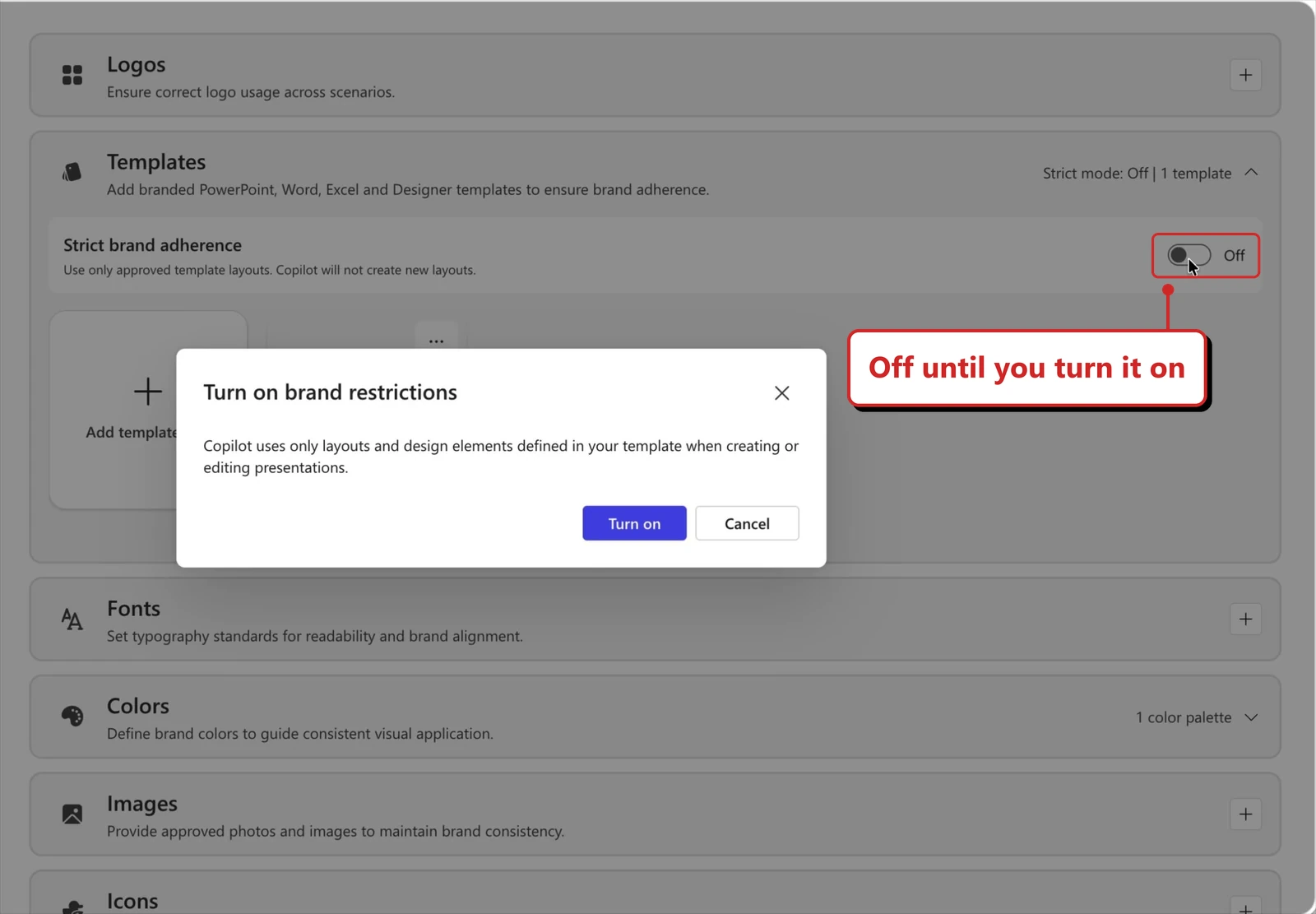
Official Microsoft image from Microsoft’s August 2026 Copilot roundup.
📖 Manage brand kit template settings in PowerPoint · Microsoft’s August 2026 Copilot roundup
32. Slide notes can steer Copilot slide by slide
For: Copilot in PowerPoint · Rolled out August 2026
Note steering lets you write plain-language instructions into a slide’s notes field, and Copilot follows them for that slide. Instead of one instruction for the whole deck, you get governance at the level of the individual slide.
In practice this turns the notes field into a brief. Microsoft’s own documented examples are instructions like “Always include this cover slide”, “Don’t modify this slide”, “Keep the text minimal”, “Always include this slide last”, “Do not change the logo, colors, or layout on this slide”, “Always use a bar chart, not a pie chart” and “This slide is for an executive audience - keep it high-level”. Each one applies to the single slide it sits under.
Where the switch lives. This is the part that catches people out. It is not in PowerPoint at all — it sits with the template, over in the Copilot app.
- Copilot app → Create → More… → Brand kits
- Open the template you want
- More options (…) → Edit details
- Tick Allow note instructions — “Use slide notes to control how Copilot updates and creates content”
Microsoft also sets this checkbox at the point you upload a template, so a template added before the feature arrived may never have been offered it. After that the notes field does the work: type the instruction under the slide, then ask Copilot to rewrite that slide.
I went looking on 14 September 2026 and that checkbox was not in my tenant yet — the Edit details dialog had no such option. Microsoft published it in the August roundup, so it is either still rolling out, not switched on for my tenancy, or only offered on templates uploaded since it shipped — my template predates it. Which means the interesting question, how closely Copilot actually follows an instruction written in the notes, stays open. I will retest for the next issue.
Why this matters: Long prompts try to describe a whole deck at once, and the detail gets lost. Putting the instruction next to the slide it applies to is a much more natural way to work, and it survives into the next revision because it lives in the file.
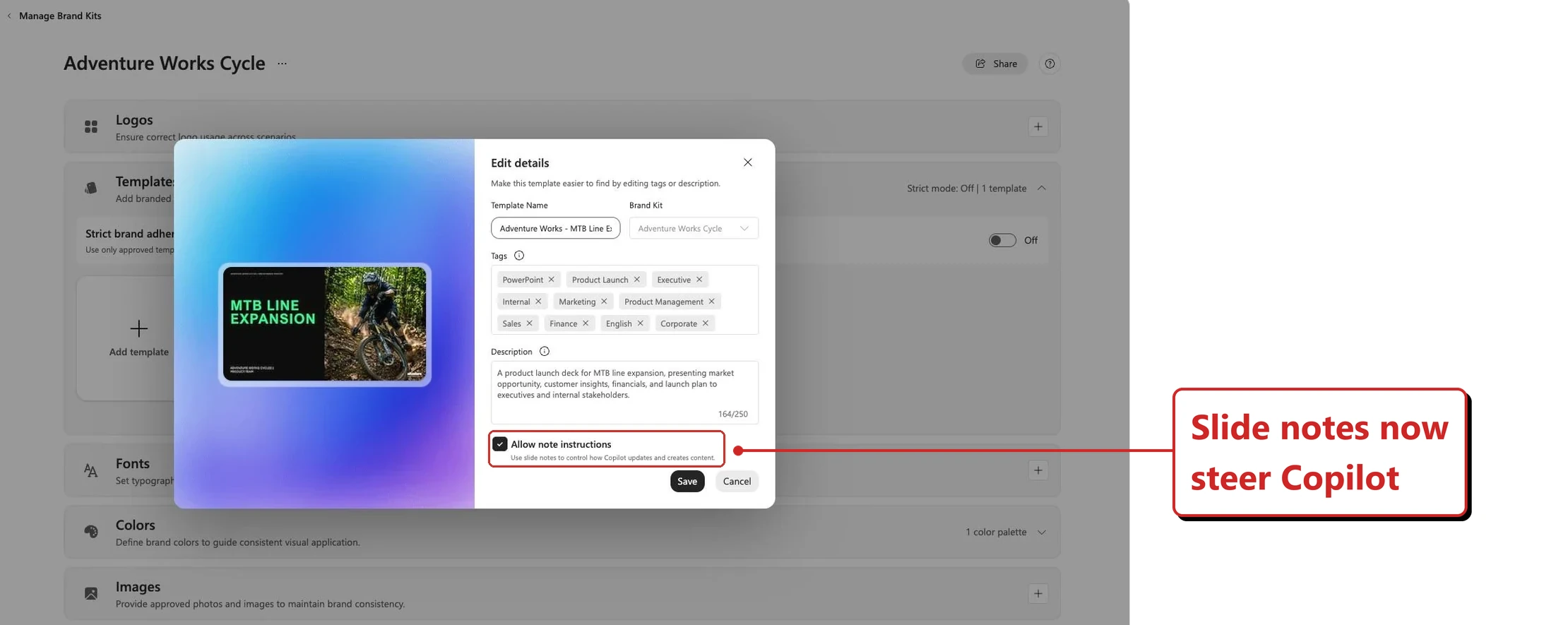
Official Microsoft image from Microsoft’s August 2026 Copilot roundup.
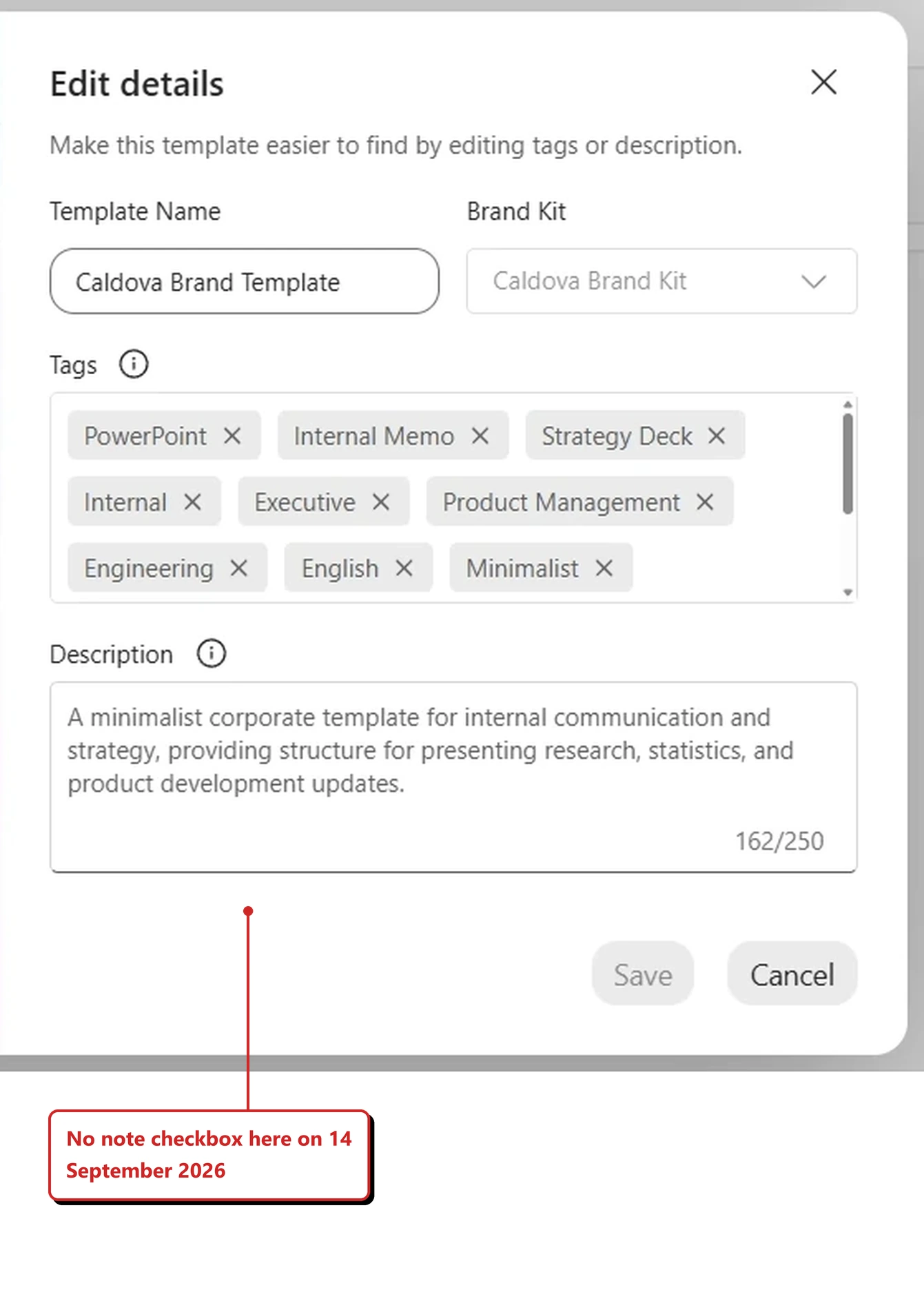
The same dialog in my own lab tenant on 14 September 2026. The form runs from Template Name straight through to Save and Cancel — there is no Allow note instructions checkbox in it. In Microsoft’s image above, it sits directly under the description box.
📖 Manage brand kit template settings in PowerPoint · Microsoft’s August 2026 Copilot roundup
33. You can now author your own PowerPoint skills
For: Copilot in PowerPoint · Rolled out August 2026 · Walked through in my tenant 14 September 2026
The August issue covered PowerPoint skills arriving, with custom skill files appearing from a OneDrive folder. What changed is the authoring: you can now upload, create, edit and delete your own skills rather than only using what is already there.
That closes the loop. A skill stops being something handed to you and becomes something you write, test and fix.
Where to find it. The way in is behind a + in the Copilot prompt box, which is easy to walk straight past.
- PowerPoint → open the Copilot pane
- In the prompt box, click +
- Choose skills
- Manage skills, at the bottom of that list
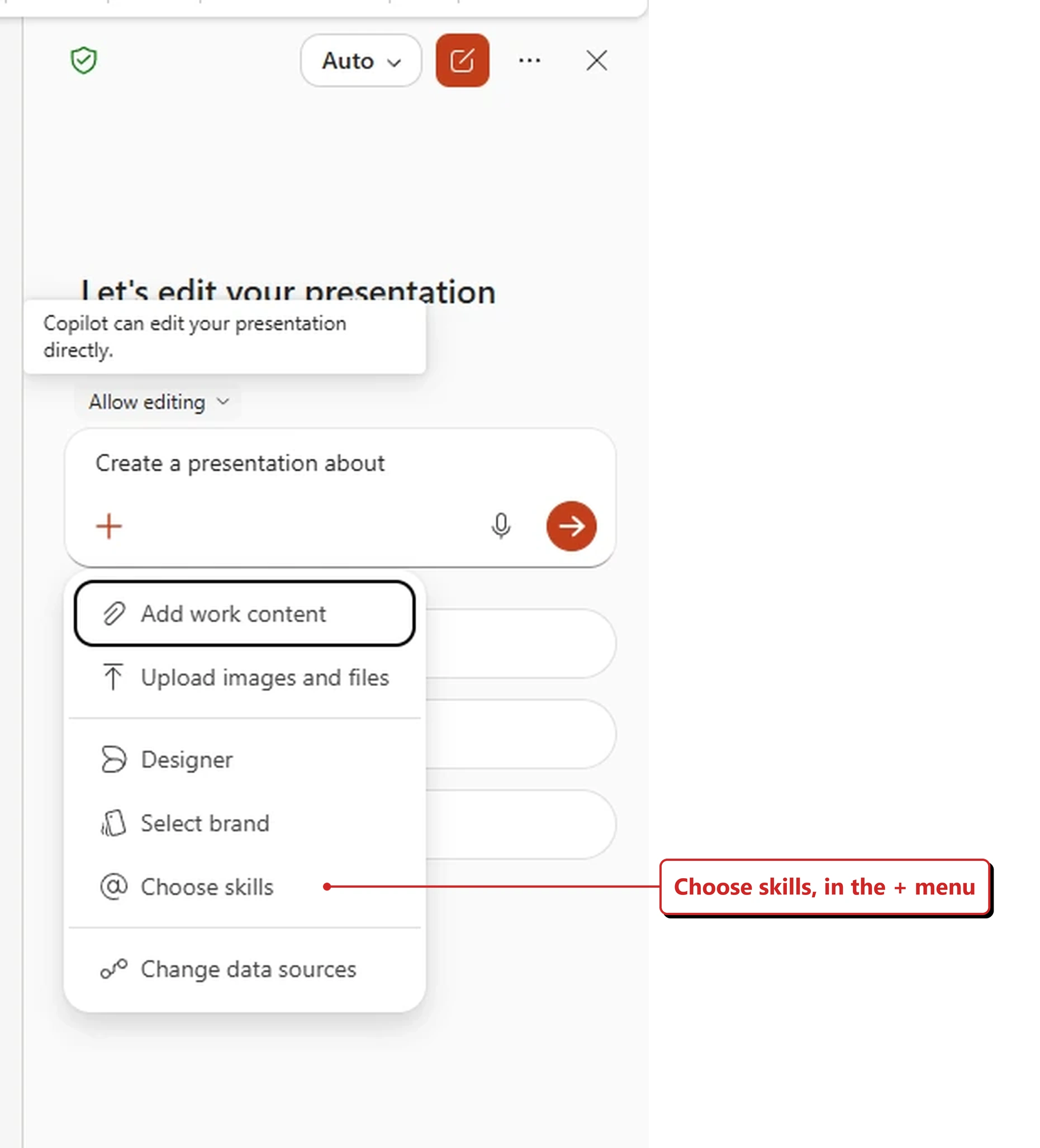
My own tenant, 14 September 2026. Choose skills is the entry point, and it lives behind the plus button rather than anywhere obvious.
Why this matters: The gap between "there are skills" and "I can write a skill" is the gap between a feature and a habit. Teams that build their own get a shared way of working; teams that only consume get whatever Microsoft shipped.
What I found on 14 September 2026. The pane opens as Skills & plugins. The five built-in skills were all switched on, and Custom skills sat above them as its own entry — switched off.
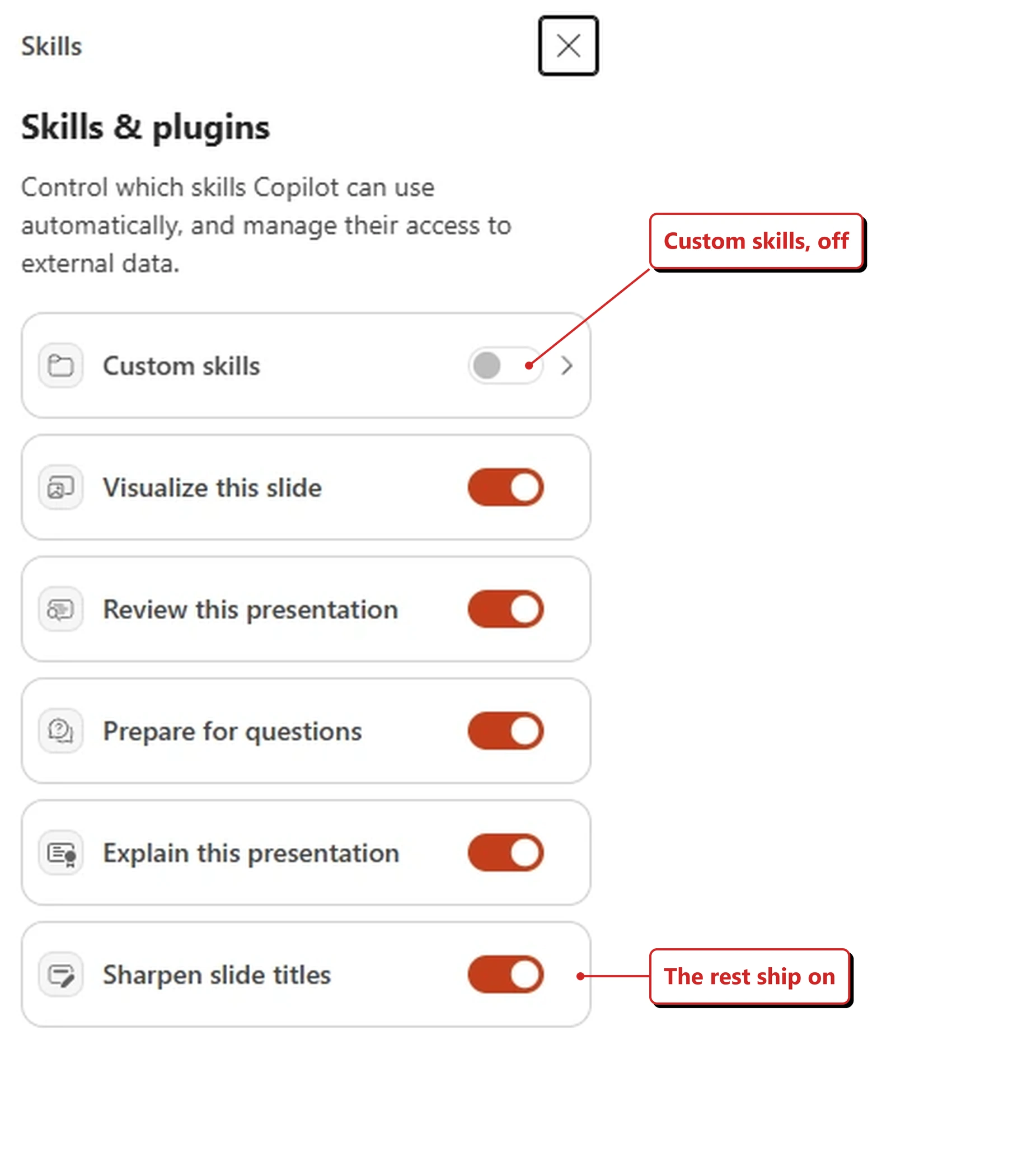
Custom skills ships off. Worth knowing before you go hunting for a folder that has not been made yet.
Turning it on explains the whole model in one sentence: “Custom skills let you extend Copilot with your own skill files. To get started, create a skills folder in your OneDrive.”
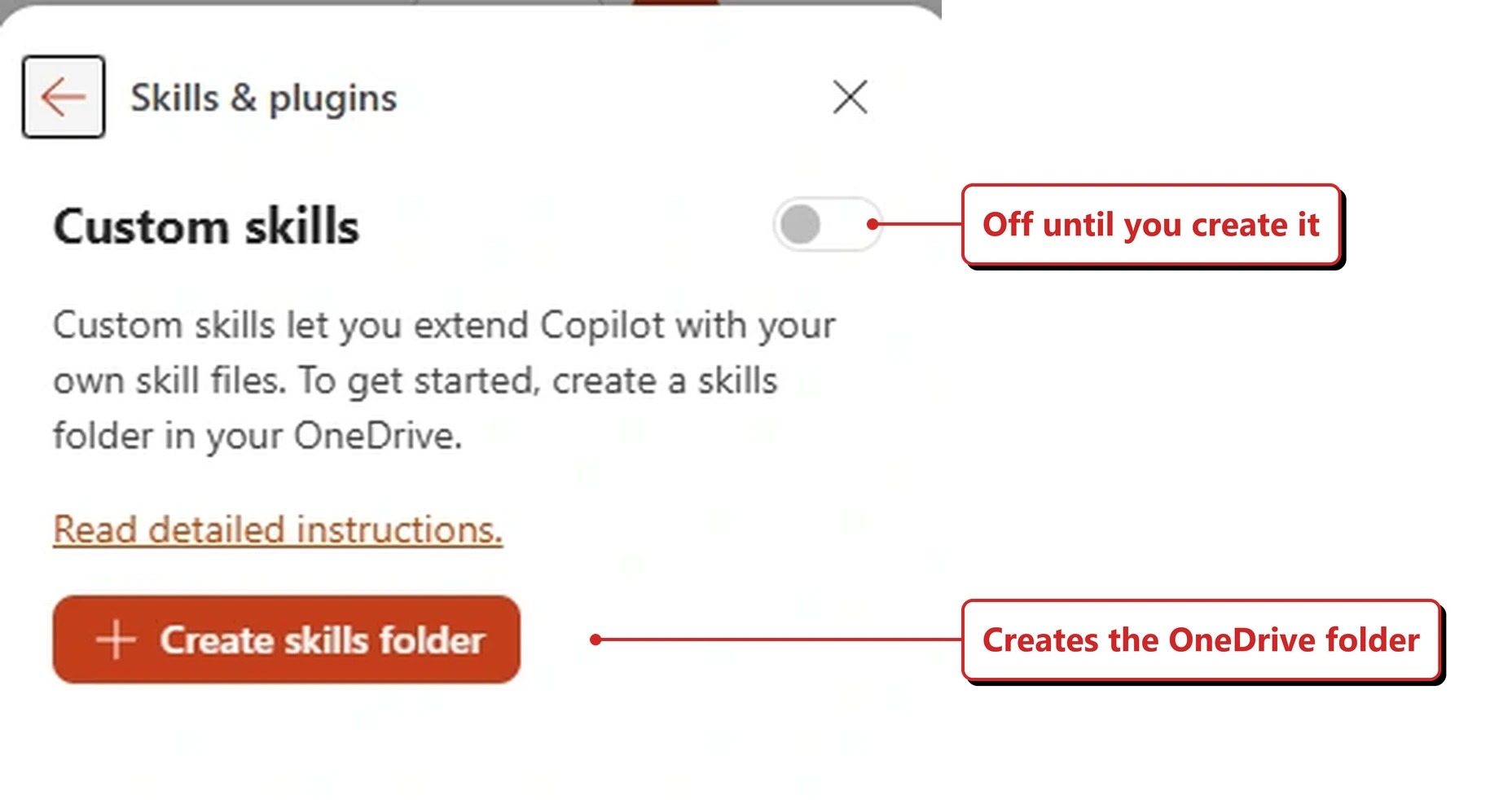
One button, and it is the whole mechanism.
That button does what it says. It made a skills folder in my OneDrive at Documents › Copilot › Microsoft PowerPoint › skills, and seeded it with a readme and a worked example rather than leaving it empty.
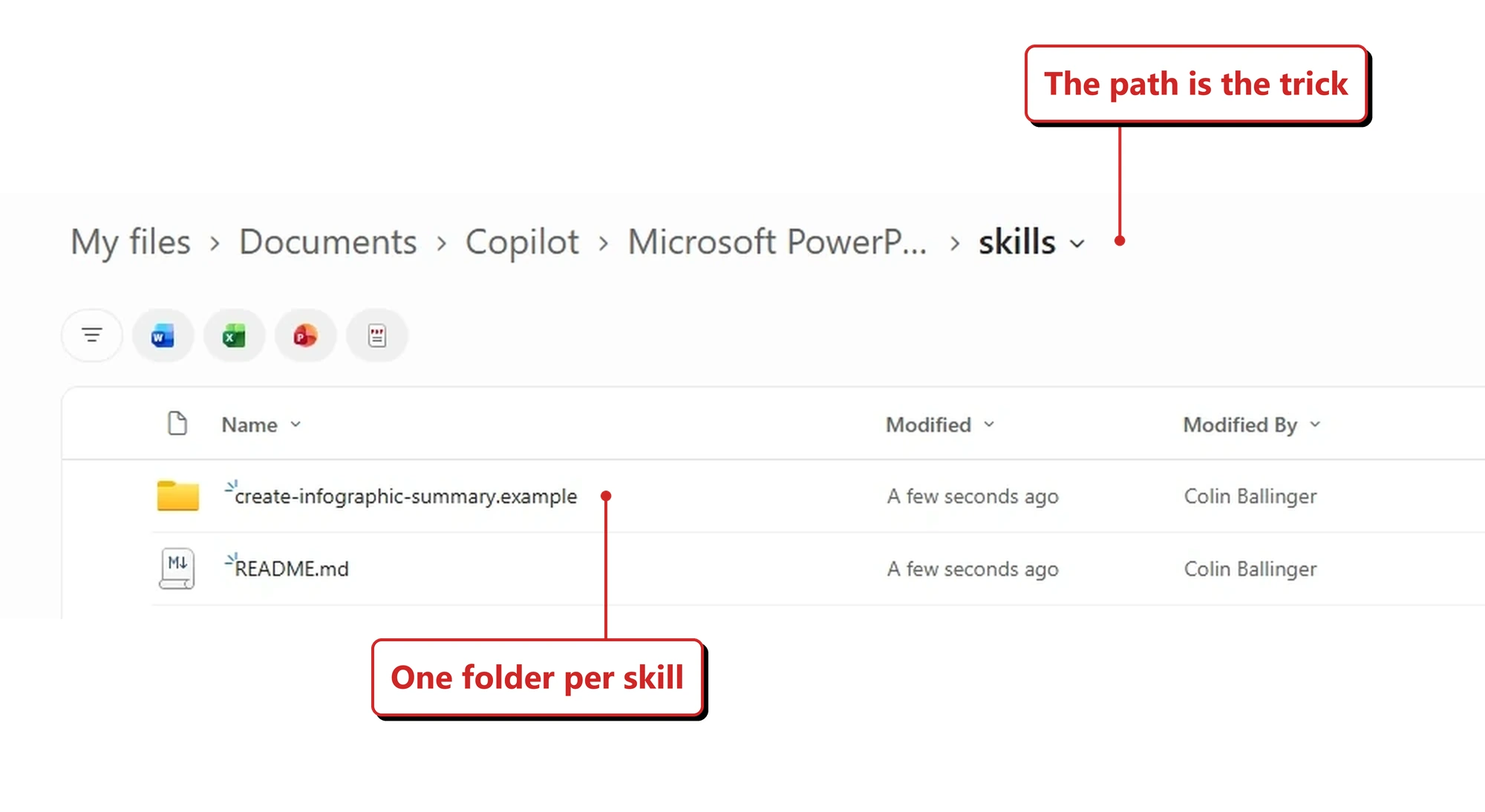
The part nobody shows you. A skill is a file in a folder — and Microsoft leaves you a readme and a working example to copy.
So the bar is lower than “author a skill” makes it sound. It also explains how upload works: drop a file in and it lands in that same folder.
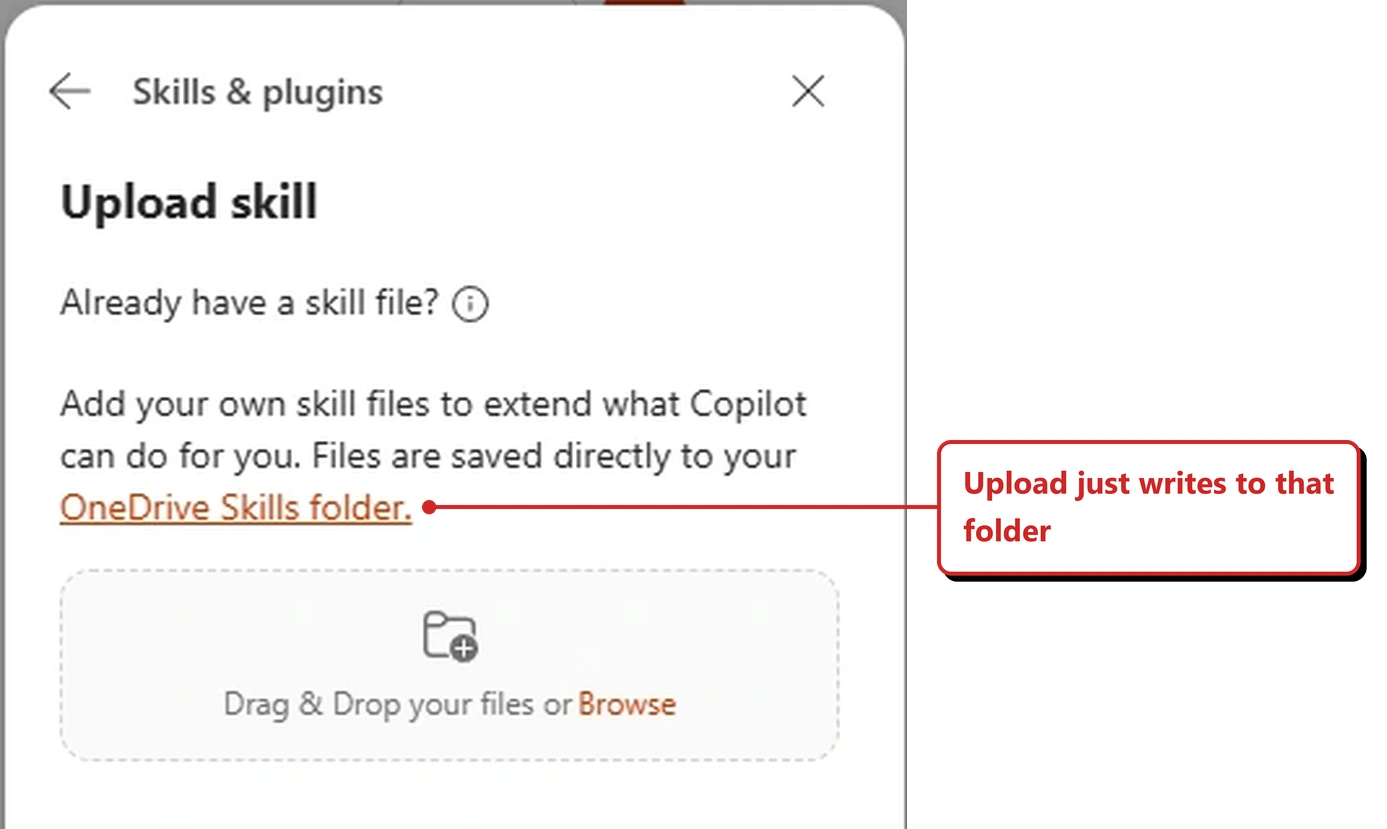
Upload writes to the same OneDrive folder, so the two routes end up in the same place.
I have not written one of my own yet, so I cannot tell you how a custom skill performs — that is for the next issue. What I can show you is what a skill does when it runs. This is the built-in visualize-this-slide skill, on a text-heavy slide I had just made.
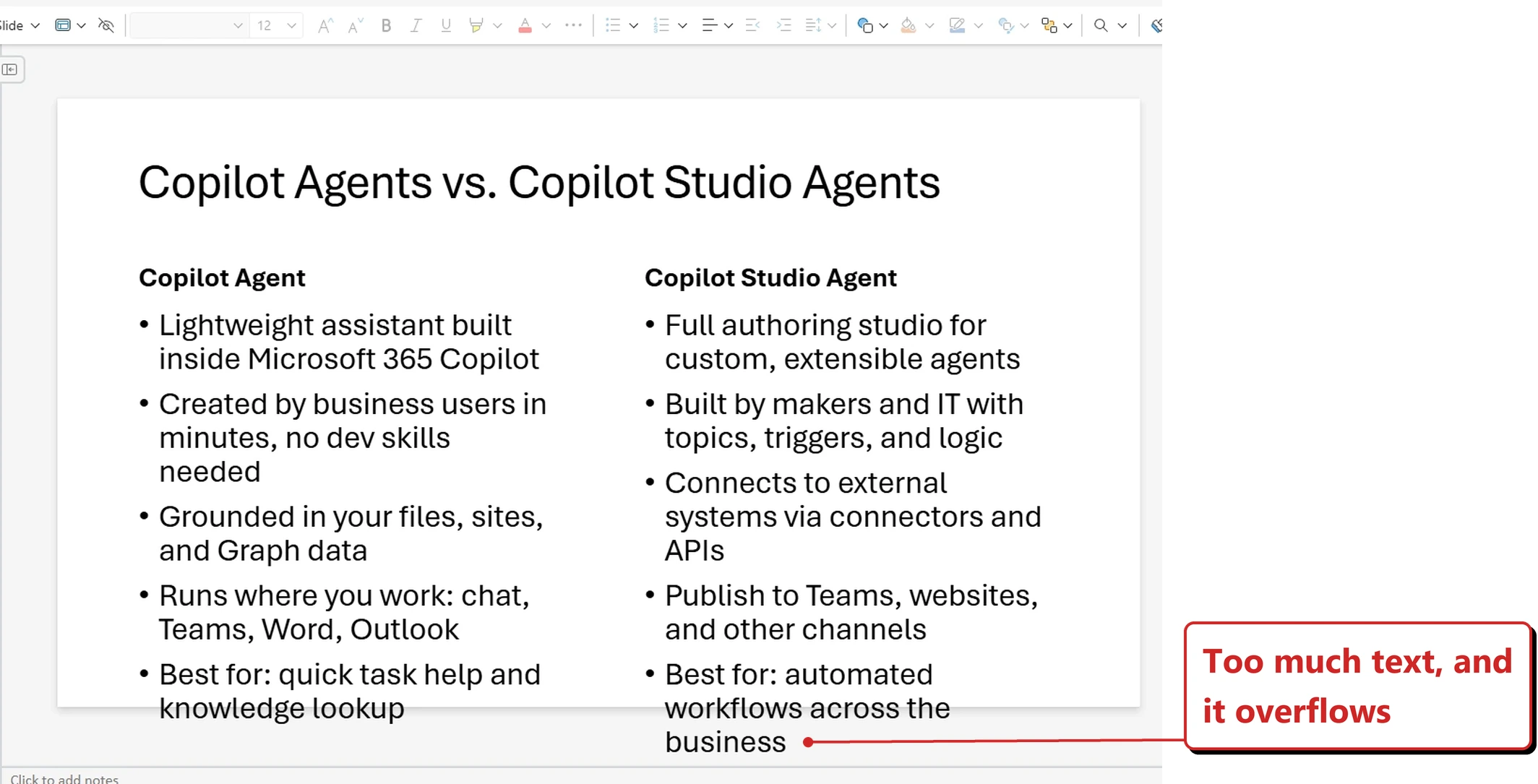
Before. Two columns of bullets, with the right-hand column spilling off the bottom of the slide.
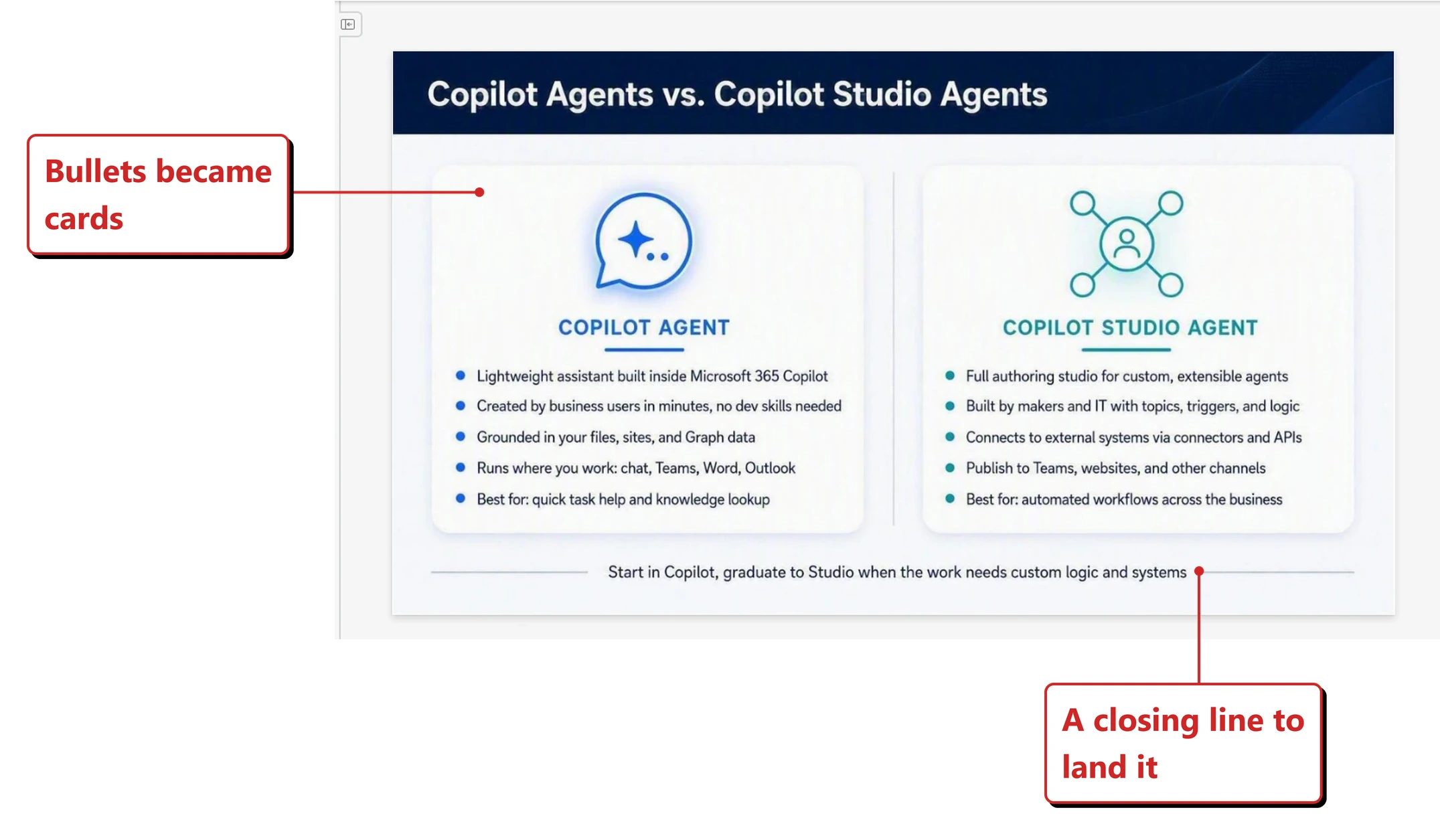
After. One instruction, one slide, and the rework is done — including a closing line the original never had.
📖 Microsoft’s August 2026 Copilot roundup
34. Translation moved into Copilot, and resizes the text for you
For: Copilot in PowerPoint · Rolled out August 2026 · Tested in my tenant 14 September 2026
Translation moved out of the ribbon and into Copilot. It also dynamically resizes text boxes to fit the translated text.
Anyone who has translated a deck into German knows why that second sentence matters more than the first.
There is no menu item to hunt for. You just ask.
What I found on 14 September 2026. I typed “Translate this presentation into German” into the Copilot pane on a deck I had just built. It reasoned through five steps, and the fourth one is the whole feature in Copilot’s own words: “I’m reducing the text size or turning on automatic fitting for the two body areas on slide 2 so the content stays inside the box.”
That is worth reading twice, because it is a slightly different thing from what the release note says. Microsoft describes this as resizing the text box. What Copilot reported doing was shrinking the text and switching on autofit. Same outcome on screen, different mechanism underneath.
It replied to me in German, which I did not ask for but rather liked. And it was straight with me about what it could not do: two of my slides were single full-screen images, so the text baked into them stayed in English.
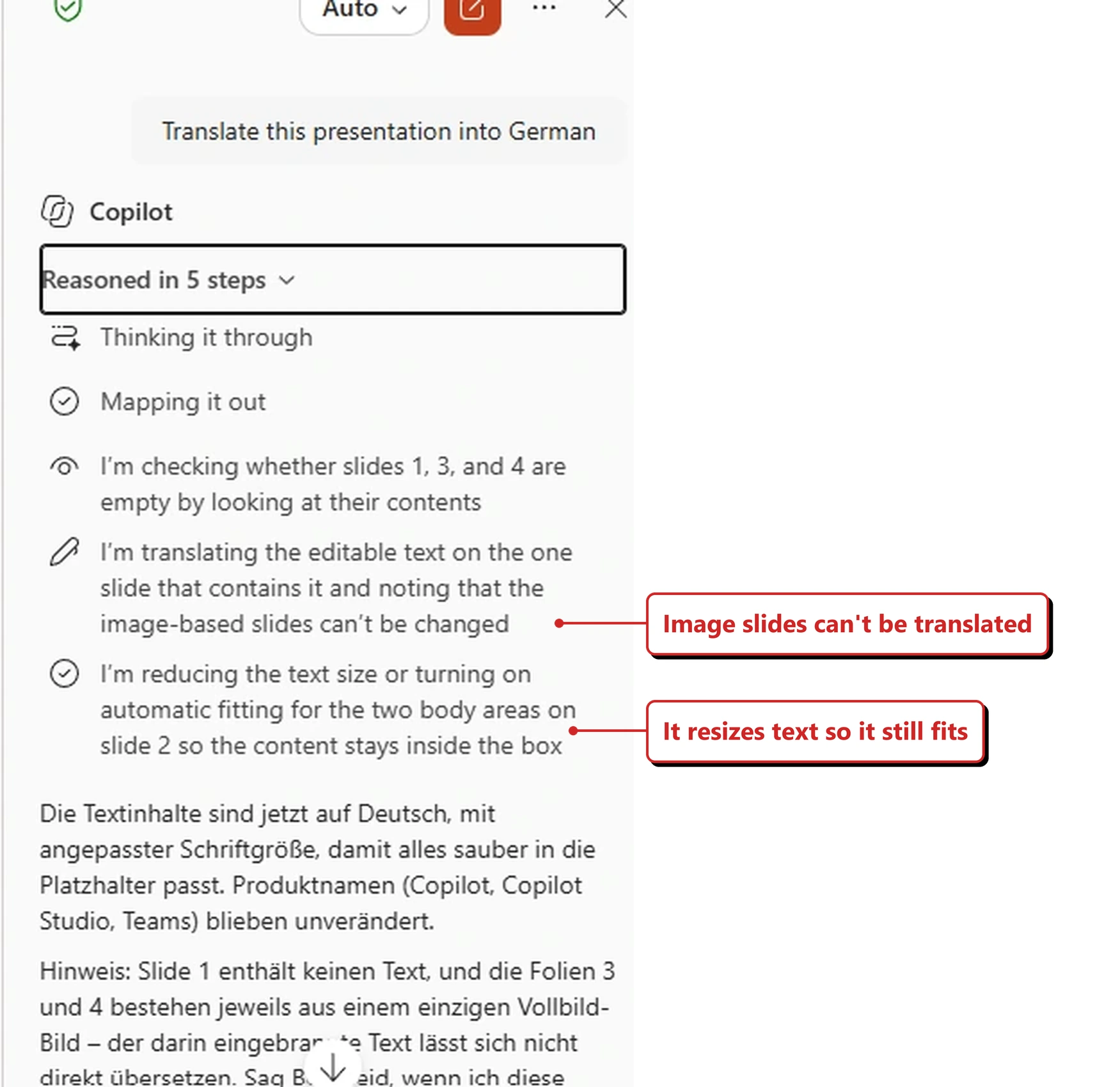
My own tenant, 14 September 2026. The fourth reasoning step is the feature describing itself — and note that it talks about shrinking the text and turning on autofit, rather than resizing the box.
Why this matters: Translation was never the hard part. The hard part was the hour afterwards spent fixing every slide where the new text no longer fitted. Handing the reflow to Copilot removes the bit that made people avoid translating decks at all.
The result holds up in the hardest direction. In the English original the right-hand column ran off the bottom of the slide. German runs roughly a third longer than English, and it still fits, with clear space underneath.
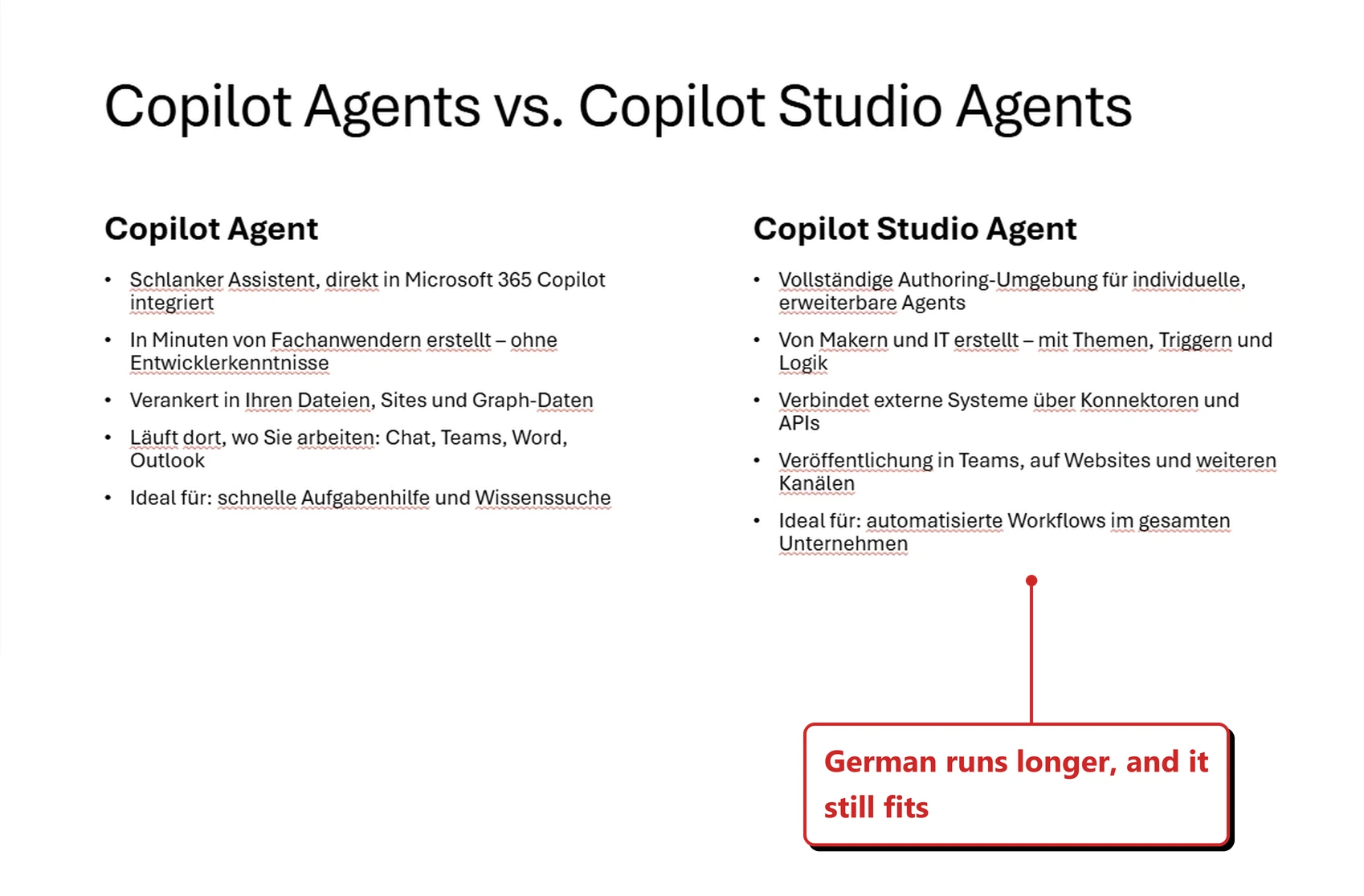
The same slide, translated. In English the right-hand column overran the bottom edge; in German — the longer language — it fits. The red underlines are my spell-checker, still set to English.
📖 Microsoft’s August 2026 Copilot roundup
35. Copilot can edit SmartArt on the canvas
For: Copilot in PowerPoint · Frontier Program · Rolled out August 2026 · Tested in my tenant 14 September 2026
Microsoft’s description is that Copilot can edit SmartArt, diagrams and shapes directly on the canvas, on brand, instead of leaving you to align things by hand.
This is a Frontier Program capability, so it reaches Frontier tenants first rather than everyone. I could reach it in my own tenant on 14 September 2026, so if you had written it off as not-for-me, it is worth ten seconds to check.
What actually happens when you ask for SmartArt. I took a plain two-column bullet slide and typed “convert this slide to a smart art”. The reasoning is the interesting part:
“I’m replacing the bullet list with a clean two-column card diagram using simple shapes and styled headers for a SmartArt-like look.”
SmartArt-like. Built from simple shapes. This is not PowerPoint’s SmartArt engine. It is Copilot drawing a diagram that resembles one.
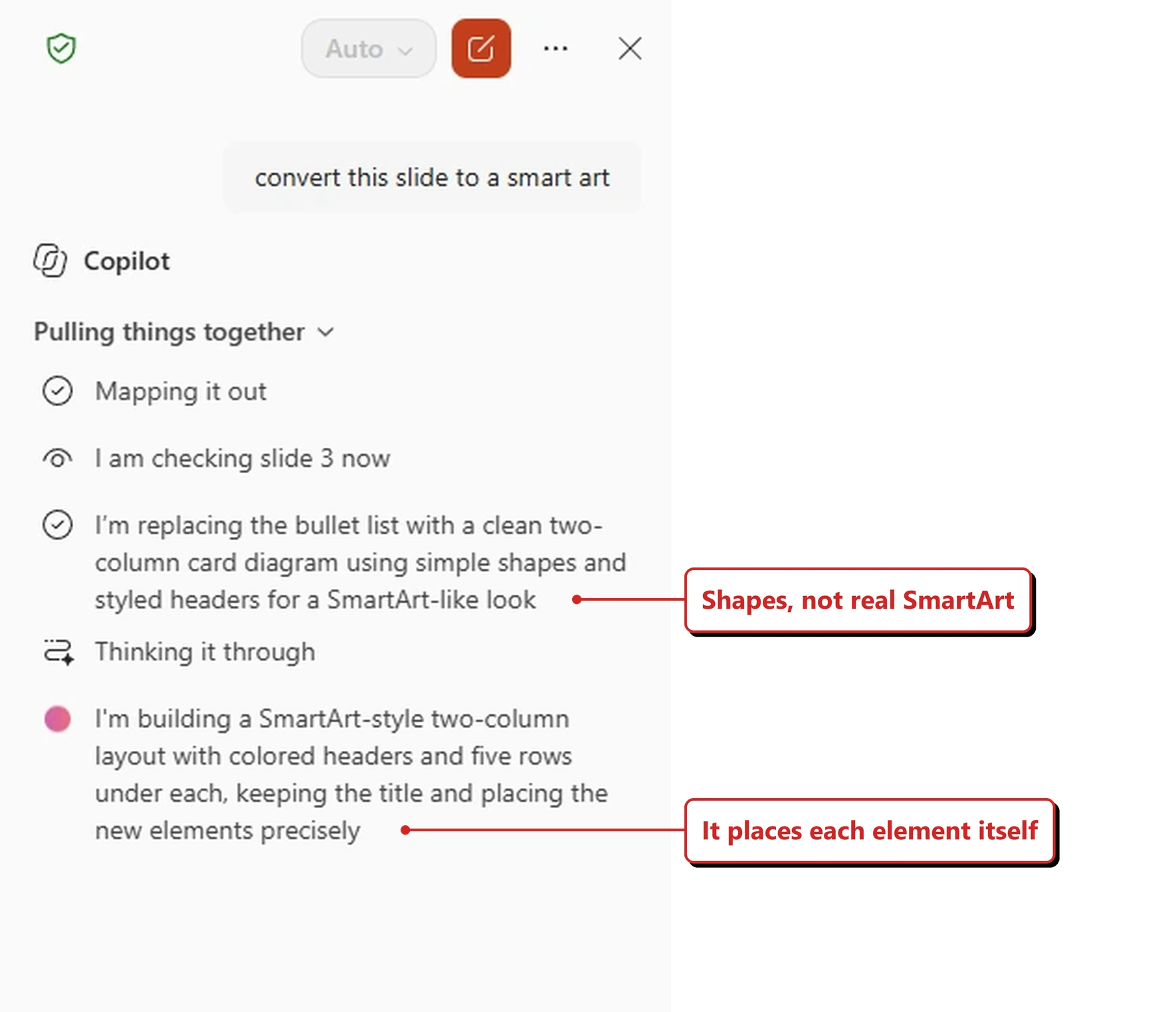
My own tenant, 14 September 2026. SmartArt-like, built from simple shapes — Copilot saying plainly that this is not PowerPoint's SmartArt engine.
That sounds like a downgrade until you see it.
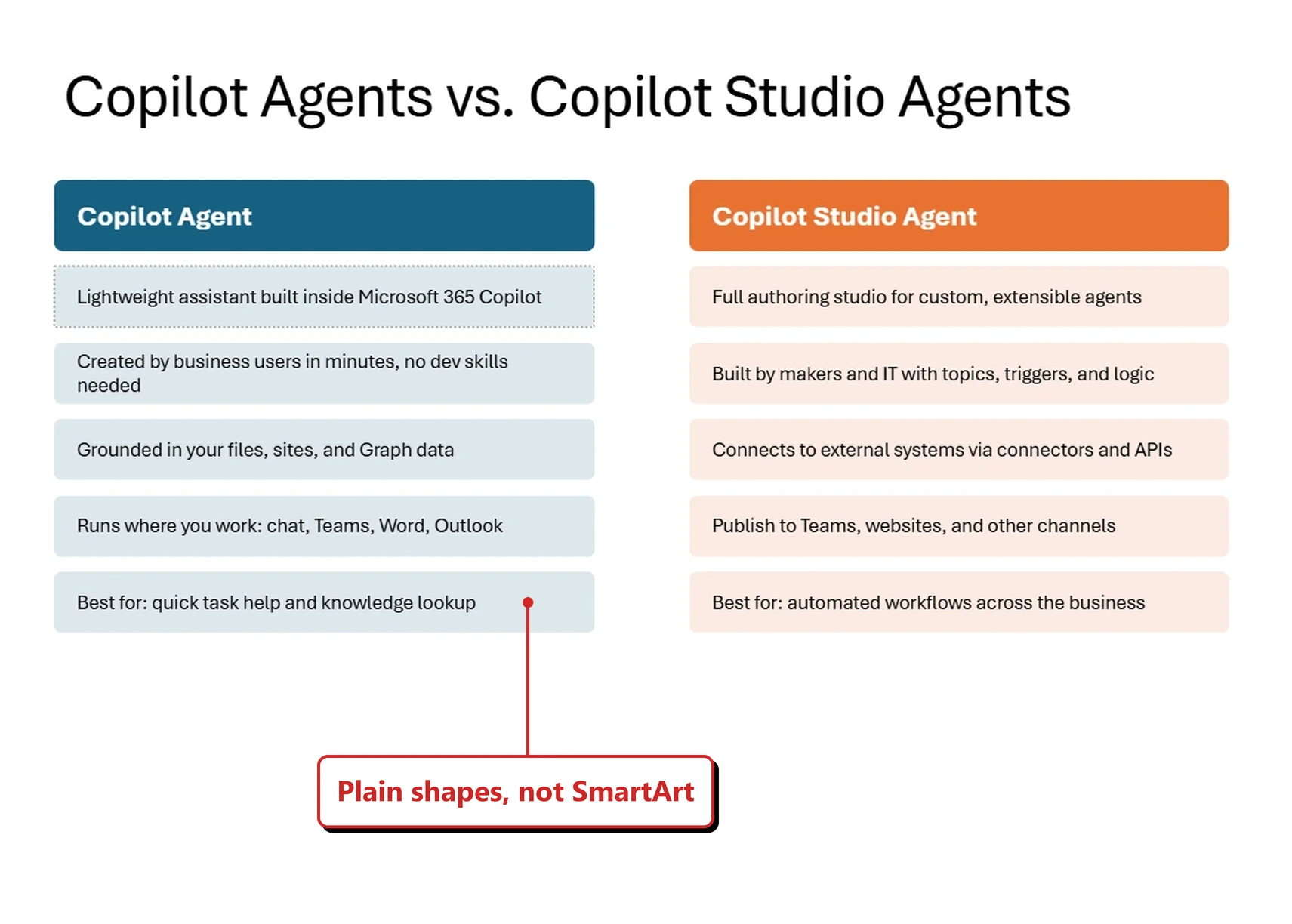
The result. Cleaner than the bullet list it replaced, and each card is a separate shape you can select and move.
That distinction costs you something. Because this is not a real SmartArt object, there is no SmartArt Design tab, so you cannot flick between built-in layouts or type into the text pane. What you get instead is a diagram that is not boxed in by SmartArt’s templates — and in my case, one that looked rather better than SmartArt would have.
Why this matters: Diagrams are where deck work quietly loses an afternoon. Nudging boxes into alignment is not thinking, it is admin — and it is exactly the kind of fiddly, rule-based work a model is good at.
Then the actual claim — editing it on the canvas. This is what the release note is really about. I asked for a layout change in one short line.
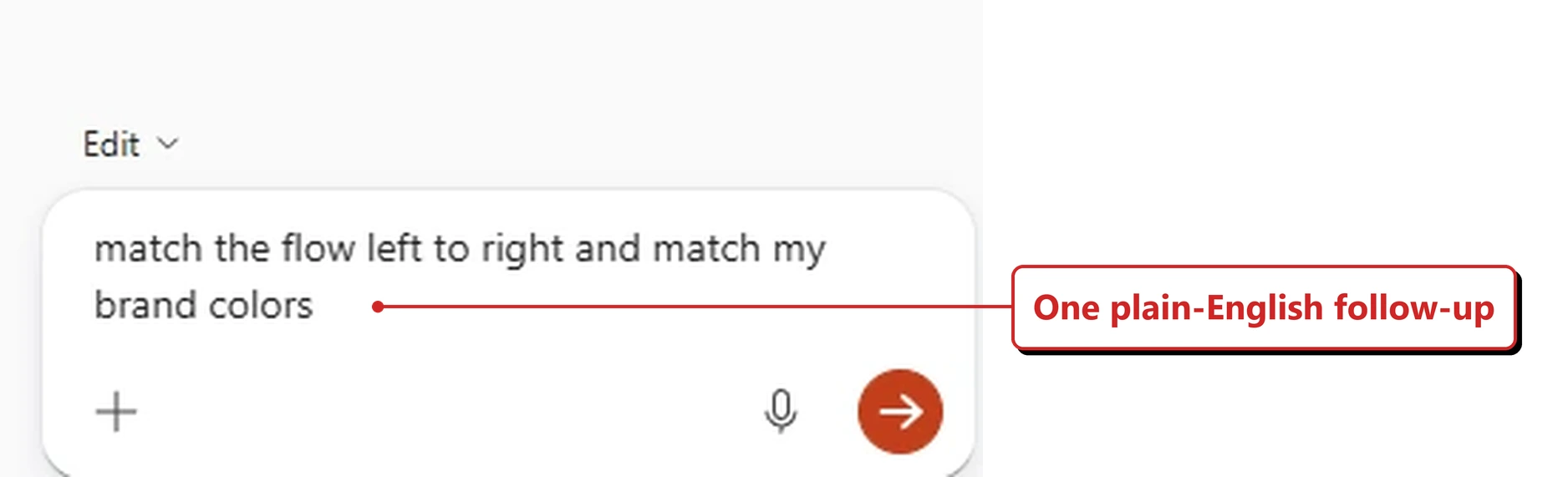
One line was all the instruction it needed.
It rebuilt the whole thing as two chevron process flows, condensed the text so it sits inside the arrows, and deepened the colour of each step as the flow progresses.
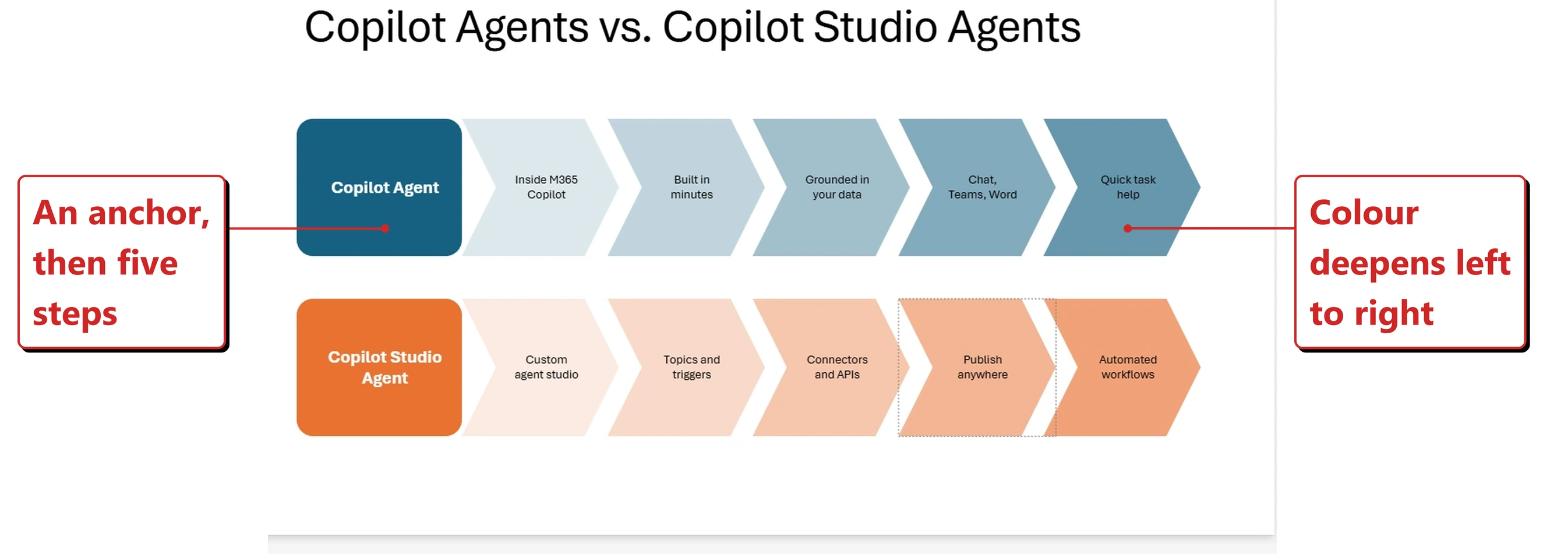
The same content rebuilt as two process flows, with the text condensed to fit inside the chevrons.
And then one line in the reply that was worth the whole test.
“I kept your theme’s own palette since no separate brand kit was available — say the word if you want specific hex colors applied instead.”
I had built a Brand Kit earlier that same day — it is section 31 of this very post. Copilot in PowerPoint could not see it. I cannot yet tell you why: brand kits may only apply to the Create surface in the Copilot app, the deck may need to start from a brand kit template, or this may still be rolling out. What I can tell you is that “on brand” quietly fell back to the deck’s theme colours, and that Copilot said so rather than guessing silently. I will chase this one down for the next issue.
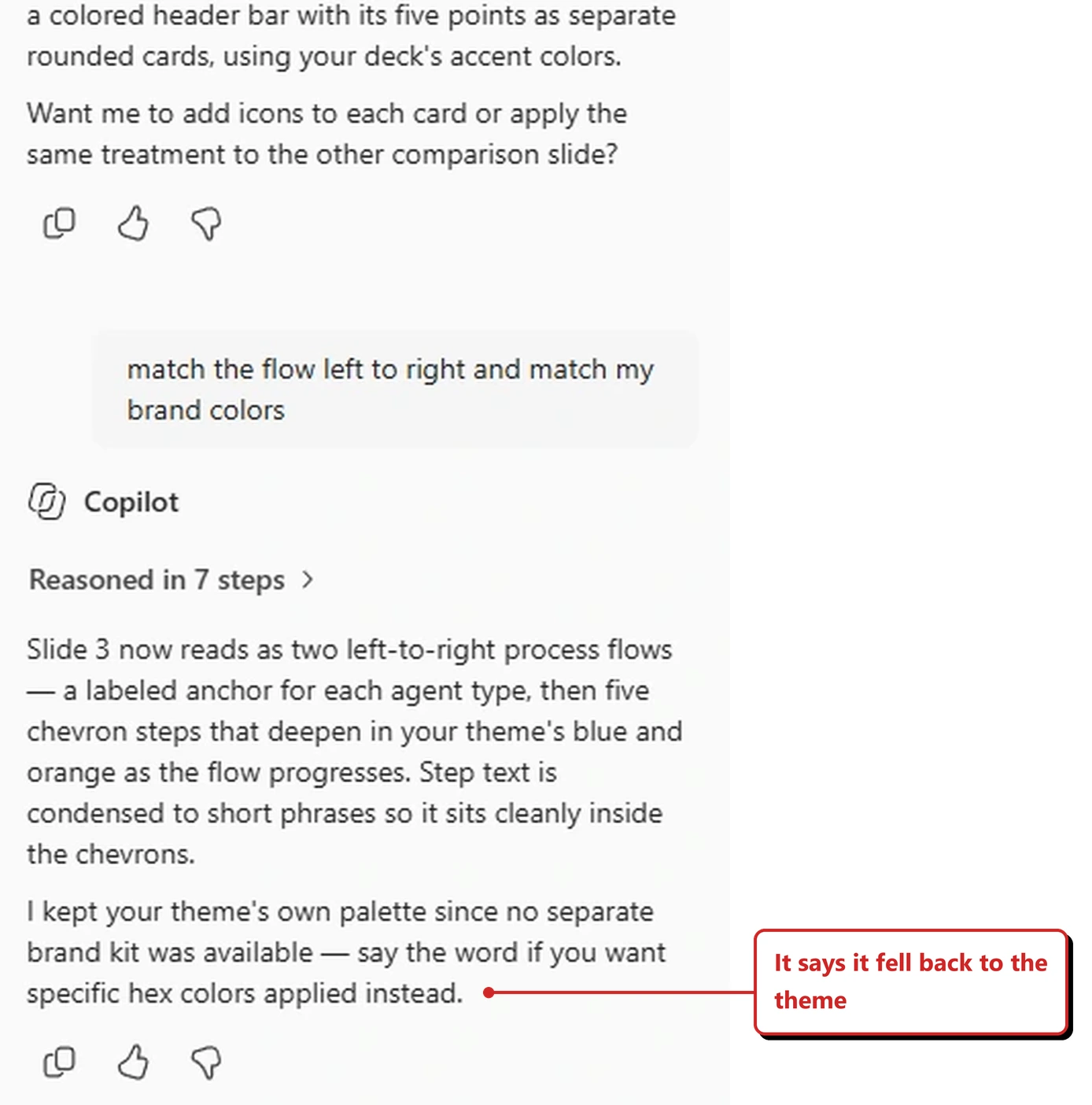
The line that matters. A Brand Kit existed in my tenant; Copilot in PowerPoint did not find one.
📖 Microsoft’s August 2026 Copilot roundup
36. PowerPoint can build a deck from an email
For: Copilot in PowerPoint (Windows) · Generally available 25 August 2026 · Tested in my tenant 14 September 2026
You can reference an email when asking Copilot to create a presentation. The thread becomes the source material for the deck.
What I found on 14 September 2026. The word “reference” set my expectations wrong. I could not attach an email as grounding the way you attach a Word document or a PDF — there is no picker for it, and nothing to drag in. What worked was simply describing it: “Create a presentation about Caldenza Relief — range and pack format email from Miguel Garcia”. Copilot went and found the thread on its own.
“I’m locating Miguel Garcia’s email so I can build the deck.”
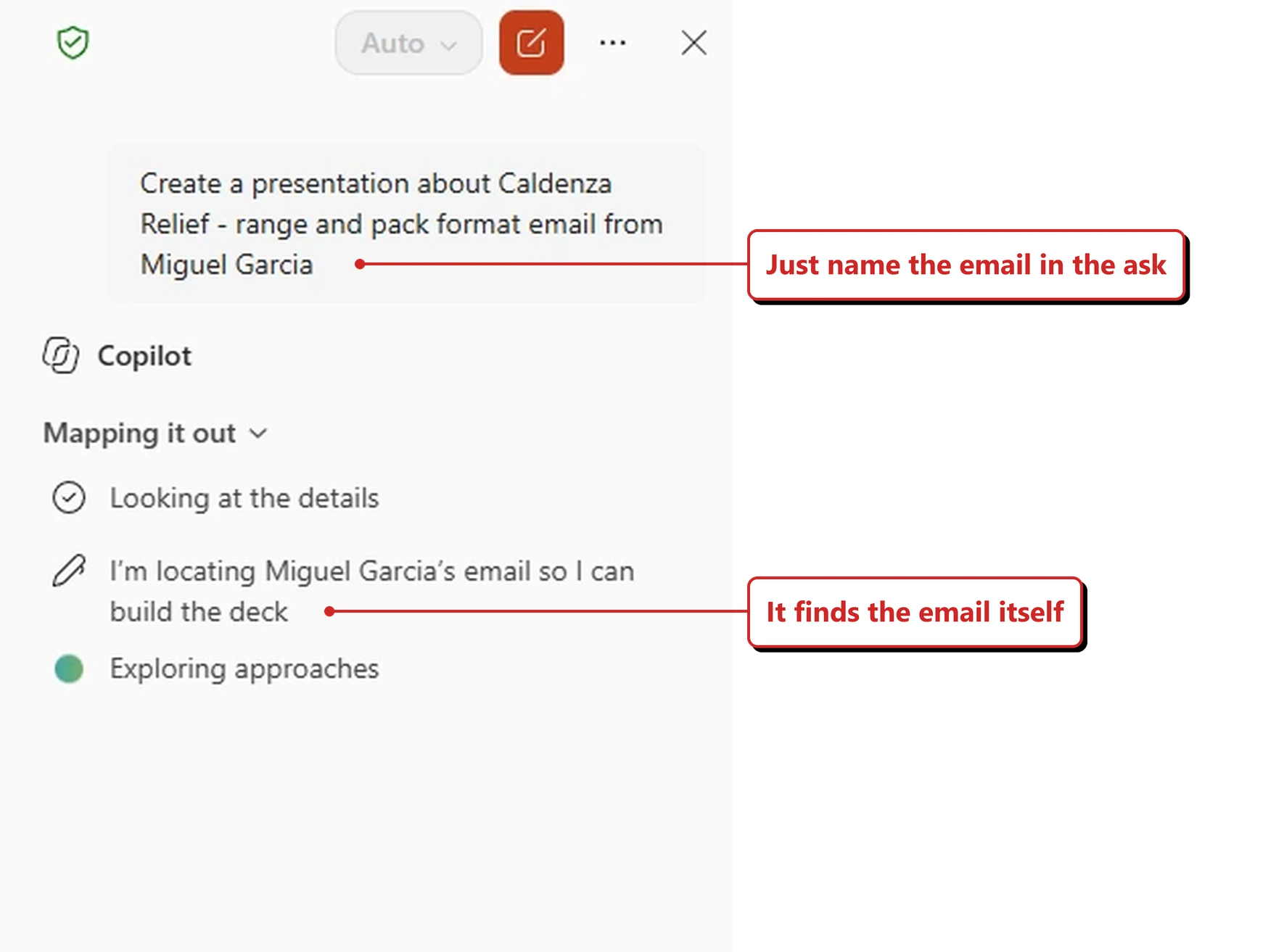
My own tenant, 14 September 2026. No attachment and no picker — Copilot searched my mailbox from the description in the prompt.
Then it did something I was not expecting. Before generating anything, it stopped and asked how the deck should look, offering three styles it had written for this particular deck — “Clinical Navy & White”, “Warm Sand & Deep Teal”, “Bold Charcoal Data Focus” — along with a free-text box and a Skip all button.
Look at the option sitting at the top of that list.
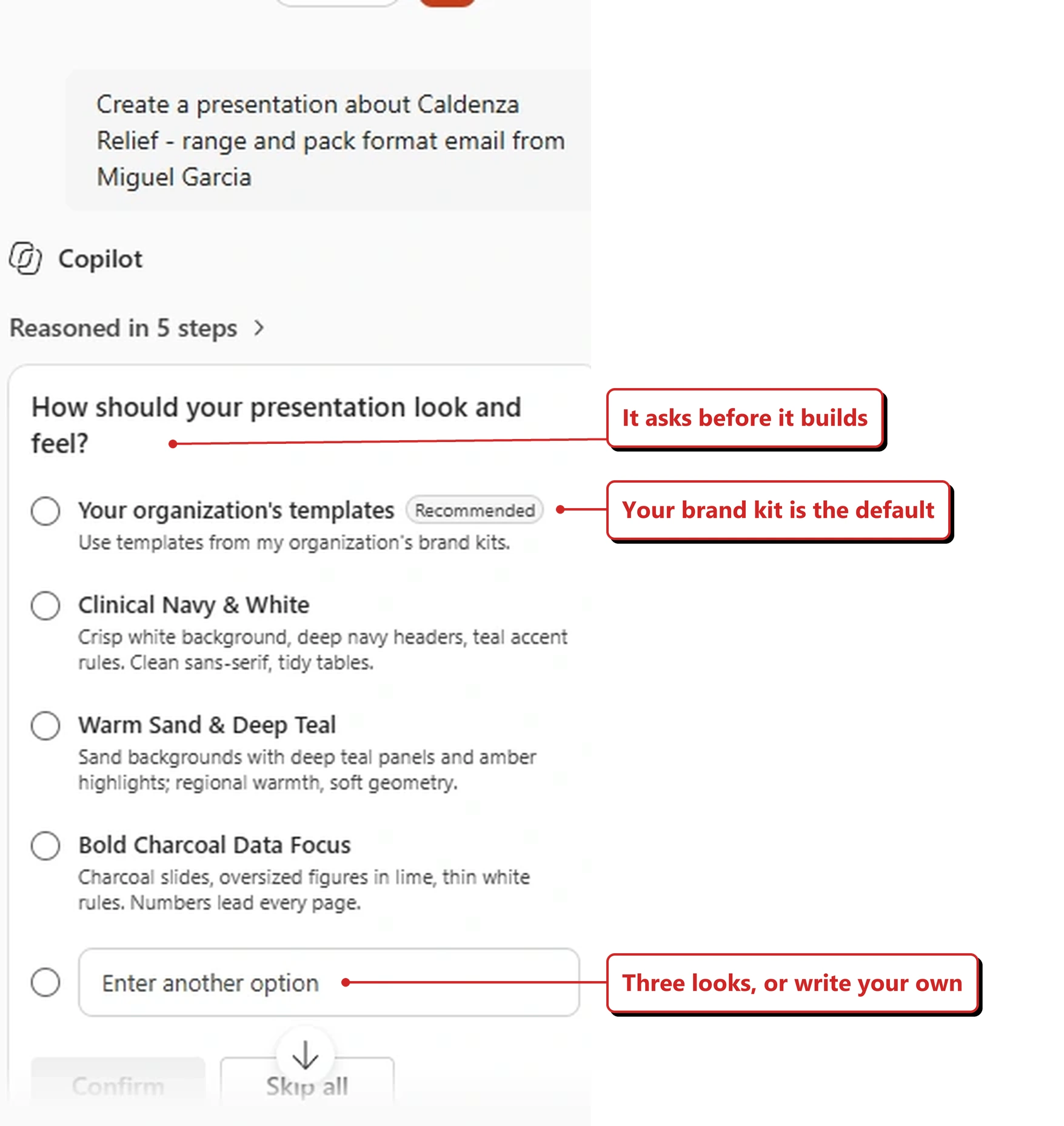
"Your organization's templates — use templates from my organization's brand kits." This is where brand kits surface in PowerPoint.
That is worth pausing on. In section 35, Copilot in PowerPoint told me no brand kit was available. Here, on the create path, brand kits are the recommended option. So they are not absent from PowerPoint at all. The working hypothesis I came away with is that they surface on the create path and not on the edit path — but that is two runs, not a rule, and I have not seen it written down anywhere. It is equally possible this is a rollout difference, or that the create flow offered the option without successfully applying the kit. Worth knowing where to look; not worth quoting as product behaviour until someone confirms it.
Why this matters: A surprising number of decks start life as an email that got too long. Pointing Copilot at the thread skips the step where someone copies the argument into a blank slide and loses half of it.
The deck it produced held up. This is one slide from it, in the navy-and-teal treatment it had proposed a minute earlier.
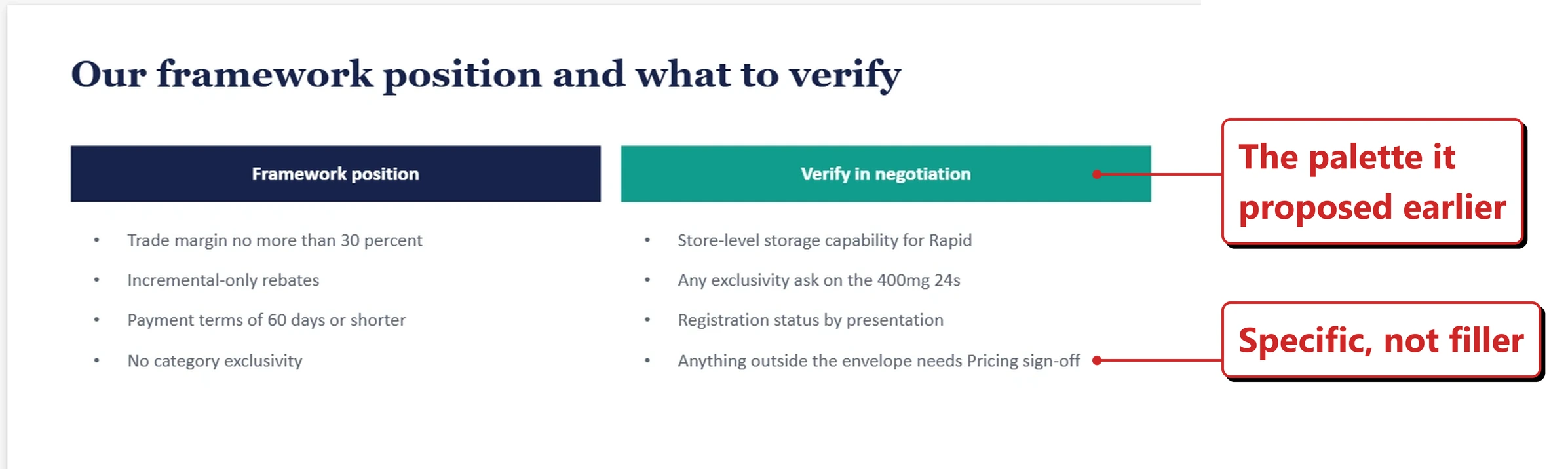
One slide from the generated deck, built from an email thread it found by itself. The content is fictional demo-tenant data.
📖 AI at Work Roadmap 555888 · Microsoft 365 Copilot release notes
37. Copilot can explain the slide you are looking at during PowerPoint Live
For: Copilot in PowerPoint Live · Generally available 25 August 2026 · Tested in my tenant 14 September 2026
During a PowerPoint Live session, an attendee can select part of a slide and ask Copilot to explain it, without interrupting the presenter.
What I found on 14 September 2026. I ran a real meeting to test this one. PowerPoint Live tells attendees about it directly, with a coach mark that explains the gesture.
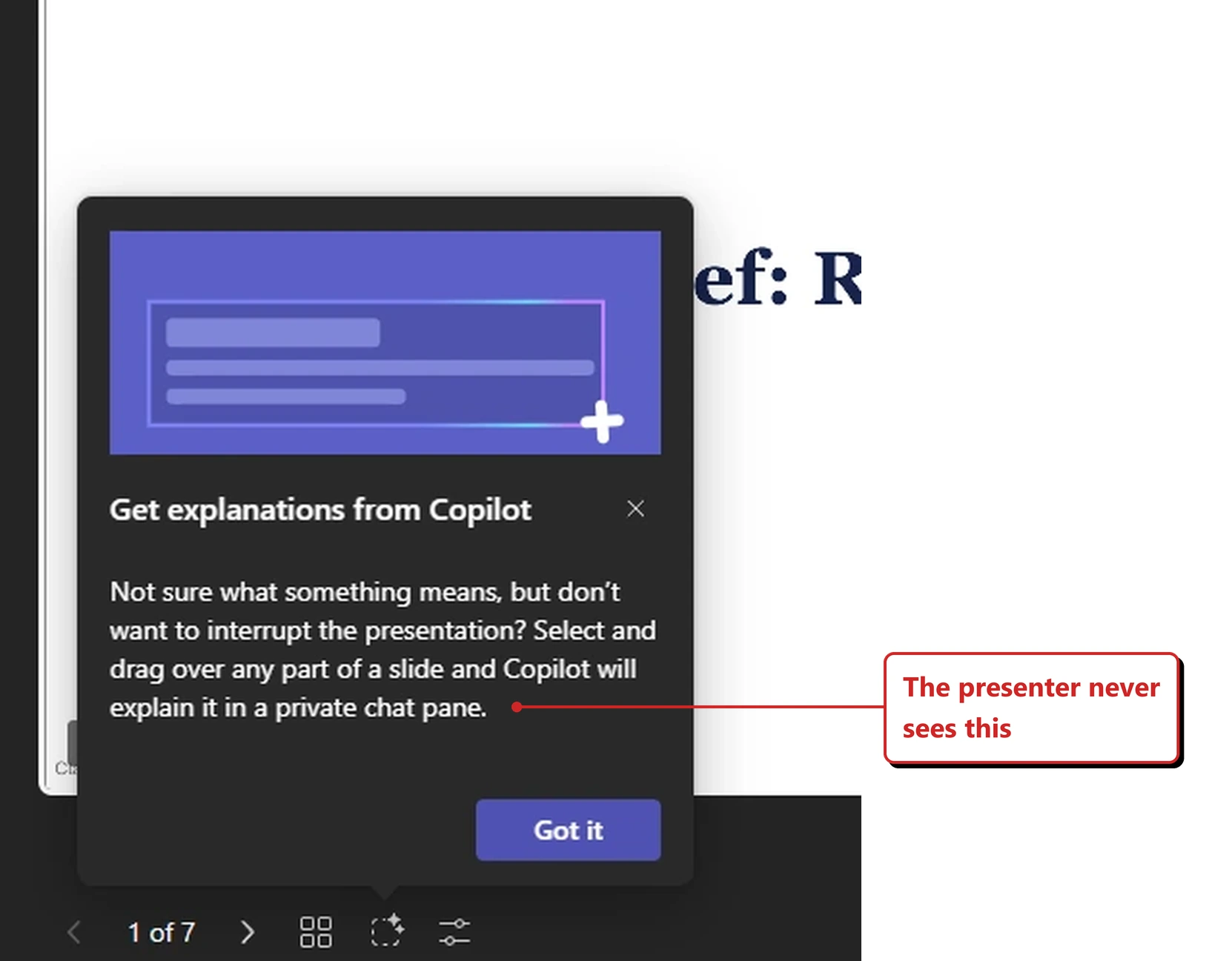
PowerPoint Live introduces the feature itself. Note the phrase “private chat pane” — the presenter never sees this.
Drag across anything on the slide and a small Explain selected text button appears where you released.
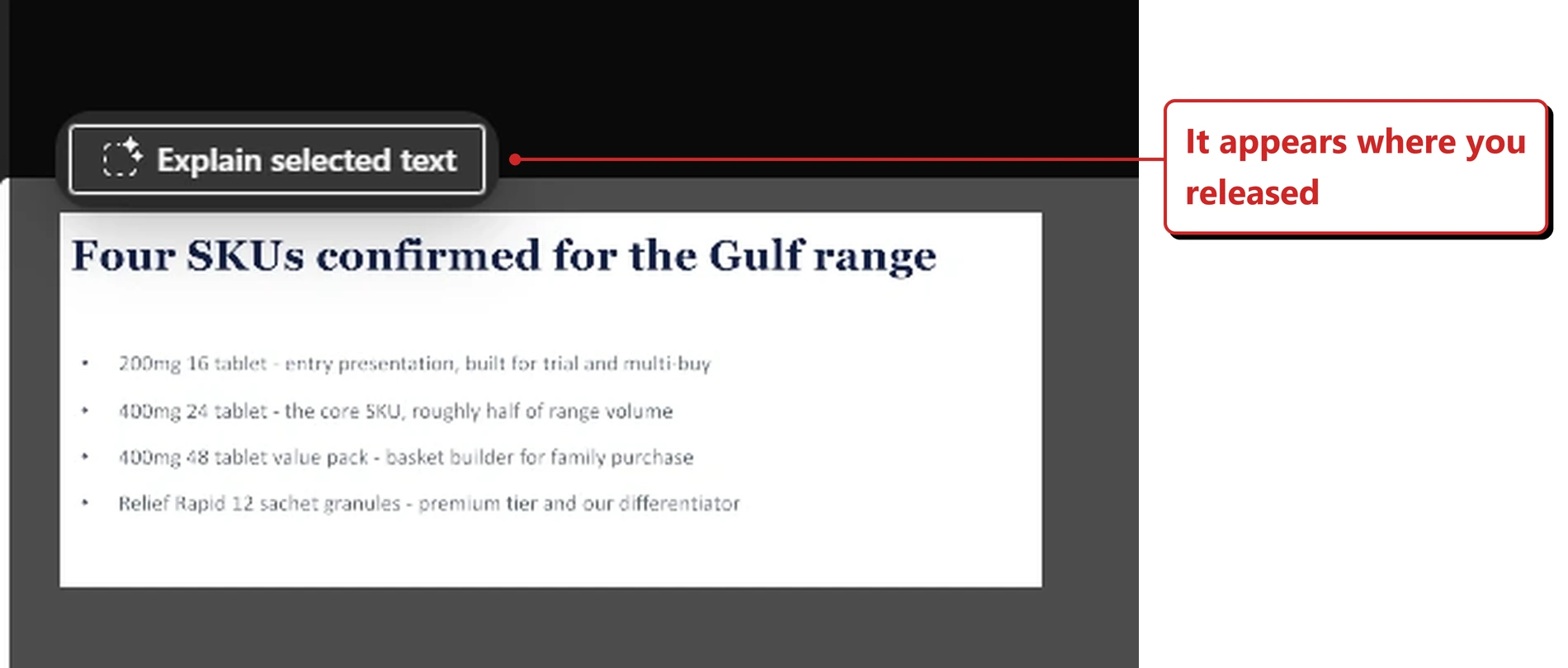
The trigger. Select, release, and the button comes to you.
What happens next is the part I liked. Copilot writes the prompt for you — including the text you selected, and a length limit you did not have to think about — and answers in your own pane, inside the meeting, while the presenter keeps talking.
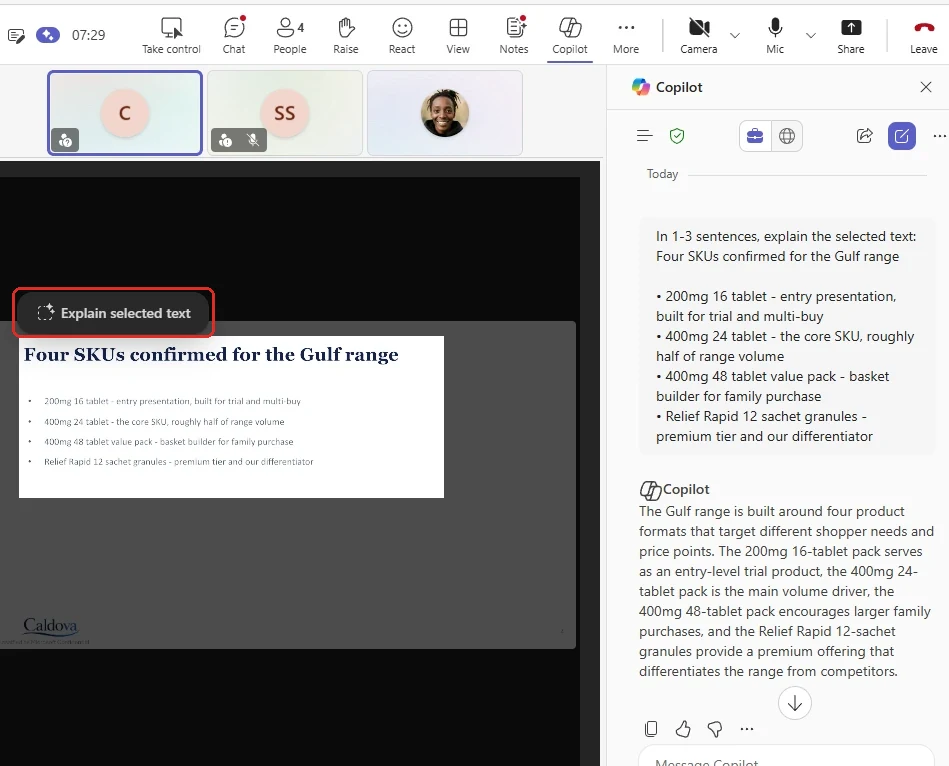
My own tenant, 14 September 2026. Copilot composed the prompt, capped it at one to three sentences, and answered privately mid-meeting.
Why this matters: In any large presentation there is someone who lost the thread three slides ago and will not put their hand up. This gives them a way back in that costs the room nothing.
📖 AI at Work Roadmap 557256 · Microsoft 365 Copilot release notes
38. PowerPoint can use brand assets from Adobe Experience Manager
For: Copilot in PowerPoint (Web and Windows) · Generally available 11 August 2026
Copilot in PowerPoint can use enterprise assets hosted in Adobe Experience Manager, so the images it reaches for are the approved ones rather than whatever it can generate.
Why this matters: Most large organisations already pay for a digital asset manager, and it tends to sit outside the tools where the work actually happens. Wiring it into the app where the deck is made is how those assets finally get used.
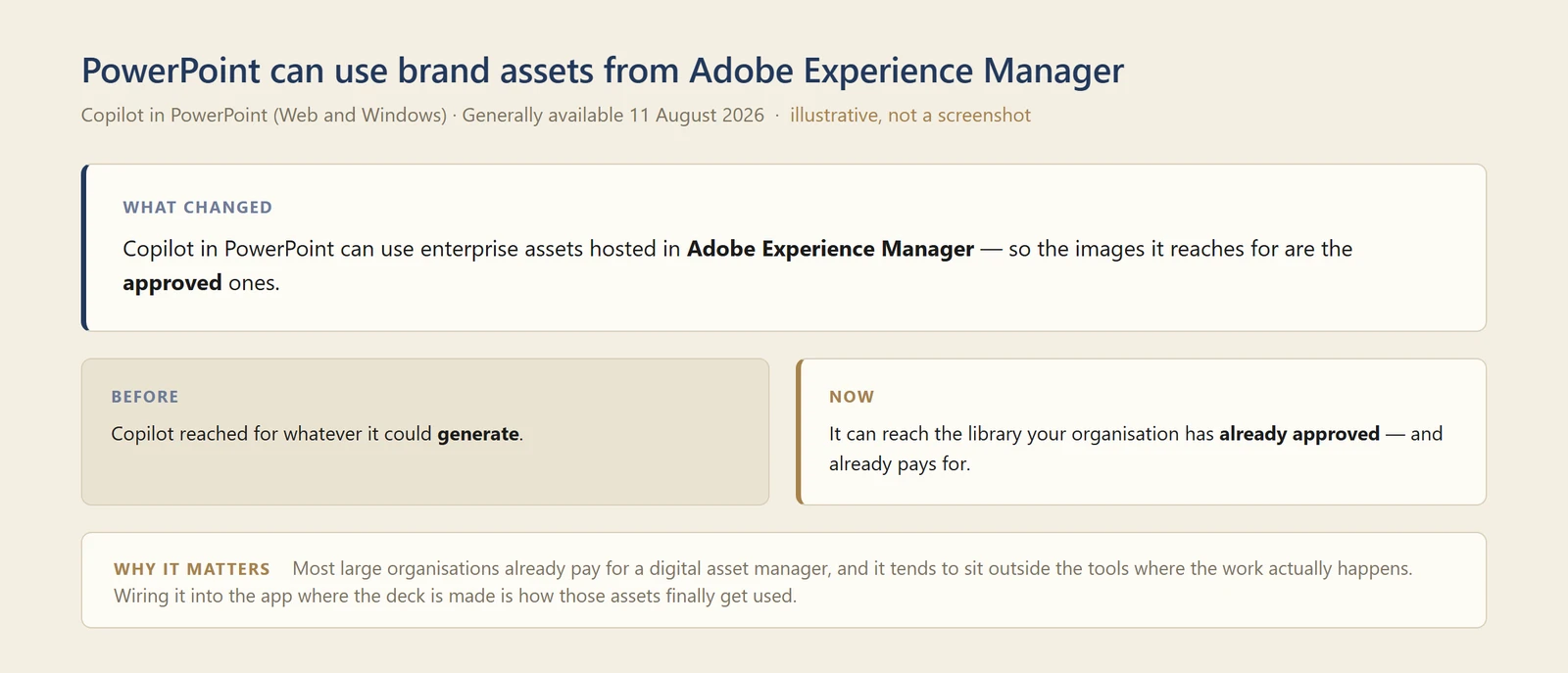
My own diagram of the before and after — not a screenshot. The change is which library Copilot reaches into.
📖 AI at Work Roadmap 516038 (Web) · 516039 (Desktop) · Microsoft 365 Copilot release notes
39. You can create a presentation from the PowerPoint web app
For: Copilot in PowerPoint (Web) · Generally available 11 August 2026 · Tested in my tenant 14 September 2026
Creating a presentation with Copilot works directly in the PowerPoint web app, not only the desktop client.
What I found on 14 September 2026. It is not tucked away either. On the PowerPoint start page on the web, Create with Copilot is the first button, sitting ahead of Create blank presentation.
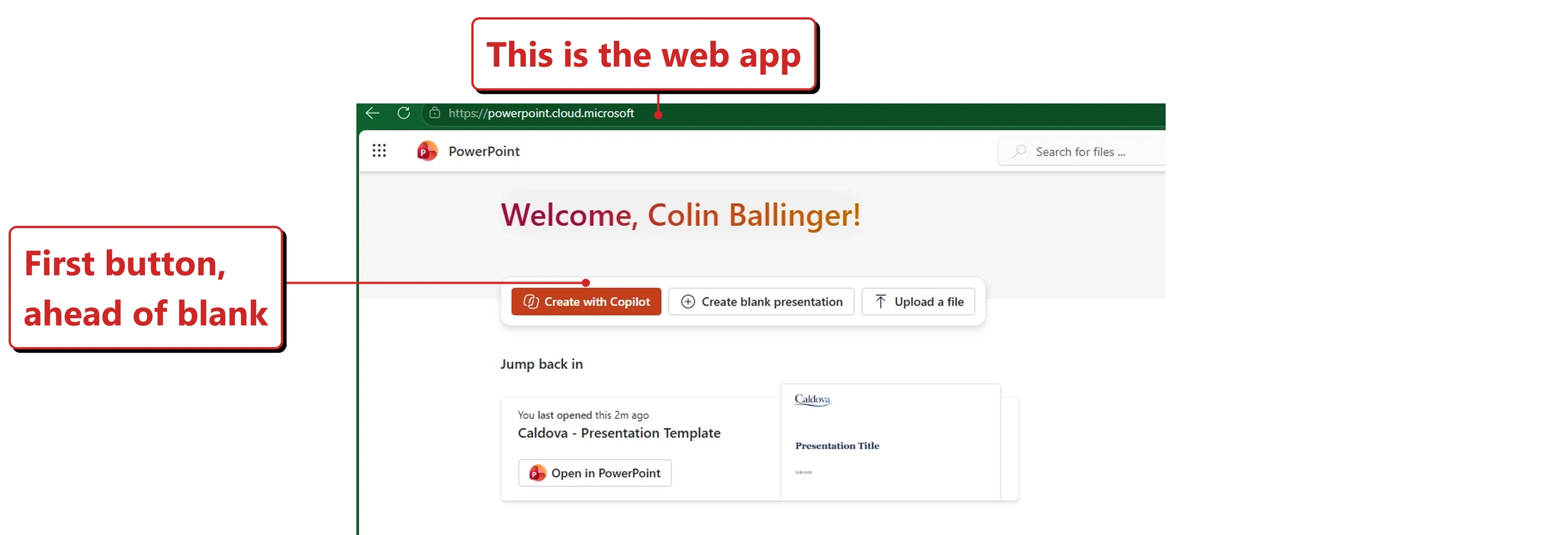
The PowerPoint web app in my own tenant. Create with Copilot leads, rather than sitting in a menu.
Everything in the next section was built here, in the browser, which is the other half of the proof.
Why this matters: Plenty of people are on the web app because of their device, their licence or their employer's policy. Features that only exist on desktop quietly split an organisation into two classes of user.
📖 AI at Work Roadmap 560537 · Microsoft 365 Copilot release notes
40. Presentations can be grounded in web sources
For: Copilot in PowerPoint (Web, Windows and Mac) · Generally available 11 August 2026 · Tested in my tenant 14 September 2026
You can reference web sources when asking Copilot to create a presentation, so the deck can draw on material outside your tenant.
What I found on 14 September 2026. This one behaves differently from the email in section 36, and the difference is a real one. Paste a URL into the prompt and it becomes a source chip, attached the way a document would be. An email could not be attached at all; a web link can.
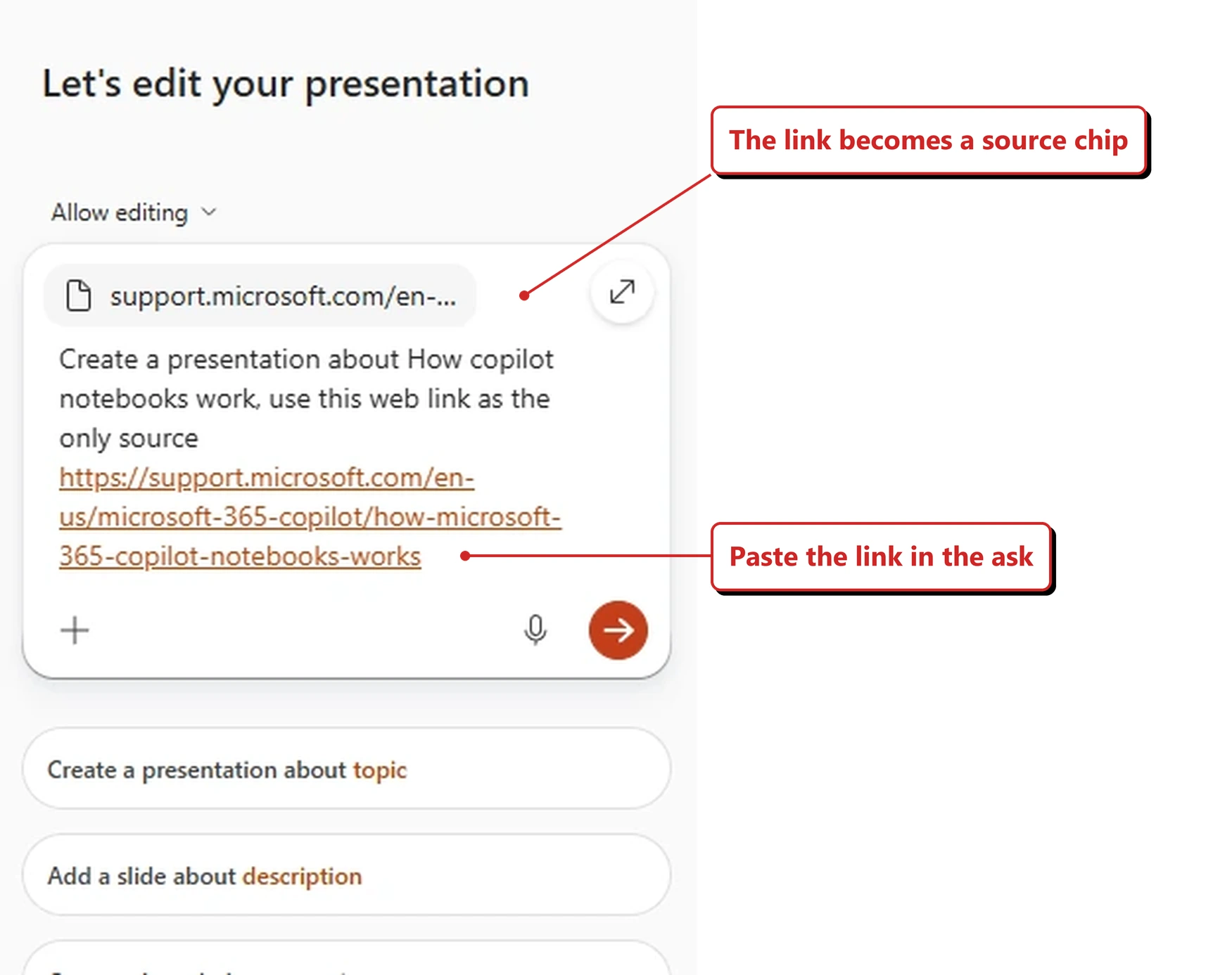
My own tenant, 14 September 2026. The pasted link became an attached source, not just words in the prompt.
Then it interviewed me again — but about something different this time. In section 36 the question was how the deck should look. Here it asked who it was for and how deep to go, and each option came with a slide count.
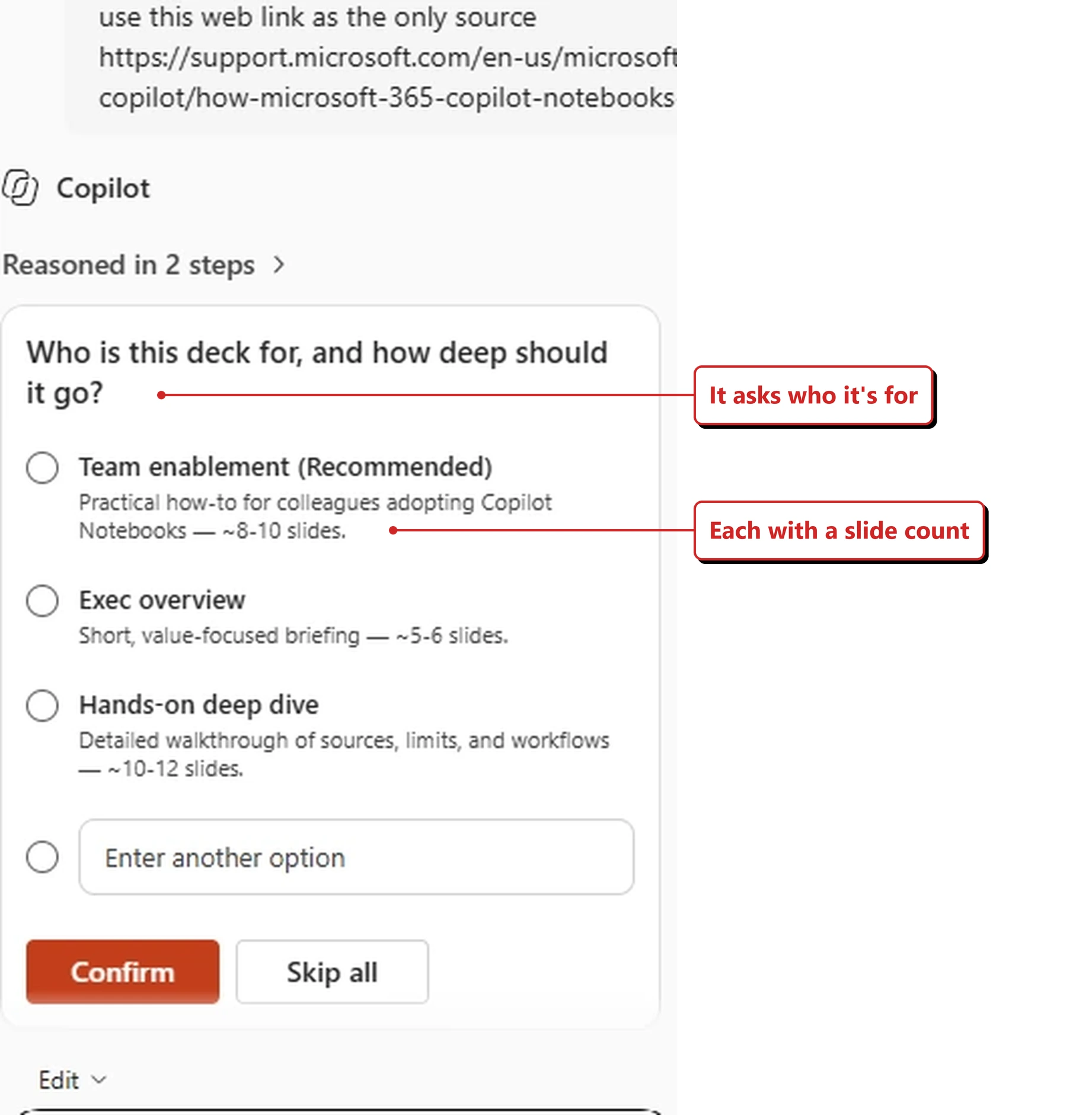
Audience and depth, with slide counts attached. Both questions were written for this specific deck, not picked from a fixed list.
Two different runs, two different questions, both generated from the source material. Copilot is not filling in a form any more — it is asking the questions a colleague would ask before starting.
And the finished deck answered the provenance question on its own. Where it lifted a line straight from the page, it put the attribution underneath — "— Microsoft Support" — so a reader can see where the sentence came from without being told.
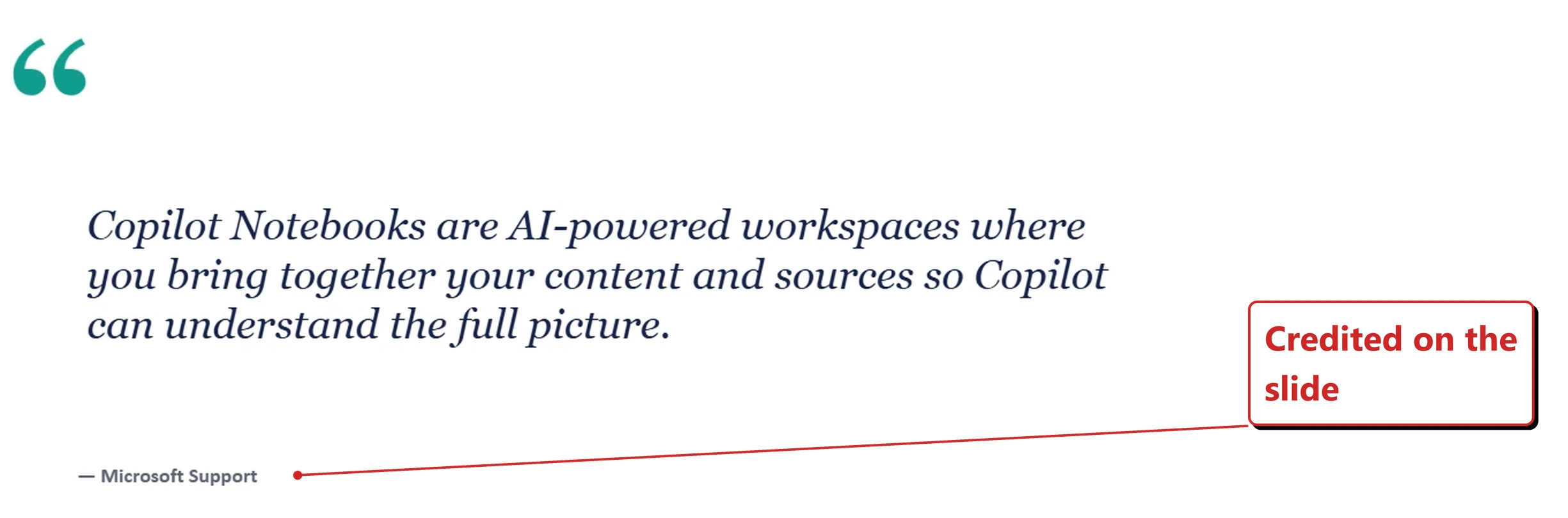
My own tenant, 14 September 2026. The quote is credited on the slide itself.
Why this matters: Useful, and worth a moment's thought. A deck grounded in the open web inherits whatever that page says, so this is a feature to brief people on rather than to enable and forget. The domain exclusion control in [section 90](#90-domain-exclusion-is-back) is the nearest related lever, but Microsoft describes it as filtering **web search results** for Copilot and Copilot Chat, and I have not confirmed it constrains a URL you hand to PowerPoint directly — so do not assume it covers this. My one deck did credit its source on the slide, which helps — but that is a single run, not a promise.
📖 AI at Work Roadmap 555898 · Microsoft 365 Copilot release notes
Word
41. Word can add hyperlinks for you
For: Copilot in Word · Rolled out August 2026
You can ask Copilot to add a hyperlink, and it inserts the link and formats the linked text.
Why this matters: Small, and genuinely useful. Linking is one of those jobs that breaks your concentration — not for long, but long enough to lose the sentence you were writing.
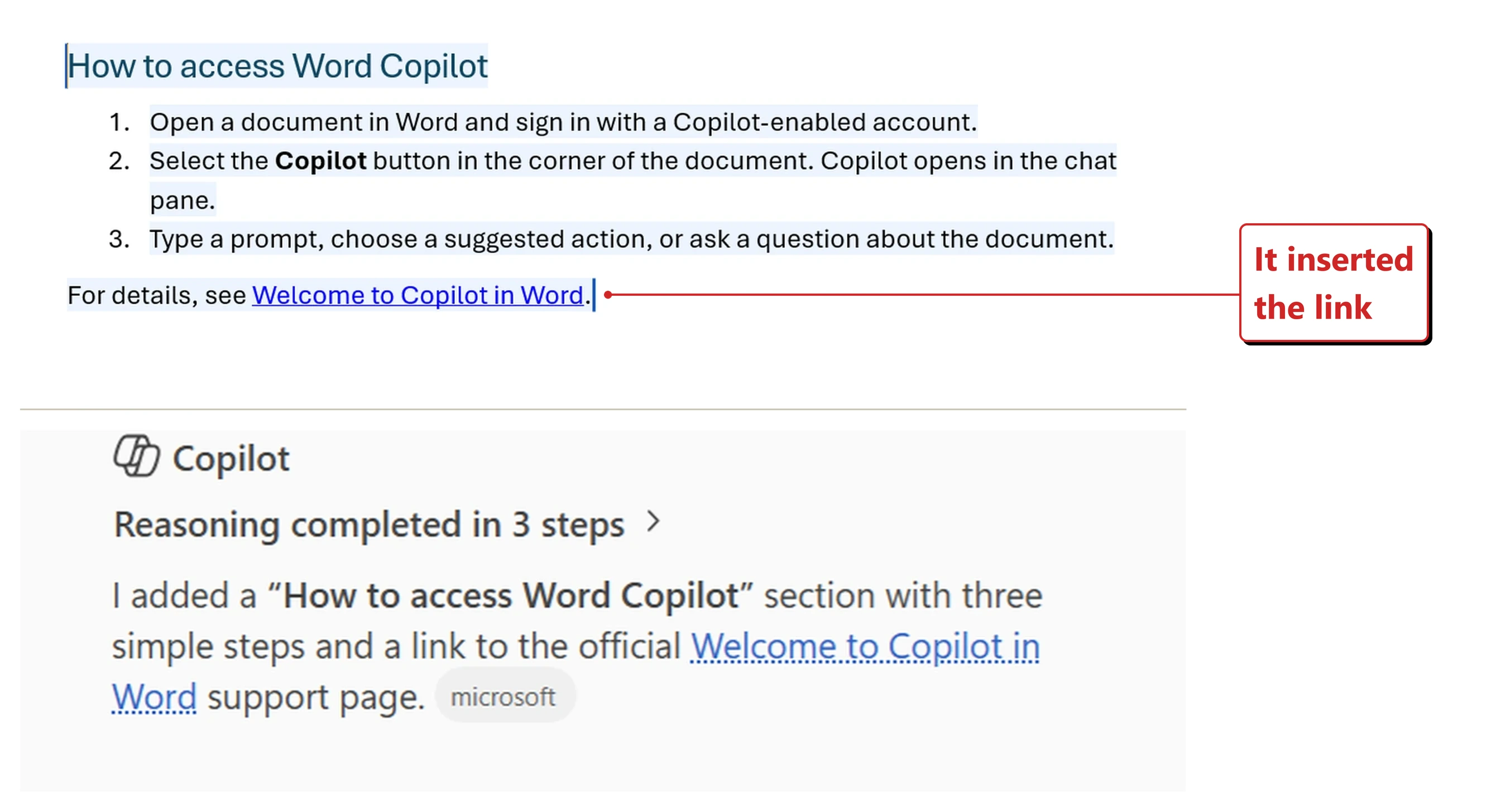
Official Microsoft image from Microsoft’s August 2026 Copilot roundup.
📖 Microsoft’s August 2026 Copilot roundup
42. Word reads the pictures in your reference documents
For: Copilot in Word · Rolled out August 2026 · Tested in my tenant 14 September 2026
When you point Copilot in Word at a reference document, it now uses both the text and the visuals in that file — charts, diagrams and images, not just the words around them.
What I found on 14 September 2026. I tried this the obvious way and got a more interesting answer than I was expecting.
I put a chart in a document — an embedded Excel object with a title, an axis label, named categories and a data label sitting on every bar — and asked Copilot to explain it.
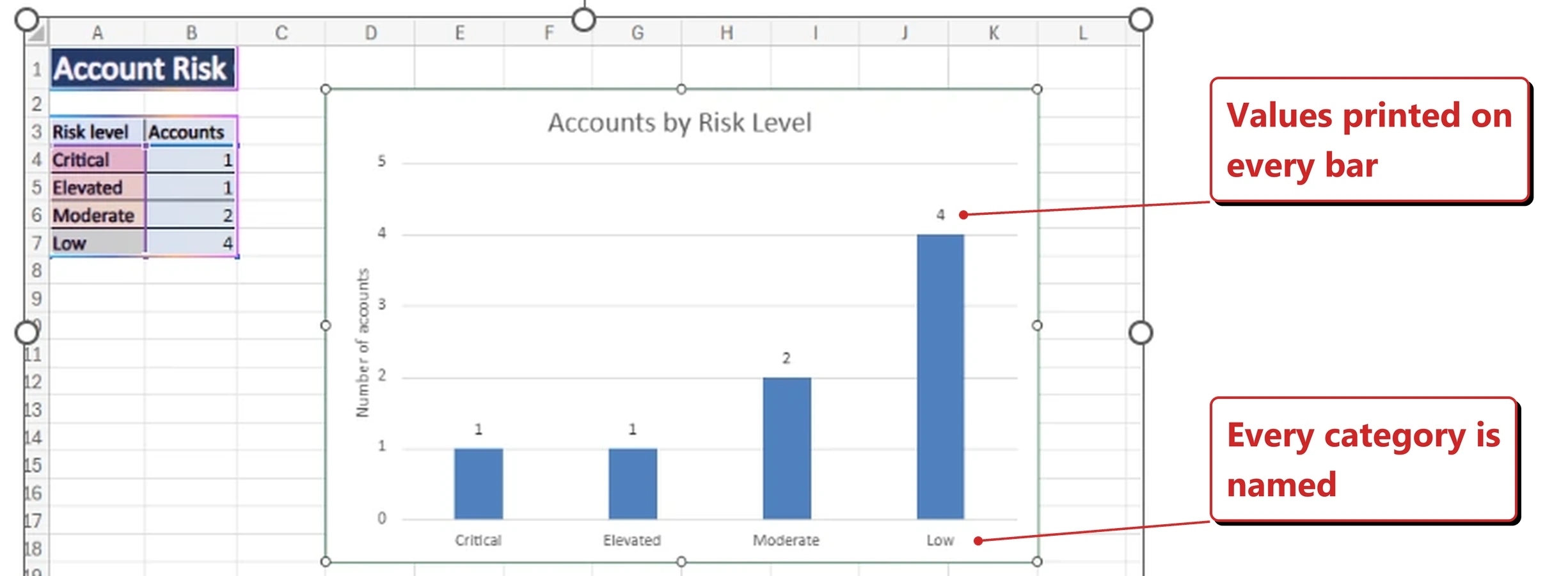
My own tenant, 14 September 2026. Every label a reader needs is right there.
It declined. The reply said it could see the chart “only as an embedded image without readable chart labels, legends, or data values in the document view I received”, and that it could not reliably explain the chart without them. Then it offered a way round: zoom in, crop the chart, or paste the underlying data.
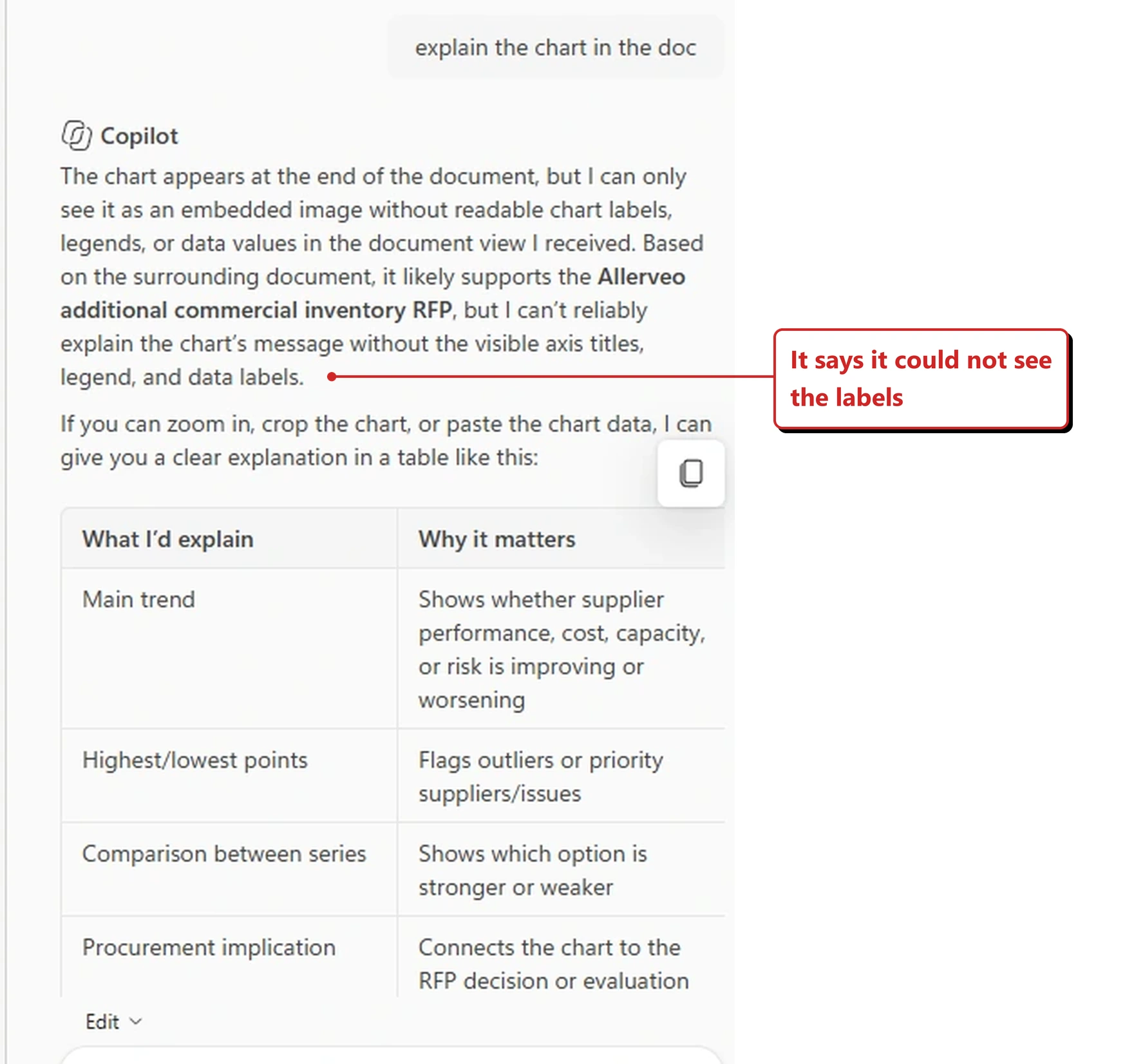
Copilot saying, in its own words, what it could and could not see.
Two things are worth saying plainly. First, this is not a clean test of the feature as announced — the release note describes reference documents you point Copilot at, and my chart was sitting in the document I already had open, as an embedded Excel object rather than a picture. Second, that phrase — “the document view I received” — is a rare glimpse of the plumbing. Whatever reached the model did not carry the chart’s internals, even though every label is perfectly readable to a human eye in the screenshot above.
So I am recording this as a question rather than a verdict, and I will test the reference-document path properly for the next issue.
Why this matters: In a lot of documents the chart is the argument and the text is the caption. A model that only read the words was reading the less important half.
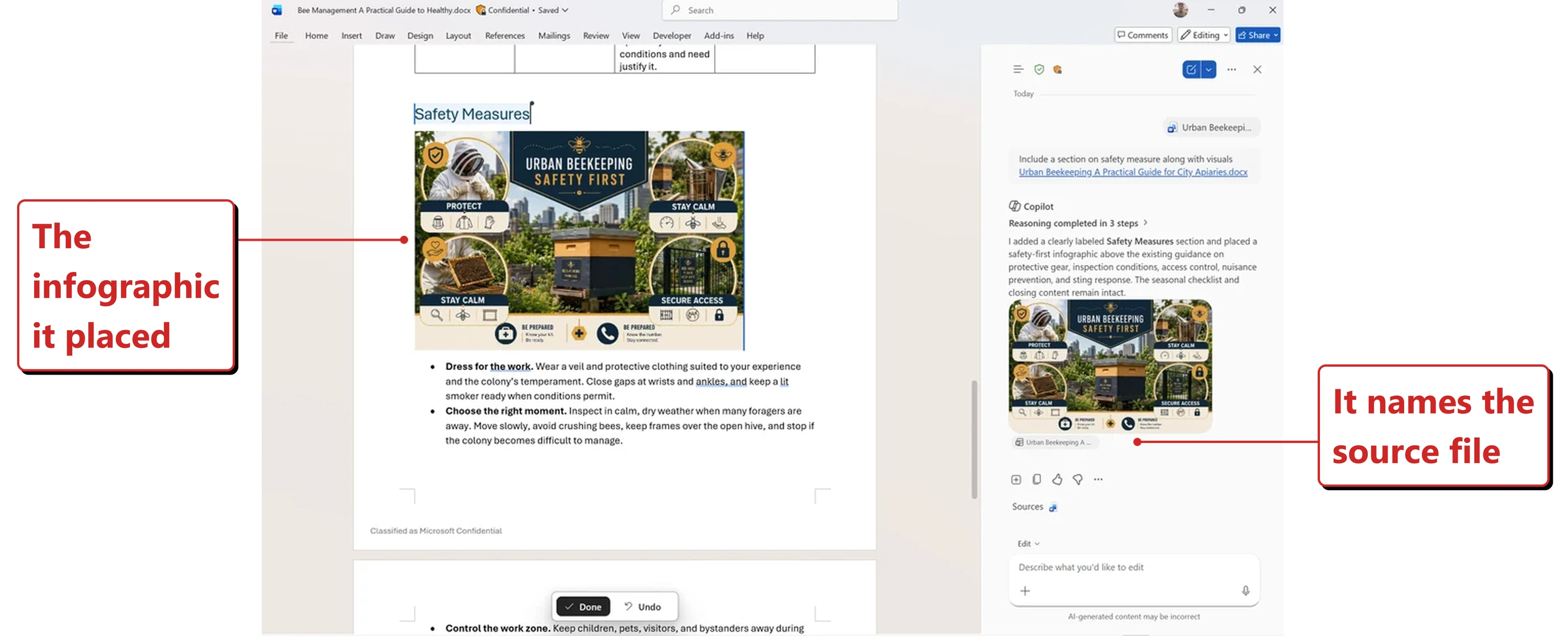
Official Microsoft image from Microsoft’s August 2026 Copilot roundup.
📖 Microsoft’s August 2026 Copilot roundup
43. Word highlights the exact words Copilot changed
For: Copilot in Word · Rolling out worldwide August 2026
Edit highlighting got more granular. Instead of marking a whole paragraph as changed, Word highlights the specific words Copilot touched.
Why this matters: This is a trust feature dressed as a formatting one. If reviewing an AI edit means re-reading the whole paragraph to find what moved, most people stop reviewing. Showing the actual diff is what makes checking the work realistic.
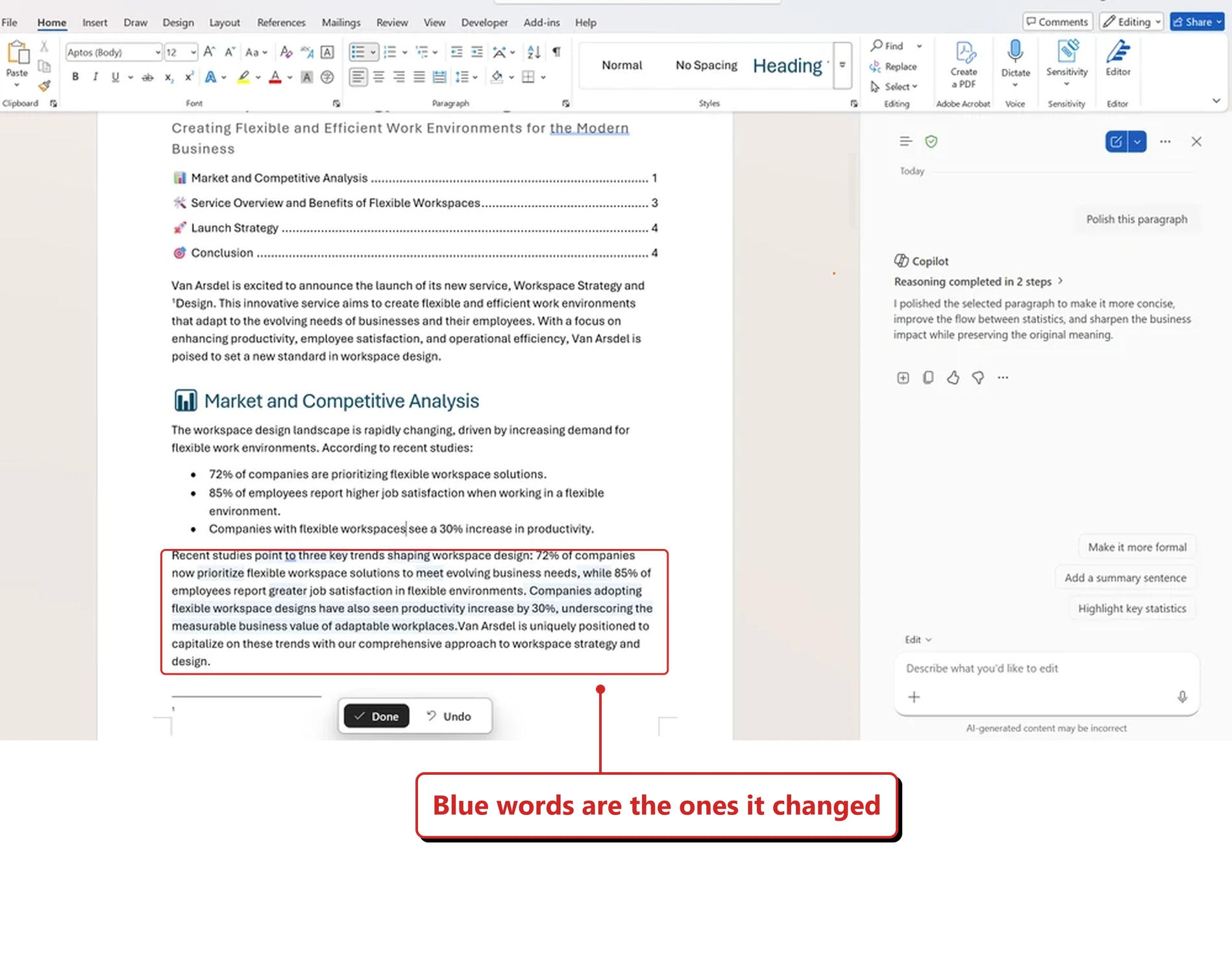
Official Microsoft image from Microsoft’s August 2026 Copilot roundup.
📖 Microsoft’s August 2026 Copilot roundup
44. You can talk to Word during Read Aloud
For: Copilot in Word · Generally available 25 August 2026 · Looked for it in my tenant 14 September 2026
Read Aloud gained voice questions and answers. You can interrupt the reading to ask about what you just heard, by voice, and carry on.
What I found on 14 September 2026. I went looking for this in my own tenant and could not find it. Microsoft lists it as generally available from 25 August 2026, so the likeliest explanation is the ordinary one — a staged rollout that has not reached my tenant yet, or has reached only some users inside it. I am recording that rather than guessing, and I will look again for the next issue.
Why this matters: Read Aloud is an accessibility feature that a lot of people use simply because they are walking, driving or tired. Being able to ask a question without stopping to type keeps the document usable in those moments.
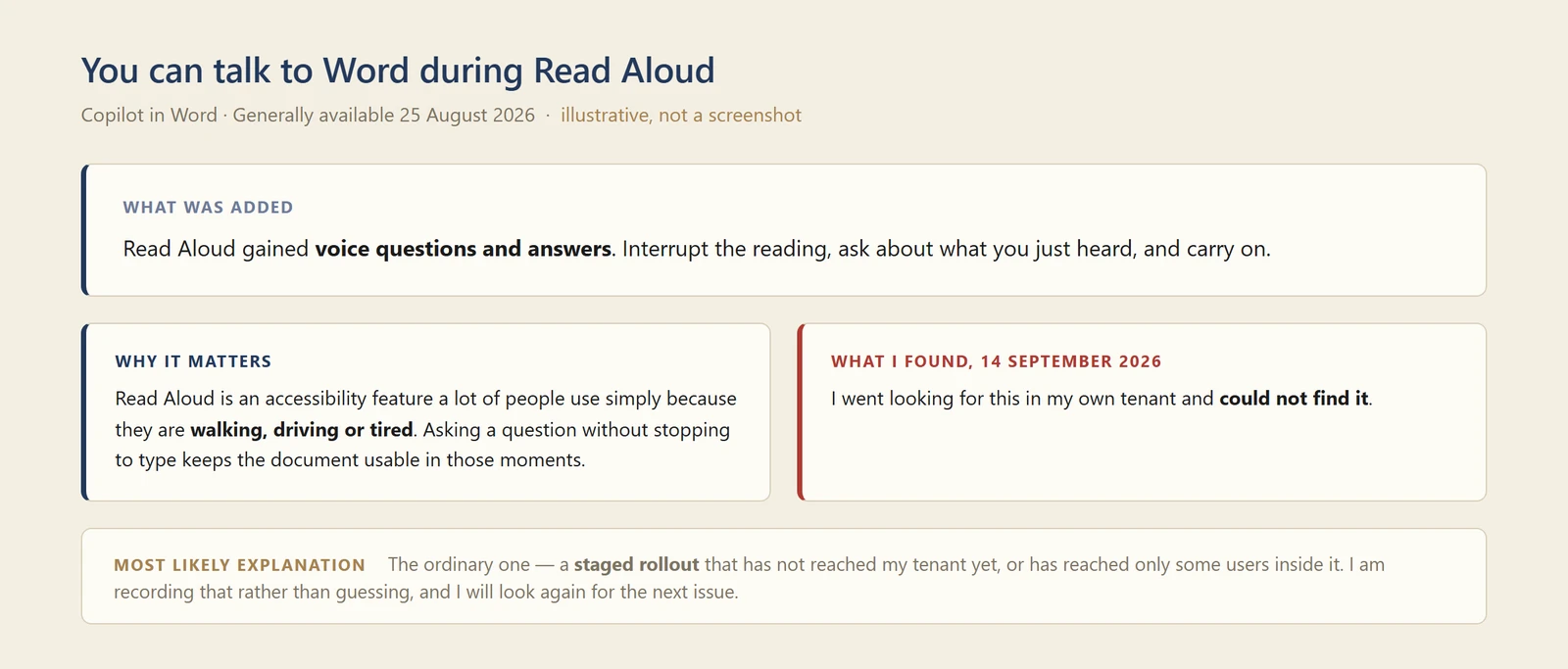
My own diagram of what was added against what I could actually find — not a screenshot.
📖 AI at Work Roadmap 523205 · Microsoft 365 Copilot release notes
45. Claude Sonnet 5 appears in Word’s model menu
For: Copilot in Word (Web) · Generally available 25 August 2026 · Tested in my tenant 14 September 2026
Word’s model menu on the web can be set to Claude Sonnet 5. The August issue covered Anthropic model choice arriving in Word in general terms; this is the specific model showing up in the list.
Anthropic models need admin-enabled Anthropic access, so the menu only offers what your tenant allows.
What I found on 14 September 2026. The picker is not on the toolbar. It lives in the … menu at the top of the Copilot pane, under a heading reading Model. Auto is the default and was the ticked option in my tenant, and the Anthropic models sit behind a Claude submenu rather than in one flat list.
There were also two of them, not one. Alongside Claude Sonnet 5 my tenant offered Claude Opus 5 — a model the release note for this change does not name. Worth opening your own menu rather than assuming it matches the announcement.
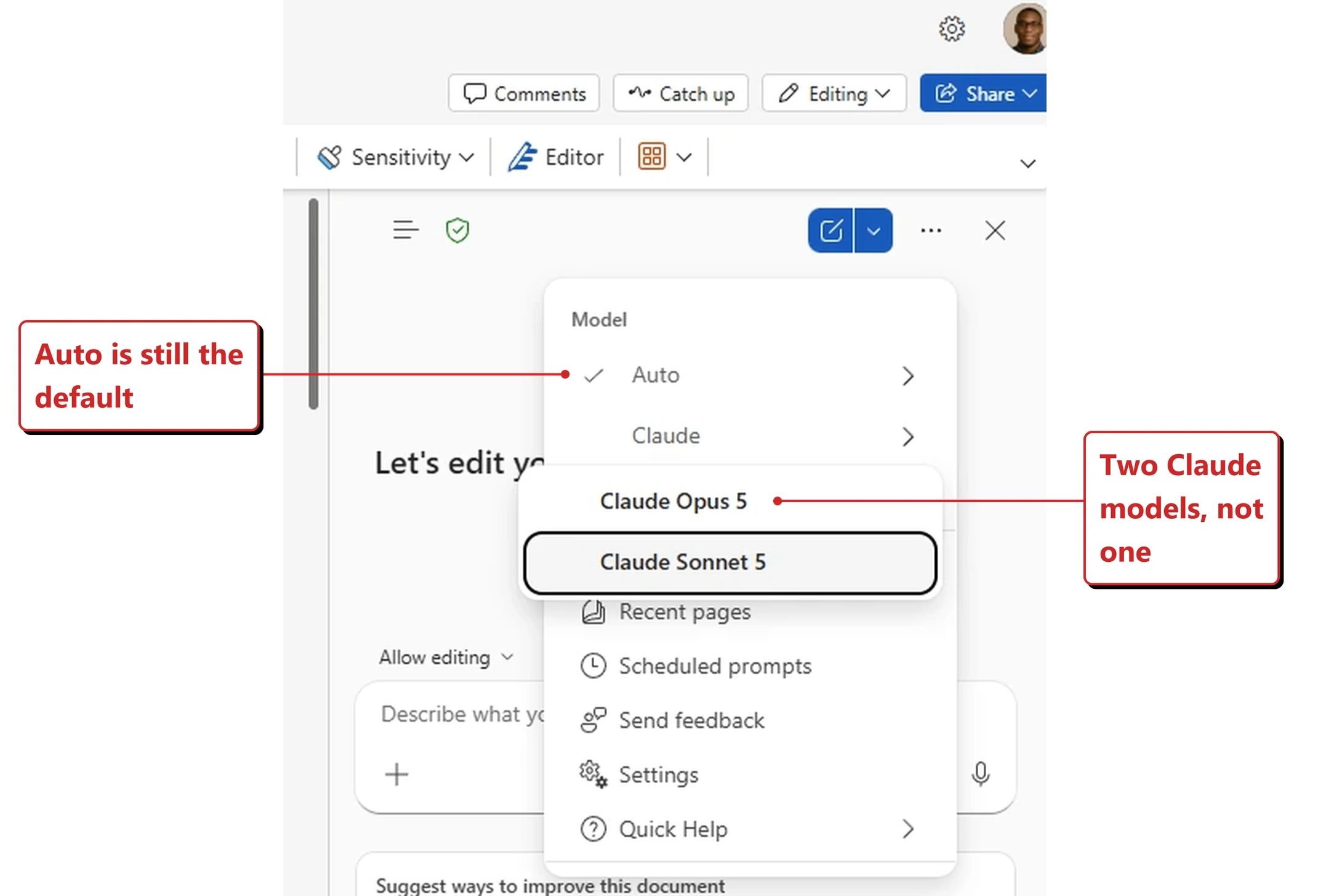
My own tenant, 14 September 2026. Two Claude models, nested under a submenu, with Auto still the default.
Why this matters: Model choice inside the app is becoming normal rather than notable. The thing worth tracking is not which model was added, but that the list changes often enough that a written standard about "which model we use" goes stale fast.
📖 Microsoft 365 Copilot release notes
Excel
46. Excel can use Python when editing with Copilot
For: Copilot in Excel · Generally available 25 August 2026 · Tested in my tenant 14 September 2026
Copilot in Excel can use Python as part of an edit, rather than being limited to formulas and built-in functions.
What I found on 14 September 2026. I went looking for Python and could not make it appear.
The test I picked was to find the outliers in a column using standard deviation. Copilot did the work — mean, sample standard deviation, z-scores, a ±3σ test — but it did all of it in native Excel formulas. No Python, no code block, no Python label anywhere in the reply. Other prompts did not surface it either.
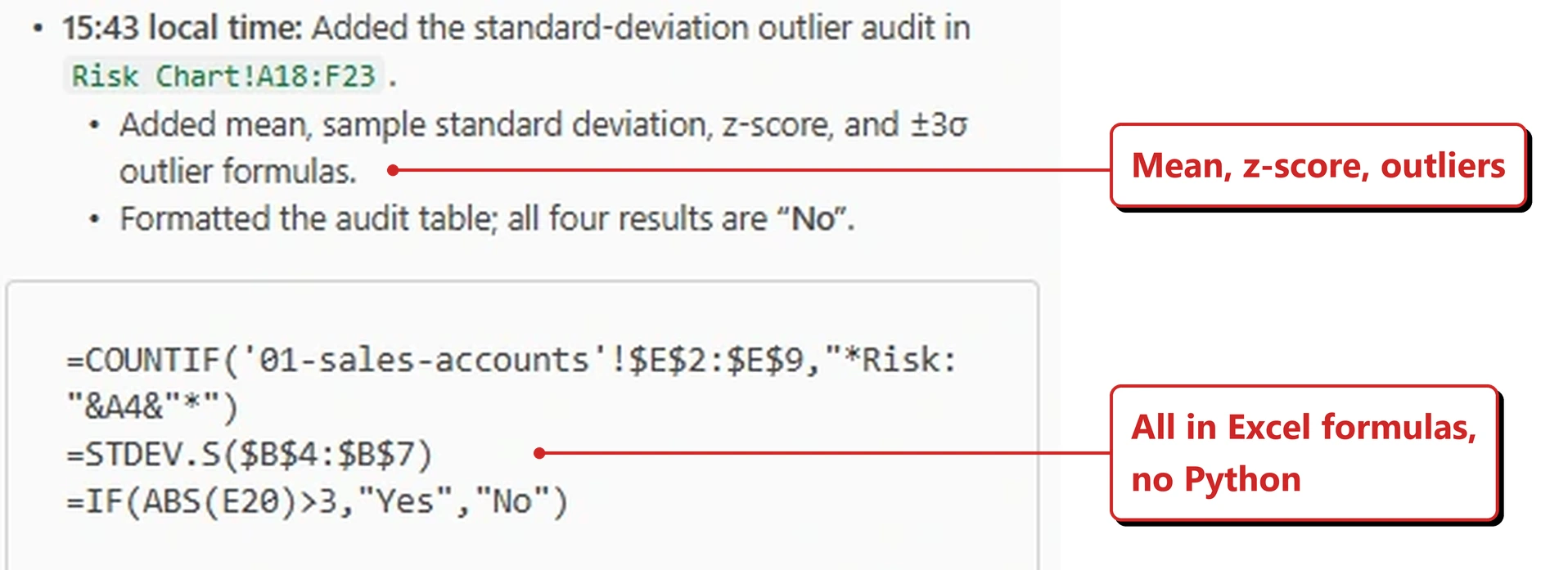
My own tenant, 14 September 2026. A statistics question, answered entirely in formulas.
I would not call that a failure, and it is worth saying why. Standard deviation is something Excel does perfectly well on its own, and STDEV.S is a faster, cheaper and more auditable answer than a script that does the same thing. Copilot reaching for formulas when formulas are enough is arguably the right call rather than a missing feature. Where Python earns its place is the work formulas genuinely cannot reach — and I did not get far enough to find that edge.
So: announced as available from 25 August, but not something I could trigger on demand in my tenant on 14 September. I will push on harder problems for the next issue.
Why this matters: This is the quiet ceiling-raiser, though my own test does not demonstrate it. Python earns its place on the work formulas genuinely cannot reach — regression, clustering, anything iterative — and a standard-deviation audit is not that work, which is why Copilot answered it in formulas and why this run says nothing either way about whether Python is available to me. It also means the person asking the question no longer needs to know Python to get a Python answer.
📖 Microsoft 365 Copilot release notes
47. Excel can explain what changed, and who changed it
For: Copilot in Excel · Rolled out August 2026 · Tested in my tenant 14 September 2026
A change history skill lets Copilot summarise what changed in a workbook, identify who edited what, and distinguish edits made by a person from edits made by AI.
That last distinction is new, and it is the one that will matter in a year.
What I found on 14 September 2026. This one delivered, and then some.
I asked it plainly: what changed in this workbook, and who changed it. Before answering, Copilot narrated what it was about to do — and reached for the phrase itself. It calls this the audit trail.
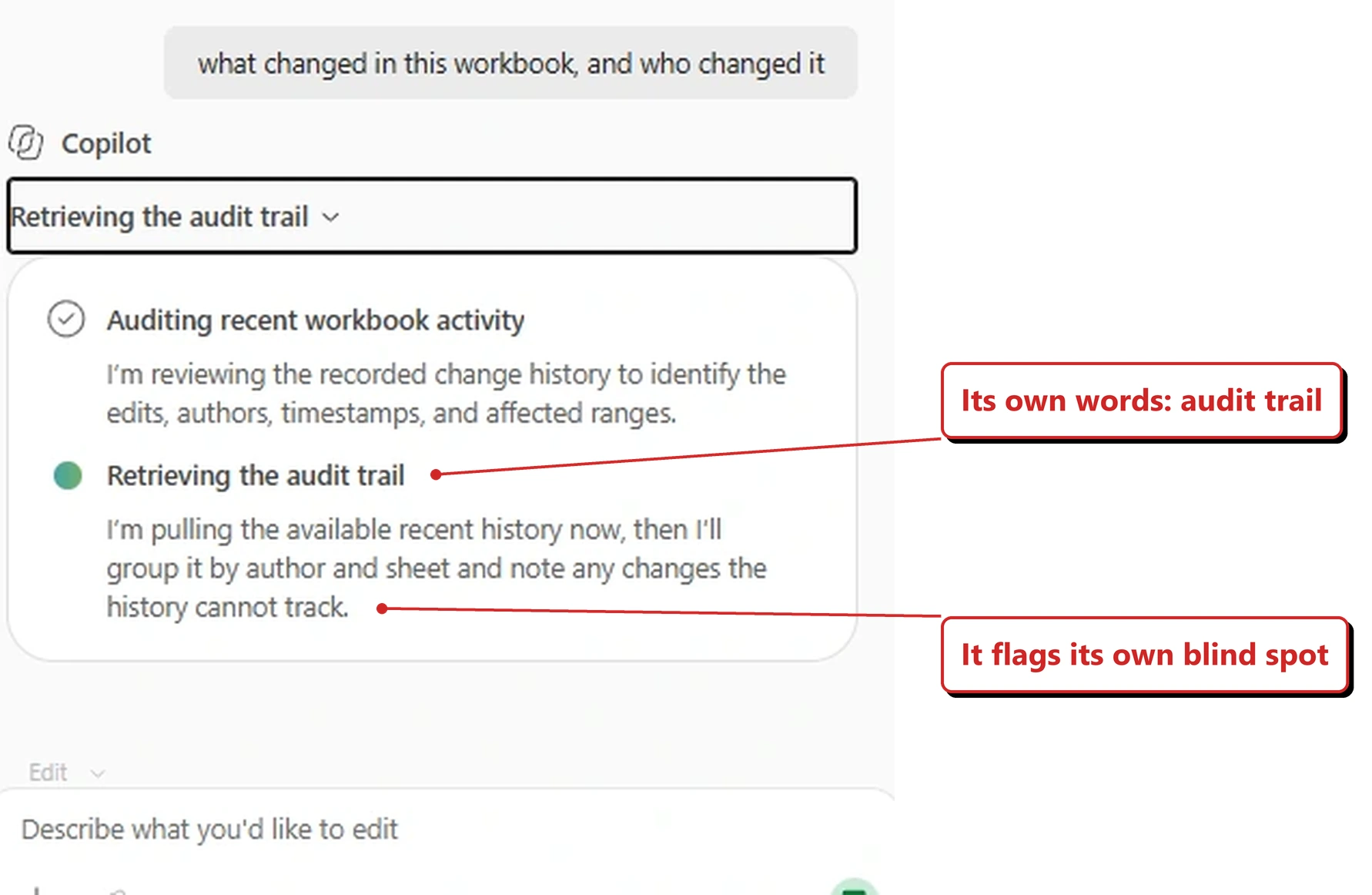
Copilot describing the job before doing it — including that it will flag what the history cannot see.
The answer came back as a dated change summary scoped to the last 30 days, with times to the minute, the exact ranges touched, and the formulas that had been added.
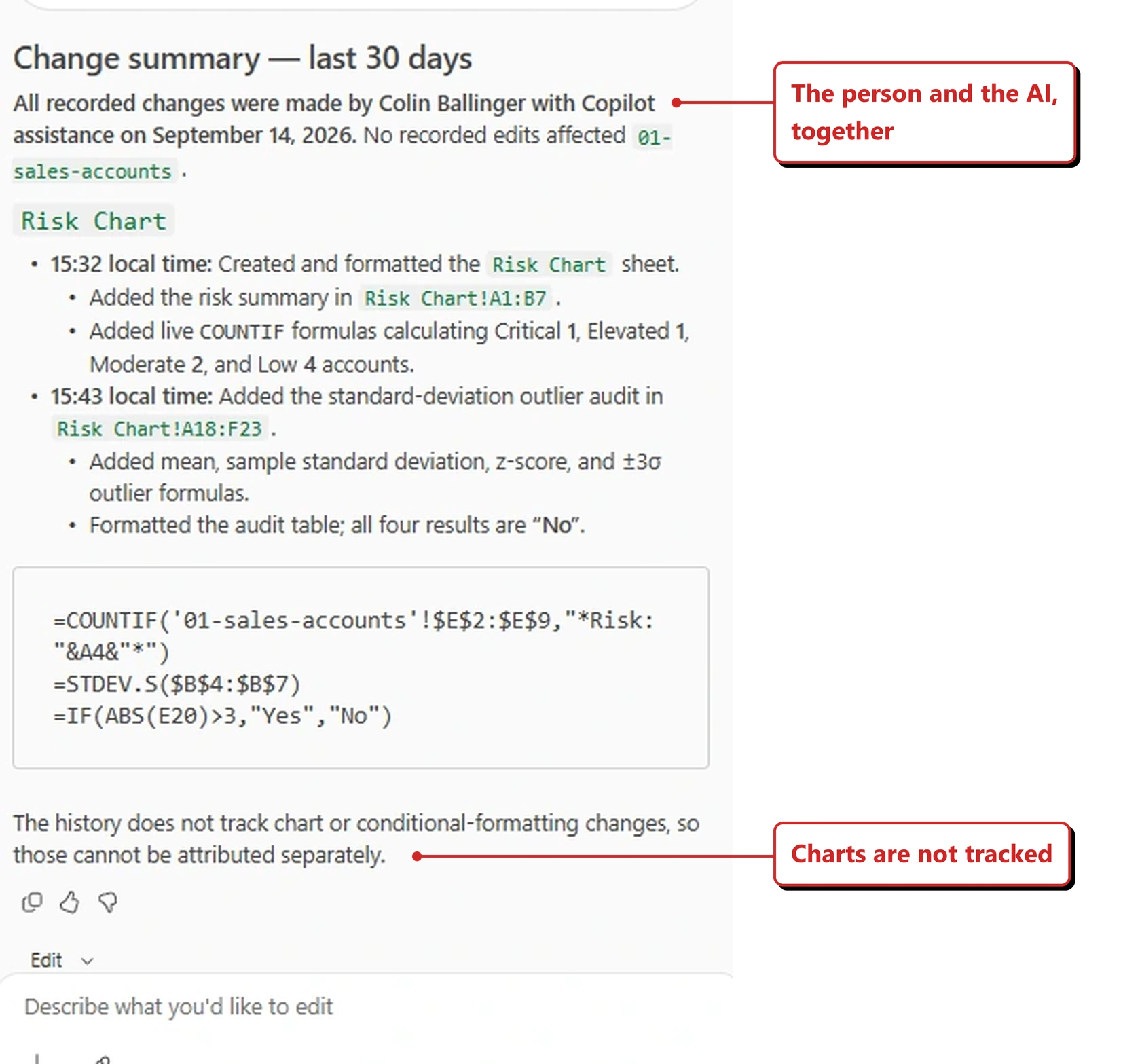
My own tenant, 14 September 2026. Times, ranges, formulas — and an honest note about what is missing.
Two details stand out. The attribution reads “made by Colin Ballinger with Copilot assistance” — one phrase carrying both the person and the AI, which is exactly the distinction this feature promises. And at the end, unprompted, it names its own blind spot: “The history does not track chart or conditional-formatting changes, so those cannot be attributed separately.”
The second is the more valuable of the two. A log that tells you what it cannot see is a log you can actually lean on.
Why this matters: Shared workbooks accumulate changes that nobody can explain by Friday. Being able to ask "what happened to this sheet" — and get an answer that separates human edits from AI edits — is the beginning of an audit trail for AI-assisted work.
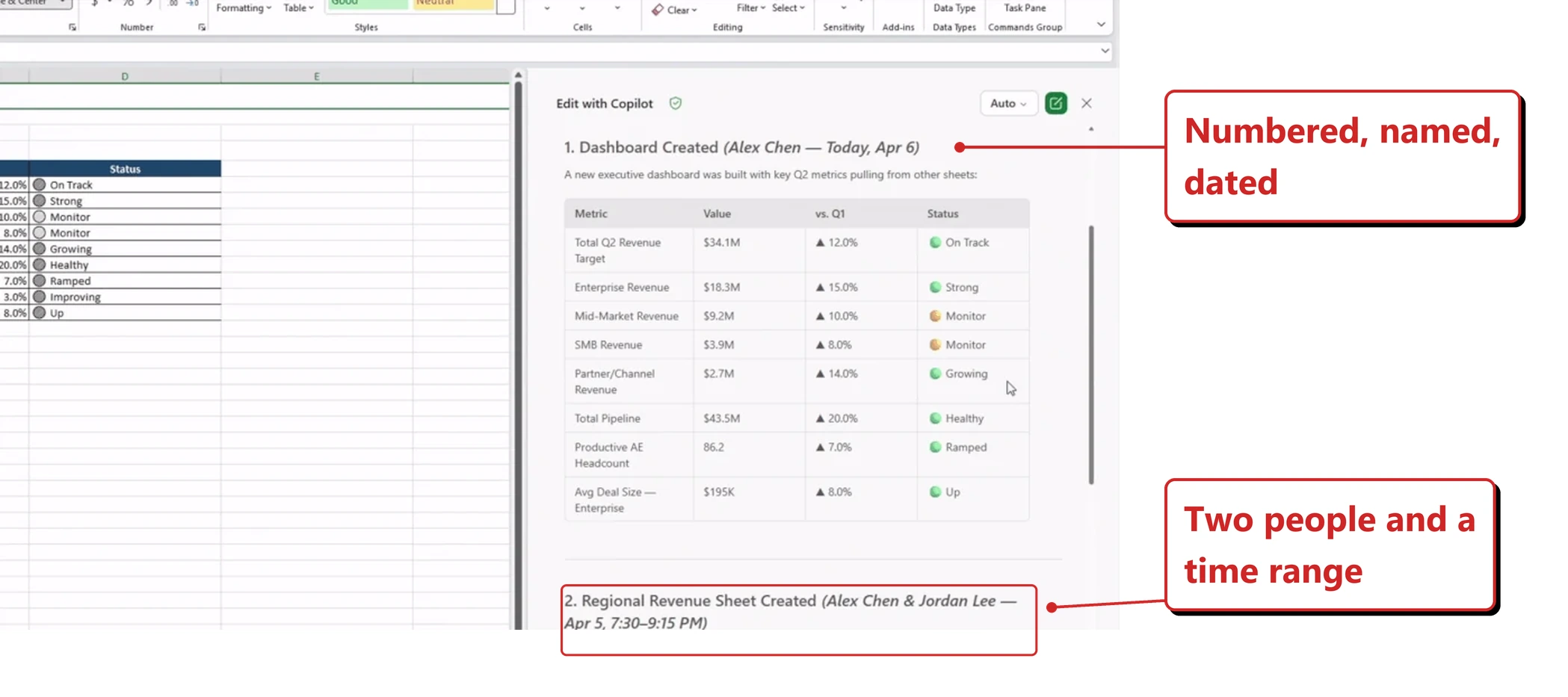
Official Microsoft image from Microsoft’s August 2026 Copilot roundup — a still frame from their animated demo. Each change carries a name and a time.
📖 Microsoft’s August 2026 Copilot roundup
48. Excel keeps your Copilot chat history
For: Copilot in Excel · Rolled out August 2026 · Tested in my tenant 14 September 2026
Past Copilot conversations are preserved in Excel, reachable from a menu icon in the upper left and sorted by recency.
What I found on 14 September 2026. It is exactly where the release note says. A list icon at the top of the Copilot pane opens a panel headed Chats in Excel, with New Chat sitting above the list.
The surprise is that the history is not just this session. My list still held a conversation from the previous week, sitting underneath one from a few minutes earlier.
My own tenant, 14 September 2026. A week-old conversation still sitting in the list.
Why this matters: Word got this in August, Excel gets it now. Losing the conversation meant losing the reasoning behind a change, which made people redo work they had already done once.
📖 Microsoft’s August 2026 Copilot roundup
Outlook
49. Custom engine agents work directly in Outlook
For: Copilot in Outlook · Rolled out August 2026 · Tested in my tenant 14 September 2026
Custom engine agents — the ones your organisation builds — are available directly in Outlook, rather than only in Copilot Chat.
What I found on 14 September 2026. The mechanic turns out to be a single character. Type @ into the Copilot composer in Outlook and the agents your organisation has built appear right there in the pane.
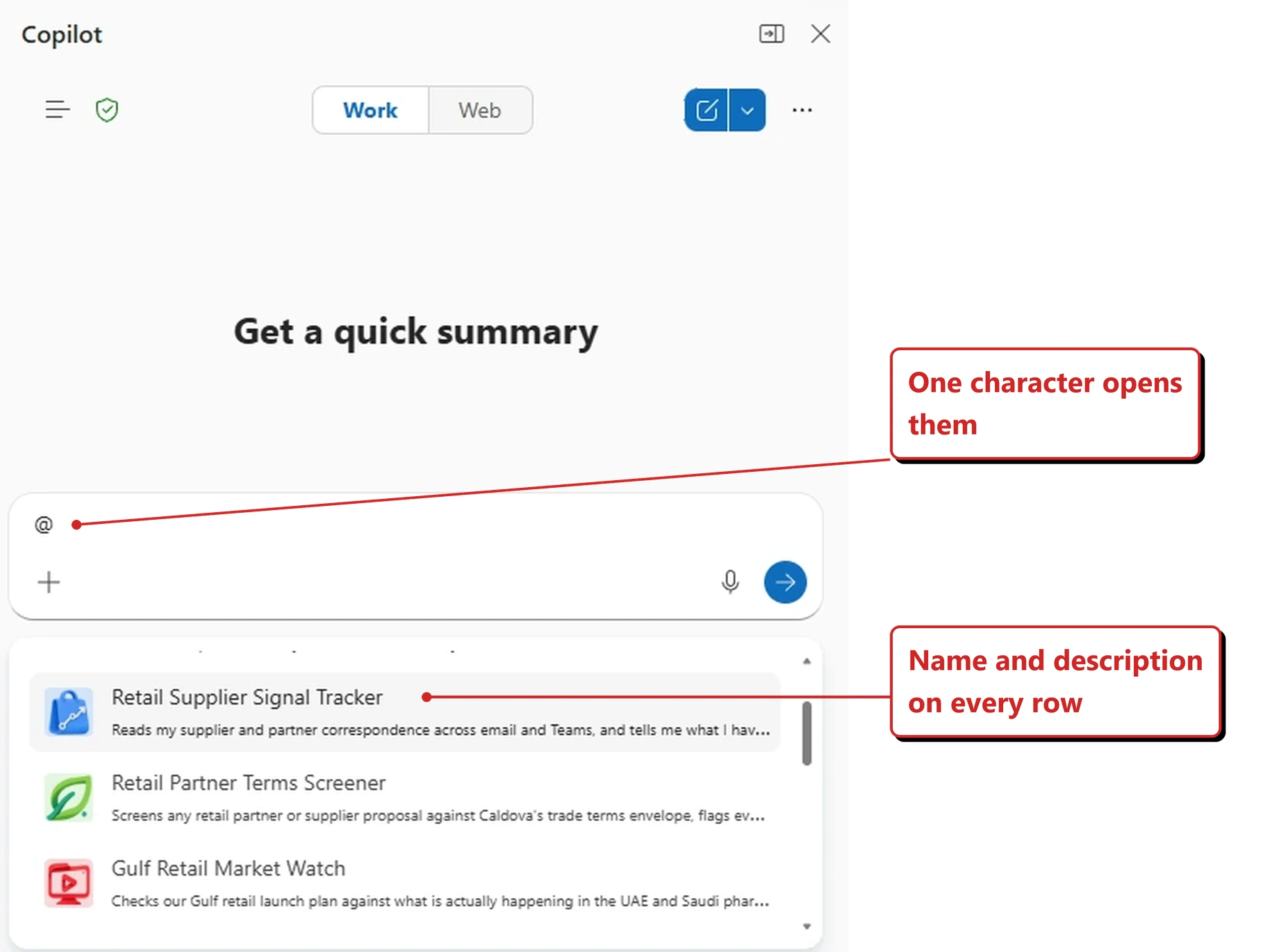
My own tenant, 14 September 2026. One character, and the organisation's agents are in the inbox.
Each one carries its description underneath, which matters more than it sounds. Once you have half a dozen agents with similar-sounding names, that one-line summary is how you pick the right one without leaving your mail. The list scrolls too, so it is not capped at a handful.
Worth noticing across two of these tests: @ is quietly becoming the single gesture for bring something into this conversation. Here it pulls in an agent. Two sections further on, in a different Outlook client, the same character pulled in a colleague.
What I have not tested is the part that actually counts — whether calling one of these from the inbox gives you the same answer it would give in Copilot Chat. The picker appearing is the plumbing, not the payoff. I will push on the result for the next issue.
Why this matters: An agent that lives somewhere other than where the work happens gets used twice and forgotten. Email is where a lot of people spend their day, so putting the agent in the inbox is the difference between built and used.
📖 Microsoft’s August 2026 Copilot roundup
50. Outlook takes plain-English instructions for mail and calendar
For: Copilot in Outlook · Rolled out August 2026 · Tested in my tenant 14 September 2026
Copilot can organise messages, apply categories and manage calendar entries from a plain-language instruction, instead of you clicking through the rules interface.
What I found on 14 September 2026. I gave it a deliberately compound instruction — move everything from a particular sender into a folder called Scheduled — where the folder did not exist yet.
What happened next is the interesting part. It did not act. It listed every single message it proposed to move, and put Confirm and Cancel underneath.
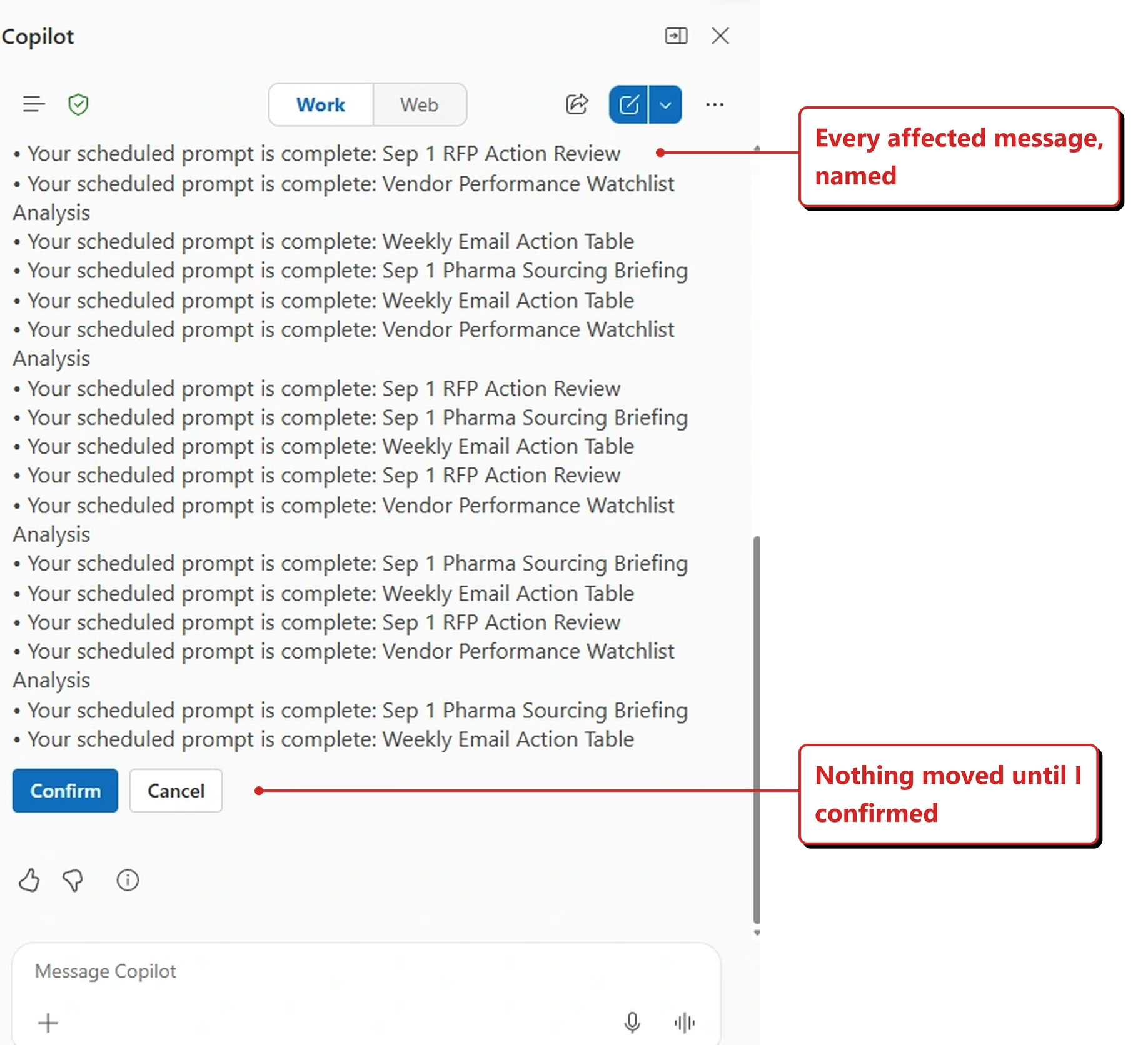
My own tenant, 14 September 2026. Every affected message named, before anything moved.
Only once I confirmed did it run — and it did two jobs from the one sentence.
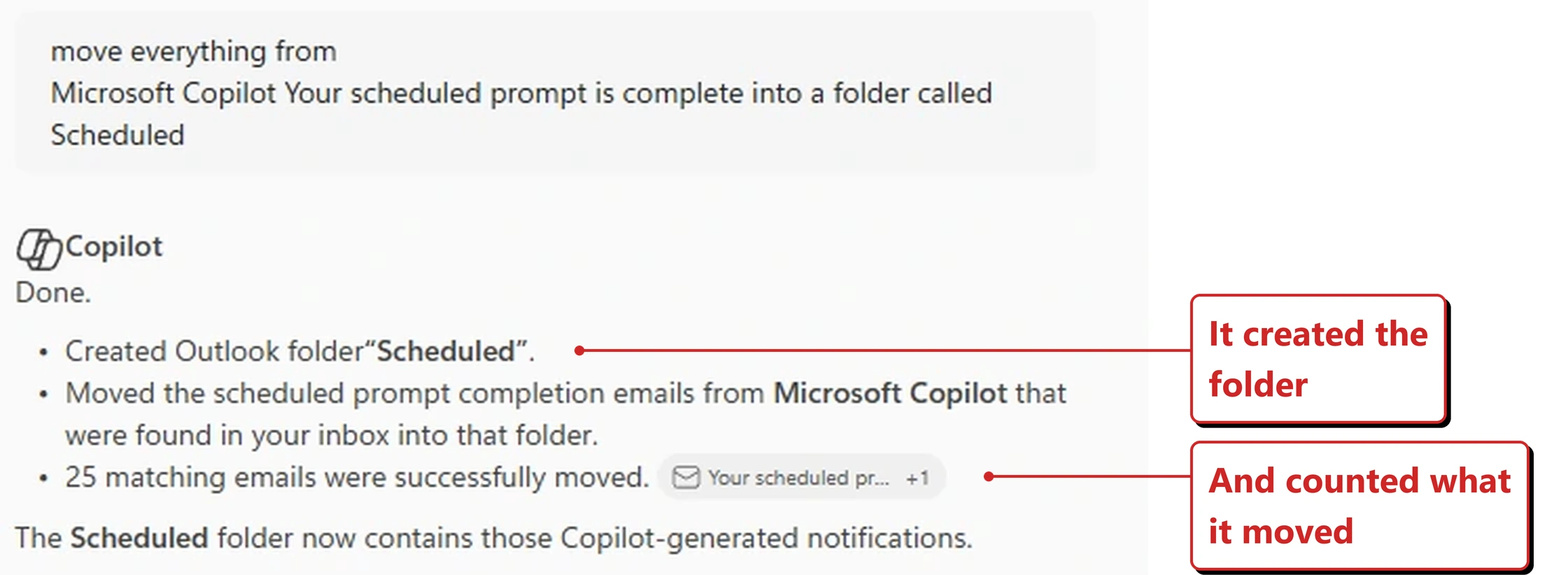
One sentence, two jobs: the folder created, then filled.
Three things stand out. It created a folder that did not exist rather than asking me to make one first. It scoped itself — “that were found in your inbox” — and left the other folders alone. And it reported the count, twenty-five, instead of saying it was done and leaving me to go and check.
One thing this run did not settle: whether the instruction left a standing rule behind, or was a one-off tidy-up. The reply describes a completed action and says nothing about a rule, and the release note’s framing — an alternative to the rules interface — can be read either way. Outlook’s own rules list would answer it, and that is on my list for the next issue.
Why this matters: Outlook rules are powerful, and in my experience they are one of the most under-used things in the product, because the interface asks you to think like a database. Describing what you want in a sentence is a much lower bar.
📖 Microsoft’s August 2026 Copilot roundup
51. Scheduling with Copilot chat reached classic Outlook for Windows
For: Copilot in classic Outlook for Windows · Generally available 25 August 2026 · Tested in my tenant 14 September 2026
Scheduling through Copilot chat is available in classic Outlook for Windows, not only the new client.
What I found on 14 September 2026. I opened classic Outlook — the Try the new Outlook toggle sitting at Off in the corner is the giveaway — and typed one sentence into Copilot chat: “Schedule a catch-up with @Nic Bishop before Friday.” No duration, no times, no agenda.
My own tenant, 14 September 2026. The "Try the new Outlook — Off" toggle is the proof this is the classic client.
It came back with three morning options, and the wording is worth reading closely: “both you and Nic are marked as available (working elsewhere), and the slot is open.” It had checked two calendars and two working locations, not just the gaps in mine.
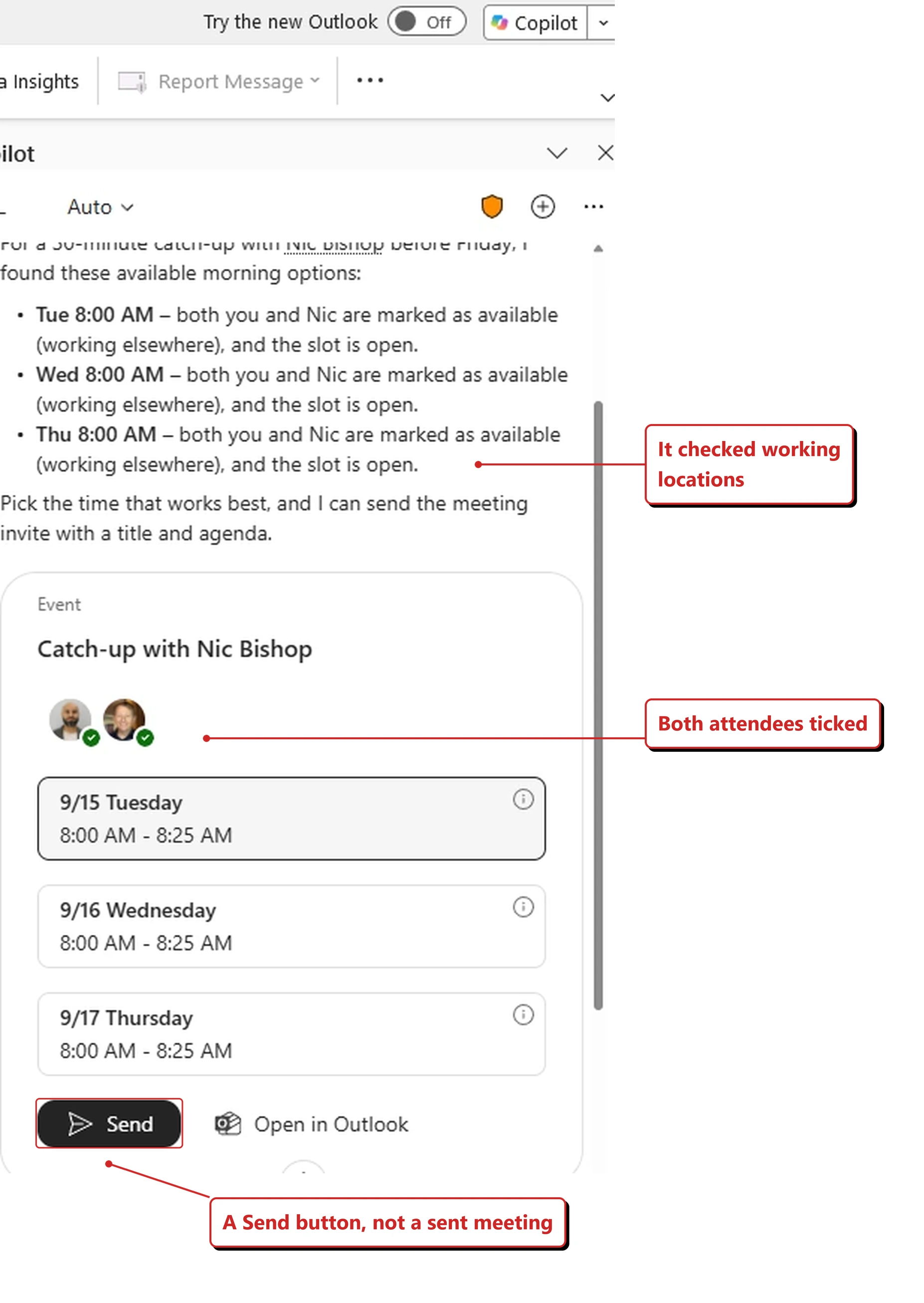
A complete invite, drafted and waiting — with a Send button rather than a sent meeting.
Then it did the thing I have come to expect from Outlook this month. It did not create the meeting. It drafted one — title written for me, both attendees ticked green, three dates to pick from with Tuesday already selected — and put a Send button in front of it, with Open in Outlook beside it if I wanted to change something first.
That is the same shape as the mailbox tidy-up in the section above: do the work, then stop and ask. Two different features, the same manners.
One detail I cannot fully explain. I never said how long the meeting should be. Copilot settled on thirty minutes on its own — its summary line says “a 30-minute catch-up” — and then offered 8:00 to 8:25, which is twenty-five. My guess is the tenant’s “shorten meetings” setting quietly taking five minutes off the end, which is exactly what you would want it to do. But that is me inferring from a single run, not something Copilot said out loud.
Why this matters: A lot of large organisations are still on classic Outlook and will be for a while. Every feature that crosses over is one fewer reason for those users to feel like they are on the wrong side of a migration.
📖 AI at Work Roadmap 542185 · Microsoft 365 Copilot release notes
52. Outlook coaches your writing as you draft
For: Copilot in Outlook · Generally available 11 August 2026 · Tested in my tenant 14 September 2026
Copilot offers coaching feedback in chat while you draft, edit and format an email — tone, clarity and structure, as you write rather than after you send.
What I found on 14 September 2026. I pasted a deliberately graceless draft into Copilot chat in Outlook — “hi karin Hi — need the Q3 numbers by tomorrow. This has been late twice already and it’s holding everyone up. Please sort it.” — and attached no instruction at all. No fix this, no coach me. Just the draft, stray false start and all.
It worked out what I was doing on its own: “It looks like you want to send a follow-up to Karin about overdue Q3 numbers.” Then it offered the same message at three settings — Professional and Direct, Firm but Collaborative, and a third further down the pane.
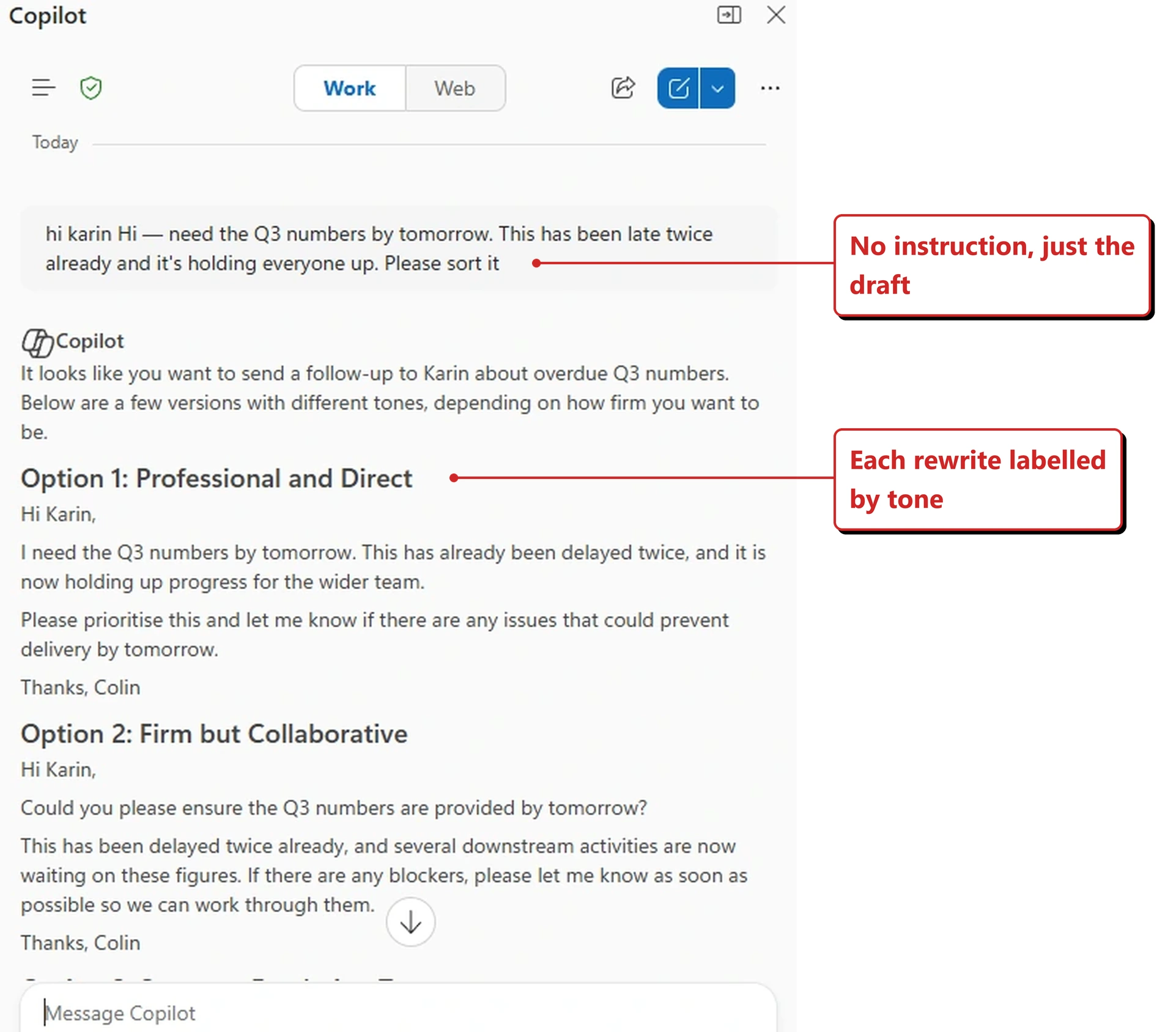
My own tenant, 14 September 2026. Three tones from a draft, with no instruction attached to it.
Rewriting an email is not new. This is the part that is.
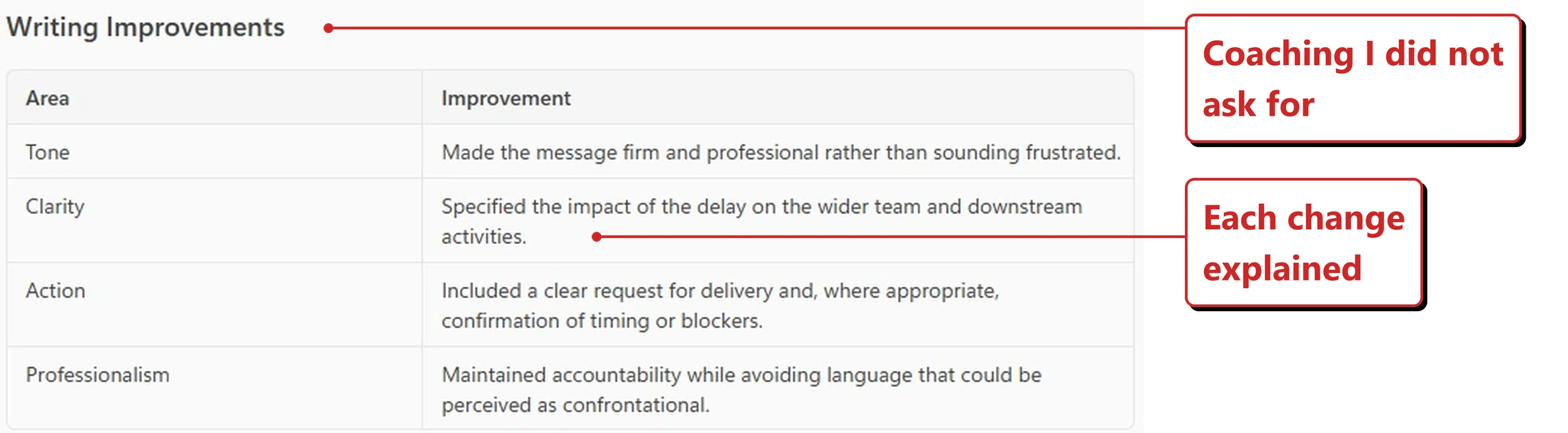
The coaching, unasked for: what changed, and why.
Underneath the rewrites it produced a Writing Improvements table, unprompted, naming what it changed and why. Tone: firm rather than frustrated. Clarity: spell out the impact of the delay. Action: add a clear request. Professionalism: keep the accountability, drop anything that reads as confrontational.
That is the difference between a rewrite and coaching. A rewrite hands you better words. This hands you the reasoning, which is the only version you learn anything from. It also reached past its own release note, which promises tone, clarity and structure — Action and Professionalism were not on that list.
One honest limit. I handed the draft to the chat pane rather than typing it into the compose box, so I have not tested the as you write half of the claim — whether this surfaces mid-email without you going to Copilot at all. What I can say is that I never asked for coaching, and got it anyway.
Why this matters: Coaching existed before as a thing you asked for once the email was written, which is exactly when nobody wants to hear it. Moving it into the drafting flow makes it advice rather than criticism.
📖 AI at Work Roadmap 559418 · Microsoft 365 Copilot release notes
53. Meeting preparation reached classic Outlook for Windows
For: Copilot in classic Outlook for Windows · Generally available 11 August 2026 · Tested in my tenant 14 September 2026
Prepare for meetings — the summary of relevant files, emails and context ahead of a meeting — is available in classic Outlook for Windows.
What I found on 14 September 2026. Classic Outlook again — same Try the new Outlook · Off toggle in the corner. I opened a meeting and asked it plainly: “help me prepare for this meeting.”
It said what it was about to do before doing it — “I’ll pull the full calendar item and any related emails, files, chats, and meeting context, then turn it into a concise prep brief with talking points and questions” — and showed a Reasoned for 9s line you can expand to see the working.
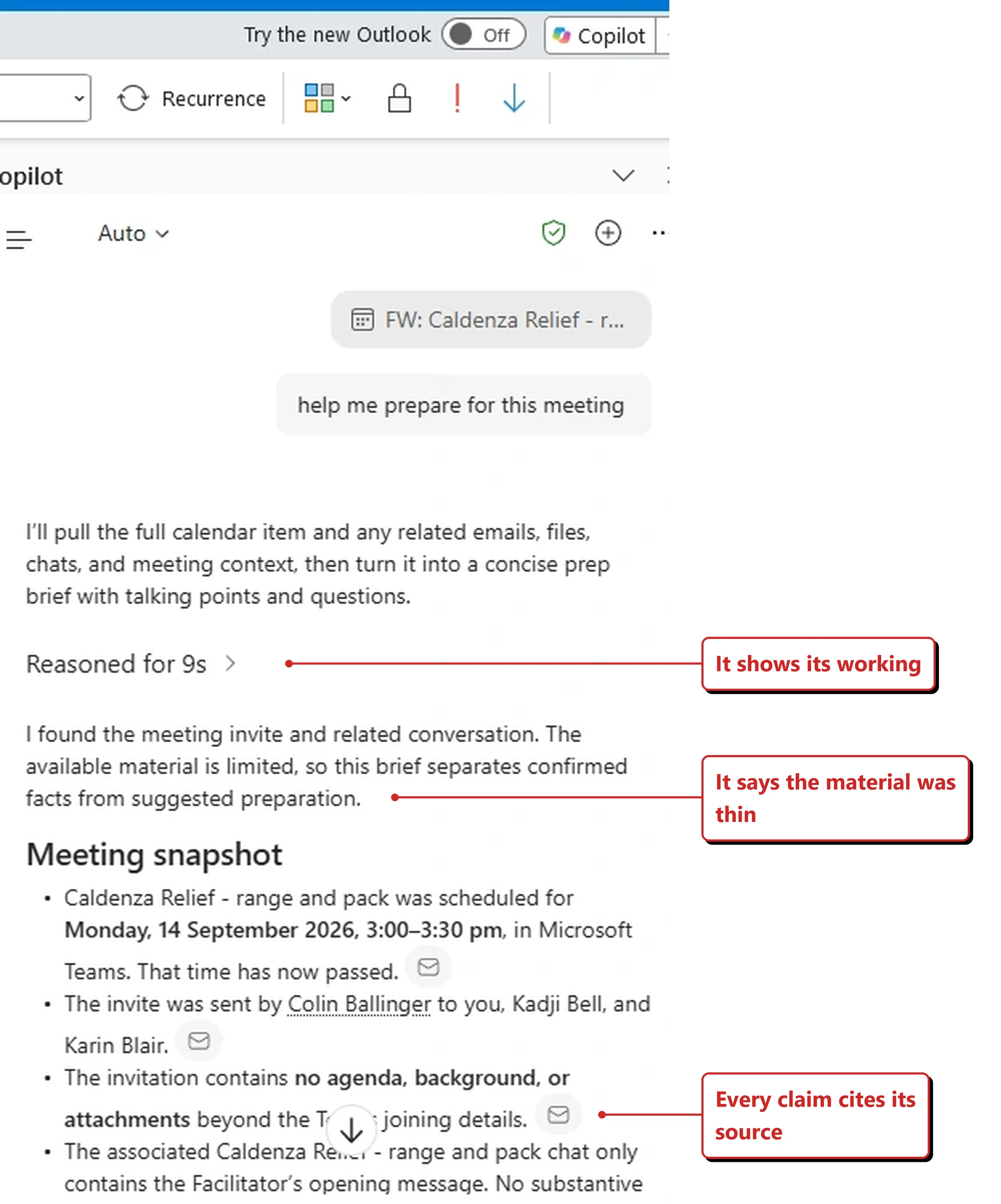
My own tenant, 14 September 2026. A prep brief that admits there was very little to prepare from.
Here is the part I did not expect. The meeting I picked was a thin one — an invite with nothing hanging off it. Copilot went and checked anyway, found the chat as well as the invite, and then said so out loud:
“The available material is limited, so this brief separates confirmed facts from suggested preparation.”
It then named the gaps rather than papering over them. The invitation contains no agenda, background or attachments beyond the joining details. The associated chat holds only the facilitator’s opening message. It also noticed, without being asked, that the meeting time had already passed. Every claim carries a small envelope icon back to the message it came from.
The worry with automated meeting prep is that a feature rewarded for producing a brief will produce one whether or not there is anything to say. On this run it did the opposite — it looked, came back with little, and told me plainly rather than inventing context to fill the space. One run is not a guarantee. It is the behaviour you would hope for.
Why this matters: The five minutes before a meeting is when preparation actually happens. Having the material gathered in the client where the invite already lives removes the step where you go looking and run out of time.
📖 AI at Work Roadmap 542186 · Microsoft 365 Copilot release notes
Teams and Planner
54. Teams can translate a meeting recap after the fact
For: Copilot in Microsoft Teams · Rolled out August 2026
You can change the language of a meeting recap after it has been generated, using a translation button on the recap itself.
Why this matters: Recaps get forwarded to people who were not in the room, and often not in the same country. Translating after the fact means the recap does not have to be generated correctly the first time for someone else to use it.
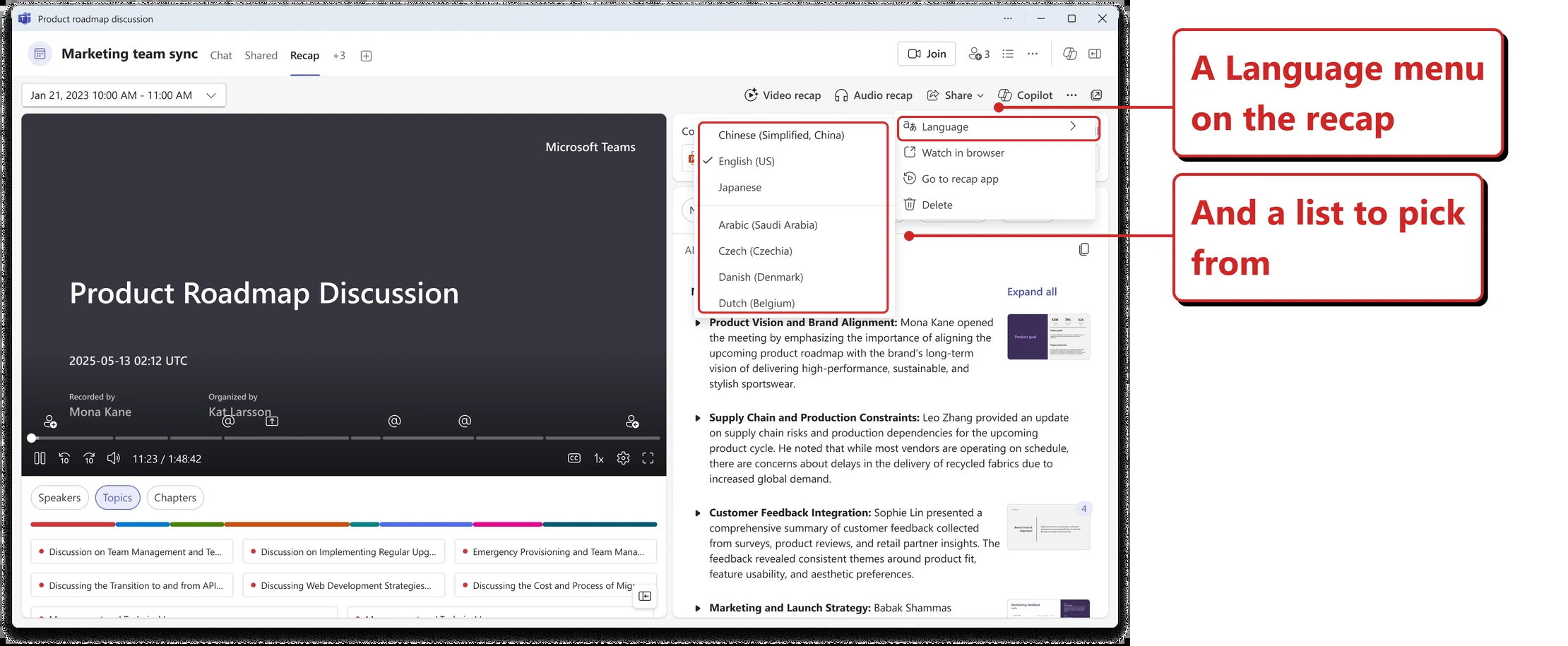
Official Microsoft image from Microsoft’s August 2026 Copilot roundup.
📖 Microsoft’s August 2026 Copilot roundup
55. The Planner Agent writes a status report
For: Planner Agent · Frontier Program · Rolled out August 2026
The Planner Agent can produce a status report covering progress, risks, overall status and next steps, with the tone and detail adjusted for the audience you name.
Microsoft’s roundup says plainly that “This feature rolled out to Frontier in August.” Its roadmap row still reads In development as of 14 September, which is the usual lag rather than a contradiction — the roadmap tracks broad availability, and this went to Frontier first.
Why this matters: Status reporting is the tax on project work — the information already exists in the plan, and someone rewrites it weekly for a different audience. This is a genuinely good fit for a model, because it is transformation rather than invention.
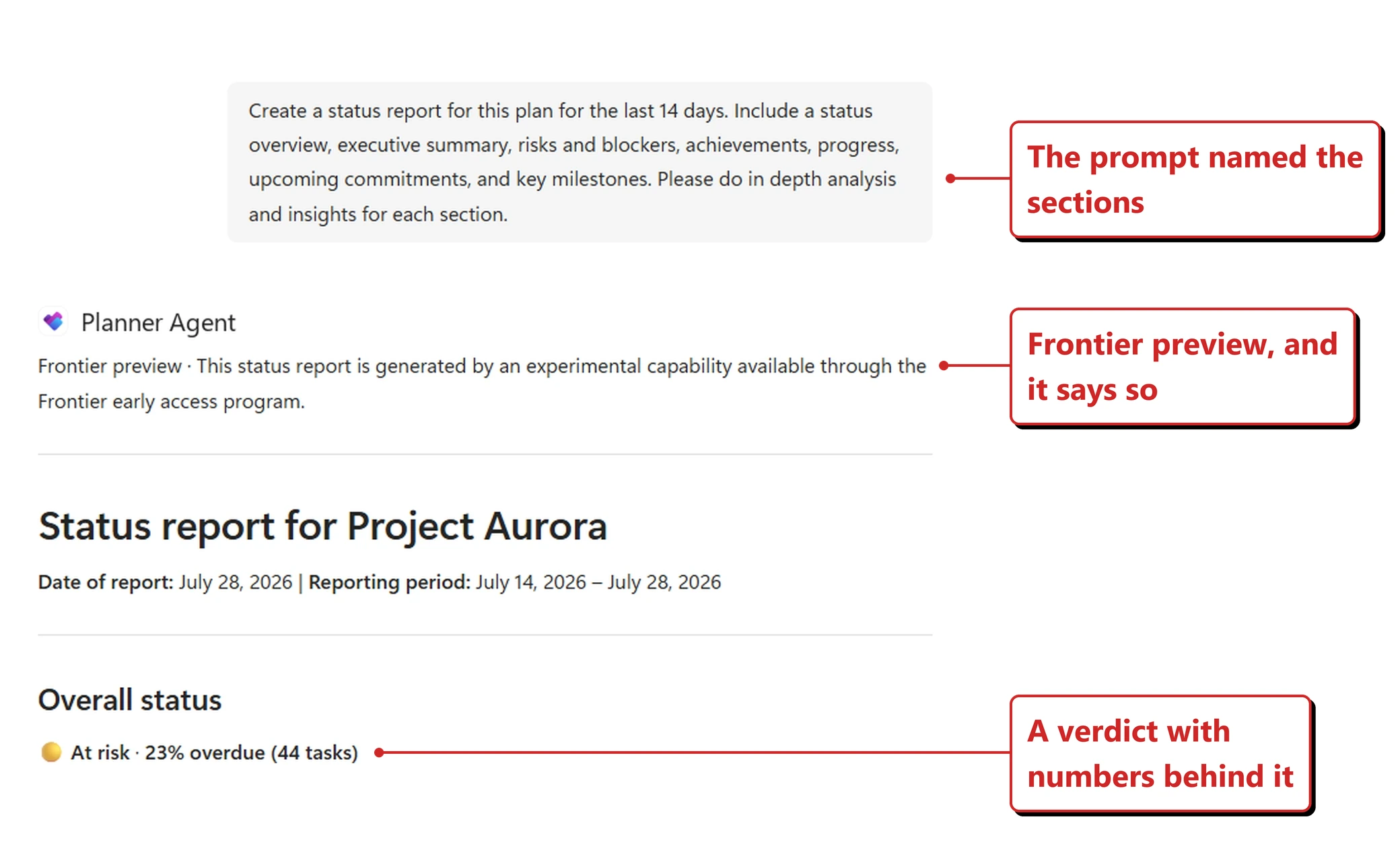
Official Microsoft image from Microsoft’s August 2026 Copilot roundup.
📖 Microsoft’s August 2026 Copilot roundup · AI at Work Roadmap 567886
56. You can create and query Planner tasks from Copilot
For: Copilot + Planner · Rolling out September 2026 · Tested in my tenant 14 September 2026
Copilot can create Planner tasks and answer questions about them without you opening Planner.
What I found on 14 September 2026. I asked for it the way you would say it out loud: “Create a Planner task to review the Caldenza pack, due Friday.”
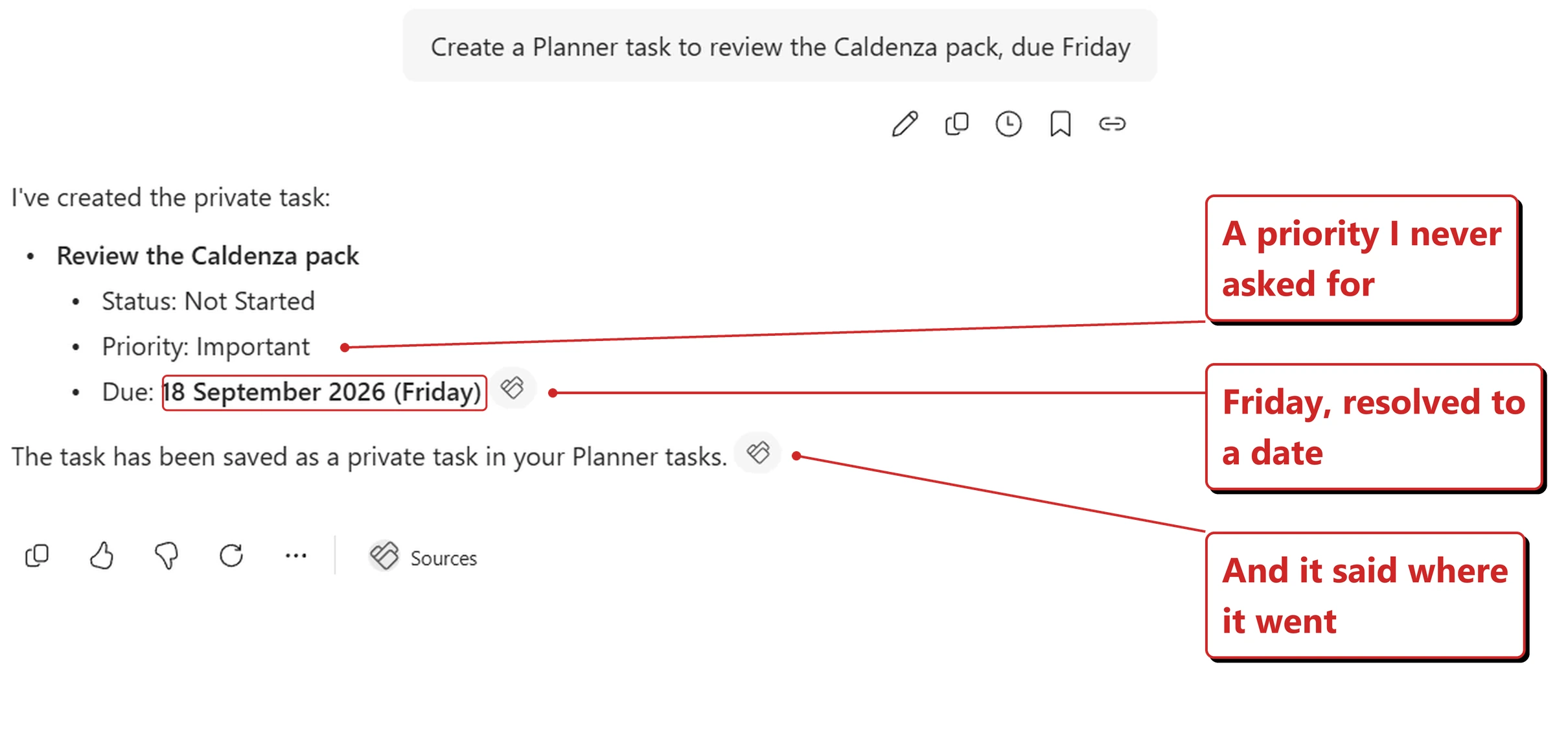
My own tenant, 14 September 2026. "Friday" resolved to a date, and shown to me.
Two small things are worth noticing. It turned Friday into 18 September 2026 and showed me the date it had settled on — which is the only way you would ever catch it getting that wrong. And it gave the task a priority of Important, which I never asked for.
It also said where the task had gone: a private task, not something dropped into a shared plan.
Then I did the thing worth doing whenever an assistant tells you it has saved something. I went and looked.
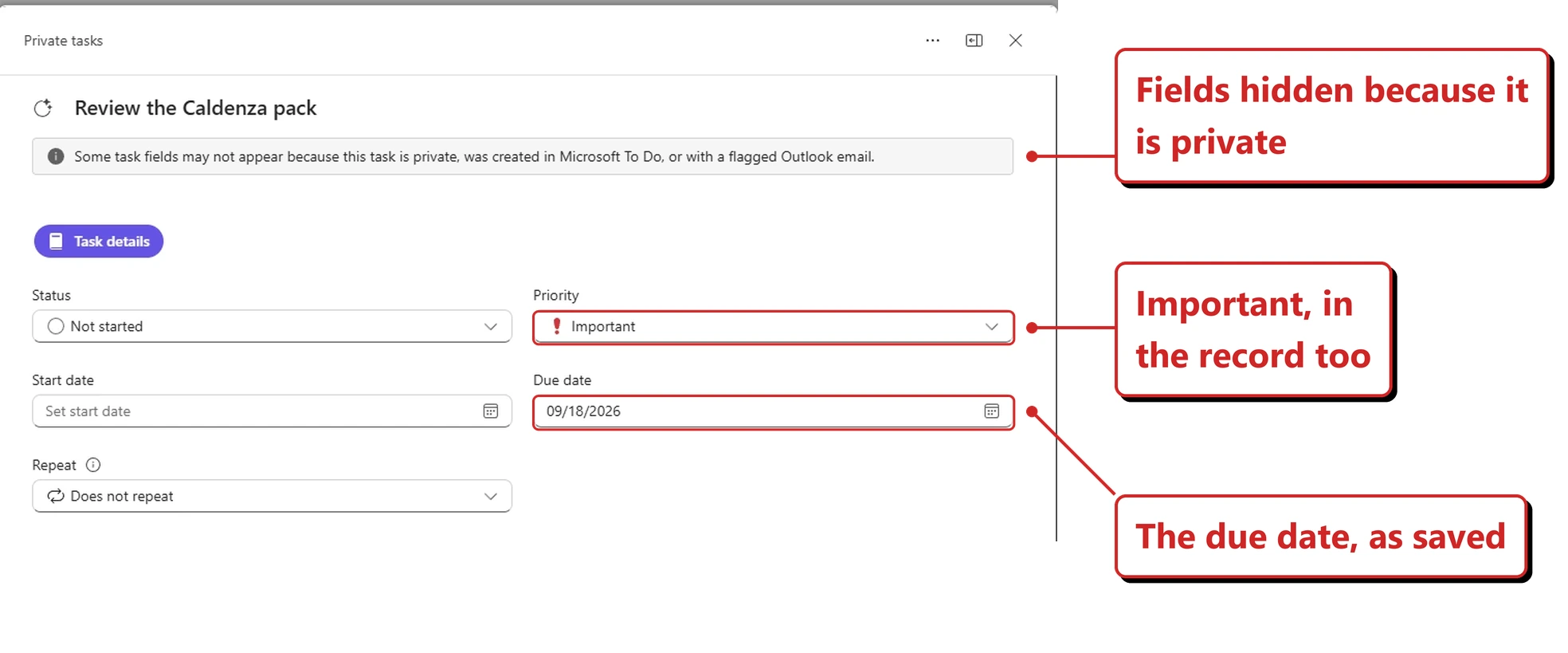
The same task, opened in Planner. The chat's account of itself matched the record.
It was really there — right title, due 09/18/2026, priority Important, with a banner explaining that some fields stay hidden because the task is private.
One contrast is worth drawing. Earlier in Outlook, Copilot would not move an email until I pressed Confirm, and would not send a meeting invite until I pressed Send. Here it simply made the task. That feels about right — a private task nobody else can see is a far smaller thing to get wrong than an invite landing in someone else’s calendar — but the manners change with the stakes.
I tested the create half. The query half — asking Copilot what is already on your plate — is on the list for the next issue.
Why this matters: Tasks get lost in the gap between where they are agreed and where they are tracked. Closing that gap — capture the task in the conversation where it came up — is worth more than any feature inside the planning tool itself.
📖 Microsoft’s August 2026 Copilot roundup
57. The Planner Agent works in group-based basic plans
For: Planner Agent · Generally available 11 August 2026 · Tested in my tenant 14 September 2026
The Planner Agent is available in group-based basic plans, widening it beyond the premium plan types.
Where it is. This one is easy to walk past. Open a basic plan in Planner, then look at the bottom right corner of the plan for the Copilot button. It is a floating button over the plan, not an item in the toolbar, which is why I could not find it the first time I looked.
What I found on 14 September 2026. I opened a plan belonging to a team and asked it the most obvious question I could think of.
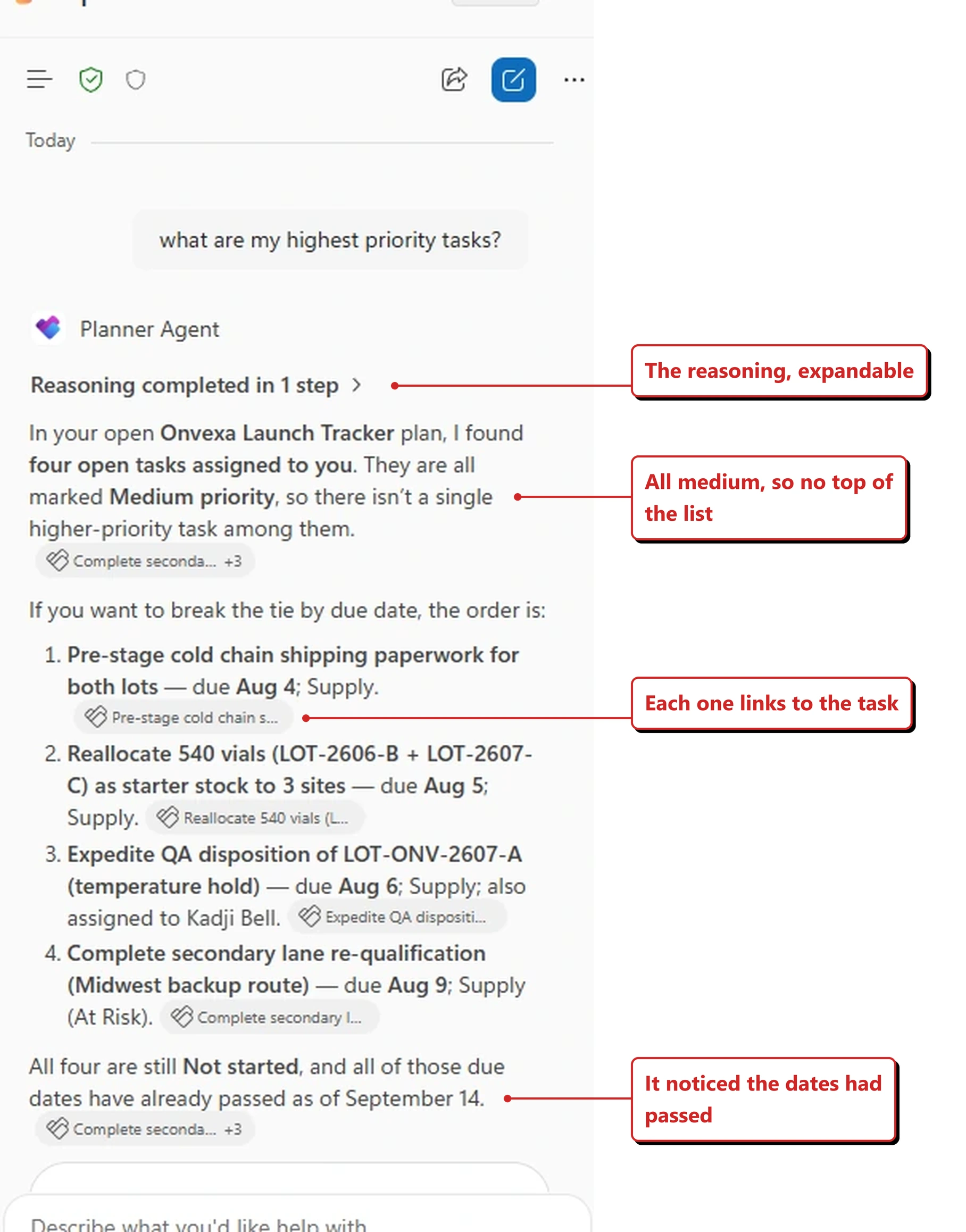
My own tenant, 14 September 2026. The Planner Agent answering a question it could have faked.
I asked for my highest priority tasks, and the honest answer was that there were not any. All four were marked medium, so there was no top of the list to give me. It said so, and then it did the useful thing instead: it offered to break the tie by due date and ranked them that way. It also noticed, without being asked, that every one of those dates had already gone past.
That is a small moment and I think it is the most encouraging thing I saw this month. The easy behaviour would have been to pick one and call it the highest priority. A ranked list looks like a better answer than “they are all the same”. It did not do that.
A few other things worth noticing in that reply. There is a Reasoning completed in 1 step line you can expand, so you can see how it got there. Every claim carries a small task chip underneath, so you can click through to the task rather than take its word for it. And it picked up detail from the tasks themselves, like one being shared with someone else and another being flagged at risk.
Microsoft’s documentation says the agent will also filter your plan view while it answers, adding an AI filter pill you can toggle off, and that the filter changes only your view rather than the plan. I captured the chat pane rather than the whole window, so I cannot confirm that part from what I have in front of me.
Why this matters: Most teams live in basic plans. A feature limited to premium project plans reaches the project managers, not the people doing the work.
📖 AI at Work Roadmap 511820 · Microsoft 365 Copilot release notes · Chat with Planner Agent in basic plans
58. Teams meetings can be added to a Copilot Notebook
For: Copilot Notebooks + OneNote · Generally available 25 August 2026 · Tested in my tenant 14 September 2026
Teams meetings can be added as a source in a Copilot Notebook, alongside the files, pages, links and Outlook emails already supported.
What I found on 14 September 2026. Inside a Copilot Notebook, Add references opens a picker — and Meetings is a tab of its own, sitting between Files and Emails.
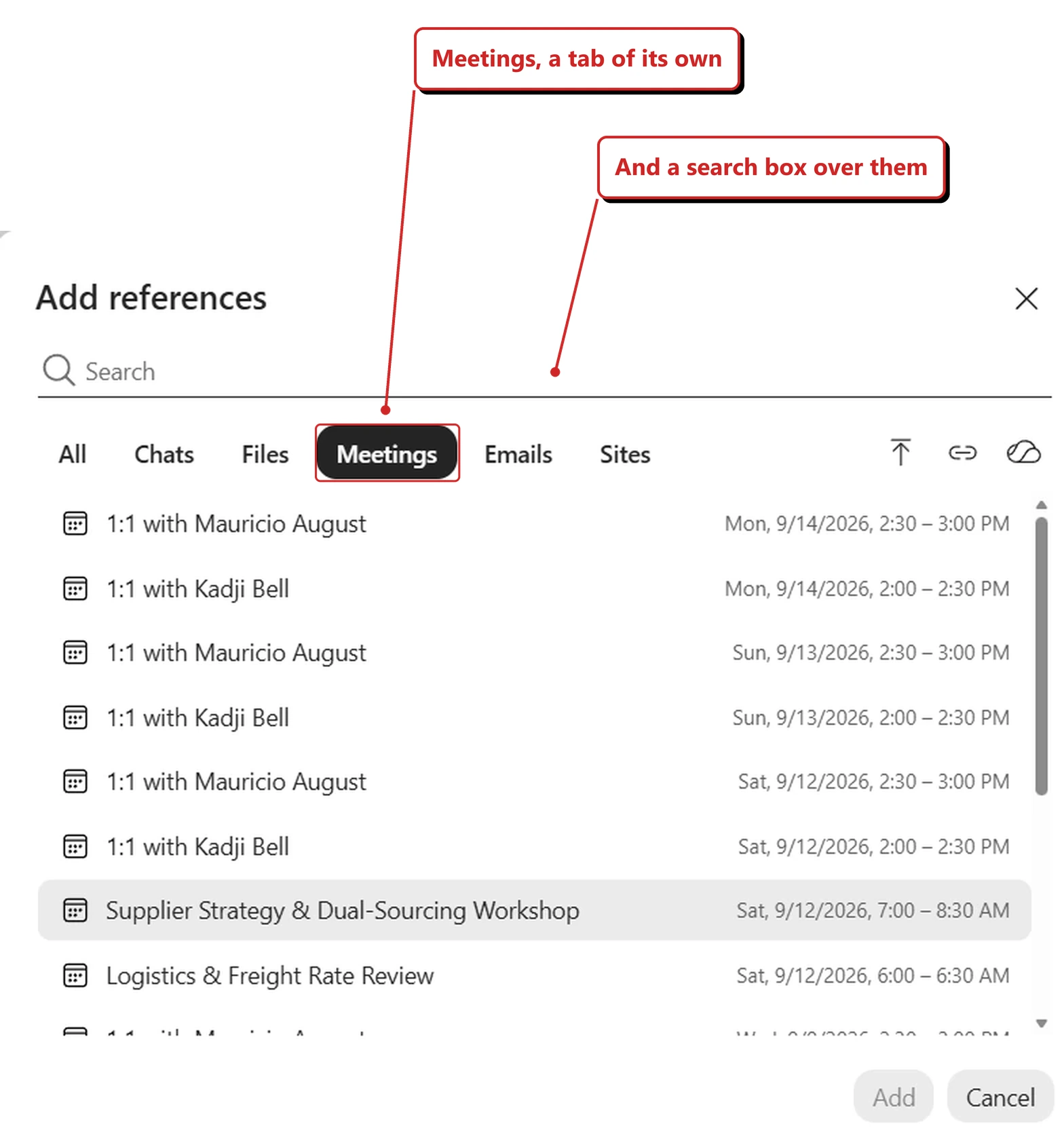
My own tenant, 14 September 2026. Meetings as a source type, not a workaround.
That is the detail worth having. Meetings are not bolted on through a pasted link or an exported transcript file — they are a reference type in their own right, with a search box over the top of them. The list names each sitting and gives its date and time, newest first, and recurring meetings appear as separate occurrences, so you are choosing that Saturday’s supplier workshop rather than a series.
What I have not tested is what actually crosses over when you add one — the transcript, the recap, or only the invite. That changes how much the notebook can really do with it, and it is the first thing I will check for the next issue.
Why this matters: Notebooks work best when everything about a piece of work sits in one place. Meetings were the obvious missing input — most decisions get made in one and written down in none.
📖 AI at Work Roadmap 560706 · Microsoft 365 Copilot release notes
OneDrive and SharePoint
59. OneDrive can take you from files to finished work in chat
For: Copilot in OneDrive · Public Preview August 2026 · Worldwide December 2026 · Tested in my tenant 14 September 2026
From a chat in OneDrive you can find content, analyse files and data, and create summaries and drafts without leaving the file view.
What I found on 14 September 2026. I opened the Copilot panel in OneDrive to see where it starts you off, because the suggestions a product offers on an empty screen tell you where its makers think the value is.
My own tenant, 14 September 2026. The front door to Copilot in OneDrive.
Six suggestions, and five of them are about finding something. Give me the latest on a project. Find files on a topic. Find the file shared with me by a person. Find a file that was shared in a meeting. Find a file I recently edited. The box underneath asks you to ask a question about your files.
The meeting one is the interesting one. Looking for a document by the meeting it turned up in is much closer to how people actually remember things than trying to recall a file name, and I had not seen it offered anywhere else.
But it is worth saying plainly that the headline for this feature is about getting from files to finished work, and the front door is almost entirely about retrieval. None of the six suggestions offer to write anything. That does not mean it cannot draft, and I have not tested that half. It does tell you what Microsoft expects most people to do with it on day one.
Note the two dates. This is in Public Preview now and does not reach worldwide availability until December.
Why this matters: OneDrive is where the raw material sits, and until now it was a place you fetched things from. Turning it into a place where work gets done removes a round trip that most people make dozens of times a week.
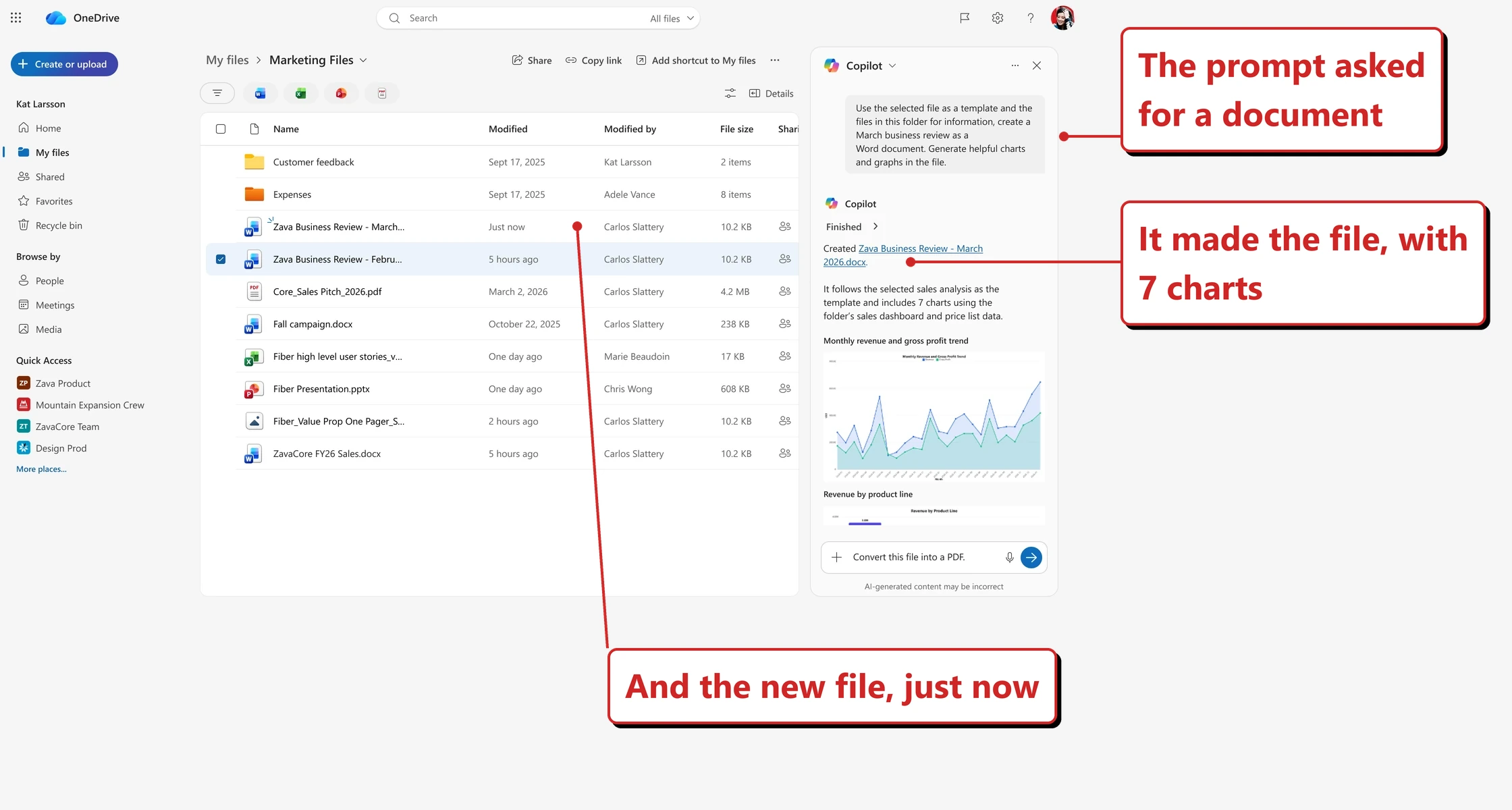
Official Microsoft image from Microsoft’s August 2026 Copilot roundup.
📖 Microsoft’s August 2026 Copilot roundup
60. SharePoint personal skills are saved to OneDrive and reused everywhere
For: Copilot in SharePoint · Public Preview August 2026 · Worldwide December 2026 · Checked in my tenant 14 September 2026
A personal skill in SharePoint is saved as a markdown file in your OneDrive, and works across all SharePoint sites rather than the one where you made it. The storage choice is worth noticing. A skill is a text file you own, not a hidden setting.
What I could check on 14 September 2026. Not much, and that is the first thing to report. I went looking for skills in my own tenant and they are not there yet. That is unsurprising for something in public preview with a worldwide date of December 2026, and it is the reason this section leans on documentation rather than screenshots. I will come back to it in the October issue.
What the documentation does and does not say. Microsoft has a page for this, Extend Copilot in SharePoint with skills, updated 26 August 2026. It is clear about where a site skill goes:
/Agent Assets/Skills/<skill-name>/SKILL.md
That library is created by the product, cannot be deleted, and takes ordinary SharePoint governance on top of it, so permissions, retention, sensitivity labels and auditing all apply to a skill the same way they apply to a contract or a spreadsheet.
What that page does not do is mention personal skills, or OneDrive, anywhere. The claim in this section comes from the roundup and the message centre entry. So the exact folder your personal skill lands in is, as far as I can find, undocumented. If you get there before I do, I would genuinely like to know the path.
Three things in that page worth carrying off.
Typing /skills into the Copilot chat on a site lists the built-in skills Microsoft ships. Those exist to help
you create, check and improve your own, and they do not appear in the Agent Assets library.
There are no admin controls for skills. Nothing to turn on, nothing to turn off. Anyone with Edit on the site can create one and anyone with View can run it. If that is too open, the lever is to break permission inheritance on the Agent Assets library and lock it down like any other library.
And a skill cannot reach outside SharePoint. Microsoft is explicit that skills cannot connect to external systems or run custom code, and that a skill can only do what the person running it could already do. It chains together things Copilot can do anyway. It does not grant anything new.
Why this matters: Skills stored as plain files can be read, edited, copied and shared like any other document. That is a much healthier foundation than a setting buried in a product, and it means a good skill can spread through a team by being sent to someone.
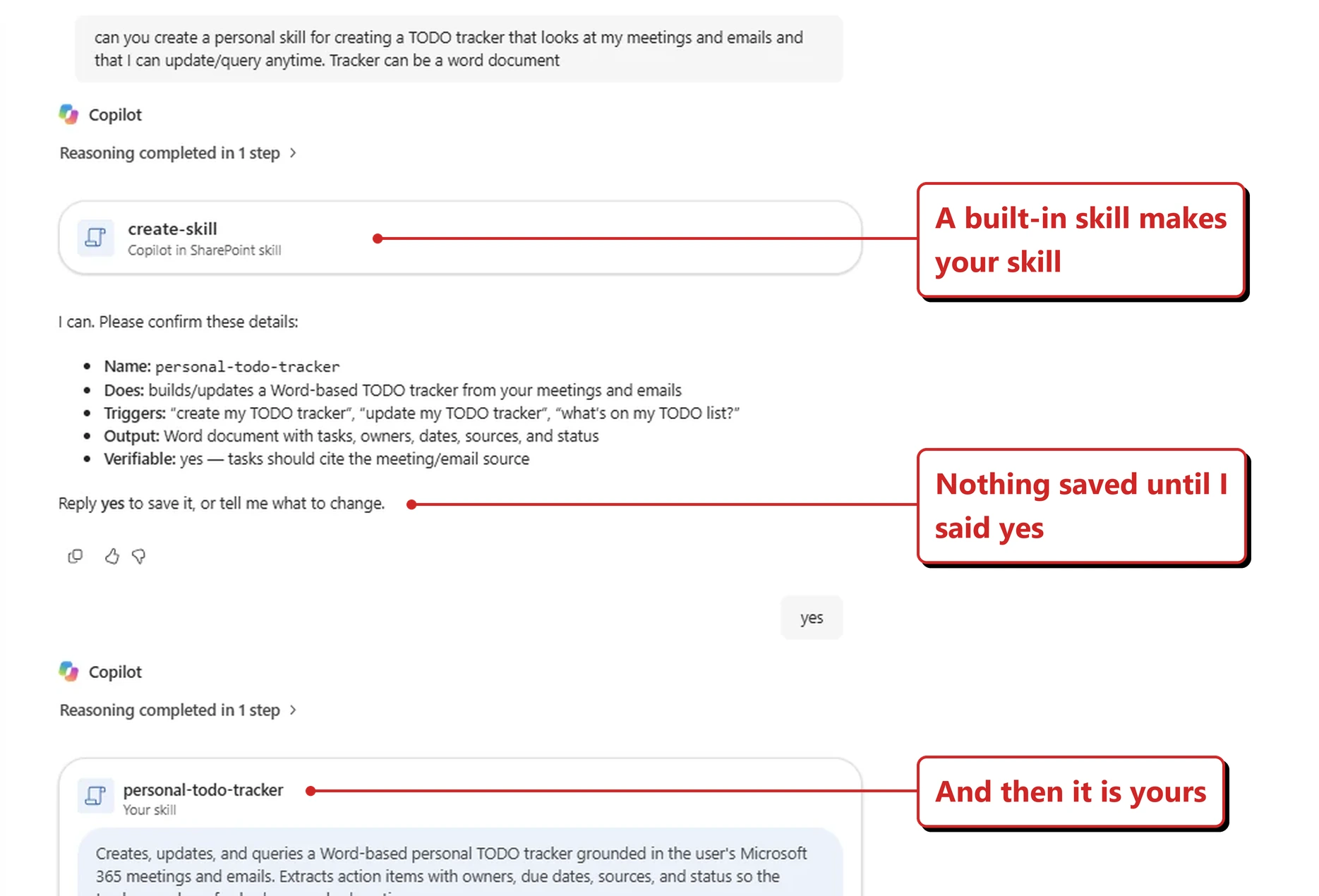
Official Microsoft image from Microsoft’s August 2026 Copilot roundup.
📖 Microsoft’s August 2026 Copilot roundup · AI at Work Roadmap 567668 · Extend Copilot in SharePoint with skills
61. Admins can mark SharePoint sites as authoritative
For: SharePoint + Microsoft 365 Copilot · Admin · Generally available 11 August 2026 · Checked in my tenant 14 September 2026
Authoritative Sites lets an admin designate sites as official and trusted. Microsoft scopes the effect to Copilot Search experiences, which “recognize its content as trusted” — so read this as improving what Search surfaces rather than as a global reranking of every Copilot answer. Microsoft’s own sources disagree here: the Learn article describes Copilot Search, while roadmap 561323 says authoritative content is prioritised across Copilot Chat and Copilot Search. I am following Learn, and treating the wider Chat behaviour as unconfirmed rather than ruled out.
Where it actually lives. I went looking for this in the SharePoint admin centre and could not find it. That turns out to be the story. Microsoft’s own page, updated 26 August 2026, says it plainly:
“In the current release, configure authoritative sites through PowerShell and CSOM APIs.”
So a capability announced as something an administrator does is, today, a cmdlet. Worth naming, because “admins can mark sites as authoritative” reads like a toggle sitting in a settings page, and a fair number of people will go hunting for it the way I did.
The licensing is better news than you would expect. This sits under SharePoint Advanced Management, which usually implies a paid add-on. It does not here. Microsoft’s prerequisites page says one Copilot licence anywhere in the tenant unlocks it, and that person does not have to be the administrator. There is a base subscription requirement underneath — Office 365 E3/E5/A5, Microsoft 365 E1/E3/E5/A5, or the GCC, GCC High and DoD equivalents — but most tenants already running Copilot meet it. That list is the licence eligibility Microsoft documents, not a statement of where the feature runs: the roadmap entry lists Worldwide (Standard Multi-Tenant) only, so confirm availability separately if you are on a government or sovereign cloud.
The short version of how. I have not run this in my own tenant, so treat it as the documented path rather than something I have watched work.
Install-Module -Name Microsoft.Online.SharePoint.PowerShell -Scope CurrentUser -Force
Connect-SPOService -Url "https://<tenant>-admin.sharepoint.com"

$site = "https://<tenant>.sharepoint.com/sites/<siteName>"
Set-SPOSite -Identity $site -IsAuthoritative $true
Get-SPOSite -Identity $site | Select-Object Url, IsAuthoritative   # expect True
Set it back with -IsAuthoritative $false. If PowerShell cannot find the parameter, that is almost always an
old copy of the module rather than a problem with your tenant — run Update-Module Microsoft.Online.SharePoint.PowerShell. For more than a handful of sites, Microsoft documents a heavier CSOM
route with bulk commands, but it needs an app registration, so it only earns its keep at volume.
The rest of the shape, before you plan around it:
| Cap | 100 sites per tenant |
| Delay | Up to 72 hours before it shows up |
| Scope | Whole sites only, and never personal sites or OneDrive |
| What users see | A “From your organization” label on results in Copilot Search |
That 72-hour wait is the one to plan around. It rules this out as a fix you apply the morning of a launch, and it means testing it is a two-sitting job rather than a two-minute one.
Why this matters: Most tenants contain several versions of the same policy, and the newest one is not always the one Copilot finds. Within Copilot Search, this is one low-cost mitigation for the most common complaint about Copilot answers — that it quoted something out of date. It raises trusted content; it does not guarantee a correct answer. Note the boundary: Microsoft scopes the label and the ranking effect to Copilot Search, so this does not follow the same content into every other Copilot surface.
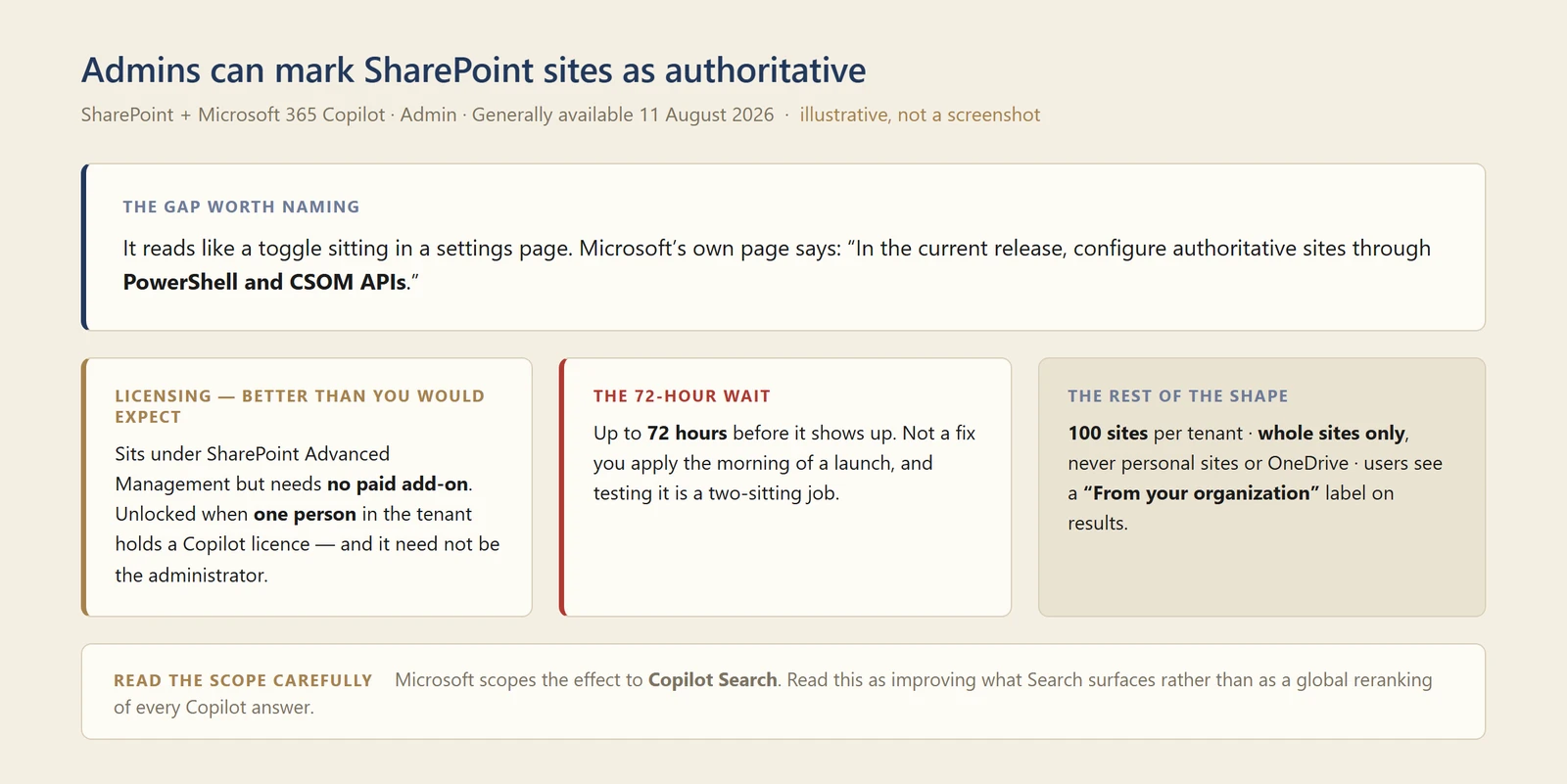
My own diagram of the whole shape of this one — not a screenshot. The 72-hour wait is the part to plan around.
📖 AI at Work Roadmap 561323 · Microsoft 365 Copilot release notes · SharePoint authoritative sites in Copilot Search · Prerequisites for SharePoint Advanced Management
Copilot Studio
New section this month. Until now this series has covered Microsoft 365 Copilot — what you get in the apps and in chat. But the line between “using Copilot” and “building an agent” has more or less dissolved, and the decisions being made in Copilot Studio now have a direct effect on what a Microsoft 365 Copilot user sees and what a tenant gets billed. So it belongs here.
A note on sources before we start. Microsoft’s Copilot Studio documentation on Learn has not caught up with this window — the What’s new in Copilot Studio page was last dated 18 August and its most recent entries are for July. So the material below comes from the Copilot Studio blog, from Microsoft’s Power CAT team, and from the AI at Work Roadmap, and I have said which is which each time.
62. The GitHub Copilot harness in Copilot Studio is generally available
For: Copilot Studio makers · Generally available 3 August 2026
After two months in preview, the capability got a name and a GA date: the GitHub Copilot harness in Copilot Studio.
Microsoft’s description is that it gives Copilot Studio “the coding and reasoning capabilities behind our most advanced agent experiences (like Copilot Cowork and the GitHub Copilot coding agent)”, so agents can handle “processes that have many steps, many sources, and ambiguous decision points.”
It runs the frontier reasoning models — Microsoft’s August announcement gave Opus 5, GPT-5.6 Sol and Fable 5 as examples rather than a closed list, and Fable 5 has since been replaced by Fable 5.1 — and can “plan, reason through dynamic problems, run an agentic loop, use skills, integrate workflows, connect to tools and agents in other platforms, and produce rich, multi-part outputs.”
Why this matters: The phrase to hold onto is "long-horizon". Most agent platforms are good at a request and a response. The claim here is about work with many steps and no obvious right answer at each one — which is most real business process, and the reason so many agent pilots stall after the demo.
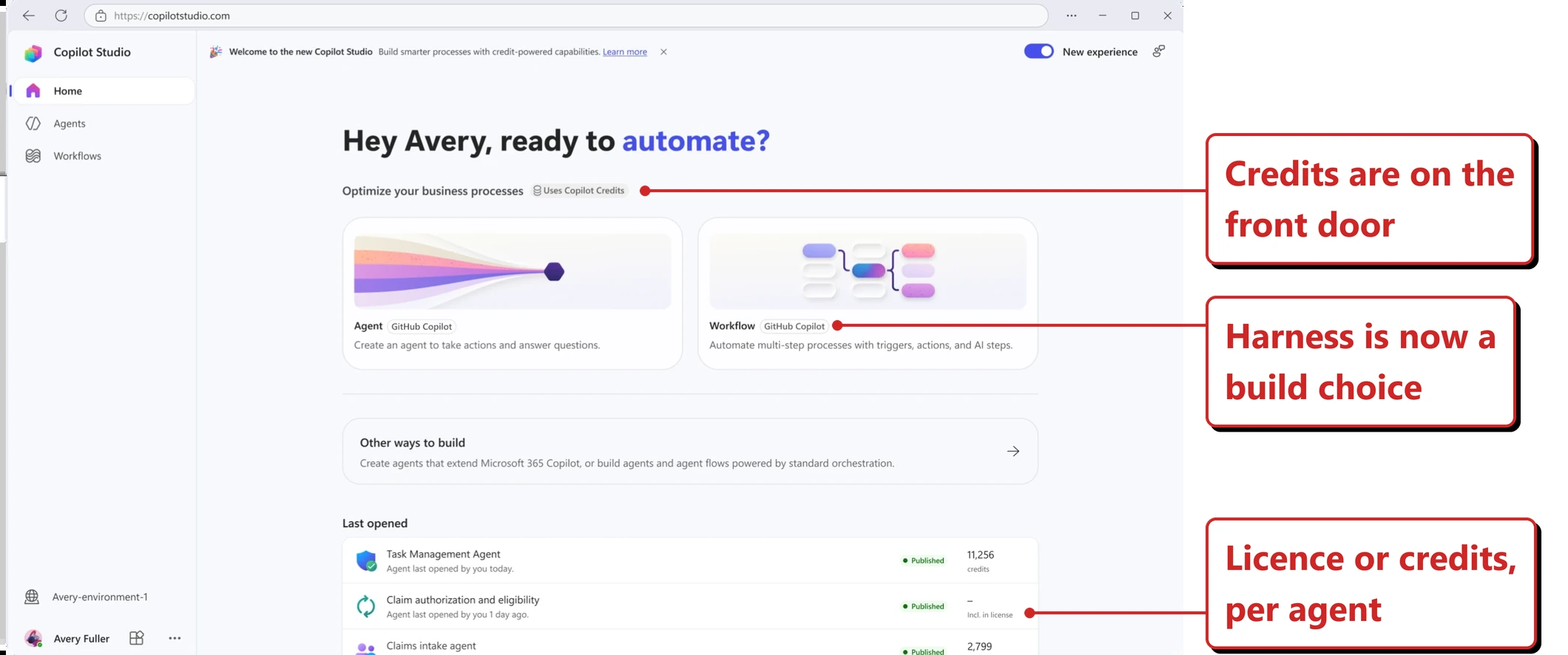
Official Microsoft image from Microsoft’s Copilot Studio announcement.
📖 Introducing a new harness for Copilot Studio
63. Three harnesses now, and a white paper on choosing between them
For: Copilot Studio makers and architects · September 2026
Adding a harness did not remove the old ones. Copilot Studio now supports three:
| Harness | What it is for |
|---|---|
| Copilot Chat | The same harness as Microsoft 365 Copilot Chat — best for customising Chat experiences |
| Standard | What most Copilot Studio agents use today — conversational agents with rules-based topics |
| GitHub Copilot | Built on the GitHub Copilot SDK — complex, agentic business processes |
In early September Microsoft published a white paper on picking between the Standard and GitHub Copilot harnesses, and it contains the clearest definition of the word I have seen:
A harness is the operating layer between the model and the agent’s configuration. It determines how the model receives context, uses instructions and tools, interprets results, and moves through a task toward completion. Put simply, the model provides the reasoning capability, while the harness equips and directs it.
The paper’s own summary of the split: the Standard harness “supports consistent, reliable execution of bounded business processes”, while the GitHub Copilot harness extends that to “longer-running, coordination-heavy, and reasoning-intensive work at a larger scale.”
Why this matters: A vendor publishing a paper on how to choose between its own two options is a decent signal that the choice is consequential and not obvious. It is also the answer to "which one do we use?" — bounded and repeatable goes Standard, sprawling and judgement-heavy goes GitHub Copilot. As the next few sections show, the two are billed very differently.
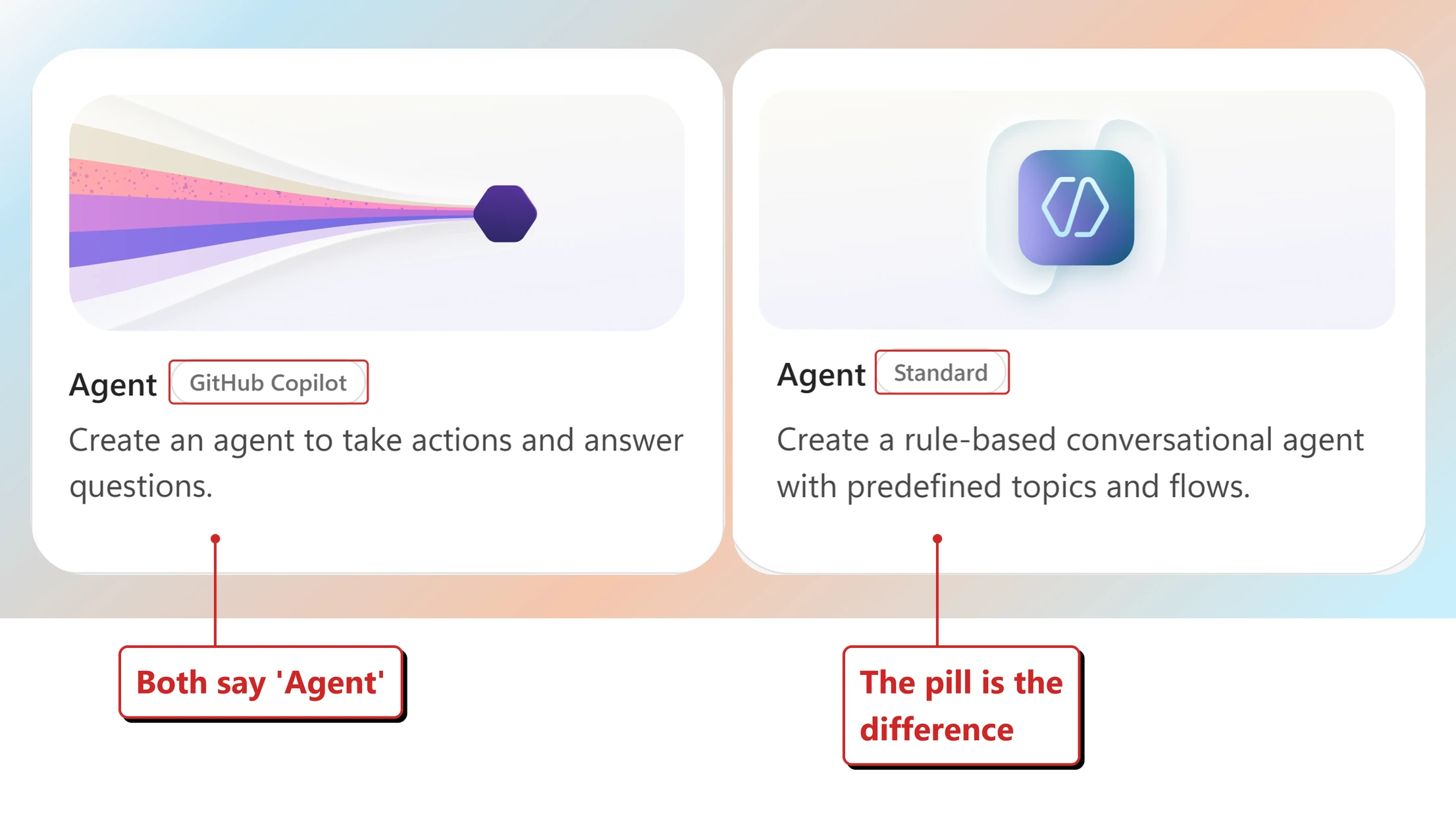
Official Microsoft image from Microsoft’s white paper on choosing a harness.
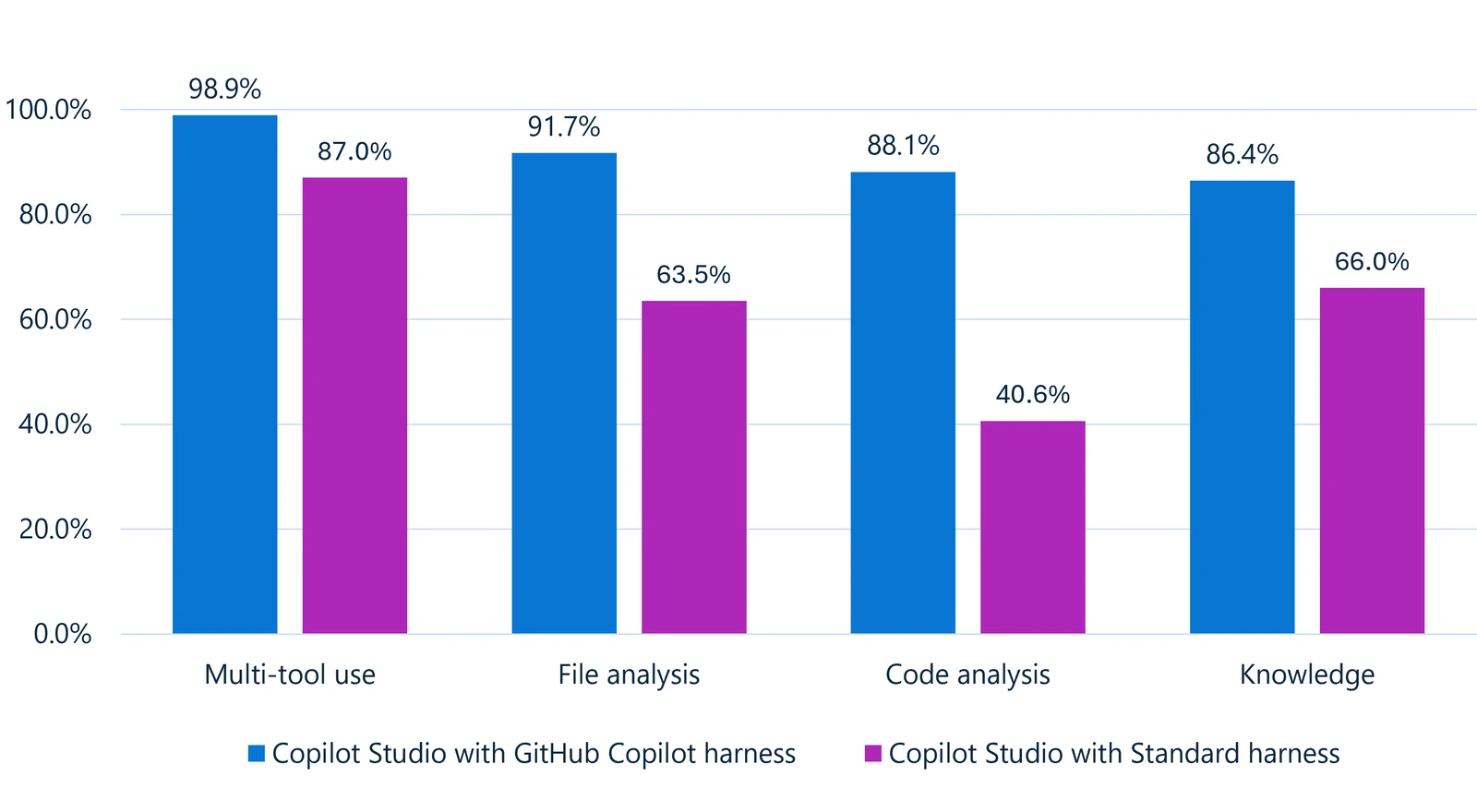
Official Microsoft image from Microsoft’s Copilot Studio announcement.
📖 White paper: Choosing between the GitHub Copilot and Standard harnesses
64. Agents on the new harness are billed for all work, regardless of Copilot licensing
For: Admins and anyone who owns a budget · Generally available August 2026
This is the most important paragraph in the whole section, so here it is in Microsoft’s words:
Agents running on the GitHub Copilot harness use usage-based billing for all work, regardless of Microsoft 365 Copilot licensing. You pay for your agent’s usage based on the models you choose, the organizational context and tools you add, and runtime used.
The existing arrangement continues for the other two: Microsoft 365 Copilot licensed users “continue to benefit from fair use of Copilot Chat or Standard harness agents included in their Microsoft 365 Copilot license”, and other usage on those harnesses is billed on the existing fixed rate card.
Why this matters: A lot of organisations have quietly assumed that buying Microsoft 365 Copilot licences covers agent usage. On this harness it does not, and the word "regardless" is doing real work in that sentence. If you are planning agent work for the rest of the financial year, this is the line that changes the model.
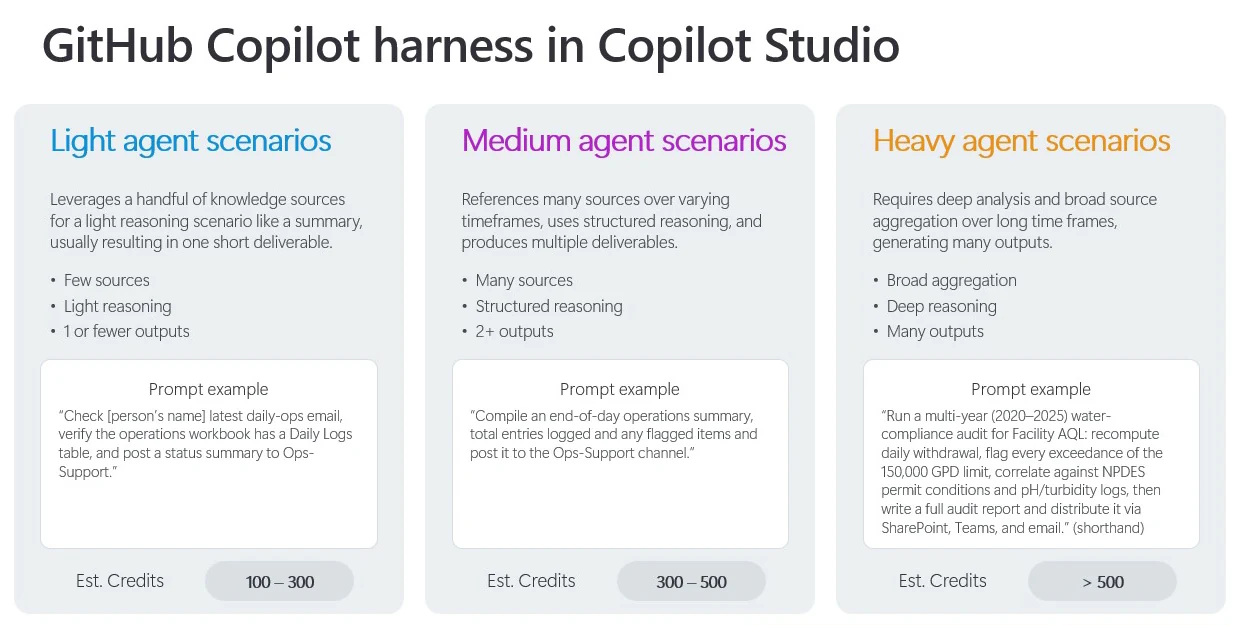
Official Microsoft image from Microsoft Learn.
📖 Introducing a new harness for Copilot Studio
65. Credits are consumed while makers build, not just when agents run
For: Admins · Generally available August 2026
The part that is easiest to miss — and Microsoft has now put it beyond doubt. The billing overview says it in a heading: “Billing starts when you start building: Unlike the standard harness, which starts billing after publish, the GitHub Copilot harness charges credits from the moment you start building. Experiences such as creating an automated solution with natural language, previewing and testing the agent, and generating and creating agent evaluations all consume credits.”
Note what is and is not being said. Microsoft names activities — natural-language authoring, preview and test, generating evaluations — not the act of opening the designer. The scope clause is broad, though: “Copilot Credits are charged for large language model (LLM) tokens, tools (including knowledge and MCPs), and the harness itself. Any experience that uses one of these consumes credits.” So the safe reading is that anything invoking the model bills, whether or not it happens in the editor.
The enforcement documentation confirms it from the other direction, by listing what stops when credits run out: "Makers: You can’t use natural language to author solutions, preview and test agents, or generate and create agent evaluations."
Why this matters: Every consumption control most organisations have designed so far assumes spending starts at go-live. Here it starts during the build. A pilot that never ships anything can still spend the budget — which is an odd sentence to write, and exactly why the next four sections exist.

Official Microsoft image from Microsoft Learn.
📖 Copilot Credits billing overview · Credit enforcement policy · Adopting the GitHub Copilot Harness: Cost Control and Governance
66. isCLIAgent — the property that tells you which agents are on the new harness
For: Admins · Available now
Before you can control anything you have to find it. The quickest route is now documented on Learn: the Power Platform admin center has a Harness column in the agent inventory (Manage > Copilot Studio), and filtering it to GitHub Copilot gives you the list. The column reads GitHub Copilot, Standard or Copilot Chat, and Learn notes it is a user-interface column only. For the programmatic route, Power CAT documents that the isCLIAgent property identifies agents using the GitHub Copilot harness, and that you can query it tenant-wide through the Power Platform Inventory API against the microsoft.copilotstudio/agents resource type, returning each agent with its environment and owner.
For a small estate, the inventory view in the Power Platform admin center is enough. At scale, Power CAT points at Azure Resource Graph or the Inventory API so the review is repeatable.
Why this matters: This is the difference between a governance policy and a governance process. "We should keep an eye on harness agents" is a wish; a query that returns every one of them with its owner and environment is something you can actually run monthly.
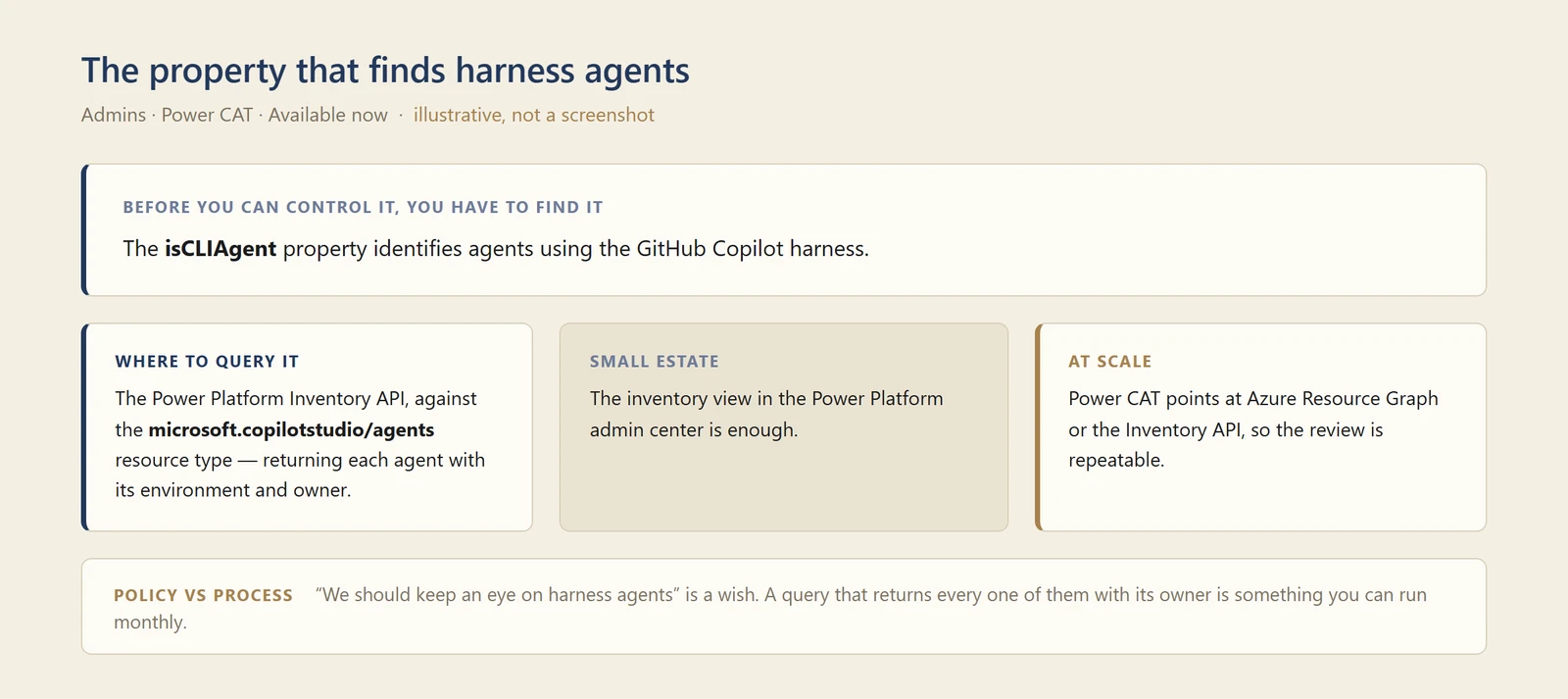
My own diagram of how to find harness agents — not a screenshot.
📖 Manage costs for agents powered by the GitHub Copilot harness · Adopting the GitHub Copilot Harness: Cost Control and Governance
67. Four enforcement rules per environment
For: Admins · Available now
In the Power Platform admin center, under Licensing > Copilot Studio > Manage Copilot Credits, you select an environment, allocate pre-paid capacity, and decide what happens when it runs out. Power CAT frames it as four decisions:
| Decision | Control |
|---|---|
| Reserve pre-paid capacity for this environment? | Allocate Copilot Credits to the environment |
| May it draw unallocated capacity from the tenant pool? | Enable or disable tenant-pool draw |
| May consumption continue via an Azure subscription? | Enable or disable pay-as-you-go billing |
| What happens as capacity runs out? | Configure alerts, or deny further consumption |
The first row is not an enforcement rule — the allocation is a separate allocated value in the API. The other three rows are where the rules live, and there are four of them: TenantPool, PayGo, Alert and Deny. Worth knowing that the count is endpoint-specific: the newer allocationsV2 API adds NotSpecified and Throttle, so six values rather than four. The notification threshold is not free-form either: the percentage has to sit between 50 and 100.
Why this matters: Note that alerting and denying are separate switches. Plenty of organisations will want alerts on and deny off in production — being warned is better than an agent stopping mid-process — and exactly the reverse in a maker sandbox.
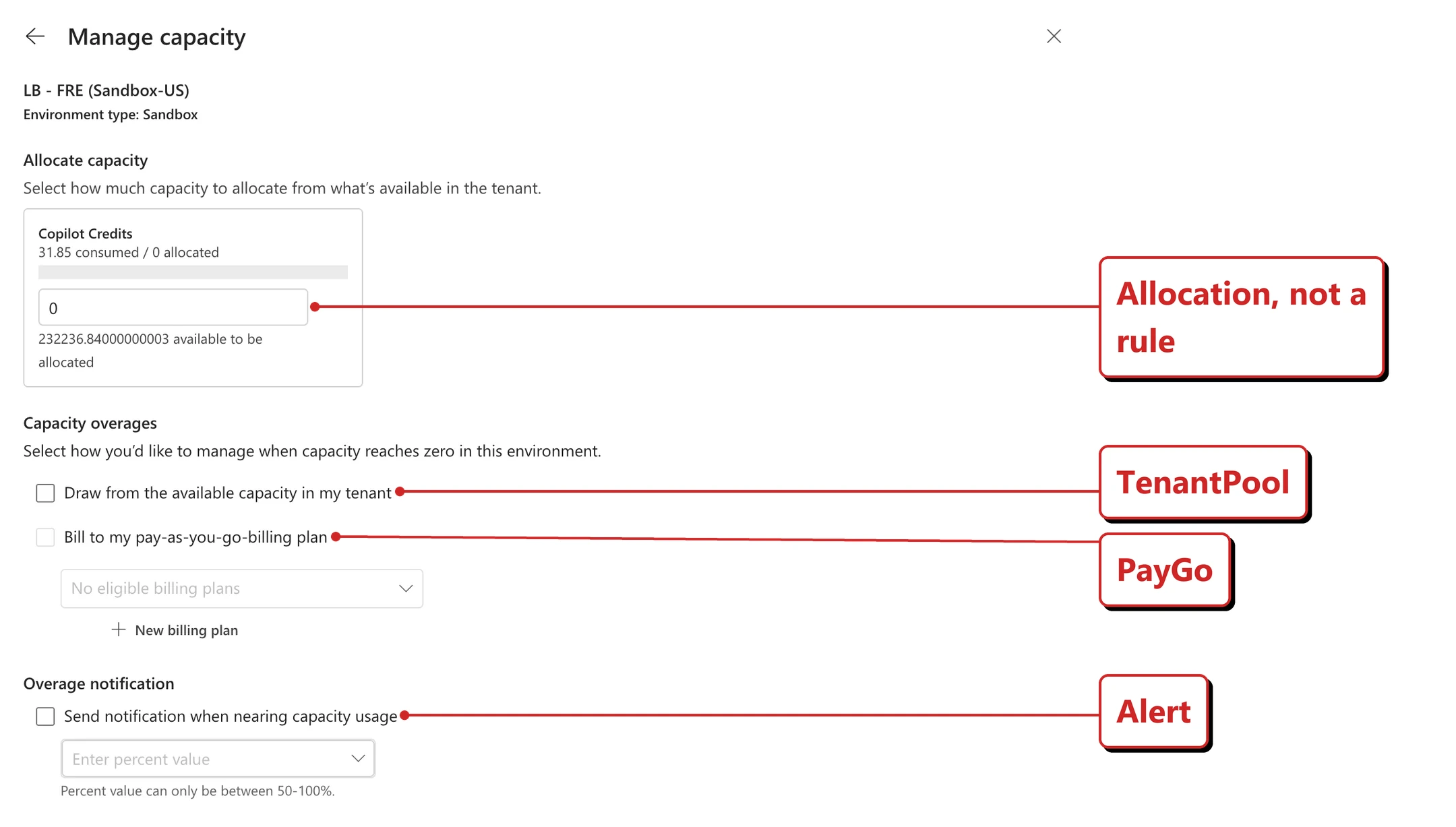
Official Microsoft image from Power CAT’s ‘Adopting the GitHub Copilot Harness: Cost Control and Governance’.
📖 Adopting the GitHub Copilot Harness: Cost Control and Governance
68. The credit allocation setting is broader than it looks
For: Admins · Available now — worth checking today
This one is a genuine trap, and Power CAT flags it directly. The tenant’s add-on capacity assignment setting controls who may allocate credits. Their warning:
Allowing environment administrators to manage allocations doesn’t restrict them to environments they administer; it gives them allocation control across all environments in the tenant.
Their recommendation is to keep allocation restricted to tenant administrators unless that tenant-wide reach is deliberate.
They flag a second drift risk too: new environments can appear with tenant-pool draw already enabled, and an existing environment’s configuration can drift away from whatever was approved for it.
Why this matters: The setting reads like it scopes an admin to their own environments. It does not. That is the kind of gap that is invisible until the month someone reallocates capacity they were never meant to reach — and it costs nothing to go and check how yours is set.
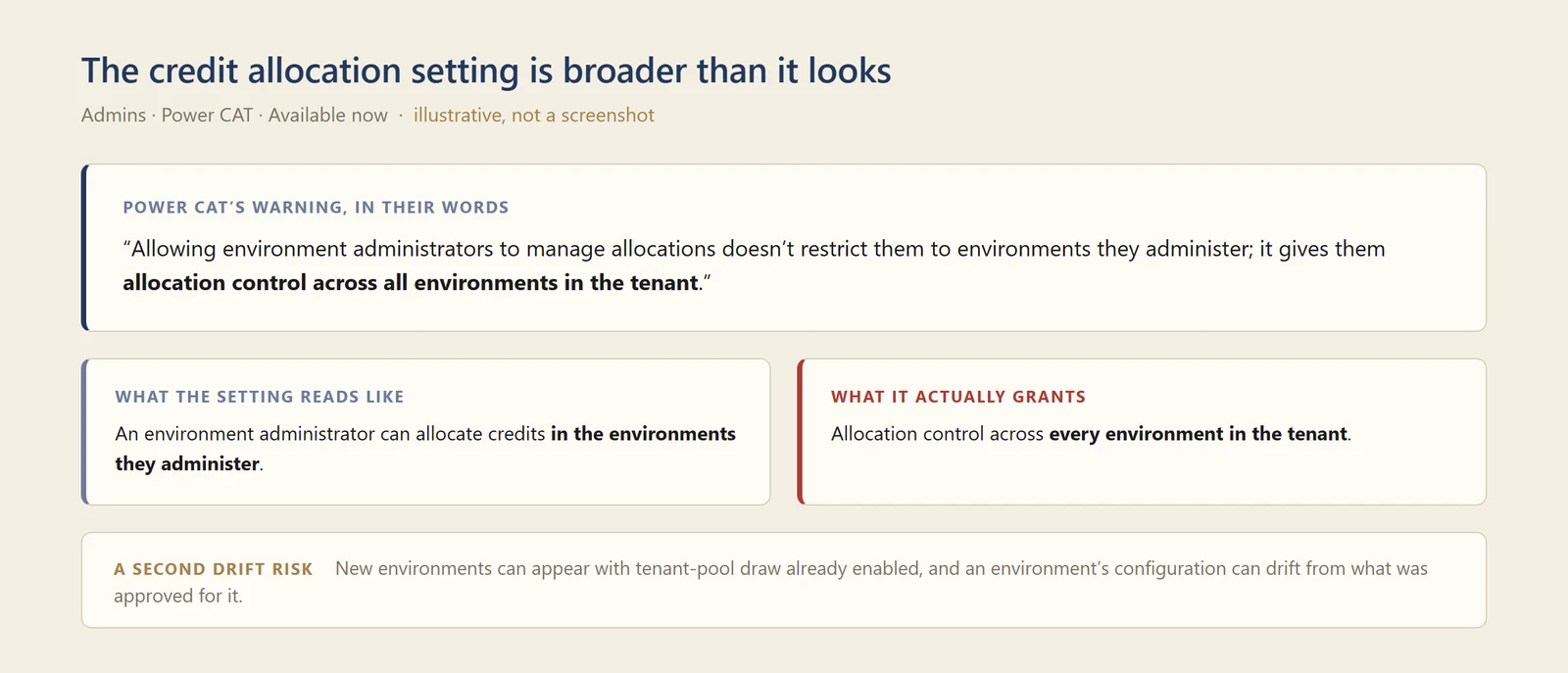
My own diagram of the scope trap — not a screenshot. The gap is between what the setting reads like and what it grants, and a picture of the setting cannot show that.
📖 Adopting the GitHub Copilot Harness: Cost Control and Governance
69. Limits can be set on a single agent
For: Admins · Available now
Environment-level control is not always tight enough — one experimental agent can consume what an entire environment was allocated. Power CAT’s process ends with applying agent-level limits where an individual agent needs a tighter boundary than its environment, alongside notifying the agent’s owner what that boundary is and how to ask for more. One oddity before you set one. The pane says “Set the message limit for your agent”, but the unit it actually limits is Copilot Credits, and the field is pre-filled with 25000 of them. Messages and credits are not the same thing, so read that box as credits regardless of the label above it.
Why this matters: The "and tell the owner" half is the part that usually gets skipped, and it is what turns a limit from an outage into a guardrail. A maker who knows the ceiling and the process for raising it will work within it. One who discovers it by hitting it will just file a ticket.
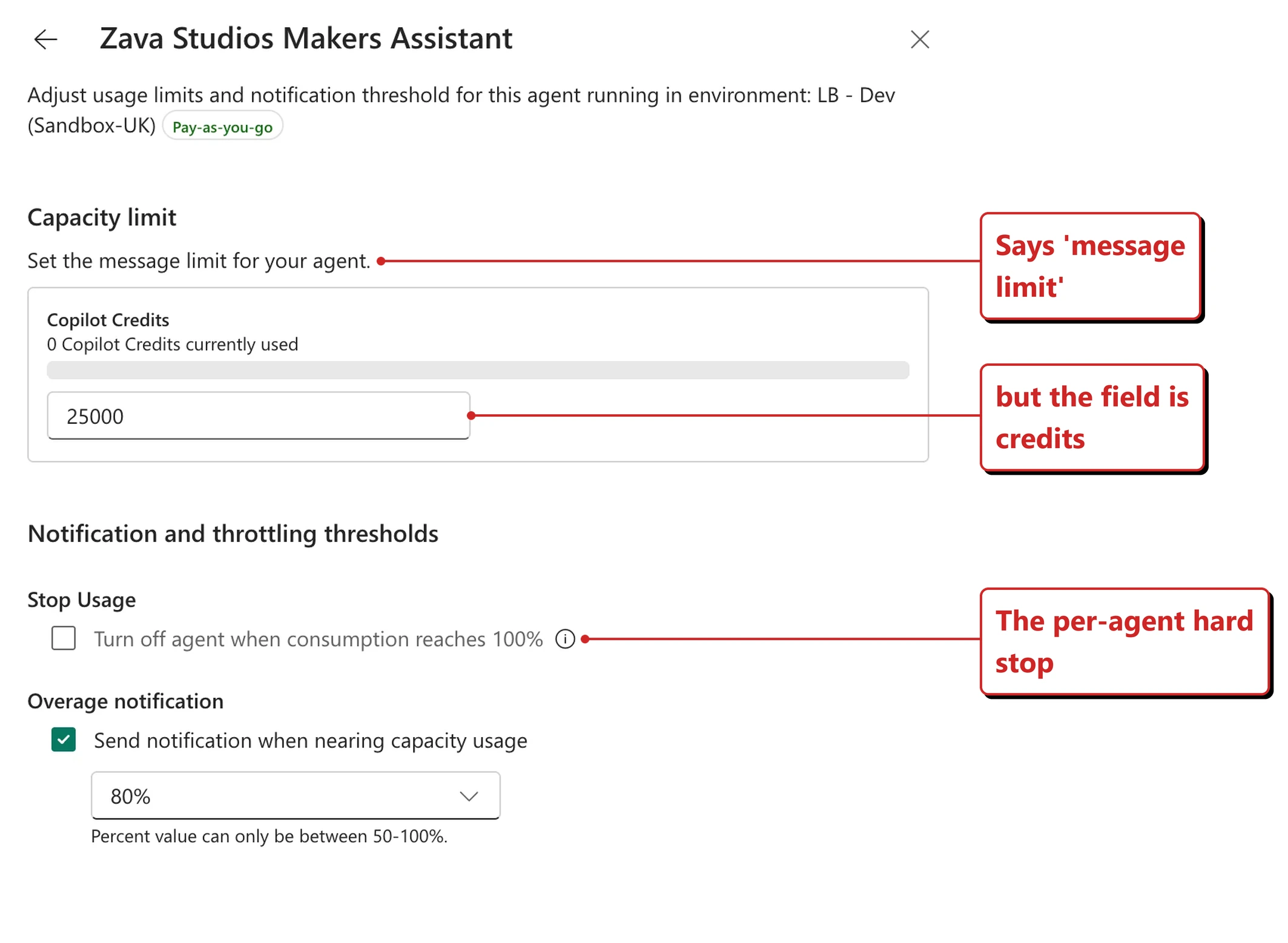
Official Microsoft image from Power CAT’s ‘Adopting the GitHub Copilot Harness: Cost Control and Governance’.
📖 Adopting the GitHub Copilot Harness: Cost Control and Governance
70. A tenant-wide view of where credits are going
For: Admins · Published 25 August 2026, updated 26 August
Power CAT followed the governance post with one on building a tenant-wide view of Copilot Credit consumption, pulling the data through the Power Platform API into Dataverse and reporting on it.
Be clear about what this is before you get excited: the reporting layer is a community solution in a personal GitHub repository, not a shipped product feature. The post says so itself - “This community solution is not a replacement for PPAC reporting” - and points you at the built-in reports first: “For many organizations, these reports should be the starting point.” The API routes underneath are documented Microsoft endpoints; the dashboard on top is a sample. Reach for it when the built-in reports genuinely fall short, not by default.
Why this matters: Controls tell you what is allowed. This tells you what actually happened, and which agents and environments are responsible — which is the report you will be asked for the first time someone questions the bill.
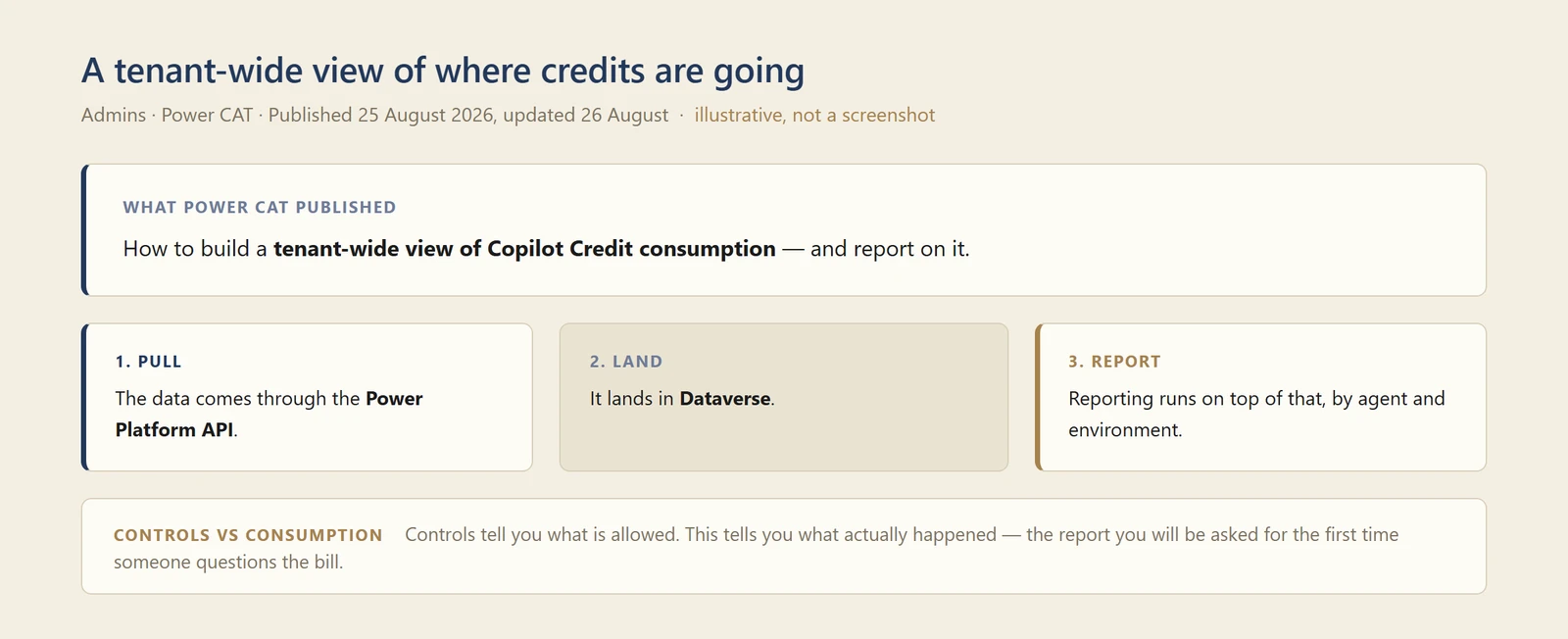
My own diagram of the flow Power CAT describes — not a screenshot. I have not built this report, so I am not showing you a different product’s dashboard in its place.
📖 Where are your Copilot Credits going?
71. New designers for agents and workflows
For: Copilot Studio makers · August 2026
Alongside the harness, Microsoft shipped maker-side changes. The agent designer was reworked to put the most-used tools within reach while keeping full lifecycle management, and the workflow designer gives a visual canvas for understanding and editing workflows, including adding agent nodes and running workflow evaluations.
One flagged as coming rather than shipped: Microsoft says that “soon, natural language authoring will let you describe your business goal and assemble the right combination of agents and workflows through a multi-turn conversation.” That is an announcement, not something to go and try.
Why this matters: Evaluations on the canvas is the quiet one. Being able to run an eval where you built the workflow is what makes testing a normal part of building rather than a separate exercise nobody gets round to.
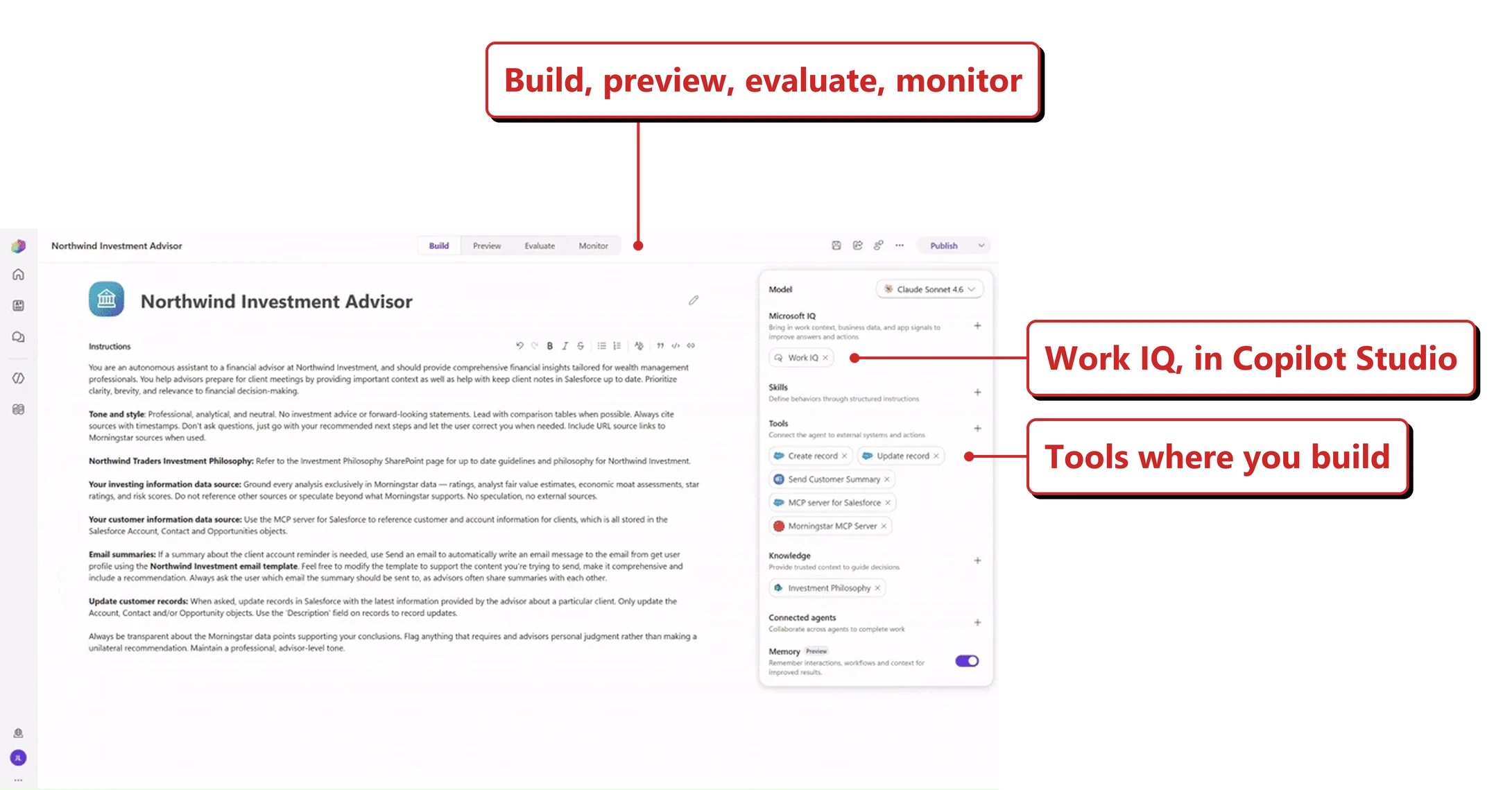
Official Microsoft image from Microsoft’s Copilot Studio announcement.
📖 Introducing a new harness for Copilot Studio
72. An Agent Review Tool for checking agents before release
For: Copilot Studio makers · Preview · Published 18 August 2026
Power CAT published guidance on using the Agent Review Tool to review Copilot Studio agents before they go out, including an agent map and a skill evaluator that produce grounded findings against the agent as built.
Three qualifications, all from the article itself. It is “presented as a preview experience” whose “evaluators and presentation may evolve.” It is not a built-in Copilot Studio feature — it is “part of Copilot Agent Kit” and “available through Copilot Agent Kit on Microsoft Marketplace.” And it examines the saved configuration, not the running agent: “Agent Review Tool guides investigation. It does not certify an agent as production-ready, modify the source agent, replace representative test cases or human review, or prove that a configured capability ran.”
This is also a different thing from the planned in-product Agent Readiness indicator in section 82 — that one is still on the roadmap.
Why this matters: Agent review has mostly meant one person reading the instructions and hoping. A structured pass that maps what the agent can reach is a real step up — as long as nobody reads a clean report as a sign-off. It tells you the configuration looks sane, not that the agent behaves.
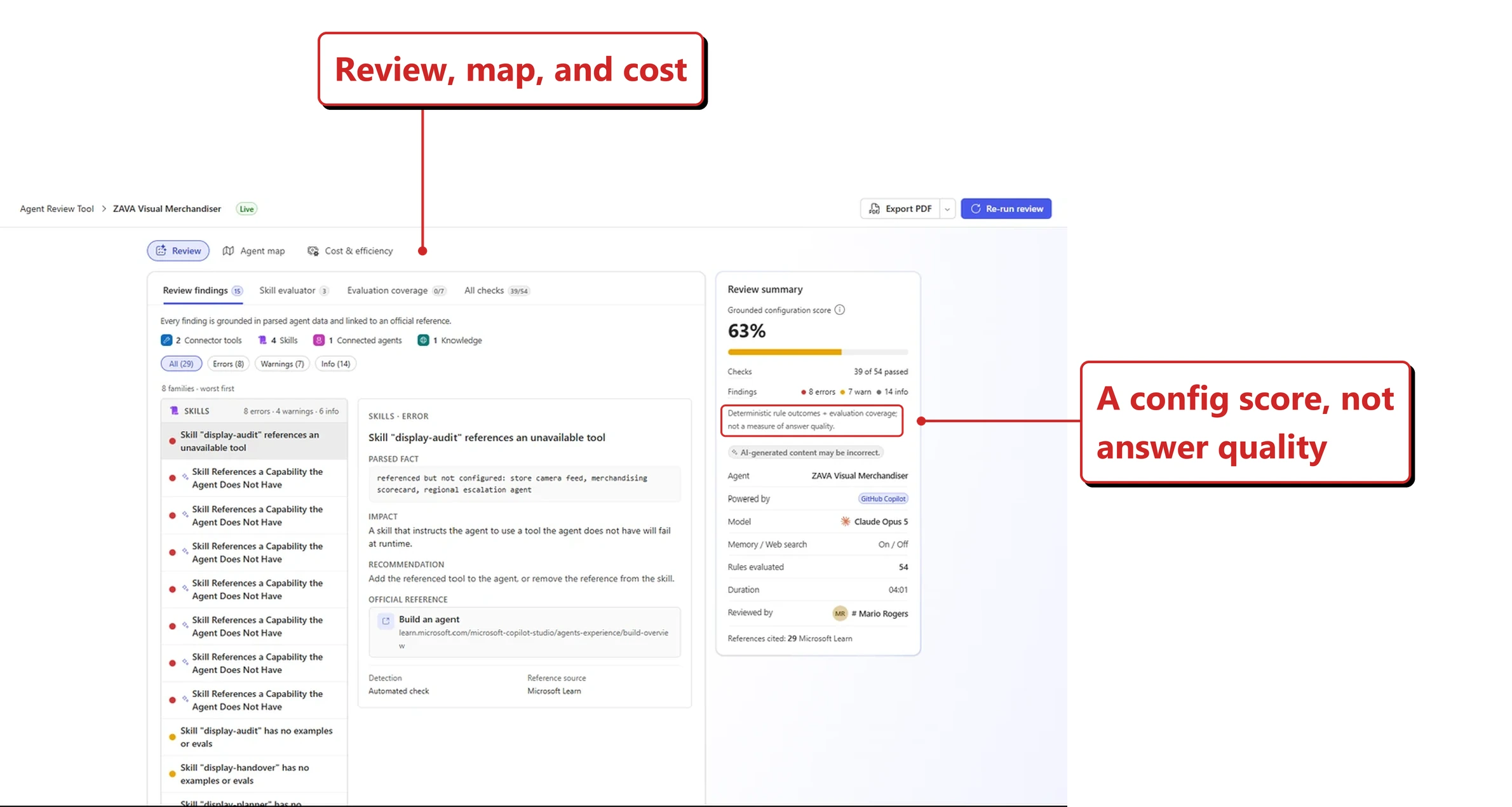
Official Microsoft image from Power CAT’s ‘Review before release: using Agent Review Tool’.
📖 Review before release: using Agent Review Tool
73. SharePoint metadata filtering, for GitHub Copilot harness agents
For: Copilot Studio makers on the GitHub Copilot harness · Published 1 September 2026, updated 2 September
Power CAT’s September post covers filtering SharePoint content by metadata in Copilot Studio, and the subtitle is the interesting part: “from topic logic to agent decisions” — letting the agent decide which documents are relevant from metadata, instead of hand-building the routing in topics.
This is harness-specific, which is easy to miss. The article is explicit that “Agents powered by the GitHub Copilot harness can now bridge that gap”, and equally explicit about what came before: “In the Standard harness, there was no simple, configurable path from a user’s intent to SharePoint metadata and then to the URLs of matching documents.” If your agents are on the Standard harness, this is not available to you in the same form.
One caution if you go deep: the article warns that the built-in metadata and knowledge-search tools are “implementation details, not public APIs” and that “their names, parameters, and behavior can change without notice.”
Why this matters: Anyone who has built a document-grounded agent has written the branching logic that says "if they asked about policy, look in this library." Pushing that to the agent removes the most brittle, least interesting part of the build — and the part that silently rots as the document estate changes. Just note that it is another capability that only arrives if you move to the new harness, with the billing consequences in section 64.
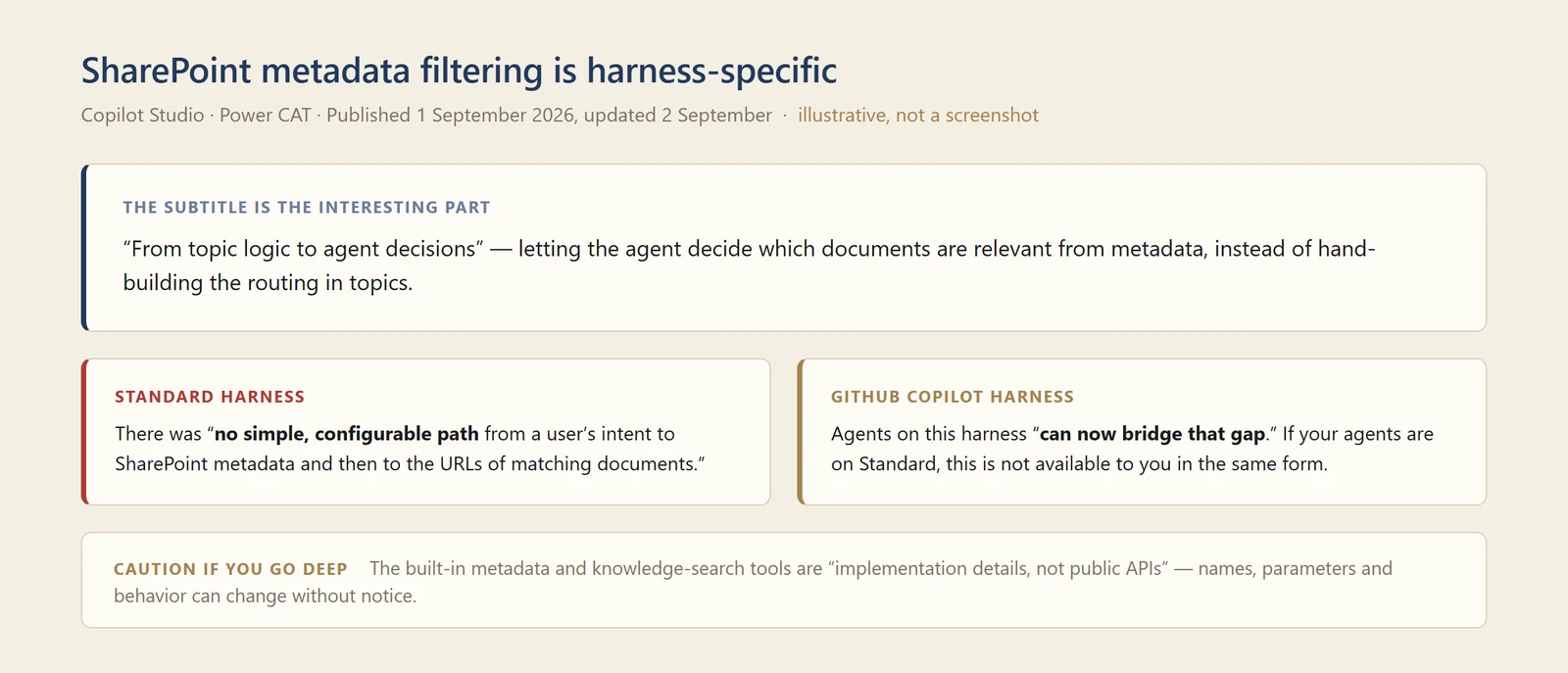
My own diagram of the harness difference — not a screenshot. The point is what the Standard harness cannot do, and an absence does not photograph.
📖 SharePoint metadata filtering in Copilot Studio
74. Work IQ — how it is used, licensed and controlled
For: Admins and makers · Published 24 August 2026
Power CAT also published a piece on Work IQ, the layer that gives agents access to organisational context — mail, calendar, files, Teams messages and people — covering not just what it does but how it is licensed and how access is controlled.
Why this matters: Work IQ is what makes an agent useful and it is also what makes an agent risky, because the whole point is reaching real organisational content. A single piece that covers capability, licensing and control together is more useful than three that cover one each.
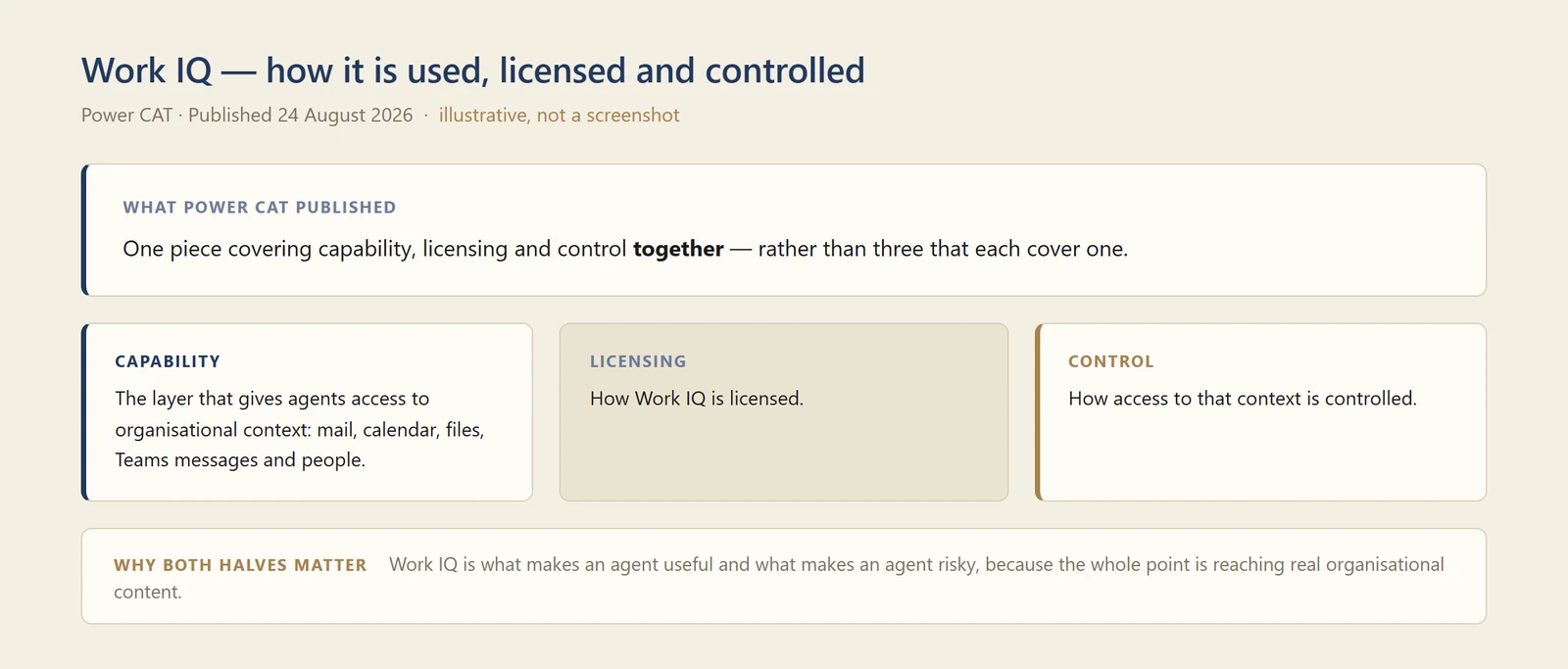
My own diagram of what the piece covers — not a screenshot. It summarises an article rather than a product screen.
📖 Work IQ: how it’s used, licensed and controlled
A note on what follows — these have not shipped. The next ten items are roadmap entries, not releases. I checked every one of them on 14 September 2026 and all ten still read In development. Nine carry a September general-availability date and one, section 81, carries an August date it has already missed — which is the clearest possible illustration of why a planned month is not evidence of a launch. I could not test any of it, and none of it should go into a plan as available on the strength of a roadmap row. Someone in a preview ring may well have hands on these already — section 55 is a released feature whose roadmap entry still reads In development, so the status lags reality in both directions and its silence is not evidence of absence. I include them because knowing what Microsoft intends is useful when you are deciding what to pilot next quarter, but the only honest status for all ten is announced, not arrived.
75. Dataverse as a native knowledge source
For: Copilot Studio makers · Roadmap: preview August 2026, GA September 2026 · Status 14 September 2026: In development
Microsoft plans to make Dataverse a first-class knowledge source, so agents could be grounded directly in Dataverse tables rather than through a connector or a workaround.
Why this matters: Dataverse is where the structured business data already sits for most Power Platform customers. Native grounding is the difference between an agent that talks about your processes and one that answers from your actual records.
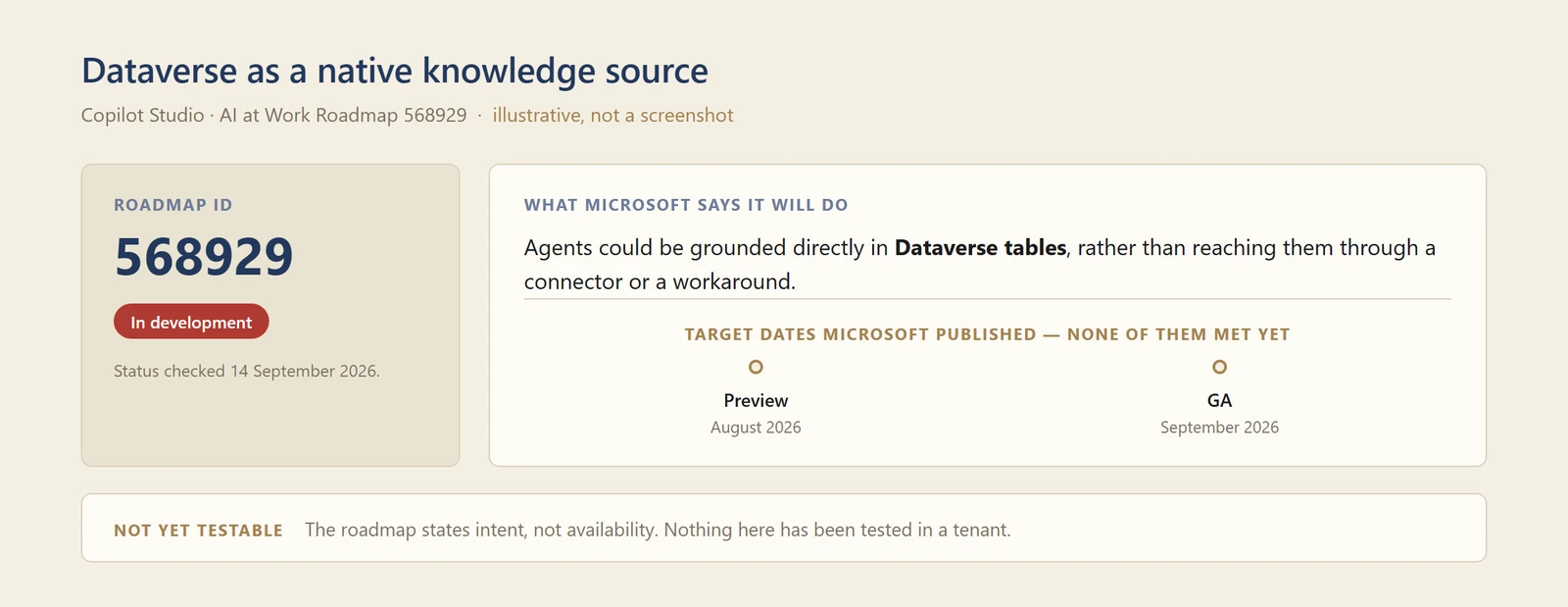
My own diagram of the roadmap entry — not a screenshot. The feature is still in development, so there is no product screen to photograph, and the dates shown are targets Microsoft published rather than milestones it has met.
76. Azure SQL as a knowledge source
For: Copilot Studio makers · Roadmap: preview August 2026, GA September 2026 · Status 14 September 2026: In development
The same idea pointed at Azure SQL. Worth a note on the name: Microsoft’s roadmap entry is titled “SQL server Support in Microsoft Copilot Studio”, but the description under it refers to the Azure SQL Knowledge Source throughout and talks about data “stored in Azure SQL”. I have written it as Azure SQL because that is what the description says. If you are hoping this covers on-premises SQL Server, the roadmap text does not support that reading.
Why this matters: This is the one that reaches beyond the Microsoft 365 estate. A lot of line-of-business data lives in SQL, and grounding agents there through a standard knowledge source rather than a bespoke integration layer would remove a substantial prerequisite from those projects.
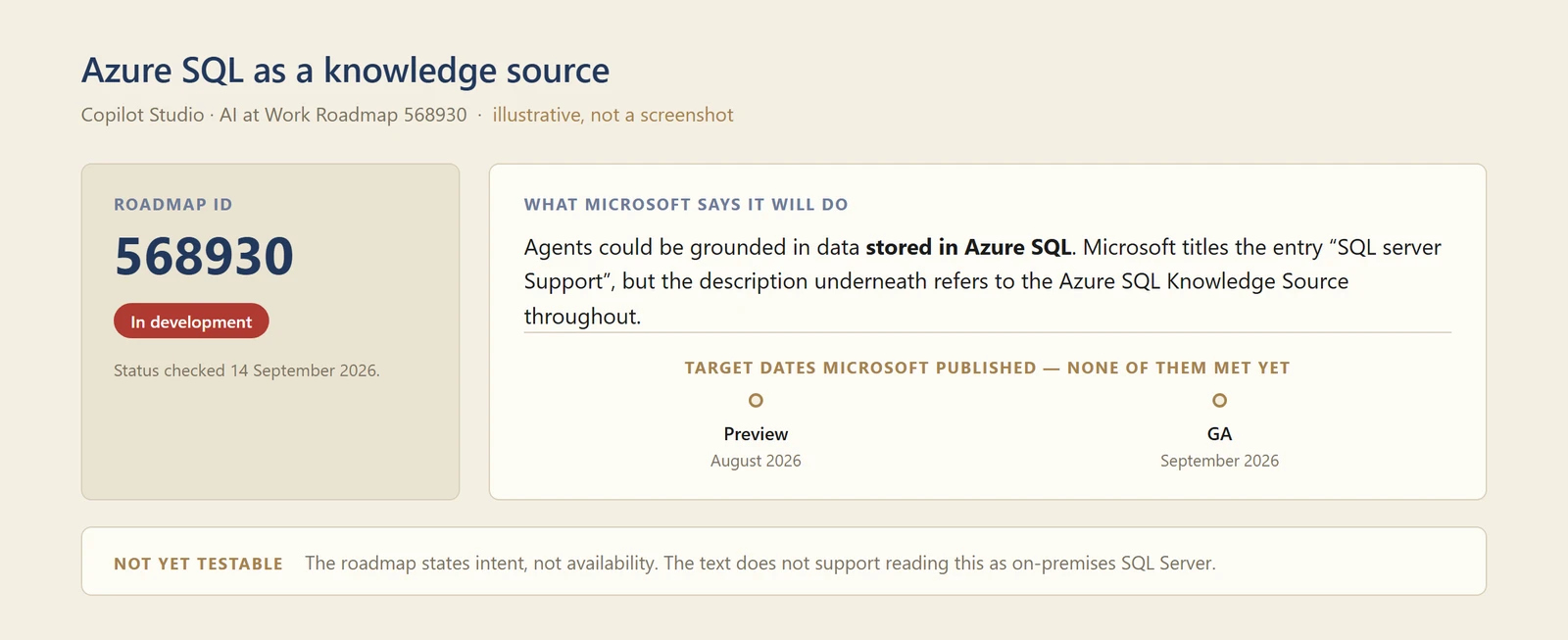
My own diagram of the roadmap entry — not a screenshot. The feature is still in development, so there is no product screen to photograph, and the dates shown are targets Microsoft published rather than milestones it has met.
77. SharePoint lists as a knowledge source
For: Copilot Studio makers · Roadmap: preview July 2026, GA September 2026 · Status 14 September 2026: In development
Microsoft plans to let agents ground in structured SharePoint list data, as distinct from documents in libraries.
Why this matters: Lists are the quiet workhorse of most SharePoint estates — registers, trackers, request queues. They are structured data that never made it to a database, and until now agents have been much better at reading the documents next to them than the lists themselves.
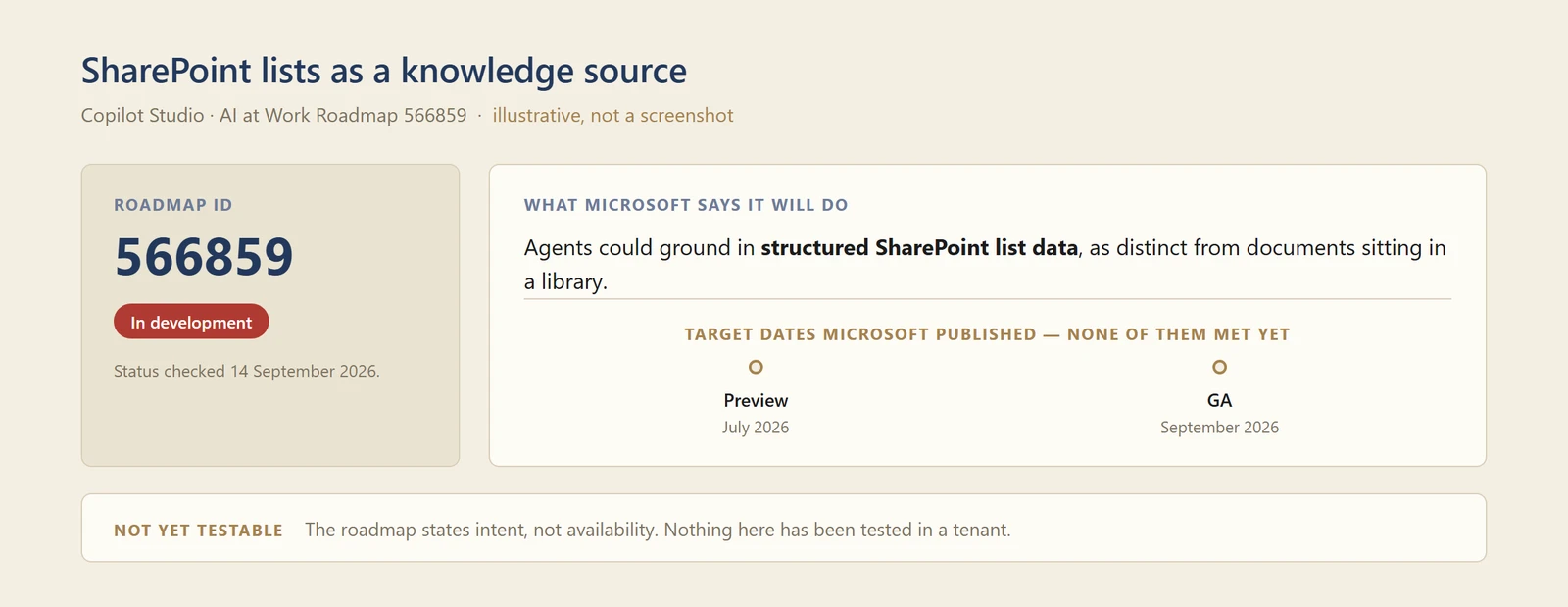
My own diagram of the roadmap entry — not a screenshot. The feature is still in development, so there is no product screen to photograph, and the dates shown are targets Microsoft published rather than milestones it has met.
78. Invoking agents as workflow steps
For: Copilot Studio makers · Roadmap: preview April 2026, GA September 2026 · Status 14 September 2026: In development
Microsoft plans an agent node that would let a workflow call an agent as a single step — reasoning over data, calling tools and returning a response inline.
Small honesty note: this item appears twice on the roadmap under two different IDs with identical titles and dates. I have linked the lower one. A second wrinkle, which I cannot resolve: section 71 reports Microsoft describing the new workflow designer as already supporting agent nodes, while this roadmap entry still reads In development. The most likely reading is that placing a node on the canvas shipped ahead of the full capability this entry describes, but Microsoft does not say that anywhere I can find, so treat the roadmap status as the conservative one and the designer note as the optimistic one.
Why this matters: This is the join between deterministic automation and judgement. A workflow handles the steps that must happen the same way every time and hands the ambiguous one to an agent — which is a far more honest architecture than asking an agent to run the whole process.
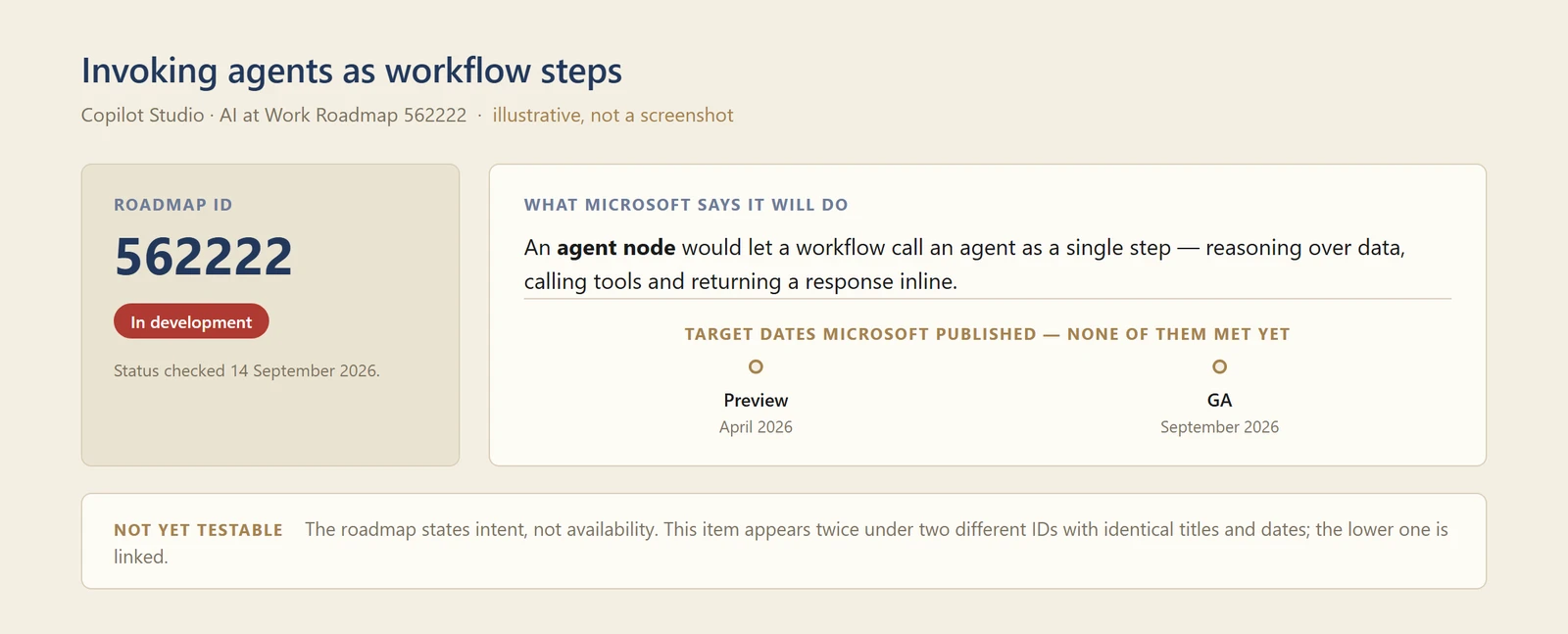
My own diagram of the roadmap entry — not a screenshot. The feature is still in development, so there is no product screen to photograph, and the dates shown are targets Microsoft published rather than milestones it has met.
79. Requiring human approval for tool calls
For: Governance · Roadmap: GA September 2026 · Status 14 September 2026: In development
Microsoft plans a per-tool, per-agent toggle that would pause the agent and raise an approval request before a tool call goes ahead.
Why this matters: Per-tool rather than per-agent is the right granularity, and it is what makes autonomy negotiable. An agent can read freely and still need a human before it sends, pays or deletes — which is usually the actual objection, not autonomy itself.
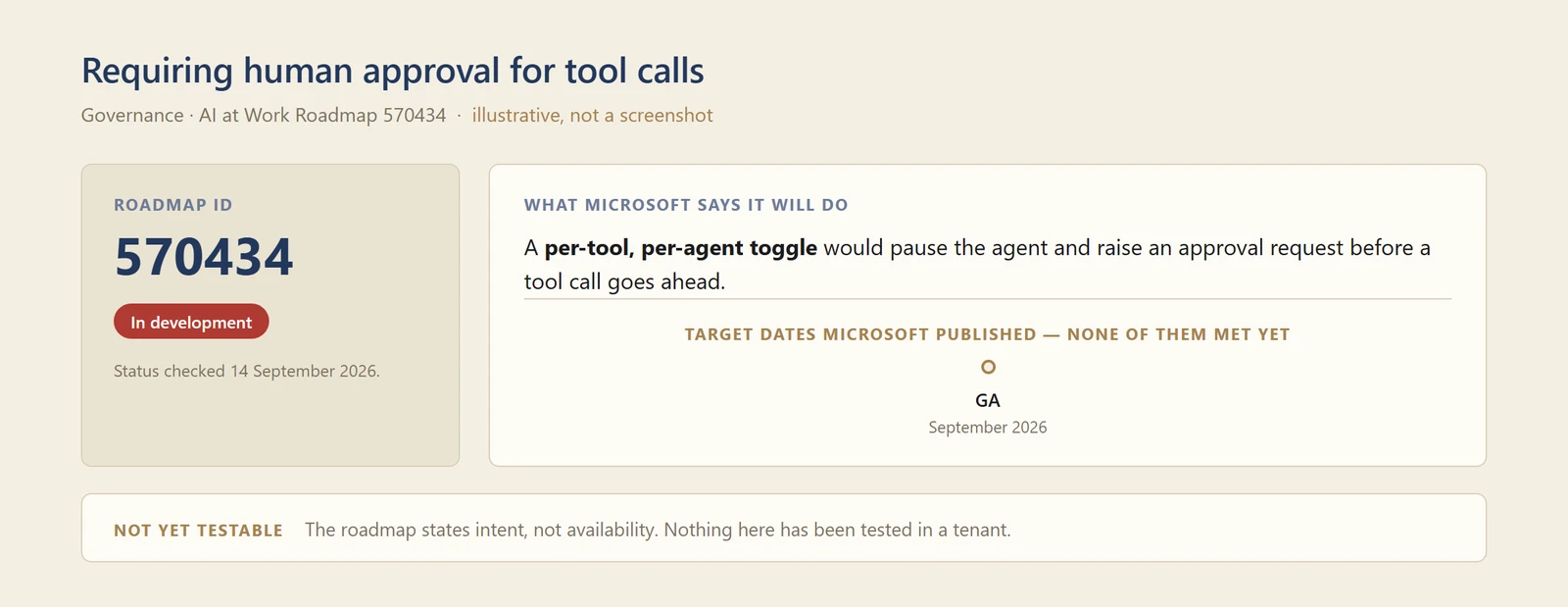
My own diagram of the roadmap entry — not a screenshot. The feature is still in development, so there is no product screen to photograph, and the dates shown are targets Microsoft published rather than milestones it has met.
80. Detecting credential oversharing
For: Admins · Roadmap: preview July 2026, GA September 2026 · Status 14 September 2026: In development
Microsoft plans to block the sharing of agents and flows that rely on unsafe identities, rather than leaving the problem to be discovered afterwards.
Why this matters: Oversharing in Copilot has mostly been discussed as a documents problem. This is the same failure through a different door — an agent shared with people who then inherit reach they were never granted directly.
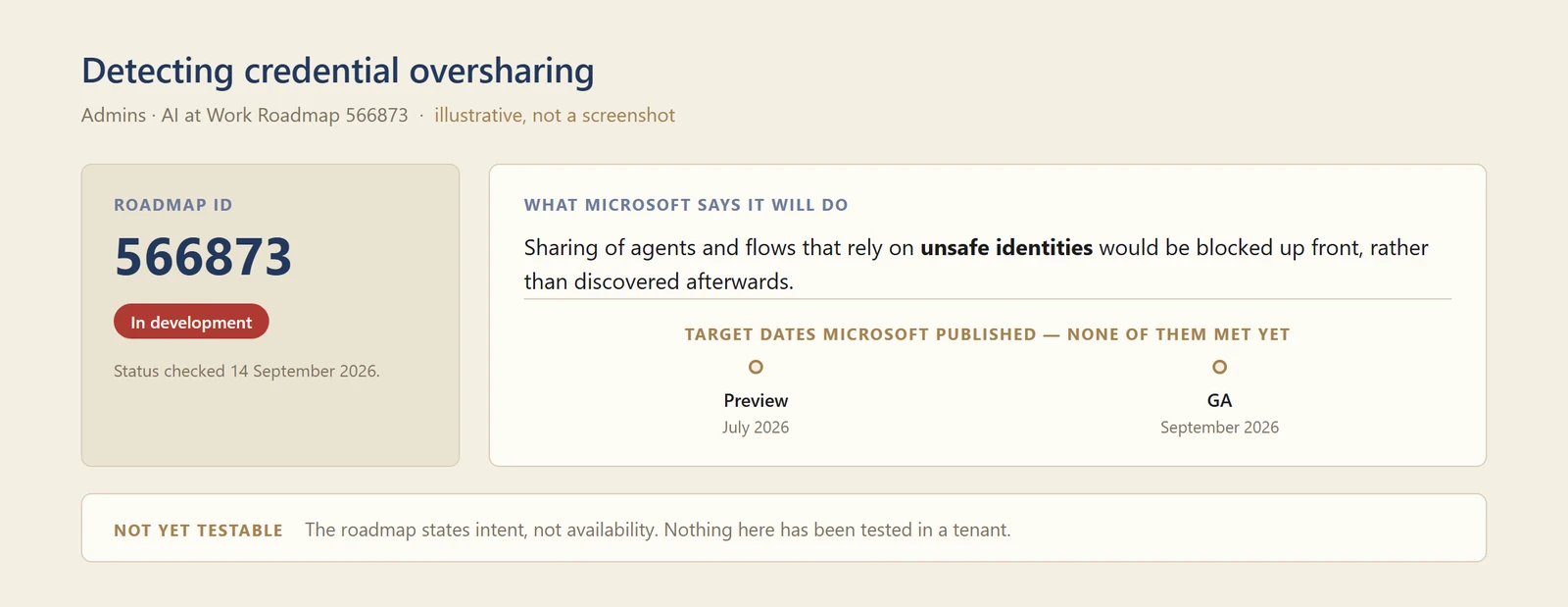
My own diagram of the roadmap entry — not a screenshot. The feature is still in development, so there is no product screen to photograph, and the dates shown are targets Microsoft published rather than milestones it has met.
81. Blocking maker-provided credentials
For: Admins · Roadmap: GA August 2026 · Status 14 September 2026: In development
Microsoft plans to stop AI agents authenticating with credentials supplied by the maker who built them.
Why this matters: A maker's own credentials are the classic shortcut — it works immediately and quietly gives the agent everything that person can reach, then breaks when they change role or leave. Blocking it at platform level closes the shortcut rather than asking people not to take it.
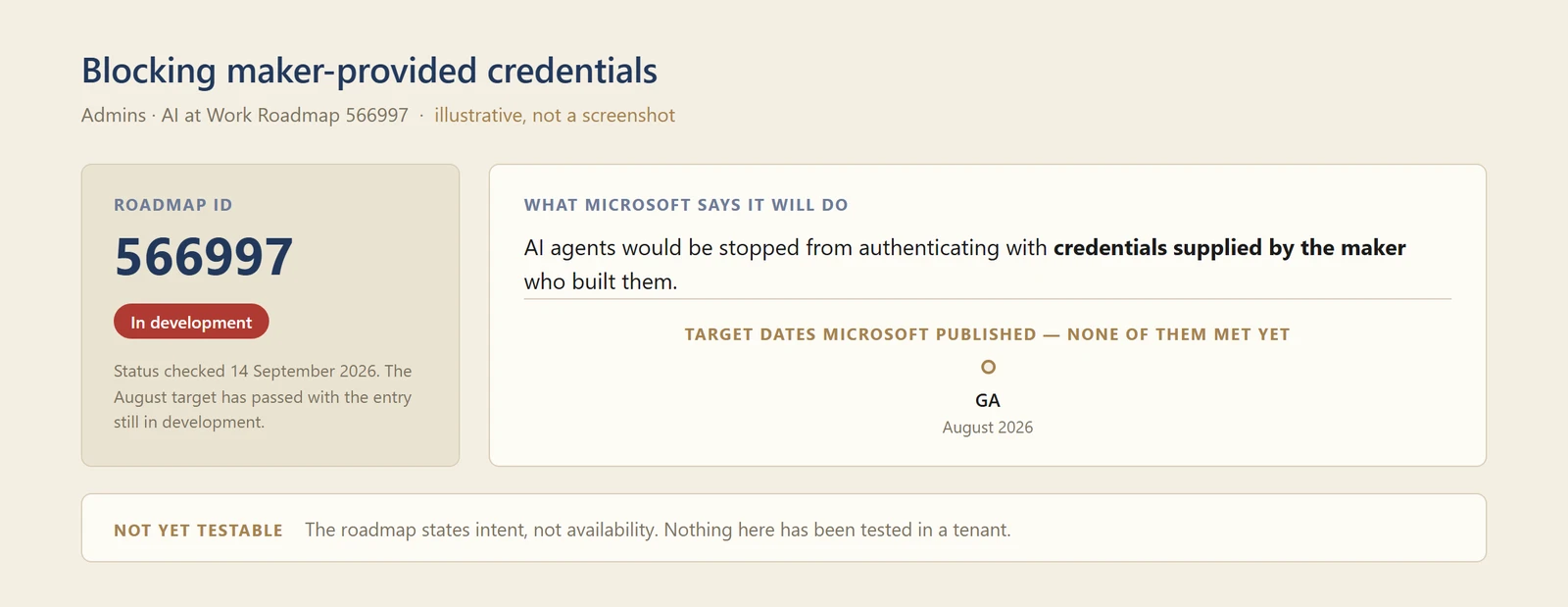
My own diagram of the roadmap entry — not a screenshot. This is the one whose published target has already passed while the entry still reads In development.
82. Agent Readiness
For: Copilot Studio makers · Roadmap: GA September 2026 · Status 14 September 2026: In development
Microsoft plans an always-visible Review health indicator in the build experience, surfacing policy restrictions, missing evaluations, blocked capabilities and other publish risks as you work. The roadmap entry says blocked capabilities would be greyed out up front with a reason, so a maker does not configure something that was never going to work.
Why this matters: Problems that surface at publish time are problems you find at the worst moment. Putting the indicator in front of the maker while they build is the same move as a linter in an editor, and it works for the same reason.
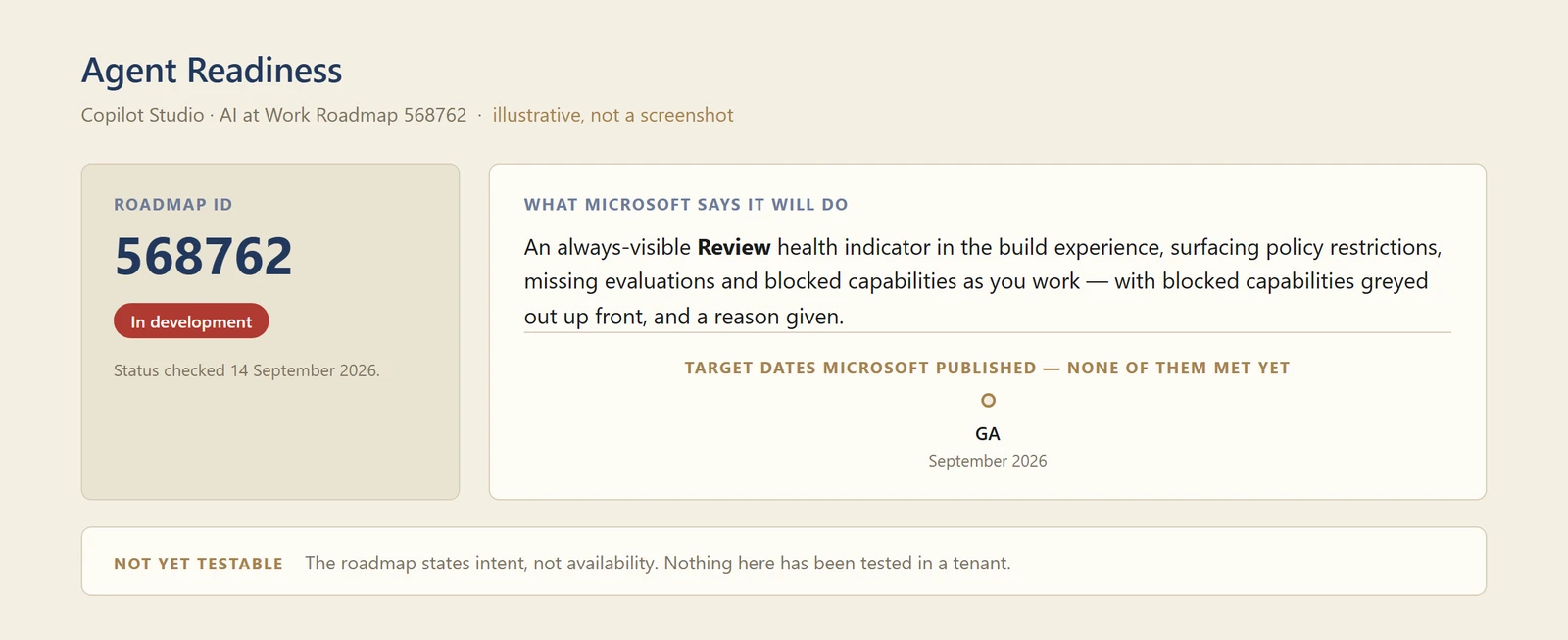
My own diagram of the roadmap entry — not a screenshot. The feature is still in development, so there is no product screen to photograph, and the dates shown are targets Microsoft published rather than milestones it has met.
83. Better explanations in agent evaluations
For: Copilot Studio makers · Roadmap: GA September 2026 · Status 14 September 2026: In development
Microsoft plans richer explanations in evaluation results, including the agent’s reasoning traces.
Why this matters: A score tells you an agent failed. A reasoning trace tells you where it went wrong, which is the only version you can act on. This is the difference between evaluation as a gate and evaluation as a debugging tool.
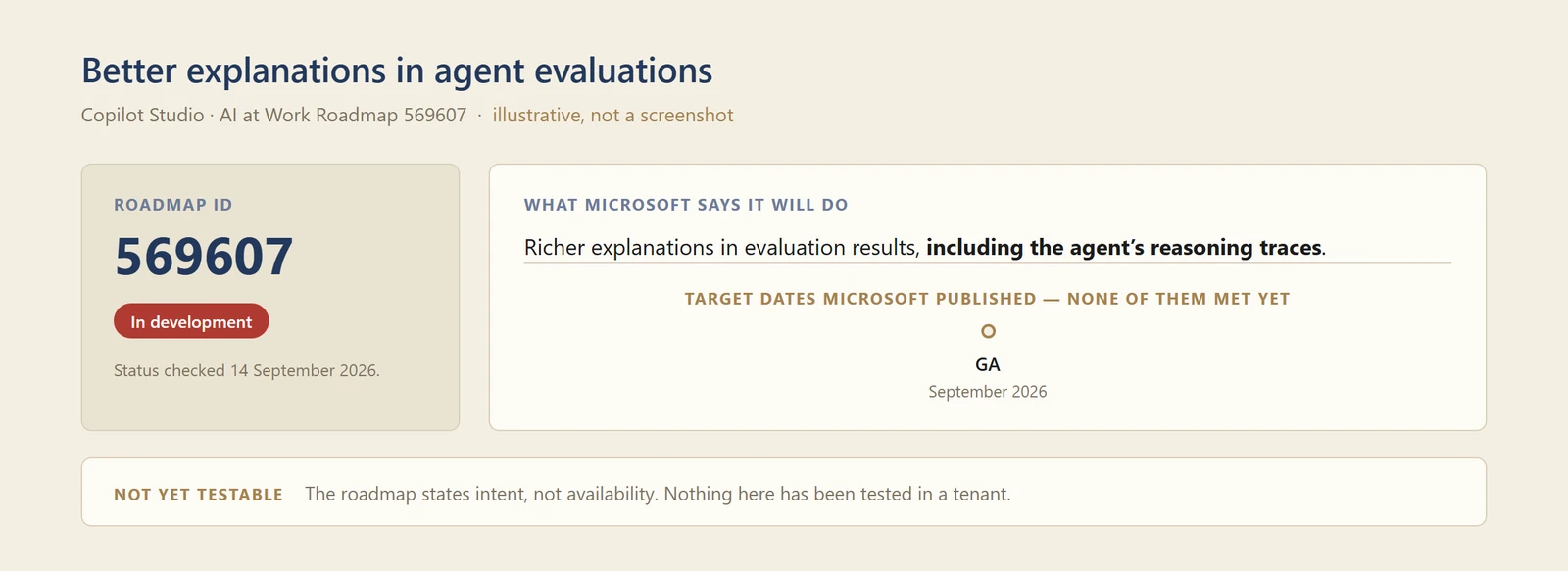
My own diagram of the roadmap entry — not a screenshot. The feature is still in development, so there is no product screen to photograph, and the dates shown are targets Microsoft published rather than milestones it has met.
84. Setting up connectors by conversation
For: Copilot Studio makers · Roadmap: GA September 2026 · Status 14 September 2026: In development
Microsoft plans to let you sign in to and configure a connector inside the chat, instead of being sent out to a full settings experience.
Why this matters: Connector setup is where a lot of first-time makers quietly give up — the moment the friendly conversation hands you to a configuration screen. Keeping it in the chat keeps people in the flow they started in.
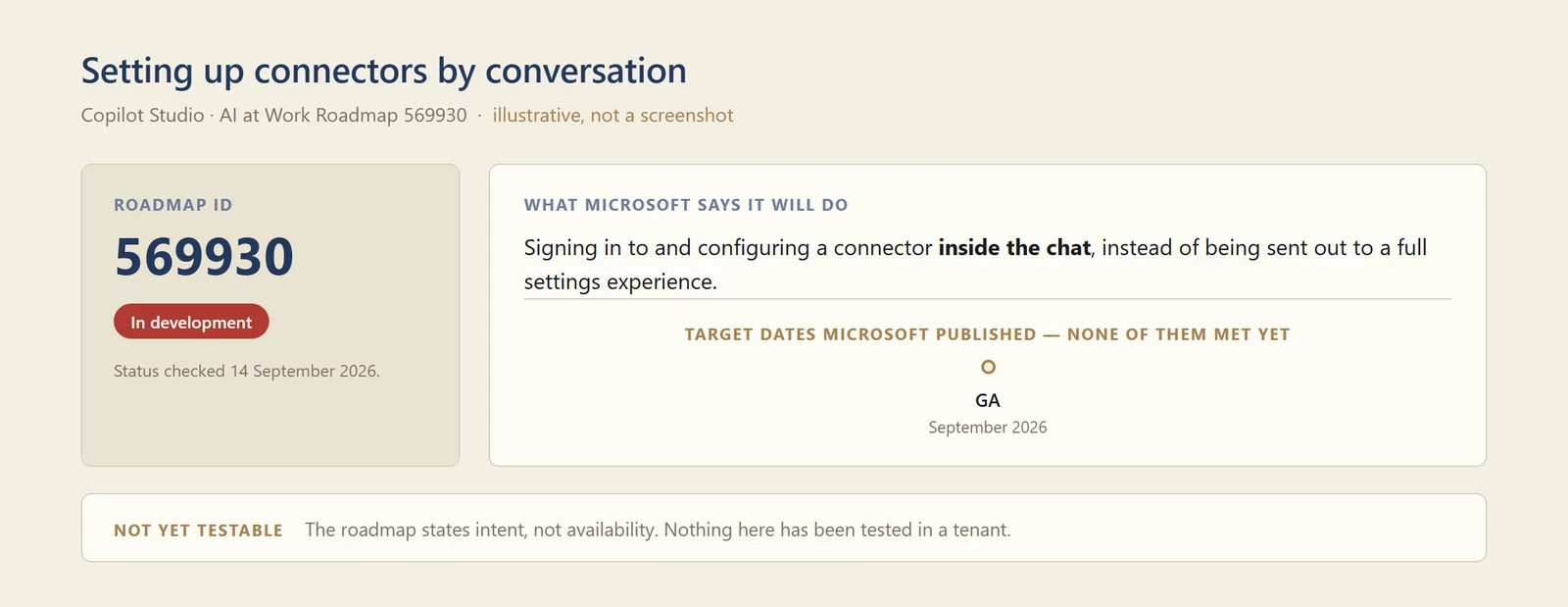
My own diagram of the roadmap entry — not a screenshot. The feature is still in development, so there is no product screen to photograph, and the dates shown are targets Microsoft published rather than milestones it has met.
Power Platform
Also new this month, and deliberately lighter than the Copilot Studio section above. The reason Power Platform earns a place in a Microsoft 365 Copilot recap is that the way Microsoft publishes what is coming has changed — and that affects how you find out about anything, Copilot included.
85. There is no September 2026 release wave 2
For: Everyone who plans against Microsoft release waves · Announced August 2026
The twice-yearly release wave model for Dynamics 365, Power Platform and Dataverse has been retired. Microsoft’s own FAQ answers it about as bluntly as a FAQ can:
Q. Will there be a September 2026 release wave 2 announcement or release wave 2 release plan? A. No.
In its place, this content moves onto the AI at Work Roadmap and is published continuously as things are ready, rather than in two big drops a year.
Why this matters: For years, wave planning has been a fixed point in a lot of organisations' calendars — the twice-yearly read of the release notes, the list of things to test. That ritual no longer has a document to hang off. Continuous publishing is more honest about how software actually ships, but it does mean the planning habit has to change from an event into a routine.
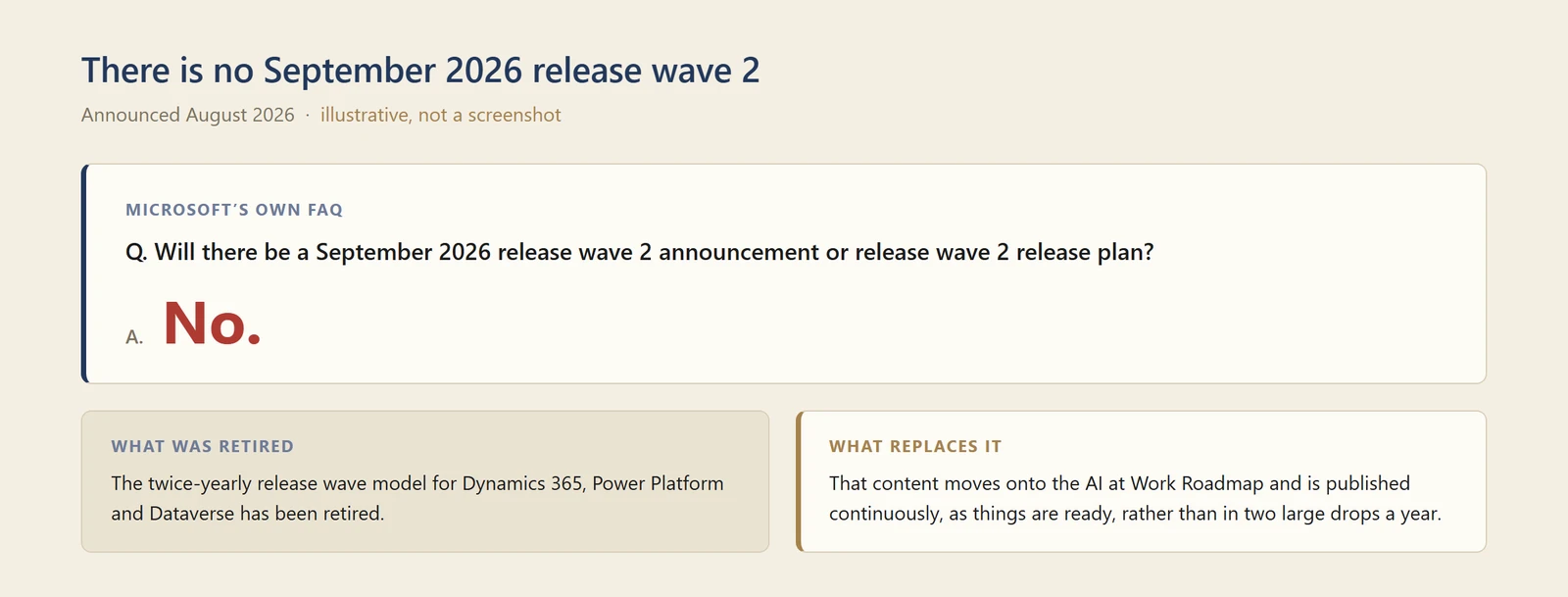
My own diagram of the FAQ answer — not a screenshot. The change here is an absence, and an absence cannot be photographed.
📖 Release Planner migration notes
86. Release Planner retires by 15 November 2026
For: Anyone who uses the Release Planner · Announced August 2026
Microsoft’s timeline is specific: by 15 November 2026, “the transition completes and Release Planner retires.” The FAQ on the same post is just as clear about Learn: “Beginning in September 2026, new release plans will no longer be published to Release Plans on Learn.” Existing plans stay up for historical reference.
Why this matters: If Release Planner links are embedded in your internal planning pages, runbooks or governance documents, they have a stated expiry date. That is a small, concrete piece of housekeeping with a deadline on it — the kind that is easy now and annoying in November.
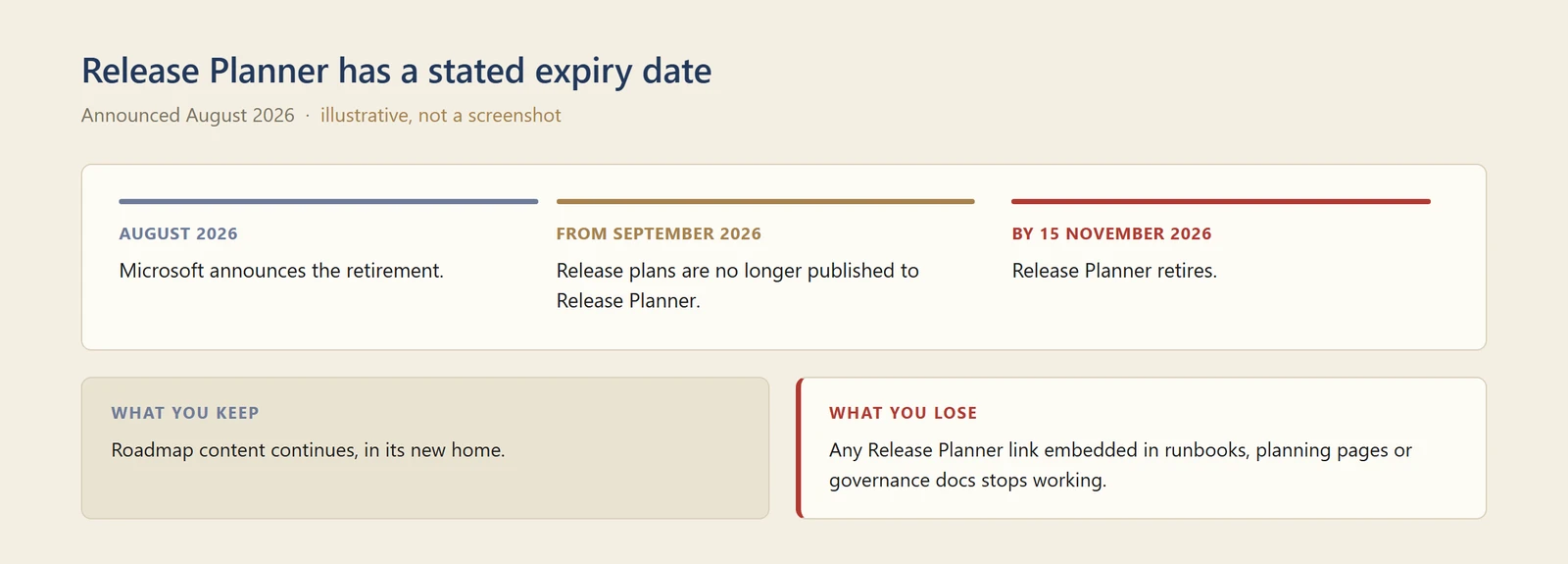
My own timeline of the retirement — not a screenshot. A stated expiry date is a fact about the future, which no screen can show.
📖 Release Planner migration notes
87. Saved views in My Release Plans will not carry over
For: Release Planner users · Before 15 November 2026
Personalised My Release Plans saved views do not transfer to the new experience.
Why this matters: This is the detail that will catch people, because saved views are exactly the sort of thing you only notice the absence of when you go looking for them. If someone on your team has curated views they rely on, export what they need now rather than after the deadline.
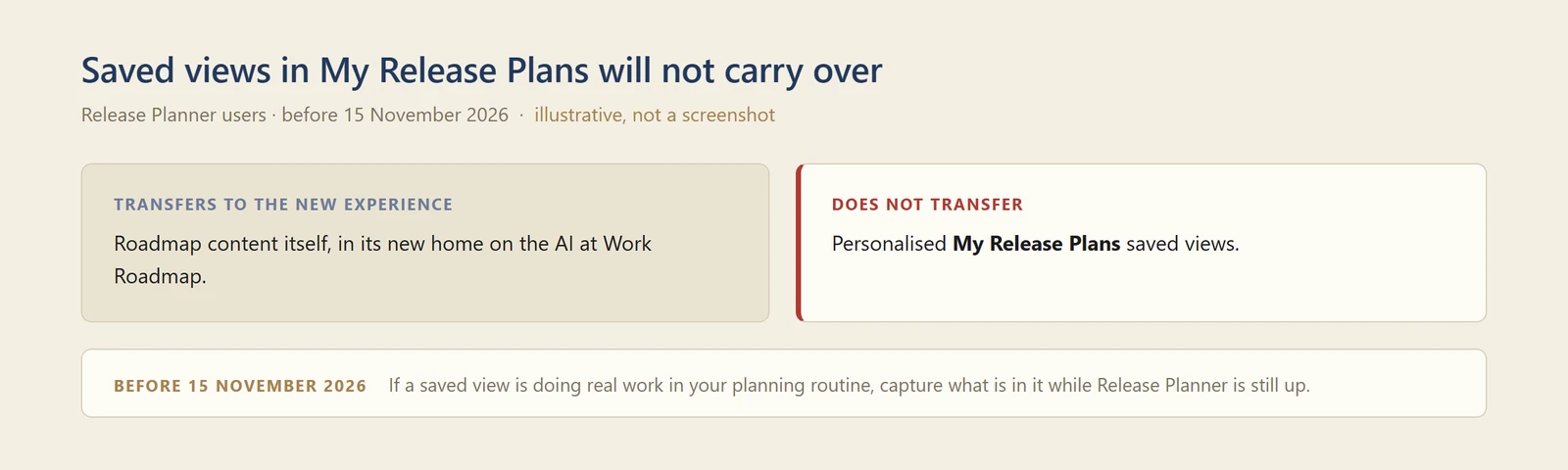
My own diagram of what survives the migration — not a screenshot. What is lost is precisely what cannot be shown.
📖 Release Planner migration notes
88. Where the content is going, and when
For: Planners and admins · September to November 2026
Content with a preview or general availability date of 1 June 2026 or later transitions to the new home across September to November 2026. From September, Dynamics 365, Power Platform and Dataverse content joins the AI at Work Roadmap — the same roadmap this series already cites for Microsoft 365 Copilot.
Why this matters: One roadmap for Microsoft 365 Copilot, Copilot Studio, Power Platform and Dynamics 365 is genuinely simpler than four places to look. Worth knowing during the transition, though, that older content stays behind — so for anything dated before June 2026 you are still looking in the old place.
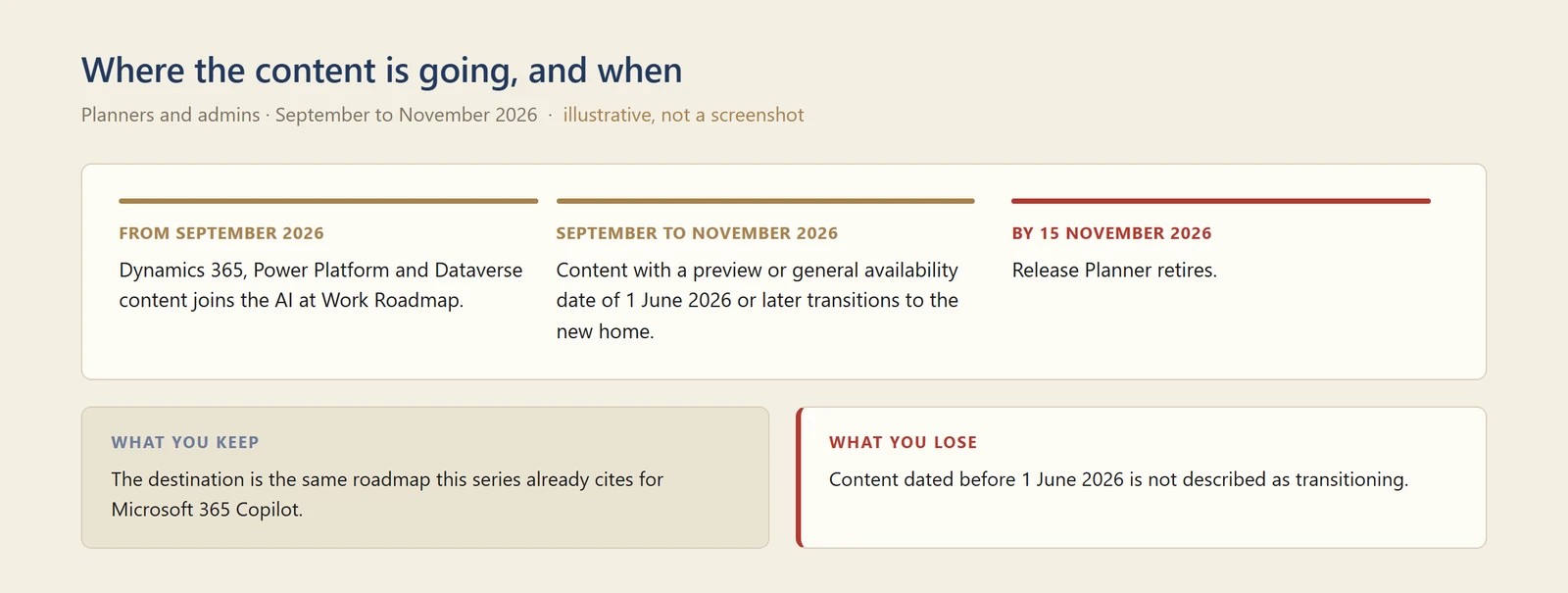
My own timeline of the migration — not a screenshot. The dates come from Microsoft's Release Planner migration notes.
📖 Release Planner migration notes · AI at Work Roadmap
89. Dataverse data in Microsoft 365 Copilot
For: End users · Roadmap: preview June 2026, GA September 2026 · Status 14 September 2026: In development
Searching and querying Dataverse business data from inside Microsoft 365 Copilot. As with the Copilot Studio roadmap items above, this carries a September date and I have not tested it.
Why this matters: This is the Power Platform item that most directly reaches ordinary Copilot users. Dataverse holds the records behind a lot of internal applications, and answering from them in Copilot Chat — rather than making someone open the app and search — is where the value of a shared roadmap starts to show.
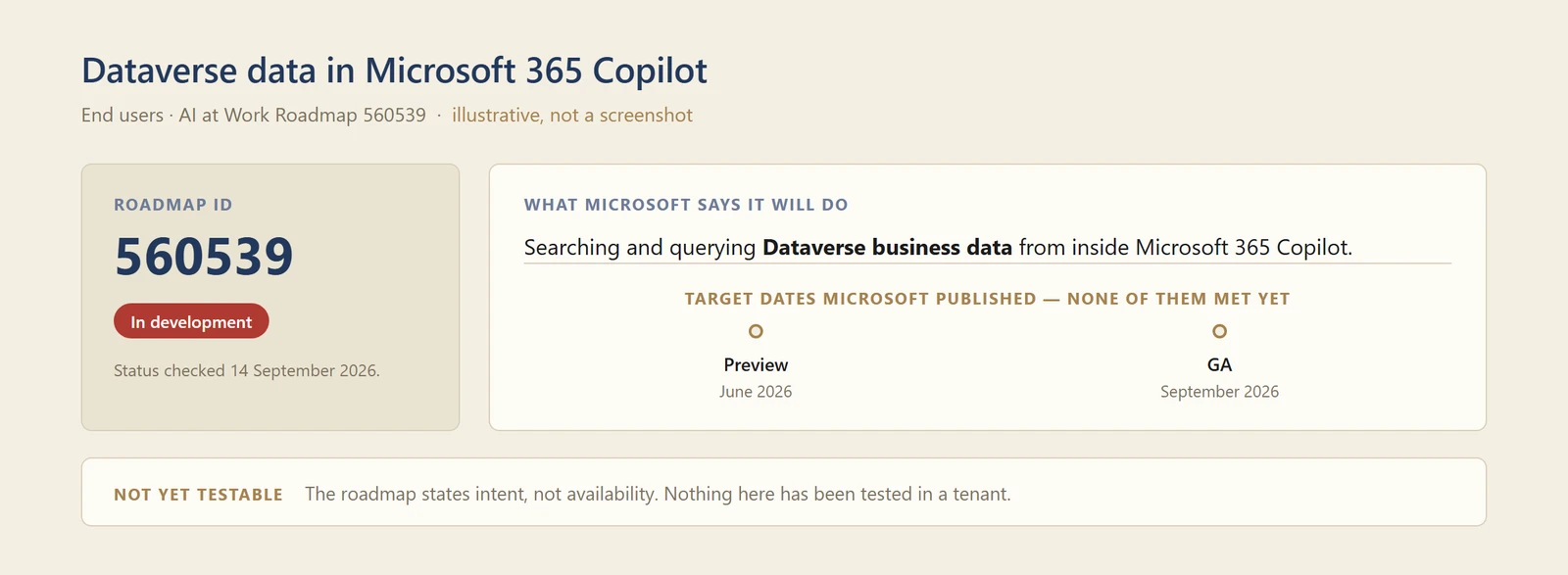
My own diagram of the roadmap entry — not a screenshot. The feature is still in development, so there is no product screen to photograph, and the dates shown are targets Microsoft published rather than milestones it has met.
Admin, analytics and governance
90. Domain exclusion is back
For: Search administrators and Global administrators · Rolled out again 9 September 2026
September’s headline, and the reason is as much about how it happened as what it does.
Domain exclusion lets an administrator name external domains that Microsoft Copilot, Copilot Chat and Cowork should not draw on when grounding answers in public web content. It filters the web-page results used for grounding — which, as the limits below explain, is narrower than a blanket block on the domain. It was announced on 28 July, and then, a week later on 4 August, Microsoft published an update pulling it back. Our August issue covered it in that state — announced, then withdrawn.
On 9 September Microsoft published a second update: “Domain Exclusion for Microsoft Copilot has been rolled out again and is now available.” The Learn documentation went live the following day.
What you actually get:
| Limit | Up to 1,000 domains |
| Subdomain depth | Up to two levels of subdomains |
| Scope | Web page results only — see below |
| Applies to | Microsoft Copilot, Copilot Chat and Cowork — Learn confirms Cowork uses your organisation’s domain exclusion policies |
| On by default? | No — it is opt-in and requires configuration |
| How | A PowerShell script, ConfigureTenantDomainExclusions.ps1 |
| Who | Search Administrator or Global Administrator |
| Input | A CSV with Domain and IncludeSubPages columns, max 1,000 rows |
The script handles the full lifecycle — generate a template CSV, create a configuration, read the current one back out to CSV, update it, delete it.
Three things the Learn page says that the announcement does not, and all three change how you would use it:
- It filters web page results only. Microsoft’s own limitations note: “Currently, domain exclusions support filtering on web page results only. Results from other answer verticals, such as news, might still be cited.” So excluding a publisher’s domain does not reliably stop that publisher being cited if the answer comes through news.
- Subdomain support goes two levels deep. Anything nested deeper than that is not covered.
- Updating replaces, it does not merge. The documentation is explicit: “Updating a configuration replaces the old configuration with the newly provided one.” If you update from a partial CSV, everything not in that file is gone.
Worth being clear about one more thing: Microsoft documents only the PowerShell path. As of 14 September 2026, Learn describes the script as the way to manage the configuration and does not document an admin-center experience. That is what the documentation shows — not a statement from Microsoft that no portal experience exists or is planned. Either way, what you can act on today is a script you download, run and re-run. The configuration itself lives on the tenant; CSV is the format the script imports from and exports to. Keep a reviewed copy of that CSV in source control and treat it as your administrative record of what is excluded.
Why this matters: Every organisation that has been asked "can we stop Copilot grounding answers in that scraper site with our old product data on it, or the forum thread full of out-of-date advice?" has had no good answer. This is the closest thing to one, and 1,000 domains is a real allowance rather than a token one.
But read the web-pages-only limitation before you promise anyone a clean block. If the domain you are excluding is a news publisher, it can still surface through the news vertical — so this reduces exposure rather than guaranteeing absence, and that is the version to take into a compliance conversation.
The delivery deserves a comment too. Because the configuration is a script plus a CSV, and because updating replaces rather than merges, it is only as good as whoever maintains it — and Microsoft documents no admin-center view where a colleague can see what was set. If you adopt this, put the CSV in source control and treat it as a reviewed artefact, not something that lives in a folder on one administrator's laptop.
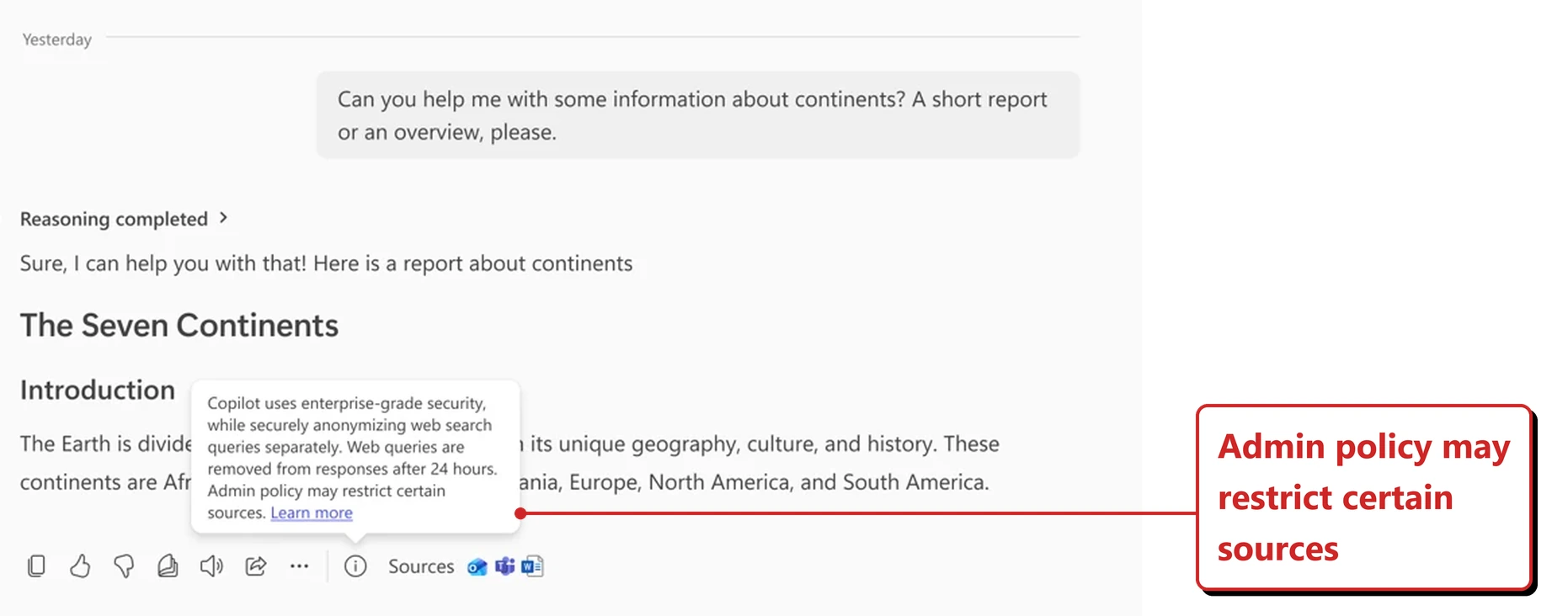
Official Microsoft image from Microsoft’s domain exclusion announcement.
📖 Update: Domain Exclusion for Microsoft 365 Copilot (9 September) · Domain exclusion overview on Learn · The original announcement (28 July) · The rollback (4 August) · AI at Work Roadmap 503144
91. Grok models from SpaceXAI, off by default
For: Admins and Frontier Program tenants · Announced 12 September 2026 · Available to eligible tenants 18 September 2026
Microsoft added Grok models from SpaceXAI to Copilot’s model choice. The administrative detail matters more than the model:
- SpaceXAI was added to Microsoft’s Online Services Subprocessor List on 10 September 2026, and became available to eligible tenants on 18 September 2026.
- Access is managed through a dedicated administrative setting that is disabled by default.
- It is rolling out through the Microsoft Frontier Program, in Word, Excel and PowerPoint, through the model selector.
- It is not available to Frontier customers in the EU, EFTA or the UK, on government clouds (GCC, GCC High or DoD), or on sovereign clouds.
Microsoft describes this as a focused release to gather feedback before deciding whether to broaden availability.
There are now two different ways Grok reaches a tenant, and they are not governed the same way. This is the part worth slowing down for. The route decides whether Microsoft’s contractual protections travel with the work, and the two are easy to confuse because the same model name sits on both.
What Microsoft Learn states about each route:
| As a subprocessor | As an independent processor | |
|---|---|---|
| Where | Copilot in Word, Excel, PowerPoint | Copilot Studio |
| Product Terms and DPA | Apply | Do not apply |
| Enterprise Data Protection | Covered | Not stated on Learn |
| Customer Copyright Commitment | Applies | Does not apply |
| Governed by | Microsoft’s customer agreements | xAI Enterprise Terms of Service and the xAI Data Processing Addendum |
For the Word, Excel and PowerPoint rollout, Learn is explicit: “The Microsoft Product Terms and Microsoft Data Protection Addendum (DPA) apply to use of SpaceXAI models through Microsoft’s enterprise Online Services”, that such use “is also covered under our Enterprise Data Protection”, and that the Customer Copyright Commitment “applies to SpaceXAI models used within products covered by that commitment, including Microsoft Copilot in Word, Excel, and PowerPoint.” Microsoft adds that as a subprocessor, SpaceXAI “operates with Microsoft oversight through contractual safeguards and appropriate technical and organizational measures.”
The Copilot Studio route is the one those widely-shared carve-outs actually describe. There SpaceXAI acts as an independent processor, the data “is processed outside all Microsoft managed environments and audit controls, therefore Microsoft’s customer agreements, including the Product Terms and Data Processing Addendum don’t apply”, and the xAI Enterprise Terms of Service and xAI Data Processing Addendum govern instead.
Three exclusions still apply even on the subprocessor route, and these are the ones to take into a compliance conversation. SpaceXAI maintains its own certifications rather than inheriting Microsoft’s, so SpaceXAI’s trust page is where those live. The models are not FedRAMP High authorized. And they are excluded from in-country processing commitments where those would otherwise apply.
Two practical details that live on Learn rather than in the announcement. Enabling this needs an AI Administrator or Global Administrator, and access is assigned at provider level — Learn says those assignments are “enforced across Microsoft Copilot experiences.” And if you already switched SpaceXAI on through the older AI providers for other large language models setting, that is a different setting: Learn is clear that previous settings “aren’t automatically carried over to the new subprocessor setting.”
Worth being precise about: the line doing the rounds — that Microsoft’s terms don’t apply to Grok — describes the Copilot Studio route. For the Word, Excel and PowerPoint rollout, Microsoft says the opposite: the Product Terms, the DPA and the Customer Copyright Commitment all apply. If this is going into a risk register, write down which route you mean, because the answer changes completely.
Why this matters: A new subprocessor is a compliance event, not a feature. Whoever maintains your data protection impact assessments and your subprocessor register should know about this even if you never turn it on — and “disabled by default” means nobody has to rush.
The useful version of this story isn’t that Grok is risky. It is that one model now reaches your tenant by two contractual routes, and only one of them carries Microsoft’s protections with it. That distinction is the whole decision. The FedRAMP High and in-country processing exclusions are real, and worth reading before anyone in a regulated environment says yes.
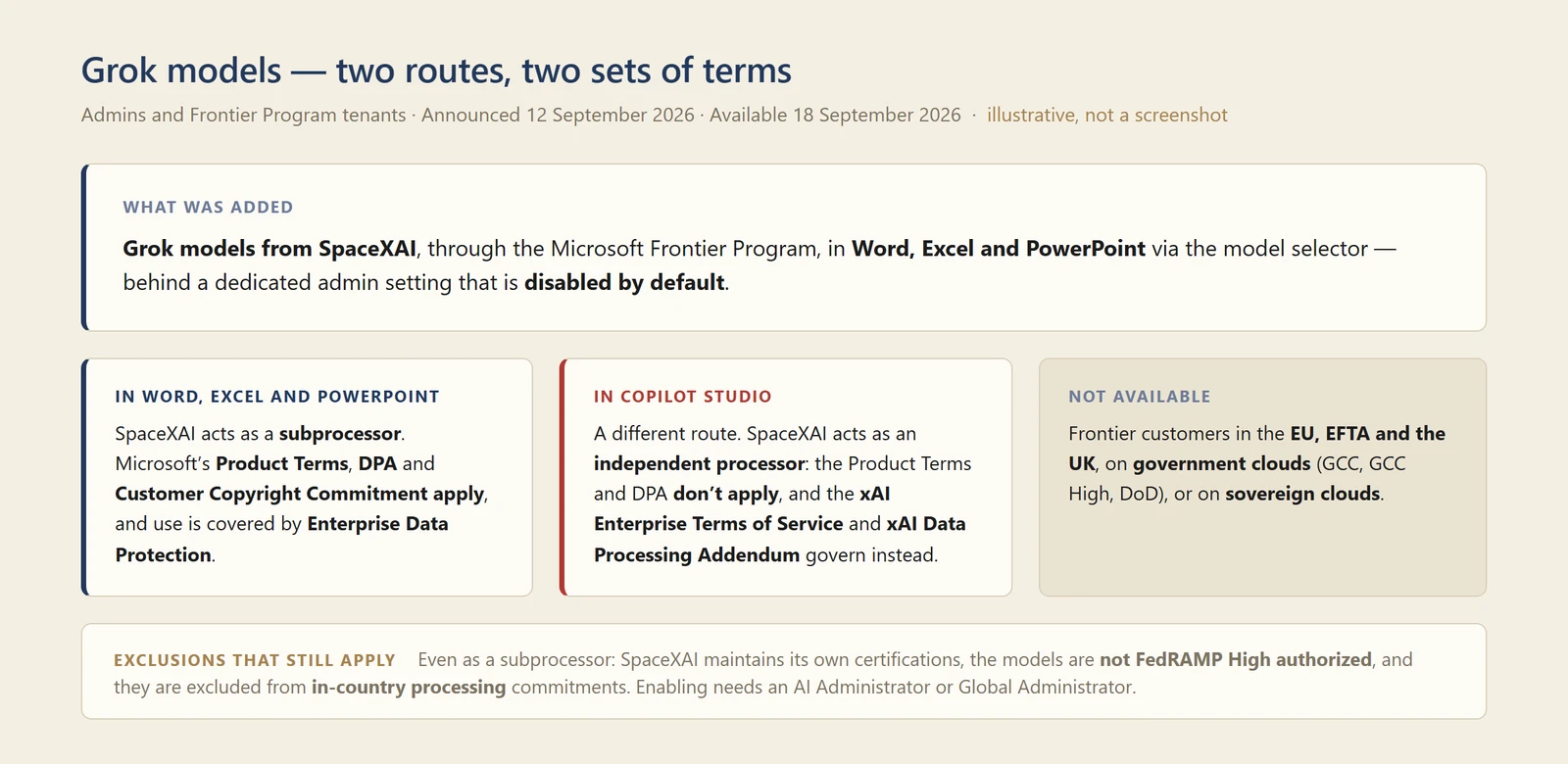
My own diagram of the two contractual routes — not a screenshot. These are terms rather than interface, and they are the part of this release that matters most.
📖 Expanding model choice in Copilot with Grok · SpaceXAI as a subprocessor on Learn · Connect to SpaceXAI models — the Copilot Studio route
92. Measuring Cowork in hours of work, not prompts
For: Leaders and admins · Announced 9 September 2026
The Consumption Dashboard in Insights now reports Cowork assisted hours and value — an estimate of the time Cowork returns to people, rather than a count of how many times they prompted it.
The method is worth understanding, because it is unusually transparent. Activity is grouped into discrete tasks by intent, and a classifier sorts them into eight task types: analysis and research · document and content creation · email workflows · meeting workflows · communication workflows · specialised workflows · writing or debugging code · general assistance. Each type is then broken into the activities a person would normally do, and valued using published productivity research — Microsoft names Stanford, Microsoft Research, NBER and Forrester — expressed as conservative, typical and optimistic ranges.
Microsoft is notably careful about the limits of its own number:
These metrics remain a proxy, not a precise measure, and estimates are intentionally conservative. It does not account for things like quality improvements, faster decision making, quantity of sources reviewed, ability to take on additional work, run simultaneous tasks across projects, and more.
Microsoft says these views are coming to the Cowork report in the Microsoft 365 admin center as well.
Why this matters: Usage numbers have never answered the question leaders actually ask. Counting prompts told you people were using it, which is not the same as it being worth the money — and Microsoft says so directly here: costs now vary with usage, so the old proxies do not hold.
I would still treat the output as a conversation starter rather than a business case, and Microsoft says the same. But a vendor publishing its methodology, naming its research sources and stating what its own metric does not capture is a much better starting position than a confident number with nothing behind it.
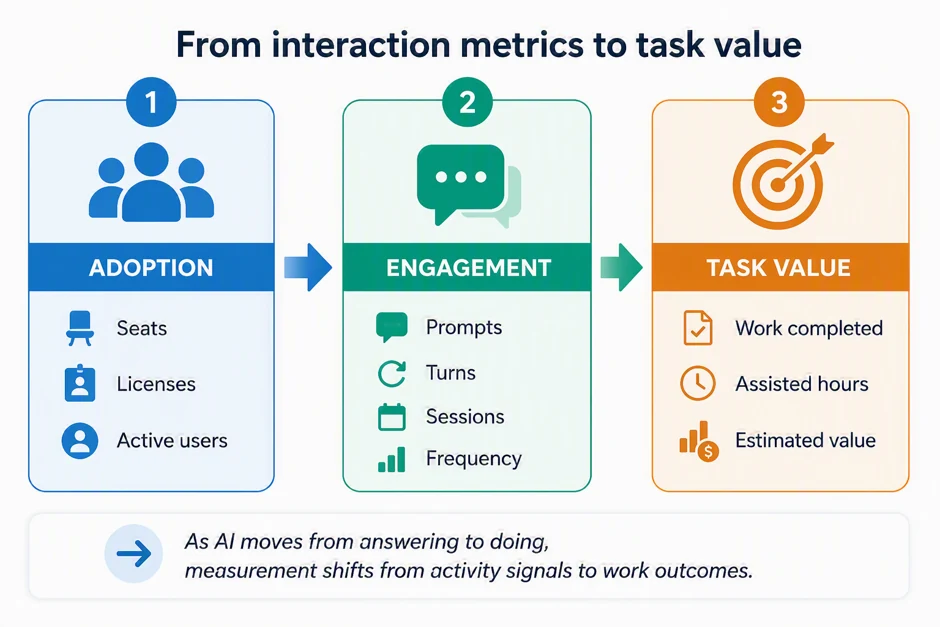
Official Microsoft image from Microsoft’s post on measuring the value of Cowork.
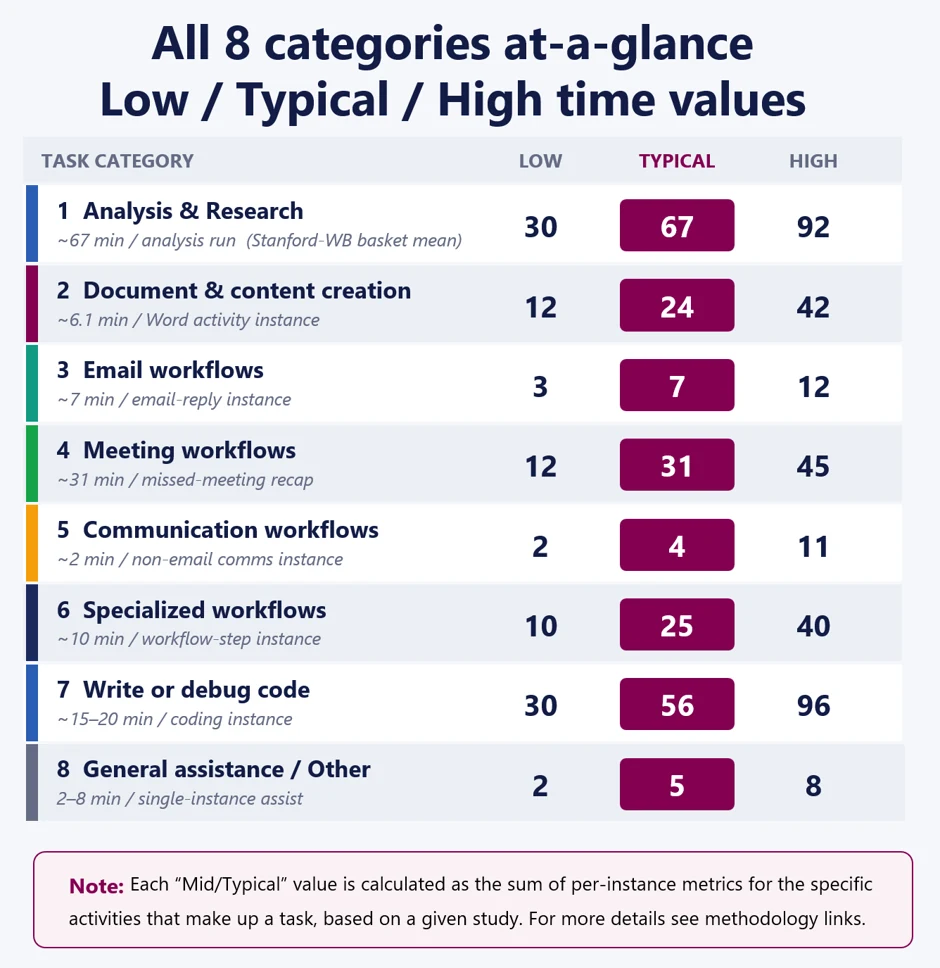
Official Microsoft image from Microsoft’s post on measuring the value of Cowork.
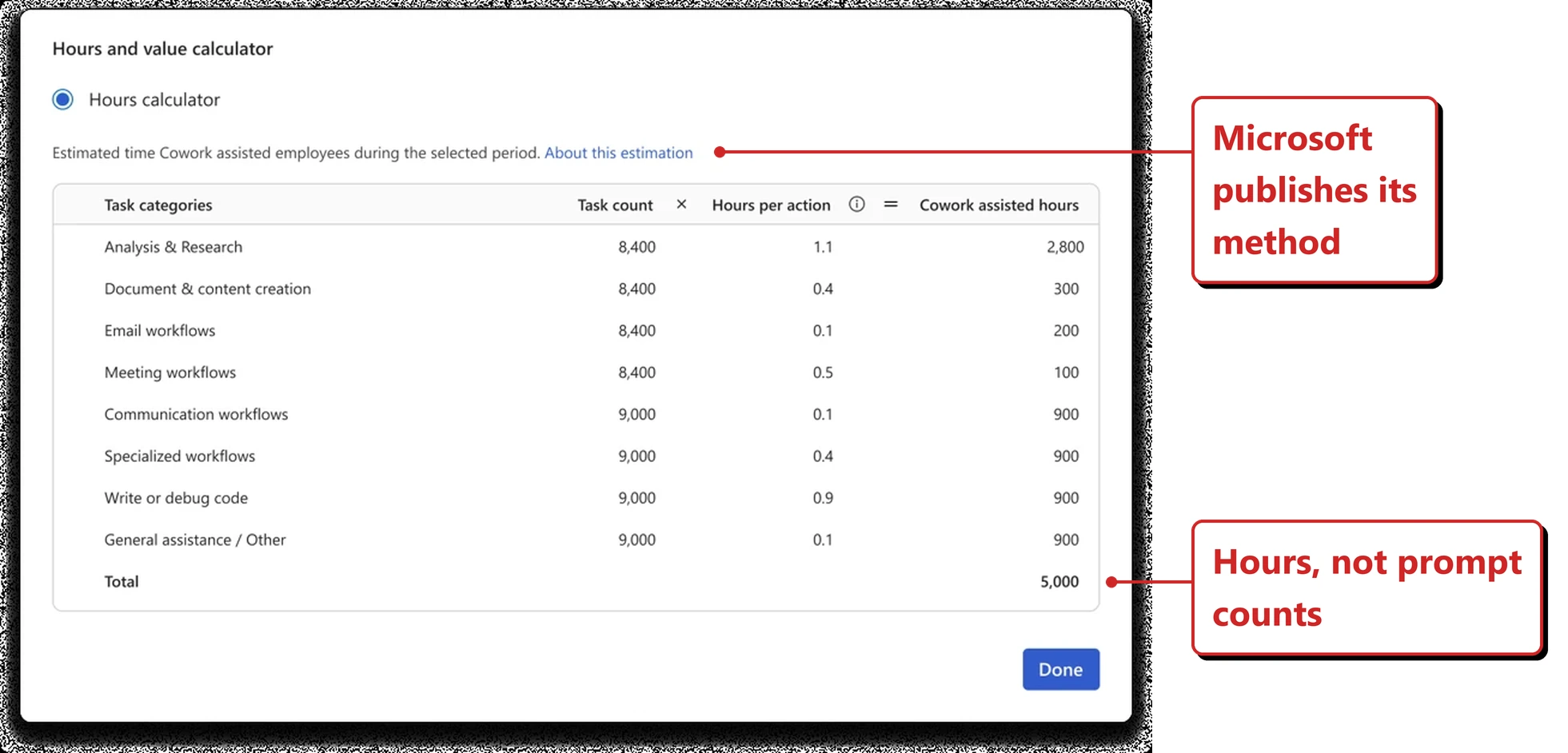
Official Microsoft image from Microsoft’s post on measuring the value of Cowork.
📖 Measuring the value of Cowork
93. Data export from the Copilot and Agent 365 dashboards
For: Admins and analysts · Copilot export: public preview · Agent 365: identifiable export in public preview · Documented on Learn now; roadmap 500872 still shows October
These are two separate exports, and the difference matters if you are planning reporting.
The Copilot Dashboard export gives you user-level metrics — one row per person per period, with that person’s activity totalled over the period rather than listed interaction by interaction. You can take week-level data covering the past six months, or day-level covering the past 28 days. Learn says personal identifiers are “removed and replaced with anonymized IDs, unless your administrator has enabled identifiable export for you.” So de-identification is the default, not a guarantee. You cannot customise these exports, and the tenant needs at least 50 Copilot or Viva Insights licences.
The Agent 365 Dashboard export goes a level finer: Microsoft calls it “row-level” and describes “one row per user, agent, and day” or per week, so within each day or week the same person has a separate row for each agent they used. It has its own eligibility bar — at least 50 Microsoft Copilot licences, at least one Agent 365 licence and at least one active agent — and it can only be run with the All agents toggle on. Identifiable export here is controlled by an IdentifiableExport setting that is off by default.
Two things to be precise about, because it is easy to overstate the difference. Neither export is raw interaction telemetry — both give you rows of metrics against a period, not a log of individual prompts. And the preview labels are not the same: Learn marks the whole Copilot export as “for public preview customers only”, whereas on the Agent 365 page it is identifiable export specifically that carries the preview notice.
Why this matters: Built-in dashboards answer the questions the vendor anticipated; an export answers yours. But do not write "the export is anonymous" into a privacy assessment — identifiable export is an administrator switch, and whether it is on is a question worth asking before the data leaves the tenant. Check which of the two you are actually being offered, too: they answer different questions. The Copilot export tells you how a person is using Copilot; the Agent 365 export tells you which agents they are using it through.
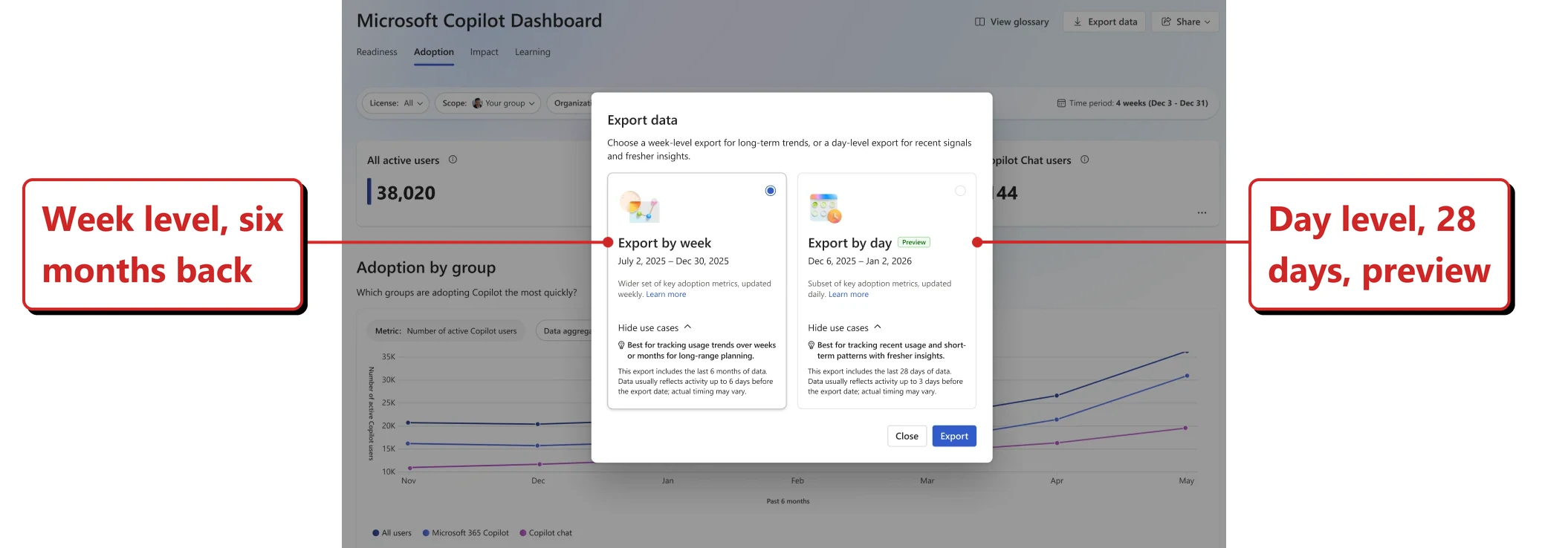
Official Microsoft image from Microsoft Learn.
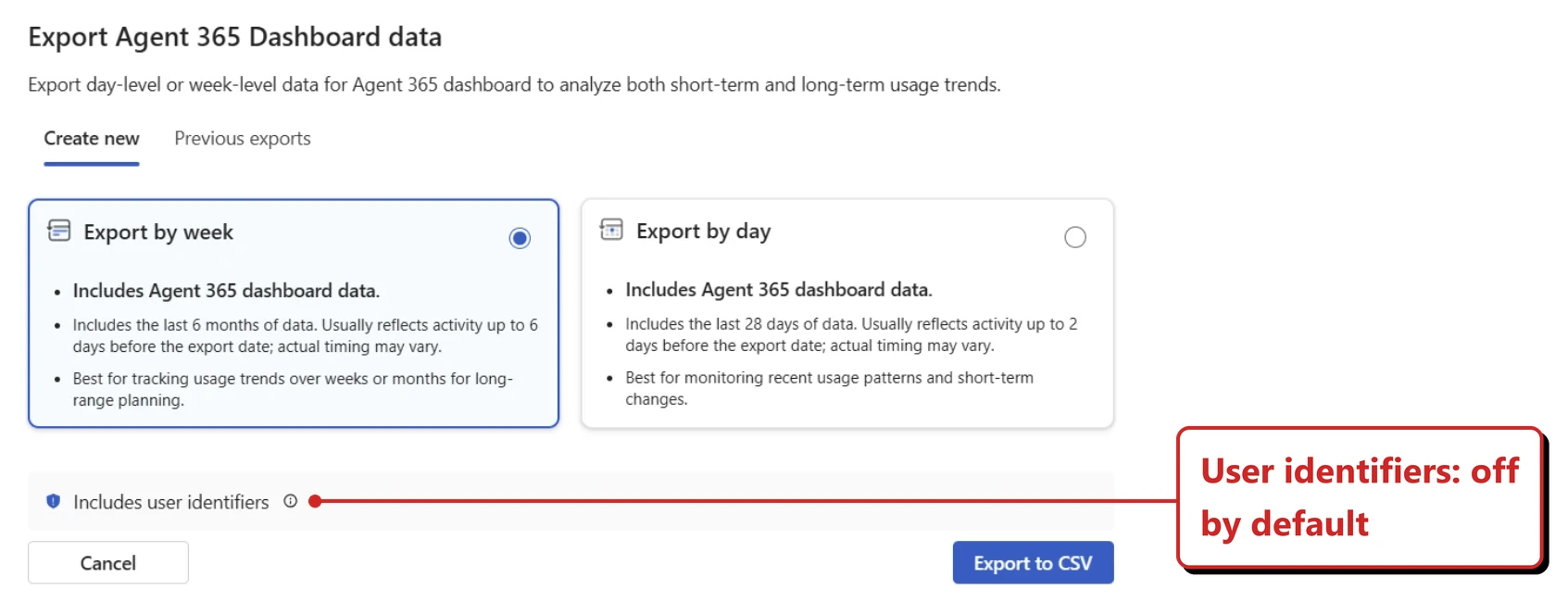
Official Microsoft image from Microsoft Learn.
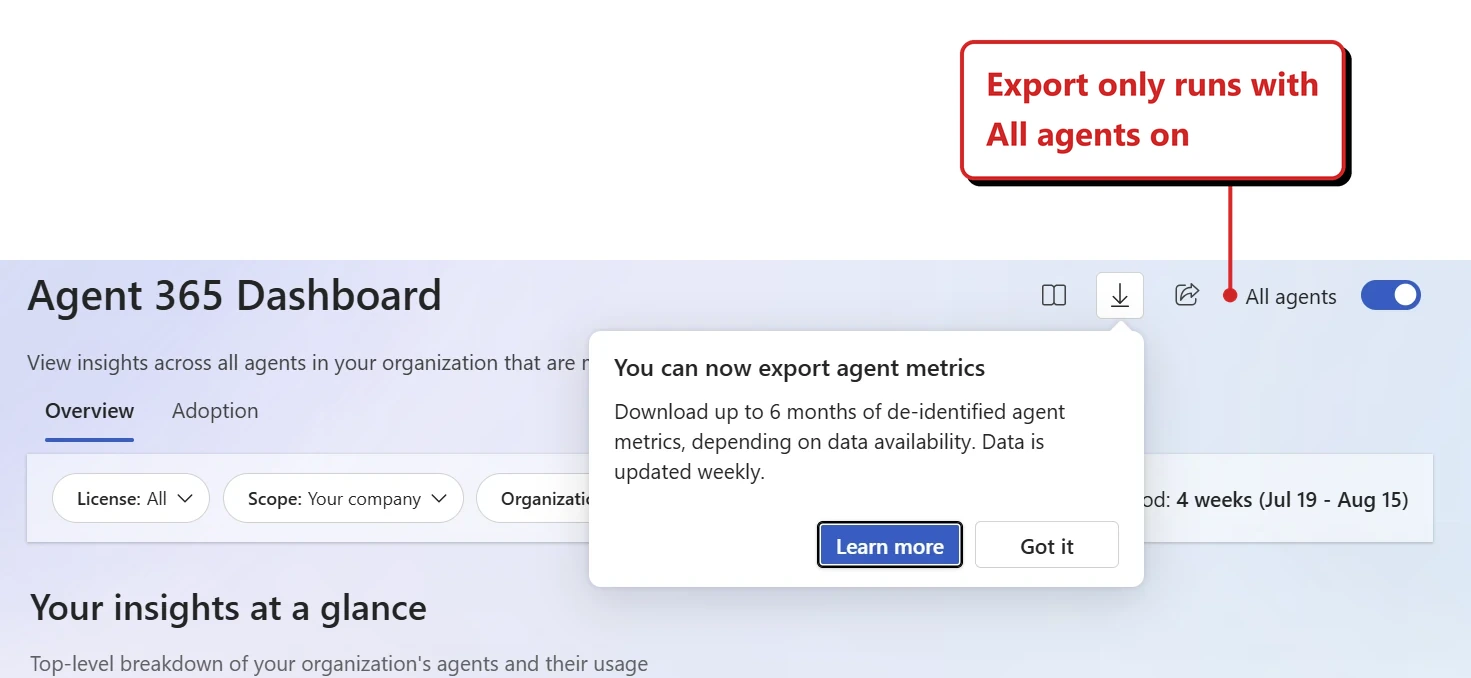
Official Microsoft image from Microsoft’s August 2026 Copilot roundup.
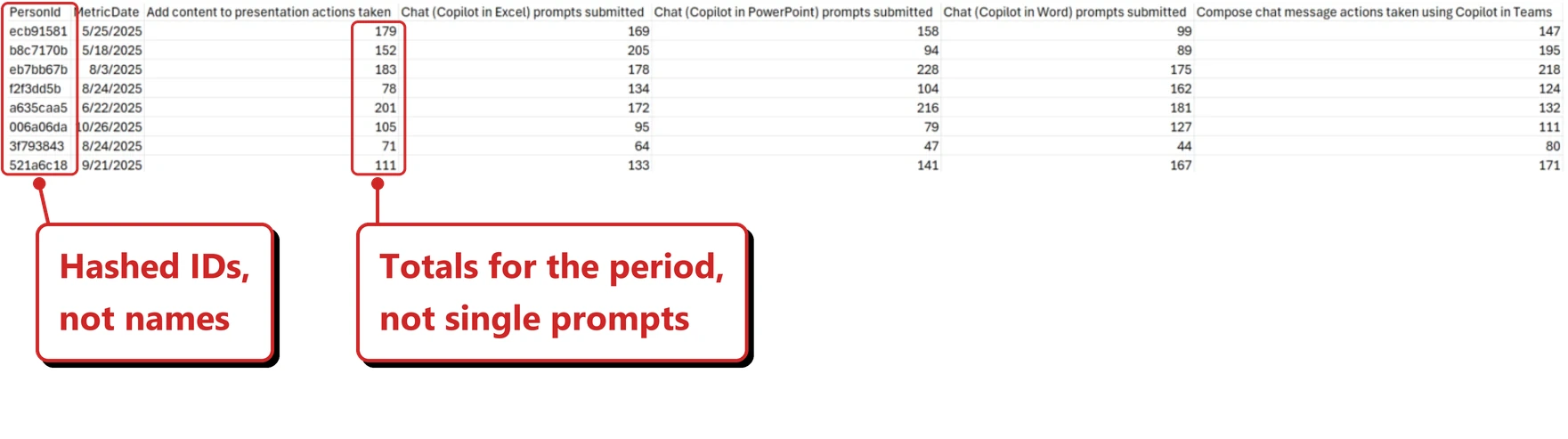
Official Microsoft image from Microsoft Learn.
📖 Export Copilot metrics · Export agent data · Microsoft’s August 2026 Copilot roundup · AI at Work Roadmap 500872
94. GitHub Copilot credit usage in the consumption dashboard
For: Admins and engineering leaders · Public preview · Rolled out July 2026
The Viva Insights consumption dashboard added a GitHub Copilot page covering AI credit usage, so developer consumption sits alongside the rest of your Copilot spend.
Three caveats before anyone builds a chargeback model on it. It is “for public preview customers only” and has to be switched on — “to enable this preview feature, go to Privacy settings in the Viva Insights web app.” It is not the billing record: “Credit usage information in this dashboard is for reference only. For official billing and detailed charges, visit the Microsoft 365 admin center for Copilot Credits or GitHub.com for GitHub AI credits.” And the history is incomplete — “GitHub data prior to July 10, 2026, might be under-reported due to a source issue.”
Why this matters: This is a catch-up item from July, included because it completes a picture the rest of this issue keeps circling. Between this, the Cowork value metric and the Copilot Studio credit reporting, Microsoft is steadily pulling every Copilot spend into one consumption view — which is the only way the usage-based model becomes manageable. Treat it as the place you notice a trend, not the place you settle an invoice.
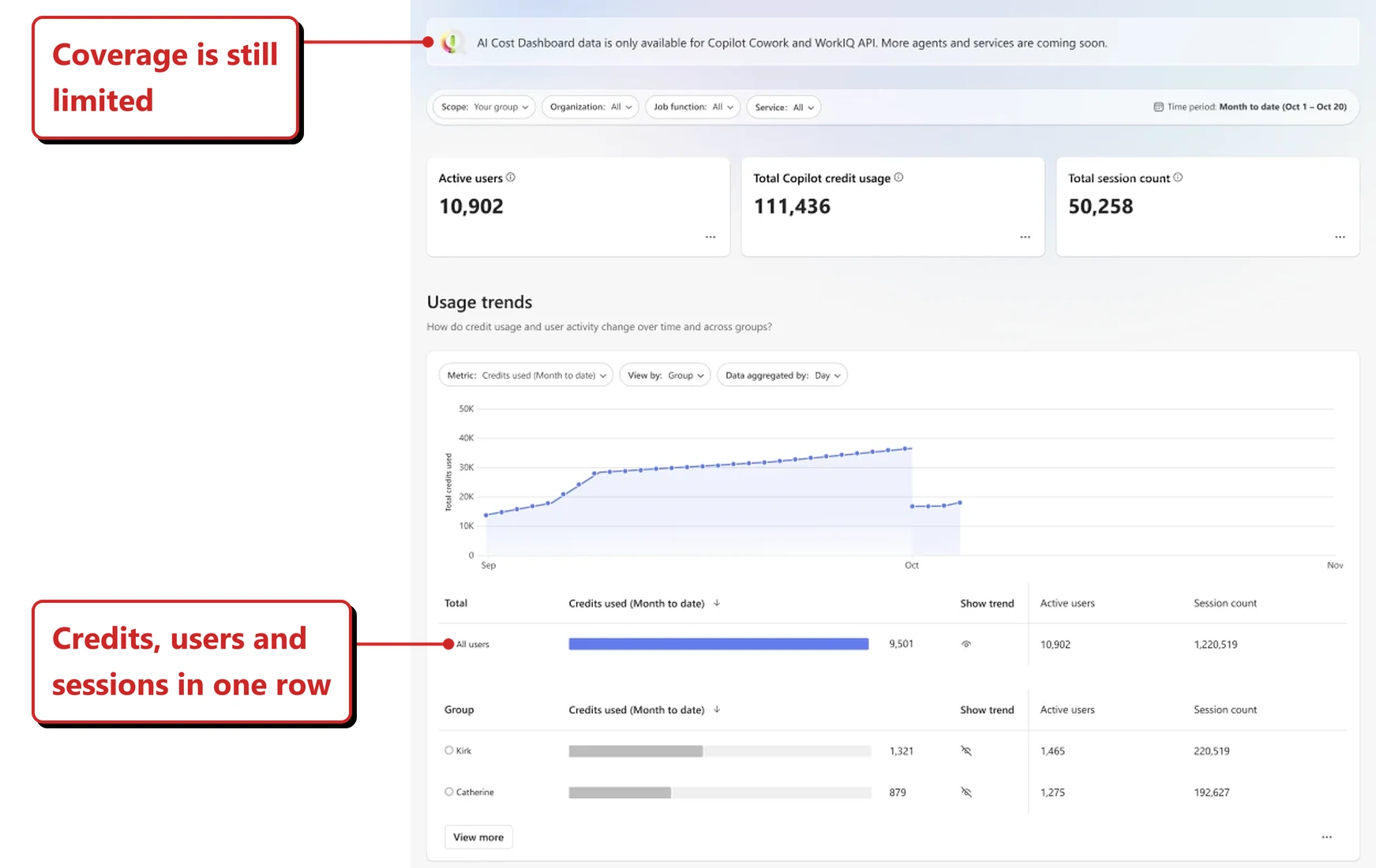
Official Microsoft image from Microsoft Learn.
Official Microsoft image from Microsoft’s August 2026 Copilot roundup.
Official Microsoft image from Microsoft Learn — and worth reading twice, for the reason below.
One last thing, and it is the best argument in this whole section for the caveats at the top of it. I added up the sample figure, and the values do not reconcile. The headline says the top 1 percent use 65 percent of all credits, but the table underneath puts them at 250,046 of 450,046 credits, which is 55.6 percent. The four bands shown total 476,179 credits — more than the all-users figure they are meant to be a subset of. The 2 to 5 percent band is labelled 12 percent and works out at 20 percent.
I am not going to pretend to know which number is wrong, and I am certainly not going to publish a corrected version of someone else’s sample data. It is illustrative data in a public-preview feature, and that is probably all it is. It is also a practical illustration of Microsoft’s own guidance that this dashboard is “for reference only”. Treat the figures as directional, and validate anything you are going to bill against the Microsoft 365 admin center or GitHub.com, which is where Microsoft points you for official charges.
📖 Consumption Dashboard · Microsoft’s August 2026 Copilot roundup
On the horizon — three to watch
Three items with dates past this issue, listed rather than numbered because I cannot stand behind a status for them yet. All three come from the AI at Work Roadmap and currently read In development.
- MCP Apps — agents rendering rich, interactive UI inline through a Model Context Protocol extension, rather than answering in text. Preview October 2026, general availability November 2026. AI at Work Roadmap 570433
- Computer use in workflows — AI-powered UI automation that adapts when the app or site changes underneath it. General availability October 2026, preview since April. AI at Work Roadmap 562220
- Sharing autonomous agents with end users — run-only sharing, so people can run an autonomous agent without being able to edit it. Preview August 2026, general availability January 2027. AI at Work Roadmap 567894
One item left last month’s list. Dataverse grounding in Copilot Chat has a September general-availability date on the roadmap, so it has moved into the numbered body at section 89 — but it is still In development as of 14 September, so it has moved section, not status. It gets a number because it is now close enough to plan around, not because it has shipped.
The other two from August, deep citations (Roadmap 523223) and suggested edits in Copilot Pages (Roadmap 562351), were both still marked In development when I checked on 14 September 2026, and stay on the watch list.
How this issue was put together
This month I had Microsoft’s roundup, and last month I did not. Microsoft published its August roundup on 31 August 2026 and revised it on 3 September — after our August issue had already gone out. Everything in it has been compared against what we already published, and the items we had not covered are folded in here with the month Microsoft stated, not relabelled as September news. That is the same rolling approach every issue uses: whatever is missed in one month is picked up in the next, so the series is what gets you complete coverage rather than any single post. Six items were deliberately left out. Comparing against our August issue found six capabilities we had already covered properly — regenerating a response and switching model, Outlook emails as Notebook references, Researcher models and modes, images in Cowork, event-driven Cowork tasks, and assigning tasks from PowerPoint comments. Repeating them would pad the issue without telling you anything new. Where something genuinely changed rather than merely reappeared, it is here with the change spelled out — Power BI going worldwide, Cowork’s browser automation moving from Frontier to general availability, and Fable 5.1 replacing Fable 5 are all in that category.
Two new sections this month. Copilot Studio and Power Platform now have their own sections, and will from here on. The reason is that the decisions being made in Copilot Studio — especially about which harness an agent runs on — now change what a Microsoft 365 Copilot tenant gets billed. That is no longer a separate conversation from this one. Copilot Studio gets full treatment; Power Platform is deliberately lighter, covering the changes that affect how you find out what is coming.
Microsoft renamed this series while we were not looking. Between the July and August roundups, Microsoft’s own monthly post changed from What’s New in Microsoft 365 Copilot to What’s New in Microsoft Copilot, moved to a different Tech Community board, changed author, and started citing the AI at Work Roadmap where it previously cited the Microsoft 365 Roadmap. Nothing was announced about any of it. It explains a lot if you have the old board bookmarked or you are searching for the old title — and it is the reason roadmap links in this issue are labelled “AI at Work Roadmap”.
About the roadmap numbers. Where a section matches a roadmap entry, the number is linked at the end of it. Treat it as a pointer to Microsoft’s own record, not proof of what is live in your tenant — roadmap status lags reality in both directions. That caveat carries more weight than usual this month: every Copilot Studio item cited in this issue currently reads “In development”, including ones dated for general availability in September. I resolved each of those entries individually on 14 September. The roadmap carries more Copilot Studio items than this issue cites, and its filtered list view does not return status, so I am not claiming anything about the ones I did not check. So the Copilot Studio sections separate what Microsoft has announced as shipped, which is sourced from its blog, from what is merely dated, which is sourced from the roadmap and clearly marked.
The dates often disagree, and that is expected. In roughly a dozen sections this month the roadmap entry gives an earlier general availability month than Microsoft’s release notes do — occasionally by several months. Where the two disagree I follow the release notes, because that is the page Microsoft updates when something actually reaches customers, while a roadmap row can be dated when the work was planned and then left alone. So if you follow a roadmap link and find a different month to the one in the text above it, that gap is the two Microsoft sources disagreeing with each other, not a mistake in this post. Section 17 is the clearest example and says so in place.
Where the Copilot Studio material came from. Microsoft’s Copilot Studio documentation on Learn has not caught up — the What’s new in Copilot Studio page was last dated 18 August and its newest entries are for July, and the released-versions page has not been updated since June. So that section draws on the Copilot Studio blog and on Microsoft’s Power CAT team, and says which each time.
On testing. Nothing in this issue is claimed as reproduced in my own tenant unless it says so with a date. Copilot rolls out per tenant and changes week to week, so an observation in one tenant is never a universal verdict — and several capabilities here are Frontier Program only, which I have noted where it applies.
Official Microsoft resources
- Microsoft 365 Copilot release notes
- What’s new in Copilot Cowork
- AI at Work Roadmap
- Microsoft Copilot Blog board
- Copilot Studio Blog board
- What’s New in Microsoft Copilot - August 2026
- Domain exclusion overview
- Microsoft Power CAT blog
Keep reading
- Past recaps: January · February · March · April · May · June · July · August
- Slide packs: every monthly recap as a free PDF
- Go deeper: Microsoft Scout complete guide · Copilot Cowork complete guide · Work IQ API · Copilot vs Agents vs Copilot Studio · Agent Builder explained