What's New in Microsoft 365 Copilot: October 2026
← what changed this month, in plain English
On this page
October brings more than a new Copilot home screen. You can edit Office files beside a conversation, do more work inside Notebooks and get help cleaning Excel data. Some changes are generally available; others are still early access. Start with the status line under each heading.
What “81” means here. These are numbered entries, not 81 shipped features. They include October announcements, the 25 September launch, release-note catch-up and admin notices. A release-note date is not necessarily a feature’s first availability date. This draft covers public sources available through 18 October, rechecked on 19 October; the month is still in progress.
For the new October material, start at section 53. Makers can jump to the Studio catch-up. The original sections keep their numbers, with the expanded Notebooks update in section 19.
Three labels come up often. Frontier is Microsoft’s early-access programme. General availability (GA) means a feature has moved beyond preview, though rollout can still take time. Copilot Credits measure usage-billed work; having a Copilot licence does not make every credit-based feature included.
2026 monthly recaps: January · February · March · April · May · June · July · August · September · October (you are here)
Screenshot note: images come from my demo captures, Microsoft's examples or illustrations I drew. Each caption tells you which. An illustration is not a product screenshot, and a visible setting is not proof that I tested the whole feature. Your tenant may look different as updates roll out.
Disclaimer: I work at Microsoft, and everything here is my own reading rather than Microsoft’s official position. This is a summary of public announcements and documentation — not official guidance, and not legal advice. Availability and terms change, so check Microsoft Learn for the current word, and talk to your own legal and compliance people before acting on anything in here.
If you only have 2 minutes
Six things to start with:
- Home puts Chat and Cowork on one screen. Frontier in October, not generally available. Plugins also replace the Agents entry in the left navigation.
- Office works inside Copilot. The Frontier rollout brings Word, Excel and PowerPoint editing beside Chat or Cowork. The billing route differs: Chat is in the Copilot subscription; Cowork uses credits.
- Notebooks can do more work. Task delegation, model choice and richer outputs are Frontier. Notebook creation, automations and audio changes have their own upcoming timelines.
- Excel mixes GA and Insiders. Skill builder and Clean data began GA rollout in October. Interactive canvas is Insiders; skill recorder is expected there by month-end.
- Legal skills and memory citations arrive. Legal skills are generally available; partner plugins roll out over time. Memory citations show what personalised an answer.
- Admin dates need attention. SharePoint preview controls change on 1 November, App Builder access ends on 30 November, and Targeted release retires in January. Existing SharePoint and OneDrive
.agentfiles work through March 2027.
Admin Checklist - October 2026
Start with the dates and access controls:
- Allow the whole
*.cloud.microsoftdomain. The Copilot web app redirects tocopilot.cloud.microsoft. Microsoft updated the post on 8 October: users not redirected in September are redirected in early November. Microsoft does not support allowing only some URLs in the domain. - Plan for Targeted release. In November you can no longer add, remove or change Targeted release enrolments, and it retires in January 2027. See section 40.
- Replace SharePoint PowerShell controls before 1 November. Existing opt-in and opt-out settings are honoured until then. See section 14.
- Decide who gets a spending policy. Code, Autopilot and SharePoint advanced work all use usage-based billing.
- Plan App Builder migration before 30 November. Rebuilt apps need their connections, sharing and links checked. See section 58.
- Inventory SharePoint and OneDrive
.agentfiles. New creation changes from mid-November; existing files work through March 2027. See section 59. - Review Request access settings. Seeing Cowork, Code or Autopilot does not mean a user has permission to spend credits. See section 66.
Then, when you have time:
- Check the new License Requests page (section 32).
- Run the new SharePoint report on Everyone and Everyone except external users (section 34).
- Check connector rules you could not edit before (section 31).
The 25 September launch (Frontier and preview)
1. Home puts Chat and Cowork on one screen
For: Microsoft 365 Copilot app · Frontier Program, rolling out in October 2026
Home brings Chat and Cowork into one starting screen in the Copilot app. The two highlighted controls in the image show how it works:
- Start on Home. This is the shared starting point, rather than a separate place for each mode.
- Choose Chat or Cowork inside the prompt box. Use Chat for a question or a conversation; use Cowork to delegate a longer piece of work. This image shows a manual choice, not automatic switching based on what you type.
Microsoft says the Home experience reaches the Frontier Program in October, not general availability. Seeing the selector does not establish that your account has access to both modes.
Why this matters: This changes what your users see first. It is Frontier, so expect questions from the people who opted in before the rest of your tenant sees it.
- In plain words: One starting screen, with a choice between asking a question and delegating work.
- Picture this: Choose Chat to ask what changed on a project. Choose Cowork when you want to delegate a project brief and its supporting files.
- My take: Nice and simple, but it is Frontier only. I'd tell your Frontier people first, so the questions do not surprise you.
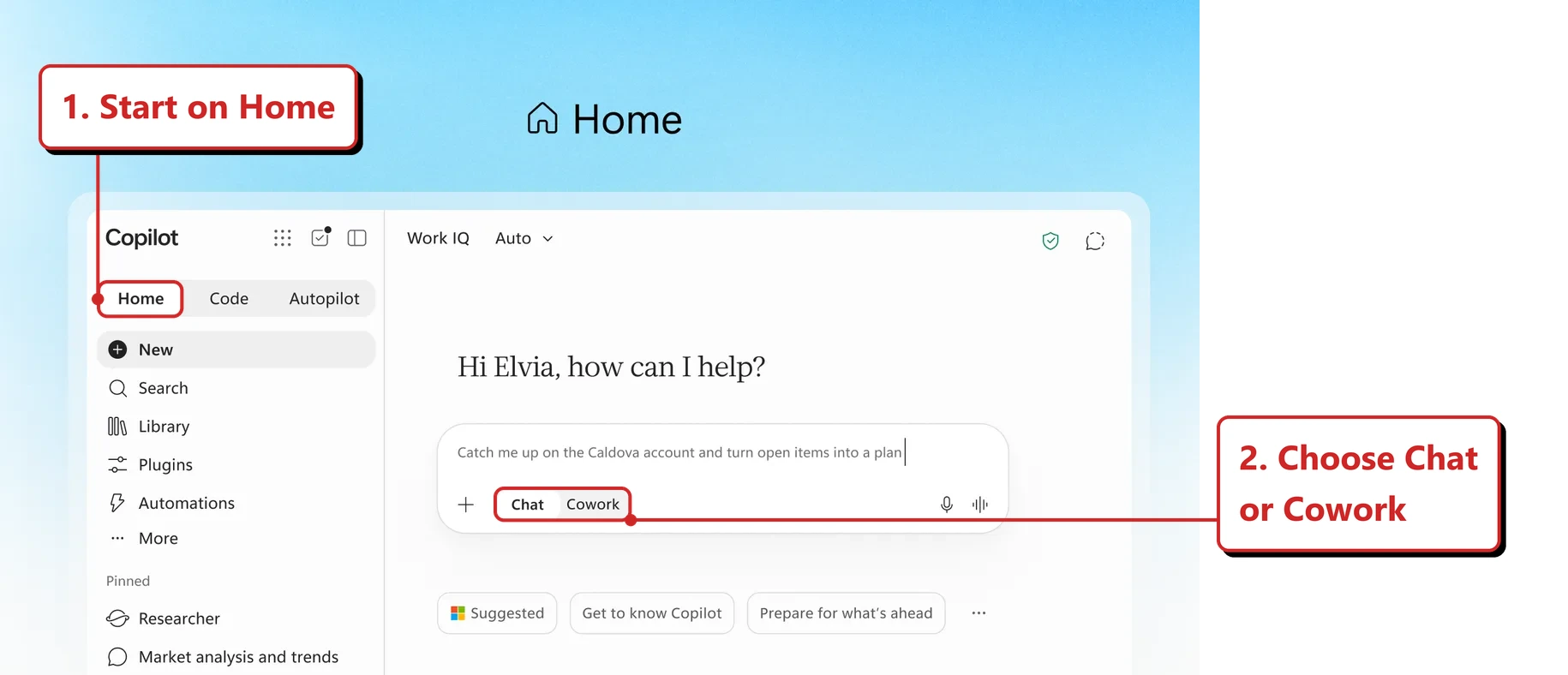
Official Microsoft image from the 25 September launch post, with red highlights and callouts added by me. This illustrates the announced Home experience; it is not a capture from my demo tenant.
📖 Message Center MC1479277 · Microsoft’s launch post
2. Chat can do long-running work, with a Tasks view
For: Copilot Chat · Frontier rollout announced · Microsoft 365 Copilot licence
Microsoft says Chat will support long, multi-step knowledge work: drafting email, managing meetings, working in Teams, managing OneDrive and SharePoint files, finding people, and creating Word, PowerPoint, Excel, PDF and HTML files. Sensitive actions require approval. The announced Tasks view, in the upper right of the navigation pane, is intended to track and manage that activity.
Why this matters: This moves some of what Cowork did into Chat. The approval step is the part to check when you test it.
- In plain words: Microsoft is bringing bigger, multi-step jobs into Chat, with a Tasks view to follow their progress. I could not find that view in my test.
- Picture this: You ask it to pull together a Word summary, a deck and a follow-up email. It works through them while you do something else, and asks before anything sensitive.
- My take: In my 19 October test, I asked Chat to prepare a fictional workshop. Before proceeding, it offered Stay in chat or Send to Cowork. Chat then produced Word and Excel file cards. I couldn’t find the announced Tasks view, and this test did not exercise sensitive-action approvals.
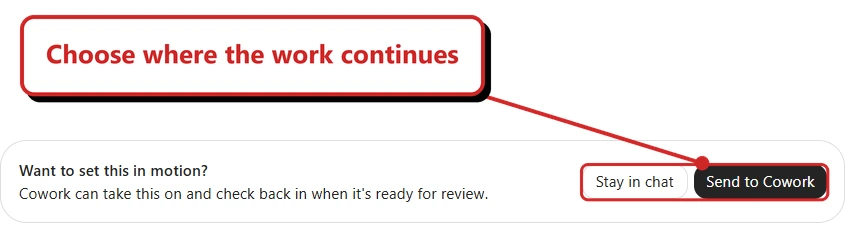
My Chat test using fictional workshop details. This is an offered handoff, not automatic switching or a capture of the Tasks view. Callout added by me.
3. Plugins replace the Agents entry in the navigation
For: Microsoft 365 Copilot app · Frontier Program, October 2026
In the left navigation, Plugins replace the standalone Agents entry (called Agents & Skills for some preview users) in Chat and the Customize entry in Cowork. For people with Cowork, Automations move to the Home navigation pane.
The 12 October update to the same Message Center post adds another navigation change: Researcher and Analyst will no longer be pinned by default. They remain available from Plugins, users can pin them again, and admins can pre-pin them for their organisation. A missing shortcut does not mean the agent was removed.
In my 19 October test, Plugins had separate Chat and Cowork tabs, with Automations in the left navigation. Researcher and Analyst were still pinned in my account; the default-pinning announcement does not mean existing shortcuts disappear.
Why this matters: If your training material shows the Agents entry, the label will change for Frontier users first.
- In plain words: Menu labels change. Plugins replace the Agents entry, and Automations move to the Home pane for Cowork users.
- Picture this: A user says “where did Agents go?” The answer is: it is called Plugins now.
- My take: Small change, big for support. I'd fix any screenshots in your training slides before Frontier users find the gap.
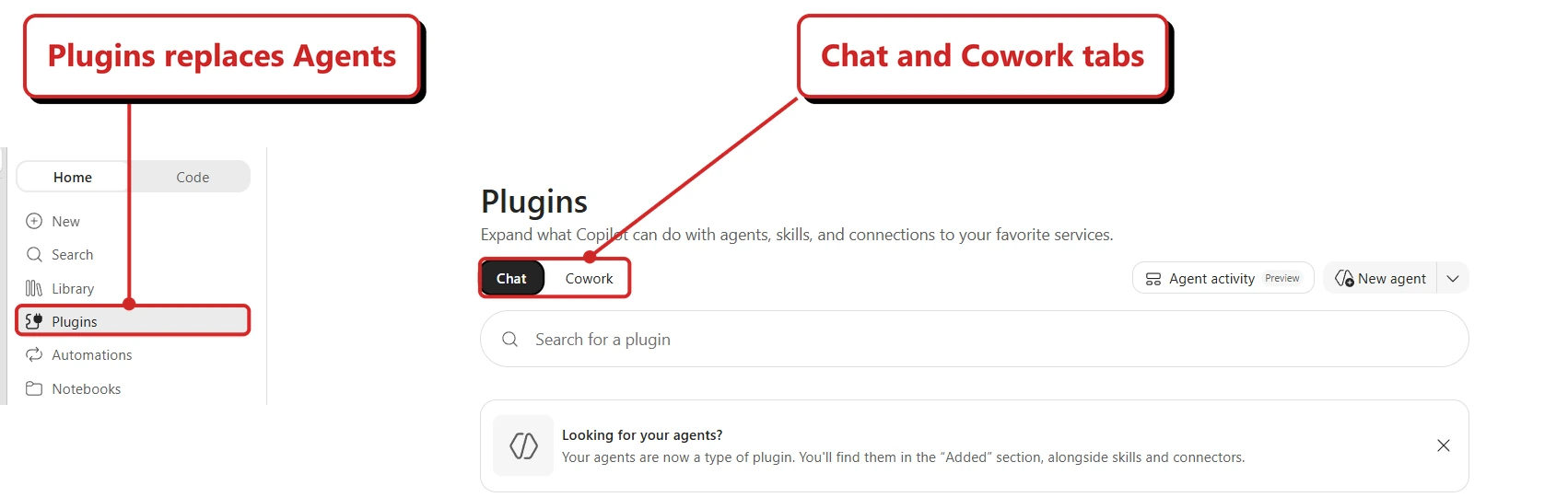
My Plugins page on 19 October. Unrelated content removed; highlights and callouts added by me.
4. Chat shows which Skills it used
For: Copilot Chat · Worldwide rollout begins October 2026 · Microsoft 365 Copilot licence
A skill is a reusable set of instructions for a job, such as preparing a weekly summary in your team’s format. Microsoft says Chat will show the Skills it uses while generating a response. The related Chat Skills announcement also supports creating, uploading and selecting skills, with worldwide rollout from October to mid-November. Cowork-created skills are available in Chat only if shared; that condition alone does not establish availability in a particular account.
Why this matters: Seeing the skill used should make a response easier to understand. This is a worldwide rollout, not Frontier only.
- To share a Cowork skill: In my updated interface, I opened Plugins → Cowork → Manage all, opened the skill’s … → Share menu, then chose the publishing audience. Only you keeps it private; sharing with colleagues is a separate choice.
- My test, 19 October: Chat created a document without showing a Skills indicator. After trying to share a Cowork skill, I still couldn’t find it in Chat’s Agents and Skills picker or use it. Asking Chat to create a personal skill produced instructions, but no saved skill.
- My take: I like the idea, but I couldn’t verify it in my account yet. I’d look for a selectable skill and an actual usage indicator, not just an answer saying it used one.
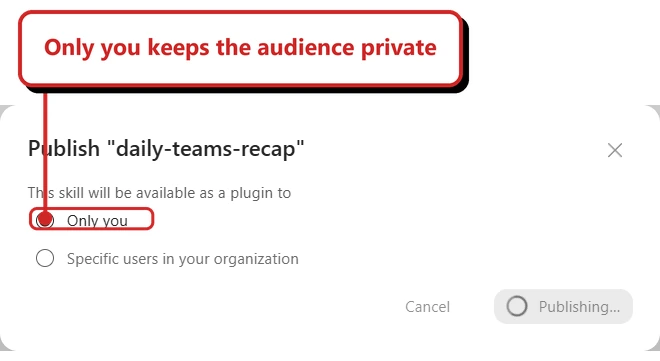
The sharing dialog from my test, with a callout added by me. It shows publishing in progress, not confirmation that the skill became available in Chat.
📖 Message Center MC1479277 · Chat Skills rollout, MC1493223 · Share Cowork skills
5. Code builds trackers, dashboards and apps from a description
For: Microsoft 365 Copilot app · Frontier rollout announced · Usage-based billing
Code is a dedicated tab in the Copilot app for creating trackers, dashboards and apps using natural language. It uses usage-based billing, so eligible users need a Microsoft 365 Copilot licence and a spending policy. To prepare, an admin must deploy the unified Copilot app and set the target channel to beta.
Why this matters: Beta-channel deployment is a preparation step, not proof of access. A visible Code tab does not establish that the user can open the capability; spending-policy and preview requirements still apply.
- In plain words: Code is a new tab where you describe a tracker, dashboard or app in plain words and Copilot builds it.
- Picture this: “Make a dashboard of our pipeline by region.” That is the whole prompt.
- My take: I'd confirm deployment and access with two or three people before assigning spending policies more widely. Seeing the tab and being able to use it are different things.
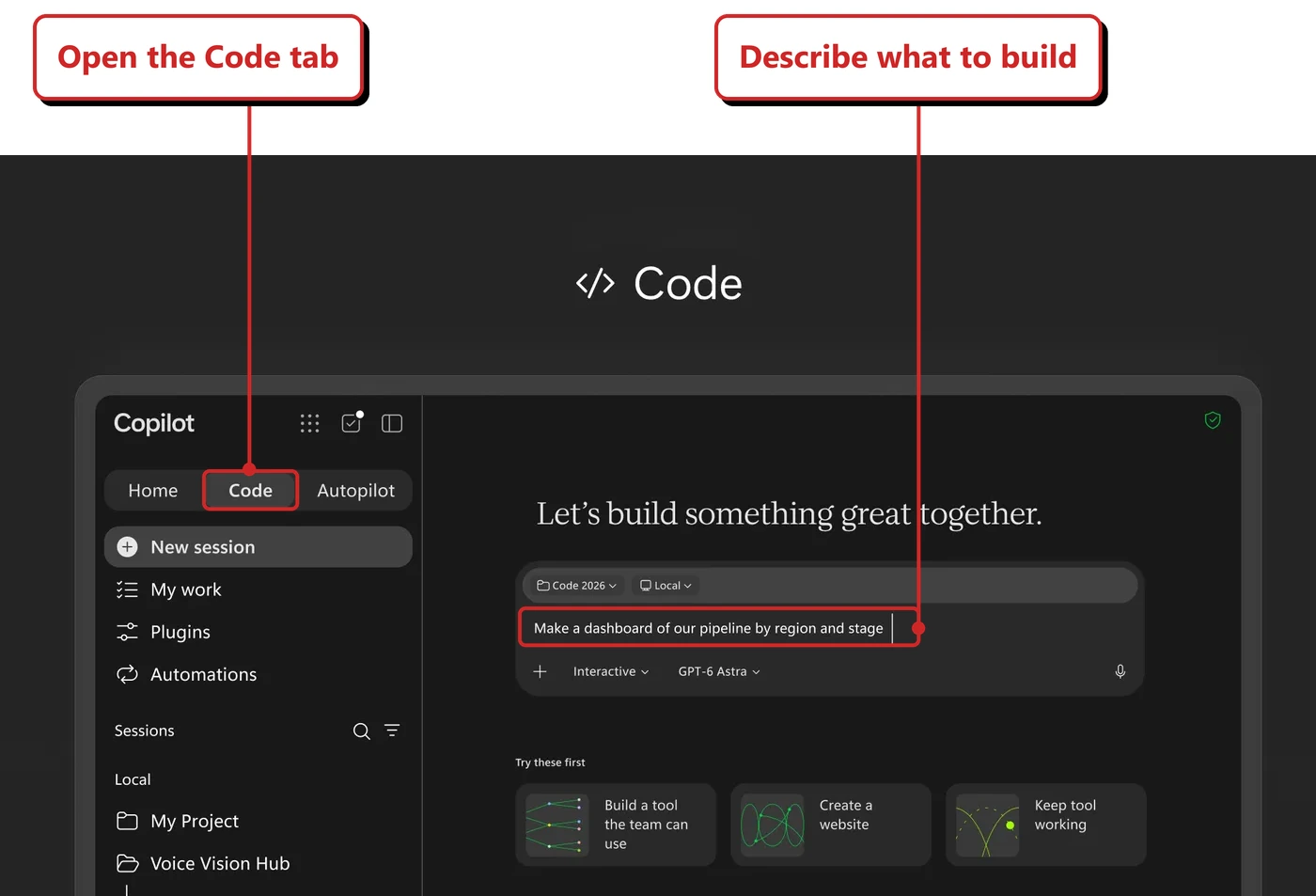
Official Microsoft image from the 25 September launch post. Highlights and callouts added by me; this is not my tenant capture.
📖 Message Center MC1479277 · Deploy the unified Copilot app
6. Autopilot is the new name for Scout
For: Microsoft 365 Copilot app · Private preview · Usage-based billing
Autopilot, previously called Scout, is an always-on personal agent in the Copilot app with persistent context, identity and memory. It has its own tab. It uses usage-based billing and needs a Copilot licence and a spending policy. Microsoft said it will update the Message Center post with rollout timing and admin control details.
Why this matters: If you read my Scout guide, this is the same product under a new name. Microsoft had not published admin controls when I wrote this, so do not plan a rollout yet.
- In plain words: Autopilot is the new name for Scout. It is a personal agent that keeps running, remembers things and has its own tab.
- Picture this: Think of an assistant who checks in each morning with “here is what changed overnight”.
- My take: Same product as my Scout guide, new name. Microsoft has not published admin controls yet, so I would watch and not roll it out.
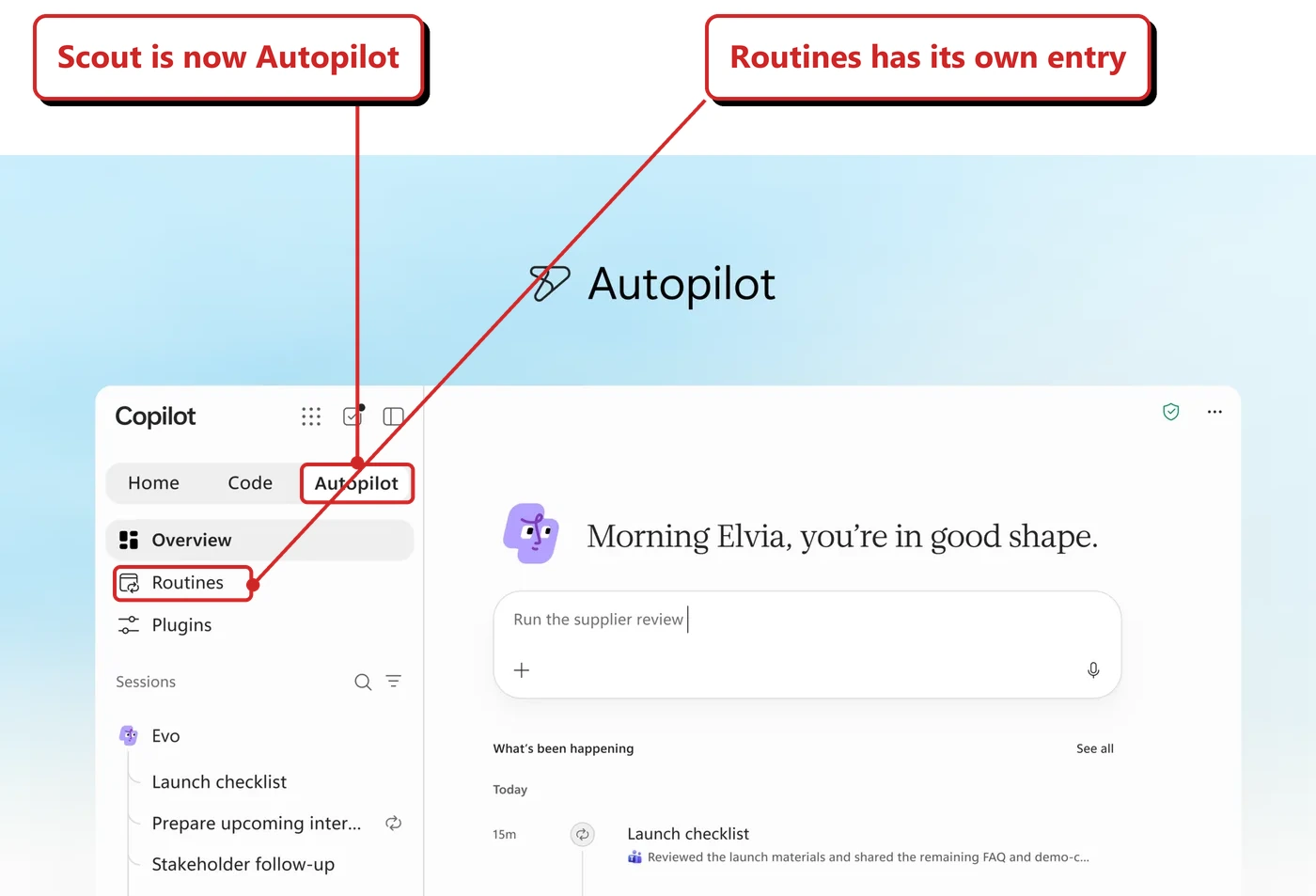
Official Microsoft image from the 25 September launch post. Highlights and callouts added by me; this is not my tenant capture.
📖 Message Center MC1479277 · Microsoft Scout complete guide
7. Copilot Managed Runtime is in preview
For: Developers and admins · Public preview starting to roll out, per the 12 October Message Center update
Copilot Managed Runtime runs code within the Microsoft 365 tenant boundary under IT governance. The updated Message Center post says it supports apps built in Code, Cowork and Copilot Studio, plus supported command-line and SDK experiences. Admins manage the apps in the Microsoft 365 admin center. Code and Managed Runtime are also the two places Agent 365 cost management is expanding to, see section 9.
Why this matters: This is a managed place to run an app, not just another model choice. Public preview is starting to roll out; that does not establish availability in every tenant.
- In plain words: Microsoft provides the place to run the app, while IT manages access. You still need to review what the app can read and do.
- Picture this: Think of renting a locked, managed workshop instead of building your own garage.
- Before you try it: Check public-preview access and admin controls before moving an existing app into the runtime.
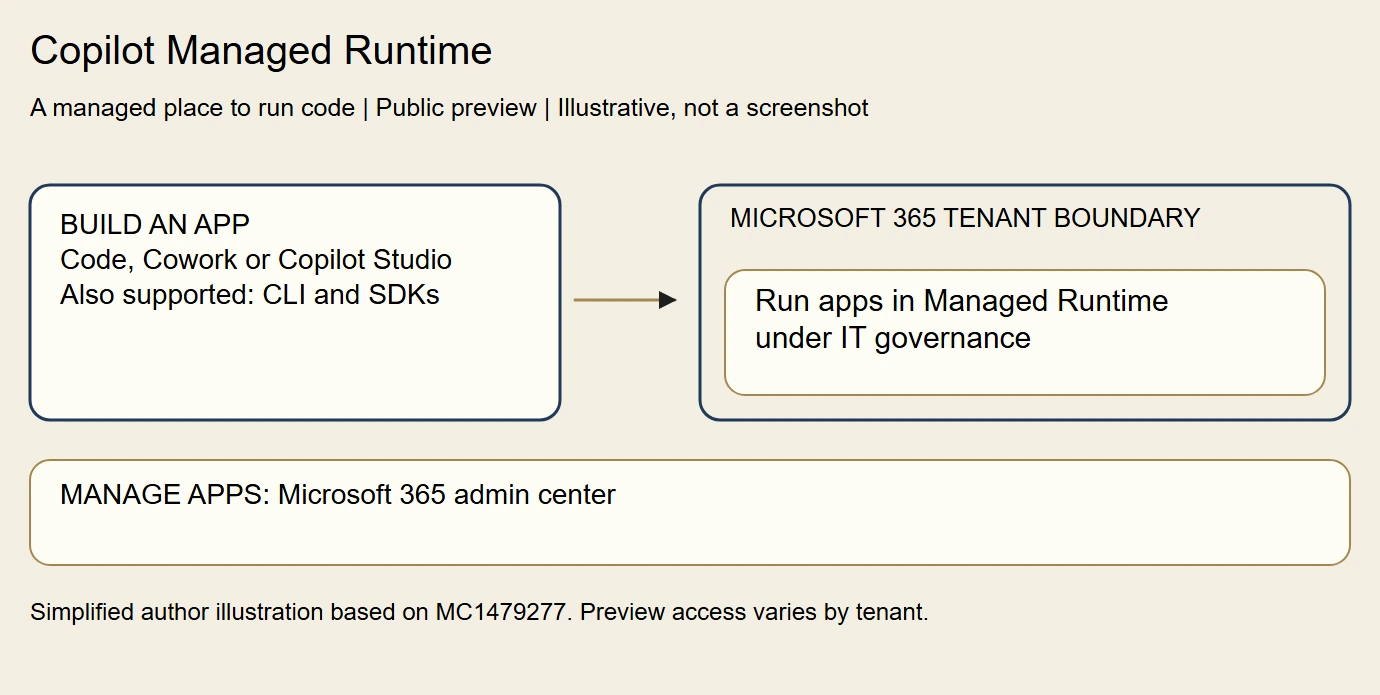
My simplified illustration of Microsoft’s announcement, using the previous issue’s ivory-card theme. This is a conceptual overview, not an official architecture diagram or a tenant test.
📖 Message Center MC1479277, updated 12 October · Copilot Managed Runtime announcement
8. The plugin registry is rolling out
For: Copilot surfaces · Rolling out now, general availability across surfaces in the coming weeks, per Microsoft
Microsoft describes the plugin registry as a shared place to discover, publish, manage and govern plugins across supported Copilot experiences. A plugin can contain skills, connectors and agents. As the rollout reaches each surface, users find enabled capabilities through Plugins, while admins review, assign or block plugins centrally in Microsoft 365 admin center → Agents → Tools.
Why this matters: Your users need somewhere to find plugins, and IT needs somewhere to approve them. This is the management side of the Plugins entry in section 3.
- In plain words: Plugins is the user’s way in. The registry provides the publishing and management layer behind it; the user page and admin controls are not the same screen.
- Picture this: Like an app store on your phone, with IT deciding which additions are available at work.
- My take: I can see the new Plugins page in my account. That confirms the user-facing change, not every registry control or every supported app. I’d check assignments and availability separately before a wider rollout.
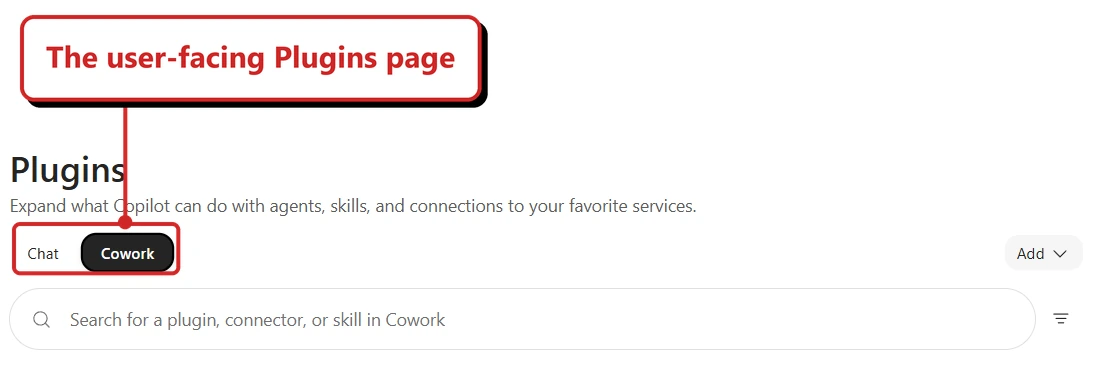
Reused from my 19 October Plugins captures, cropped to public interface labels. This shows the user-facing entry point, not the admin registry. Callout added by me.
📖 Microsoft’s plugin registry announcement · Microsoft’s launch post
9. FinOps for AI expands to Code and Managed Runtime
For: Admins · Agent 365 cost management · Dates per Microsoft’s launch post
FinOps means keeping track of usage and cost, then deciding where the spending is worthwhile. Microsoft’s launch post says Agent 365 cost management expands to Code and Managed Runtime, with Copilot Studio agents planned for October. It also mentions spending-policy APIs, controls for groups of models and a way for users to see their credits.
Why this matters: A licence tells you who can use a service. A spending policy sets limits on credit-based work. You need both access and cost controls before opening these tools to more people.
- In plain words: These tools help IT see credit use and set spending rules for more Copilot experiences.
- Picture this: Before a pilot grows from five people to fifty, you check how many credits its tasks use and set an appropriate limit.
- My take: If you let people use Code or Autopilot, you need this. Usage billing without a way to see spending is a bad surprise waiting to happen.
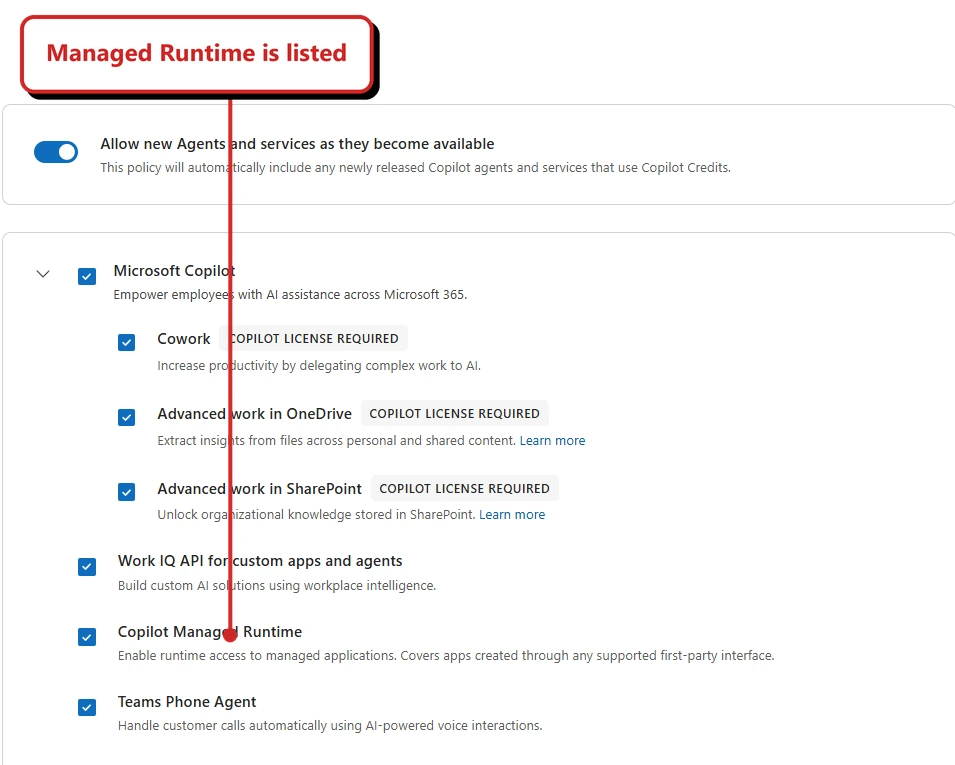
Managed Runtime appears in my policy wizard. This does not show a saved policy, and Code is not visible in this capture. Callout added by me.
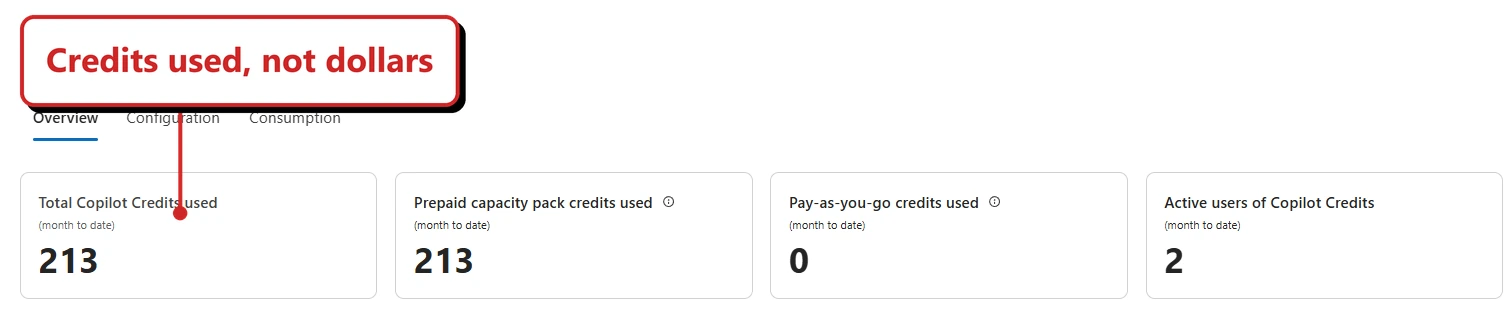
My 19 October overview: credit consumption, not a currency bill. Cropped above user-request details; callout added by me.
10. Fabric IQ is generally available in Chat and Cowork
For: Copilot Chat and Cowork · Generally available, per Microsoft’s launch post
Microsoft says Fabric IQ is generally available in Chat and Cowork. Integration with Code comes later through Frontier. Microsoft Learn documents asking questions about accessible Power BI reports and semantic models in Chat. You can reference a report using its full browser URL; report share links are not supported.
Why this matters: You can ask about Power BI data without leaving Chat. Existing data permissions still apply; I have not independently tested those controls.
- In plain words: Fabric IQ, which brings your Microsoft Fabric data into Copilot, is generally available in Chat and Cowork.
- Picture this: You ask Chat a question about sales numbers that live in Fabric and it can use them.
- My take: My Chat picker now has a dedicated Power BI tab. That confirms report discovery in my account, not a completed data-answering or permissions test.
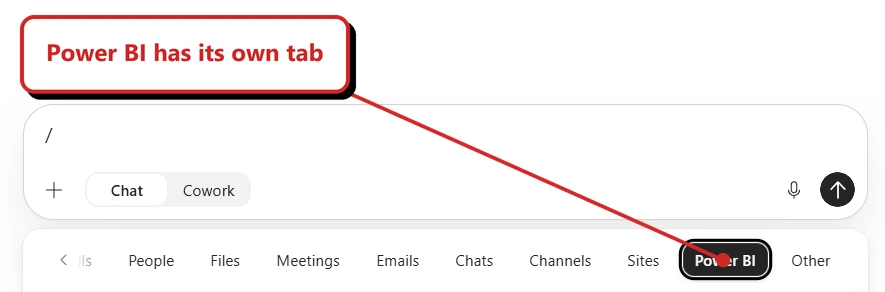
My Power BI picker on 19 October. This shows the entry point, not a generated answer. Callout added by me.
📖 Microsoft’s launch post · Power BI answers in Microsoft 365 Copilot
11. Dynamics 365 and Power Platform grounding is in public preview
For: Copilot Chat · Public preview, rolling out over the next month, per Microsoft
Here, grounding means using business records to help answer a question, rather than relying on the model’s general knowledge. Microsoft says access to Dynamics 365 and Power Platform business data is in public preview, rolling out over the month after launch. There are separate checks: the Microsoft 365 admin setting controls the audience, and a Power Platform admin must enable Work IQ for the relevant environment. Users still need access to the app and its data.
Why this matters: Preview, so check your tenant and the data-access settings before telling anyone it works.
- In plain words: Copilot can use business data from Dynamics 365 and Power Platform. It is in public preview.
- Picture this: You ask about an open customer case and Copilot looks it up in Dynamics.
- My take: I found the audience setting in my demo tenant, with All users selected. The panel explicitly calls out the separate environment step. I have not tested a business-data query here.
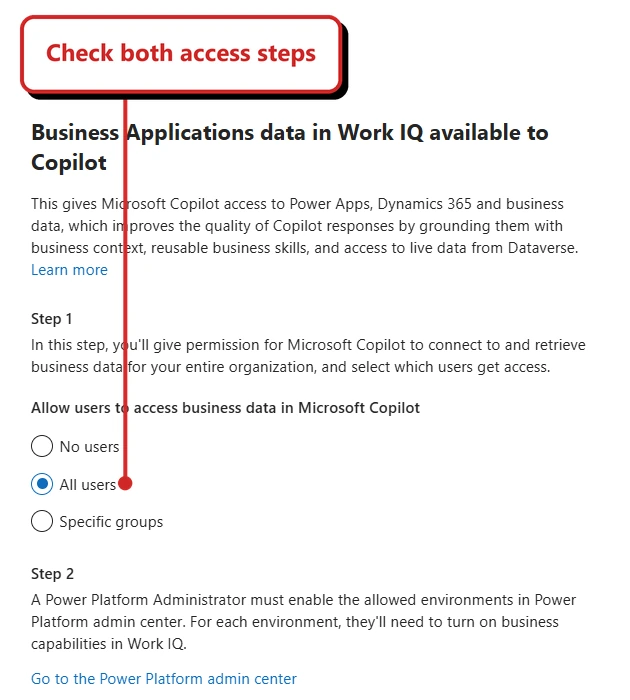
My demo-tenant settings panel, not proof that an environment is connected. Callout added by me.
📖 Microsoft’s launch post · Business Applications in Work IQ setup
12. An admin-led Copilot onboarding experience arrives for Frontier
For: Admins and users · Frontier Program, late October to early November 2026 · Disabled by default
Admins with the Global Administrator, Knowledge Administrator or AI Administrator role can switch on a guided onboarding experience under Copilot settings in the admin center. A Learning Agent runs it, takes about 5 to 10 minutes, and personalises it to role and licence. The Premium journey needs a Copilot Premium licence. Viva Learning reporting shows completion. Microsoft says no action is required unless you want it.
Why this matters: It is optional, off by default, and lets you include your AI policy in the flow.
- In plain words: A guided Copilot onboarding, run by a Learning Agent, takes about 5 to 10 minutes. It is off unless an admin turns it on.
- Picture this: A new starter opens Copilot and gets a short tour for their role, with your AI policy inside it.
- My take: I could not find this setting in my tenant on 19 October. Microsoft schedules the Frontier rollout for late October to early November, so I am using its official image rather than presenting this as my own test.
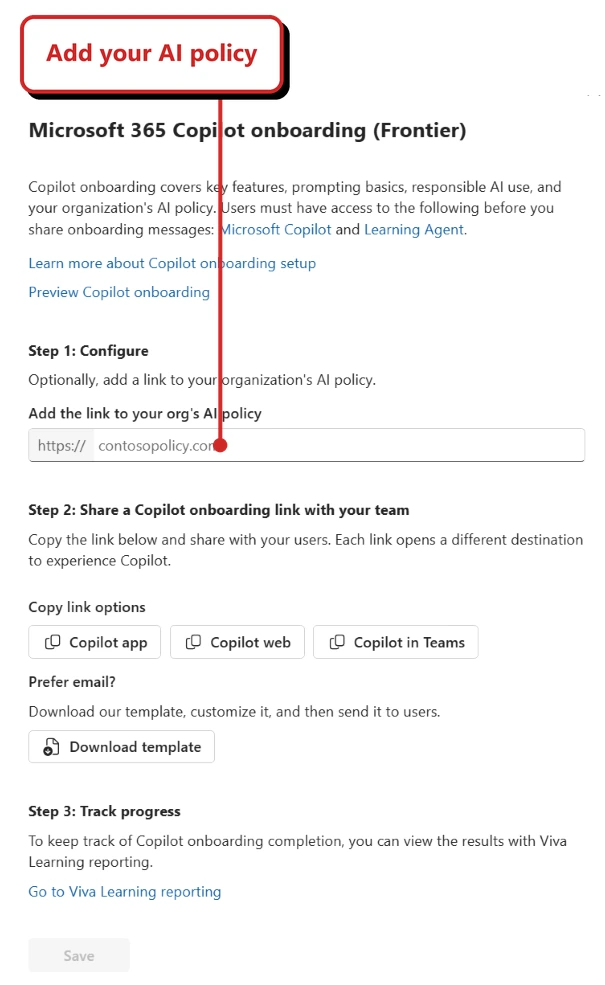
Official Microsoft screenshot from MC1486291, cropped to the onboarding panel. Callout added by me; not my tenant capture.
Models, billing and SharePoint
13. GPT-6.1 Sol and Claude Sonnet 5.5 arrive under usage-based billing
For: Cowork, Copilot Studio, then Word, Excel, PowerPoint and Chat · From 30 September 2026
Per Message Center MC1483844 and the model announcement, rollout began on 30 September in Cowork and Copilot Studio under usage-based billing. The same announcement says phased rollout in Word, Excel, PowerPoint and Chat would begin in the following week under the user subscription licence, with usage limits. Users approaching a limit get a notification and can switch to Auto or another model. Sonnet 5.5 needs the Anthropic subprocessor enabled, and GPT-6.1 Sol needs the OpenAI subprocessor on select surfaces. Access is enabled by default for eligible users who meet those configuration requirements.
Why this matters: A rollout start date is not proof that rollout has finished. Check the model selector on the surface your users actually use.
- In plain words: Two new model choices are rolling out. Cowork and Copilot Studio came first; availability in the other apps follows its own rollout.
- Picture this: A user asks why they cannot see the new model in Word. Answer: it is rolling out in phases.
- My take: Check the model menu in the app you actually use. Also check which model providers your organisation allows; Sonnet 5.5 needs Anthropic enabled.
📖 Message Center MC1483844 · Microsoft’s model announcement
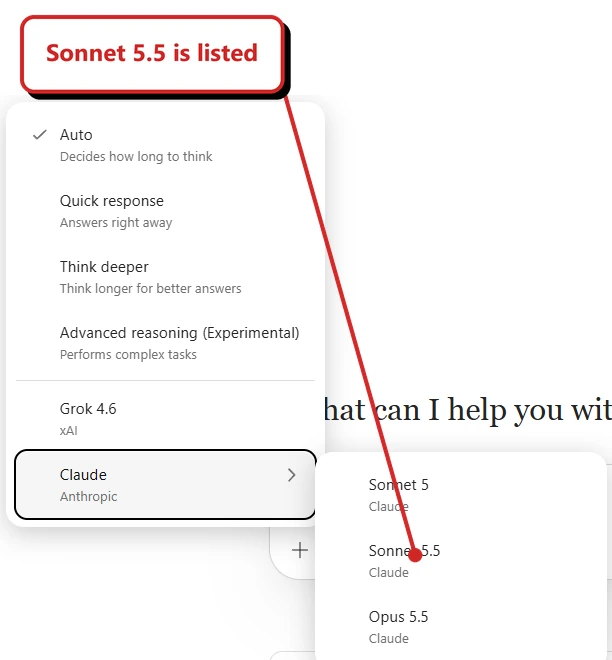
My model-menu capture confirms Sonnet 5.5 is listed. It does not show GPT-6.1 Sol or establish availability on every Copilot surface. Callout added by me.
14. Copilot in SharePoint began general availability on 30 September
For: SharePoint · General availability began rolling out 30 September 2026
Microsoft Learn says general availability begins rolling out on 30 September 2026, and capabilities may appear after that date. Two things change. The PowerShell cmdlets used to opt tenants and sites in or out during preview are being retired, and existing settings are honoured until 1 November 2026. New “advanced work” capabilities, with greater scale than preview, use Copilot Credits through usage-based billing. The everyday capabilities from the preview stay included in the Microsoft 365 Copilot licence.
Why this matters: If you restricted Copilot in SharePoint during preview with PowerShell, you have until 1 November to move to the new controls.
- In plain words: Copilot in SharePoint is generally available. Everyday features stay in the licence. Bigger jobs cost credits. Old PowerShell on/off controls stop working on 1 November.
- Picture this: You blocked Copilot on one site during preview. Before 1 November, check that the replacement controls still give you the restriction you intended.
- My take: This is the item with a real deadline. I'd list every site you restricted and set the new controls this month.
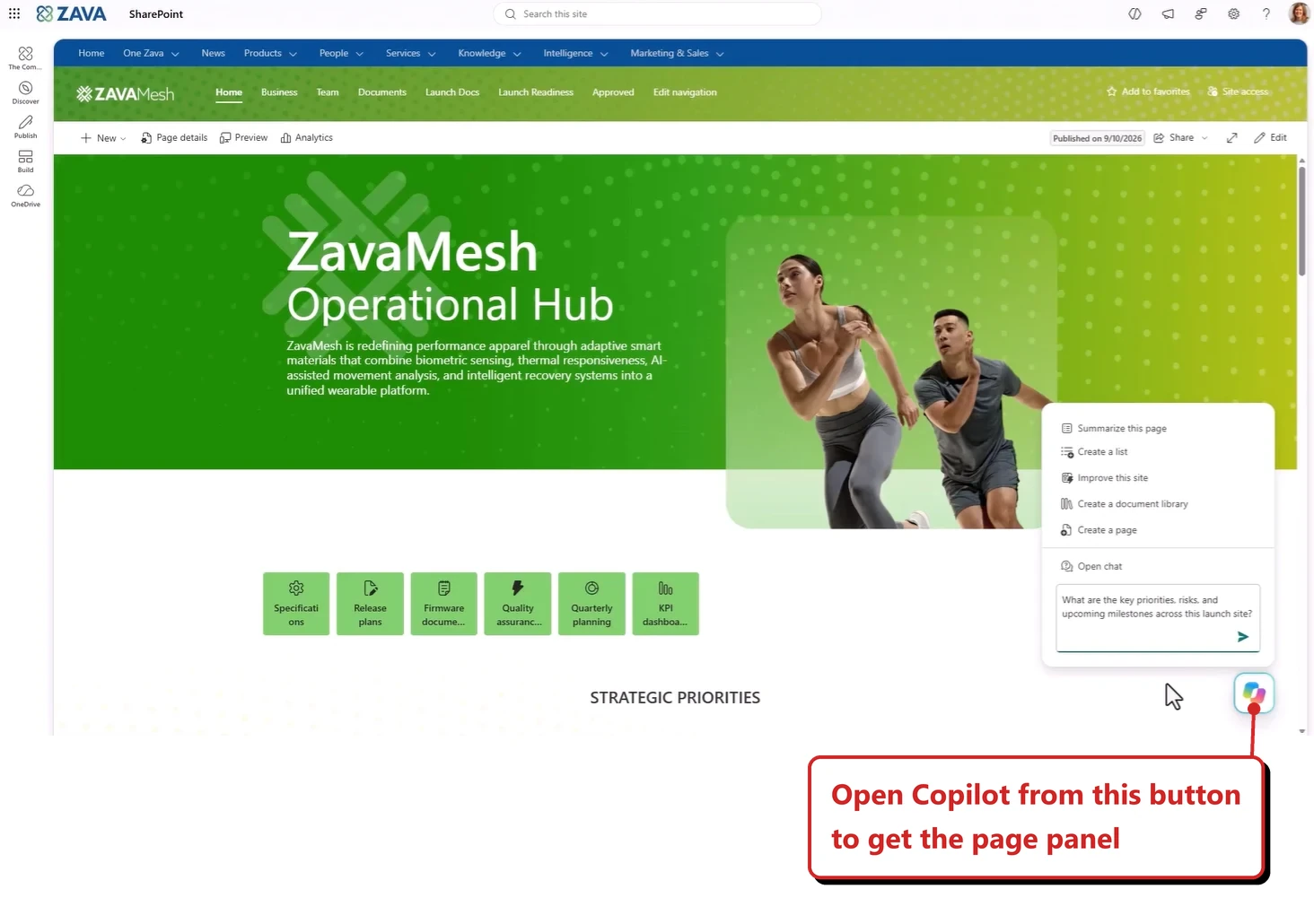
Microsoft's September example shows the SharePoint Copilot panel and suggested actions. It is not a feature test in my tenant.
📖 Get started with Copilot in SharePoint
Copilot Chat, Search, Notebooks and the app
15. Search and Chat work together
For: Microsoft 365 Copilot Search · Windows, Web · Released per Microsoft Learn, 6 October 2026 · Roadmap 512429
Chat now sits inside Copilot Search. You can search, then ask follow-up questions, synthesise what you found and generate content from the results, without switching tools.
Why this matters: Search results become the starting point of a conversation. Test whether it respects the same permissions as search.
- In plain words: Search and Chat are joined. You search, then keep asking questions about the results.
- Picture this: You search for “budget 2027”, then ask “which of these is the latest?” without leaving the page.
- My take: My demo search returned an answer with citations alongside the results. That is useful already. I have not tested a follow-up conversation or permission boundaries in this example.
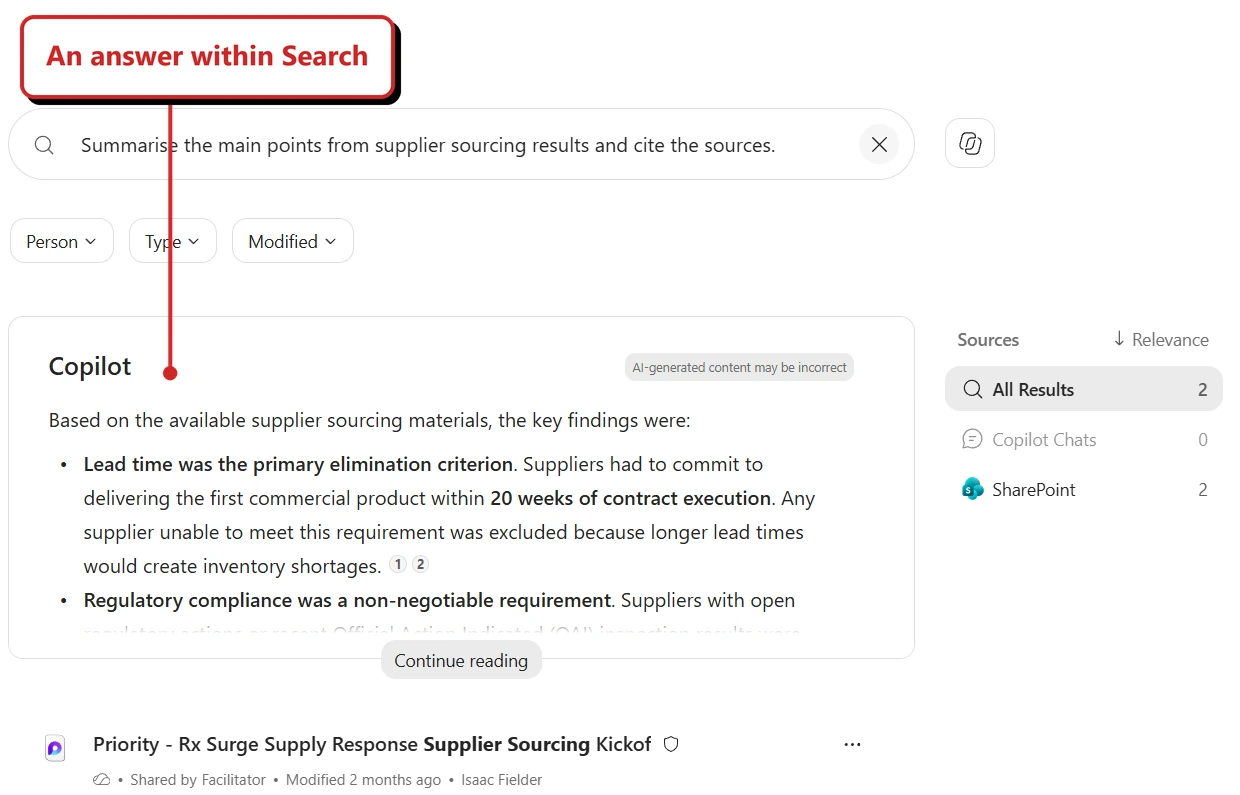
My Caldova demo search, showing an answer within Search rather than a separate Chat session. It does not demonstrate a follow-up exchange. Callout added by me.
📖 Microsoft 365 Copilot release notes
16. Email attachments show as pills in search results
For: Copilot Search · Windows, Web · Released per Microsoft Learn, 23 September 2026
When a search surfaces an email, its attachments appear as clickable pills on the result. You can open an attachment without opening the email.
Why this matters: A small change that saves a click every time you hunt for an attachment.
- In plain words: Email attachments appear as clickable pills right on the search result.
- Picture this: You search for an invoice and open the PDF straight from the result.
- My take: I found three Word attachment pills on the actual email result. Searching the subject and selecting Outlook Mail made the feature much easier to spot than asking for an AI summary.
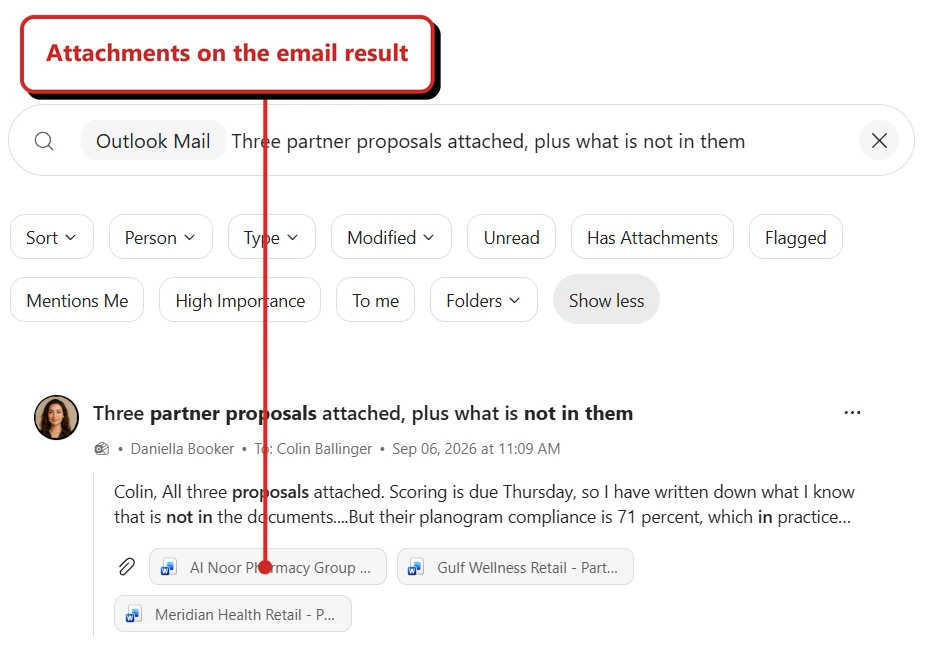
My Caldova demo email result. These are attachment pills on the result, not filenames inside a generated answer. Callout added by me.
📖 Microsoft 365 Copilot release notes
17. Outlook Mail results can be sorted by date
For: Copilot Search · Windows, Web · Released per Microsoft Learn, 23 September 2026
Microsoft’s release notes describe sorting Outlook Mail results by date in ascending or descending order. In my 19 October demo test, the Sort menu offered Most Relevant and Most Recent. I could see newest-first results, but no oldest-first option in that menu.
Why this matters: You can prioritise recent mail instead of relevance. Check the options in your own menu before promising oldest-first sorting.
- In plain words: My Copilot Search now lets me put the most recent emails first.
- Picture this: Search for a supplier, then choose Most Recent to bring the latest messages to the top.
- My take: Use Sort, not Modified. Modified limits the date range; Sort changes the order. My menu did not show the oldest-first option described in the release notes.
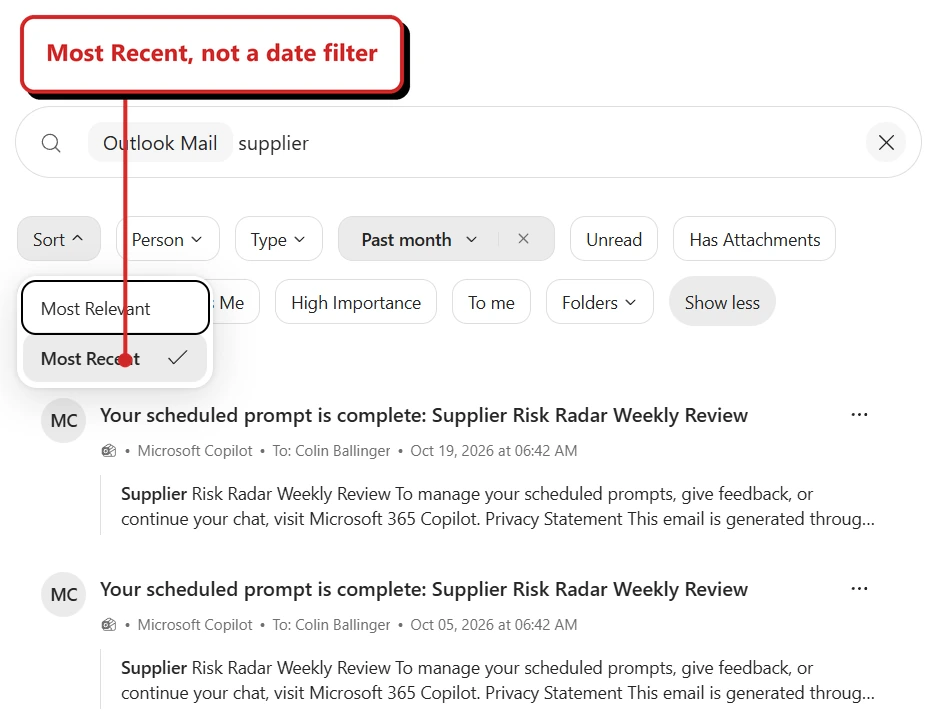
My actual menu: Most Relevant or Most Recent. The separate Past month chip filters the date range. Callout added by me.
📖 Microsoft 365 Copilot release notes
18. Copilot can find meetings by topic or keyword
For: Copilot · Android, Windows, iOS, Mac · Released per Microsoft Learn, 23 September 2026 · Roadmap 559110
Copilot searches meetings by topic or keyword in the meeting body, chat and transcript. Per Microsoft, transcript search covers meetings from the last two months.
Why this matters: The two-month limit on transcripts is the detail to remember when someone says it cannot find an old meeting.
- In plain words: Copilot can find meetings by topic or keyword, in the body, chat or transcript. Transcripts go back two months.
- Picture this: “Find the meeting where we talked about the move to Auckland.”
- My take: My supplier-sourcing search found a demo meeting dated 31 August with a meeting citation. That shows topic-based discovery, but does not establish whether the match came from its title, body, chat or transcript. Keep Microsoft's two-month transcript limit in mind.
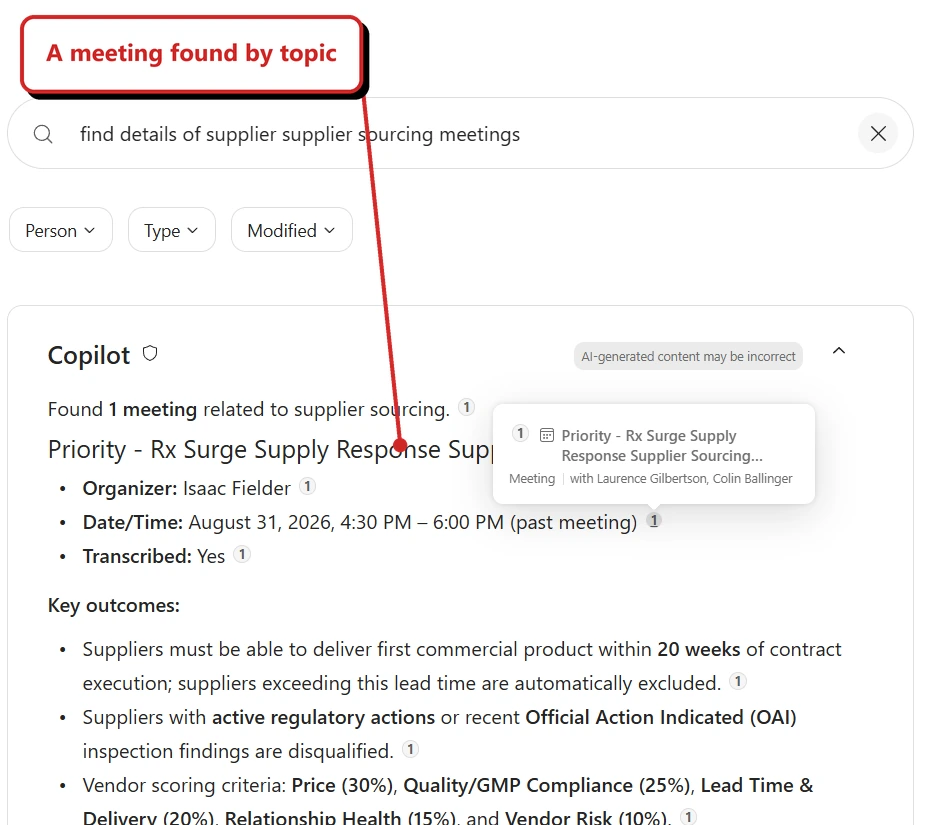
My Caldova demo result. The answer says the meeting was transcribed; this capture does not independently verify the transcript or the generated outcomes. Callout added by me.
📖 Microsoft 365 Copilot release notes · AI at Work Roadmap 559110
19. Notebooks get a new, lighter design in the Copilot app
For: Copilot Notebooks · September design update plus October capabilities · Frontier and upcoming features, as detailed below
The September release notes described a lighter Notebooks workspace in the Copilot app. Microsoft’s 9 October post, updated on 12 October, goes further. You can delegate simple work, choose a model and create richer outputs without leaving the notebook. The refreshed navigation also groups and reorders content in the Copilot app and OneNote.
The important part is that these changes do not all have the same status:
| Capability | Status in Microsoft’s October post |
|---|---|
| Refreshed interface, simple task delegation and model choice | Available in Frontier |
| Full Office editing and collaboration, interactive reports and PDF creation | Available in Frontier |
| Create a notebook by describing your goal | Coming in the next few weeks |
| Schedule recurring tasks from a notebook | Coming in the next few weeks |
| Expanded audio overviews | Coming in the next few weeks |
You can ask Copilot to manage references and create or edit a Word, Excel or PowerPoint file. A scope choice keeps the prompt within your notebook or broadens it to Work and web. For Office files, Frontier users get the editing and collaboration experience described in section 53.
The announced audio changes add more reference types, including Outlook email, Teams meetings and chats, OneNote and Loop pages, and TXT files. They also add Critique and Debate formats, topic-based episodes for longer overviews, and saving audio to OneDrive with inherited sensitivity labels. Those are announced changes, not a claim that every tenant already has them.
Why this matters: A notebook is becoming somewhere you work on the result, not just collect the source files. Keep its access and billing requirements separate from the fact that you can create a notebook.
- In plain words: Keep the project context in one notebook, then ask Copilot to help make and edit the deliverables there.
- Picture this: A project notebook holds the references. You ask for a one-page PDF or an interactive report, then refine the result beside the chat.
- Before you try it: Check which capabilities your Frontier users have. The October post still places notebook creation, automations and the audio changes in the coming weeks.
Markdown, TXT and RTF references were covered in August’s issue, and suggested artifacts in September’s issue. Their appearance in the October post does not make them new October launches.
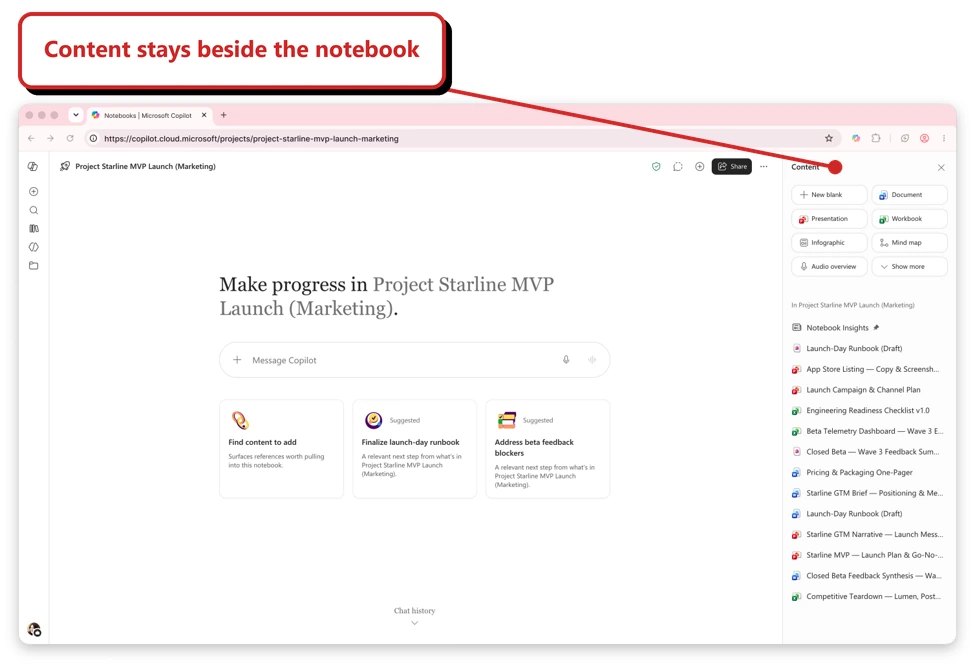
Microsoft's October Notebooks announcement shows the refreshed workspace and Content panel. This is Microsoft's example, not my tenant capture. Source: Microsoft.
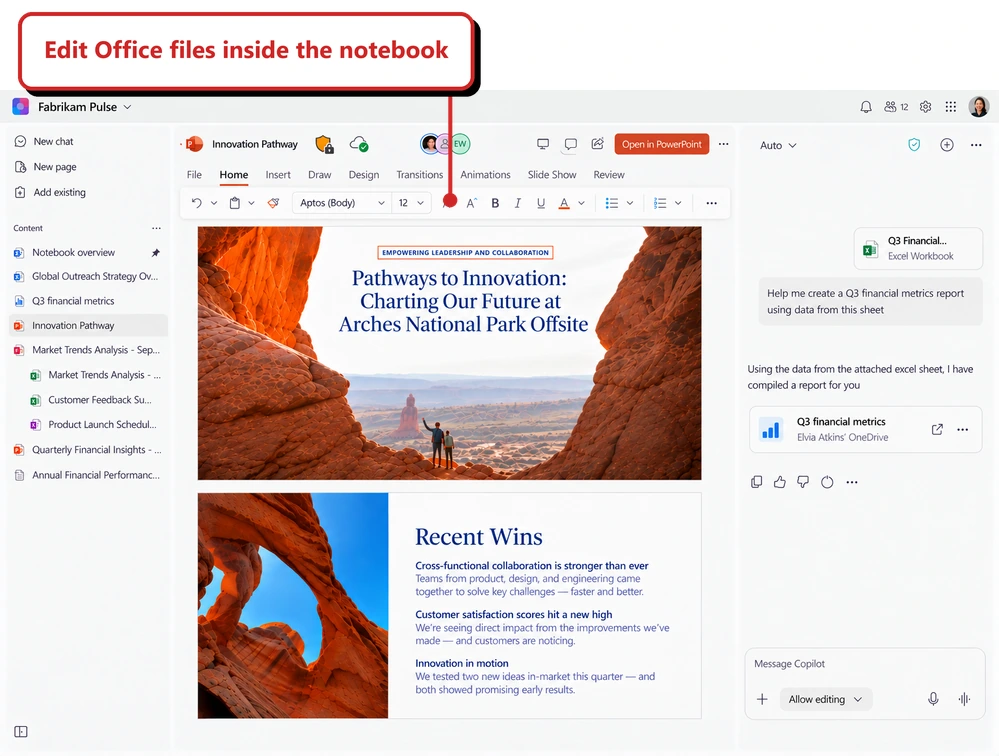
Microsoft's example shows PowerPoint editing inside a notebook, with Copilot alongside it. The announcement lists full Office editing and collaboration as available in Frontier. Source: Microsoft.
📖 What’s New in Notebooks, October 2026 · Microsoft 365 Copilot release notes
20. Add references to a Notebook from Quick Access in Search
For: Copilot app · Web · Released per Microsoft Learn, 23 September 2026 · Roadmap 510099
In Search, Quick Access items have a … menu. Choose Add to > Notebook to save the item as a reference.
Why this matters: Fewer steps between finding a file and using it in a Notebook.
- In plain words: In Search you can use the three-dot menu on a Quick Access item and choose Add to Notebook.
- Picture this: You find the right slide deck in Quick Access and add it to your project notebook without searching for it again.
- My take: A small shortcut. It removes the copy-and-paste step.
📖 Microsoft 365 Copilot release notes · AI at Work Roadmap 510099
21. New Copilot Pages will be stored in OneDrive
For: Admins · General availability, mid-October to late November 2026 · Worldwide
Microsoft is changing where new Copilot Pages are stored. Pages created in Copilot Chat, the Copilot app and new Notebooks go to OneDrive for Business. That brings them under OneDrive’s retention, data loss prevention (DLP) and eDiscovery controls, which cover how content is kept, protected and found for investigations. Existing pages are not migrated, and existing Notebooks keep storing pages in SharePoint Embedded. The timeline moved: it was mid-August to late September, and is now mid-October to late November (updated 8 October). The “Create and view Copilot Pages and Copilot Notebooks” setting is still honoured, but Microsoft says it is planned for retirement.
Why this matters: Your retention and DLP policies will start applying to new pages. Existing pages do not move, so you will have two locations for a while.
- In plain words: New Copilot Pages will be saved in OneDrive, so your OneDrive retention, DLP and eDiscovery rules apply to them. Old pages stay where they are.
- Picture this: After rollout reaches your tenant, a page in a new notebook goes to OneDrive. A new page in an older notebook still goes to SharePoint Embedded.
- My take: Two places to look for a while. I'd tell your compliance person now, and I'd update the date in your notes, because Microsoft moved it.
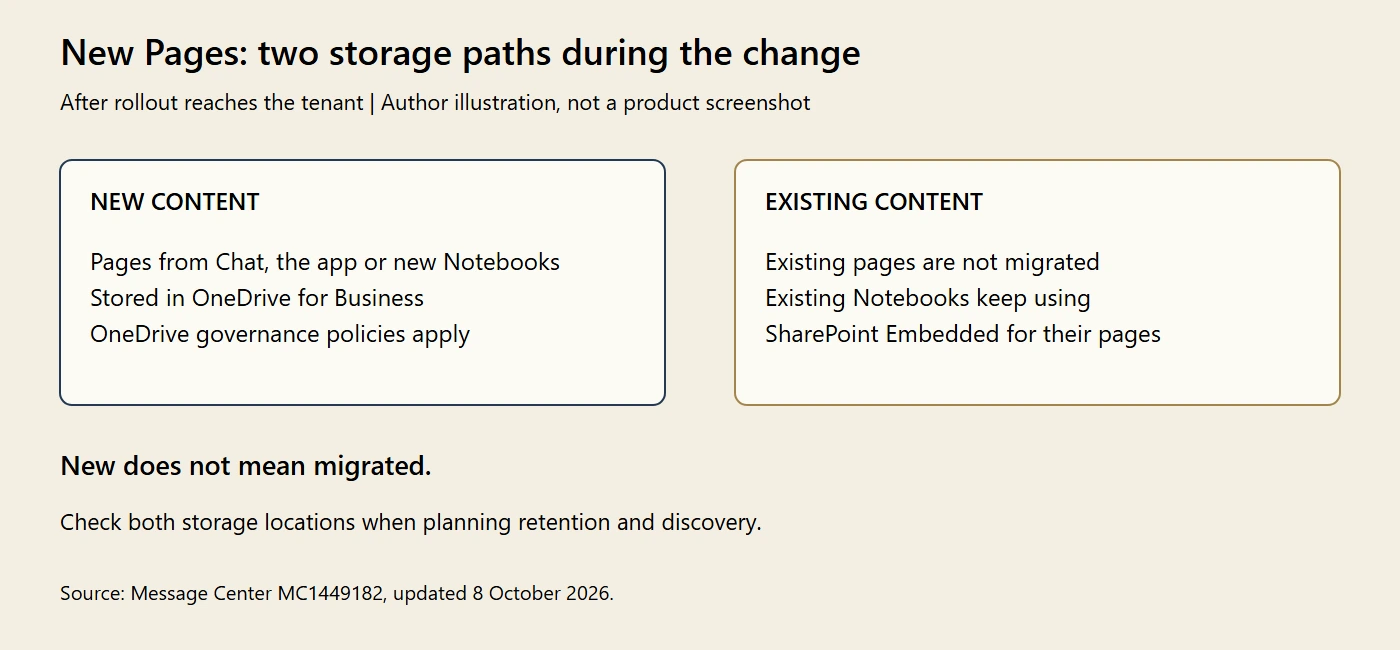
My illustration of the storage change, not a tenant screenshot. New pages and existing content must not be treated as a single migration.
22. Buildings, rooms and desks get profile cards
For: Copilot Chat and Places · Windows · Released per Microsoft Learn, 23 September 2026 · Roadmap 553219
Buildings, rooms and desks added to the Places directory have profile cards, reachable from Copilot Chat and other Microsoft 365 entry points.
Why this matters: Only useful if your Places directory is populated.
- In plain words: Buildings, rooms and desks get their own profile cards, reachable from Copilot Chat.
- Picture this: Open a room's card to check its location, capacity and equipment before booking.
- My take: I'd check a few familiar rooms first. The card is only as helpful as the room details your organisation has entered.
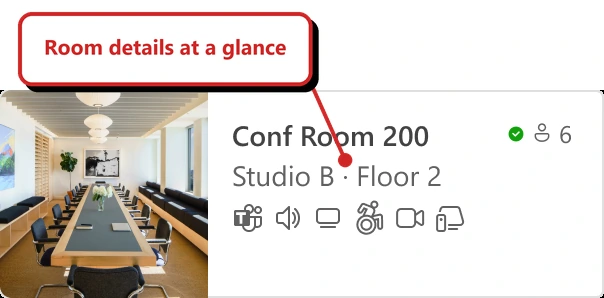
A room-card example from Microsoft's Places documentation. It illustrates room details, not a new capture of the card opened from Copilot Chat. Source: Microsoft.
📖 Microsoft 365 Copilot release notes · AI at Work Roadmap 553219
23. The Copilot app works with Apple CarPlay
For: Copilot mobile · iOS · Released per Microsoft Learn, 23 September 2026
You can use the Copilot app hands-free on CarPlay. Microsoft’s steps say to connect your iPhone, pick Microsoft Copilot on the CarPlay screen, and say “Hey Siri, ask Copilot”.
Why this matters: Voice access can reduce the need to handle your phone, but hands-free does not mean distraction-free. Set up while parked and follow local road rules.
- In plain words: You can talk to the Copilot app through Apple CarPlay, hands-free.
- Picture this: While safely parked, connect your iPhone and check that the voice command works before starting your journey.
- My take: I'm repeating Microsoft's steps and have not tried it in a car. Please keep your eyes on the road.
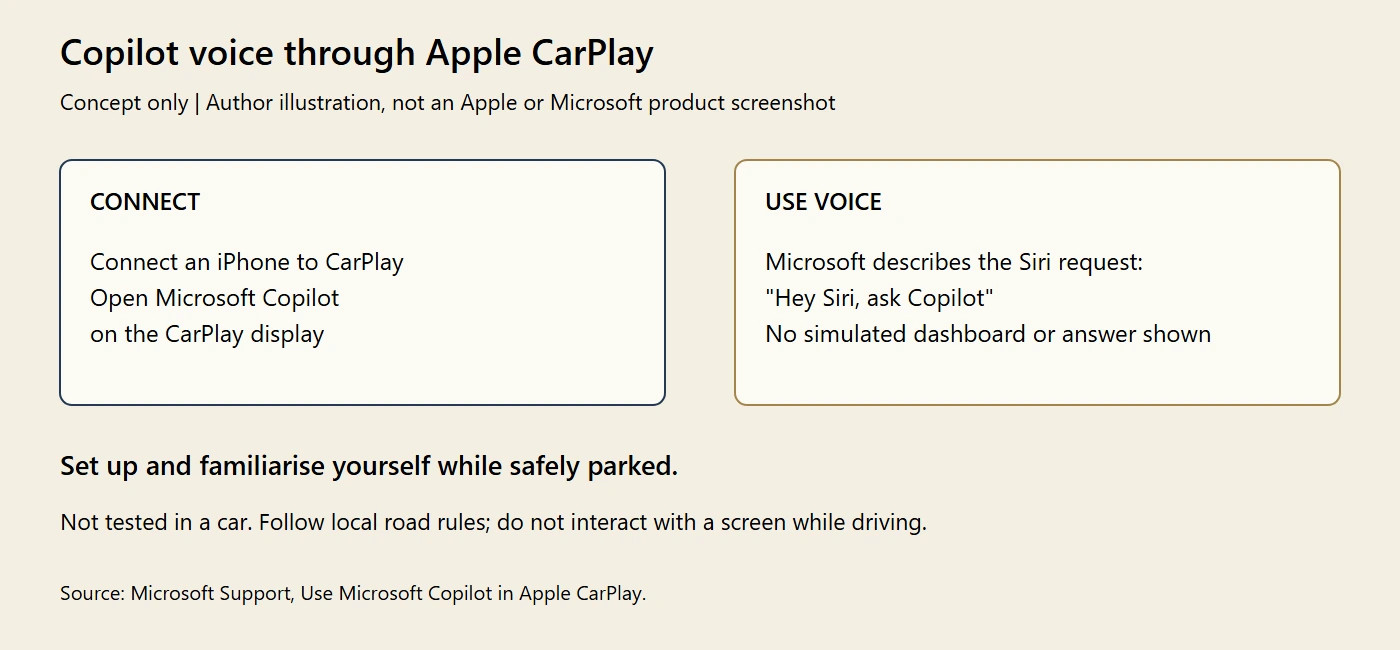
My illustration based on Microsoft's instructions, not an official CarPlay image or a car test. Set up while safely parked.
📖 Use Microsoft Copilot in Apple CarPlay
24. Copilot Cowork is documented as delegating outcomes
For: Copilot Cowork · Android, Windows, iOS, Mac, Web · Listed in Microsoft Learn release notes, 23 September 2026
Microsoft’s release note frames Cowork as “delegate an outcome, not just a task”: you describe the result, Cowork gathers context from your emails, meetings, chats, files and business data, shows a plan, and asks for approval on actions. This is a catch-up entry, because earlier issues covered Cowork’s features as they shipped.
Why this matters: This is Microsoft's plain statement of what Cowork is for. Use it when someone asks.
- In plain words: Ask for the finished result, not every step needed to get there. Review the plan and any action approvals along the way.
- Picture this: Instead of “find that email”, you say “get me ready for Thursday's client meeting”.
- My take: This is the best one-line description of Cowork I have seen. I'd borrow it when someone asks what Cowork is.
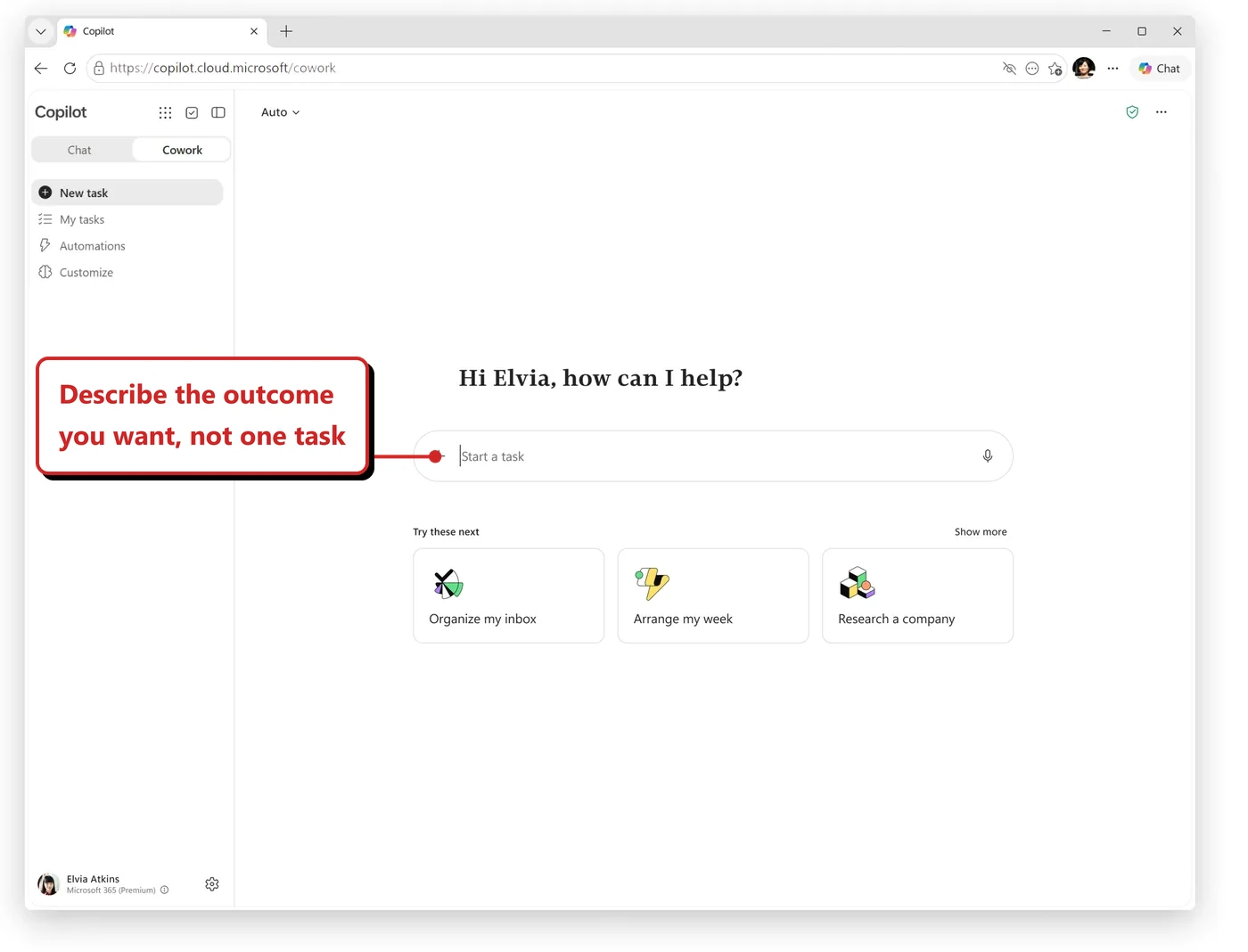
Official Microsoft example from Microsoft Learn, not a feature test in my tenant.
Microsoft 365 apps
25. Excel links straight to the changes Copilot made
For: Copilot in Excel · Windows, Web, Mac · Released per Microsoft Learn, 23 September 2026
Copilot’s chat response now includes links that highlight where it changed the workbook, covering new sheets, tables, ranges, charts and shapes.
Why this matters: You can review edits while you are still reading the response.
- In plain words: In Excel, Copilot's reply includes links that jump to what it changed.
- Picture this: Copilot adds a new sheet and a chart. You click the link and land on the chart.
- My take: Saves the hunt for what changed. Always click through before you trust it.
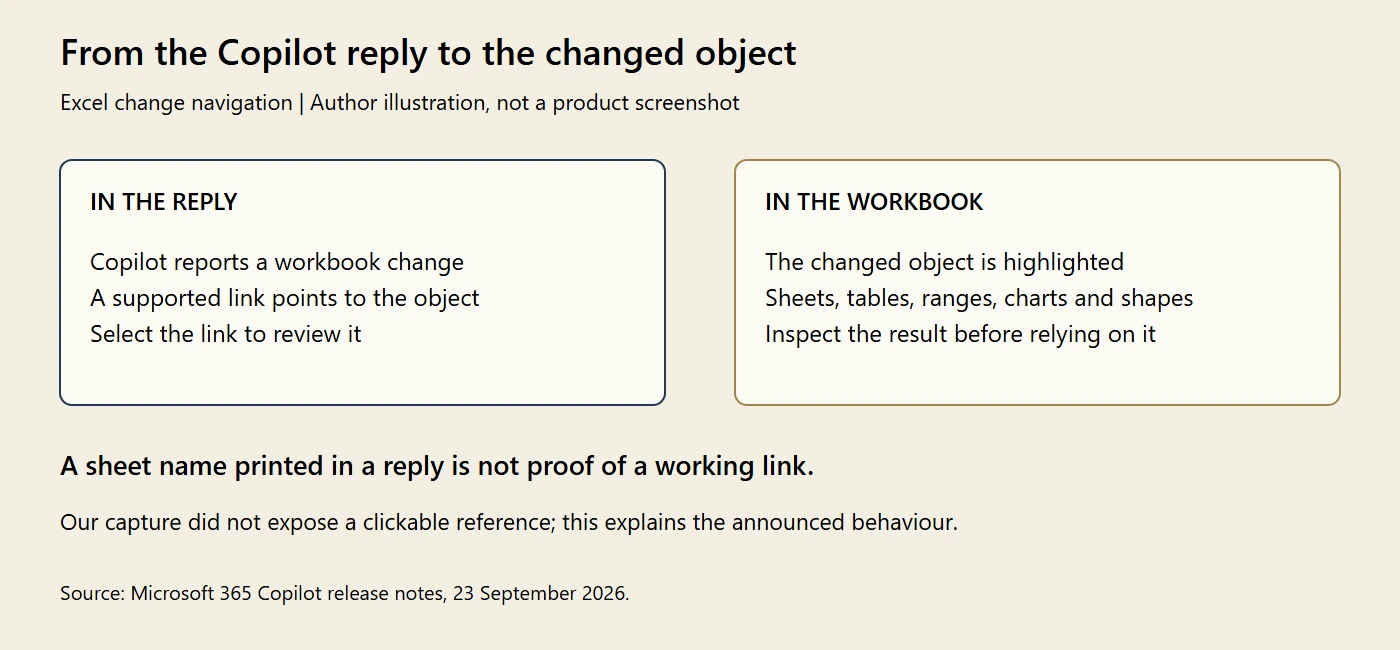
My illustration of Microsoft's announced behaviour. Our demo created a sheet but did not expose a working navigation link, so I am not presenting that capture as proof.
📖 Microsoft 365 Copilot release notes
26. Excel’s Show Changes pane attributes edits to Copilot
For: Copilot in Excel · Windows, Mac, Web · Released per Microsoft Learn, 23 September 2026
On the Review tab, Show Changes now marks edits and suggestions made by Copilot.
Why this matters: You get more context when reviewing a shared workbook: the change record can show that Copilot helped make an edit.
- In plain words: The Show Changes pane in Excel now marks edits made by Copilot.
- Picture this: A number changed in a shared budget. You open its change record to see the edit and the Copilot attribution.
- My take: Useful for reviewing changes, especially in a shared finance workbook. I would not treat this pane as a complete compliance audit trail.
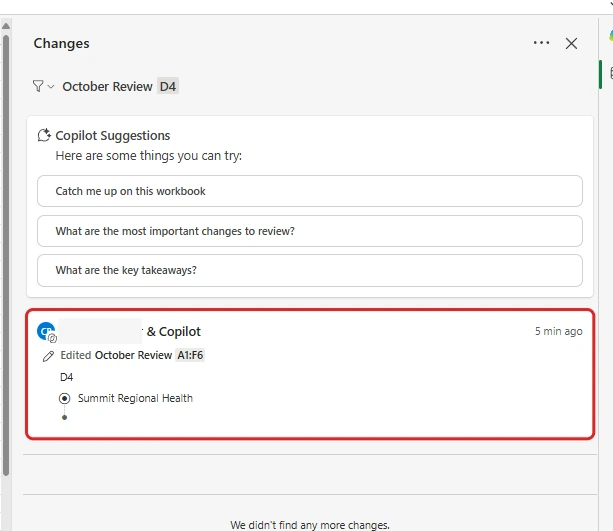
My capture shows an actual Changes record with Copilot attribution, not just Copilot claiming in chat that it edited the sheet. The demo user's name is redacted.
📖 Microsoft 365 Copilot release notes
27. Outlook triage grows: delete, move, copy, categorise, rules and folders
For: Copilot in Outlook · Android, Windows, iOS, Mac, Web · Released per Microsoft Learn, 23 September 2026
Beyond pin and flag, you can ask Copilot Chat in Outlook to delete, move, copy and categorise email, and to create and manage rules and folders. Per Microsoft, it asks for confirmation before acting on more than five emails or changing inbox rules. It works in classic and new Outlook for Windows, on the web, Mac and mobile.
Why this matters: Microsoft's stated threshold is more than five emails, with confirmation also required for rule changes. Check the proposed action and message list before approving.
- In plain words: Copilot in Outlook can delete, move, copy and categorise mail, and manage rules and folders. It asks you to confirm for more than five emails or any rule change.
- Picture this: You ask to move eight newsletters into a folder. Review the listed messages before confirming the move.
- My take: I'd test it with a handful of emails, not the whole inbox, to see what the confirmation looks like.
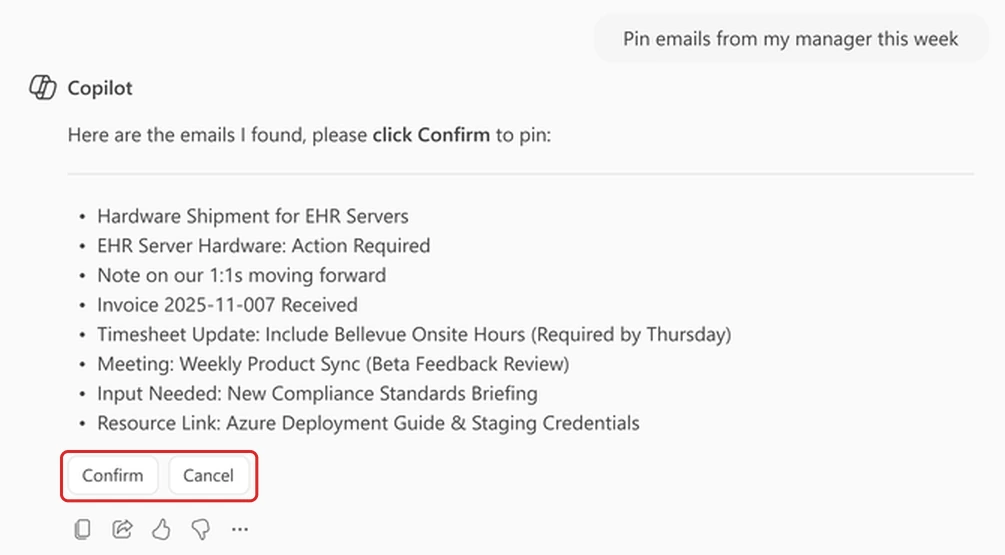
Microsoft's Support example of a pin request awaiting confirmation. The eight-email list is not a before-state for the separate four-email example below.
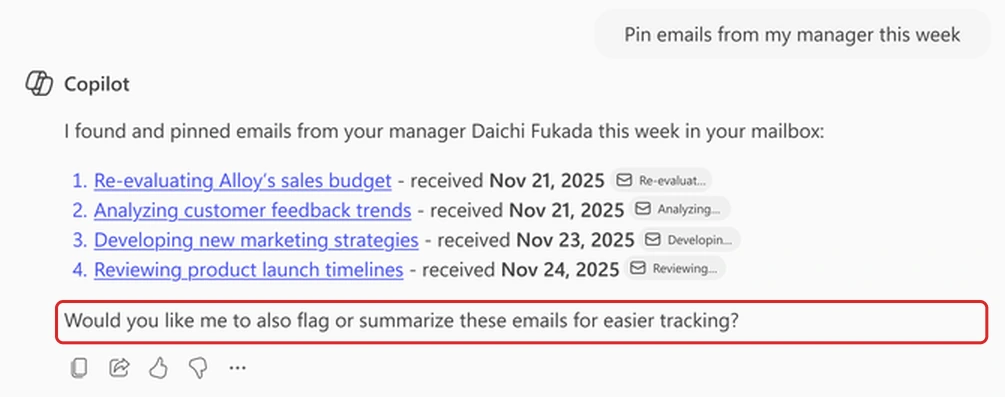
A separate Microsoft Support example shows four emails already pinned, with flag and summarise suggestions. These two images are not a matched before-and-after test.
📖 Microsoft 365 Copilot release notes
28. Planner gets a built-in Planner Agent chat
For: Planner · Windows, Web · Released per Microsoft Learn, 23 September 2026 · Roadmap 560532
Planner has a Copilot icon at the bottom right that opens chat for natural-language questions, task discovery and in-plan updates. This is separate from the Planner Agent items in the September issue.
Why this matters: Ask "show me tasks due this week" instead of building a filter.
- In plain words: Planner has a Copilot chat button at the bottom right. Ask questions and update tasks in plain words.
- Picture this: “Show me what is due this week.” No filters.
- My take: I'd show the chat button beside the usual filters. People can choose whichever is quicker for the job.
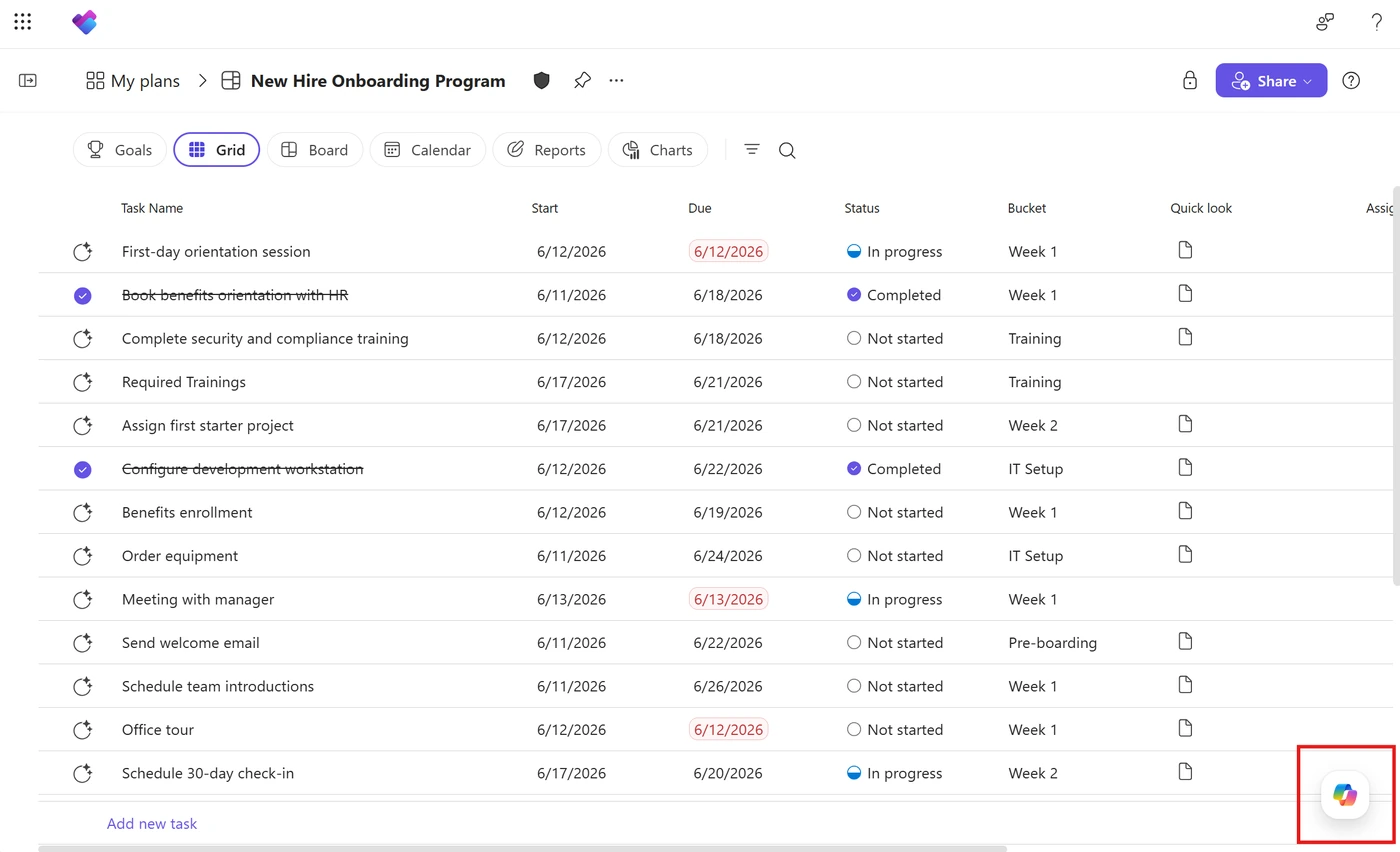
Microsoft's Support example highlights the Copilot button at the bottom right of a basic plan. This shows where to open Planner Agent, not a completed chat or task update. Source: Microsoft.
📖 Microsoft 365 Copilot release notes · AI at Work Roadmap 560532
Connectors and extensibility
29. Federated Copilot connectors are generally available
For: Researcher, Microsoft 365 Chat, Copilot in Excel · Web · Generally available per Microsoft Learn, 23 September 2026 · Roadmap 501120
Federated connectors look up information in another service when you ask, using your identity and permissions. They use the Model Context Protocol (MCP), a standard way for an assistant to call a connected tool. Unlike synced connectors, they do not build a Microsoft 365 search index of the external data. Retrieved information still comes back to Copilot to help answer the question.
Microsoft’s Learn page also describes write actions starting to roll out in October, while the matching roadmap entry is still In development. Researcher remains read-only. Treat action support as dependent on the connector, Copilot app and rollout, not as part of every generally available connection. The approval example below comes from that documentation.
Why this matters: Copilot can look up a current record without waiting for the next sync. You still need to review permissions, data handling and the partner's terms.
- In plain words: Think of looking a record up at the source rather than keeping a second searchable copy in Microsoft 365. That does not mean no information passes between services.
- Picture this: Copilot looks up a record in a connected service using your login, so the answer can use its current details.
- My take: I'd check both read and write tools before enabling a connector. Review what users can approve and which approvals they can choose to remember.
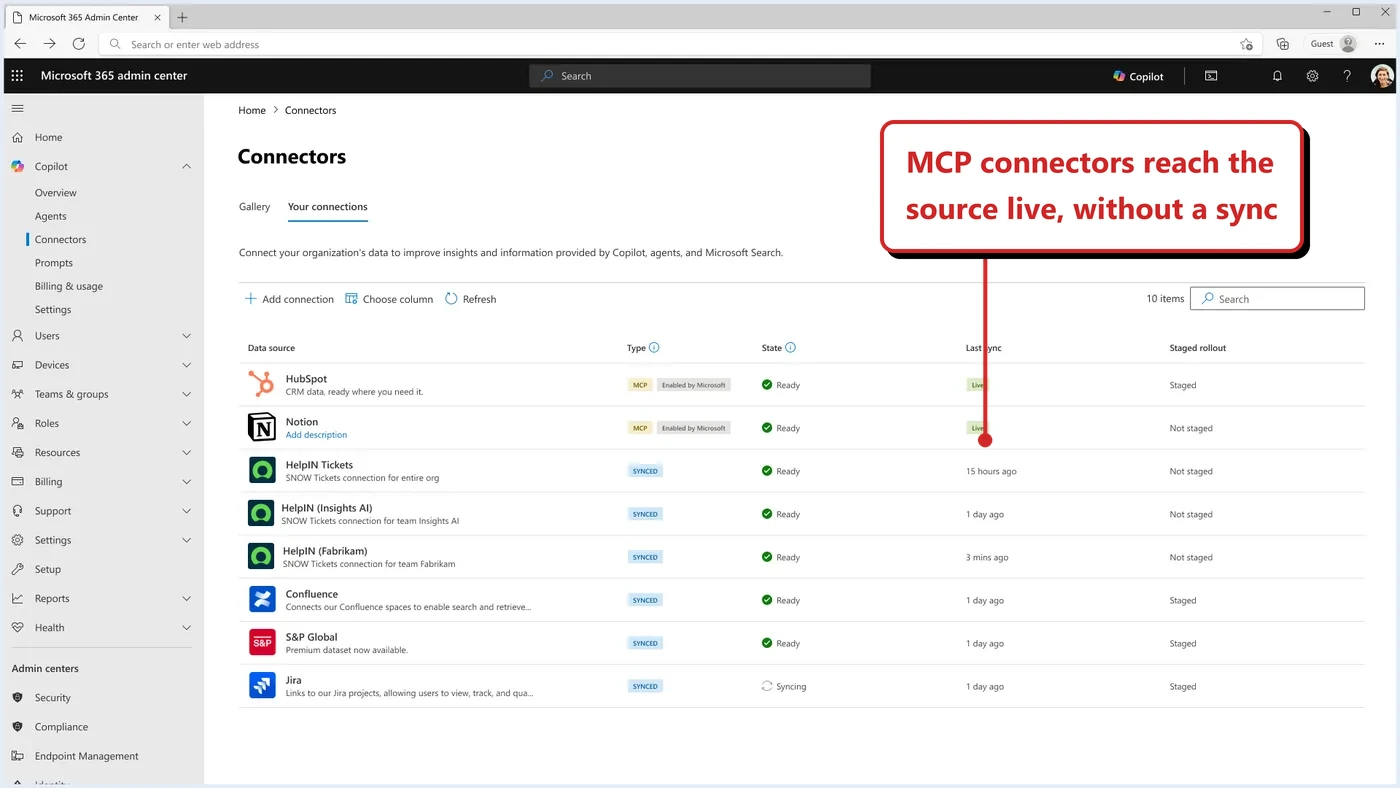
Microsoft Learn's example of live and synced connections, not my tenant's inventory.
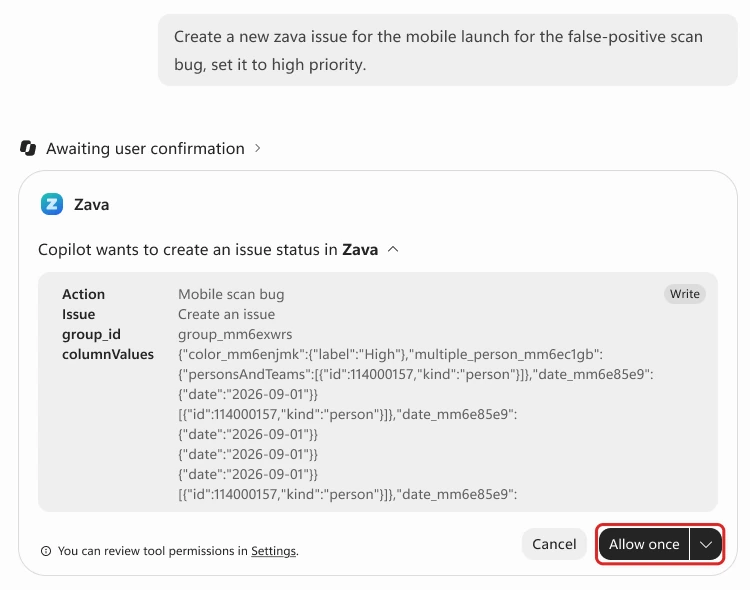
Microsoft Learn's initial write-action approval example. Allow once applies to this action; other choices can remember approval for that tool. This does not show a completed write or prove availability in my tenant.
📖 Federated connectors overview
30. Connector admins get pre-setup guides and clearer errors
For: Connector admins · Web · Released per Microsoft Learn, 23 September 2026 · Roadmap 502529
Pre-setup guides explain configuration before deployment. Settings can be edited after setup, and errors are actionable with alerting.
Why this matters: Fewer broken connectors and fewer silent failures.
- In plain words: Connector admins get setup guides before they start, edits after, and errors that tell you what to fix.
- Picture this: A connector breaks and you get a clear message and an alert, instead of silence.
- My take: Fewer silent failures. I'd read the guide before building any new connector.
📖 Microsoft 365 Copilot release notes · AI at Work Roadmap 502529
31. Connector query strings and identity mapping can be edited
For: Admins · Windows, Web · Released per Microsoft Learn, 6 October 2026
The release notes describe editing query strings and user identity mapping after setup under Settings > Search & intelligence > Data sources. A query string controls which records the connector brings in. Identity mapping matches accounts in the source service to Microsoft Entra users.
Check the connector’s supported settings before relying on this. Microsoft’s management table specifically lists editable query strings and user mapping for ServiceNow; partner connectors have a narrower set of editable fields. A change may also need a new crawl before it affects results.
Why this matters: You may be able to correct a supported setting without rebuilding the connection. It is not a replacement for fixing permissions in the source system.
- In plain words: Some connection settings can be corrected after setup. Which ones depends on the connector.
- Picture this: A ServiceNow connection includes the wrong records. You review its query and mapping, then check the next crawl and test the results as an affected user.
- My take: I'd check the supported-settings table first, then verify the result. Changing a mapping is not a safe shortcut around a permissions problem.
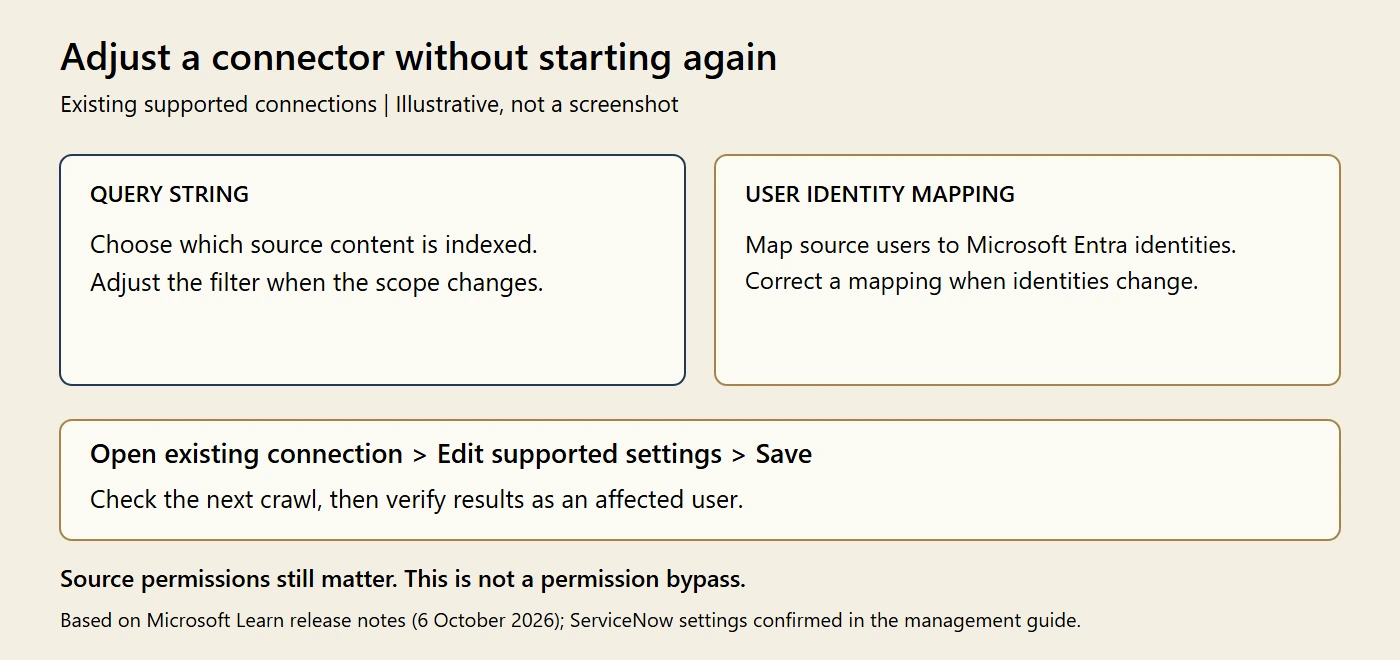
My illustration, not a product screenshot or a tested configuration change. Microsoft's management guide explicitly lists editable query strings and user mapping for ServiceNow. Source: Microsoft Learn.
📖 Microsoft 365 Copilot release notes
Admin, analytics and governance
32. A dedicated License Requests page
For: Admins · Web · Released per Microsoft Learn, 23 September 2026 · Roadmap 561206
The admin center has a License Requests page for Copilot licence requests, with sorting, filtering and bulk actions.
Why this matters: Requests no longer hide in notifications.
- In plain words: The admin center has a License Requests page, with sorting, filters and bulk actions.
- Picture this: Twenty people ask for Copilot in a week. You approve them in one go.
- My take: Small, but it removes a real daily chore. Check it each Monday.
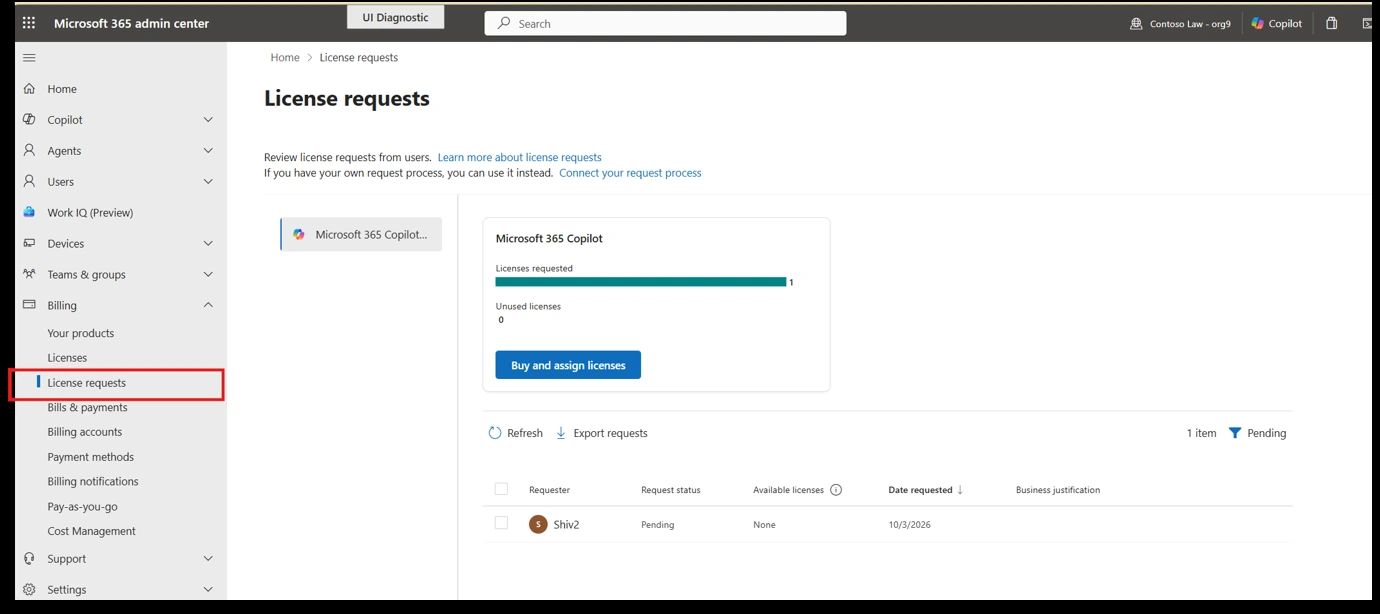
Microsoft's Message Center screenshot shows Billing > License requests, a Copilot licence request and the Buy and assign licenses action. Microsoft's original red outline is retained. Source: Microsoft.
📖 Microsoft 365 Copilot release notes · AI at Work Roadmap 561206
33. Admins can add a policy link for blocked Copilot users
For: Admins · Released per Microsoft Learn, 23 September 2026
When the Copilot app is blocked by policy, you can show users a link to your company policy or guidance, set in the Copilot app access settings.
Why this matters: Fewer "why can't I use Copilot" tickets.
- In plain words: When Copilot is blocked for a user, you can show a link to your company policy.
- Picture this: A blocked user sees “here is why, and who to ask”.
- My take: Give people a useful next step, not just a blocked screen. I'd link to a short explanation and the right person to contact.
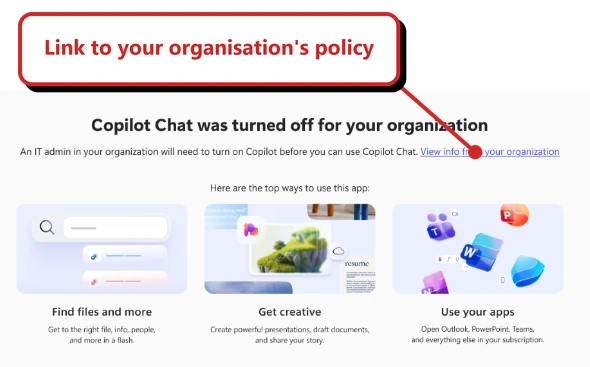
Microsoft's documentation shows the blocked-access screen and View info from your organization link. This is the user-facing message, not the admin configuration screen. Source: Microsoft.
📖 Manage Microsoft Copilot Chat
34. A report on “Everyone” and “Everyone except external users”
For: SharePoint Advanced Management admins · Web · Released per Microsoft Learn, 6 October 2026 · Roadmap 561038
The report Sites and files shared via special SharePoint group gives item-level detail on what is shared with Everyone or Everyone except external users. Microsoft’s path is Advanced Management, All features, Data access governance reports.
Why this matters: Broad access is easy to overlook. This report helps you find it so you can decide whether it is still appropriate.
- In plain words: A new report shows what is shared with Everyone or Everyone except external users, item by item.
- Picture this: You find a payroll file shared with the whole company.
- My take: Think of this as checking which doors are open before inviting more people in. Review broad access before a wider Copilot rollout, not after.
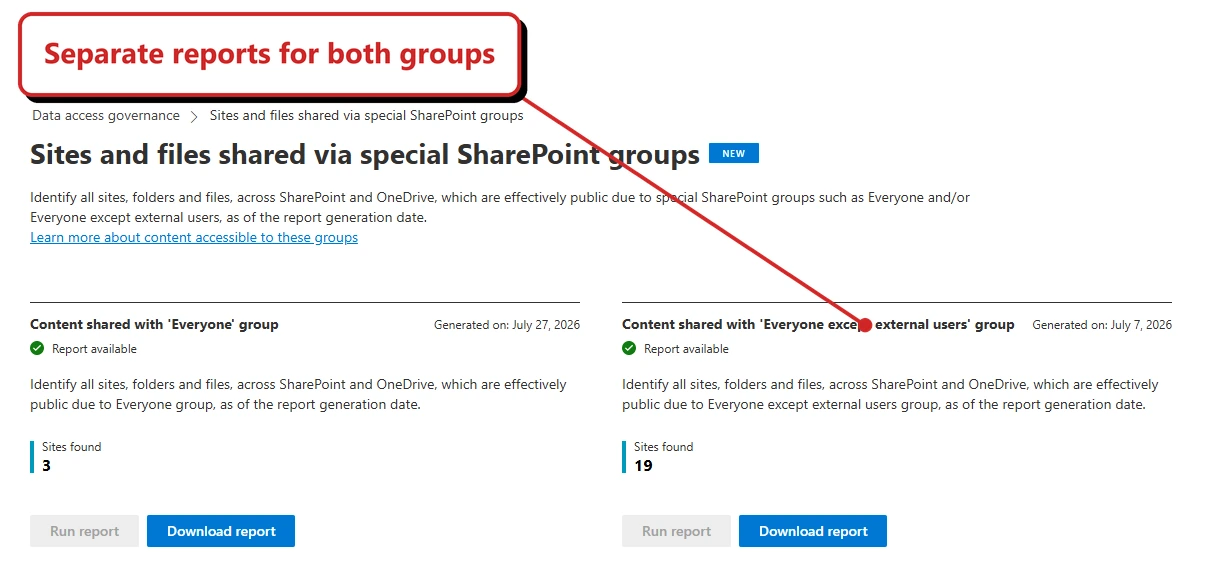
Microsoft's example shows separate reports for Everyone and Everyone except external users, each with a Download report button. The sample counts and dates are Microsoft's, not a scan of my tenant. Source: Microsoft.
📖 Microsoft 365 Copilot release notes
35. Admins can delete all People Skills data
For: Admins · Web · Released per Microsoft Learn, 23 September 2026 · Roadmap 565905
A new control permanently deletes the skills library and all confirmed, inferred and imported skills. Afterwards skills stop appearing on profile cards or in Copilot and Viva. It is admin-only and manual.
Why this matters: Permanent. Read the confirmation text before you click.
- In plain words: An admin can permanently delete all People Skills data.
- Picture this: Your organisation decides to remove People Skills entirely. This deletes the whole library, not just one person's inferred skills.
- My take: It cannot be undone. Read the warning twice and get sign-off from HR first.
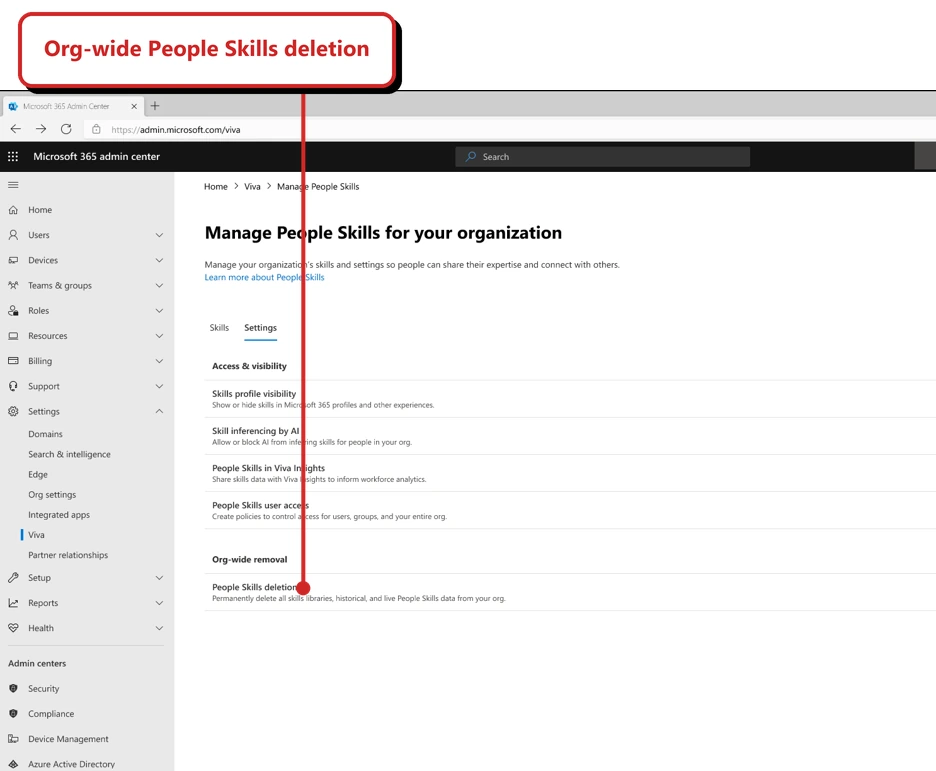
Microsoft's documented settings screenshot places People Skills deletion under Org-wide removal. This is Microsoft's example; no deletion was performed. Source: Microsoft.
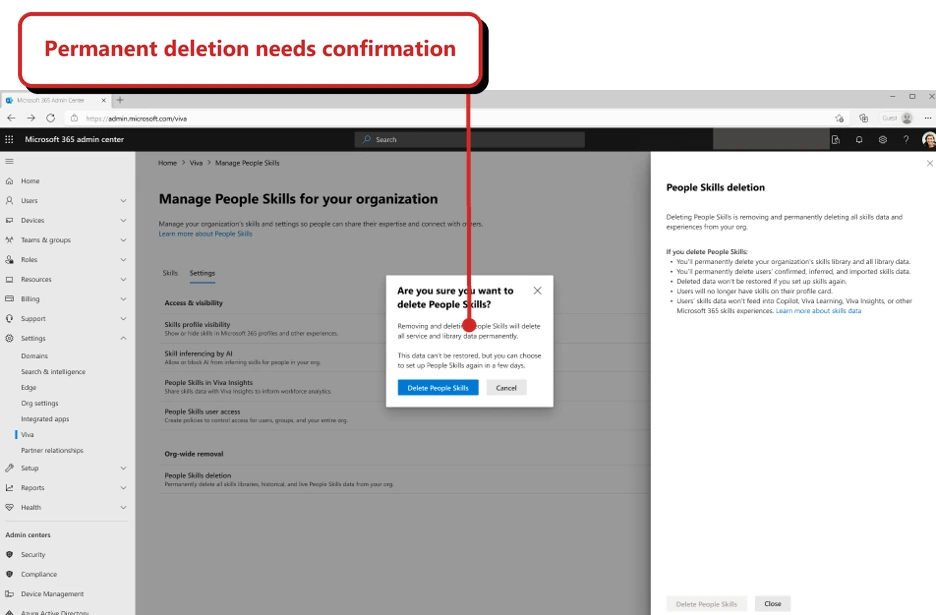
Microsoft's confirmation dialog warns that removal is permanent. No deletion was performed for this blog. Source: Microsoft.
📖 Microsoft 365 Copilot release notes · AI at Work Roadmap 565905
36. Cowork adoption and impact appear in the dashboards
For: Admins and analysts · Web · Released per Microsoft Learn, 6 October 2026 · Roadmap 567005
The Copilot and Consumption dashboards add Cowork adoption and impact metrics, with export. Analysts can use a new Consumption query for credit data and the Person query for Cowork usage in advanced insights.
Why this matters: You can compare credit use with adoption and estimated assistance. That is a starting point for a value conversation, not proof of money or hours saved.
- In plain words: The dashboards add Cowork adoption and impact numbers, and you can export them.
- Picture this: You compare which task types use the most credits, then ask the people doing those tasks whether the results helped.
- My take: I'd review the dashboard alongside a few real examples each month. Assisted hours are estimates, not a timesheet or a finance calculation.
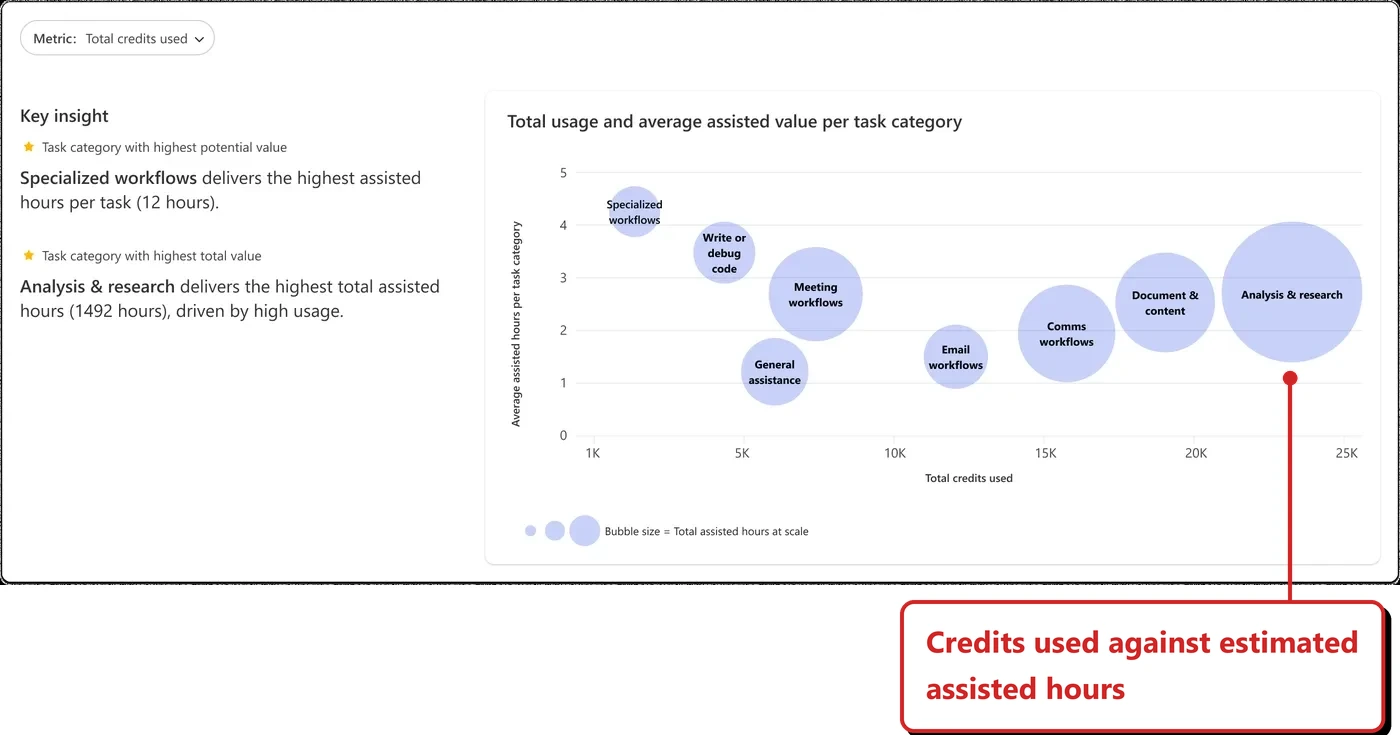
Microsoft's Consumption dashboard example compares credits with estimated assisted hours. The chart is not measured time savings from my tenant.
📖 How to use the Consumption Dashboard in Insights · AI at Work Roadmap 567005
37. The Copilot usage snapshot report updates daily
For: Viva Insights · Web · Released per Microsoft Learn, 23 September 2026 · Roadmap 561325
The Copilot usage snapshot Power BI report lets you track usage day by day. Daily reporting does not mean real-time data: Microsoft says the freshest data is two to three days behind.
Why this matters: Day-level trends help you spot short-term changes without waiting for a monthly view.
- In plain words: You can view daily usage, with a two-to-three-day data delay.
- Picture this: After a training session, compare daily usage once the data for those days becomes available.
- My take: I'd use it to spot a change worth investigating. Remember the delay before judging yesterday's training session.
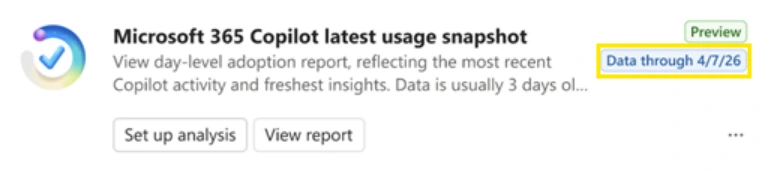
Microsoft's documentation example of the report card. The highlighted Data through date shows which day's data is available; this is not a capture from my tenant. The preview badge and example date belong to the source image.
📖 Microsoft 365 Copilot release notes · Usage snapshot report and data freshness
38. More Power BI filters in Copilot analytics
For: Insights admins · Web · Released per Microsoft Learn, 23 September 2026 · Roadmap 559995
Global and Insights admins can enable extra reserved and custom attributes as filters in the Power BI reports.
Why this matters: Slice adoption by your own organisation's attributes.
- In plain words: Admins can switch on more filters in the Copilot Power BI reports.
- Picture this: Compare adoption by department or office, not just the whole company.
- My take: Useful, but only if your org data is clean. Check your attributes first.
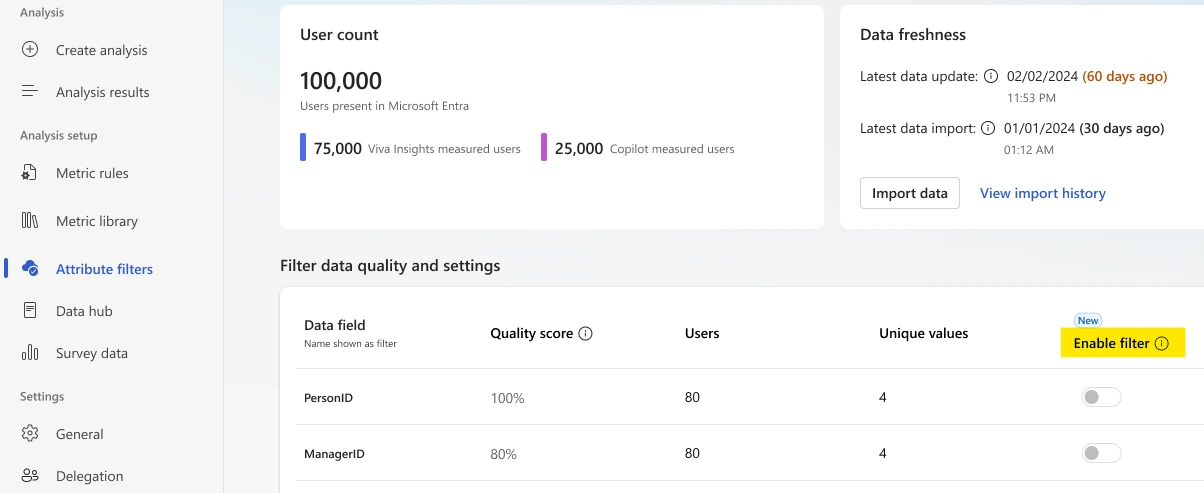
Microsoft's configuration example shows the Attribute filters page and Enable filter toggles. It illustrates the setup control, not a live report or evidence of refresh timing; Microsoft's original highlight is retained. Source: Microsoft.
📖 Enable filters for out-of-the-box reports
39. Viva Glint uses Copilot to assign topics
For: Viva Glint · Web · Released per Microsoft Learn, 23 September 2026 · Roadmap 553224
Glint’s topic assignment now uses Copilot and adds five topics: Psychological Safety, Artificial Intelligence, Privacy & Data Use, Hybrid Work and Ethics. It follows the Glint Copilot toggle and applies to ad-hoc and recurring surveys at launch.
There is no separate topic-assignment toggle. Results appear in the existing Reports → Comments → Topics view, and the enhanced processing does not reprocess historical reports.
Why this matters: Check the toggle is on before expecting the new topics.
- In plain words: Viva Glint uses Copilot to tag survey comments with topics. Five new topics were added.
- Picture this: Hundreds of comments get grouped under Hybrid Work or Psychological Safety.
- My take: Check whether your organisation has enabled Glint Copilot and agreed how it should be used. I would not change a survey setting just to try the new topics.
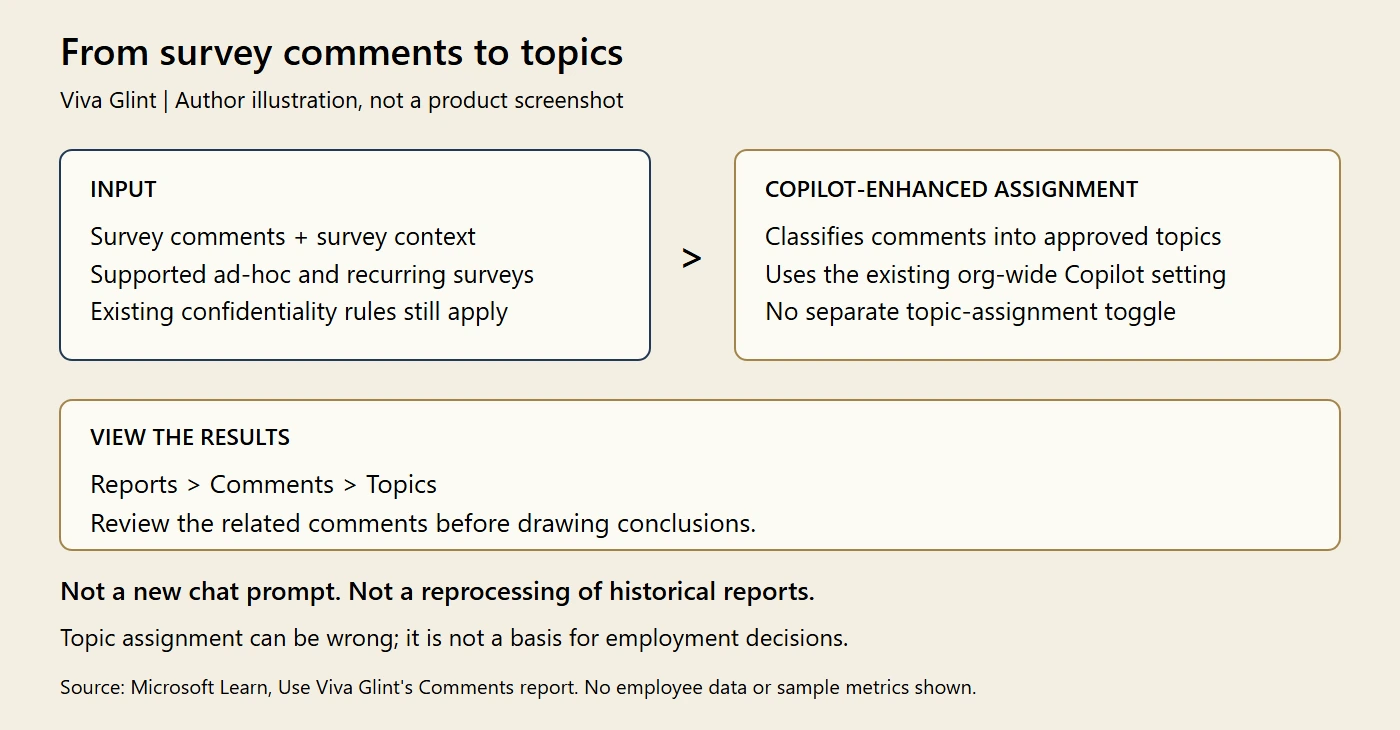
My illustration, not a product screenshot or a tenant test. It explains the processing and where results appear; it does not simulate survey responses. Source: Microsoft Learn.
📖 Microsoft 365 Copilot release notes · How Glint assigns topics
40. Targeted release is retiring
For: Admins · Message Center MC1490899
Admins assign Frontier, Standard or Deferred release preferences. In November 2026 admins can no longer add, remove or change Targeted release enrolments, and a single unified release-preferences experience in the admin center takes over. Targeted release retires in January 2027. Microsoft’s post asks admins to review and update assignments before November.
Why this matters: If your pilot group relies on Targeted release, move them before November.
- In plain words: Targeted release is being phased out. From November admins cannot change enrolments, and it retires in January 2027.
- Picture this: Your pilot group is on Targeted release. They need a new home before November.
- My take: This one has a deadline. I'd move your pilot group to a release preference now.
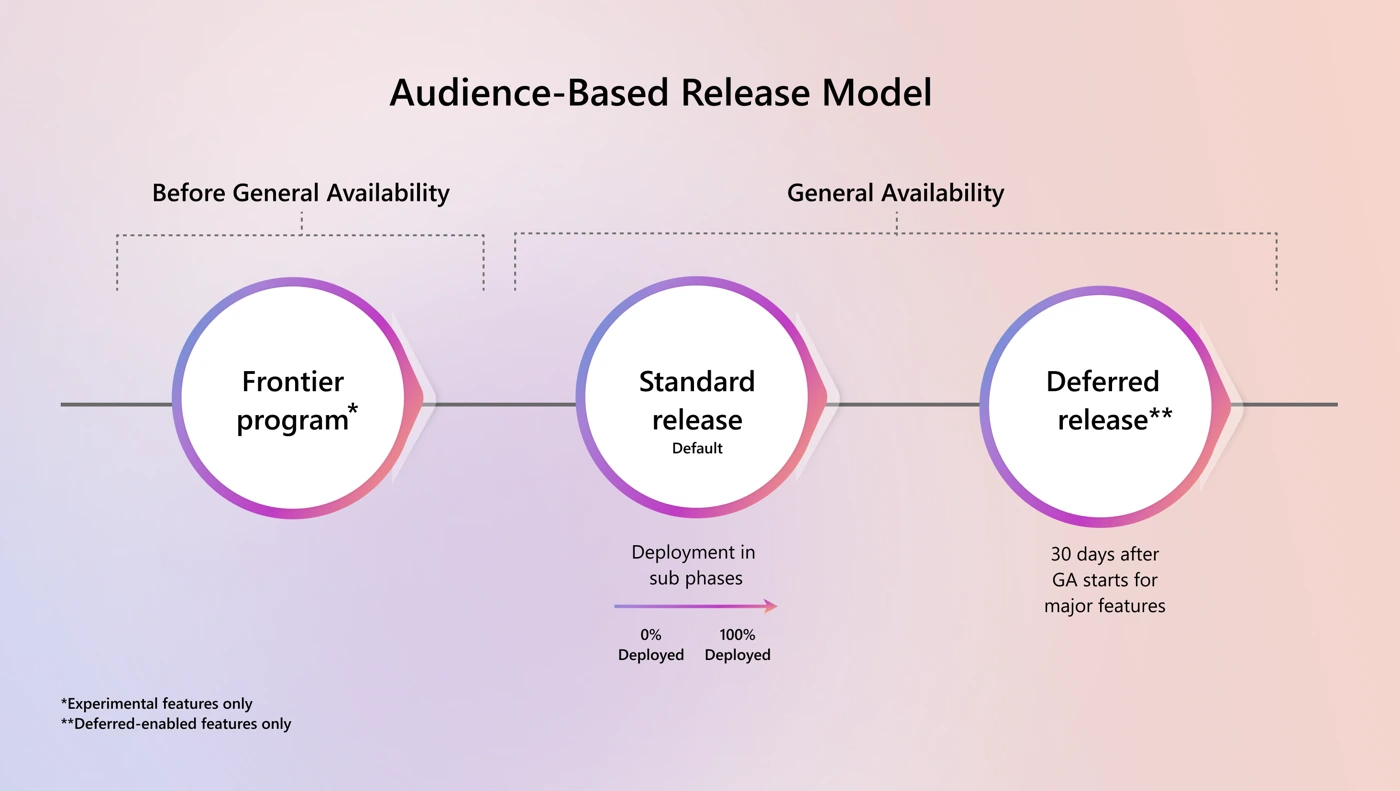
Official Microsoft Learn diagram of the replacement release model, not a screenshot of the upcoming unified admin screen. Source: configure release options.
Catch-up: what Microsoft’s September roundup added
Microsoft published its own What’s New in Microsoft Copilot | September 2026 after my September issue went out. These are the items from it that I had not already covered. Each keeps Microsoft’s stated date. A few, including Edge and parts of the PowerPoint update, carry October rollout dates despite appearing in September’s roundup.
41. Teams Phone Agent answers calls for you
For: Teams Phone · Rolled out September 2026 (Microsoft roundup)
Teams Phone Agent is an AI calling receptionist for organisations like bank branches or IT help desks. Microsoft says it supports more than 60 languages, answers common questions, books and reschedules appointments, and routes callers to the right department or person with an AI-generated summary so callers do not repeat themselves.
Why this matters: This is a customer-facing phone feature, not a staff productivity one. Check licensing and the languages you need before promising it.
- In plain words: Teams Phone Agent answers calls like a receptionist, then passes the caller on with a short summary.
- Picture this: A bank customer calls about a mortgage. The agent takes the details and hands over so they do not repeat themselves.
- My take: I'd start with one call scenario, such as routing a caller to the right team. Check language support, licensing and the handover before widening it.
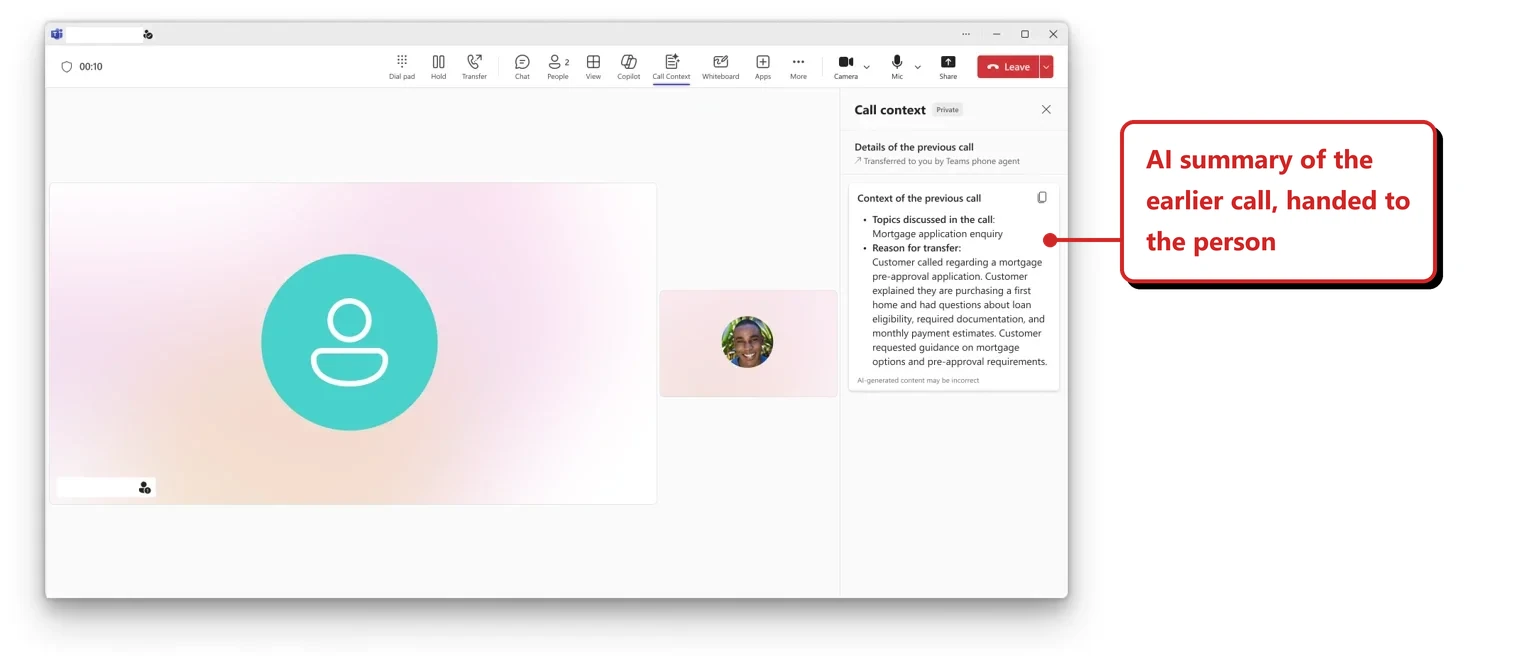
Official Microsoft example from the September 2026 Copilot roundup, not a feature test in my tenant.
📖 Microsoft’s September roundup
42. Record captures conversations in the Copilot mobile app
For: Microsoft Copilot mobile app · Rolled out September 2026 (Microsoft roundup)
Record captures in-person conversations and voice notes, then gives you a transcript and summary in Copilot Chat. You can ask follow-up questions or pull out action items from it.
Why this matters: Recording people is a legal and policy question before it is a feature. Check consent rules for your organisation and country.
- In plain words: Record in the Copilot mobile app captures a conversation and gives you a transcript and summary.
- Picture this: After everyone agrees to recording and you have checked the rules, you capture an in-person discussion and review the suggested action items afterwards.
- My take: Check consent rules first. Recording people is a legal question before it is a feature.
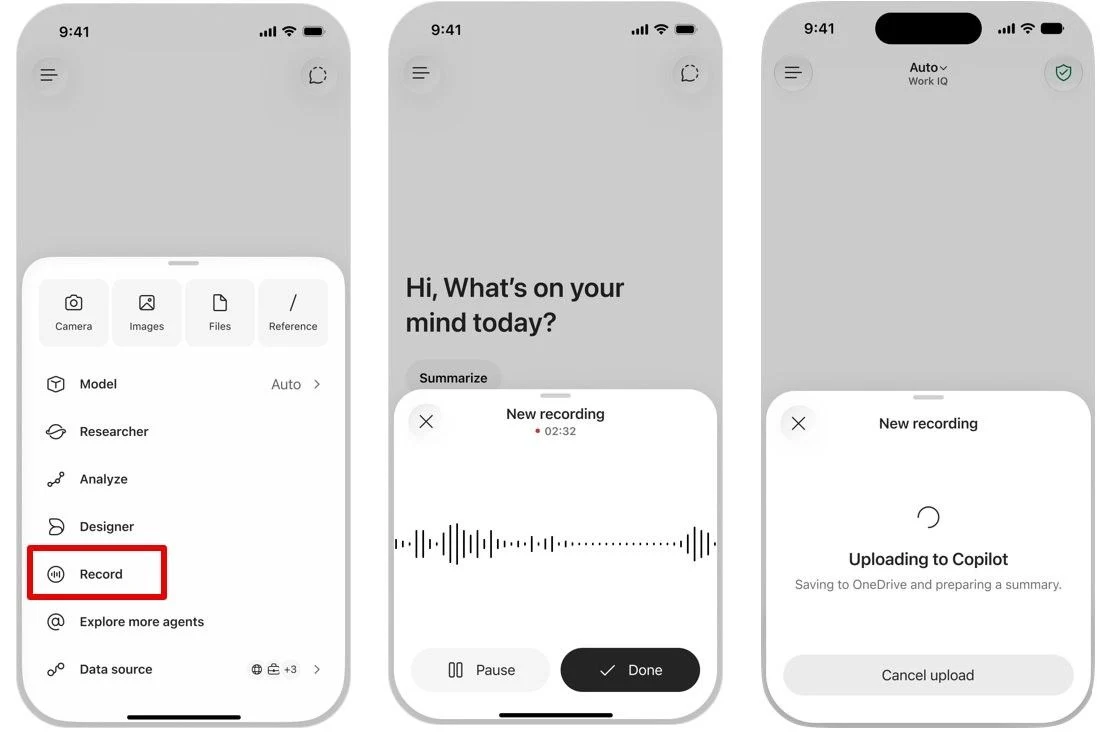
Microsoft's September example follows Record from the menu to recording and upload. It is not a conversation I recorded.
📖 Microsoft’s September roundup
43. Copilot in Teams and Outlook gets the new look, and you can call agents and skills inline
For: Copilot in Teams and Outlook · Rolled out September 2026 (Microsoft roundup)
The full-screen Copilot and the side pane in Teams and Outlook now follow the wider Copilot app design, with simpler navigation and new ways to organise work. In chat, type / to call an agent or @ to call a skill without leaving your prompt.
Why this matters: Expect "it looks different" questions from users. The inline shortcuts are the part worth teaching.
- In plain words: Copilot in Teams and Outlook gets the new look. Type / to call an agent or @ to call a skill.
- Picture this: In chat you type @ and pick a skill without leaving the prompt.
- My take: Expect “it looks different”. The / and @ shortcuts are what I'd teach.
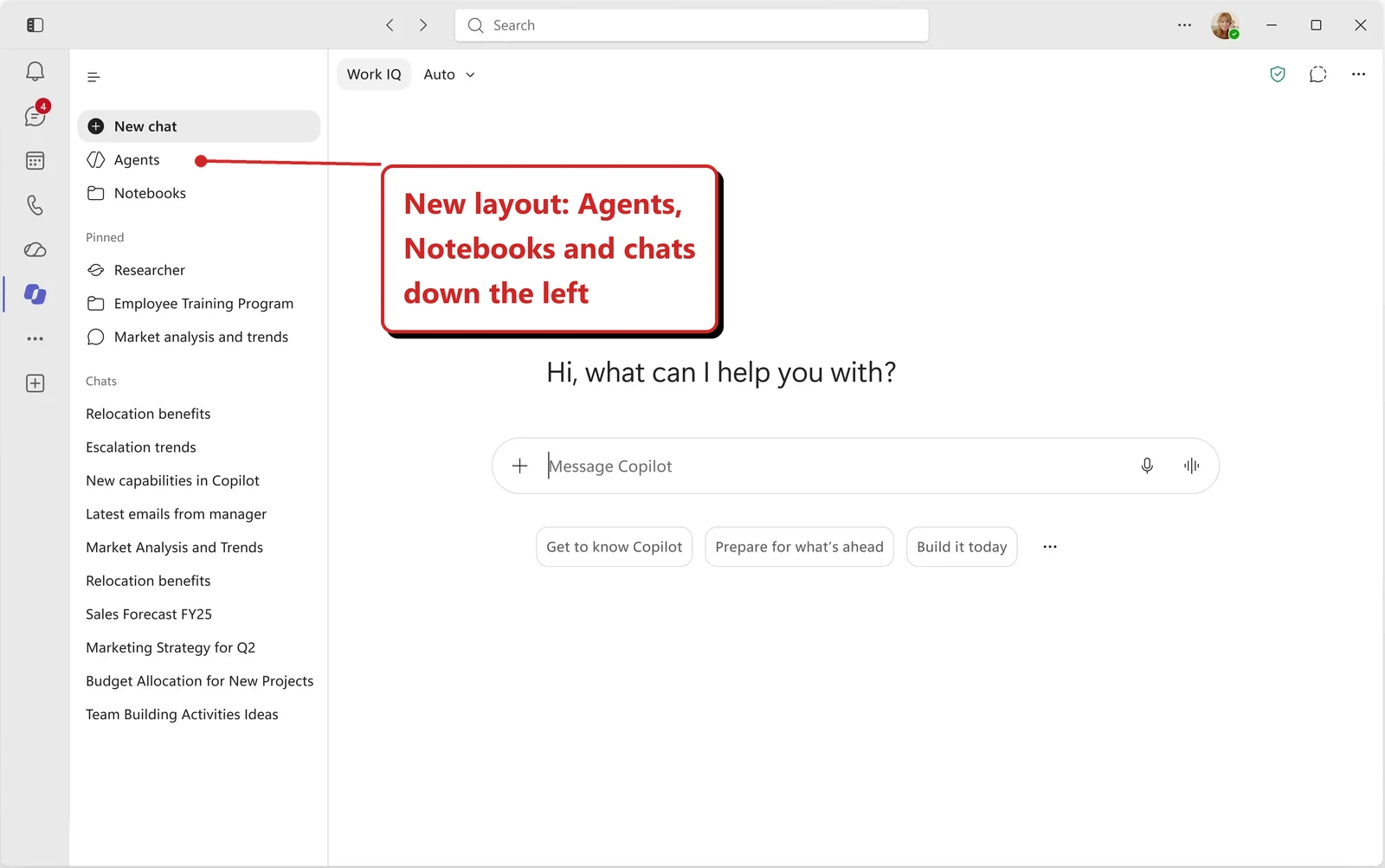
Microsoft's September Teams example uses the older Agents label; section 3 covers October's Plugins change. This image does not demonstrate the inline shortcuts.
📖 Microsoft’s September roundup
44. The Edge new tab page gets Copilot search, chat and suggested actions
For: Microsoft Edge · Rolling out October 2026 (Microsoft roundup)
Search, chat and web exploration share one box on the Edge new tab page, with Copilot-suggested actions and curated work content beside it.
Why this matters: You can start a work question from a new tab instead of first finding the right app.
- In plain words: The Edge new tab page has one box for search, chat and web, with suggested actions.
- Picture this: You open a new tab and ask a question right there.
- My take: Microsoft gives an October rollout, not a single switch-over day. I'd give the helpdesk an example of the new page before users start asking about it.
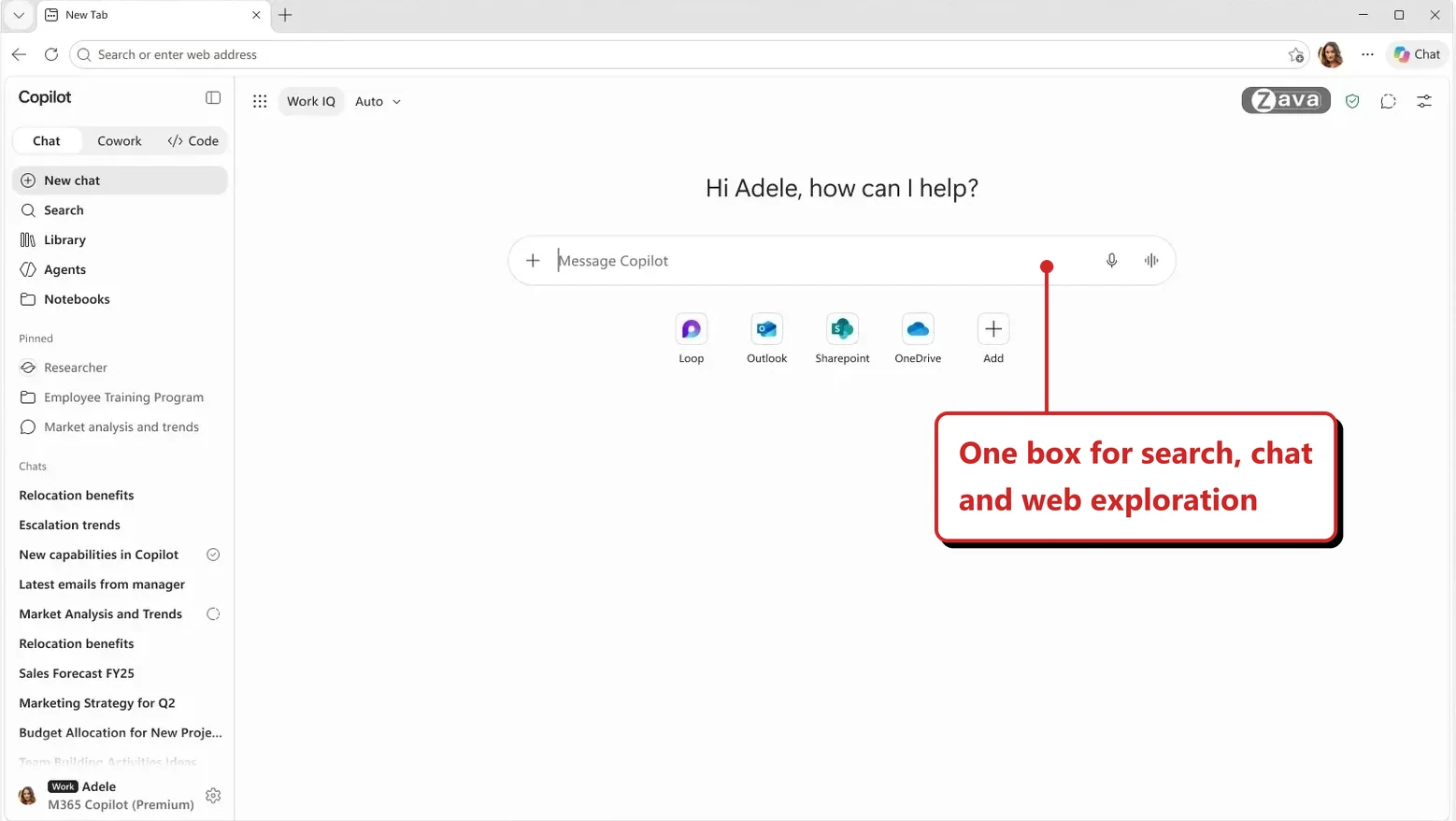
Microsoft's September roundup previews the Edge page for its October rollout. It shows the starting screen, not a completed search or task.
📖 Microsoft’s September roundup · AI at Work Roadmap 566703
45. Copilot Chat matches scanned PDFs better
For: Copilot Chat · Rolled out September 2026 (Microsoft roundup)
Chat now does a better job of matching search results from scanned PDFs, so information inside scanned files is easier to find.
Why this matters: A detail inside a scanned document can help you find it even when the filename tells you little.
- In plain words: Chat finds information inside scanned PDFs better.
- Picture this: You remember the amount on an invoice but not its filename. Ask for that text, then open the matching scan to check it.
- My take: Great for old paperwork. Test it with your own scans, because quality varies.
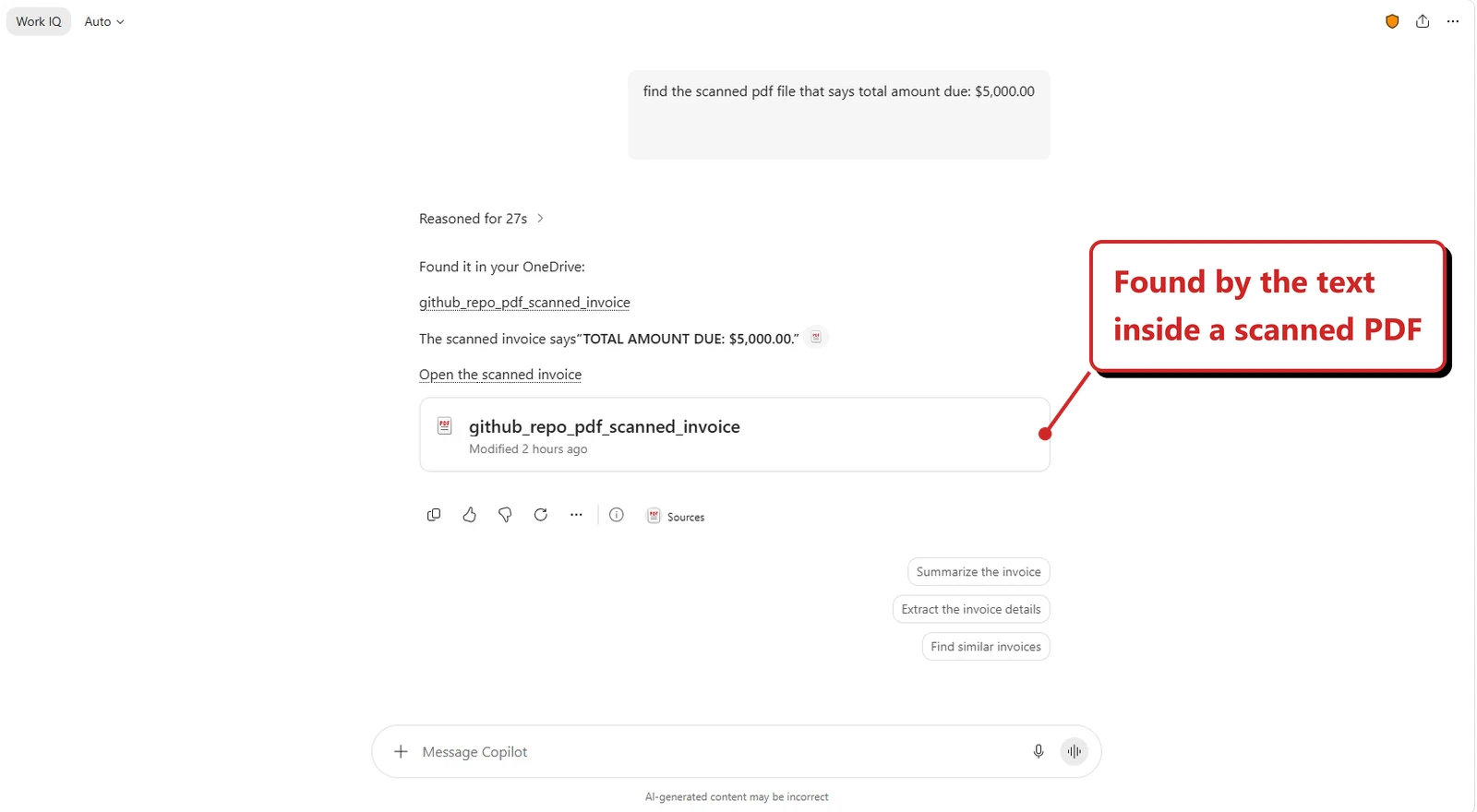
Microsoft's example finds a scanned invoice using text from inside it. The amount and filename belong to that example, not my own test.
📖 Microsoft’s September roundup
46. Copilot in Word, Excel and PowerPoint reaches Android
For: Word, Excel and PowerPoint on Android · Rolled out September 2026 (Microsoft roundup)
Copilot editing in the three apps reached Android in September. Microsoft says it rolled out earlier this year on iOS.
Why this matters: Android users can ask for document changes on their phone rather than waiting to return to a computer.
- In plain words: Copilot editing in Word, Excel and PowerPoint reached Android.
- Picture this: On the train you tell Word to add an intro and a conclusion.
- My take: Handy for a small change when you are away from your desk. I'd still open the result and read it before sharing.
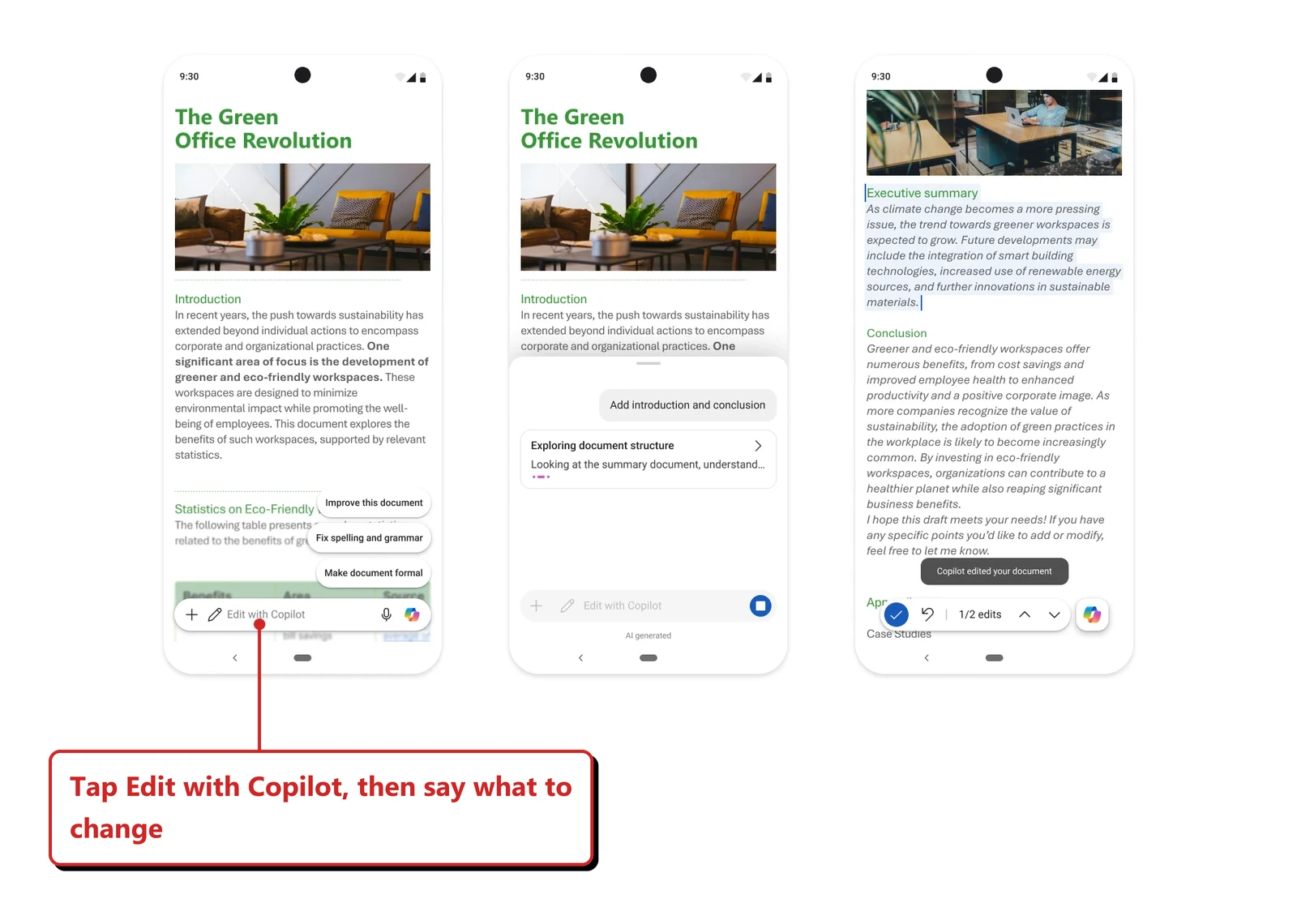
Microsoft's Android example shows a Word edit request and the reported result, not every Copilot action in all three mobile apps.
📖 Microsoft’s September roundup
47. Word shows citations and can arrange images and shapes
For: Copilot in Word · Rolled out September 2026 (Microsoft roundup)
Two Word changes. Copilot responses show citations to the web and work content behind an answer. Copilot can also arrange and modify images and shapes in a document to make layouts tidier.
Why this matters: Citations let a reader check where an answer came from. Still check the source yourself for anything important.
- In plain words: Word answers now show citations, and Copilot can arrange and resize images and shapes.
- Picture this: You ask Word to “support this draft with citations” and get footnotes.
- My take: Citations help, but check the source for anything important.
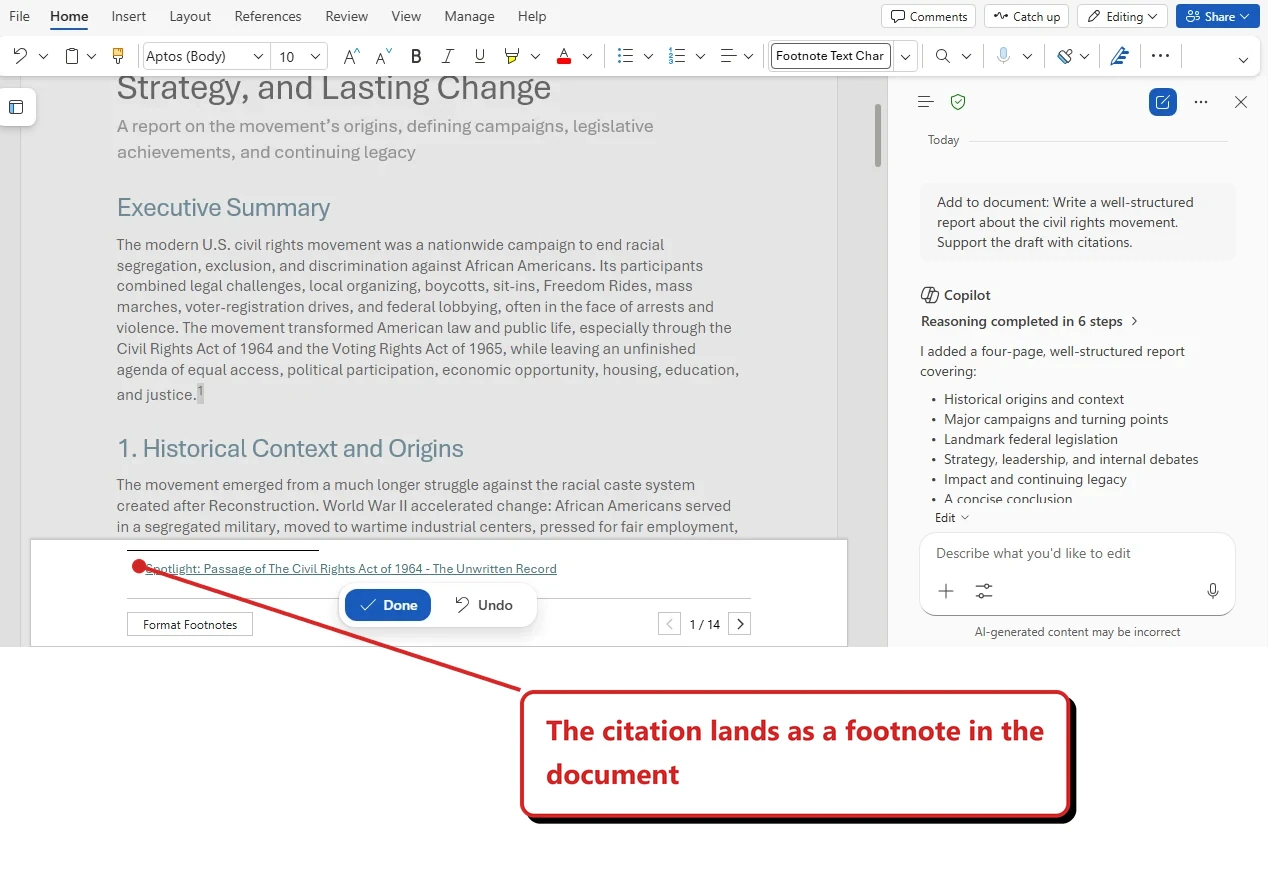
Microsoft's Word example shows a citation added as a footnote. This is one example of citing a draft, not a guarantee that every answer is fully sourced.
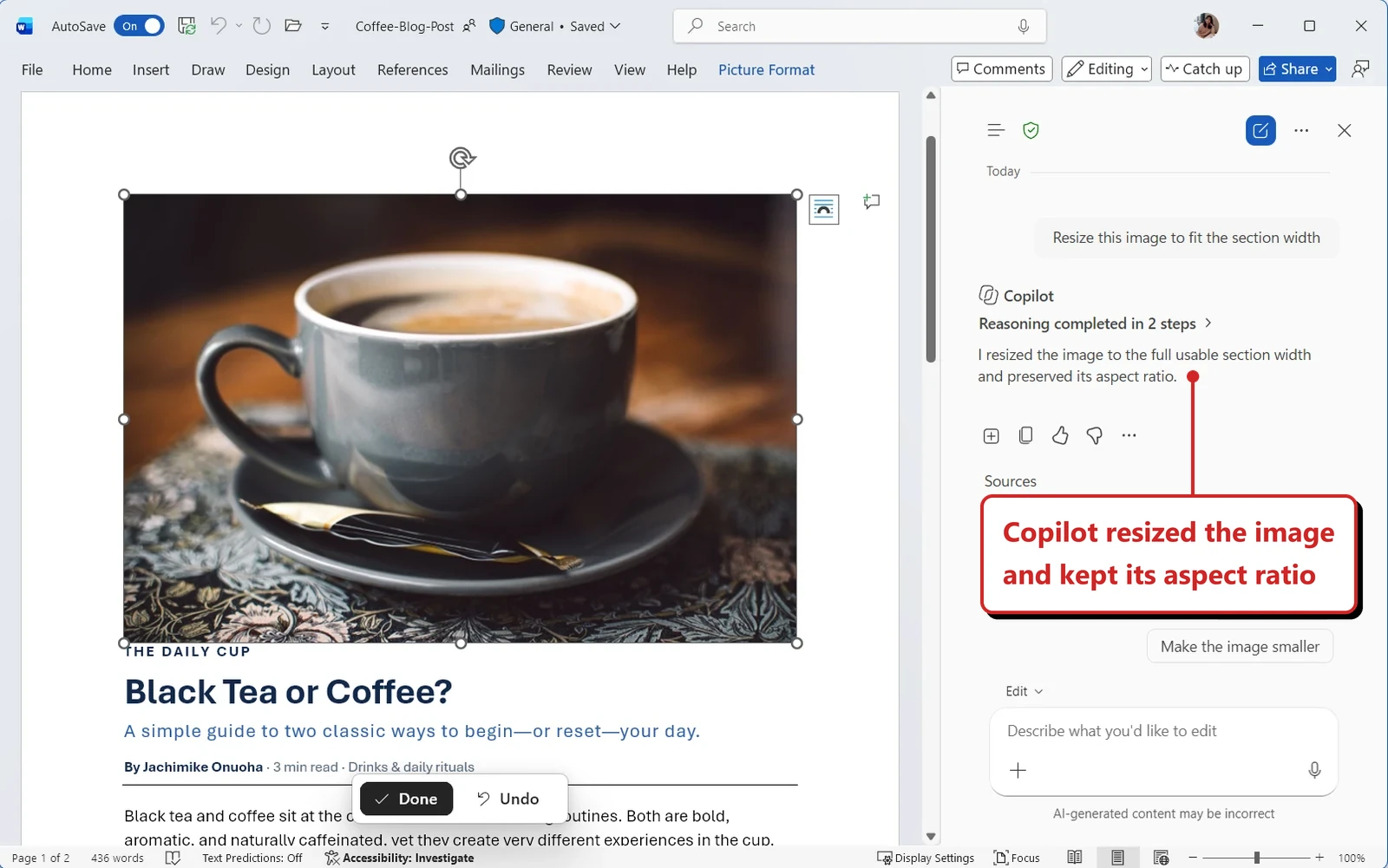
Microsoft's separate image-resizing example shows Done and Undo controls. It is not a before-and-after test I ran.
📖 Microsoft’s September roundup
48. PowerPoint: admin-published Skills, Brand Kit Skills and long-running tasks
For: Copilot in PowerPoint · Skills published in September, Brand Kit Skills and long-running tasks rolling out October 2026 (Microsoft roundup)
Admins can publish approved Skills to specific users, groups or the whole organisation. Brand Kit can include Skills alongside the visual guidance (October). Connectors let you bring information from other apps into slides (September). And Copilot can keep working on a long task after you close PowerPoint, switch device or go offline, with a notification when it finishes or needs you (October). Prebuilt Skills such as Explain this presentation and Sharpen slide titles are covered in September’s issue.
Why this matters: Brand managers can now package how a team builds decks, not just how they look.
- In plain words: PowerPoint gets admin-published Skills and Brand Kit Skills. Copilot can keep working on a long task after you close the app.
- Picture this: The brand team packages “every deck starts with our cover slide” as a skill the whole company can use.
- My take: This lets a team package how decks are built, not just how they look. I'd start with one skill.
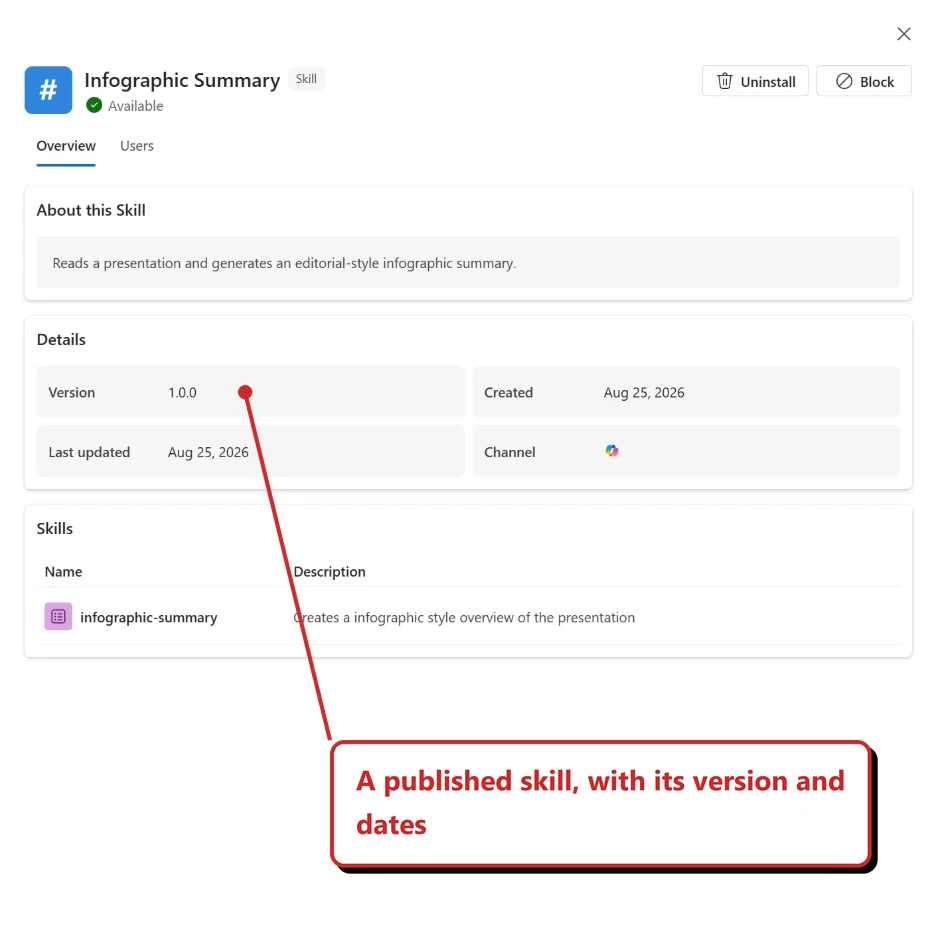
Microsoft's admin example shows a published skill and its controls. The publisher's name is masked; no skill was published for this article.
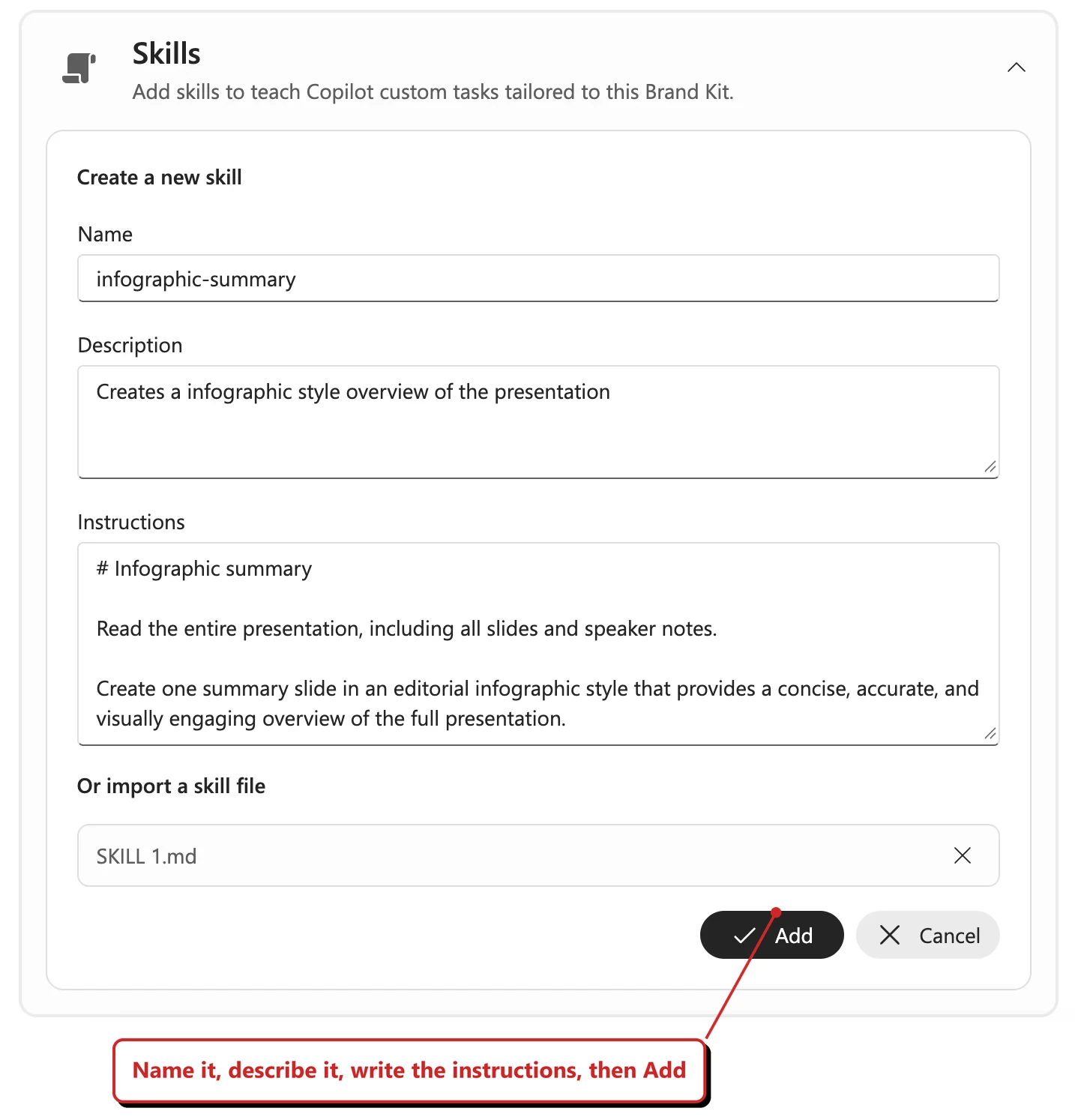
Microsoft's Brand Kit example shows the instructions used to create a skill. This is the setup form, not a completed test of that skill.
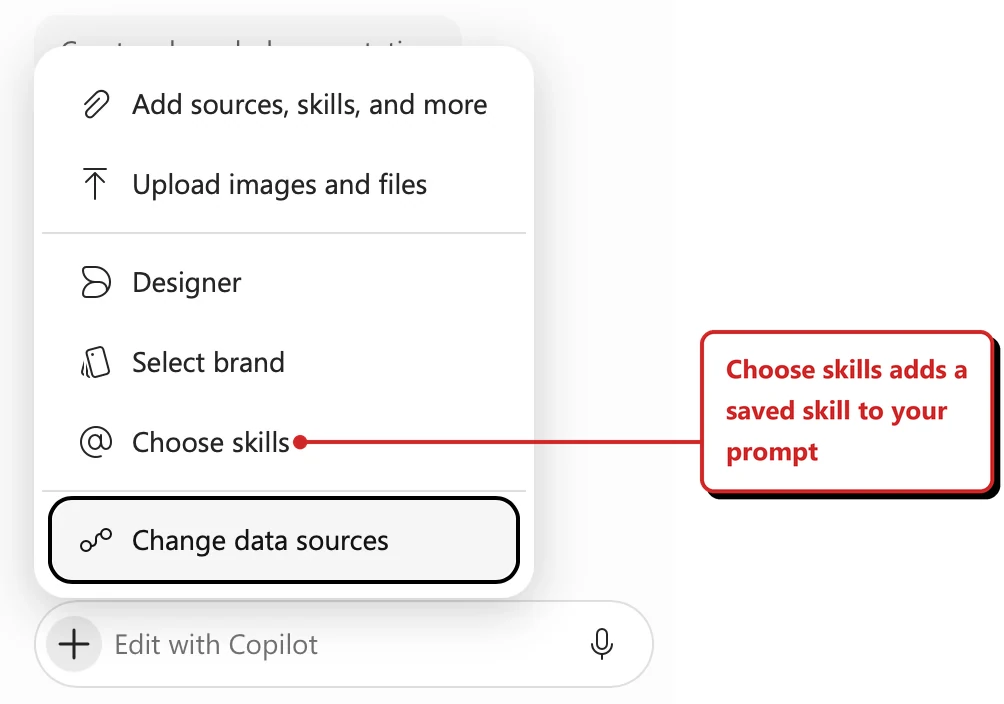
Microsoft's PowerPoint menu shows where to choose skills and sources. It does not demonstrate a long-running task continuing after the app closes.
📖 Microsoft’s September roundup · AI at Work Roadmap 569018
49. SharePoint apps can show interactive UI in Chat, and Work IQ gets SharePoint tools
For: SharePoint Framework developers · Rolling out to Frontier in September 2026 (Microsoft roundup)
Apps built with SharePoint Framework can show interactive UI components inside Copilot chat. Microsoft also says SharePoint content and action tools are coming to Work IQ, so Copilot can use and act on SharePoint content. The interactive UI is rolling out to Frontier. The SharePoint tools for Work IQ are announced as “soon”, so treat them as coming, not available. Neither is generally available.
Why this matters: An app can put a useful interactive view beside the conversation, reducing trips between Chat and a separate page.
- In plain words: A developer-built SharePoint app can put buttons or a small interactive view inside the chat. The separate Work IQ tools are still announced as coming.
- Picture this: A sales agent shows a live dashboard card right in the chat.
- My take: Developers should look at this. Treat the Work IQ part as coming, not available.
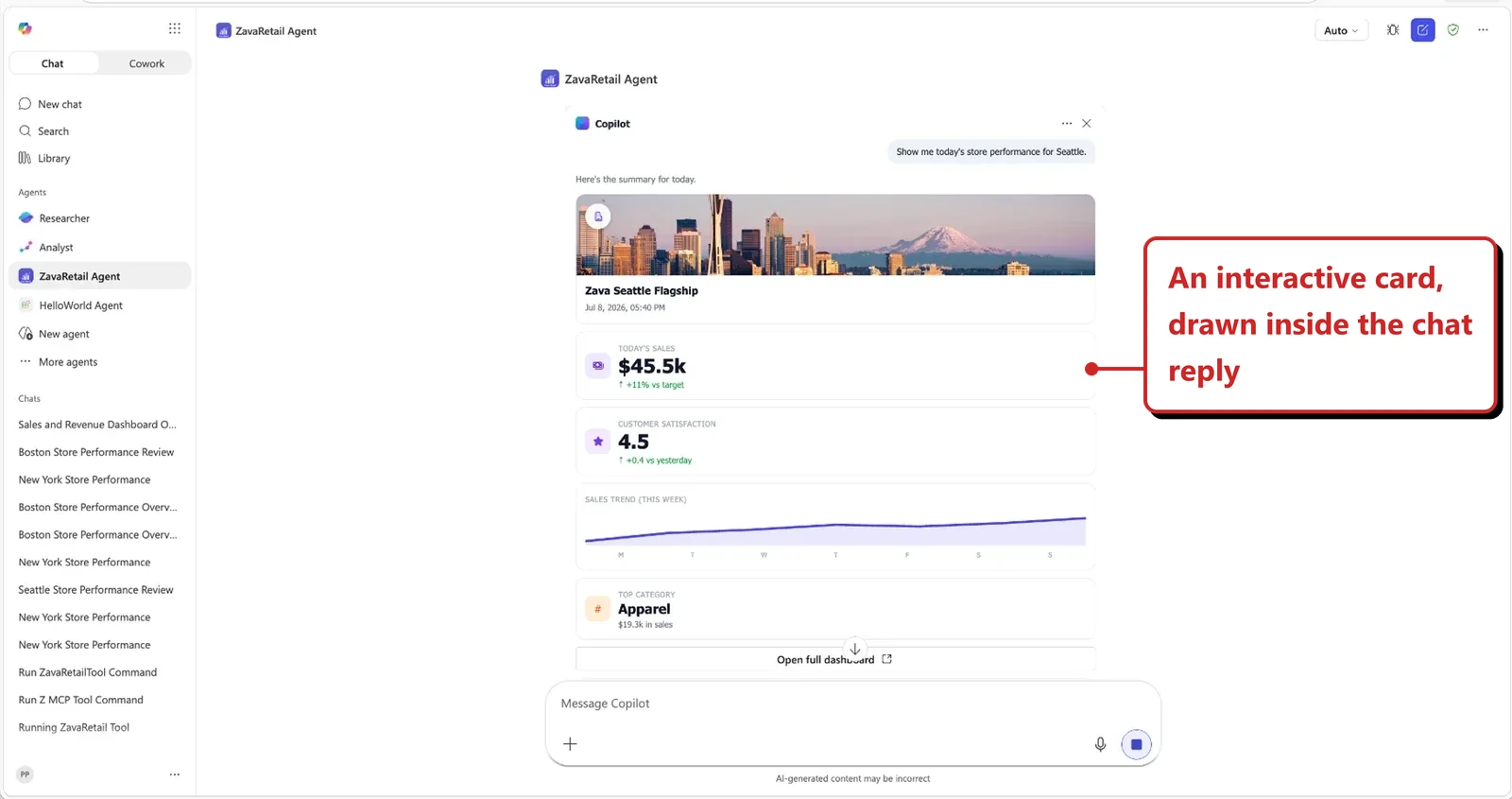
Microsoft's example shows an interactive sales card in a chat reply. The figures are example content, not data queried from my tenant.
📖 Microsoft’s September roundup
50. Copilot in OneDrive is rebuilt, and Copilot Search becomes the default in SharePoint and OneDrive
For: OneDrive and SharePoint · OneDrive updates rolled out September 2026, Search default rolling out to Frontier (Microsoft roundup)
Copilot in OneDrive now sits on the same foundation as Copilot in SharePoint and follows the same licensing approach (see section 14). Microsoft says Copilot Search is becoming the default search in both, rolling out to Frontier first.
Why this matters: Finding a file and asking about its contents become part of the same search experience. Check the rollout and licensing before planning a wider pilot.
- In plain words: OneDrive gets the same underlying Copilot approach as SharePoint. A separate Frontier rollout changes the search experience in both.
- Picture this: You search in OneDrive and get an answer with sources first, then the files.
- My take: Rolling out to Frontier first. I'd read the licensing note in section 14 so you are not surprised.
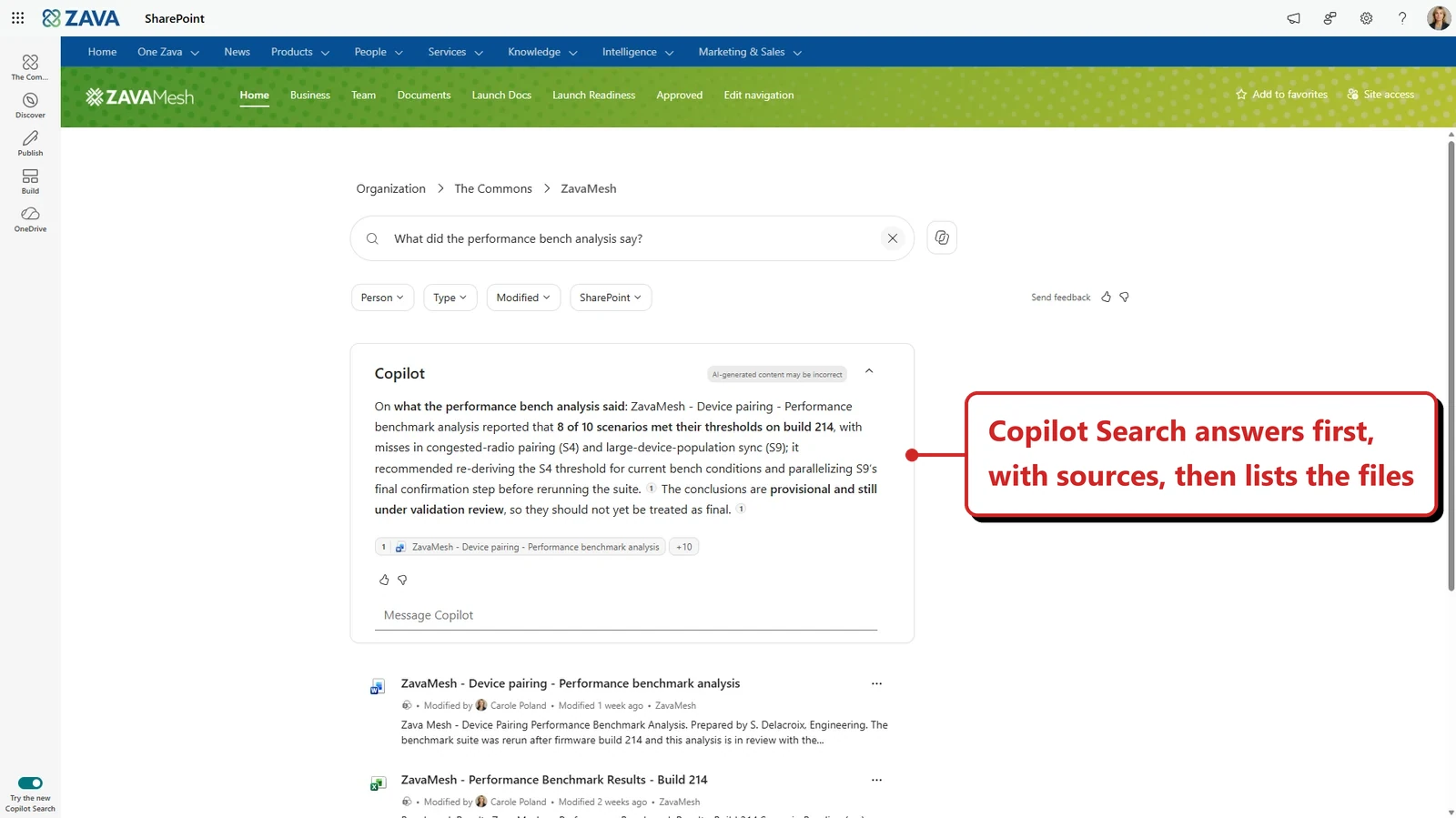
Microsoft's SharePoint example places an answer above the files. The Try the new Copilot Search control reflects that example's rollout state, not a setting I changed.
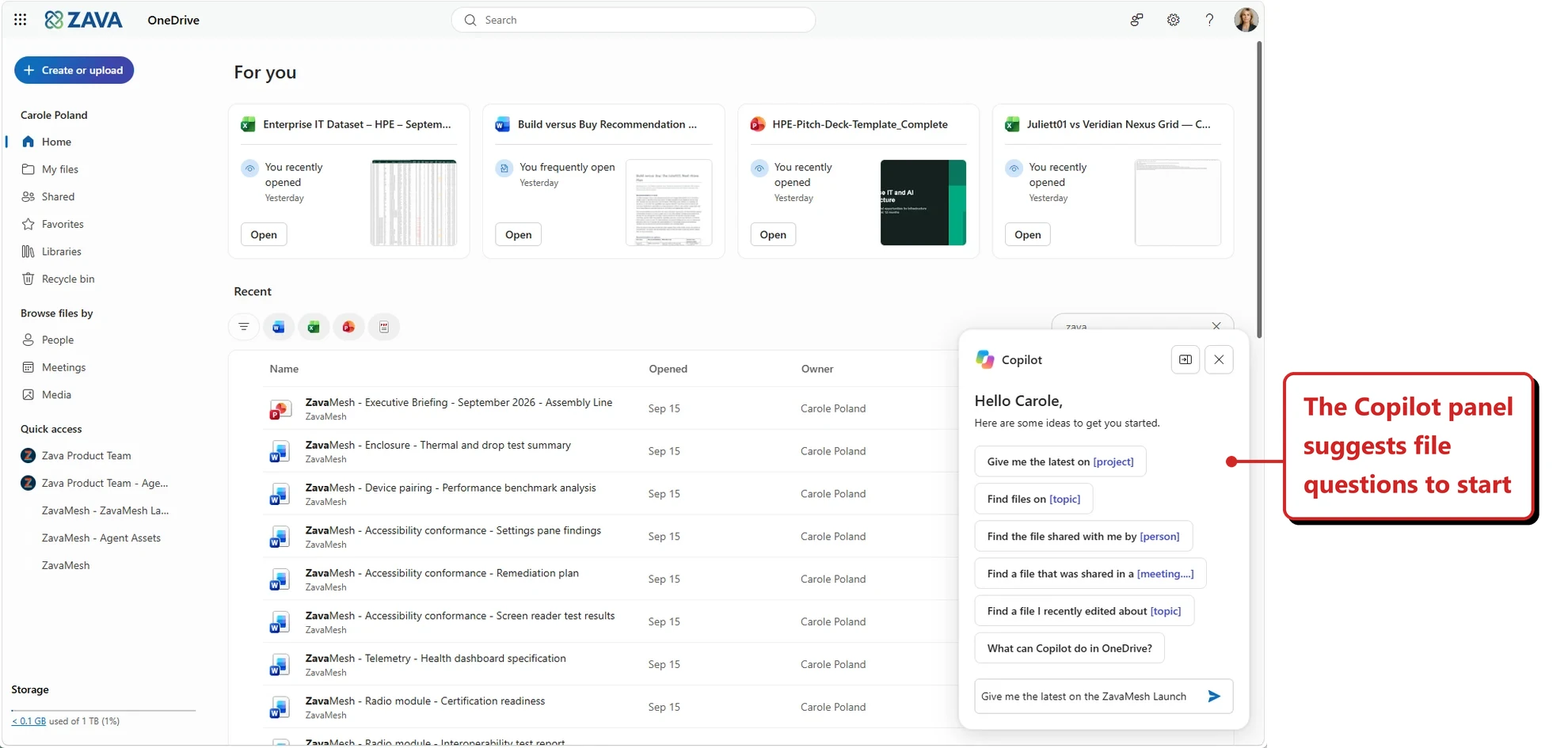
Microsoft's separate OneDrive example shows the Copilot pane and suggested questions. It does not show a completed file operation.
📖 Microsoft’s September roundup
51. Targeted surveys in the Copilot Dashboard
For: Admins and leaders · Rolled out September 2026 (Microsoft roundup)
Leaders can send Pulse surveys to dynamic lists built from Copilot adoption data, so sentiment sits next to adoption numbers. Microsoft says reporting is aggregated, with no individual visibility.
Why this matters: Usage tells you whether people opened Copilot. A targeted survey helps explain whether it actually helped them.
- In plain words: Leaders can send short surveys to groups built from Copilot adoption data. Results are aggregated.
- Picture this: You survey only the people who use Copilot every week and see how they feel.
- My take: Numbers say how much it is used. Surveys say if it helps. I'd use both.
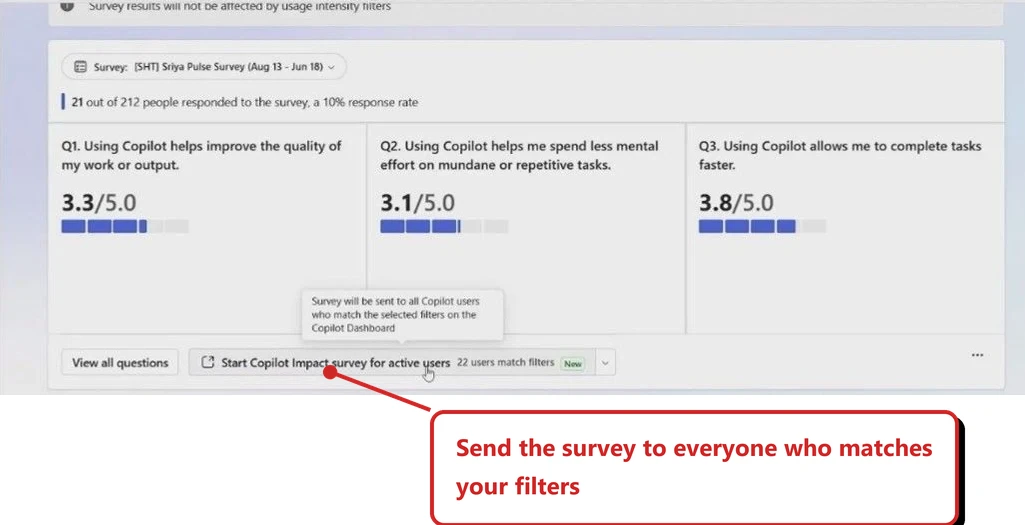
Microsoft's dashboard example shows the survey action for users matching the filters. The scores and user count are sample results; no survey was sent for this article.
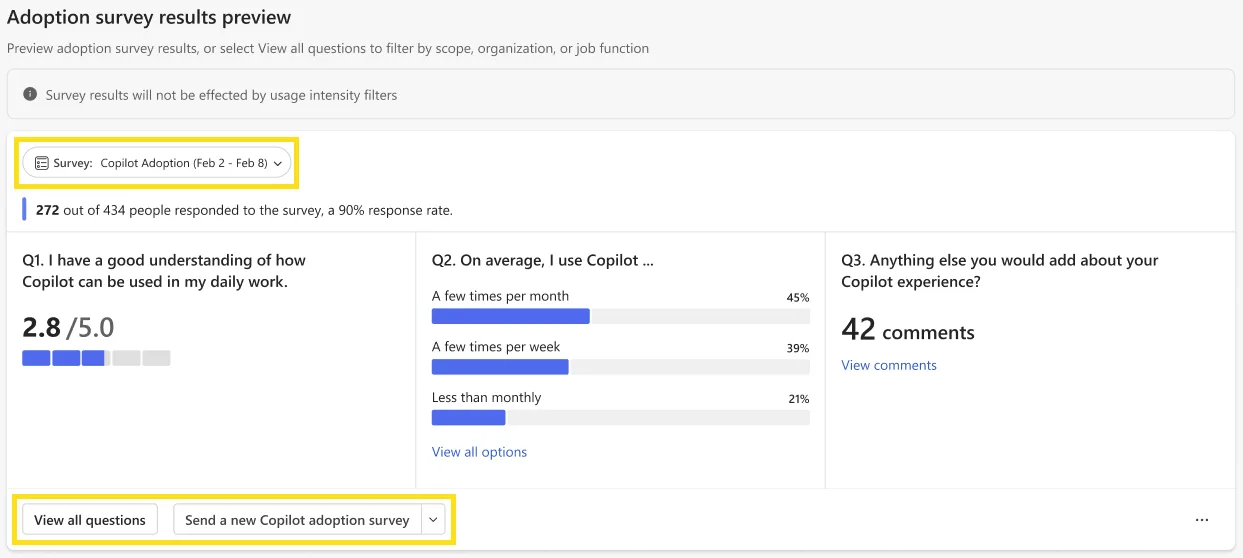
Microsoft Learn's survey-results example. The scores are example data, not responses collected for this article.
📖 Microsoft’s September roundup · AI at Work Roadmap 568072
52. New connectors, plugins and agents from partners
For: Copilot app · September 2026 (Microsoft roundup)
Microsoft listed new partner connectors, plugins and agents by industry, including Autodesk and Trimble’s Vista Finance (industrial), Morningstar Credit Analytics and S&P Global Kensho (finance), PubMed, ClinicalTrials.gov and DrugBank (healthcare), and NielsenIQ and Cloudinary (retail). The full list is in Microsoft’s post.
Why this matters: Treat each as a request for your admin to review, not a switch to turn on. Check data handling and licensing per partner.
- In plain words: Microsoft listed new partner connectors, plugins and agents for industries such as finance, healthcare and retail.
- Picture this: Your finance team asks for a market data connector.
- My take: Treat each as a review request. Check how the partner handles data and what it costs.
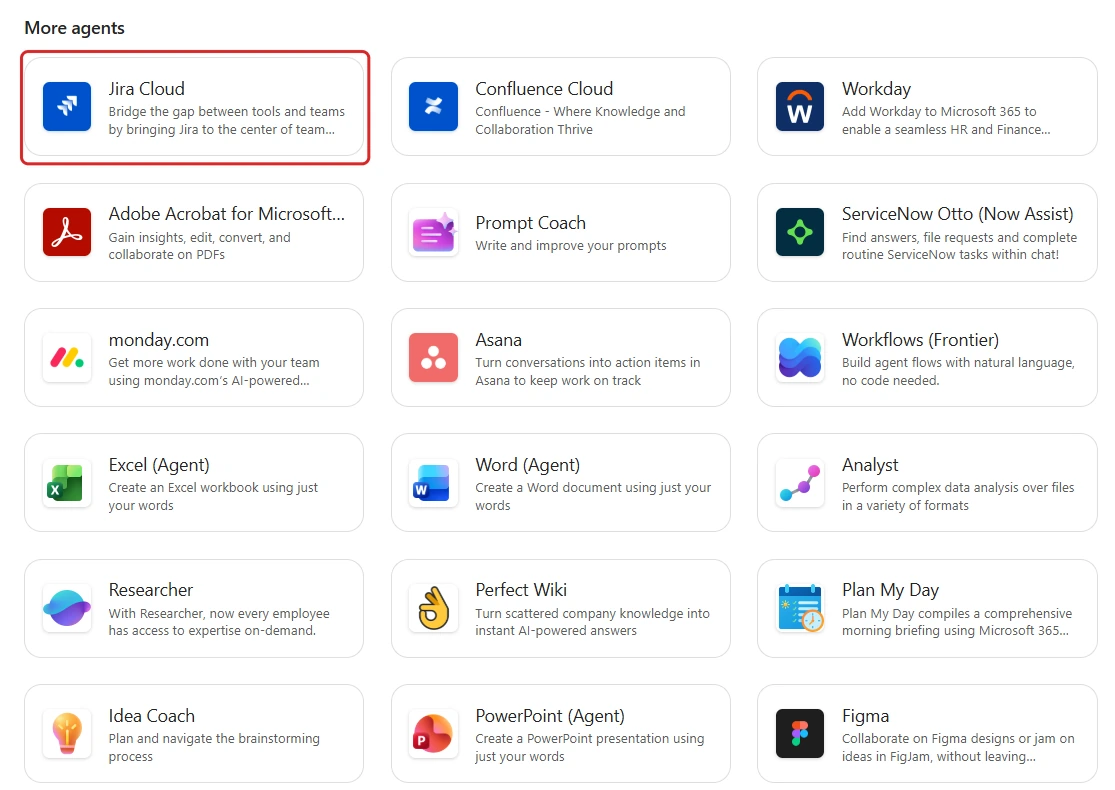
My catalogue capture, cropped to remove unrelated navigation. It shows where partner cards appear, not the specific new industry connectors listed above or proof that a connection is configured.
📖 Microsoft’s September roundup
October additions and admin notices
53. Office files open for editing inside Copilot
For: Microsoft 365 Copilot · Frontier rollout announced 9 October 2026 · Chat included in the Copilot subscription; Cowork usage-billed
Word, Excel and PowerPoint can open beside your conversation in the Copilot app, with the familiar editing controls. You can make a direct edit, ask Copilot to change something, leave comments or coauthor the same file. The file is stored in OneDrive, not in a separate Copilot-only format, and recent Office files are available from Library.
Microsoft’s announcement says this is rolling out to Frontier customers in Chat and Cowork. The updated Message Center post separates the billing: capabilities accessed through Chat are included with the Microsoft 365 Copilot user subscription licence; through Cowork, they use usage-based billing.
Why this matters: You can inspect and edit the workbook beside the conversation instead of switching between a generated answer and a separate file.
- In plain words: You can work on the document beside the conversation instead of downloading a new copy after every change.
- Picture this: Copilot drafts a proposal. You edit a sentence yourself, then ask it to turn the pricing table into an Excel file.
- Before you try it: Check Frontier access and whether you are using Chat or Cowork. The same-looking document does not mean the same billing route.
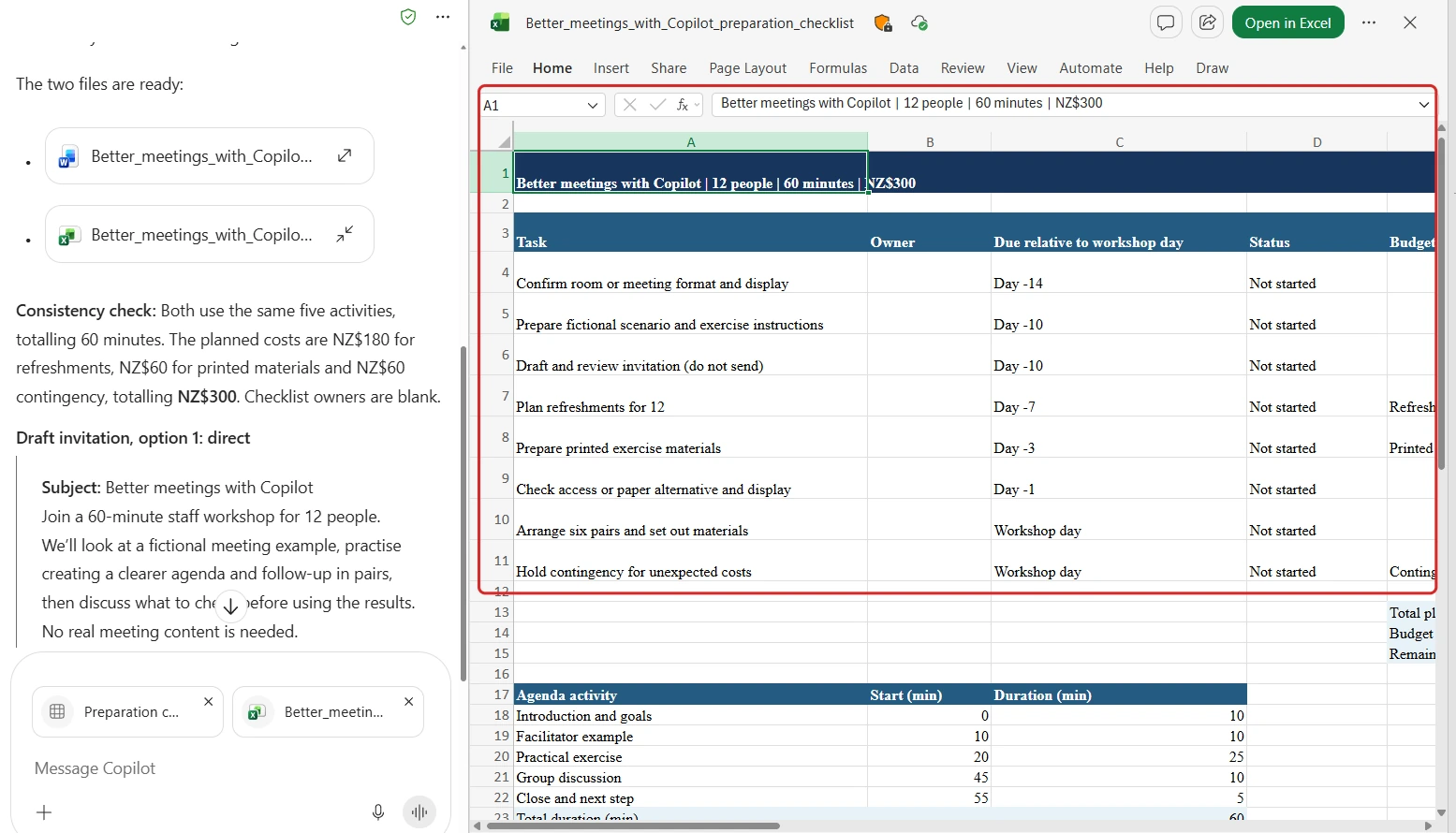
My capture shows a fictional workshop workbook open beside the Copilot conversation, with Excel editing controls. It does not establish the billing route or prove a particular edit was saved.
📖 Introducing Office in the new Microsoft Copilot app · Message Center MC1479277, updated 12 October
54. Excel adds data preparation and new ways to build skills
For: Copilot in Excel · October 2026 · Mixed general availability rollout and Insiders availability
The October Excel post moves beyond asking questions about a workbook. Copilot can help bring data in, clean it and package repeatable work as a skill. These have different delivery dates:
| Capability | What changes | Microsoft’s availability wording |
|---|---|---|
| Interactive canvas | Inspect connected data and work through the analysis visually | Available to Insiders |
| Skill builder | Describe a repeatable Excel task and build a skill for it | Began general availability rollout this month |
| Skill recorder | Record workbook actions as the starting point for a skill | Expected in Insiders by the end of October |
| Get data | Bring external data into the workflow | General availability rollout from mid-October through the web app |
| Clean data | Prepare inconsistent data before analysis | Began general availability rollout this month |
This is not a second announcement of the prebuilt and custom Excel skills covered in August. The October change is how you create a repeatable workflow and prepare its data. Microsoft’s post also says skills are subject to capacity and usage limits.
Why this matters: Cleaning an export and repeating the same workbook steps can take longer than the analysis. These tools aim to reduce that preparation work.
- In plain words: Copilot can help with the untidy work before the chart, then help save a repeatable process.
- Picture this: A monthly export arrives with inconsistent labels. Clean it, check the changes, then build a skill for the next export.
- Before you try it: Confirm the channel for each capability. Do not promise the recorder to every user just because the builder is in GA rollout.
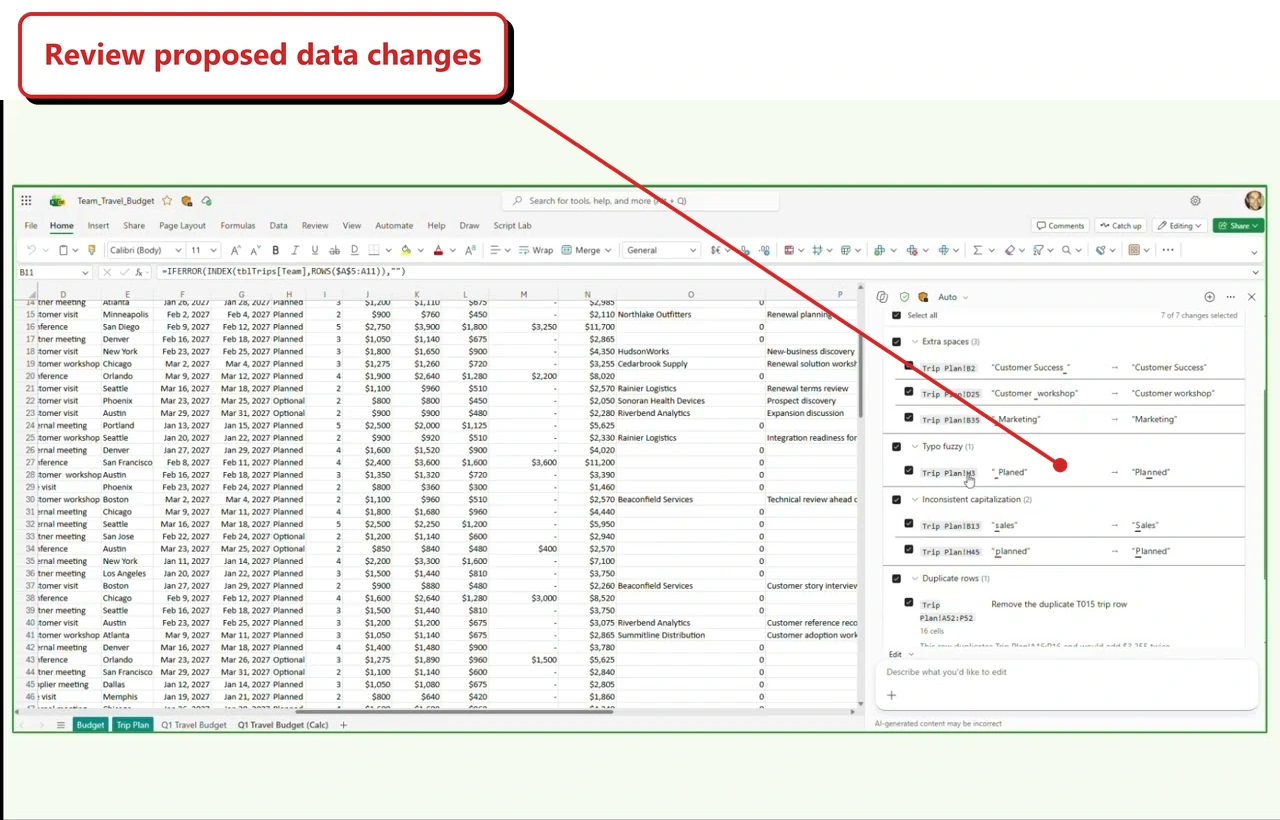
Poster frame from a demo embedded in Microsoft's Excel announcement. It shows proposed fixes for spaces, a typo, inconsistent capitalisation and a duplicate row. This still does not demonstrate a saved skill or the skill recorder. Source: Microsoft.
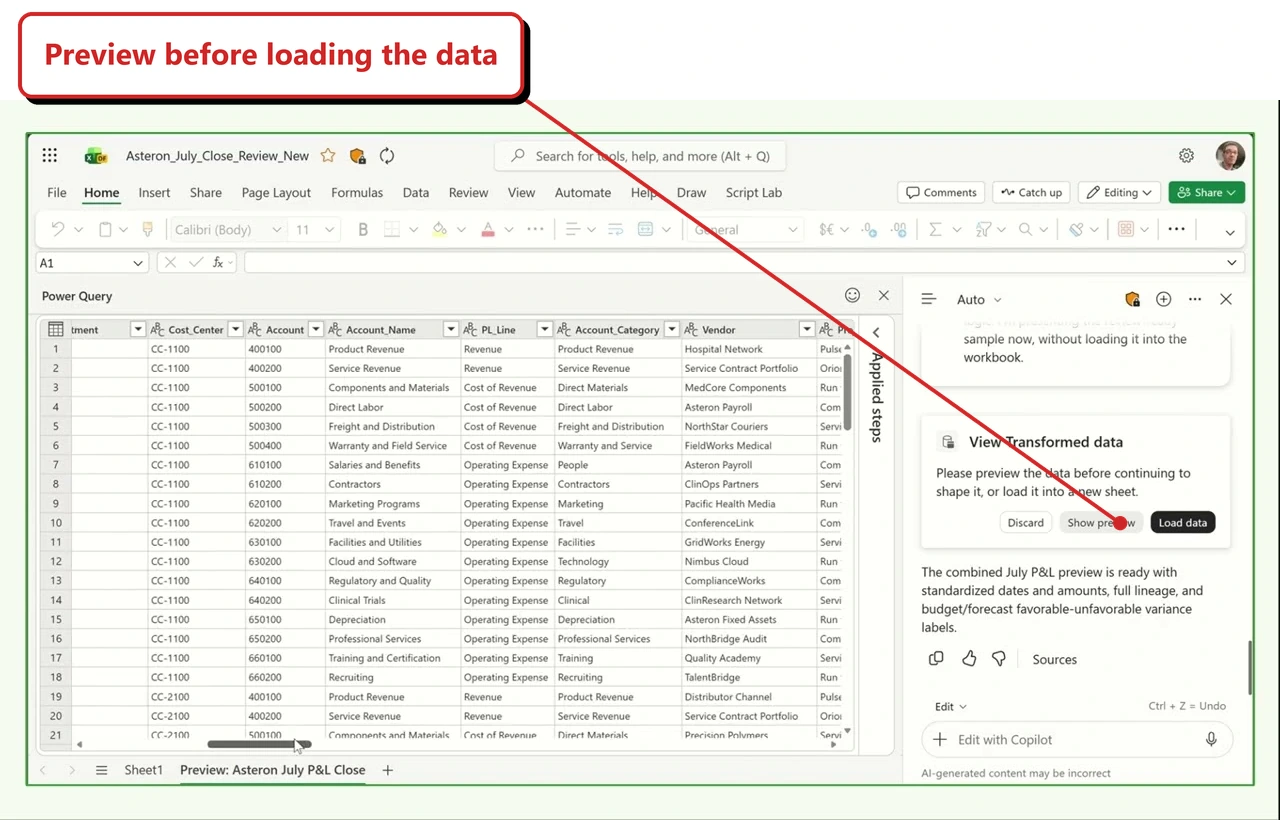
A second official demo poster shows a Power Query preview with Discard, Show preview and Load data controls. It illustrates data preparation, not a recording of a skill; the sample workbook and figures come from Microsoft's video. Source: Microsoft.
📖 Beyond Analysis: Copilot Gets to Work in Excel
55. SharePoint gets a team knowledge base curated by Copilot and agents
For: Copilot in SharePoint · Frontier preview rolling out, announced 14 October 2026 · Usage-based billing required
The team knowledge base is a SharePoint library of linked notes in Markdown, compiled from the team’s content. Copilot and agents can organise the material into reusable knowledge rather than having every task start from the same pile of documents.
The announcement describes an opt-in Frontier preview, not a standard library switch available to every site. Usage-based billing must be enabled, with admin policies controlling access and spending. Autopilot integration follows Autopilot’s own availability; this announcement does not grant access to it.
Why this matters: A shared, reviewable knowledge base gives the next task a starting point instead of asking everyone to rediscover the same decisions.
- In plain words: Think of a shared project notebook that Copilot helps keep organised. Its linked notes are Markdown files, a plain-text format for headings, links and lists.
- Picture this: A project has decisions scattered across files. Its knowledge base organises those decisions so the next task has somewhere useful to start.
- Before you try it: Check preview access, source permissions and credit policy. Curated content still needs someone to review its accuracy.
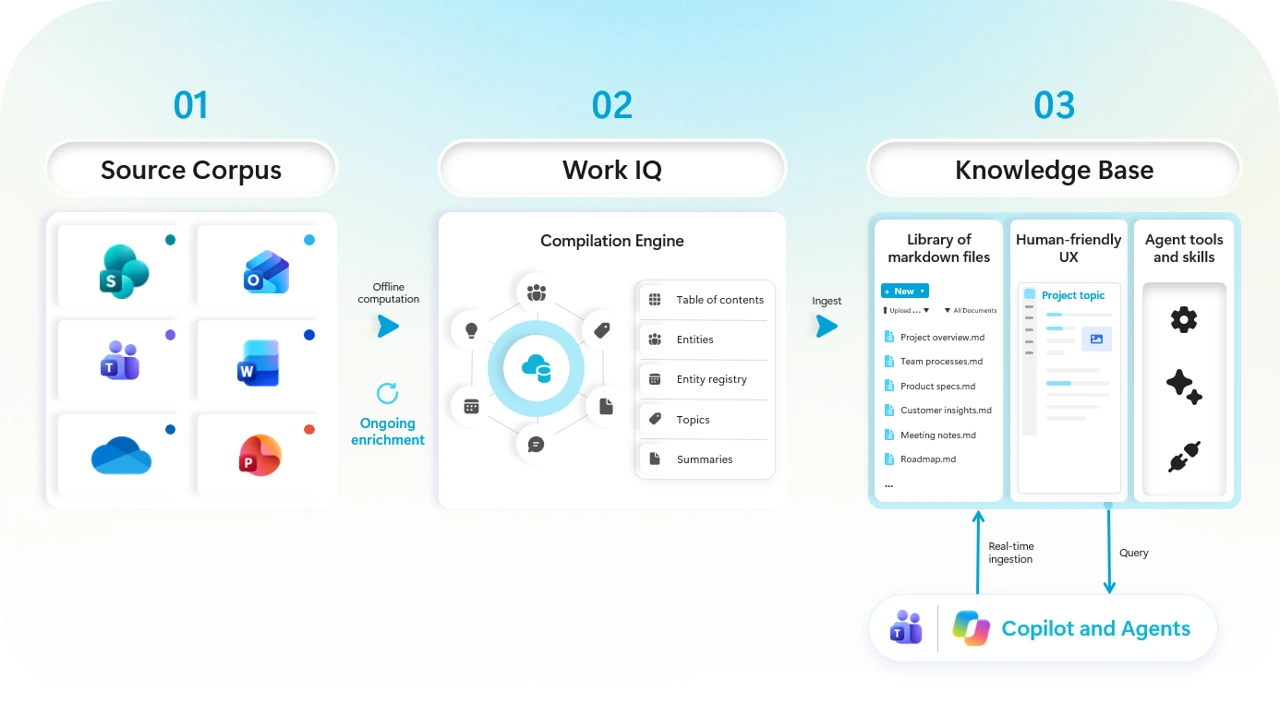
Microsoft's explanatory figure shows source content passing through Work IQ into a knowledge base of Markdown files, with interfaces for people and agents. This is a conceptual diagram, not my tenant's library or a guarantee of benchmark savings. Source: Microsoft.
📖 Introducing a team knowledge base curated by Copilot and agents
56. Copilot for legal brings skills into Word and Cowork
For: Legal work in Microsoft Copilot · Legal skills generally available 15 October 2026 · Partner plugins rolling out; defined-term navigation preview expected later this month
Microsoft announced more than 20 legal skills for work such as contract review and drafting. In Word, changes can use native tracked changes so a person can inspect the proposed edits. Cowork supports multi-step legal work.
Three announcements sit together, but their statuses differ. The legal skills are generally available. Legal partner plugins begin rolling out, with more over time. Defined-term navigation in Word is a separate preview expected later in October.
Why this matters: A reviewer can work from approved precedents and playbooks, then inspect the proposed changes in the document rather than treating a chat answer as the final legal position.
- In plain words: A legal skill gives Copilot instructions for a particular job, such as comparing a contract with an approved example. A qualified person still reviews the proposed edits.
- Picture this: A reviewer compares an agreement with an approved position, then checks every proposed change before accepting it.
- Before you try it: Check the access, licence and partner terms for the specific experience. A generated legal edit is a proposal for a qualified reviewer, not a substitute for one.
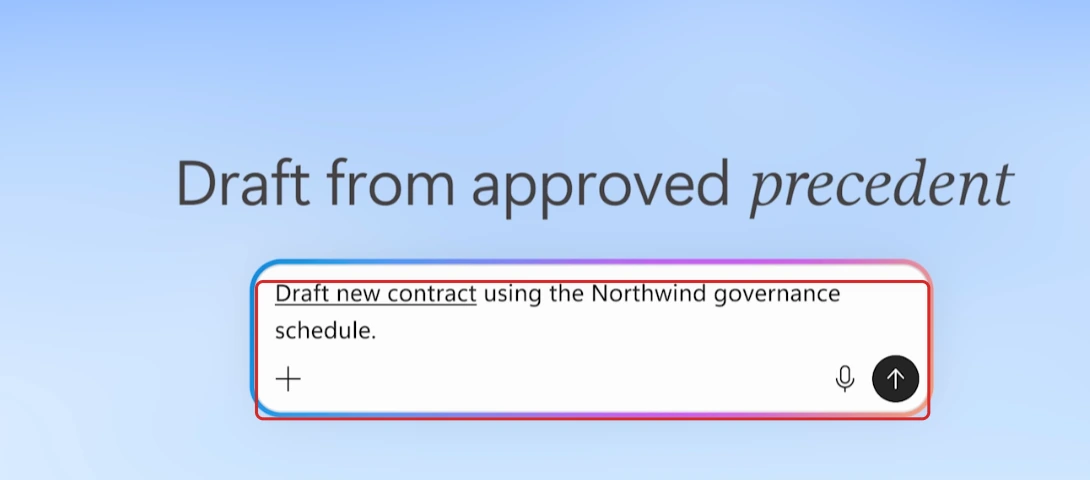
My capture of a legal demonstration, with a red highlight added by me, not a contract test in my tenant. It shows the request to start from an approved precedent, not the completed contract.
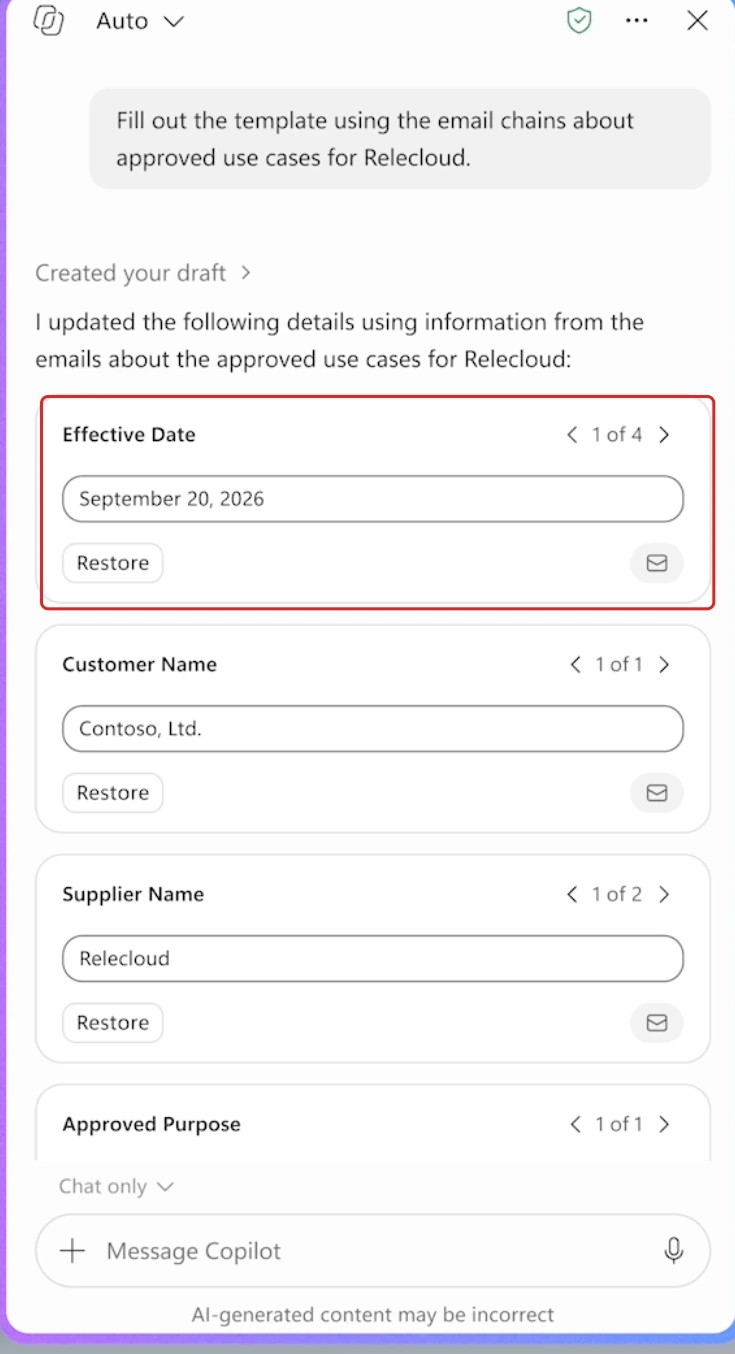
My capture of a legal demonstration, with a red highlight added by me, not a template test in my tenant. Review the filled fields and their source controls; the populated values are demonstration content, not independently verified facts.
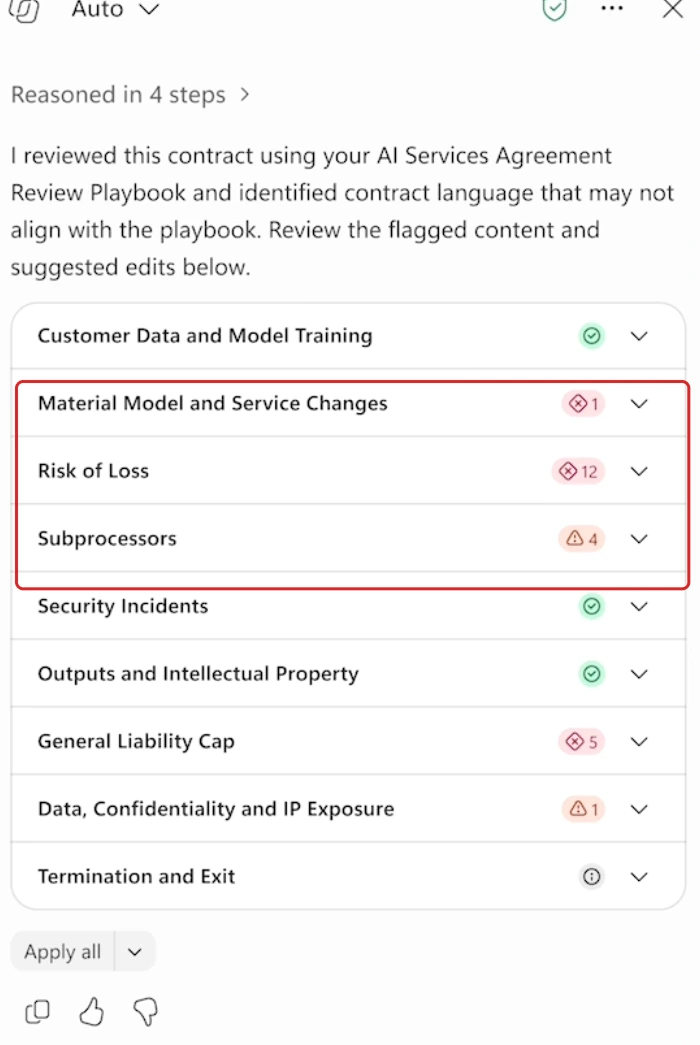
My capture of a legal demonstration, with a red highlight added by me, not a legal-review test in my tenant. Flagged terms need a qualified reviewer. A green indicator or Apply all button is not proof that a contract is safe to approve. These three captures show separate examples, not a matched before-and-after test.
📖 Introducing Microsoft Copilot for legal
57. Memory citations show what personalised an answer
For: Microsoft Copilot · Roadmap status Launched, general availability October 2026 · Appears when memory is enabled
Open Sources beneath a response, then Personalization, to see the personal context that shaped it. The roadmap describes custom instructions, saved memories, memories derived from conversations and past chats.
This is the new citation experience. It is not evidence that every memory feature or admin control became generally available in October. The separate Learn page remains the reference for managing memory.
Why this matters: You can check whether personal context shaped an answer instead of guessing why Copilot chose that wording or structure.
- In plain words: When an answer seems tailored to you, you can inspect the personal context Copilot used.
- Picture this: A response uses your preferred document structure. The Personalization tab helps show where that preference came from.
- Before you try it: Memory must be enabled for this view to appear. Do not use a personal or customer memory in a public demonstration.
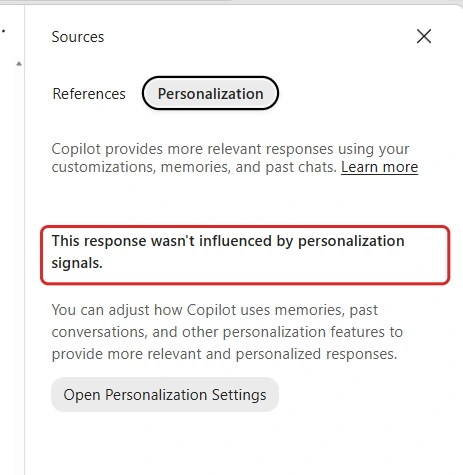
My capture confirms the Sources → Personalization view is present. This particular response says no personalization signals influenced it; it does not demonstrate a saved memory being used.
📖 AI at Work Roadmap 574111 · Manage Copilot personalization and memory
58. App Builder access ends on 30 November
For: App Builder makers and admins · Migration guidance updated 17 October 2026 · Access ends 30 November 2026
Microsoft’s migration guidance says existing App Builder access continues until 30 November 2026. The documented routes use the app’s source ZIP to rebuild in Cowork or Apps in Copilot Studio.
This is not a move that preserves every working part. Existing SharePoint list data stays, but connections, app links and sharing do not carry over automatically. Plan to reconnect, test and reshare the rebuilt app. The Cowork app experience is Frontier and Apps in Studio is public preview; both consume credits.
The page describes an automated migration option as planned for mid-October. A planned date on a page is not proof that the option has shipped, so do not make your migration depend on it.
Why this matters: A working app can still lose its entry point when access ends. Save its source and test the replacement, connections and sharing before the deadline.
- In plain words: It is closer to moving house than changing an address label. Keep the app's source, rebuild it and check the connections before asking people to use the new link.
- Picture this: A team uses an App Builder tracker. Its list data remains, but the rebuilt app needs its own connections and sharing checked.
- Before you try it: Inventory the apps and their owners now. Validate the replacement before asking users to switch.
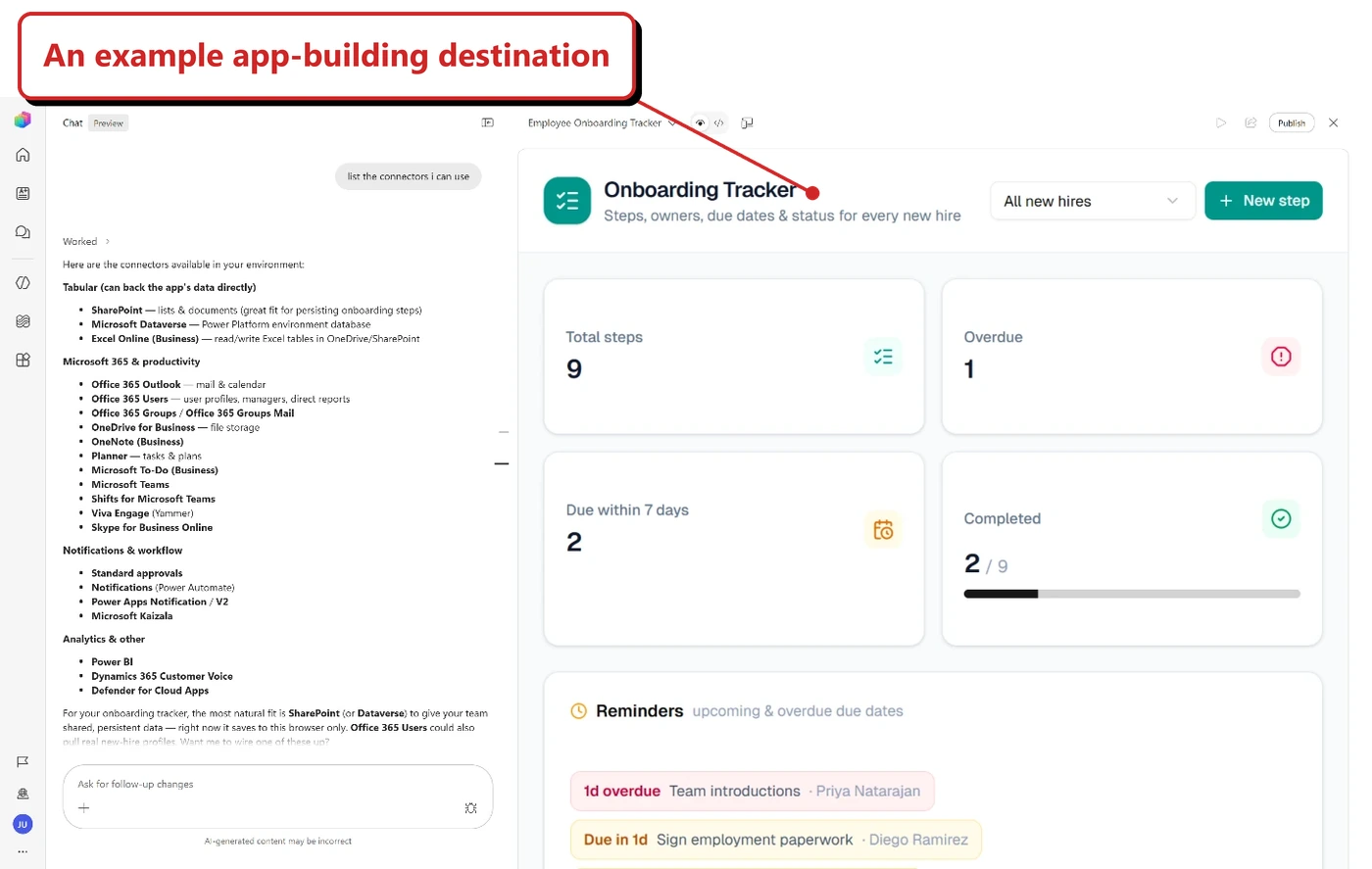
Microsoft's companion app-building announcement shows an Employee Onboarding Tracker beside a connector conversation. It illustrates a replacement app-building experience, not an App Builder migration or preserved connections. Source: Microsoft.
📖 Migrate apps from App Builder
59. SharePoint and OneDrive agents move beyond .agent files
For: SharePoint and OneDrive agent owners · New creation changes from mid-November 2026 · Existing .agent files work through March 2027
The .agent file format is being retired. This does not mean every SharePoint agent is being retired. Existing .agent files continue to work through the end of March 2027, then stop responding.
From mid-November 2026, new agent creation moves to Copilot Agent Builder. The upgrade guidance gives different paths depending on the job: use Copilot directly, turn repeatable work into a skill, upgrade through Agent Builder, or republish an agent from Copilot Studio.
The upgrade experience is due to start in mid-November. Check source access, permissions and sharing on the replacement; this is not permission to publish private team content more broadly.
Why this matters: Teams relying on saved agent files need an owner and a replacement plan before those files stop responding. The right replacement depends on the job, not just the file format.
- In plain words: The old agent file is going away. The work it does needs the right replacement.
- Picture this: A team has a saved agent in a document library. Its owner checks whether the job needs a simple Copilot question, a skill or an upgraded agent.
- Before you try it: Record the owner, sources and audience of each existing agent. Plan the upgrade before March rather than waiting for it to stop responding.
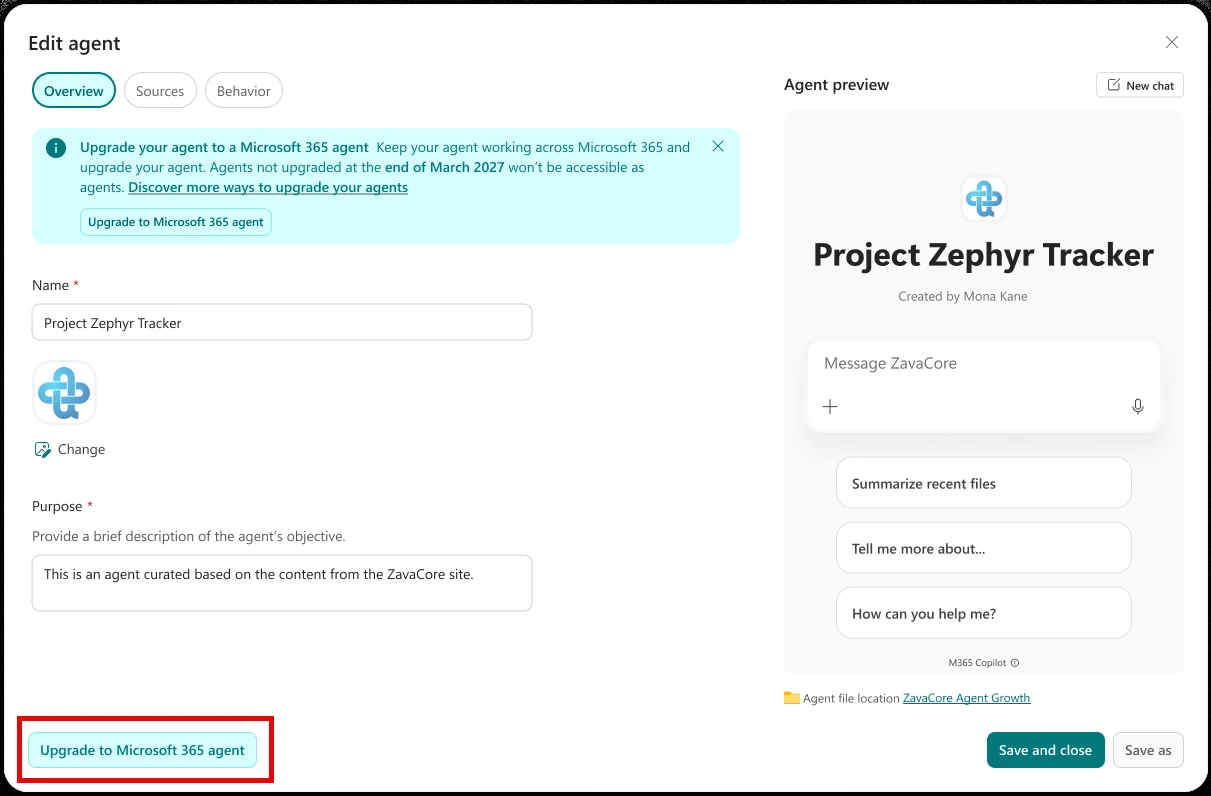
Microsoft's upgrade guide shows the Upgrade to Microsoft 365 agent entry point. This documents the announced upgrade flow; it is not a claim that the rollout has reached my tenant. Microsoft's original red outline is retained. Source: Microsoft.
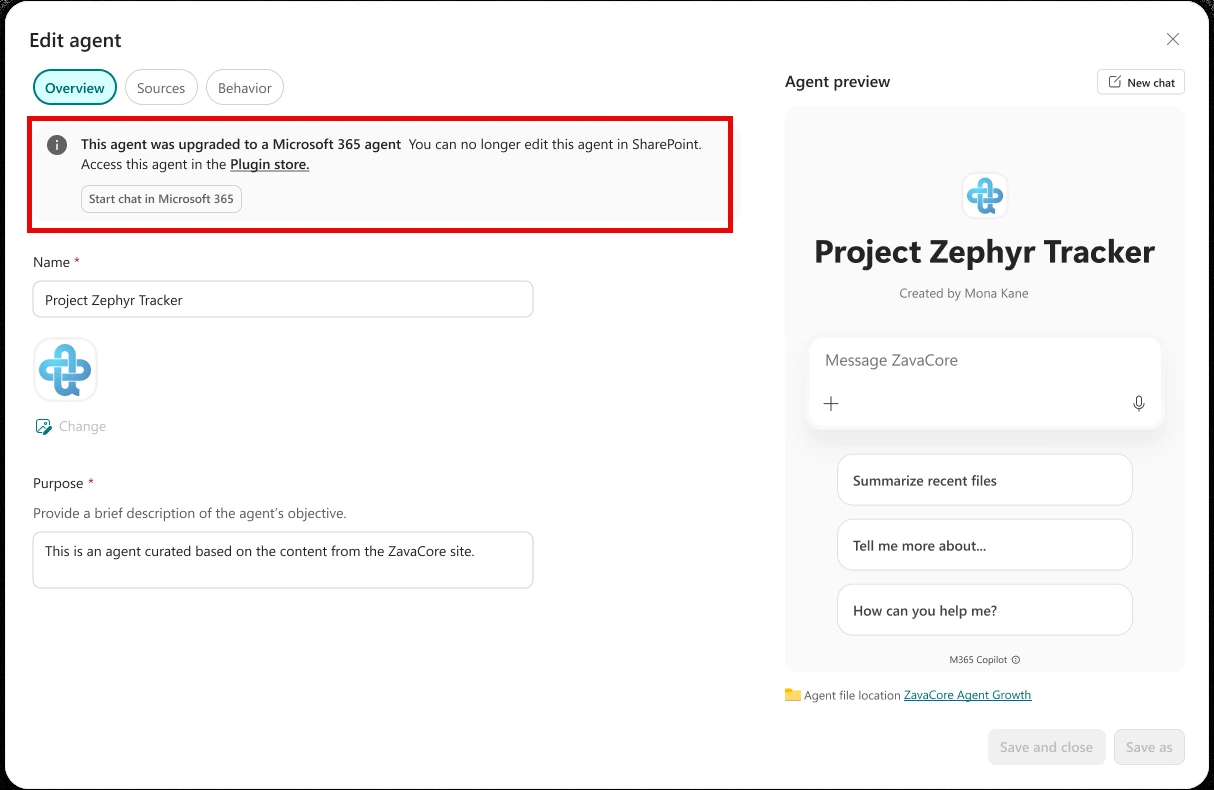
The guide's after-upgrade example says the agent can no longer be edited in SharePoint and points to the Plugin store. Microsoft's original red outline is retained; no agent was upgraded for this blog. Source: Microsoft.
📖 Upgrade agents in SharePoint and OneDrive
60. SharePoint can rearrange PDFs and help recover file versions
For: Copilot in SharePoint · Listed in Microsoft’s 1 October 2026 roundup · Everyday capabilities included with a Microsoft 365 Copilot licence
You can ask Copilot in SharePoint to split, merge or reorder PDF pages. The same October post adds version-history assistance: inspect earlier versions, understand the differences and restore a chosen version.
Why this matters: You can reorganise a document pack or investigate an unwanted edit without first moving the files into a separate tool.
- In plain words: Some file housekeeping can happen in the SharePoint conversation instead of a separate editing tool.
- Picture this: A project pack has an appendix in the wrong place. Ask to reorder the PDF, then check the result before sharing it.
- Before you try it: Use a copy for a demonstration. Restoring a version changes the file people work with; inspect the version before confirming that action.
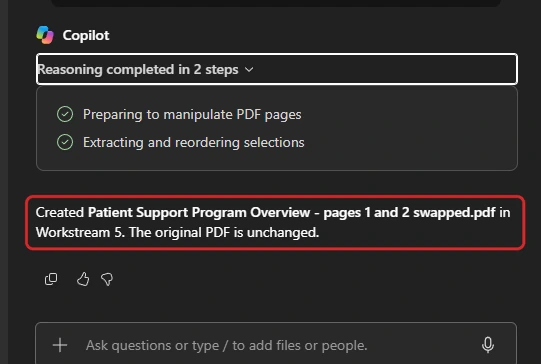
My capture shows Copilot reporting that it created a reordered copy and left the original unchanged. The resulting PDF's page order is not visible here, so this is response evidence rather than an independent output check. It does not demonstrate version restoration.
📖 What’s new in Copilot in SharePoint, October 2026
61. SharePoint images, Advanced Autofill and analytics use credits
For: Copilot in SharePoint · Listed in Microsoft’s 1 October 2026 roundup · Copilot Credits required
Three additions need the billing label kept beside them: image generation and editing, Advanced Autofill, and site analytics. These are advanced work, not a reason to tell every SharePoint user they need credits for ordinary questions.
The October post describes Advanced Autofill as a faster processing queue for sites with Copilot Credits enabled, with most files completing in a few minutes and up to about an hour when services are busy. Basic Autofill remains included in the licence. Site analytics lets you ask about content performance; image tools create or change images in the SharePoint workflow.
Why this matters: These capabilities can reduce content-management work, but they also spend credits. Keep that cost distinction visible so users do not mistake them for ordinary included questions.
- In plain words: Not every item in the SharePoint announcement is included in the licence. These three spend credits.
- Picture this: A library has a large queue of documents waiting for their columns to be filled. Advanced Autofill offers faster processing; ordinary Autofill remains included in the licence.
- Before you try it: Review the spending policy and site-level enablement needed for real-time Autofill. Check existing policies too: they may include newly available services automatically.
📖 What’s new in Copilot in SharePoint, October 2026 · SharePoint licensing and setup
62. SharePoint HTML work gains comments and publishing
For: Copilot in SharePoint · Listed in Microsoft’s 1 October 2026 roundup · Everyday capabilities included with a Microsoft 365 Copilot licence
The October post adds commenting and editing for HTML outputs, plus publishing as a SharePoint page. A generated report can move from a draft file towards something the team can review and read on the site.
Why this matters: Reviewers can point to what needs changing, and the author can publish the approved result where the team already works.
- In plain words: An HTML result is a web-page file. You can review and edit it, then publish it as a SharePoint page for the team.
- Picture this: Copilot makes a project update. A reviewer leaves a comment, the author changes it, then publishes the approved page.
- Before you try it: Check the destination and page audience. Publishing a draft is a separate decision from generating it.
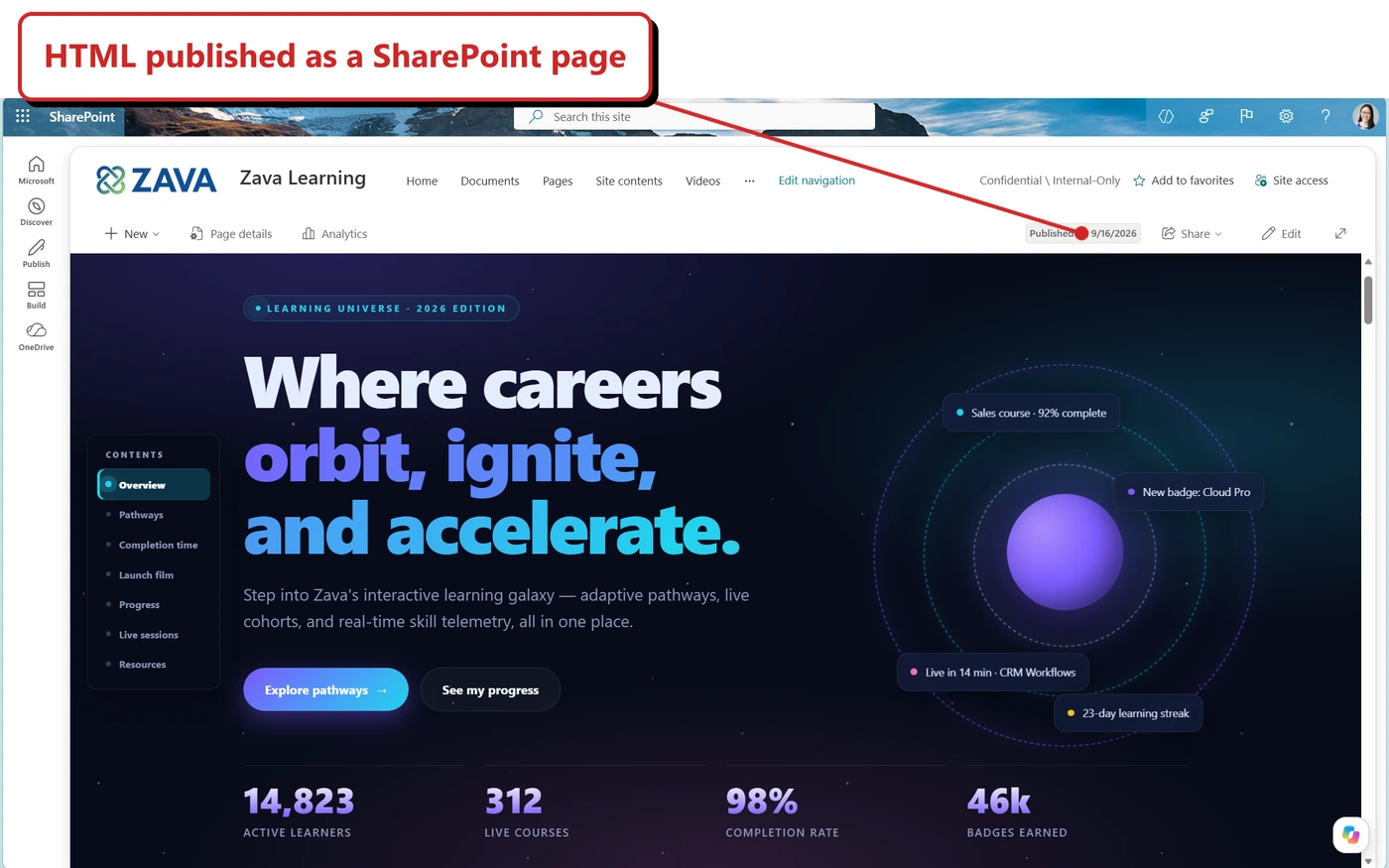
Microsoft's Support example shows a published HTML page inside SharePoint. It illustrates the published result, not the new commenting controls; the site, labels and figures are Microsoft's sample content. Source: Microsoft.
📖 What’s new in Copilot in SharePoint, October 2026
63. SharePoint adds email, plugins and workflow notifications
For: Copilot in SharePoint · Listed in Microsoft’s 1 October 2026 roundup · Everyday capabilities included in the Copilot licence; workflows also require Power Automate access
Microsoft’s October list includes composing and sending email from the SharePoint experience, plugin support, and workflow notifications formatted as adaptive cards in Teams. These are message cards with structured information and controls, rather than just a line of text. Those cards can carry file details, buttons and links back to SharePoint. It also adds suggestion chips and easier access to skills.
These are separate from September’s announcement that personal SharePoint skills are saved in OneDrive. The October addition is how users find and use those capabilities in the conversation.
Why this matters: A useful result can reach the people who need to act on it without being copied between apps. Recipients, permissions and approval still matter before anything is sent.
- In plain words: A SharePoint conversation can lead to a message or a file-change notification, not just a new file.
- Picture this: A contract changes. A workflow posts a card to the deal channel with the version, owner and a link to the current file.
- Before you try it: Check Power Automate access and each plugin's terms. Review recipients and content before confirming an email; do not send a real message just to demonstrate the button.
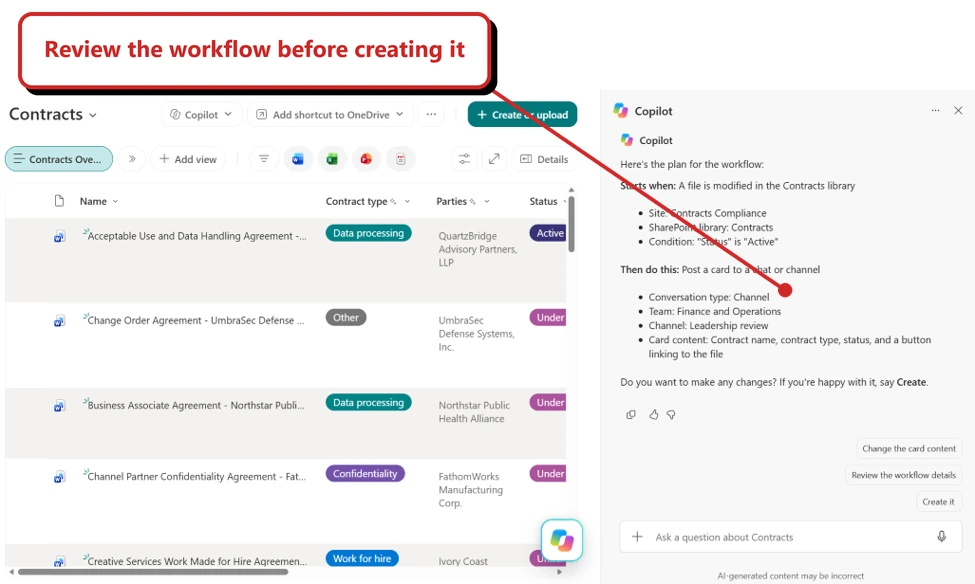
Microsoft's example shows Copilot proposing a workflow that will post a card to a Teams channel. This is the plan awaiting creation, not the delivered adaptive card or a successful send. Source: Microsoft.
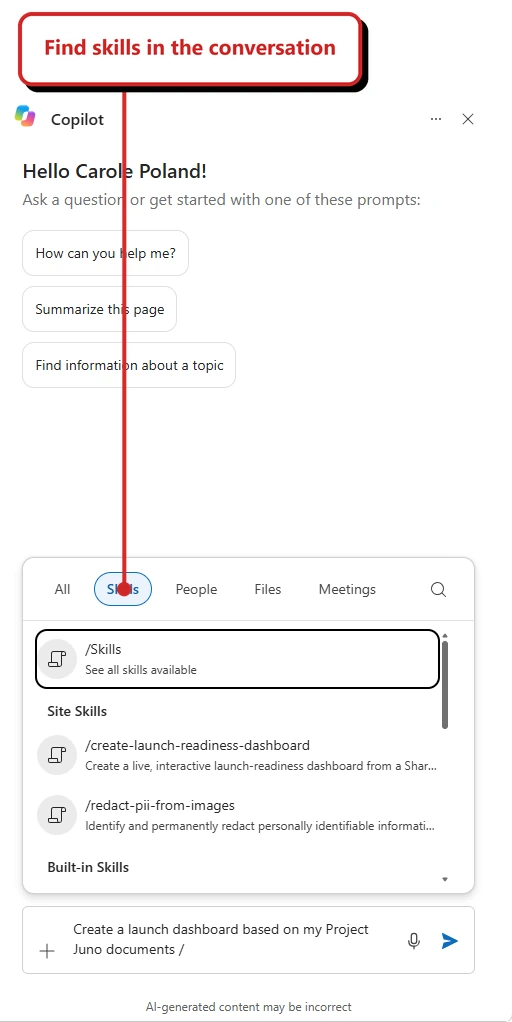
A crop of Microsoft's SharePoint example shows the Skills picker, site skills and a prompt in the conversation. It illustrates skill discovery, not a completed workflow or an email send. Source: Microsoft.
📖 What’s new in Copilot in SharePoint, October 2026
64. Trust-aware controls separate untrusted content from instructions
For: Copilot security and governance teams · Security design explained in Microsoft’s 13 October 2026 post
An email or web page can contain text that looks like an instruction to the assistant. Microsoft’s trust-aware design classifies retrieved content and gives lower-trust material constrained processing before it reaches the main model. The aim is to let Copilot use the information without treating instructions inside it as commands.
This is another layer of defence against indirect prompt injection, not a guarantee that every malicious prompt will be caught. The post also points admins to Outlook sender-configuration guidance for CVE-2026-55145. It is not a universal “safe mode” switch, and this article does not establish whether a specific tenant has every control described.
Why this matters: Information retrieved for an answer should not gain the authority to redirect the assistant. Separating content from instructions reduces a route for malicious documents or messages to interfere with the task.
- In plain words: Reading a note is not the same as taking orders from its author. Copilot should be able to use information in a message without obeying a hidden command.
- Picture this: An external document says to ignore the user's request. The document is evidence to inspect, not an authority over the assistant.
- Before you try it: Follow Microsoft's linked configuration guidance for the affected workload. Keep permissions, review of sensitive actions and existing security controls in place.
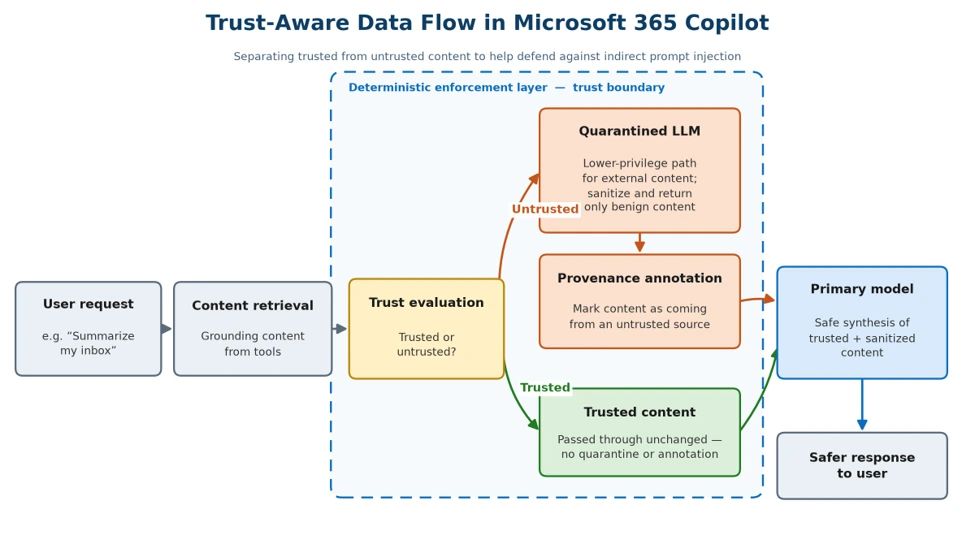
Microsoft's trust-aware data-flow diagram separates trusted content from an untrusted path through a quarantined model and provenance annotation. It explains the design, not a tenant configuration screen or a security guarantee. Source: Microsoft.
📖 Building trust-aware controls for AI
65. Teams recap can keep the summary without retaining the transcript
For: Microsoft Teams · Roadmap: Rolling out, October 2026 GA timing · Microsoft Learn: Public Preview
Roadmap 558286 now describes intelligent recap with an AI summary without retaining the meeting transcript after the meeting. Its status changed to Rolling out, but Microsoft’s setup guide still labels the feature Public Preview. I could not find the option in our environments, so I am not treating the roadmap date as proof that everyone can use it.
The guide covers scheduled meetings with a Copilot-licensed organiser and a meeting policy with Copilot enabled. The summary is a read-only Word document in the organiser’s OneDrive. It has its own access and retention rules; by default it expires after 120 days.
Do not shorten that to “no transcription”. The distinction is whether the transcript is retained afterwards, not whether speech is processed to generate the summary. Transcript-dependent parts of recap, such as chapters, topics, mentions and audio recap, may be unavailable in this mode.
Why this matters: Teams can keep a useful summary without retaining a word-for-word meeting transcript. The summary is still a retained record and needs its own governance.
- In plain words: Keeping the summary need not mean keeping the full transcript, but you may lose other recap features.
- Picture this: A team wants a meeting summary while avoiding a retained word-for-word transcript. It checks which recap functions remain available.
- Before you try it: Check intelligent-recap entitlement, meeting policy and retention requirements. A roadmap rollout does not prove the setting is available in your tenant.
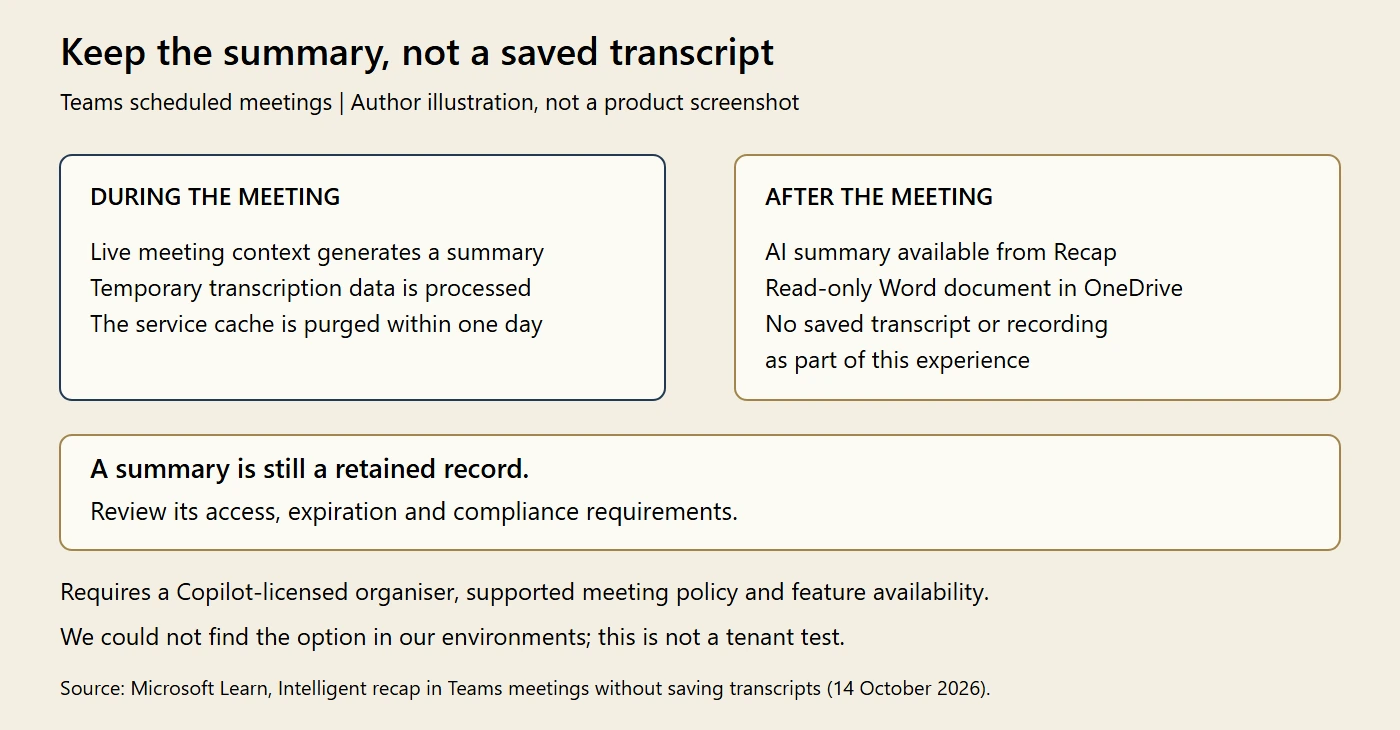
My illustration based on Microsoft Learn, not a Teams screenshot or a tenant test. We could not find the option in our environments. Temporary transcription processing is not the same as saving a meeting transcript; the summary remains a retained document.
📖 AI at Work Roadmap 558286 · Intelligent recap without saving transcripts
66. Usage-billed entry points can appear before access is granted
For: Copilot admins and licensed users · Standard rollout October 2026; deferred rollout November, per the 12 October Message Center update
Cowork, Code and Autopilot entry points will be visible by default for Microsoft 365 Copilot licensed users. A user without a spending policy still cannot access the usage-billed capability: clicking it shows Request access or Learn more instead.
Admins can choose that experience or block requests. Enterprise users without a spending policy default to Request access; education users see Learn more and cannot request access. Microsoft says the existing setting used to hide usage-based experiences is being removed.
This navigation change is not the same as granting access to a preview. Code and Autopilot retain their own access and rollout conditions.
Why this matters: Users may see a new tab before they can use it. Clear access messages and helpdesk guidance avoid confusing discovery with permission to spend credits.
- In plain words: A visible tab does not mean the user can use it or spend credits.
- Picture this: A licensed user sees Code but has no spending policy. They get an access message rather than a working app builder.
- Before you try it: Decide whether requests are allowed, review the spending-policy scope, and tell the helpdesk what the new entry points mean.
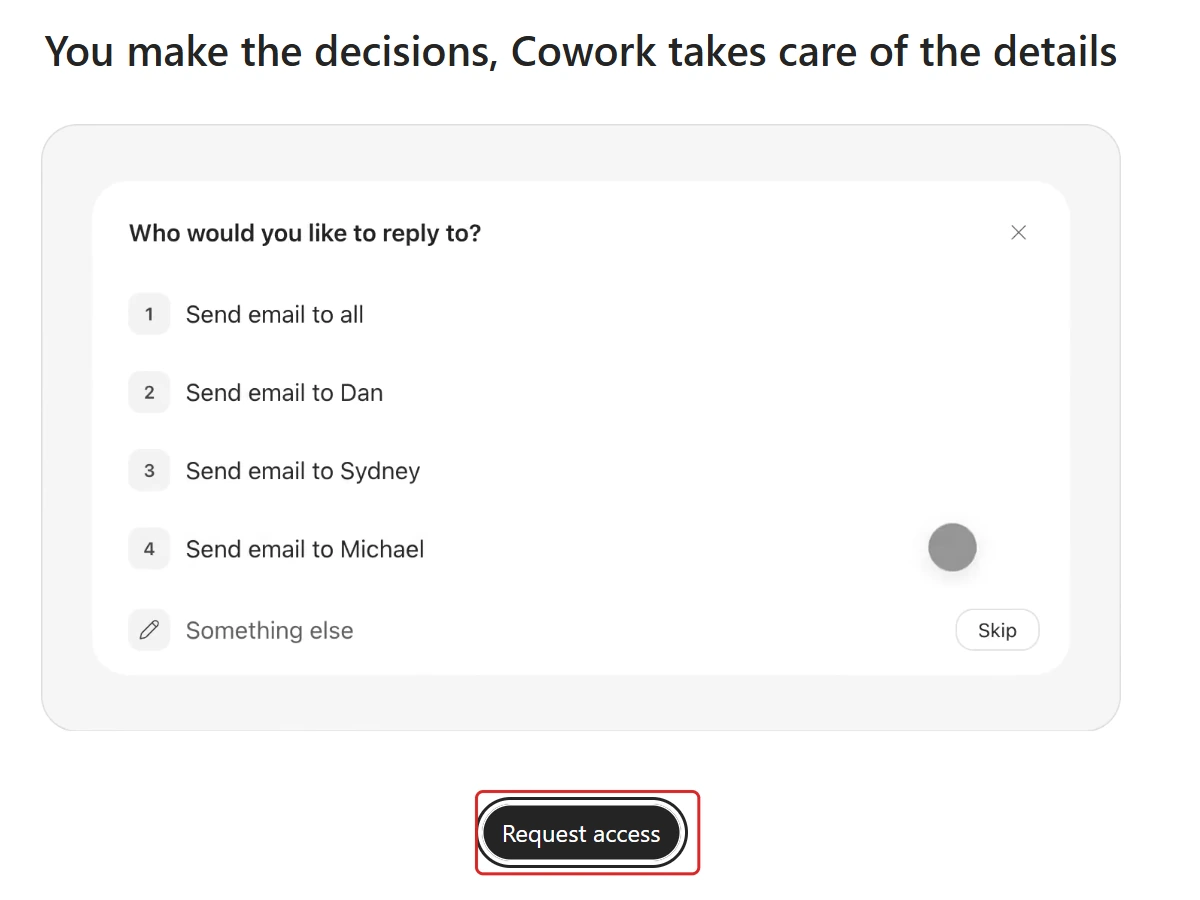
My capture shows Cowork visible with Request access, not a usable task session. The email choices above are part of the landing-page demonstration, not messages sent in this test. This image does not independently establish the account's spending-policy configuration.
📖 Message Center MC1479277, updated 12 October
Copilot Studio and Power Platform: September catch-up
Microsoft published its Studio September roundup on 7 October, after my September issue. These entries fill gaps from that roundup and the September release notes, or record a change from preview to general availability. They are not fifteen new October launches.
Studio now has more than one underlying engine, which Microsoft calls a harness. Where a feature is specific to the GitHub Copilot harness, I say so. The standard-harness safety tests are kept separate. Building, testing, evaluating and running agents or workflows on the GitHub Copilot harness can consume Copilot Credits; preview does not mean free.
67. Build an app beside your agents and workflows
For: Copilot Studio makers · Public preview · September announcement, included in the 7 October roundup
Choose App (Preview) on the Studio home screen and describe the app you need. You can then refine it through conversation, inspect the preview and look at the code. Connectors let the app read or update connected business systems, subject to permissions and policy.
Think of a small onboarding tracker: who has started, what they still need to do and who owns the next step. That is a different experience from asking an agent a question. Microsoft says published apps appear in the Microsoft 365 admin center for oversight. App building and running use credits.
This is also one of the destinations for the App Builder migration in section 58. Moving an existing app still means reconnecting and testing it, not just copying its name.
Why this matters: Some jobs need a form, a list and a button rather than another chat window. Studio adds that option alongside agents and workflows, without making every maker start by writing code.
📖 Build apps in Copilot Cowork and Copilot Studio
68. Hooks run a workflow at a set point in an agent’s work
For: Studio makers using the GitHub Copilot harness · Preview · September catch-up, roundup published 7 October
A hook runs a workflow when a defined event happens: a session starts, a user submits a message, a tool is about to run, or an error occurs. A tool runs when the agent chooses to use it. A hook runs when its configured event occurs.
For example, a purchase-order agent could check a request against your approval rules before calling the ordering tool. A pre-tool hook can inspect the proposed call, change its inputs or block it. You still have to build and test that check; adding a hook is not a ready-made safety policy.
Save the hook configuration and publish the agent before expecting it to apply for users.
Why this matters: "Please remember to check first" is an instruction. A configured hook puts that check at the point where the action happens. That is useful when the check must not depend on the agent deciding it is relevant.
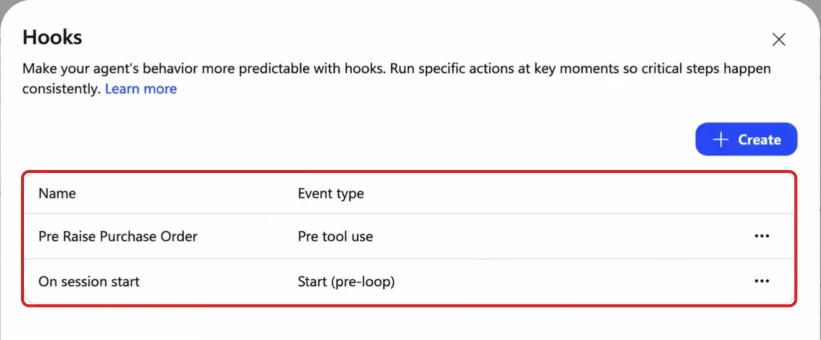
Microsoft's example, cropped with a red outline added by me. It shows hook configuration, not evidence that I tested or blocked a purchase order.
69. Foundry IQ integration moves to general availability
For: Studio makers using the GitHub Copilot harness · GA reported in the September roundup published 7 October
Foundry IQ lets an agent use a knowledge base that a team has already built and tuned in Azure AI Foundry. Instead of setting up the same sources and search rules again in Studio, you connect that reusable knowledge base as a tool.
Microsoft’s October-published roundup says this integration is generally available. The release notes previously listed it as a June preview, so the change here is its availability status, not the first appearance of Foundry IQ.
You need access to the knowledge base, and Learn currently allows one Foundry IQ connection per agent. If the answers need improving, work with the knowledge-base owner on its sources and retrieval settings.
Why this matters: If one team has already organised and tuned a useful set of knowledge, another team should not have to rebuild it before making an agent. Reuse the work, then test whether it answers your agent's questions well.
📖 Microsoft’s Studio September roundup · Connect to Foundry IQ
70. Evaluations reach individual AI nodes and broader automation
For: Copilot Studio makers · September roundup published 7 October · No separate rollout date stated
An evaluation is a repeatable test: give the agent or a step in your process an input, then check what it did. Microsoft’s roundup says testing now reaches individual AI nodes and the broader automation, not just agent conversations. That does not mean every workflow or step has identical test support.
For example, a workflow may read an email, extract details and route a request. If the final result is wrong, testing the extraction step separately helps you find where the mistake started.
Microsoft describes testing with datasets, setting rules for what counts as a pass and comparing results across versions. Use inputs that resemble the real work, including awkward cases, rather than only the easiest example.
Why this matters: A finished workflow can look fine while one small step quietly gets things wrong. Testing the parts as well as the whole gives you a better place to start fixing it.
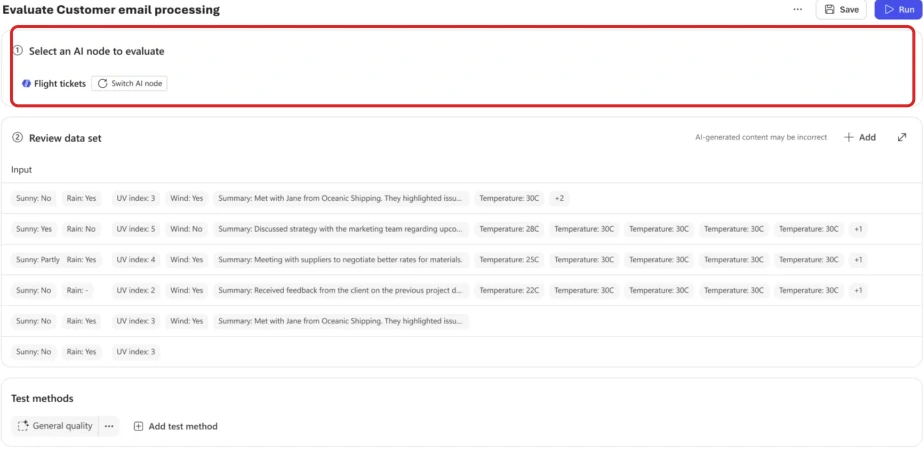
Microsoft's AI-node evaluation example, cropped and highlighted by me. It shows the test setup, not a completed workflow test or my results.
📖 Studio September roundup: evaluations
71. New graders check the task, tools, safety and response time
For: Copilot Studio makers · September roundup published 7 October · No separate rollout date stated
Microsoft adds Task Completion, Tool Accuracy and Safety graders, plus latency measurements. A grader is the check that judges one part of a test result; latency means how long the response took.
Those are different questions. Did the agent finish the requested job? Did it choose the right tool? Did it produce unsafe content? How long did the user wait? A well-written answer can still fail one of the other checks.
For example, a travel assistant might explain the hotel policy correctly but never make the requested booking. Test the action as well as the words. A passing safety score is also not a guarantee that an agent is safe in every situation.
Why this matters: "It gave a good answer" is not enough once an agent can act. These checks help separate a helpful-sounding reply from a task that was actually completed correctly.
Microsoft's sample result, highlighted by me, not my agent's test. The screen shows answer quality, tool accuracy and task completion; it does not display the separate Safety grader.
📖 Studio September roundup: new graders
72. Keep custom graders in a shared library
For: Copilot Studio makers · September roundup published 7 October · No separate rollout date stated
The new Custom Graders Library lets teams create, manage and reuse their own evaluation criteria across agents and test sets. A test set is a collection of examples you run together.
Suppose your support team needs answers to include a case number and avoid promising an unapproved refund. You can define those checks once and reuse them, rather than writing a slightly different version for each agent.
This is about consistency in testing, not a guarantee that the shared rule is correct. Give the grader examples that should pass and examples that should fail, and check both before relying on its scores.
Why this matters: Teams can agree on what a good result looks like and test against the same definition. That makes comparisons more useful than everyone bringing their own private checklist.
📖 Studio September roundup: Custom Graders Library
73. Studio can draft a grader for your evaluation scenario
For: Copilot Studio makers · September roundup published 7 October · No separate rollout date stated
Microsoft also describes auto-generated custom graders for a specific agent and evaluation scenario. These generated graders are tenant-specific and visible only within that tenant, rather than a shared public library.
Treat the suggestion as a draft of your marking guide. Read the instructions, decide whether the pass and fail labels match your rules, and try examples before keeping it.
The distinction matters: generating a check and proving that it measures the right thing are two separate jobs.
Why this matters: Starting a useful test is often harder than running one. A suggested grader can give you a starting point, while you keep responsibility for deciding what a pass should mean.
Microsoft's suggested-grader example, cropped and highlighted by me. It shows a suggestion awaiting review, not an approved policy or a validated grader from my tenant.
📖 Studio September roundup: suggested graders
74. An Evaluation Viewer can review results without editing
For: Copilot Studio makers and reviewers · September roundup published 7 October · No separate rollout date stated
The new Evaluation Viewer role lets someone see evaluation results without giving them editing rights.
That is useful when the person checking an agent is not the person building it. A service owner can review failures and ask questions without needing permission to change the test or agent.
Microsoft describes the role as view access for evaluations; it is not a grant of wider maker or admin permissions.
Why this matters: You can invite another pair of eyes into the review without also handing them the controls. That is a small but practical improvement for teams that separate building from approval.
📖 Studio September roundup: Evaluation Viewer
75. The Review panel is generally available
For: Studio makers using the GitHub Copilot harness · GA reported in the September roundup published 7 October
September’s section 82 tracked Agent Readiness while its roadmap entry still said In development. Microsoft’s later roundup now describes the Review panel as generally available. That is an update to the earlier position, not a second, unrelated readiness feature.
The panel groups issues into Blocking and Warning. Blocking issues prevent publishing; warnings need attention but do not stop it. Each issue explains the problem and points towards a way to resolve it.
For example, it can flag a blocked connector, missing evaluation or a preview model. It does not replace admin governance or compliance reporting, and having no blockers does not prove that every answer will be right.
Why this matters: It is better to learn about a policy problem while you are building than when you are ready to share the agent. The panel puts those checks closer to the work.
Microsoft's example, cropped by me; the red highlight is already in the published image. These are sample warnings, not blockers found in my tenant.
📖 Studio September roundup: Review panel GA · Review agent readiness and status
76. An extract node turns documents into fields a workflow can use
For: Studio workflows using the GitHub Copilot harness · Listed in the September release notes
An extract node reads a document and returns the named fields or tables you have asked for. A node is simply a step on the workflow canvas.
For an invoice, that might be the supplier, invoice number, total and line items. You can start with a sample document, choose a template or define the fields yourself. Later workflow steps can use those extracted values.
Test with representative documents and check the output before connecting it to actions such as creating records or approving payment. A field that looks neatly structured can still contain the wrong value.
Why this matters: A person can read an invoice and pick out its total. A workflow needs that total in a named field before it can use it reliably. This step helps make that handover.
📖 Add an extract node · Studio September release notes
77. A workflow can call Chat, an agent or a Cowork task
For: Studio workflows using the GitHub Copilot harness · Preview · September release-note catch-up
The Copilot node can run Copilot Chat, call Researcher, Analyst or an Agent Builder agent through Chat, or start and resume a Cowork task. The response can become input for a later step.
It runs through the connected Microsoft 365 account and uses that user’s work context. Be deliberate about whose connection you choose; this is not automatically the account of whoever happens to trigger the workflow.
For example, a workflow could ask Researcher for a brief, save the result as a draft and route it for review. This is different from September’s agent node, which can call an existing custom agent or use one you build directly inside the workflow.
Why this matters: You can put an existing Copilot capability inside a repeatable process rather than rebuilding it. Keep the account, permissions and review step clear before letting later actions use the result.
78. Model choice gets a dropdown and clear release labels
For: Studio makers using the GitHub Copilot harness · Listed in the September release notes
You can choose the agent’s model from a dropdown. The labels help distinguish generally available models from preview and experimental choices, rather than treating every visible name as equally ready for use.
This is a maker control, separate from the new model announcements in section 13. Availability differs by region and environment. Experimental models are for testing, not production, and some options may process data outside your organisation’s geography.
Try your own test set before switching a working agent. A more capable model may also take longer or cost more; the newest name is not automatically the best fit.
Why this matters: Choosing a model is choosing how the agent behaves, not just changing a label. Clear release tags make it easier to separate an experiment from a choice you are comfortable supporting.
📖 Model availability and controls
79. Studio conversation attachments add Word, Excel and PowerPoint
For: Studio agents using the GitHub Copilot harness · GA expansion listed in the September release notes
The attachment feature now supports Word, Excel and PowerPoint files as well as the existing supported types. A user can attach a document and ask the agent to read, summarise or reason over it.
That is not the same as adding a permanent knowledge source. An attachment belongs to the conversation; the agent can refer to it again there. Learn gives a 16 MiB per-file limit and says attachments are retained until 28 days after the conversation’s last activity.
For example, someone could attach a particular supplier’s proposal for review without asking the maker to add every proposal to the agent’s shared knowledge.
Why this matters: Often the useful question is about the file in front of you, not the whole company library. This widens the file types you can bring into that conversation, without confusing an upload with a permanent knowledge connection.
📖 Attach files to a conversation · Studio September release notes
80. Dataverse knowledge can reach notes and file columns
For: Copilot Studio makers · Multiline Text and File-column reasoning in preview · September release-note catch-up
September’s Dataverse entry covered tables as a knowledge source. This preview goes further: the agent can reason over content in Multiline Text and File columns, such as case notes, descriptions and attached documents, rather than only structured fields.
Dataverse search must be enabled, the relevant columns must be searchable, and the agent must use Authenticate with Microsoft. Setup needs the right access; creating the search index also uses Dataverse capacity.
There are limits: up to 15 tables per knowledge source, and no support for tables, images or text in non-organisation languages inside the preview’s file attachments. If you configure the columns after adding the knowledge source, backfill can take up to two days. Do not assume every attachment will become fully searchable straight away.
Why this matters: The status field might say "Waiting", while the reason is buried in a case note. Reaching that explanatory text can make an answer more useful, provided you configure and test the search properly.
📖 Add Dataverse tables and search text/file columns
81. Standard-harness evaluations add configurable content-safety tests
For: Studio agents using the standard harness · Listed in the September release notes
The Content safety test method checks responses for hate and unfairness, sexual content, violence and self-harm. You add a test method for each content type and choose the severity threshold that should pass or fail.
These Learn instructions describe the standard harness. They are not a claim that its settings are identical to the newer graders in section 71.
Run representative test cases and review failures. Passing these checks does not certify the agent as safe for every use, and evaluation does not replace the filters and review you need when it is running.
Why this matters: A team can state what it is checking for and make that check repeatable. Keep it as one part of the review, not a green badge that ends the conversation.
📖 Choose evaluation methods: Content safety · Studio September release notes
On the horizon
These roadmap entries remain In development in the 18 October check. A planned month is not confirmation of launch.
- Realtime voice in Word and PowerPoint — Roadmap 487852
- Outlook Chat reasoning over inbox and calendar — Roadmap 554934
- Usage-billed models in the Chat model selector — Roadmap 571400
- Federated connector write actions — Roadmap 570964
- Work IQ custom agents and ExpandedContextIQ (November) — Roadmap 570853, 570854
- Planner in Cowork — Roadmap 567315
- More Work IQ developer tools — Retrieve, long-running tasks, elicitation and REST tools have October preview and November GA dates, still In development: 570673, 570851, 570852, 570868.
Also announced at the launch: Today in Home (private preview in October) and @Copilot in Teams (private preview). Office in Copilot now has its own Frontier entry in section 53; the Teams summary without a retained transcript is rolling out, as covered in section 65.
Plugin registry support in Studio is another one to watch. The Studio roundup published on 7 October says it is rolling out over the coming weeks. That wording does not confirm it is available in every Studio environment.
One more dated check before publication: Microsoft has announced a OneDrive + Copilot event for 20 October. That event has not happened at this draft’s 18 October source cut-off. Its eventual announcements are not counted here.
Admin watch-list
If these apply to you, they are worth checking. Wording is conditional because tenants differ, and Microsoft’s own Message Center is the authoritative copy.
- If your network filters web addresses, check
*.cloud.microsoftis allowed in full. Users not redirected in September are redirected in early November (MC1462915). - If you use Targeted release, plan your move before November (MC1490899).
- If you restricted Copilot in SharePoint with PowerShell, those controls are honoured only until 1 November (Learn).
- If you own an App Builder app, plan and test its replacement before 30 November (migration guidance).
- If you own
.agentfiles, plan for the November creation change and March 2027 retirement of the file format (upgrade guidance). - If users ask why they can see Code but cannot open it, check their spending policy and the new Request access settings (MC1479277).
Disclaimer: this is my reading of public posts, not official guidance.
How this issue was put together
The source cut-off is 18 October. This draft combines public Microsoft product posts and Learn documentation with the release-note batches of 23 September and 6 October, the 25 September launch and publicly archived Message Center posts. Sections 53 to 66 hold the newer October material and admin notices; the expanded Notebooks entry stays at section 19 so existing links keep working.
Microsoft’s September roundup arrived late. The official What’s New in Microsoft Copilot | September 2026 post was published after my September issue. Items not already covered are kept in a labelled catch-up (sections 41 to 52), with their original dates.
I led with the launch. I chose to put the 25 September launch first because you will be asked about it. Each item says plainly whether it is Frontier, private preview or generally available.
Eight items were deliberately left out. Earlier issues already covered regenerating a response with Try Again or Switch Model, PowerPoint custom skills, PowerPoint file references from SharePoint and OneDrive on Mac, Vision, the Forms chat pane, classic Outlook declarative agents, power user insights and the GitHub Copilot cost dashboard. Repeating them would add nothing.
What remains announcement-led. Several preview entries still rely on Microsoft’s announcement rather than a tenant test. The 12 October Message Center update adds deployment, runtime and billing detail to the original launch, but it does not establish access in every tenant. Each preview keeps that distinction.
Copilot Studio and Power Platform stay in the series. Sections 67 to 81 compare the Studio September roundup, published on 7 October, and September release notes with the previous issue. Repeated runtime and harness announcements are not counted again; new capabilities and availability changes are labelled as catch-up. This is not a claim to cover every Dynamics 365 or Power Platform product release.
About the roadmap numbers. A roadmap number points to Microsoft’s record, not proof of what is live in your tenant. This pass checked Copilot-tagged records published in October separately from records with October GA or preview dates. A newly published record can describe a feature that shipped earlier. When sources disagree, the section should keep the scope and date of the evidence rather than silently turn a planned date into a launch.
On testing. Demo captures in this issue were reviewed on 19 October. Where I describe a specific test, I say what it showed and what it did not. An official screenshot or my illustration is not a test in my tenant.
Official Microsoft resources
- Microsoft 365 Copilot release notes
- What’s new in Copilot Cowork
- AI at Work Roadmap
- What’s New in Microsoft Copilot | September 2026
- Microsoft Copilot Blog board
- Copilot Studio Blog board
- Get started with Copilot in SharePoint
- Office in the new Microsoft Copilot app
- What’s New in Notebooks, October 2026
- Copilot gets to work in Excel
- Team knowledge bases in SharePoint
- Copilot for legal
- App Builder migration
- SharePoint and OneDrive agent upgrades
Keep reading
- Past recaps: January · February · March · April · May · June · July · August · September
- Slide packs: free PDFs of previous monthly recaps
- Go deeper: Microsoft Scout complete guide · Copilot Cowork complete guide · Work IQ API · Copilot vs Agents vs Copilot Studio · Agent Builder explained