What's New in Microsoft 365 Copilot: November 2026
← what changed this month, in plain English
On this page
November brings connector actions that can make changes, new ways to work with Copilot Studio agents, and a few important dates for administrators. There is also October catch-up: Microsoft’s roundup arrived after I finished the last issue.
Research cut-off: 11 November 2026, 15:40 New Zealand daylight time. Microsoft Ignite takes place on 17–20 November, after this cut-off.
Three labels help make sense of this issue. Frontier is Microsoft’s early-access programme. General availability (GA) means a feature has moved beyond preview, although rollout can still take time. Copilot Credits measure usage-billed work; a Copilot licence does not automatically include every credit-based experience.
2026 monthly recaps: January · February · March · April · May · June · July · August · September · October · November (you are here)
If you only have 2 minutes
- Connector write actions reach GA in Chat and Cowork. Users can approve once or remember approval for an individual tool; Researcher’s federated connectors remain read-only.
- Autopilot has a timing wrinkle. Microsoft’s roundup says Frontier in November, but the updated Message Center notice says rollout timing will follow.
- Databricks and Copilot Studio connect. The integration is GA, but connecting a Genie Agent has a separate preview prerequisite. That does not establish Cowork plugin availability.
- Access-request dates have changed. Microsoft has delayed its discoverability change and plans an option to link to your organisation’s own guidance.
- App Blocks are rolling out in Chat. Microsoft describes interactive previews inside the conversation for Basic and Premium users; completion is not confirmed here.
- Admins have work to do. Review release preferences, the
*.cloud.microsoftallowlist, SharePoint’s control transition and spending policies. Microsoft sources also disagree about memory retention.
Admin checklist
- November: review the Targeted release transition in the Message Center archive. The notice’s 31 October action date has passed; Microsoft plans to stop changes to Targeted release enrolments this month and retire it in January 2027. Check your own Message Center for progress.
- Status check after early November: check the full
*.cloud.microsoftdomain is reachable. The redirect notice in the Message Center archive describes early November as the planned timing for remaining users, not confirmation that every redirect is complete. - Status check after 1 November: review SharePoint’s preview-control transition. Microsoft says the previous PowerShell settings are honoured until that date; its guidance points to Site AI settings and Restricted Content Discovery afterwards.
- Check your Copilot release preferences and the people enrolled in Frontier before planning for preview features; see Autopilot.
- Review connector write tools and user approval settings before enabling a connected workflow; see write actions.
- Mid-November: look for the new usage-based access-request setting in the Message Center archive. Microsoft plans an optional guidance URL from mid-December and the discoverability change at the end of January 2027, or the end of February for deferred release.
- Before 18 November: if you use the Workforce Insights endpoint for custom organisational data, review the endpoint retirement notice in the Message Center archive and the access rules for its replacement.
- Check spending policies and available Copilot Credits for usage-billed experiences; see the access-request update. A visible entry point is not the same as an access grant.
November rollout updates
1. Autopilot moves toward Frontier
For: Copilot app · Frontier timing disputed across Microsoft sources · Microsoft 365 Copilot licence and spending policy
In October I introduced Autopilot, the personal agent previously known as Scout. The update here is its announced Frontier timing.
It is a usage-based experience. Microsoft’s Message Center notice says eligible users need both a Microsoft 365 Copilot licence and a spending policy. An Autopilot tab in an illustration is not proof that your account can use it.
There is a timing wrinkle: the October roundup gives November for the Frontier rollout, but the Message Center post, updated on 9 November, still says Microsoft will provide rollout timing and admin controls later. I have not verified which notice is current for a particular tenant.
Why this matters: October's issue could not give a Frontier rollout month. Microsoft's later roundup provides one, but rollout is not universal availability.
- In plain words: Microsoft has given a possible Frontier rollout month, but its sources do not yet agree on the timing.
- Picture this: A person could give it an ongoing goal to help prepare a recurring update, rather than starting from scratch each time.
- My take: I would watch your tenant's Message Center and check the spending controls before planning a pilot. I have not tested Autopilot for this issue.
📖 Microsoft’s October roundup: Autopilot · Message Center archive: MC1479277
2. Connector write actions reach general availability
For: Copilot Chat and Cowork · generally available · capabilities depend on connector, configuration and permissions
Copilot connectors have helped bring information from other applications into a conversation. Microsoft now says supported connector write actions are generally available in Copilot Chat and Cowork: depending on the connector, Copilot can also create, update or delete information in the connected application.
That is an important difference. Reading a work item to answer a question is one thing; changing the work item is another. Microsoft says the action uses the user’s permissions in the connected system, and the available actions depend on the connector and its configuration.
For federated connectors, Microsoft says users need a Microsoft 365 Copilot licence, and administrators must enable the connector and include them in the applicable access settings.
New write tools start at Needs approval. When the confirmation appears, review both the action and the information being sent. Microsoft documents three choices:
- Allow once: approve this use; Copilot asks again next time.
- Allow for conversation: approve that tool for the rest of the current conversation.
- Always allow: stop repeat confirmations for that tool until you change the setting or the publisher changes the tool.
Those choices apply to an individual tool, not the whole connector. You can review tool permissions under Settings → Sources. Microsoft says write actions in Office apps are coming soon; Researcher remains read-only for federated connectors.
Why this matters: Finding information and changing it are different decisions. The tool-level approval setting changes how often you see a confirmation.
- In plain words: A supported connector can now change information as well as read it, within the connected account's permissions.
- Picture this: After a meeting, you ask Copilot to create a work item in a connected system. Check the proposed details before approving it.
- My take: I would be deliberate with Always allow. It is convenient, but it changes how often you get the chance to review that tool's actions.
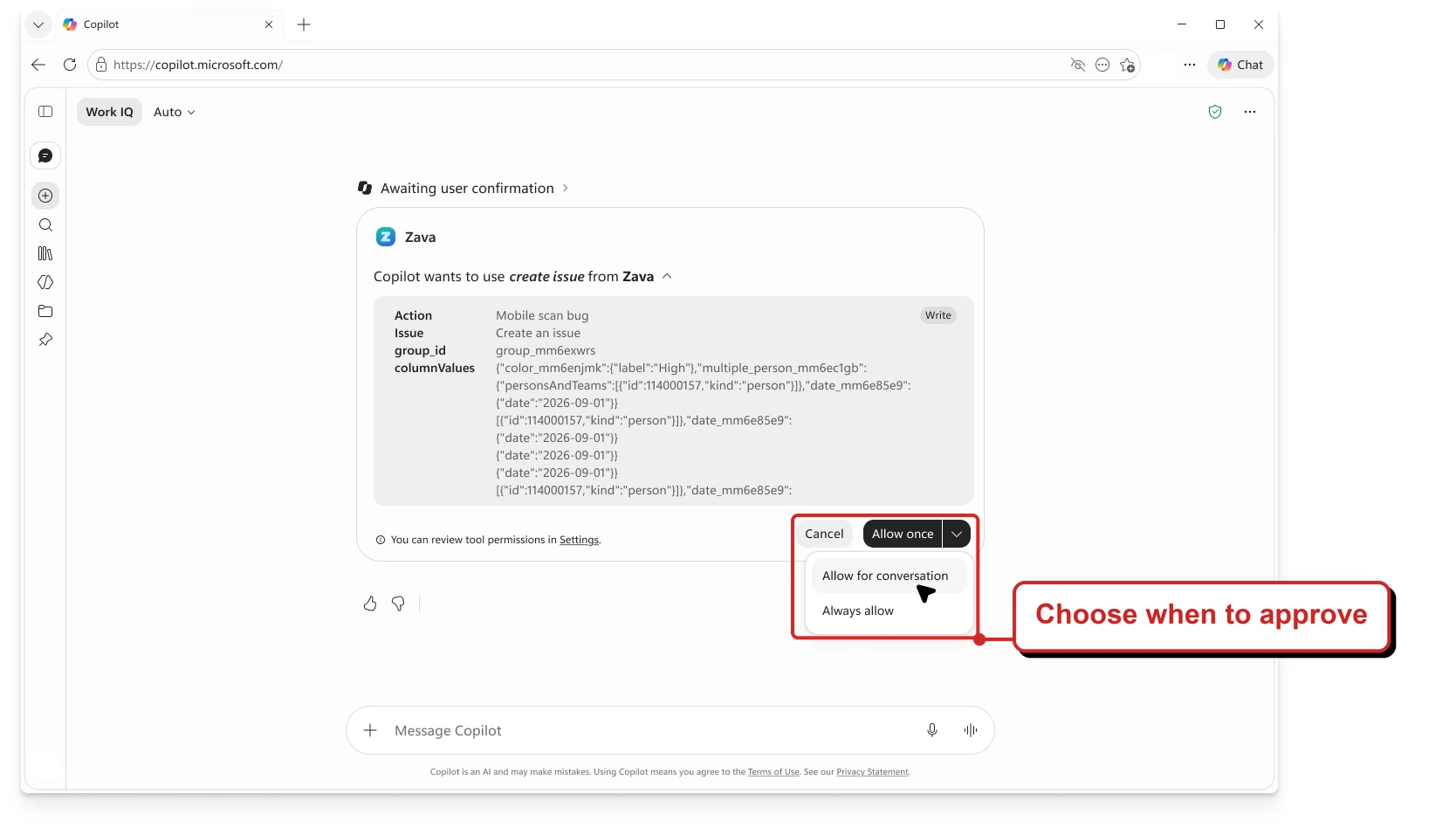
Microsoft Learn's approval example, with my red outline and callout and profile images masked. The menu shows the choices before approval; this is not a completed write or a tenant test.
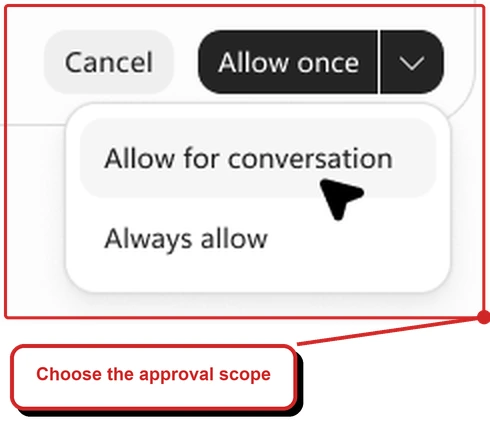
A closer crop of the same official image, enlarged so the choices are easier to read.
📖 Microsoft: connector write capabilities · Microsoft Learn: confirmation choices · Microsoft Learn: supported experiences
3. Access-request dates change for Cowork, Code and Autopilot
For: Microsoft 365 administrators and licensed Copilot users · planned changes
In October I covered Microsoft’s plan to make usage-based experiences easier to discover and let users request access. Microsoft has now extended the timeline and added a planned option for organisations to link to their own guidance.
The new access-request setting is planned for mid-November. From mid-December, admins who restrict requests can add a guidance URL for people who cannot request access. The new discoverability behaviour and retirement of the old setting are planned for the end of January 2027, or the end of February for deferred-release customers.
For example, an organisation could direct someone who cannot request Cowork access to its own explanation of eligibility and support. This is a planned option, not something I have tested in a tenant.
The distinction matters: showing an entry point does not enable the service or start billing. Microsoft says users still need an applicable spending policy and available Copilot Credits to use these experiences.
Why this matters: Administrators have more time to prepare and can explain their organisation's own process instead of leaving users to guess.
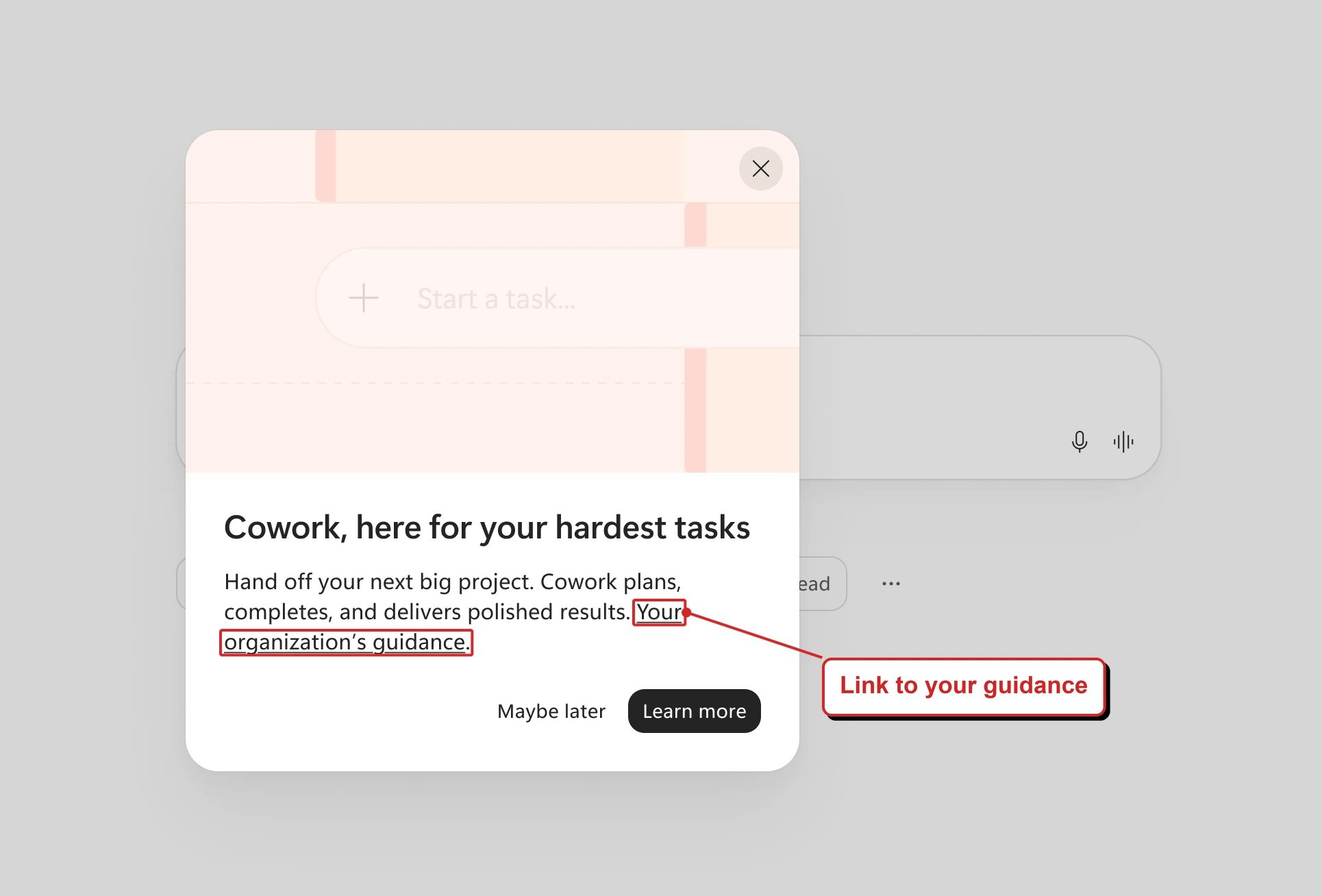
Microsoft's proposed Cowork guidance example, with my red highlights. The interface may change; this is not a tenant capture.
📖 Message Center archive: MC1546354 revised access-request timeline
Earlier catch-up: September and October
4. Azure Databricks data connects to Copilot Studio
For: Azure Databricks and Copilot Studio · generally available from 7 October · Genie Agent setup has a preview prerequisite
Microsoft’s Azure Databricks release notes say its Copilot Studio integration is generally available.
Microsoft updated the release-notes page after this issue’s research cut-off. I could not verify the exact wording on that page at the cut-off, so treat this as a later source check rather than a confirmed as-of-cut-off record.
Makers can use Azure Databricks data as a knowledge source or connect a Genie Agent as a tool. Microsoft documents a Power Platform connection as a prerequisite. Connecting Genie Agents also requires the Managed MCP Servers preview in the Databricks workspace, even though the integration itself is generally available.
This is the Copilot Studio integration. It is not a statement that the separate Cowork plugin has the same availability.
Why this matters: The integration has moved beyond preview, while a specific Genie setup step still has its own preview requirement.
- In plain words: A maker can connect a Copilot Studio agent to Databricks data, or give it access to a Genie Agent as a tool.
- Picture this: A maker could connect an agent to approved data so a colleague can ask a question in everyday language.
- My take: I would check the connection, workspace settings and access with the Databricks team before designing a workflow around it. GA for the integration does not make the Genie prerequisite GA.
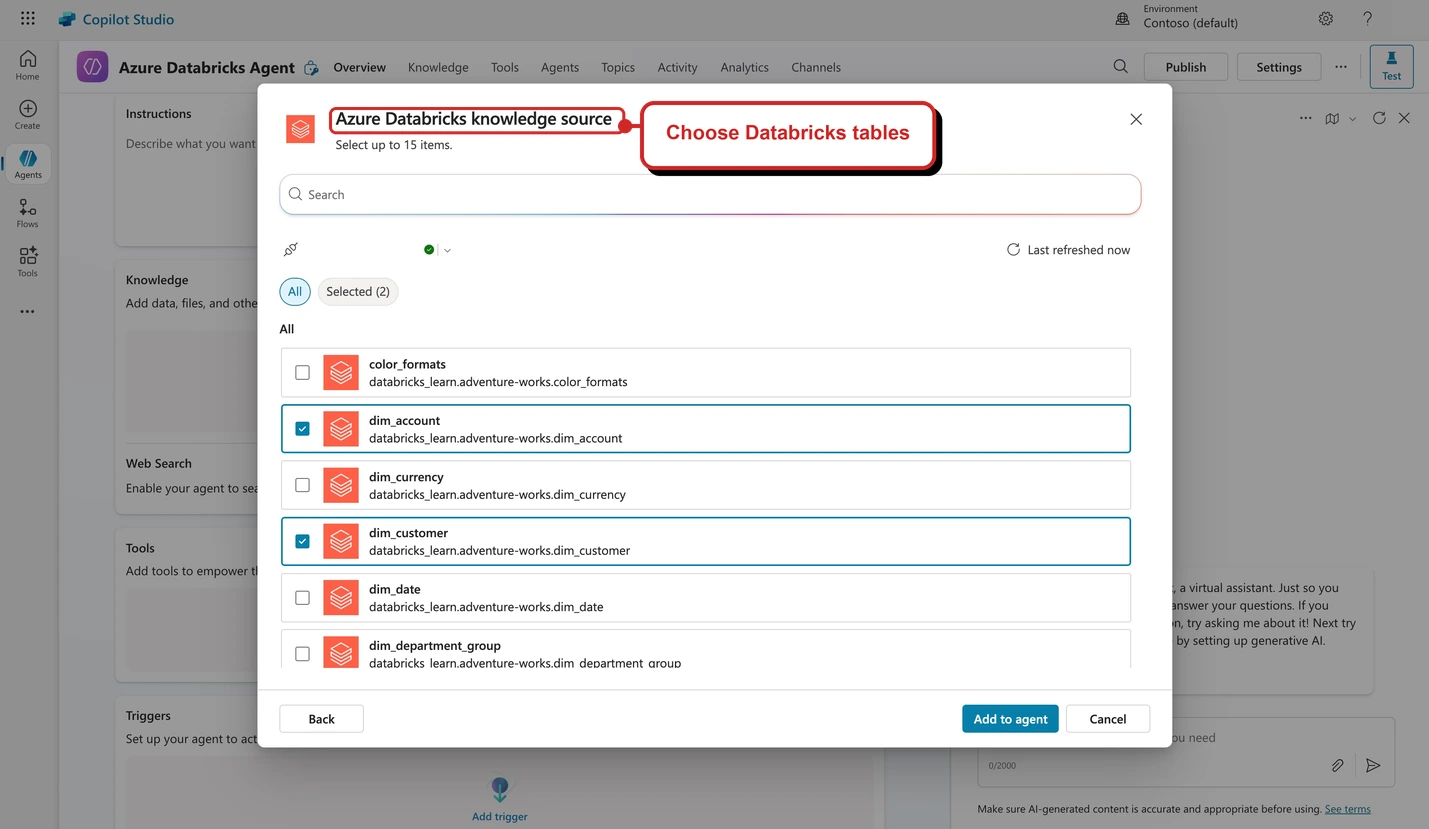
Microsoft Learn's example of selecting Databricks tables, with my red callout and account details masked. This is not a capture from my tenant.
📖 Azure Databricks October release notes · Using Databricks data in Copilot Studio
5. Power Platform guidance adds a Cowork governance series
For: Power Platform administrators · guidance published in October · plugin in preview
Microsoft added guidance on using Power Platform Admin in Cowork for governance questions. The series covers rollout preparation, suggested questions and turning answers into reports or recurring checks.
The Power Platform Admin plugin is in preview and provides read-only insights; it does not independently carry out administrative actions. Installing it does not grant access to Cowork or to Power Platform data. Microsoft says the connecting account needs one of the listed administrator roles, permission to create the connection, and separate Cowork access.
One prompt in Microsoft’s library asks which apps and flows have an owner who has left the organisation. That gives an admin somewhere to start a conversation with the right people; it is not an instruction to delete those resources.
Why this matters: This is guidance for a governance workflow, not a claim that every tenant has enabled or tested it.
- In plain words: Microsoft has written a starting guide for using Cowork to investigate Power Platform governance questions.
- Picture this: An admin could investigate resources without an owner and use the findings to prepare a follow-up list.
- My take: I would check the source data and permissions before acting on the list. Guidance is not proof that this workflow is enabled in your tenant.
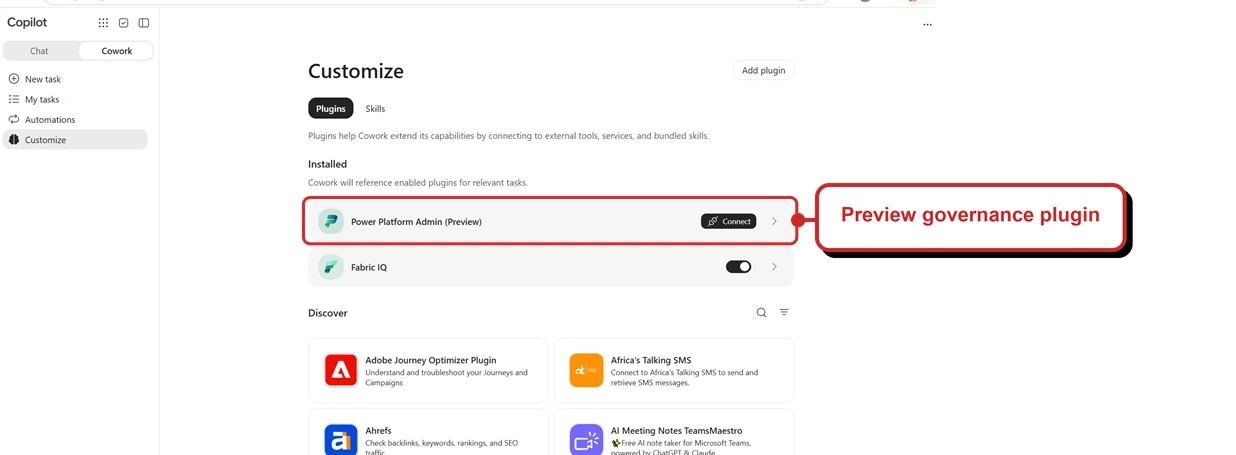
Microsoft's example of the preview plugin in Cowork, with my red outline. Installing it does not itself grant access to Cowork or Power Platform data.
📖 What’s new in Power Platform guidance · Microsoft Learn: plugin prerequisites · Microsoft Learn: governance prompts
6. Projects keep related work together
For: Copilot Chat and Cowork · October catch-up · Chat rollout announced for November
A project is a place to bring related conversations, Cowork tasks, instructions and files together. Instead of explaining the background from the beginning each time, you can start a new piece of work with the project’s available context. An Outputs view gathers files produced by its tasks. Microsoft’s Cowork guidance says projects are private to the individual creator; adding a file to a project’s context does not guarantee every task can use it.
Imagine someone preparing an onboarding programme. They could keep their planning conversations, relevant policy files and tasks to prepare a guide under one project. They would still need to check which context a task can use and review the resulting guide.
My take: start with a small set of relevant files and a clear instruction about the audience. That makes it easier to spot when a task has missed important context than putting an entire library into the project on day one.
Microsoft says Projects rolled out in Cowork in October and is rolling out in Copilot Chat in November. The availability of Cowork and its usage-based billing still depends on your organisation’s settings.
Why this matters: Related work has somewhere to live between individual chats and tasks.
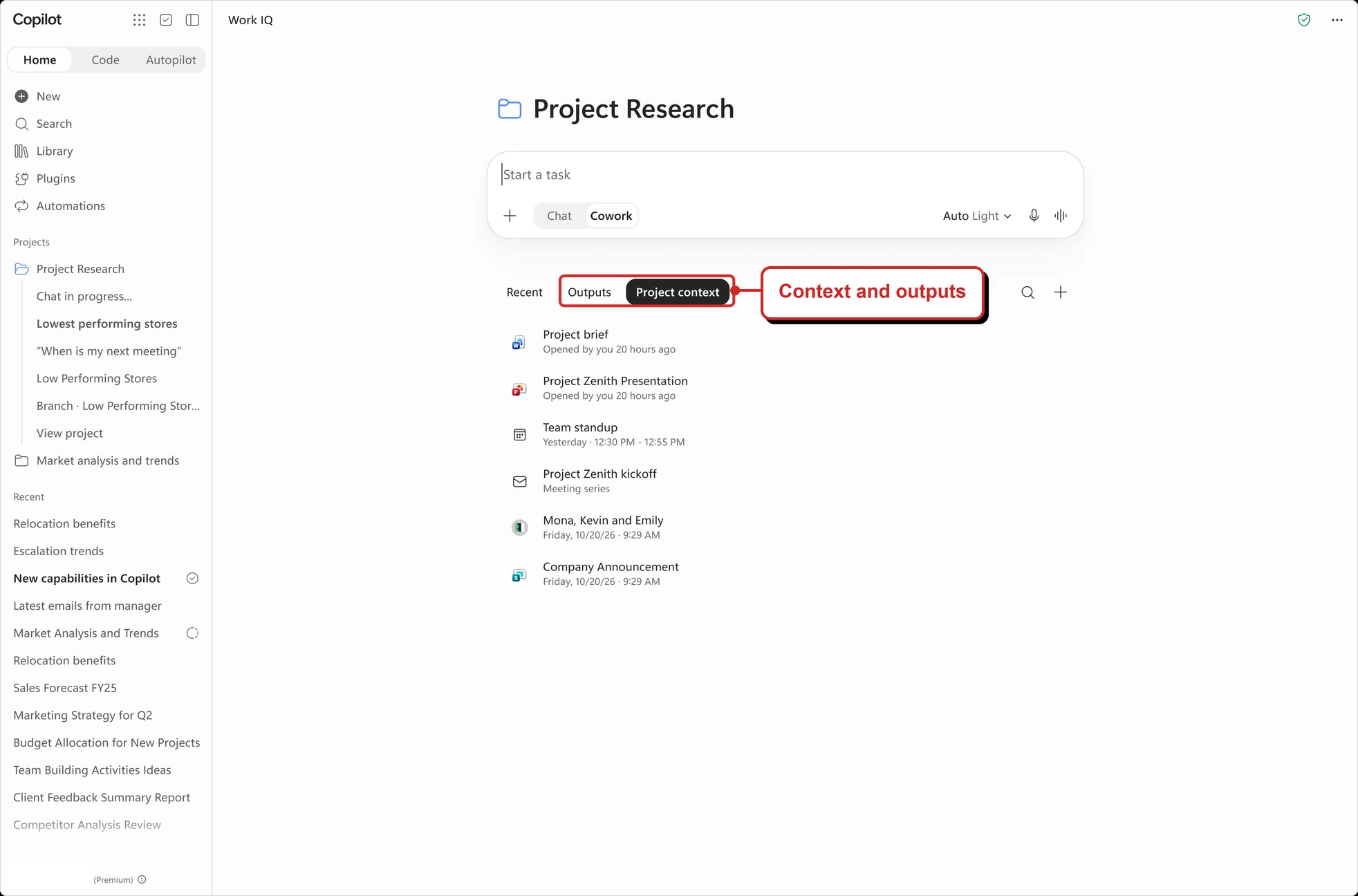
Microsoft's project example, with my red highlights. The screen does not show whether a particular task can use every attached file.
📖 Microsoft’s October roundup: Home and Projects · Microsoft Learn: Use projects in Copilot Cowork · Message Center archive: MC1535647 Projects and Workspaces
7. Chat and Cowork get a combined history
For: Copilot app users · October catch-up · worldwide rollout announced for November
Microsoft’s later October roundup describes a combined Chat and Cowork conversation history with search and filters. It says the updated navigation rolled out to Frontier in October and would roll out worldwide in November.
For example, someone returning to a task could search the shared history instead of remembering whether they started in Chat or Cowork. The entries they can actually use still depend on their access and their organisation’s settings.
October’s issue already covered Home, Plugins and the move of Automations. The combined history and its announced wider rollout are the details being added here, not a repeat of those earlier changes.
I would think of this as a better way to find work you already started. Seeing a history entry is not proof that you can still access every file it references.
Why this matters: A shared history gives you one place to look for an earlier Chat conversation or Cowork task.
📖 Microsoft’s October roundup: Home navigation
8. Copilot Notebooks are becoming Workspaces
For: Copilot app · October catch-up · Frontier rollout described for October
Microsoft describes Copilot Workspaces as the next step for Copilot Notebooks: a shared place for a team to bring context, people and working files together. The announced experience includes seeing teammates’ live cursors as they work across documents.
Think of a group preparing a workshop. They could keep the preparation material and working files together, rather than passing separate copies around. Existing notebooks are expected to become workspaces; that does not mean every tenant has already changed over.
My take: the useful difference from a personal notebook is the team context. Before inviting people into a workspace, agree which materials belong there and check who should be able to work with them.
The October issue covered the lighter Notebook design. The move to a shared Workspace is the new part of the later announcement.
Why this matters: A notebook that started as personal context is becoming a place for a team to work together.
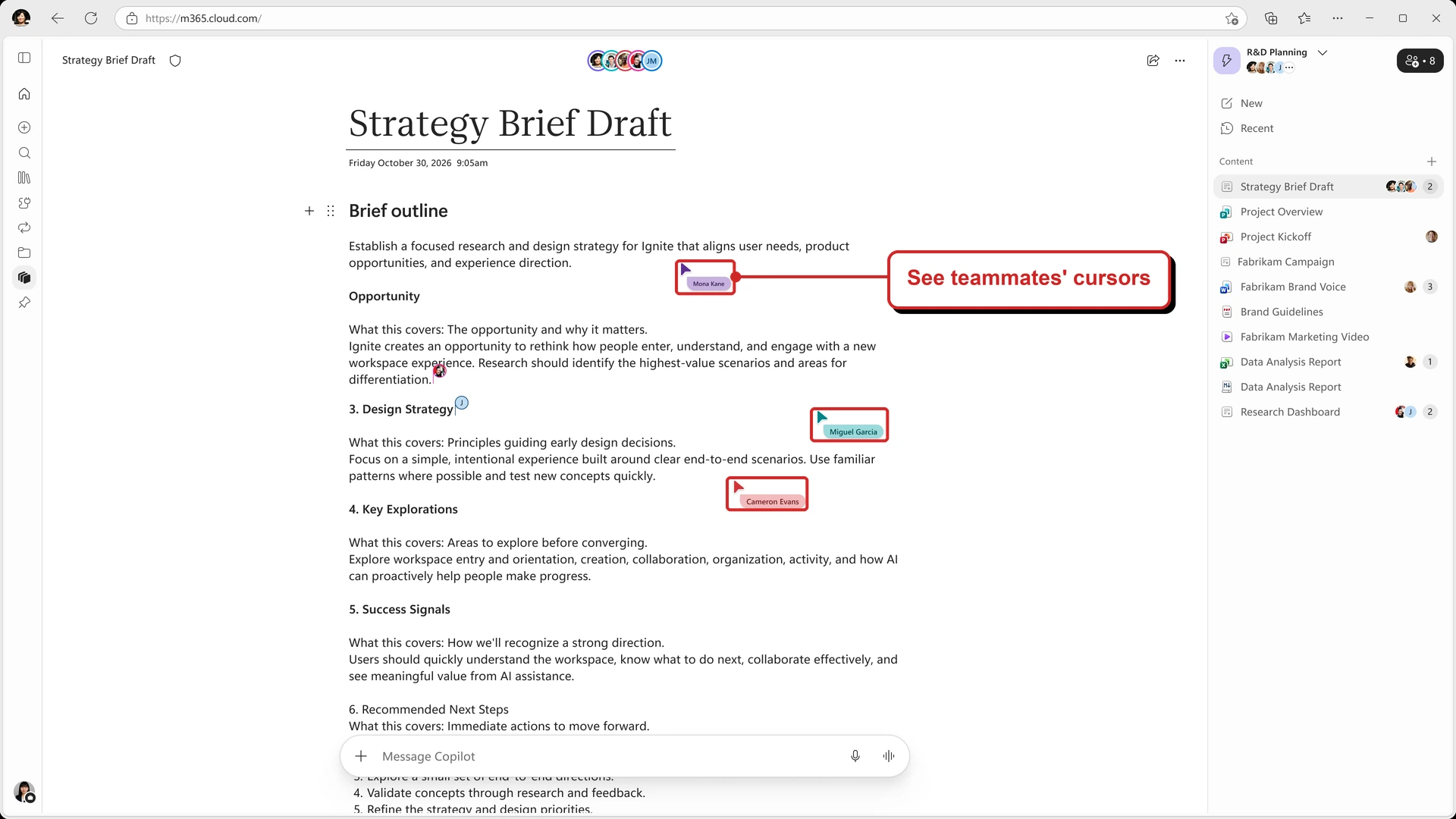
Microsoft's collaboration example, with my red highlight. It is not a capture from my tenant.
📖 Microsoft’s October roundup: Copilot Workspaces · Message Center archive: MC1535647
9. Office editing in Workspaces has a wider rollout date
For: Copilot Workspaces · October catch-up · Frontier first; worldwide rollout announced for January 2027
In October I covered Office editing inside Notebooks and files alongside the Copilot conversation. Microsoft’s later roundup adds a rollout detail for creating, editing and collaborating on Word, Excel and PowerPoint files inside a Workspace: Frontier in October, with worldwide rollout planned for January.
For example, a project team could ask Copilot to create a first draft, then open the file in the same workspace to make changes together. They should still check the content and formatting before sharing the result.
That January date is Microsoft’s announced timing, not a guarantee that every organisation will receive it on the same day.
Why this matters: The team can plan around the broader rollout without confusing Frontier access with worldwide availability.
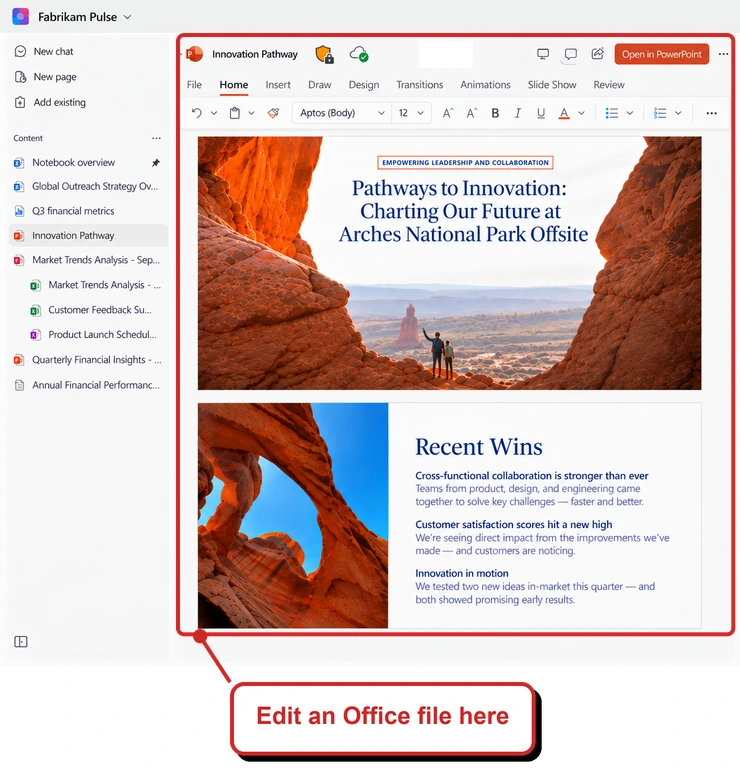
Microsoft's Workspace example, cropped with my callout and profile avatars masked. It illustrates the interface, not a tenant test.
📖 Microsoft’s October roundup: Workspace file editing
10. Workspace audio: rollout and sensitivity labels
For: Copilot Workspaces · October catch-up · Frontier first; worldwide rollout announced for November
In October I covered the planned audio episodes, extra reference types and Critique and Debate format. Microsoft’s later roundup describes a Frontier rollout in October, while the updated Message Center notice says worldwide rollout was planned to begin in early November and finish by late November. That is a schedule, not proof it has finished.
There is an important label distinction: Microsoft says audio saved to OneDrive inherits the most restrictive sensitivity label from its labelled sources; audio that remains within the notebook is not yet sensitivity labelled.
For example, someone preparing a project review could check where an audio overview is saved and how it is labelled before sharing it. Important points still need to be checked against the sources.
Microsoft’s Notebook guidance says audio overviews require a commercial Microsoft 365 work or school account and a Copilot licence. Creating a notebook also requires an active SharePoint or OneDrive licence, and generating an overview needs at least one reference file.
The Support page gives only a November update month, not a day. I could not confirm whether that guidance had this exact wording at the research cut-off.
Why this matters: Rollout timing and where the audio is saved both matter when planning how to use it.
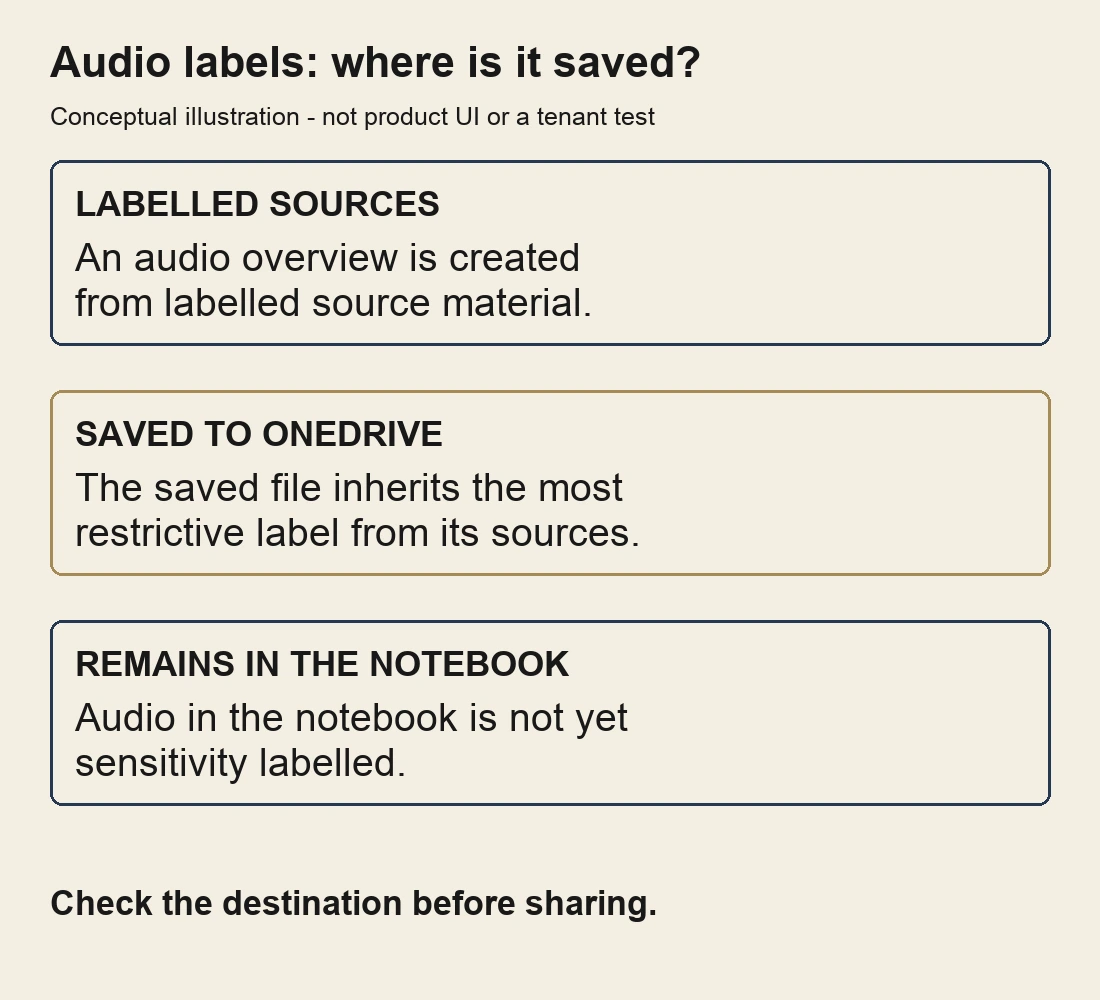
My illustration of the distinction in Microsoft's notice, not product UI or a tenant test. Rollout is still planned.
📖 Microsoft’s October roundup: Audio Overview · Microsoft Support: Notebook audio requirements · Message Center archive: MC1492959 rollout and label scope
11. Workspaces accept more image and table files
For: Copilot Workspaces · October catch-up · Microsoft reports rollout in October
Microsoft lists JPG and PNG images, plus CSV and TSV files, as additional Workspace references. A reference is material you add to give Copilot useful context for a piece of work.
Imagine a team collecting a few event photos and a CSV list of session feedback. They could add those files alongside their other project material before asking Copilot for a summary. They would still need to check what the summary says against the files.
For a table, I would explain what the columns mean and the period the data covers. A file being accepted as a reference is not the same as every value being interpreted correctly.
This is separate from the Markdown, TXT and RTF Notebook references covered in the August issue.
Why this matters: More of the material a team already has can sit alongside its documents as context.
📖 Microsoft’s October roundup: Workspace references · Roadmap 569211: JPG and PNG in Notebooks · Roadmap 569210: CSV and TSV in Notebooks
12. Cowork gets plugins for different roles
For: Cowork users · October catch-up · availability depends on the plugin and tenant
Microsoft describes role-based plugins for Sales, Service, Education, Legal and Finance. These contain skills for common kinds of work and appear under Roles & Industry.
Microsoft’s instructions say to open Customize, browse Roles & Industry, and review a plugin’s description and skills before adding it. Once added, you can choose a skill with / in the prompt box or let Cowork select one based on the request. If a plugin is unavailable, your administrator controls its availability.
For example, a service team might start with a case-triage skill instead of writing the whole workflow from a blank prompt. A legal team might use a contract-review skill with its own playbook. In both cases, the team needs to review the output and make the decision.
Microsoft’s roundup says the role-based plugins rolled out in October. Check the individual plugin and your organisation’s controls before assuming that every role is available to every user.
Why this matters: People have more ready-made starting points for work that follows a familiar pattern.
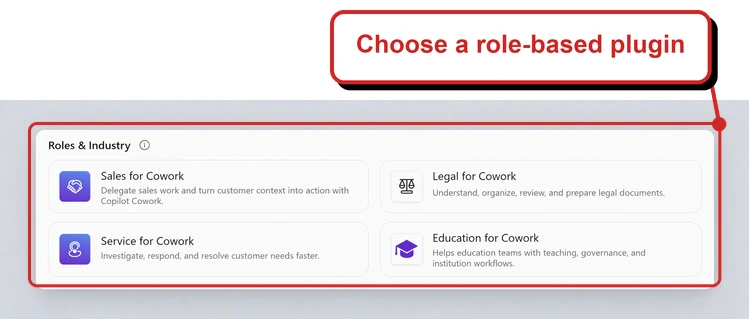
Microsoft's example of four role-based plugins, with my callout and red outline. The available list can differ as the catalogue and your organisation's settings change.
📖 Microsoft’s October roundup: Cowork role-based plugins · Microsoft Learn: find role-based plugins
13. Planner is coming into Cowork
For: Planner and Cowork users · October catch-up · Frontier first; worldwide rollout reported from late October
The Planner plugin lets Cowork work with plans and related items. Microsoft describes viewing, creating and updating plans, buckets, goals and tasks through natural language, with approval for changes.
Picture a project lead asking Cowork to organise agreed actions into a plan. The useful bit is not just producing a list: the lead can review what Cowork proposes before it writes changes to Planner.
In October this was on the horizon. Microsoft’s later roundup says it reached Frontier in October. The November Message Center notice says worldwide rollout began in late October and was expected to finish in late November. That does not establish that it has reached your tenant.
Microsoft’s November Message Center notice says users need a Microsoft 365 Copilot licence, access to Cowork and Planner, and permission to use the plugin. Users review and approve Planner changes.
Why this matters: A planning conversation can lead into work in Planner without copying every action across by hand.
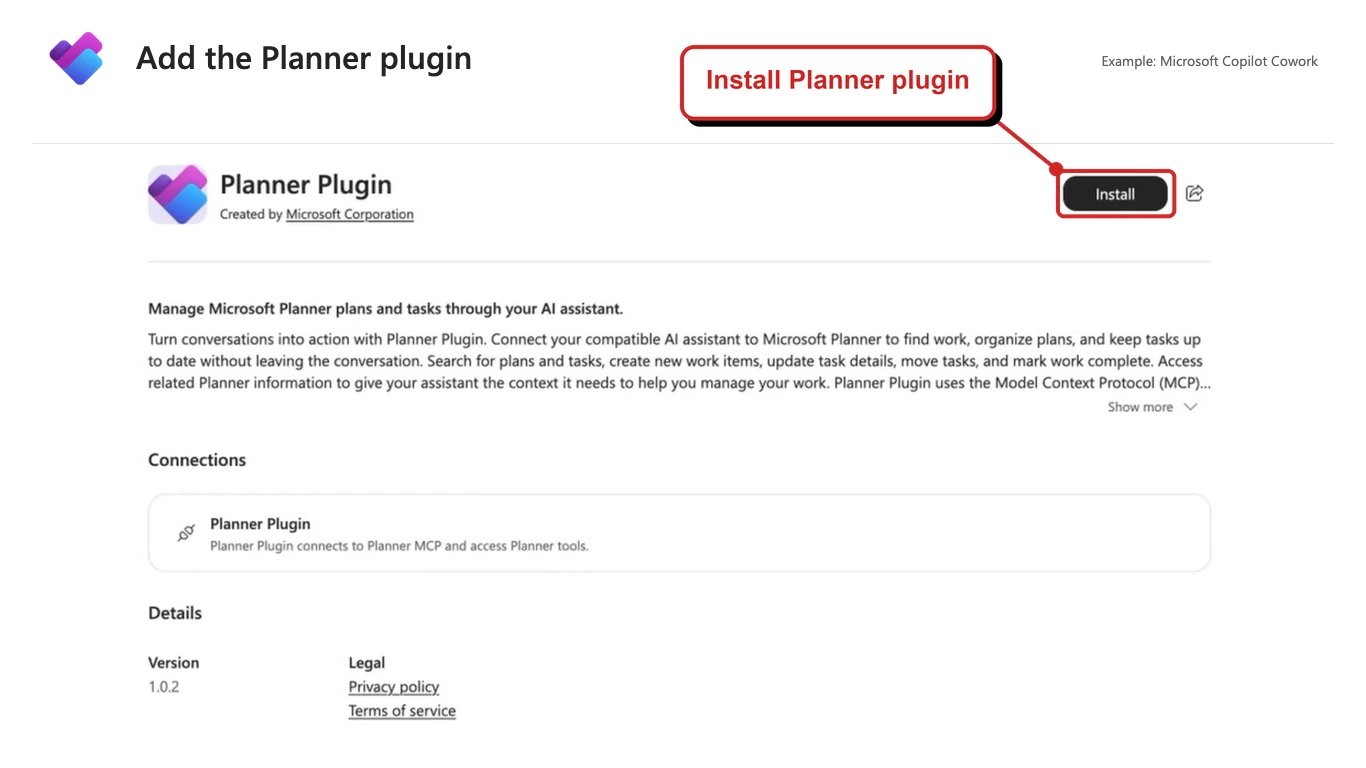
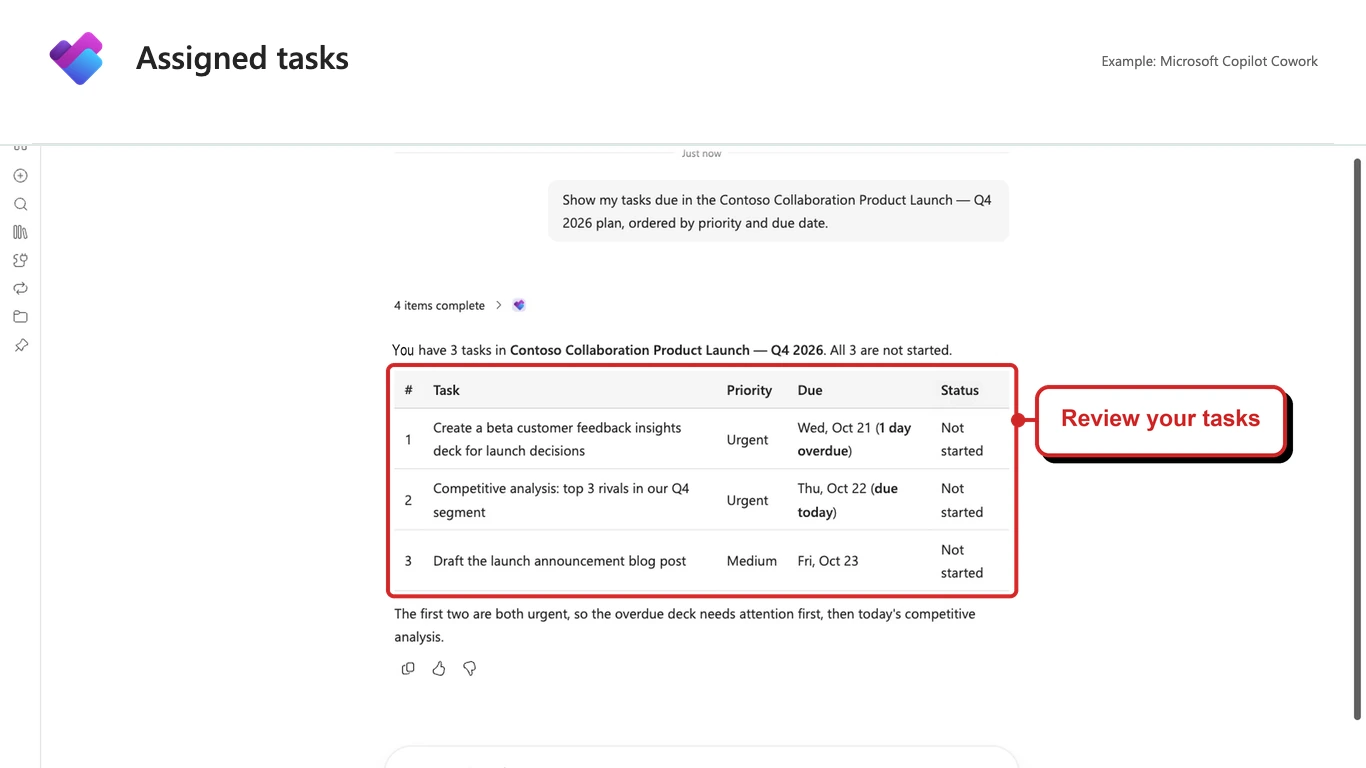
Microsoft's plugin and task examples, with my red highlights. These are examples, not evidence that a Planner change was made in my tenant.
📖 Microsoft’s October roundup: Planner in Cowork · Message Center archive: MC1540339 prerequisites and rollout
14. Cowork can use OneNote notebooks
For: Cowork and OneNote users · October catch-up · availability and editing depend on rollout
OneNote support lets Cowork read notebooks. Microsoft also describes updating pages with your approval when editing is available. That distinction matters: being able to read a notebook does not prove that editing is enabled for your tenant.
For example, a team could ask Cowork to use its meeting notes when preparing a project update. If editing is available and the team wants a page updated, review the proposed change before approving it.
Microsoft’s October roundup groups OneNote and Planner together for a November worldwide rollout. The later Planner notice gives its own start and expected completion dates, as described above. The Cowork release notes list OneNote under November and give the more cautious wording above for editing. Neither confirms that editing is available in every session.
Why this matters: Notes can become context for a delegated task, while changes to those notes remain a separate decision.
📖 Cowork release notes: OneNote support · Microsoft’s October roundup: OneNote and Planner
15. Cowork suggests tasks to get you started
For: Cowork users · October catch-up · Microsoft reports rollout in October
The task catalog offers suggested tasks for areas such as sales, marketing, customer service and finance. Pick a task, provide the information it asks for, and Cowork can take it from there.
For example, someone preparing a marketing update could start from a suggested task and supply the relevant brief, instead of trying to work out every instruction from scratch. They still own the review of the finished material.
I like this as a starting point, especially for someone who knows the result they need but is not sure how to describe the steps. A suggested task is not a substitute for checking the output.
Why this matters: A useful example can make it easier to begin a delegated task.
📖 Microsoft’s October roundup: Cowork task catalog
16. Bring an earlier chat or task into Cowork
For: Cowork users · October catch-up · Microsoft reports rollout in October
You can add a previous Copilot Chat conversation or Cowork task as context for a new Cowork request. That gives the new task a way to use earlier decisions or outputs without you retyping the whole conversation.
Microsoft says to type / in the Cowork prompt, select the Copilot tab and choose the earlier conversation or task. The separate Chats tab lists Teams chats. Selecting an item adds it as context; it does not reopen the earlier conversation.
Imagine exploring options for a staff event in Chat, then asking Cowork to prepare an agenda using that earlier discussion. Review the referenced conversation first: context that is out of date can lead the new task in the wrong direction.
Why this matters: You can carry useful background forward rather than starting each task with a blank page.
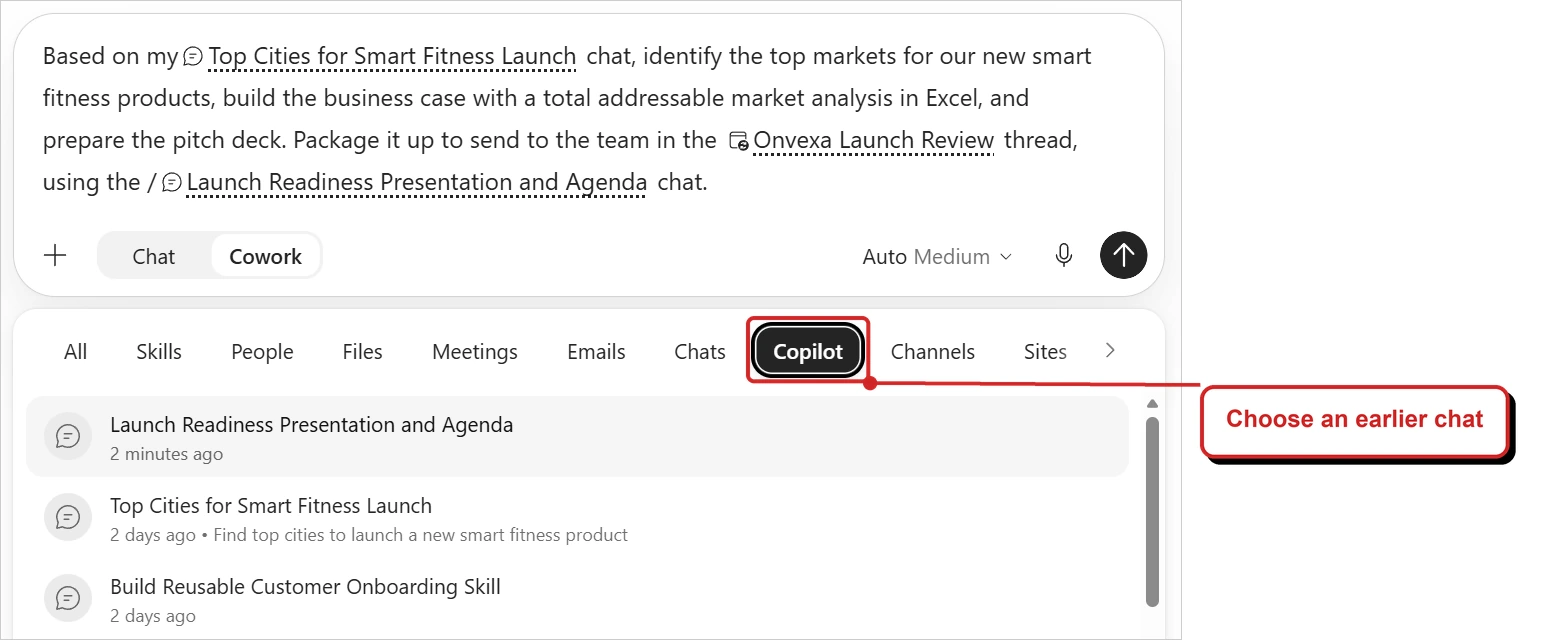
Microsoft's example of selecting previous conversations, with my red outline. This is not a capture from my tenant.
📖 Microsoft’s October roundup: previous chats and tasks · Microsoft Learn: reference previous chats and tasks
17. OneDrive adds a Prompt Gallery
For: Copilot in OneDrive · October catch-up · Microsoft reports rollout in October
The Prompt Gallery provides suggested prompts for file-related work. Microsoft describes categories including Create, Analyze, Find and Collaborate.
For example, if you have a folder of project documents but are unsure how to begin, a prompt from the gallery can give you a starting question. You can adapt it to the files and outcome you actually need.
This is separate from the rebuilt OneDrive experience covered in October’s issue.
Microsoft’s guidance describes Copilot in OneDrive for Business on the web and says a Microsoft 365 Copilot licence is required. You can open the gallery from the Copilot button or chat pane. Selecting a prompt sends it to the chat; some prompts have placeholders such as [file] that you need to replace with your own details.
Why this matters: Suggested prompts help people discover useful file tasks without needing to memorise commands.
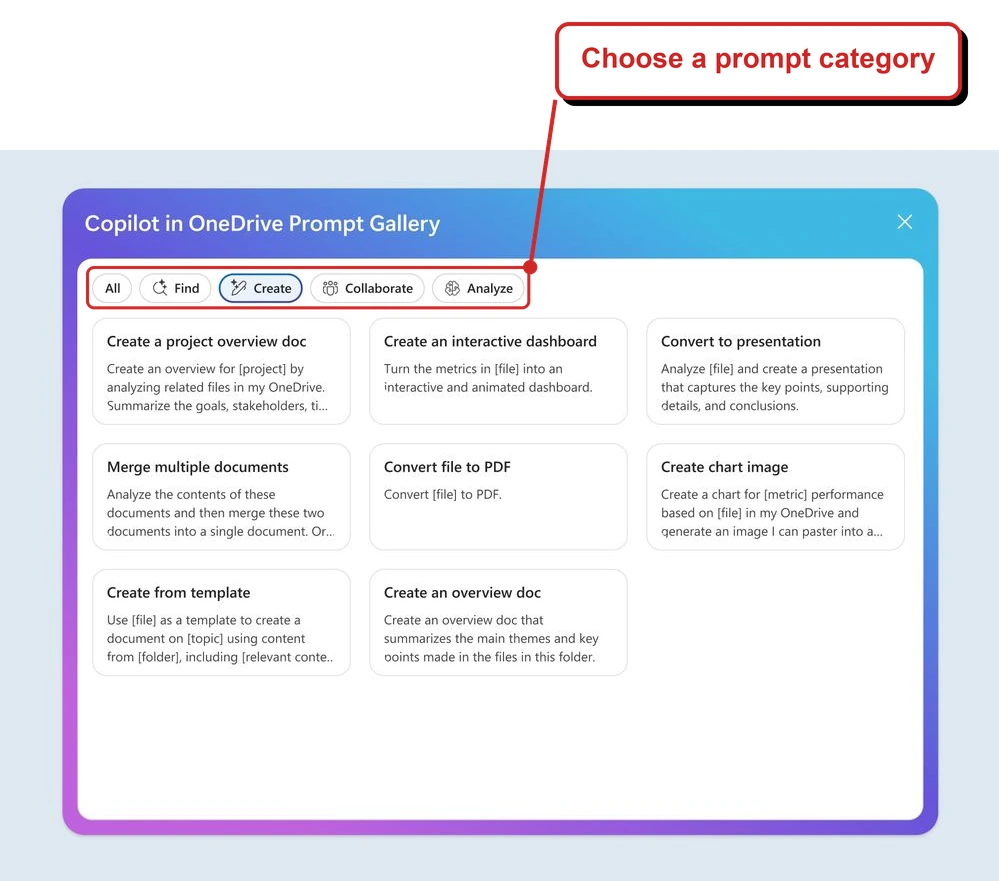
Microsoft's example, with my callout and outline around the prompt categories. This is not a capture from my tenant.
📖 Microsoft’s October roundup: Prompt Gallery in OneDrive · Microsoft Support: gallery and prerequisites · Microsoft 365 roadmap 571308
18. Accounting skills arrive in Excel
For: Excel and accounting teams · October catch-up · Frontier first; worldwide rollout announced for November
Microsoft describes accounting skills that can help with account reconciliation, journal entries and financial analysis inside Excel. The roundup says the skills reached Frontier in October and are rolling out worldwide in November.
There is a timing difference in Microsoft’s guidance: its dedicated finance announcement and Excel support page describe the accounting skills as available in or rolling out to Frontier. The roundup gives a November worldwide rollout, but I have not confirmed that it has reached every customer. Microsoft says to look for the accounting skills in the Manage plugins & skills dialog.
Imagine an accountant asking Copilot for help reviewing a reconciliation in a workbook. The accountant still needs to check the figures, supporting evidence and final entries. An AI-generated suggestion is not an accounting sign-off.
Why this matters: Finance teams get a more specialised starting point for work already happening in Excel.
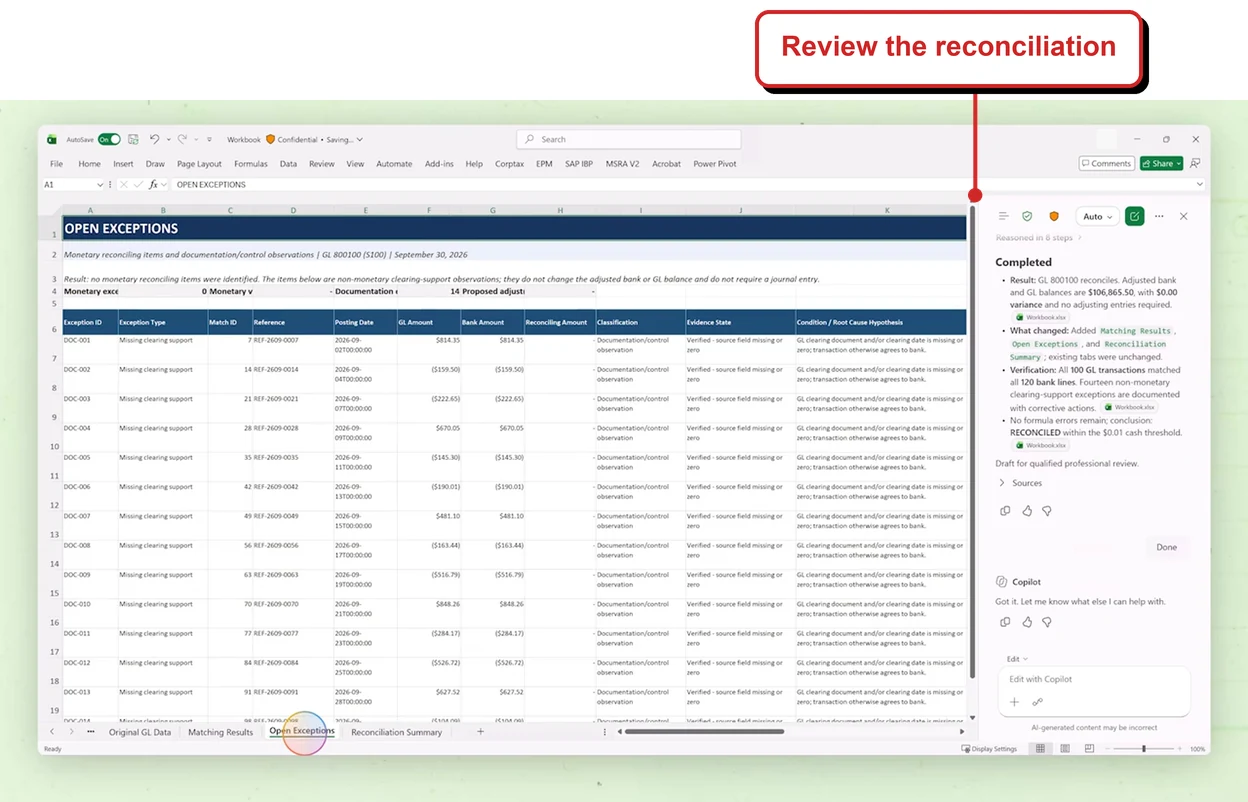
A frame from Microsoft's accounting skills demonstration, with my callout and the profile picture masked. The result still needs professional review.
📖 Microsoft’s October roundup: accounting skills · Microsoft Support: accounting skills and Frontier · Microsoft’s finance announcement
19. Excel’s interactive canvas has a wider rollout date
For: Excel users · October catch-up · Insiders first; worldwide rollout announced for November
The interactive canvas turns workbook data into a view of visuals, metrics and insights that can be adjusted through conversation. Microsoft says the canvas updates when the underlying workbook data changes.
For example, a team could use a workbook to create a view of a project budget, then ask for a different perspective on the figures. The source data and the generated view both need review before the team uses them to make a decision.
October’s issue covered the Insiders experience. The later roundup adds Microsoft’s planned November worldwide rollout.
There is a date discrepancy: Microsoft’s roadmap entry for Excel canvas lists September general availability while still showing Rolling out. The roundup gives November for the wider rollout. I cannot tell from these sources why the dates differ, so check availability in your own environment rather than treating either date as completion.
Why this matters: More people can prepare for a conversational way to explore workbook data as the rollout proceeds.
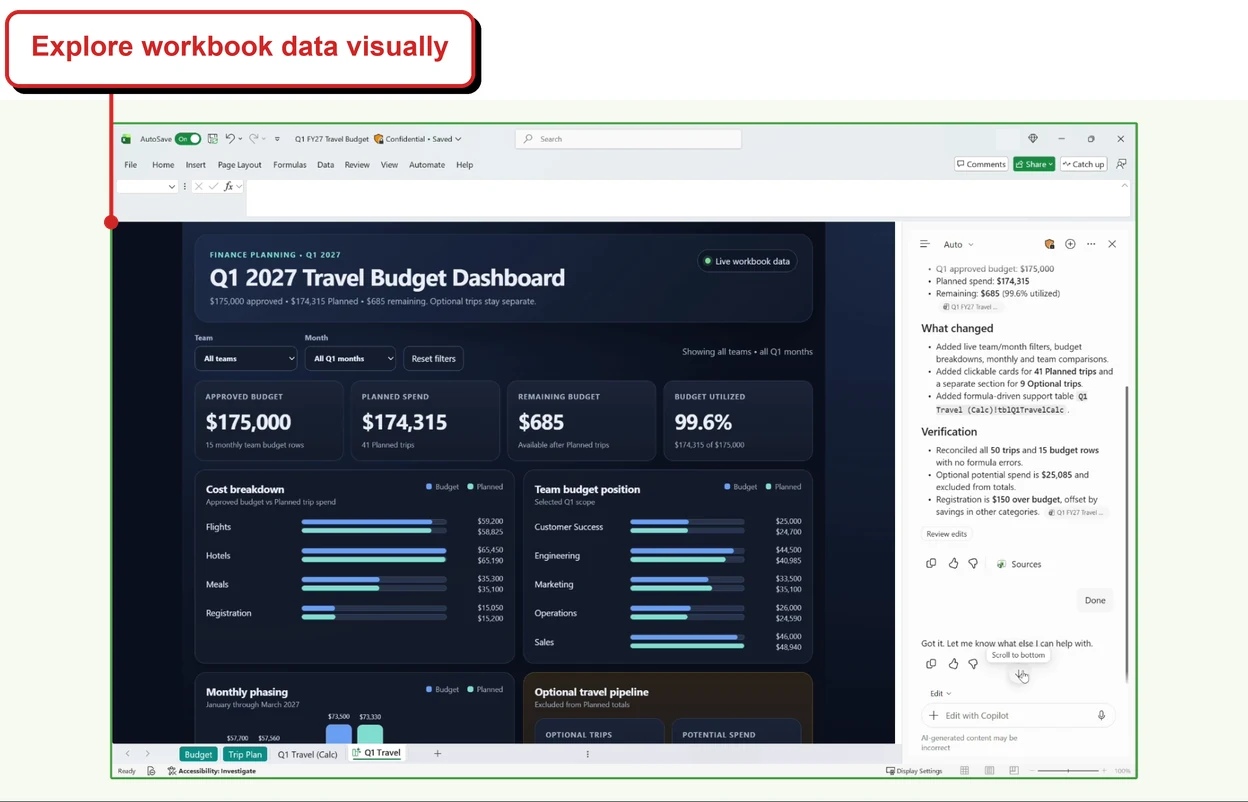
A frame from Microsoft's interactive canvas demonstration, with my callout and the profile picture masked. The figures shown are Microsoft's example, not a result from my tenant.
📖 Microsoft’s October roundup: interactive canvas · Microsoft 365 roadmap 569424
20. PowerPoint gets a model update for presentation design
For: eligible PowerPoint users · October catch-up · Microsoft reports rollout in October
Microsoft says Claude Sonnet 5.5 brings a stronger design perspective to PowerPoint, including slide layouts, visual hierarchy and applying templates more consistently. The roundup does not say that every presentation automatically uses it.
Separately, the public Message Center archive says selecting Sonnet 5.5 in supported PowerPoint experiences requires a Microsoft 365 Copilot user subscription licence and the organisation to enable the Anthropic subprocessor. Availability and usage limits still apply. The sources do not establish whether those same conditions govern every aspect of the roundup’s design update.
For example, someone starting from a company template could ask Copilot to prepare a presentation and then check whether the layout makes the message easy to follow. I would still review the facts, accessibility and design rather than assuming a generated slide is ready to present.
October’s issue covered Sonnet 5.5 as a model option. This is the specific PowerPoint design update from the later roundup.
Why this matters: The model update is intended to help with how a presentation looks, not just what its slides say.
📖 Microsoft’s October roundup: PowerPoint model update · Message Center archive: MC1483844 model access
21. Brand Kit setup becomes simpler
For: PowerPoint brand managers · October catch-up · Microsoft reports rollout in October
A Brand Kit brings approved assets such as an organisation’s visual identity into presentation creation. Microsoft says the setup has been simplified, with a more straightforward way to manage assets and configure a kit.
Imagine the person responsible for a company template preparing an updated set of approved assets. A clearer setup process can help them maintain the kit before colleagues use it. It is still worth checking the finished slides against your organisation’s own brand guidance.
Microsoft’s Brand Kit guidance lists a Microsoft Copilot Premium licence and the appropriate permissions to create and manage kits.
Why this matters: The people maintaining presentation assets have fewer setup steps to navigate.
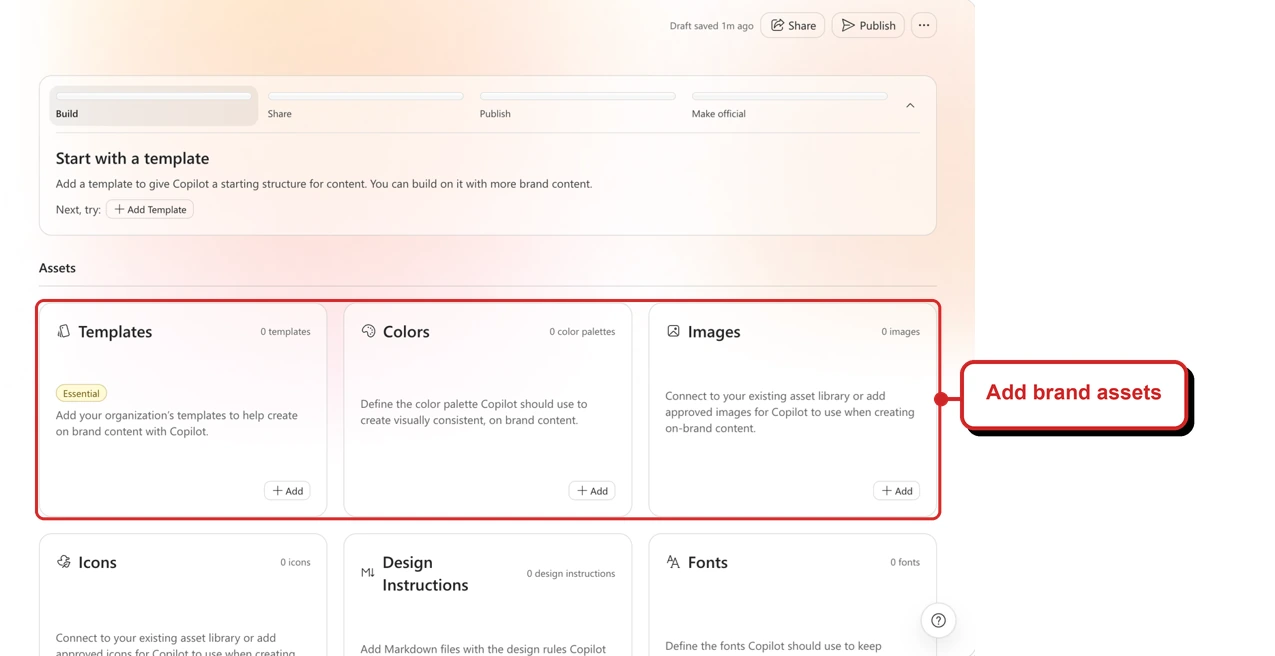
Microsoft's setup example, with my red outline. It shows asset categories, not a comparison with the previous setup.
📖 Microsoft’s October roundup: Brand Kit setup · Microsoft Support: Brand Kit licence and permissions
22. Publish or unpublish an official Brand Kit
For: PowerPoint brand managers · October catch-up · Microsoft reports rollout in October
Brand managers can publish an official Brand Kit when it is ready, and unpublish it when it should no longer be available. That gives the person maintaining the kit a way to control its availability rather than leaving an unfinished or outdated version in circulation.
For example, a company changing its logo could prepare a new kit, review it, and publish it when the team is ready. The announcement does not remove the need to check which assets are included and who can manage them.
Microsoft says unpublishing hides the kit from viewers without deleting it or removing editor access. Its Brand Kit guidance also lists a Microsoft Copilot Premium licence and appropriate management permissions.
Why this matters: The owner has a clearer point at which a kit becomes available to colleagues.
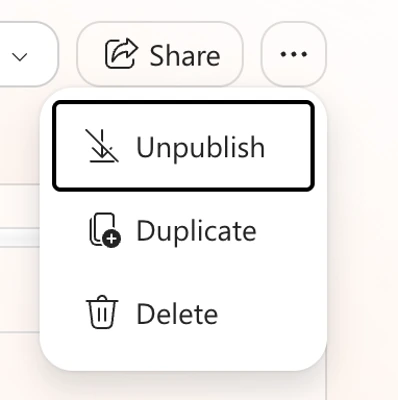
Microsoft's example highlights Unpublish. It shows the menu, not a completed change.
📖 Microsoft’s October roundup: publishing Brand Kits · Microsoft Support: publishing and access
23. PowerPoint can create an interactive slide
For: eligible PowerPoint users · October catch-up · Microsoft reports rollout in October
Microsoft says you can create an interactive slide from a prompt or existing content. Its examples include timelines, comparisons, business processes and dashboard-style insights.
For example, a presenter could ask for a timeline of a project rather than starting with a blank slide. I would check how the interaction works in the presentation setting, and provide the important information in an accessible form for the audience.
Microsoft says creation is available to eligible users who already have access to Copilot in PowerPoint, with no separate interactive-slide licence. Create or update slides in the Copilot app or PowerPoint on Windows, Mac and the web. In PowerPoint Live for Teams, each attendee interacts independently; those interactions are not shared with the presenter or other attendees. Slides are interactive on iPad, but appear as non-interactive images on iPhone and Android.
Why this matters: A presenter has another way to turn existing material into something the audience can explore.
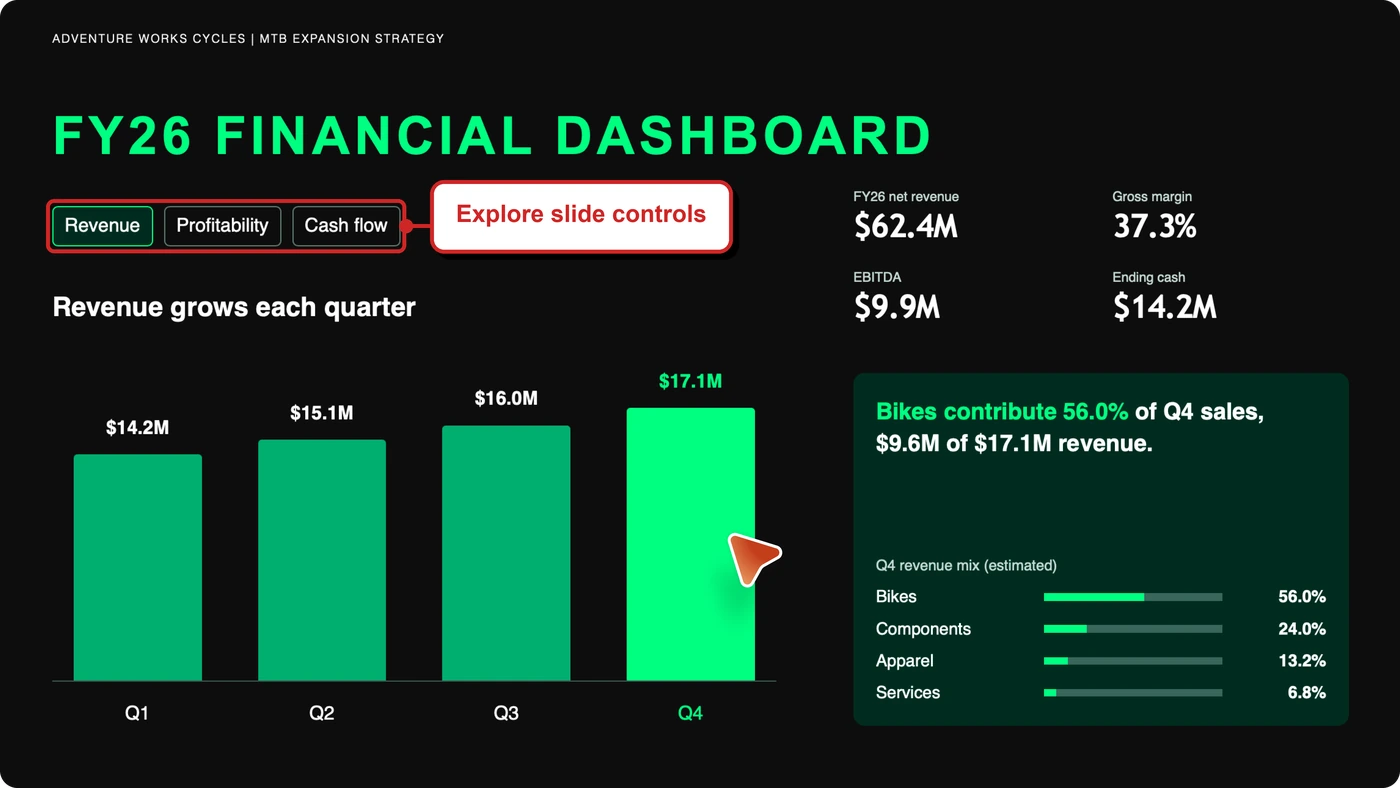
Microsoft's example interactive slide, with my red outline. This still image shows the controls; it cannot demonstrate how the slide responds.
📖 Microsoft’s October roundup: interactive slides · Microsoft Support: licences, platforms and interaction
24. A skill checks PowerPoint templates before publication
For: PowerPoint Brand Kit owners · October catch-up · Microsoft reports rollout in October
The template assessment skill looks for issues that could affect presentations generated from a PowerPoint template. Microsoft says it provides recommendations to address those issues before the related Brand Kit is published.
Imagine preparing a template for an organisation’s new presentation style. An assessment can point the owner toward areas to review before colleagues start using the kit. It does not replace checking a sample presentation yourself.
Microsoft says the assessment runs when a new template is uploaded and can be run on an existing template. It reports recommendations without changing the file or blocking a save; some issues still need fixing before Copilot can use the template.
Why this matters: Template owners can investigate potential problems earlier, before the kit reaches a wider group.
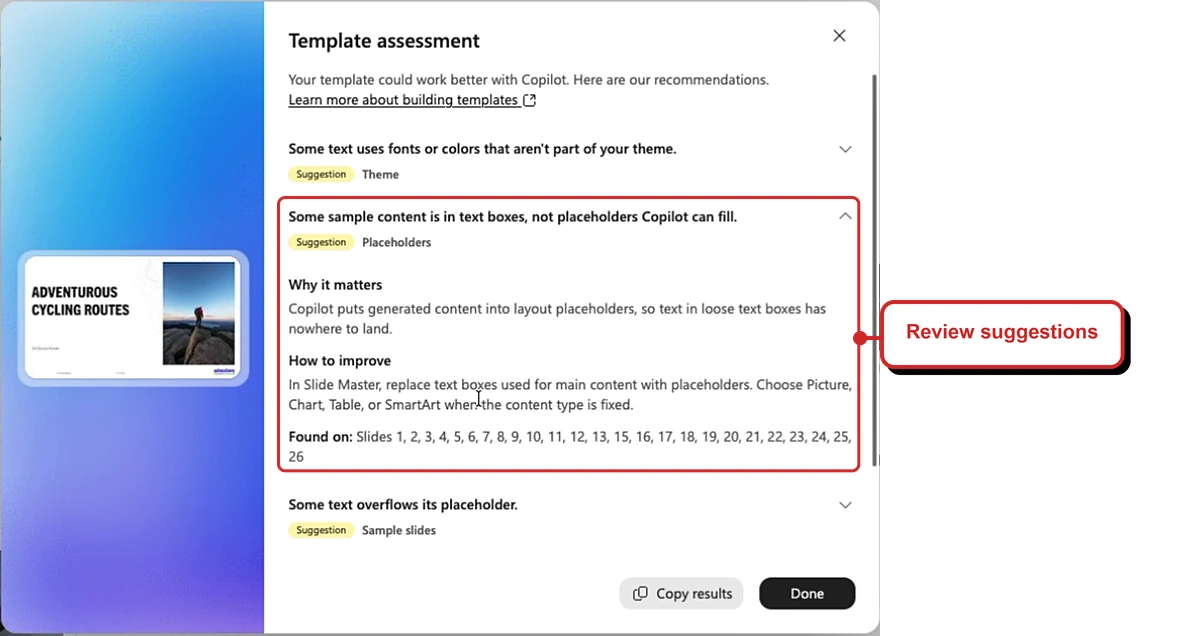
Microsoft's example assessment, with my red outline. The result is a recommendation, not an automatic change to the template.
📖 Microsoft’s October roundup: template assessment skill · Microsoft Support: assess a template
25. Record a repeatable PowerPoint skill
For: PowerPoint users · October catch-up · Microsoft reports rollout in October
Microsoft describes Record a skill as a way to capture a presentation task you do repeatedly, save it as a skill and use it again. Copilot availability depends on your subscription and organisation’s settings.
Microsoft’s instructions say to open Manage plugins & skills, choose Add skill → Record Skill, and complete the task. Before uploading, review the generated name, description and instructions. The skill is saved in your personal Skills folder in OneDrive. Recordings must be shorter than ten minutes, and an action still running when you stop may not be included.
For example, a team that prepares a similar monthly update could record a recurring presentation task rather than start from the same instructions each time. The team should review what the skill does and check its result against the current material.
This is the PowerPoint recorder. October’s issue also mentioned a skill recorder in Excel; the two are separate app experiences.
Why this matters: A repeatable presentation task can become a reusable starting point.
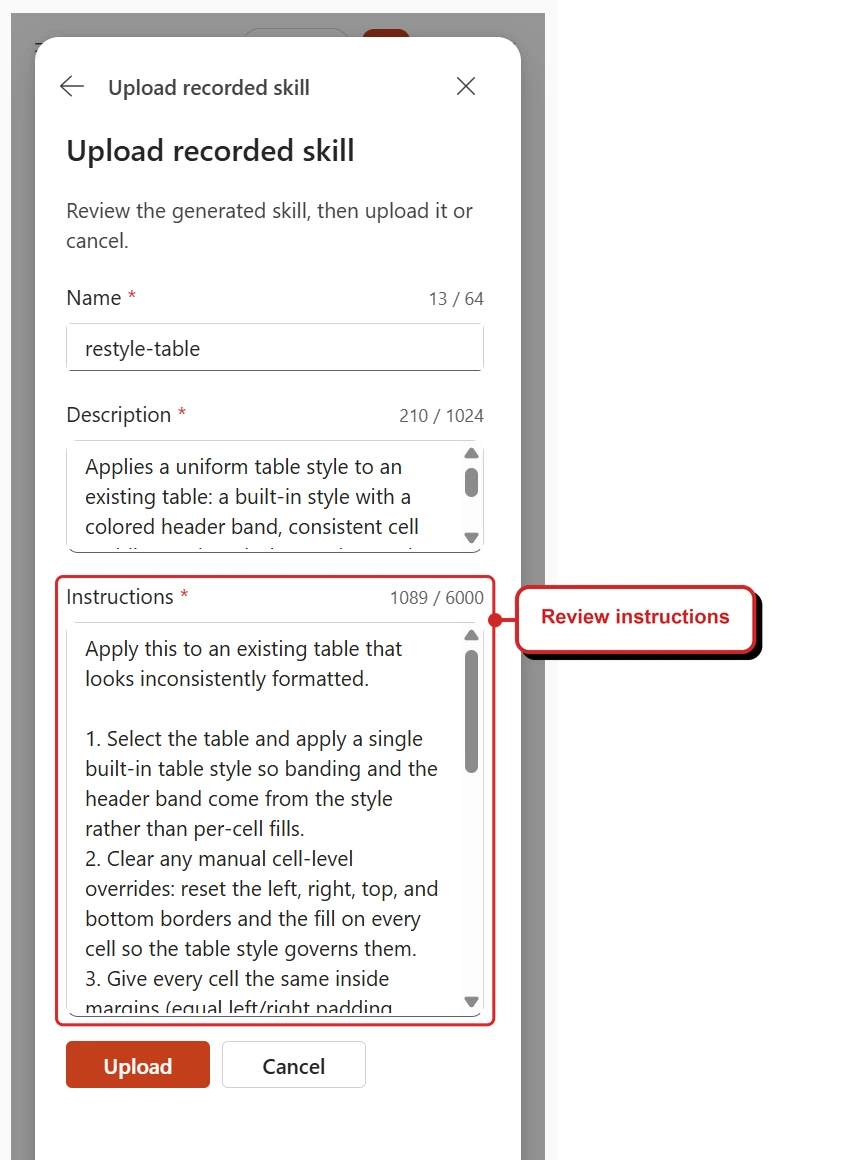
Microsoft's recorded-skill example, with my red outline. This is the review step before upload, not a capture from my tenant.
📖 Microsoft’s October roundup: PowerPoint skill recording · Microsoft Support: record and review a skill
26. Word adds document-specific formatting and design
For: Word users · October catch-up · Microsoft reports rollout in October
Microsoft says Copilot in Word can tailor structure, layout and formatting to the kind of document being created.
For example, the first draft of a briefing note may need a different structure from a report. Copilot can help produce a starting layout, but the writer still needs to check that the structure suits the audience and that the content is accurate.
Why this matters: The first draft can start closer to the shape of the document you need.
📖 Microsoft’s October roundup: Word design
27. Markdown and Word work together more easily
For: Word users · October catch-up · Microsoft reports rollout in October
Markdown is a simple way to write formatted text using plain characters. Microsoft says Word supports Markdown shortcuts while writing, copying and pasting between Word and Markdown while retaining formatting, and converting between .md and .docx files on the web.
The roundup does not specify which Word versions support each option, so check the experience available in your version.
For example, someone could start notes in a Markdown-based tool and bring them into Word for colleagues to edit. I would check headings, tables and links after conversion rather than assuming every detail survived unchanged.
Why this matters: Teams using different writing tools have a simpler way to move content between them.
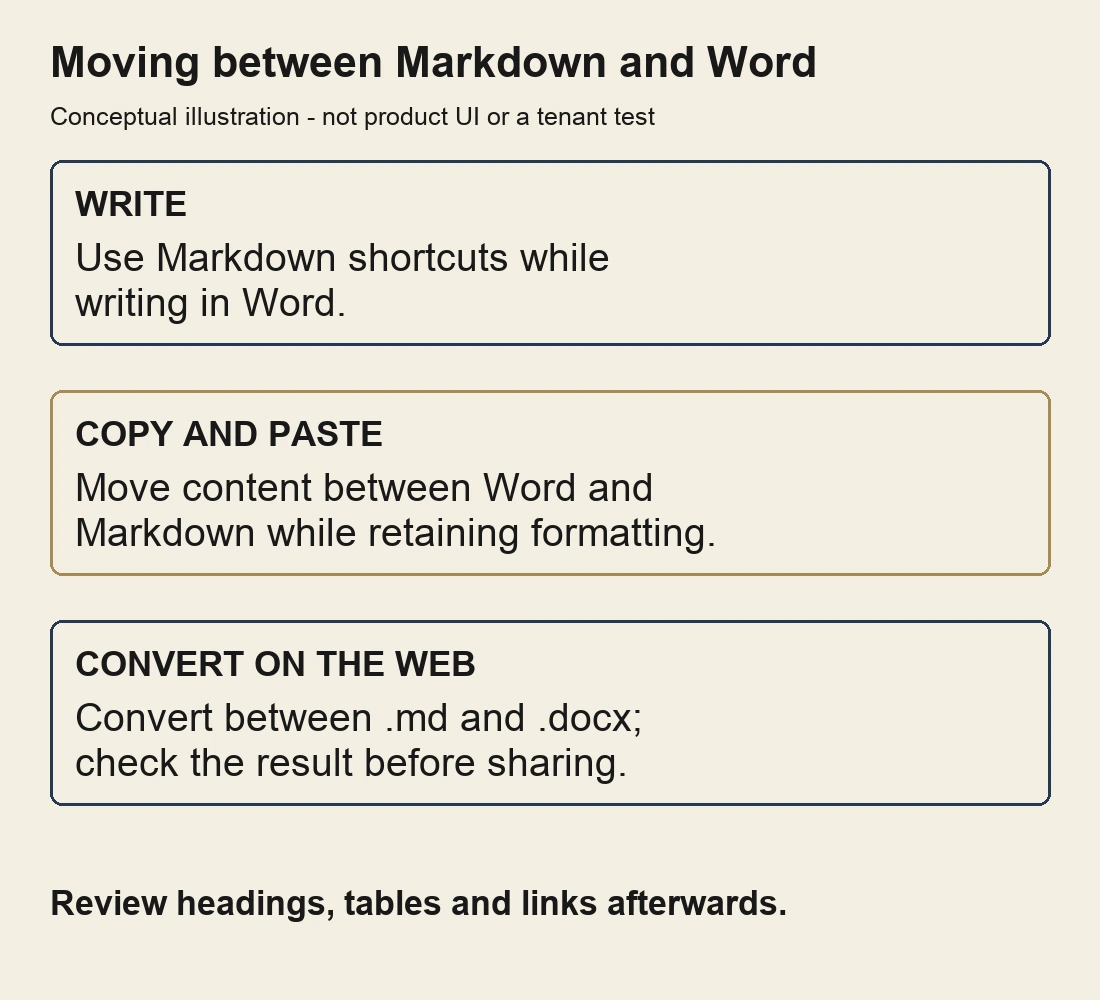
My simplified illustration of the options Microsoft describes, not a Word screenshot or a tenant test.
📖 Microsoft’s October roundup: Markdown in Word
28. Copilot in Edge gets a simpler side pane
For: Microsoft Edge users · October catch-up · Microsoft reports rollout in October
Microsoft describes an updated Copilot icon across Edge entry points and a more streamlined side pane. This is a change to the experience, not a new claim that your organisation’s existing controls have been changed.
For example, someone used to opening Copilot from Edge may notice a different icon or layout. The October issue covered the new tab page; this update is about the browser’s Copilot entry points and side pane.
Why this matters: Help-desk guidance may need a refreshed screenshot even when the underlying task is familiar.
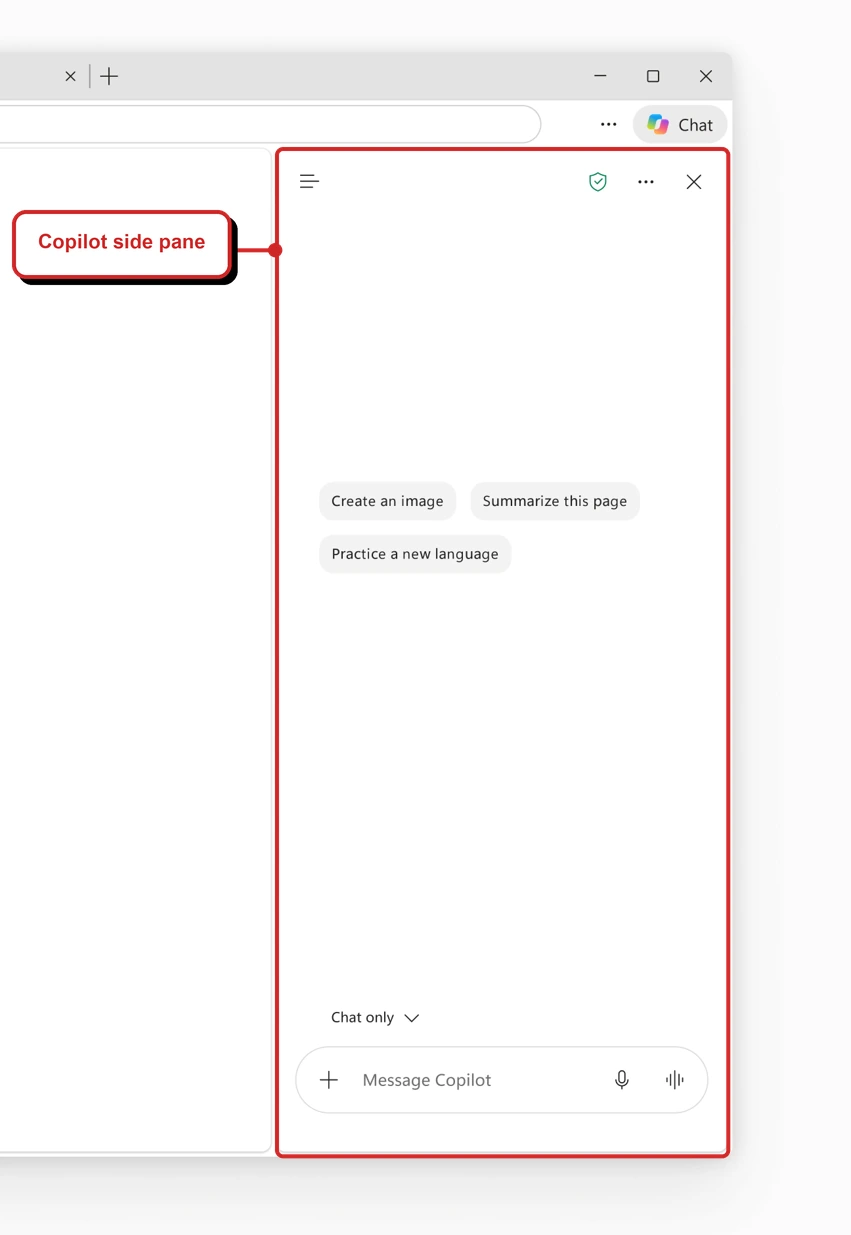
Microsoft's side-pane example, with my red outline and profile and greeting masked. It illustrates the interface, not a tenant test.
📖 Microsoft’s October roundup: Copilot in Edge · Message Center archive: MC1484007
29. Queues app adds intelligent call recaps
For: Teams Phone Queues app users · September catch-up
Microsoft describes intelligent recaps for recorded queue calls. The recap can include summary notes, discussion points and follow-up actions. Users open the call record in the Queues app’s call history and select Recap. Microsoft says the Queues app is available by default when the organisation has both Teams Premium and Teams Phone licences; users also need authorisation.
For example, someone taking over a customer issue could read the recap of an earlier queue call before following up. They should check the underlying record where available and apply their organisation’s recording and retention requirements.
Microsoft’s October roundup says this rolled out in September, so I am treating it as catch-up rather than a November launch.
Why this matters: A colleague can get oriented more quickly before continuing a conversation.
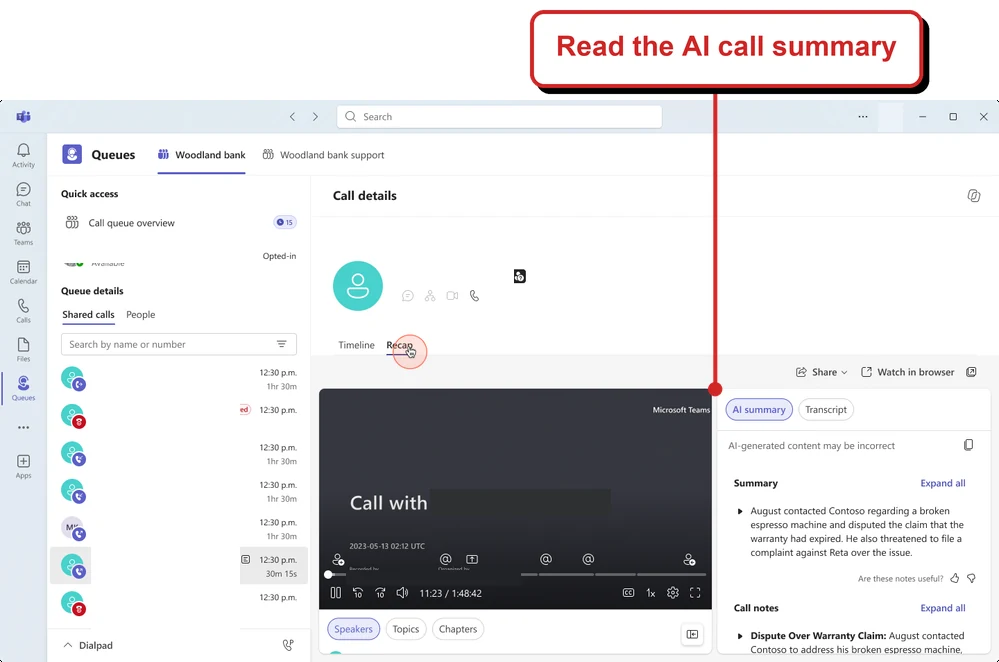
Microsoft's call recap example, with my callout and example identifiers masked. This is not a capture from my tenant.
📖 Microsoft’s October roundup: Queues call recaps · Microsoft Support: Queues access
30. Ask Copilot about a recorded queue call
For: Teams Phone Queues app · Windows and Mac · September rollout; October release-note catch-up
After a recorded queue call, an eligible user can open its call record, go to the Recap tab and use the Copilot Chat side pane to ask questions about the call. Microsoft’s Queues guidance lists Teams Premium and Teams Phone for the organisation; the Message Center notice says the Copilot chat experience in call recap also requires a Microsoft 365 Copilot licence.
For example, a support lead might ask what follow-up was agreed during a completed call. The answer is a starting point for the lead’s review, not proof that every detail was captured correctly.
This is related to the call recap above, but it is the separate question-and-answer experience. The archived Message Center notice, now expired, says worldwide rollout was planned from mid-September to late September. Microsoft lists the capability in its 27 October release notes as well as its later roundup.
If the side pane is missing, I would check the user’s Queues authorisation and licences first, then whether that call has the required recording and recap. Do not assume the Copilot licence on its own grants access to the queue.
Why this matters: A user can ask about a specific point instead of relying only on a general summary.
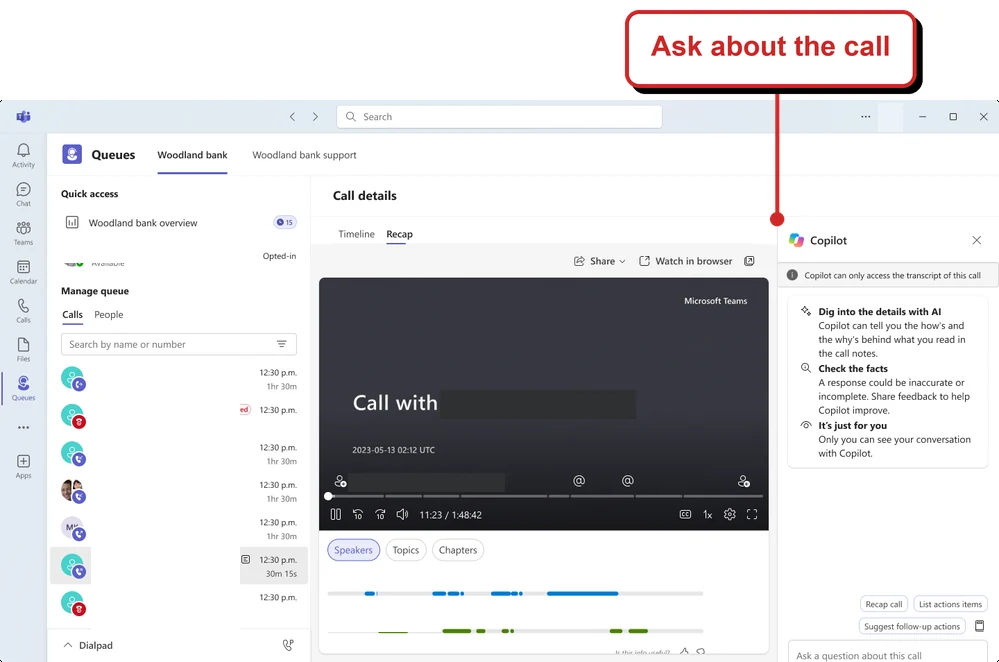
Microsoft's Copilot-in-Queues example, with my callout and example identifiers masked. This is not a capture from my tenant.
📖 Microsoft 365 Copilot release notes: Queues app · Microsoft Support: Queues access · Message Center archive: MC1461160 Copilot licensing
Copilot Studio: October catch-up
31. The GitHub Copilot harness has a new name
For: Copilot Studio makers · announced 28 October
Microsoft is renaming the GitHub Copilot harness in Copilot Studio to the Microsoft Copilot harness. A harness is the part that helps an agent work through a request, use tools and coordinate steps.
The important part for existing makers: Microsoft says agents continue to work as they do today, with no change to their capabilities or billing because of this name change. The new wording will appear across the product over the following weeks.
If you are comparing this with September’s issue, that is why the earlier article uses the old name. Documentation may still use it too.
Why this matters: The new label refers to the same harness; the rename is not a request to rebuild your agents.
📖 Microsoft: the harness rename
32. Build Copilot Studio solutions from Cowork
For: makers using Cowork · Frontier · October catch-up
Microsoft describes Copilot Studio skills in Cowork that help makers create agents, apps and workflows from a natural-language description. The skills can use relevant files and conversation context as a starting point, with further refinement in Cowork or Copilot Studio.
Imagine an HR team describing its onboarding process and providing its existing guidance. A maker could use that context to start designing a tracking app, a workflow and an agent. The maker still needs to test the result and work within the organisation’s governance.
Microsoft lists this as a Frontier capability for users with a Microsoft 365 licence. Check the tenant’s Cowork access and billing configuration too.
Why this matters: People who know a process can describe the outcome they need before dealing with every technical step.
📖 Microsoft’s October Copilot Studio roundup · Microsoft Learn: Cowork access and billing
33. A Copilot Studio MCP server connects development tools
For: Copilot Studio makers and developers · October catch-up
Microsoft has documented a Copilot Studio MCP server. MCP is a way for a compatible tool to connect to capabilities and context elsewhere. Here, it lets a supported client work with Copilot Studio resources instead of requiring every step to happen in the browser.
For example, a maker could ask a compatible client to find an existing agent, inspect its configuration or help prepare a draft. The available operations depend on the connected tool, the selected environment and the maker’s permissions.
Microsoft’s guidance is clear: keep client approval controls on. Saving a draft, publishing an agent and running it are different actions, each requiring the appropriate review.
I would start in a development environment, confirm which environment and account the client is using, and read each proposed change before approving it. Finding an agent is a safer first exploration than publishing changes to one.
Why this matters: Makers have another way to work across the agent lifecycle while keeping their environment and approval boundaries visible.
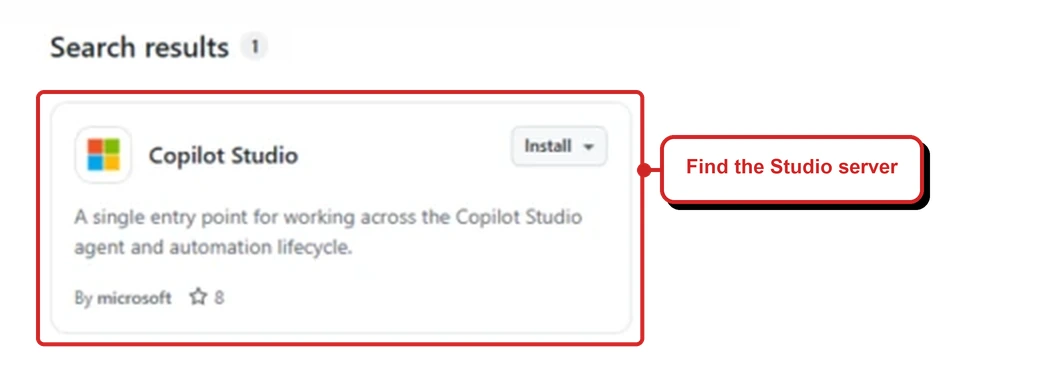
Microsoft's registry example, cropped and highlighted in red. Finding the server is not the same as installing or connecting it.
📖 Microsoft Learn: connect to Copilot Studio with MCP · Microsoft’s MCP server example
34. Connector setup in the conversation reaches GA
For: Copilot Studio makers · October catch-up · Microsoft reports general availability for specified harnesses
In September’s issue I covered a planned way to set up a connection without leaving the conversation. Microsoft’s later Copilot Studio roundup says the focused connection experience is now generally available for agents using the Microsoft Copilot harness and for custom web agents using the Standard harness.
For example, when a maker needs a connection, the experience can guide them through setup and return them to their conversation afterwards. It can reuse an eligible existing connection where possible.
Check which account and connection are being used. A smoother setup screen does not grant access that the account did not already have.
Why this matters: The maker has fewer context switches while setting up a supported connection.
📖 Microsoft’s October Copilot Studio roundup
35. Give a Studio agent its own account
For: Copilot Studio makers and administrators · private Frontier preview · specific licences and setup required
An agent account gives a Copilot Studio agent its own identity, mailbox and presence in supported Microsoft 365 experiences. People can interact with it in supported email, Teams and Office-comment scenarios.
Picture an agent helping coordinate a recurring review: it can receive information through its own account and work within the permissions configured for it. It is not automatically entitled to every tool or document. Microsoft also says agents with an account cannot read protected documents in this preview.
One important memory detail: Microsoft says these agents use shared memory, even in one-to-one chats. Summaries of shared files or chats can appear in responses to other users, including people who cannot access the original. Microsoft says shared memory has no privacy boundary between users and users cannot opt out during this preview. Review that carefully before sharing information with an agent.
The prerequisites are important: an early-release environment, administrator activation, Frontier enrolment, an eligible maker licence and a Frontier for AI Teammates licence for the agent. Microsoft lists Microsoft 365 E5 with the Agent 365 add-on, or Microsoft 365 E7, as maker licence options. Creating, testing and using the harness can consume Copilot Credits.
Why this matters: The agent can have an identity for an ongoing process, but its access and cost still need deliberate administration.
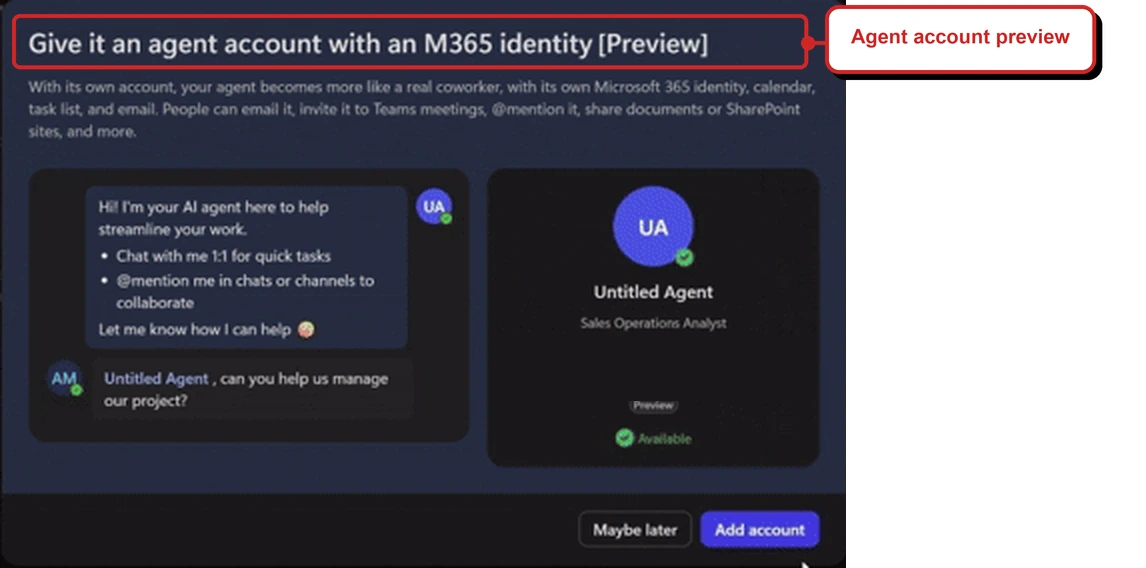
A cropped frame from Microsoft's preview demonstration, with account details masked and the heading outlined in red. It is not a capture from my tenant.
📖 Microsoft Learn: agent-account shared memory · Microsoft’s October Studio roundup: private preview
36. A new harness focuses on customer conversations
For: Copilot Studio makers building customer-facing agents · preview
The Customer Conversation harness is designed for voice and chat scenarios. Microsoft describes a primary agent working with specialist sub-agents and escalation paths to a human representative.
For example, a support experience could direct a billing question to a specialist while giving the customer a route to a person when needed. A maker should test those handoffs as well as the answers.
This is a preview, and building, testing and using agents on the harness can consume Copilot Credits. Microsoft also notes that speech channels do not support end-user sign-in, so a knowledge source requiring those credentials works only for chat.
Why this matters: Makers get a dedicated way to design customer conversations with specialist help and escalation.
📖 Microsoft Learn: Customer Conversation harness
37. Work IQ in Copilot Studio reaches GA
For: Copilot Studio makers · Work IQ generally available; some workloads remain in preview
Work IQ gives an agent a way to use selected work context and actions across Microsoft 365. Microsoft says it is generally available in Copilot Studio and is added by default to new agents using the harness previously called GitHub Copilot.
There are two details I would check before relying on the defaults. Microsoft says all available workloads are selected by default, and write operations are on by default, subject to your organisation’s permissions and policies. Makers can narrow the selected workloads to what the agent needs. Business apps are still a preview workload and require preview workloads to be enabled.
Work IQ in this harness uses usage-based billing; Microsoft says a separate Work IQ spending policy is not required. This is a separate update from the Work IQ API availability covered in September.
Why this matters: Makers get a common work-context tool, with clear reasons to review the selected sources, actions and cost.
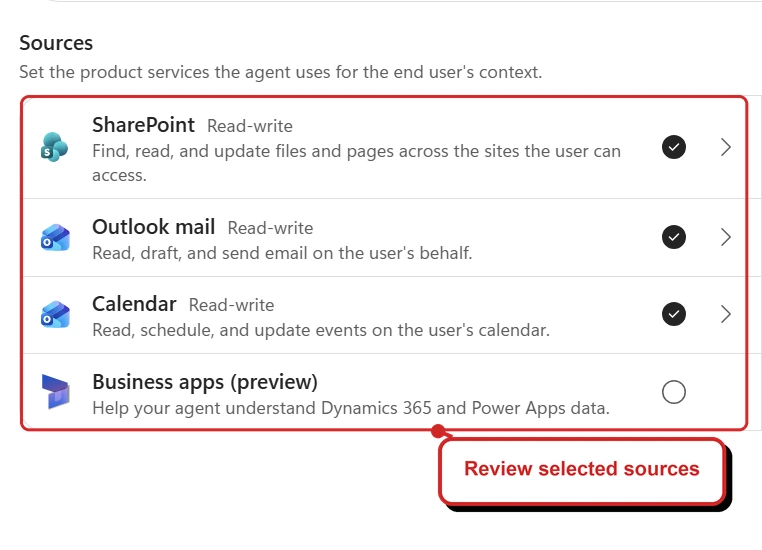
Microsoft's Work IQ sources example, cropped with my red callout. It is not a capture from my tenant.
📖 Microsoft Learn: Work IQ in Copilot Studio
38. Connect a specialist agent using A2A
For: Copilot Studio makers · October catch-up · Microsoft Copilot harness
Agent2Agent, or A2A, is a protocol that lets one agent communicate with another. Microsoft documents connecting an A2A-compatible remote agent so a Copilot Studio agent can delegate a task to it.
For example, a front-door agent might hand a travel-research task to a specialist agent, then use the response in its own work. The maker needs to review the other agent’s authentication, data handling and behaviour before relying on it.
The documentation identifies the supported harness and usage-based billing. I have not established a separate GA date for this harness-specific experience, so I am not assigning one here.
For setup, Microsoft lists an A2A-compatible remote agent, its agent-card URL and any required authentication details. The remote agent must be reachable; the guidance also describes connections to on-premises or virtual-network agents through the custom connector infrastructure.
Before connecting a specialist, I would check who operates it, what information the handoff will contain and whether the endpoint and authentication meet the organisation’s requirements. Test with approved sample information before using live work.
Why this matters: A specialist capability can be connected instead of rebuilding every task inside one agent.
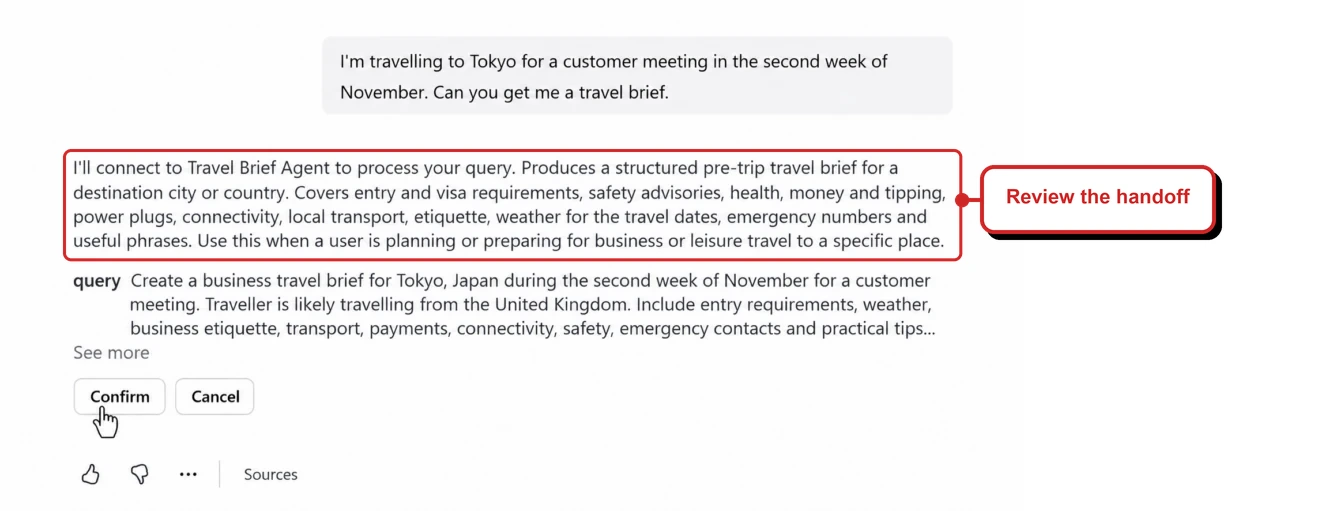
Microsoft's connected-agent example, with my red outline. It shows a proposed handoff, not a completed task or a capture from my tenant.
📖 Microsoft Learn: connect an A2A agent · Microsoft’s connected-agent example
39. More than one maker can work on a workflow
For: Copilot Studio workflow makers · October catch-up · Microsoft reports general availability
Microsoft says workflow coauthoring is generally available: makers can share a workflow and assign multiple authors to develop and maintain it together.
For example, one person might understand a business approval process while another maintains the technical steps. They can collaborate on the workflow rather than handing separate copies back and forth. Agree who reviews changes before the workflow is used.
Why this matters: The people who know the process and the people maintaining it can work on the same workflow.
📖 Microsoft’s October Copilot Studio roundup
40. See credit use inside workflow runs
For: Copilot Studio makers · October catch-up
Microsoft describes credit reporting for individual workflow runs and nodes. A node is a step in the workflow; looking at the individual steps can help a maker understand where consumption occurs.
For example, if a workflow uses several AI steps, a maker can inspect its reporting before deciding where to investigate further. The figures describe consumption, not proof of savings or a prediction of what every future run will cost.
I would start with a completed run, identify the steps worth investigating, and compare another run after a change. One expensive-looking step alone does not explain why it used those credits.
September’s issue covered credits used while building and testing. This is the more detailed reporting Microsoft describes in the later roundup.
Why this matters: Makers can investigate the cost of a workflow at a more useful level than a single total.
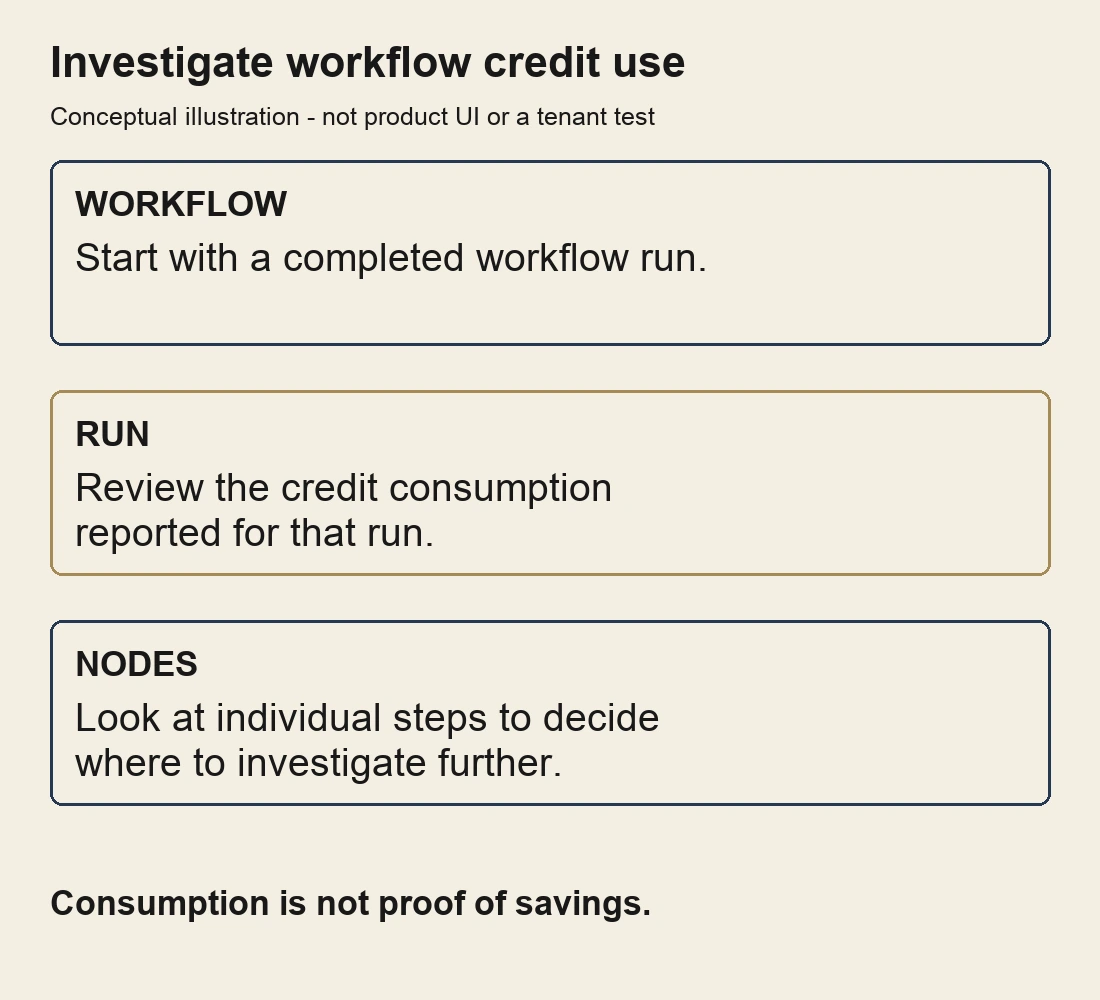
My conceptual explanation of run and node reporting, not a reporting screen or a tenant test.
📖 Microsoft’s October Copilot Studio roundup
More from the release notes
41. A closer look at agent usage
For: Microsoft 365 administrators · status needs confirmation
Microsoft describes an agents usage report for agents used in Microsoft 365 Copilot and Copilot Chat. It breaks down activity by licensed and unlicensed users and by publisher type, with details at user, agent and user-agent level.
For example, an admin could use the breakdown to see which publisher types are active before deciding which adoption questions to investigate. The detailed guidance says Cowork usage is excluded, so this is not a count of all agent use across every Copilot experience.
There is a status mismatch: the item appears in generally available release notes, and its roadmap records a July 2026 GA date and says launched, while the detailed report page’s browser title says Preview. The report guidance itself does not repeat that label. I would check the report in your own tenant rather than treat either listing as proof of its current status.
Why this matters: Admins get a more detailed view of agent activity, provided they understand which experiences the report excludes.
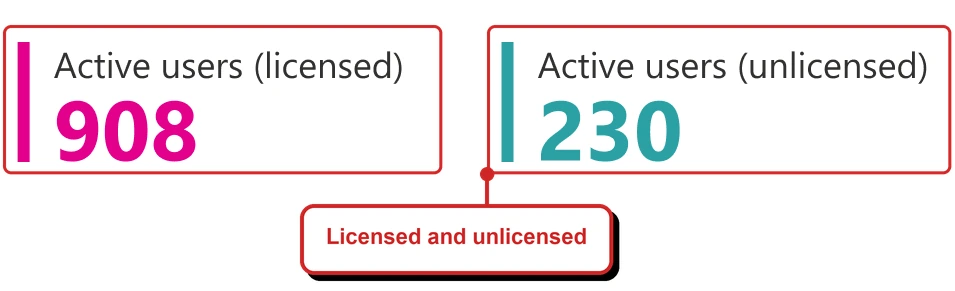
Microsoft's example, cropped and highlighted. The figures are sample values for a 2025 reporting period, not data from my tenant.
📖 Microsoft 365 Copilot release notes: agents usage report · Microsoft Learn: agents usage report · Roadmap 497999: agents usage report
42. Ask the Insights Agent about adoption and feedback
For: agent owners and Microsoft 365 administrators · October catch-up · feedback is Frontier preview
The Insights Agent answers questions in Copilot Chat about aggregate agent usage, such as weekly active users and adoption trends. Microsoft’s October roundup also describes a Frontier preview in which an agent owner can review ratings and written feedback for agents they own.
For example, an owner could ask how many people used their agent this week, then look for recurring issues in submitted feedback. A usage count is a starting point for investigation, not proof that the agent saved time or delivered a business outcome.
Feedback sharing is off by default in Microsoft’s Message Center notice. An admin can allow it for all agents or selected agents; the owner must also be verified. Microsoft says results omit the submitter’s identity and conversation content, but comments may be returned verbatim, so handle the text carefully. Its rolling-retention measure is an aggregate comparison, not individual-user cohort retention.
Why this matters: An agent owner can connect adoption signals with the feedback people chose to submit, without mistaking activity for an outcome.
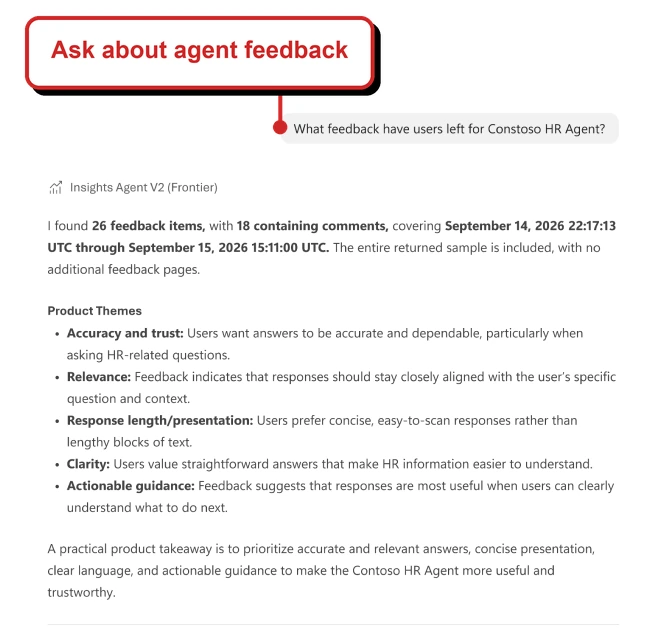
Microsoft's feedback example, cropped with my red callout. It is not a capture from my tenant.
📖 Microsoft Learn: feedback access and returned comments · Microsoft Learn: aggregate retention metric · Microsoft Learn: feedback-sharing controls · Message Center archive: MC1520901 feedback sharing
43. Workforce Insights changes where custom data comes from
For: organisational data administrators and Workforce Insights users · Frontier preview · action by 18 November
Workforce Insights helps eligible leaders and their delegates ask about organisational data. This is different from the Insights Agent above, which reports on agent adoption. Learn says Workforce Insights is in Frontier and requires paid Copilot licences for users and delegates.
According to a public archive copy of Microsoft’s notice, the separate Workforce Insights destination in the Microsoft 365 Organizational Data Service starts retiring on 18 November. Organisations using it need to select the Microsoft 365 profile endpoint explicitly; the old selection will not carry over. Existing data remains available but becomes stale if it is not updated through the new route. Check the notice in your own Message Center for your organisation.
For example, an admin maintaining a custom workforce attribute should first identify where it is uploaded and whether it is public or non-public. Microsoft says public custom attributes can use the profile endpoint; non-public custom attributes require a private preview and a review of access policy with privacy and data-governance stakeholders. If your organisation does not send custom attributes to the old endpoint, the notice says no immediate action is required.
The notice also says these attributes may become available to other Copilot experiences as capabilities roll out, not only Workforce Insights. Include that broader access in the privacy and governance review before switching.
Microsoft’s October roundup mentions a November rollout, but the 6 November archived notice describes Workforce Insights as preview, and Learn says it is in Frontier and subject to change. I would plan from that guidance rather than assume the feature has reached everyone.
Why this matters: A quiet change to the data destination can leave workforce answers based on old information. Check the source and access policy before relying on them.
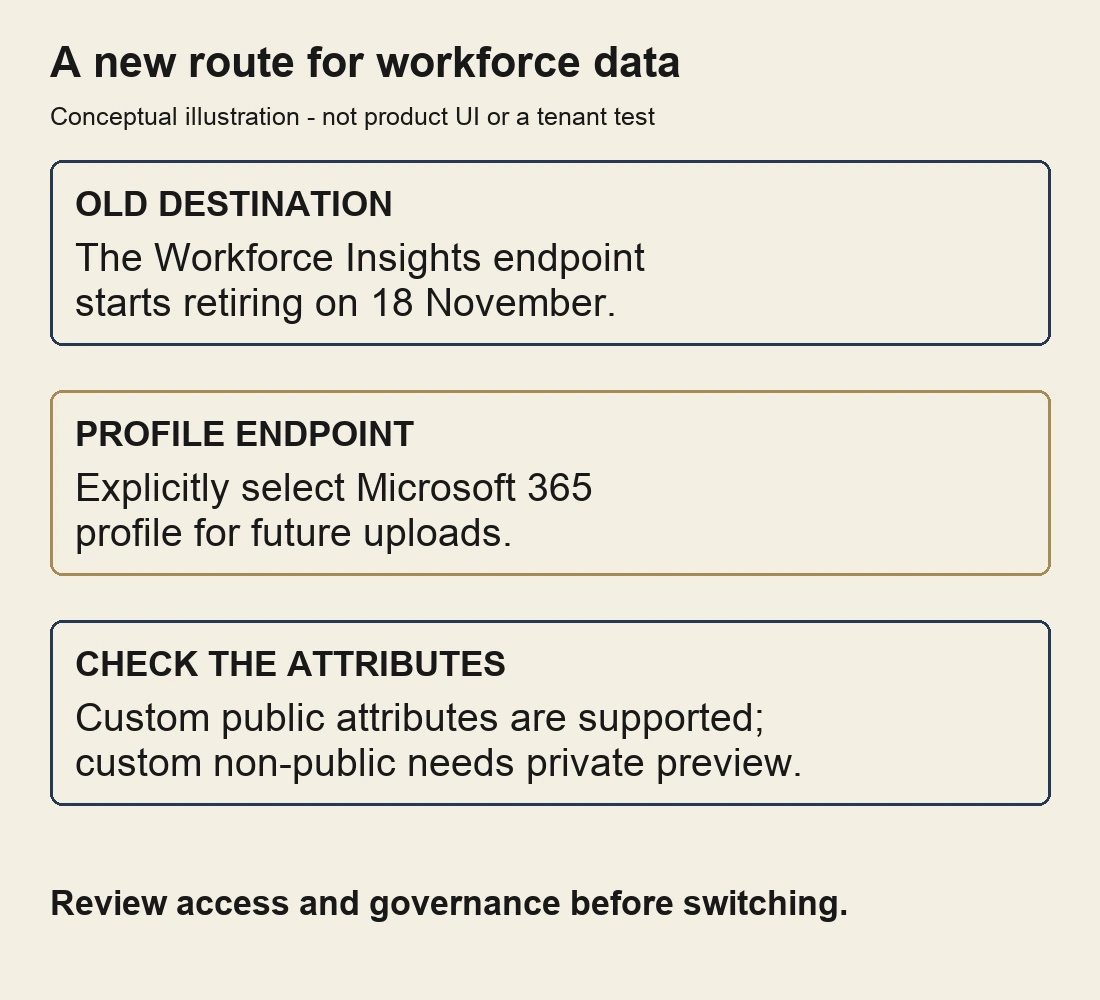
My conceptual summary of the archived notice, not an admin screen or tenant test. Check the notice and access policy for your organisation.
📖 Message Center archive: MC1542066 endpoint retirement · Microsoft Learn: Workforce Insights
Admin and government-cloud updates
44. Purview DLP extends to Cowork
For: security and compliance administrators · individual controls have different preview statuses
Microsoft is expanding Microsoft Purview Data Loss Prevention (DLP) coverage to Cowork, alongside Copilot and Copilot Chat. A DLP policy is where an organisation describes information it wants to protect and what should happen when a rule matches.
The October roundup describes a shared policy across Chat and Cowork. Depending on the rule, an admin can restrict processing of sensitivity-labelled files and emails, block prompts containing supported sensitive information types, or prevent those prompts from being sent to external web search.
These are different controls, not one universal switch. Microsoft’s detailed guidance labels sensitive-prompt blocking as preview and says a rule cannot combine the sensitive-information-type and sensitivity-label conditions; you can create separate rules in the same policy. Coverage also has limits: for labelled email, the guidance lists messages sent on or after 1 January 2025 and says calendar invitations are not supported. It also says DLP cannot scan the contents of files uploaded directly into prompts for sensitive data.
There is a separate preview control for external email in Copilot and Copilot Chat, which I covered in August. Do not assume that particular control automatically covers Cowork.
Why this matters: Security teams can consider Cowork alongside Chat in a policy, but need to check each rule's scope and preview status.
- In plain words: DLP gives admins ways to limit how supported Copilot experiences use information that matches their policies.
- Picture this: A team could test a policy that prevents a prompt containing a configured sensitive information type from being sent to web search.
- My take: Start with a defined scenario and test the policy with approved sample data. A policy only helps where its conditions and supported coverage match the situation.
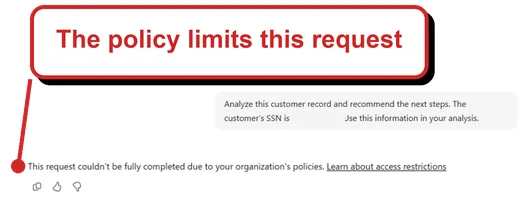
Microsoft's Cowork policy example, cropped for clarity, with my callout and the sensitive number masked. It does not identify which policy or rule applied, and is not a tenant test.
📖 Microsoft’s October roundup: Purview DLP · Microsoft Learn: sensitive prompts · Web search · Email and file coverage · Uploaded files · External email
45. US Government cloud availability: check the service
For: US Government cloud administrators · Microsoft update on 3 November
Microsoft’s public-sector update separates availability by capability and cloud. It says GPT-5.6, Edit with Copilot in Word, Excel and PowerPoint, and Copilot in Forms are available in GCC, GCC High and DoD.
Scheduling has a different picture: Microsoft says it is available in GCC, rolling out to DoD, and coming soon to GCC High. The refreshed Copilot app design is described as available in GCC and GCC High, with DoD coming soon.
That distinction matters more than a single “government cloud” label. These are Microsoft’s reported statuses as of the source date, not a test of your tenant or a guarantee that every account has the required licence.
Why this matters: A team can check the capability and cloud it actually uses instead of assuming every update arrives everywhere together.
- In plain words: Some government-cloud capabilities are available across all three environments; others are still rolling out or coming later.
- Picture this: A GCC High admin looking at Copilot scheduling should treat it as coming soon, even though Microsoft's update says it is available in GCC.
- My take: Keep a capability-by-cloud checklist for your rollout, and check the requirements and Message Center for your own tenant.
📖 Microsoft: Copilot for US Government
46. Copilot memory retention: Microsoft’s guidance conflicts
For: compliance administrators · October catch-up · status unclear
Microsoft’s October roundup says admins can configure retention for saved Copilot memories in Purview Data Lifecycle Management, and describes the feature as rolled out in October.
But Microsoft’s separate Copilot memory guidance, with metadata last updated on 3 November UTC, says Purview retention policies and labels do not apply to Copilot memory, and that there are no admin controls to enforce retention rules specifically for it. I cannot tell from these sources whether the difference is a rollout, scope or documentation issue.
This is the user’s Copilot personalization memory, not the shared agent memory in the Copilot Studio preview described above.
Why this matters: A retention policy for Copilot interactions should not be assumed to cover saved memories while Microsoft's sources disagree.
- In plain words: Microsoft's roundup says one thing; its detailed memory guidance says another.
- Picture this: An admin planning how long Copilot data is kept needs to distinguish saved memories from chat interactions rather than assuming one setting covers both.
- My take: I would confirm the current guidance and the available controls in your tenant before making a retention commitment. I have not verified either behaviour in a tenant.
📖 Microsoft’s October roundup: retention configuration · Microsoft Learn: Copilot memory retention
More updates to watch
47. App Blocks bring interactive previews into Chat
For: Copilot Chat users, with or without a Microsoft 365 Copilot licence · worldwide rollout announced
App Blocks are interactive experiences that appear inside a Copilot Chat conversation. Microsoft gives examples including calculators, dashboards, planners and comparison tools. Instead of opening a separate app canvas, you can preview the result in the conversation.
October’s issue covered developer-built SharePoint Framework interfaces inside Chat. This announcement is about turning a user’s requests and data into interactive experiences in the conversation; the sources do not establish whether the underlying technology is related.
There is a separate update for developers: Microsoft says Copilot UX components became generally available with SharePoint Framework 1.24 in late October. They require a Microsoft Copilot add-on licence and work in supported browser and desktop experiences; mobile and Cowork support are planned. The components themselves do not add consumption charges, although a connected consumption-based API may.
The Message Center notice says this affects both Copilot Chat Basic and Microsoft 365 Copilot Premium users. Microsoft planned to start the worldwide rollout in late October and complete it by early November; the roadmap still described it as rolling out at my cut-off. I have not verified it in a tenant, so treat completion as unconfirmed.
Why this matters: You can explore an interactive result in the same conversation where you asked for it.
- In plain words: Instead of only giving you a static answer, Copilot can show a small interactive experience in Chat.
- Picture this: You could ask for a simple comparison tool, then adjust inputs in the result to explore different scenarios.
- My take: I would still check the inputs and calculations before using the output for a decision. A convenient preview does not verify its answers.
📖 Message Center archive: MC1545695 App Blocks · AI at Work Roadmap 577743 · Microsoft: Copilot UX components in SPFx 1.24
48. Teach helps educators plan a whole unit
For: educators using Teach in Microsoft Copilot · October catch-up · rollout status to confirm
Microsoft’s education update describes Unit Plans in Teach: a way to bring standards, learning goals, pacing, lessons and assessments together across a teaching unit. An educator can set the length and weekly schedule, use their materials and standards as context, then review and adjust the proposed sequence.
For Teach as a whole, Microsoft says access is for faculty and staff with a Microsoft 365 for Education licence and does not require a paid Copilot licence. Check the availability of Unit Plans separately.
Microsoft’s 20 October education post planned general availability for late October. The roadmap later marked the item Launched; I have not found a separate confirmation of broad availability or tested it in a tenant.
Why this matters: A teacher can plan the relationship between lessons and assessments, rather than starting each lesson from a blank page.
- In plain words: Teach can help make a connected, multi-week plan instead of just one lesson.
- Picture this: A teacher could outline a four-week topic, review the suggested pacing and move an assessment to a more suitable week.
- My take: The teacher remains the expert. I would check the content, standards and pacing against the class before using the plan.
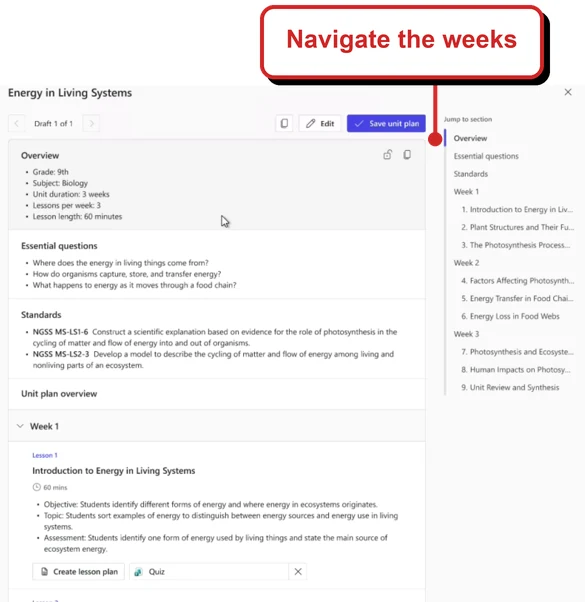
Microsoft Learn's cropped Unit Plans example, with my callout. It illustrates the plan structure, not current tenant availability.
📖 Microsoft Education: Unit Plans in Teach · Microsoft Learn: creating a unit plan · Microsoft Support: Teach access · Microsoft’s early Unit Plans demonstration · AI at Work Roadmap 577392
49. Windows Capture gets a later rollout date
For: eligible OneNote for Windows users and admins · November follow-up · rollout planned
In September I covered Capture on Android and noted that a Windows version was still in development. There is now a timing update: a publicly archived Message Center notice, updated 6 November, moves the planned worldwide Windows rollout from the end of October to the end of November. That is a plan, not proof it has reached your tenant.
Capture brings audio, images and notes together in Copilot Notebooks. On Windows, Microsoft’s instructions describe starting a capture from the OneNote system tray, or responding to a prompt for a supported third-party meeting. Copilot can produce a page with a transcript and insights for the selected notebook.
The notice specifies a Microsoft 365 Copilot licence, a commercial work or school account, and the Windows desktop apps including OneNote. Check your tenant and your own Message Center for the latest rollout status.
Post-cut-off source check, 11 November: Microsoft Support said Windows Capture for offline and third-party meetings was currently available only to Office Insiders Beta customers. The article is marked updated in November without a day, so I cannot confirm that wording was in place at the cut-off.
Before using Capture, obtain the participants’ consent and follow your organisation’s recording rules. Also checked after the cut-off on 11 November: there is a documentation conflict: the archived notice says captured audio is stored in the notebook, while Microsoft Support says audio is transient and deleted after transcription. I cannot resolve that difference from the public sources, so I would confirm the current behaviour and policies before making a retention commitment.
Why this matters: A conversation outside Teams can be brought alongside the other material in a Copilot Notebook, when the feature reaches you.
- In plain words: Windows Capture can help turn a conversation into a page you can revisit in your notebook.
- Picture this: With everyone's consent, a project team could capture a browser-based meeting, then review the transcript and suggested actions in its notebook.
- My take: Check the output and permissions before sharing it. A useful summary is not a substitute for checking what was actually said.
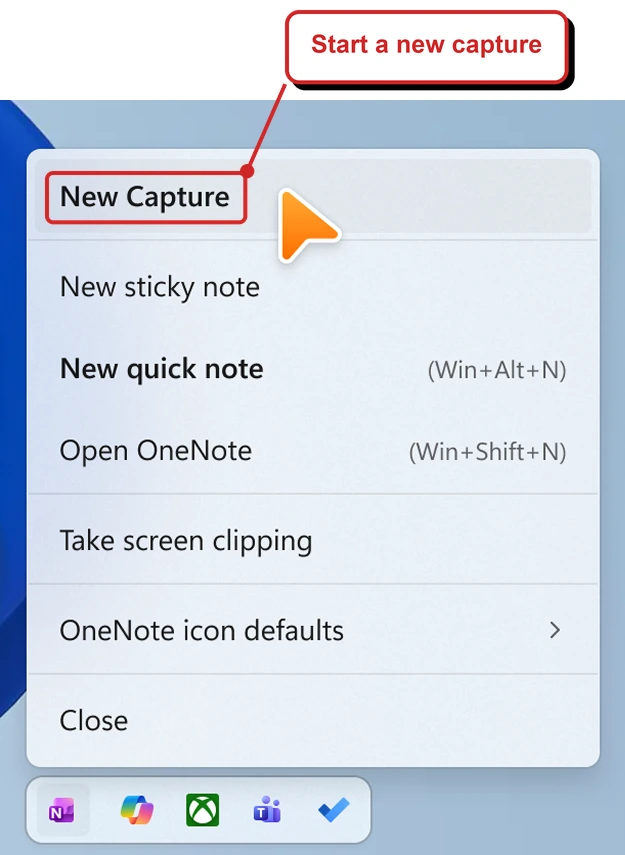
Microsoft's Windows Capture example, cropped with my red callout. It illustrates the menu, not a test in my tenant.
📖 Message Center archive: Windows rollout timing and requirements · Microsoft Support: Capture on Windows · Microsoft Support: consent and audio processing
50. Manage authoritative sources from the admin center
For: Microsoft 365 administrators · September catch-up · release notes report general availability
In September I covered how admins could mark SharePoint sites as authoritative using PowerShell or CSOM. Microsoft’s 4 November release notes describe an admin center interface for managing authoritative SharePoint sites in Copilot Search: go to Copilot → Search → Authoritative content. A public archive of Microsoft’s notice also describes adding and removing sites and importing or exporting a list, with a limit of 100 sites.
For example, an admin could review whether the organisation’s HR and policy sites belong in its list of official sources. I would agree that list with the content owners first: a site being designated authoritative does not by itself prove every page on it is current.
There is a role-permission wrinkle. The release notes say both Global admin and Global reader can make changes here, but Microsoft’s Entra role reference describes Global reader as read-only. I cannot resolve that difference from the public sources, so check the permissions available in your tenant rather than assuming a reader can edit.
The older SharePoint documentation still describes PowerShell and CSOM; the sources I checked do not establish whether the two interfaces use the same underlying list.
Why this matters: The admin center provides an interface for managing authoritative sources in Copilot Search without starting with a script.
📖 Microsoft 365 Copilot release notes: admin center · Message Center archive: authoritative source management · Microsoft Learn: SharePoint authoritative sites · Microsoft Learn: Global Reader role
How this issue was put together
The research cut-off is 11 November, 15:40 New Zealand daylight time. I used public Microsoft release notes, product posts and documentation, plus publicly archived Message Center notices. Section 4 identifies a release-notes page updated after the cut-off, section 10 identifies a Support page whose update day is unknown, and section 49 labels a later same-day Support check separately. Check the original Message Center in your own tenant for changes and applicability.
Earlier updates are labelled. Microsoft’s October roundup arrived after the October issue’s cut-off, so this issue catches up on changes that were not already covered. Follow-ups are included when there is a material change, such as the revised Windows Capture timing.
Roadmap dates are not tenant evidence. I checked both newly created roadmap records and records with planned availability in the period. A date or a “Launched” label does not prove a feature has reached every tenant. Where Microsoft sources disagree, I have kept the uncertainty in the relevant section.
Studio and Power Platform remain part of the series. This is a Copilot-focused selection, not an inventory of every Power Platform release.
About the images and testing. The screenshots are Microsoft’s examples, cropped or annotated where noted; they are not captures from my tenant. I have not tested these features in a tenant for this issue.
Official Microsoft resources
- Microsoft 365 Copilot release notes
- What’s new in Copilot Cowork
- AI at Work Roadmap
- Microsoft Copilot Blog
- Copilot Studio Blog